
Pictory’s screen recorder helps enterprise teams create polished screen recordings for training, compliance, IT walkthroughs, sales enablement, and product demos without stitching together multiple tools. Record in your browser, then use AI to transcribe, clean up the audio, add subtitles, and move into the editor for brand-consistent delivery at scale.
This guide shows you how to use Pictory’s smart screen recorder end to end, from choosing a recording mode to exporting a finalized video.
Why Pictory’s AI Screen Recorder Works for Enterprise Teams
Enterprise video workflows often break down due to tool sprawl, long production cycles, and inconsistent branding. Pictory combines recording and AI-assisted editing so teams can move from capture to a finished asset faster.
-
One workflow from screen capture to AI transcription to video editor
-
Faster iteration with retakes, transcript editing, and storyboard-based editing
-
Scalable consistency using Brand Kits for logos, fonts, and colors
-
Shareable outputs for internal stakeholders, learners, or customers
Screen Recorder Online Setup: Choose the Right Recording Mode
Start from the Pictory Home screen and open the recording workflow.
Step 1: Open the Record tool from the Pictory Home screen
In Pictory, select Record to launch the recording dialog.
Step 2: Select what you want to record (screen recorder modes)
When prompted, choose one of the options:
-
Webcam only for presenter-led updates or internal announcements
-
Screen & webcam for training, demos, and enablement where presence builds trust
-
Screen only for clean, distraction-free walkthroughs and process documentation
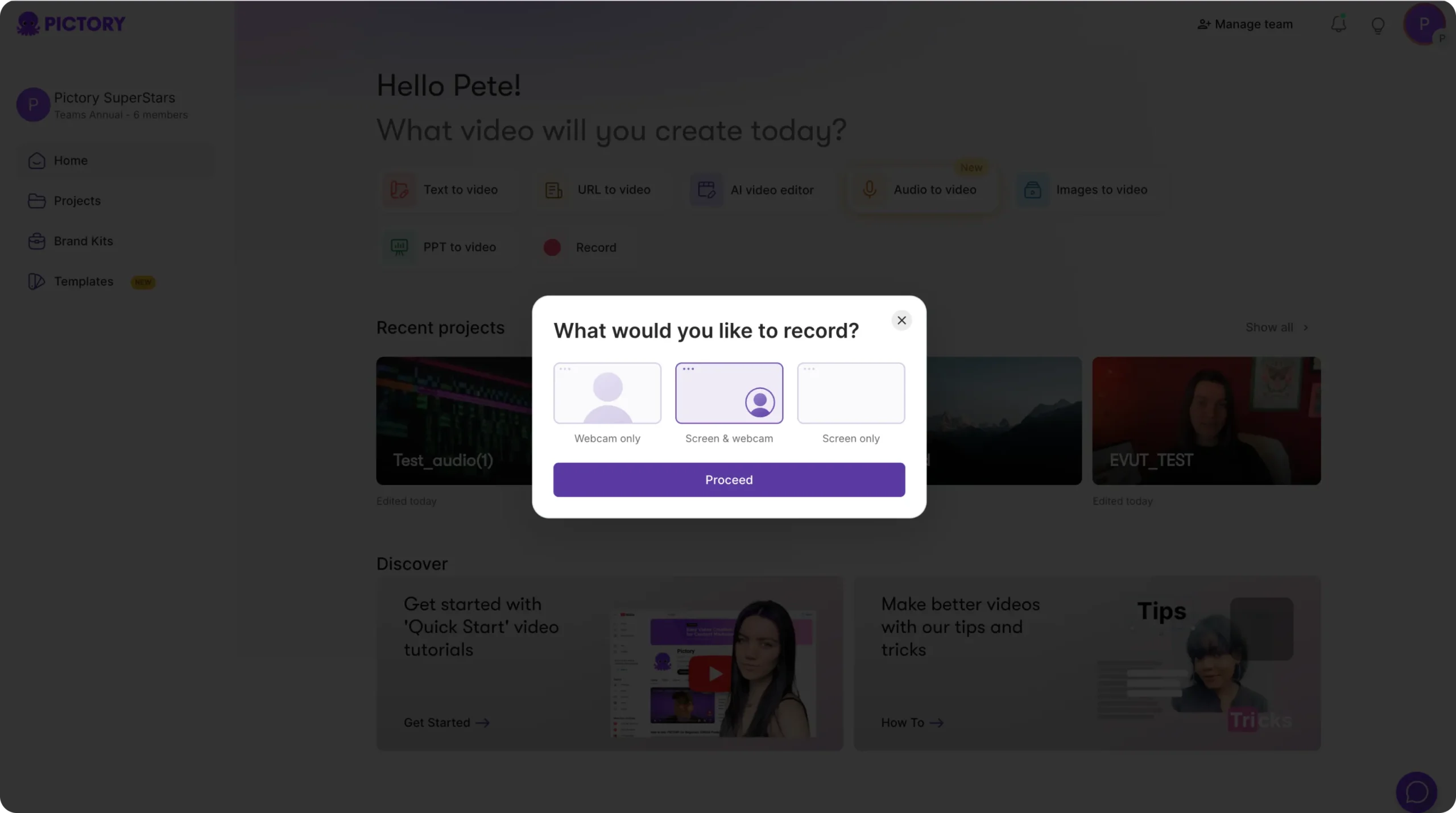
Step 3: Click Proceed to open the in-browser recording interface
After selecting your mode, click Proceed to open the recording interface and verify your inputs before starting.
How to Record with the Smart Screen Recorder (In-Browser Controls)
Pictory’s screen recorder online interface includes essential capture controls so you can record quickly and stay focused on delivery.
Step 1: Confirm your preview and audio levels
If you selected webcam, you will see a live webcam preview. Watch the audio level indicator to confirm your mic is being captured clearly.
Step 2: Start recording and deliver your walkthrough
Click Start to begin. Use the timer display to manage time, especially for structured training segments.
Step 3: Use Pause, Stop, and Retake to control quality
Use:
-
Pause when switching systems, windows, or sections of the demo
-
Stop when complete to finalize the capture
-
Retake to redo the recording immediately if something went wrong
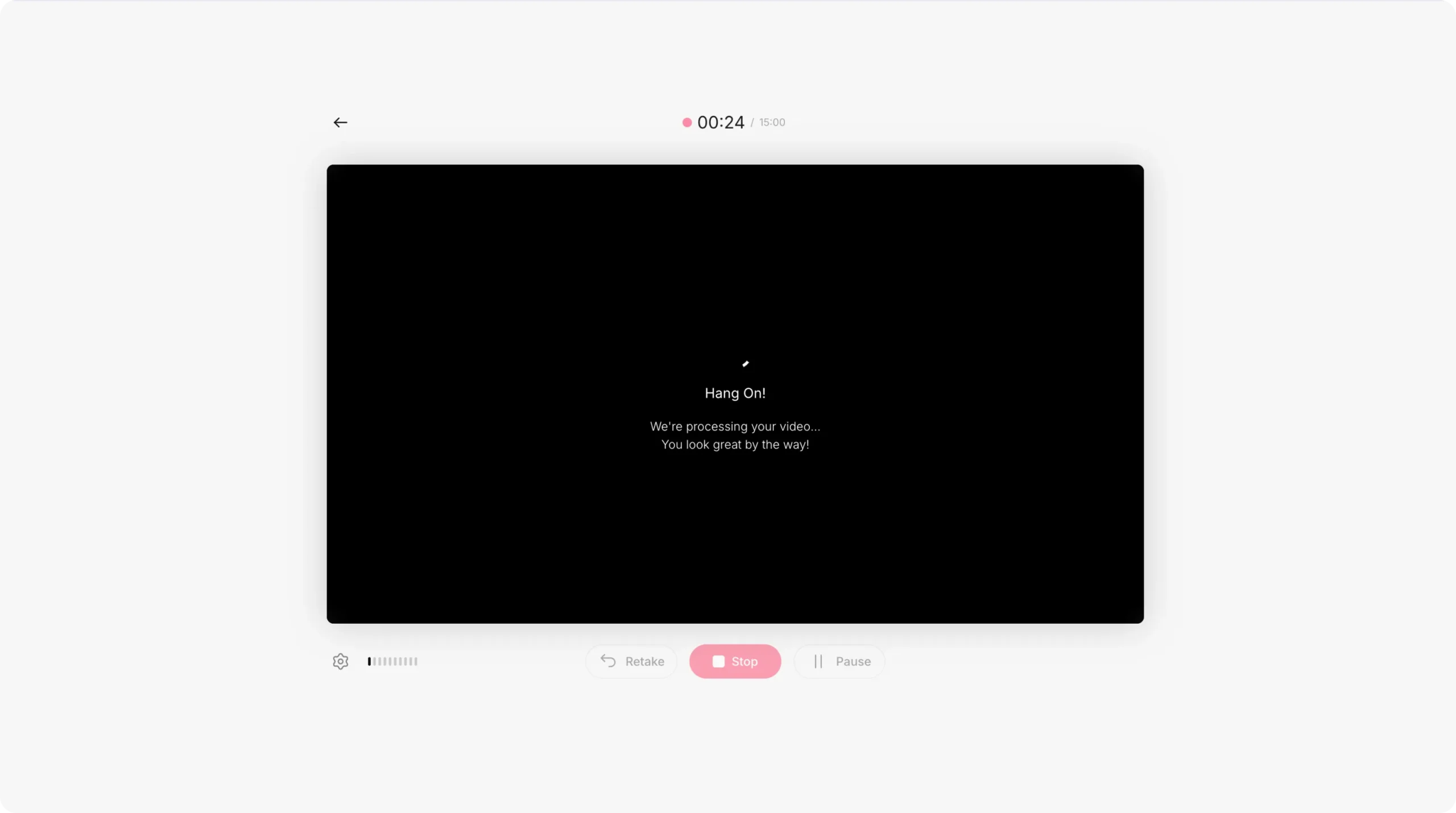
When you click Stop, Pictory saves the recording automatically.
Recording Review: Preview, Retake, Download, or Edit Video Using AI
After you stop recording, you will see a review screen that helps you decide whether to finalize or refine.
Step 1: Play the recording to review content and pacing
Preview the video to ensure your steps are complete, your narration is clear, and any sensitive information is not visible.
Step 2: Retake or delete if the recording is not usable
If the recording does not meet internal standards, choose Retake. If you no longer need it, delete the file.
Step 3: Choose your next action (AI editing or download)
You can proceed in one of two ways:
-
Download video if you only need the raw capture
-
Edit video using AI to unlock transcription, subtitle styling, cleanup tools, and the full editor
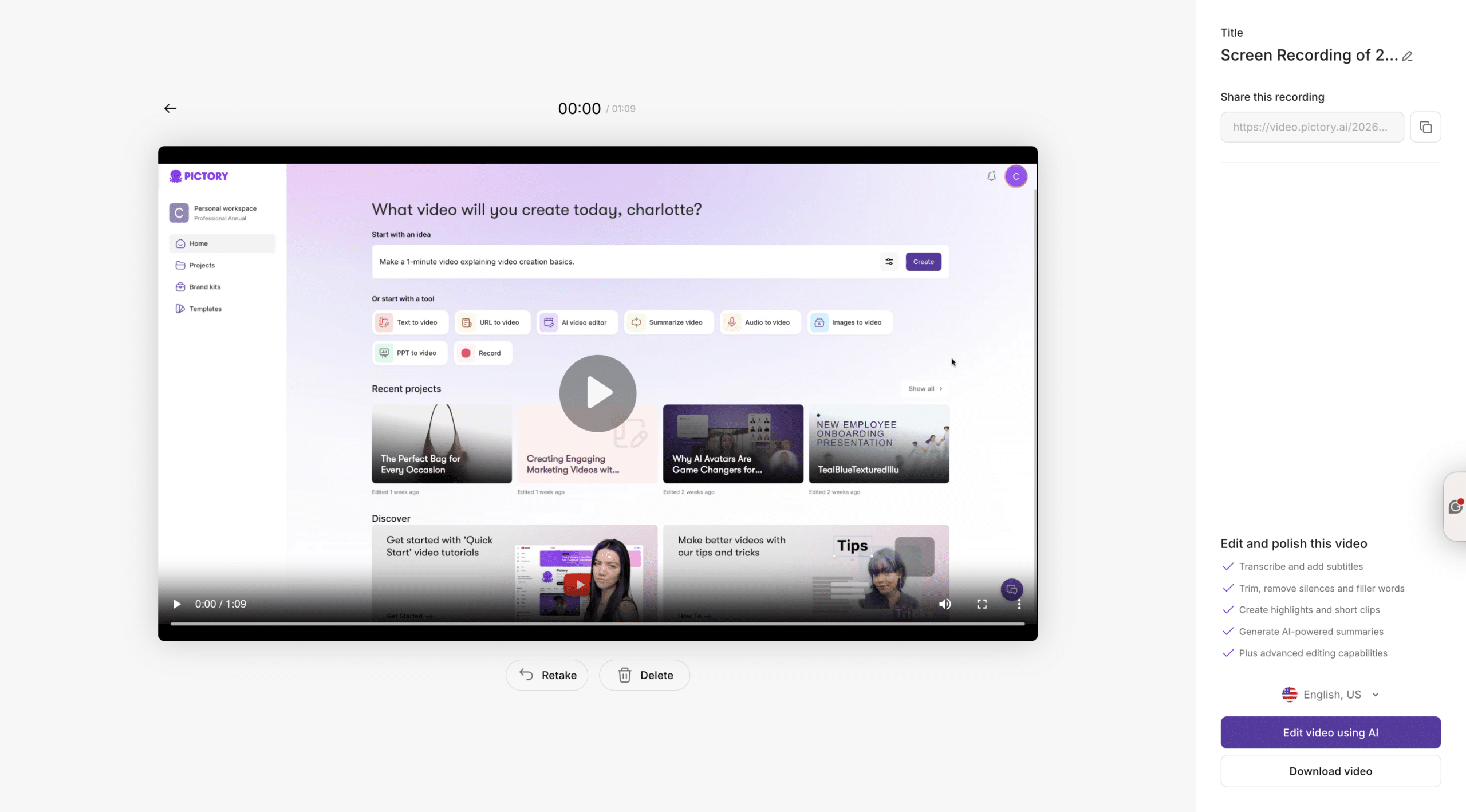
A shareable link is also available from this screen, making it easier to circulate drafts for review.
AI Screen Recorder to Transcript: Automatic Transcription and Cleanup
When you select Edit video using AI, Pictory begins turning your recording into editable text so you can refine it quickly, which is ideal for enterprise review cycles.
Step 1: Wait for “Transcription in progress” to complete
A progress screen appears while transcription runs. You can return to Home and keep working while processing completes.
Step 2: Edit the script in the Script & Transcript Editor
In the transcript workspace:
-
Use search and replace to quickly update terminology, product names, or standardized phrasing
-
Enable auto highlight phrases to surface key points for later clipping or emphasis
-
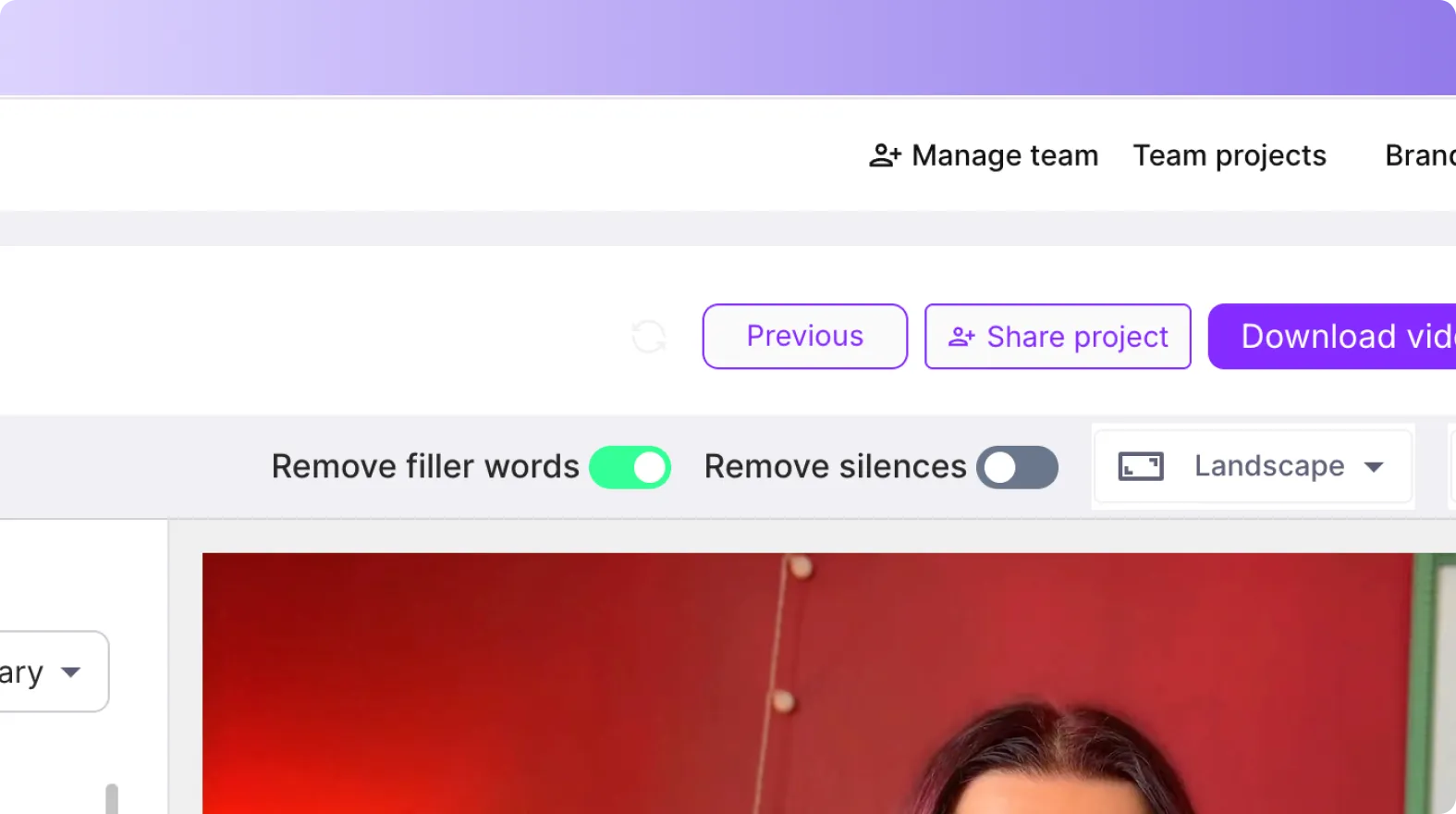
Toggle remove filler words for a more professional delivery
-
Toggle remove silences to tighten pacing for learner engagement
Step 3: Configure subtitles for clarity and accessibility
Set subtitle line limits and apply a text style (for example: Navy Blue, Default, or Classic) to align with internal brand and accessibility standards.
From this screen, you can choose Download Video or proceed to Customize Video for full editing.
Turn a Screen Recording into a Storyboard and Edit Like a Pro (Best Screen Recorder Workflow)
After transcript edits, Pictory converts your recording into a storyboard so you can manage it scene by scene, which is typically faster than traditional timeline-only editing for training content.
Step 1: Let Pictory create storyboard scenes from your transcript
Pictory shows a “Please wait while the video storyboard is being created…” progress screen as it segments your content into scenes.
Step 2: Navigate and manage scenes using the updated timeline
In the editor, use the bottom timeline thumbnails to move quickly through sections. You can also right-click scene thumbnails to:
-
Duplicate a scene for variations
-
Link with next to maintain continuity
-
Copy and Paste after for repeatable patterns like step instructions
-
Delete to remove irrelevant sections
Use the timeline zoom control to navigate long recordings more efficiently.
Step 3: Use editor tools to polish the final training or demo video
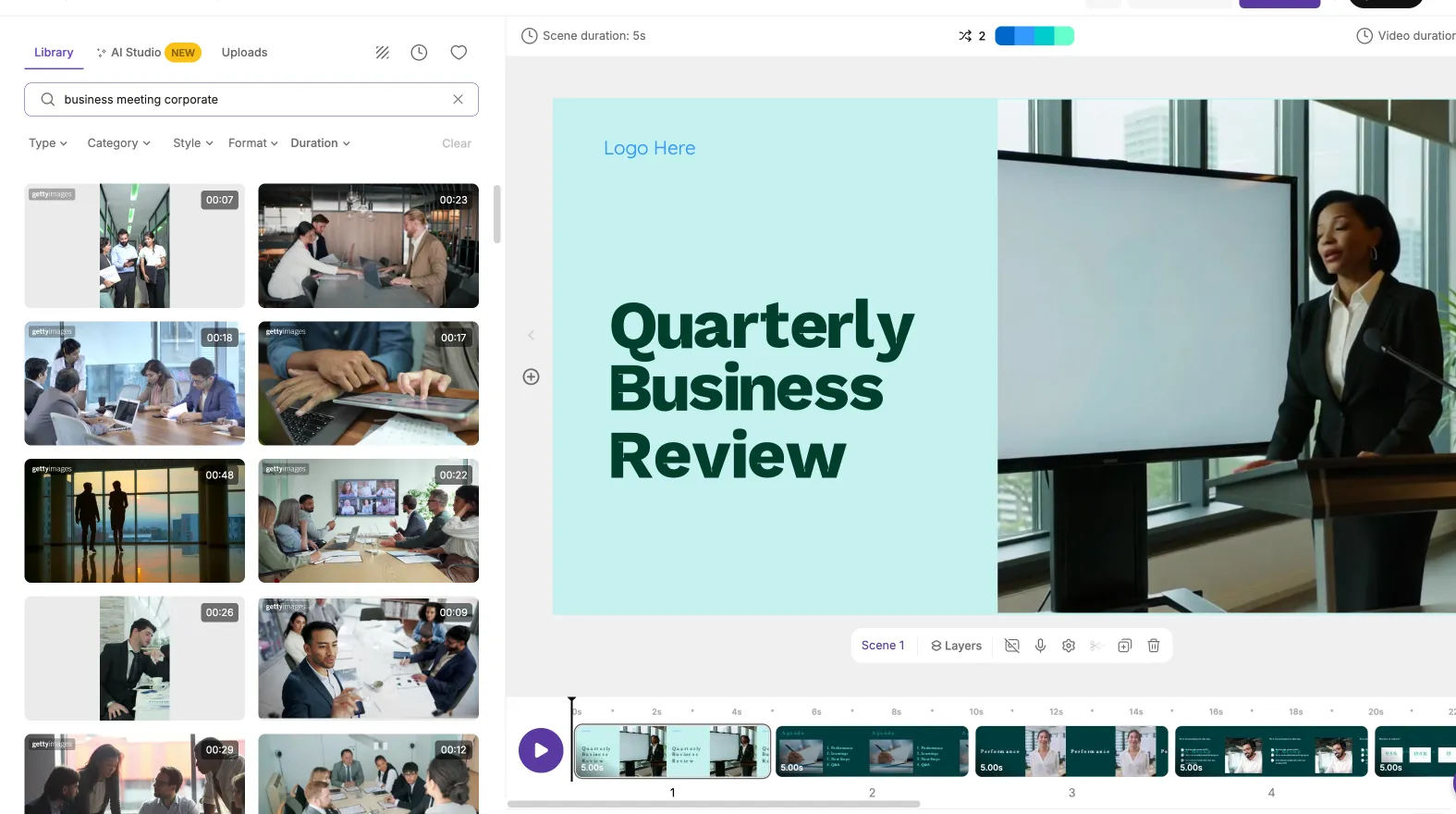
From the left sidebar, refine your video with:
-
Story to adjust scene text and narration structure
-
Visuals to add stock media, use your uploads, or generate AI visuals in AI Studio
-
Audio to manage voiceover and background music
-
Text and Elements to add labels, callouts, and on-screen instructions
-
Styles to standardize typography and captions
-
Branding to apply Brand Kits for enterprise brand consistency
-
Avatars to add an AI presenter (where appropriate for enablement or guided training)

Use Preview Video for quality checks, then Download when approved. You can also use Share preview inside the editor to streamline stakeholder review.
Enterprise Best Practices for Screen Recorder Videos: Consistency, Compliance, and Scale
To get reliable results across teams and departments, standardize how screen recordings are planned, recorded, and finalized.
-
Use Brand Kits so captions, fonts, and colors match brand guidelines across every training module
-
Keep scenes short so learners can follow steps and retention improves
-
Use subtitles to support accessibility and silent viewing
-
Trim filler words and silences to reduce seat time without sacrificing clarity
-
Create repeatable templates with consistent intros, section headers, and callouts for faster production
FAQ: Screen Recorder
Is Pictory a screen recorder online, or do I need to install software?
Pictory’s screen recording workflow runs in-browser. You start from the Home screen by selecting Record and proceed through the recording interface without requiring a separate desktop recorder for the core workflow.
What recording modes are available in the Pictory screen recorder?
You can record webcam only, screen and webcam, or screen only. This makes it easy to produce anything from presenter-led training to clean software walkthroughs.
Can I edit my screen recording using AI after I record?
Yes. After recording, choose Edit video using AI to generate an automatic transcript, remove filler words and silences, style subtitles, and then move into the full storyboard-based editor.
How do I create captions and subtitles for a recorded screen video?
In the Script and Transcript Editor, configure subtitle line limits and select a text style (such as Navy Blue, Default, or Classic). Subtitles stay synchronized to playback for review and refinement.
How can enterprise teams keep screen recordings brand-consistent?
Use Brand Kits within the editor’s Branding tab to apply consistent logos, fonts, and colors. This helps L&D, enablement, and compliance teams produce on-brand videos at scale.
What is the fastest way to remove pauses and verbal fillers from a screen recording?
In the transcript editor, enable the remove filler words and remove silences toggles. This quickly tightens delivery and reduces runtime without manual cutting.


