
PICTORY FEATURES
Doc to Video: Turn Documents into Videos with AI
Most documents never get read. A training manual sits in a shared drive. A blog post loads slowly and loses the reader in the first paragraph. Pictory's doc to video workflow changes that. Paste a URL or feed in written content and Pictory builds a structured video from it. Scenes, captions, visuals, brand styling, and voiceover are all generated without timeline editing or third-party tools.
Rated 4.7/5 on Capterra
-
URL to Video
-
Audio to Video
-
AI Avatar Generator
-
AI Video Editor
-
PPT to Video
-
Image to Video
Text to Video Generator
Turn text, prompts, scripts, articles, and blog posts into videos using Gen AI visuals, AI avatars, captions, and realistic AI voices.
URL to Video
Audio to Video
AI Avatar Generator
AI Video Editor
PPT to Video
Image to Video






Trusted by over 20,000 companies of all sizes
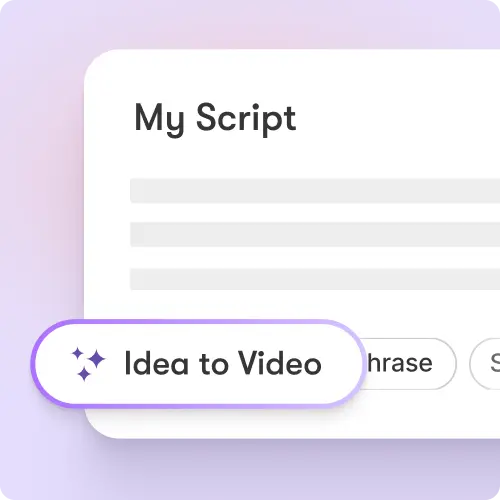
Doc to video is the process of taking written content — a blog post, a training script, a landing page, or a Word document — and converting it into a structured video automatically. Pictory handles this through two main workflows: URL to Video and Text to Video. Both extract the written content, generate a storyboard, match visuals to each scene, add synchronized captions, and open everything in the same video editor where you apply branding, swap visuals, adjust pacing, and export the finished file. There is no separate tool for captioning, no separate platform for branding, and no timeline to arrange clips manually.
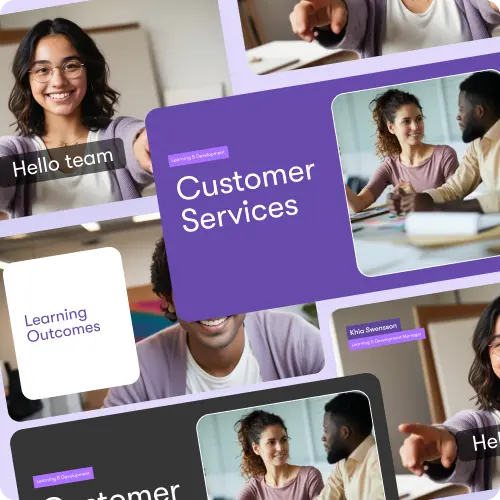
Writers who produce blog content regularly can turn each post into a video for YouTube, LinkedIn, or social clips without doing the work twice. Marketing teams can take landing page copy or product announcements and produce video versions for ads and email campaigns without hiring a production team. HR and L&D teams can convert onboarding documents, policy updates, and training materials into short video lessons employees actually watch. Agencies can scale video production for clients by converting approved copy directly into videos rather than building from scratch each time.
Core Tools inside the Doc to Video Editor
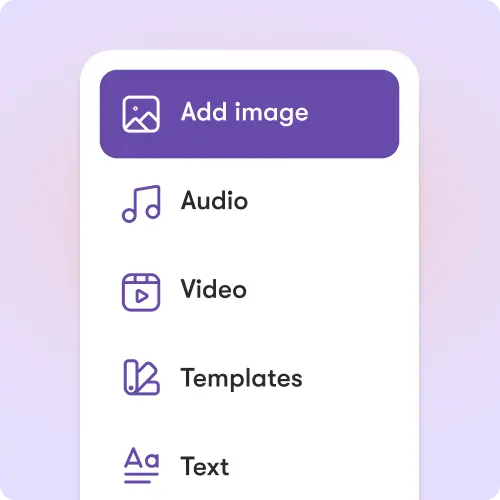
Pictory's editor gives you full control over every element of the video after the initial conversion. The tools inside the left menu cover every part of the production.
Story Tab
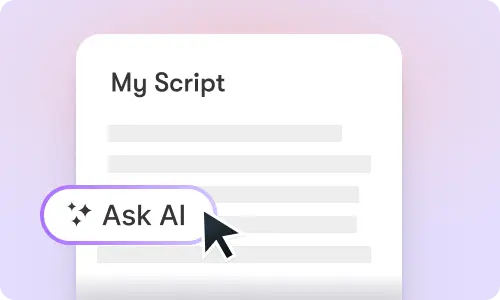
Edit or rewrite scene text, reorder scenes, adjust the narrative flow, and control how the AI generates captions from your content.
Audio Tab
Choose from a library of AI voiceovers in multiple languages and accents, add background music, or upload your own narration.
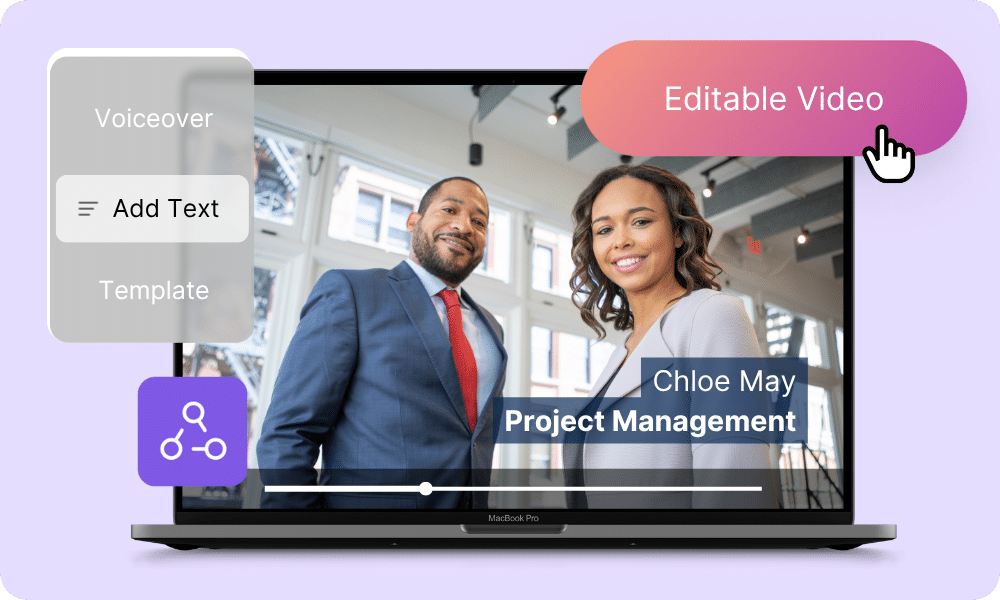
Text and Styles Tabs
Add on-screen headings and body text over scenes, animate them using Fade, Typewriter, Wipe, and Elastic effects, and apply preset style themes or save your own for visual consistency.
Visuals Tab
Replace AI-selected stock footage with your own uploads or generate new visuals using AI Studio with a text prompt.
Branding Tab
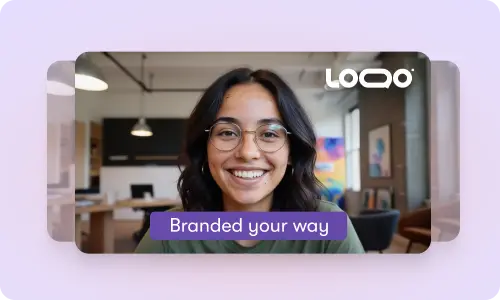
Apply a brand kit that sets your logo, fonts, and color palette across the entire video in one click. Shuffle color combinations within a kit to test alternate pairings while maintaining brand consistency.
Avatars Tab
Place an AI presenter inside any scene to narrate content on screen without recording yourself. Avatars can be shown or hidden per scene and are automatically lip-synced on export.
Each of these features ensures your idea evolves into a professional video workflow that aligns with your goals and platform strategy.
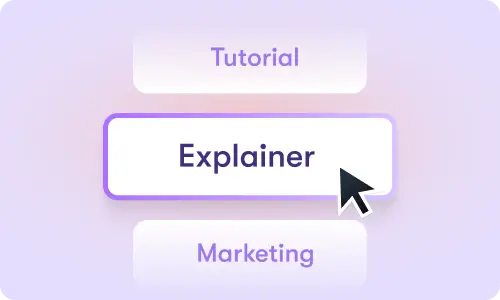
Open URL to Video from the Pictory home screen. Paste in the full URL of the blog post, product page, or web article you want to convert. Choose a video type — Explainer, Marketing, Internal Communication, or Tutorial — add supporting context, select the platform and video length, then click Generate Script. Pictory extracts the content and builds a draft script you can edit directly. Set the aspect ratio (16:9, 9:16, or 1:1), select your brand kit, configure scene settings, then click Generate Video. Choose a layout theme — options include Modern Minimalist, Kinetic, Chic, Wanderlust, and Bulletin — and Pictory builds the storyboard and opens the full editor.

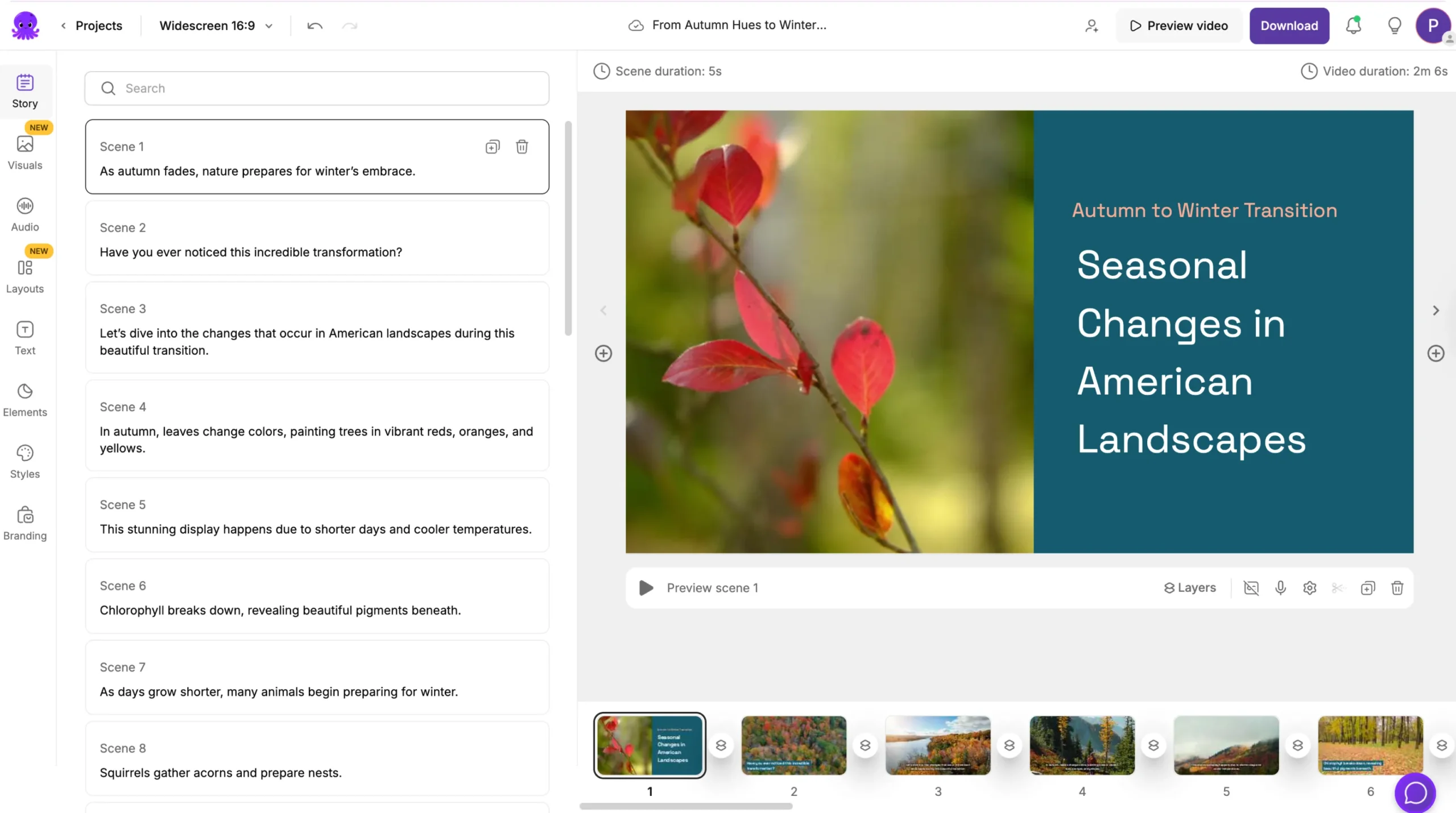
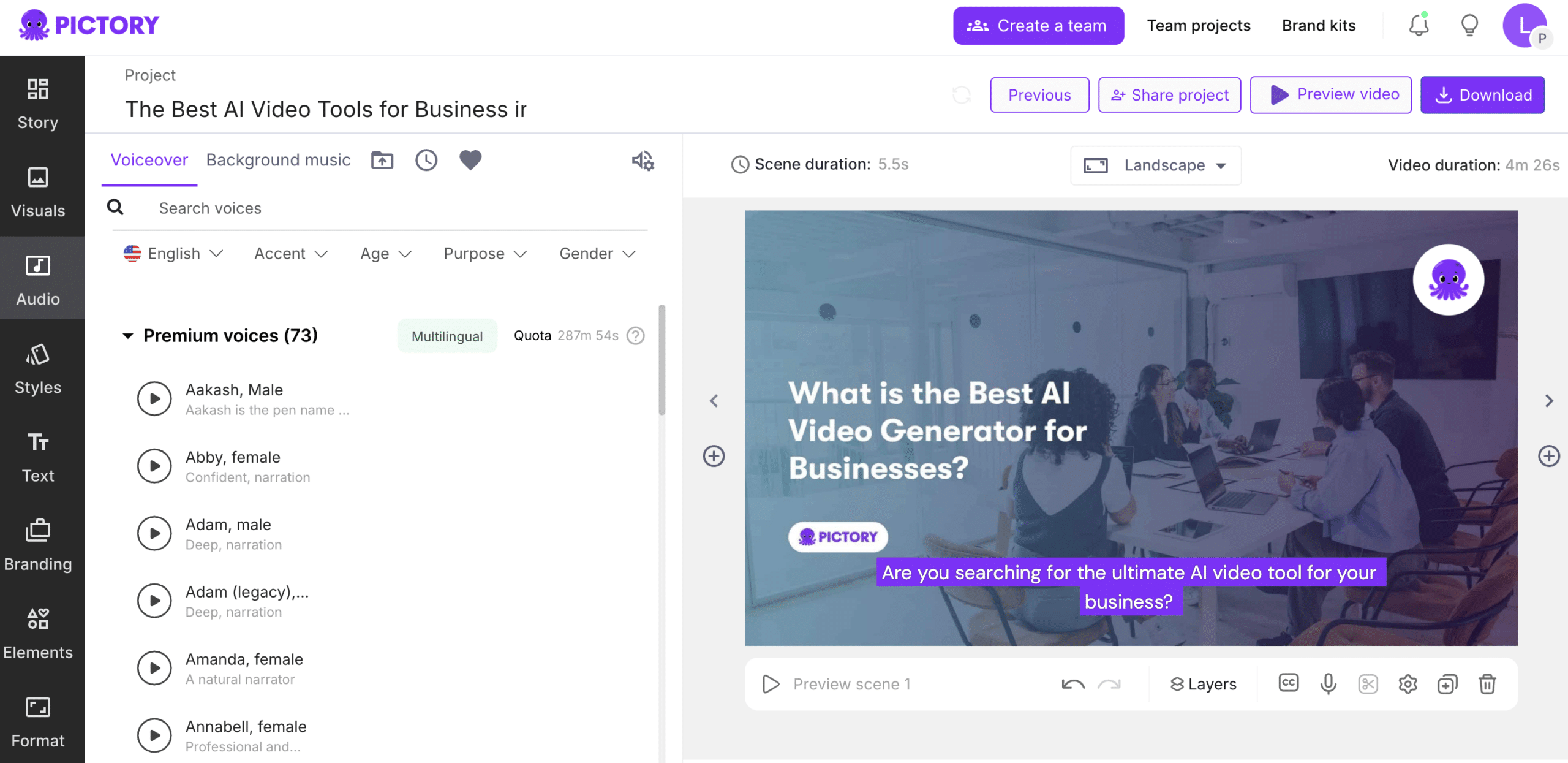
The left panel shows each scene with editable text. The right panel shows a live preview. The bottom timeline shows scene thumbnails for navigation and supports zoom control. Replace visuals in the Visuals tab, adjust the voiceover and music in the Audio tab, apply your brand kit in the Branding tab, and add animated on-screen overlays using the Text tab. Scene thumbnails support right-click actions: Duplicate, Copy, Paste after, Link with next, and Delete.
Step 1
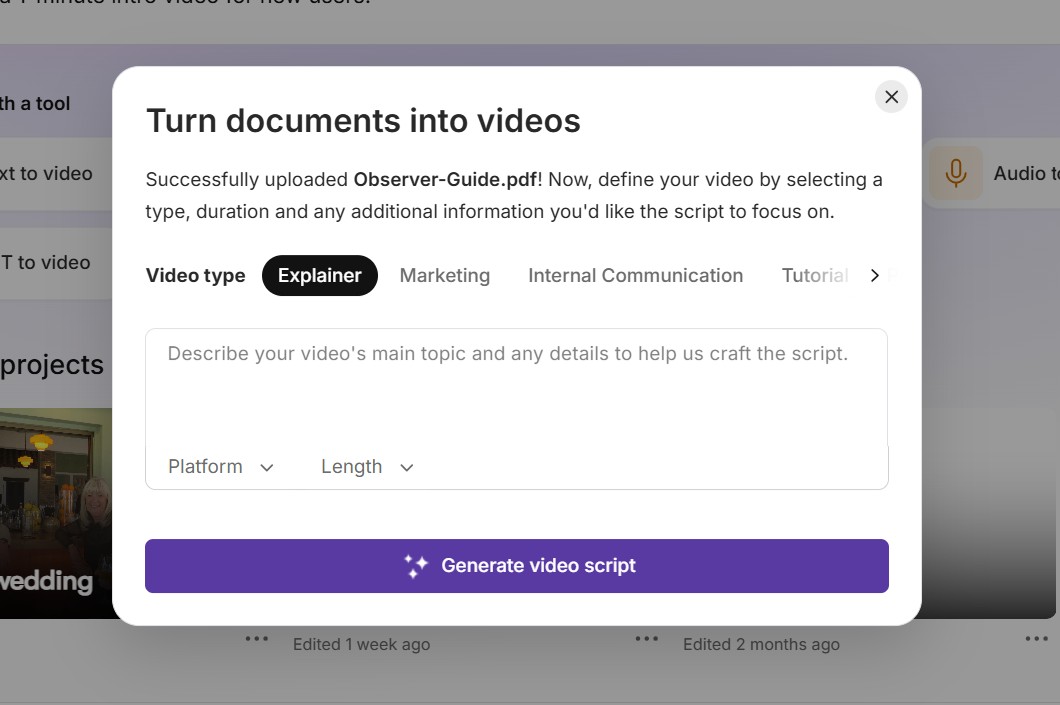
Open Doc To Video Feature and upload your document
Select Doc to Video from the Pictory home screen. Drag your document onto the screen or click browse to find the file and select Upload. On the next screen describe the type of video you want to create, select your platform and length.
Step 2
Configure scene and style settings
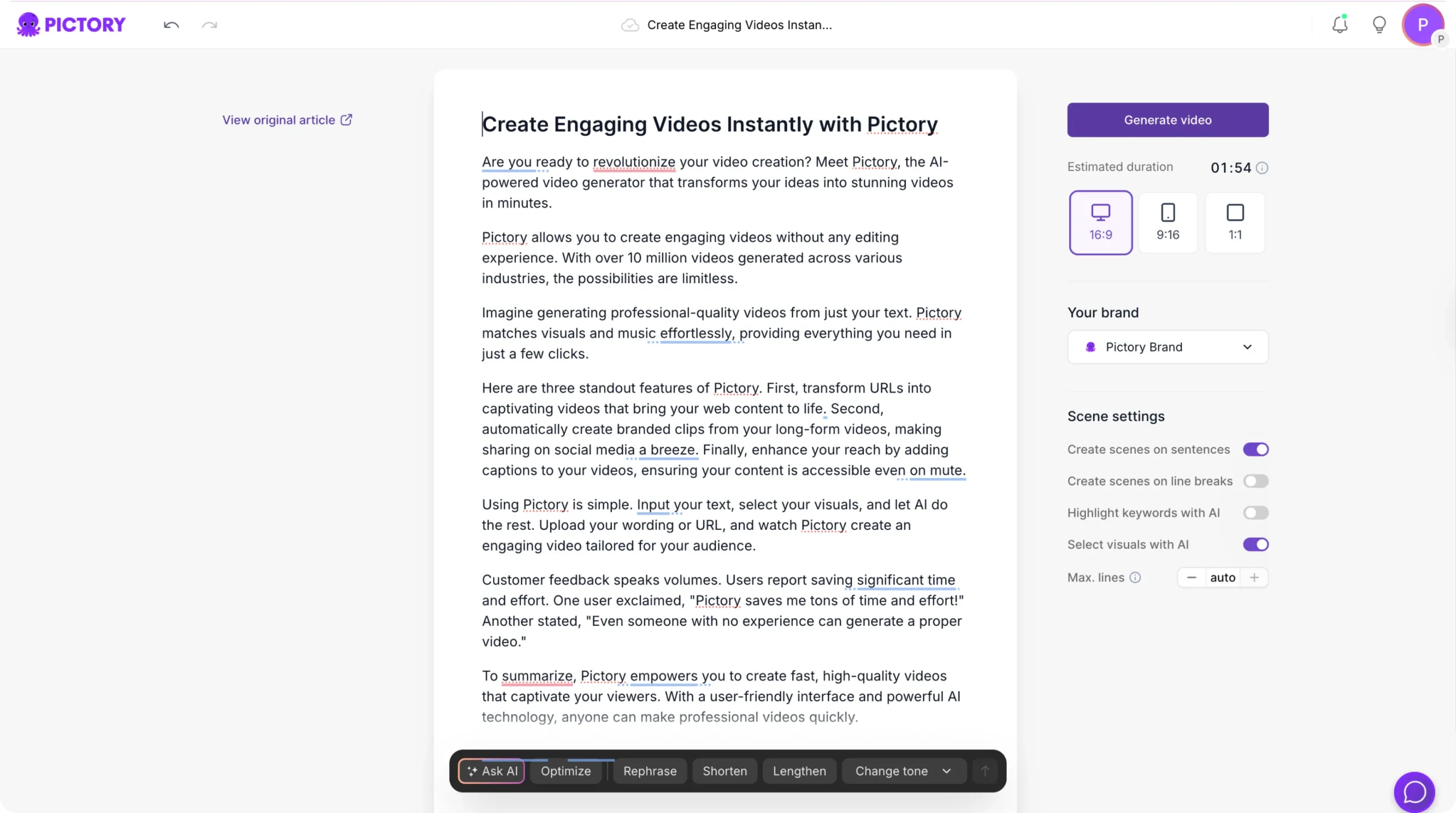
In the script editor, toggle settings for how scenes divide (by sentence or line break), whether to highlight keywords, and how many lines appear per scene. Set the aspect ratio, estimated duration, and select your brand kit. Use the Ask AI tools — Optimize, Rephrase, Shorten, Lengthen, Change Tone — to refine any section before generating.
Step 3
Choose a visual theme and generate the storyboard
Click Generate Video. Select a layout theme from the theme picker. Pictory processes the script into a scene-based storyboard with AI-matched visuals. A progress bar tracks the process. Once complete, the full video editor opens.
Step 4
Edit, preview, and export the finished video
Refine text, swap visuals, adjust the AI voiceover, add music, apply brand kits, and use text animations in the editor. Click Preview Video to review the full result, then Download Video to export. A share preview link lets you get sign-off before final download. The project saves automatically under My Projects.
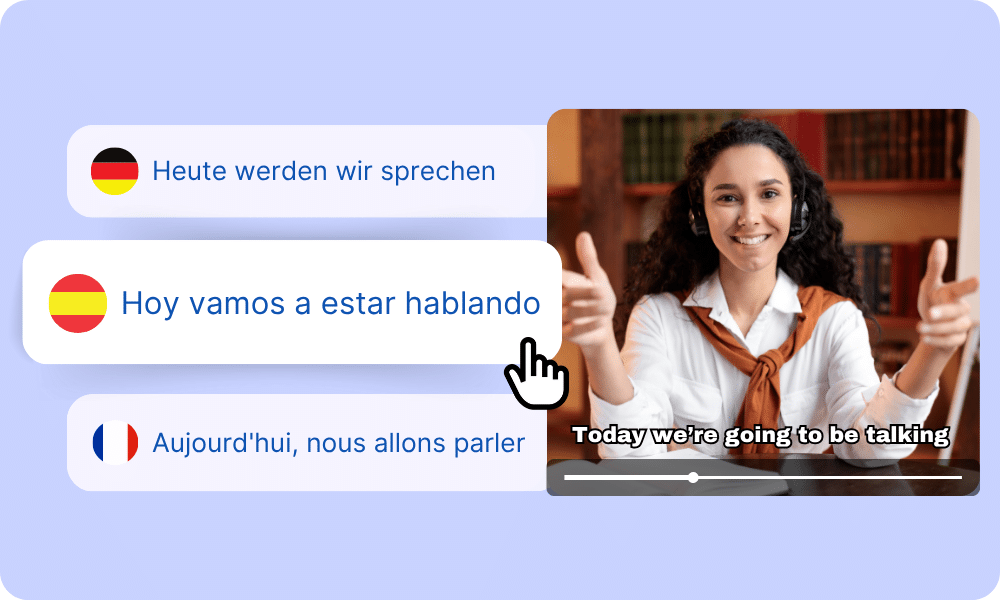
Pictory supports multiple languages for captions and voiceover, making it practical for teams producing content for international audiences or multilingual markets. Select the language in the Audio tab when choosing your AI voice, and captions sync automatically to match the narration language.

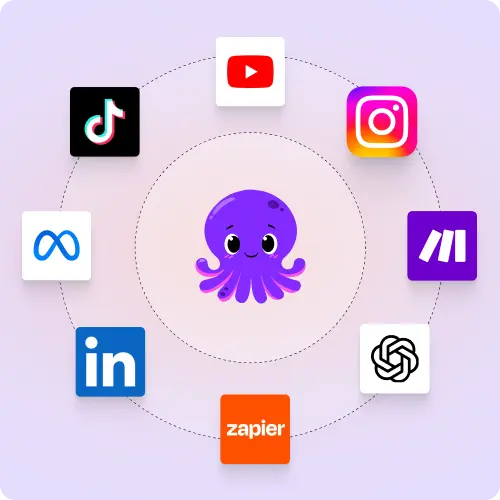
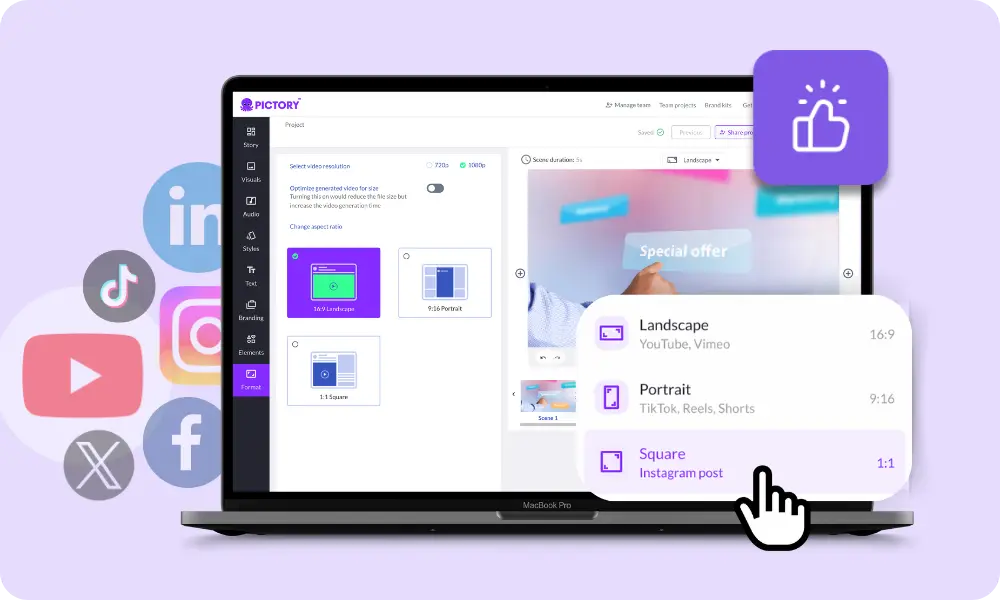
Videos export in widescreen (16:9), square (1:1), and vertical (9:16) formats, making them suitable for YouTube, LinkedIn, Instagram Reels, TikTok, Facebook, email campaigns, websites, onboarding portals, and LMS platforms. Pictory integrates with Make and Zapier for workflow automation, and the Chrome extension supports further repurposing from browser-based content.
Reasons to Use Pictory's Doc to Video Workflow
Use Cases for Doc to Video

Marketing Campaigns:
Generate explainer videos or product teasers from your campaign concepts instantly.

Educational Tutorials
Turn lesson ideas into complete teaching videos with narration and visuals.

Corporate Training
Convert internal communication topics into polished instructional videos.

Social Media Content
Create short-form videos tailored for brand awareness and audience engagement.
Get Started with Doc to Video
Turn your existing written content into structured, branded videos using Pictory's doc to video workflow. No editing experience required.
In partnership with










FAQ: Doc to Video with Pictory
What types of documents can Pictory convert to video?
Pictory works with blog posts and web articles via URL to Video, and with scripts, outlines, or any written text via Text to Video. If your content lives online with a public URL or can be pasted as text, Pictory can convert it into a structured video.
Do I need video editing experience to use the doc to video workflow?
No. Pictory handles scene creation, visual selection, caption generation, and voiceover automatically. The editor uses a scene-based layout rather than a traditional timeline, so you can swap visuals, adjust text, and apply branding without prior editing experience.
How does Pictory choose the visuals for each scene?
Pictory's AI matches stock footage from its library to the text content in each scene. You can replace any visual by opening the Visuals tab, searching for different stock footage, uploading your own media, or generating custom visuals using AI Studio with a text prompt.
Can I add my company branding to doc to video output?
Yes. Brand kits in Pictory store your logo, fonts, and color palette. Apply a brand kit in the Branding tab and it updates every scene at once. You can also shuffle color combinations within a kit to test alternate pairings while keeping the overall brand consistent.
Can I use the doc to video workflow for training and onboarding content?
Yes. Training scripts, onboarding documents, and procedural content all work well in Pictory's doc to video workflow. The PPT to Video feature also converts PowerPoint presentations — up to 90 slides — into video lessons, with speaker notes optionally used as narration.
Does the doc to video workflow support multiple languages?
Yes. Pictory supports multiple languages for captions and voiceover, making it practical for teams producing content for international audiences or multilingual markets.


SOC 2 & GDPR compliant
OPE0072201
Copyright 2026 Pictory.ai - Privacy Policy / Terms of Service / NSFW / Copyright Policy / Sitemap


