
Sales enablement trends 2026 point to a clear priority for enterprise revenue teams: create more high-quality, brand-consistent video content faster, with fewer tools and less production overhead. Pictory helps sales enablement teams, L&D, and marketing teams convert existing enablement assets into professional videos using AI workflows such as Text to Video, URL to Video, PPT to Video, the AI Video Editor, and built-in Brand Kits.
This guide shows exactly how to operationalize sales enablement content strategy in 2026 using Pictory so you can produce sales training video content, product messaging updates, microlearning video examples, and internal communication videos without a traditional editing bottleneck.

Sales enablement trends 2026: What enterprise teams need from sales enablement technology
Enterprise sales enablement is shifting from one-off content creation to scalable systems that prove impact. The most effective sales enablement tools in 2026 will support speed, consistency, and measurable adoption across teams.
Repurpose existing content into video from scripts, URLs, webinars, and presentations to maximize content ROI.
Maintain brand consistency across regions and business units with Brand Kits, templates, and style controls.
Accelerate updates when messaging changes, competitive positioning shifts, or pricing and packaging updates.
Scale microlearning for onboarding, product training, and battlecards as video microlearning modules.
Reduce tool sprawl by consolidating workflows into an all-in-one AI video platform.
These trends align directly with modern sales enablement strategy: faster creation, easier updates, and consistent delivery of sales enablement collateral across channels.
How to plan a 2026 sales enablement content strategy for AI video production
Before you create videos, define a repeatable structure for your sales enablement program. This helps you build a predictable pipeline of enablement assets that reps can actually use.
Choose 3 to 5 core video formats: onboarding videos for new employees, product updates, objection handling, competitive takeouts, and compliance training video refreshers.
Standardize length targets: 60 to 120 seconds for microlearning, 3 to 7 minutes for deeper training, and 15 to 45 seconds for reinforcement clips.
Define brand and voice rules: approved logo usage, colors, fonts, and voiceover tone for different audiences.
Decide inputs by source: scripts for new content, URL to Video for product pages and internal wikis, PPT to Video for existing decks, and AI Video Editor for recordings and calls.
With this structure, Pictory becomes a sales enablement automation layer that turns existing enterprise knowledge into consistent video outputs.
How to create a sales enablement Brand Kit for consistent enterprise video (sales enablement tools 2026)
Brand consistency is a top requirement in enterprise sales enablement. Pictory Brand Kits allow teams to standardize logos, fonts, and colors across every video created by different stakeholders.
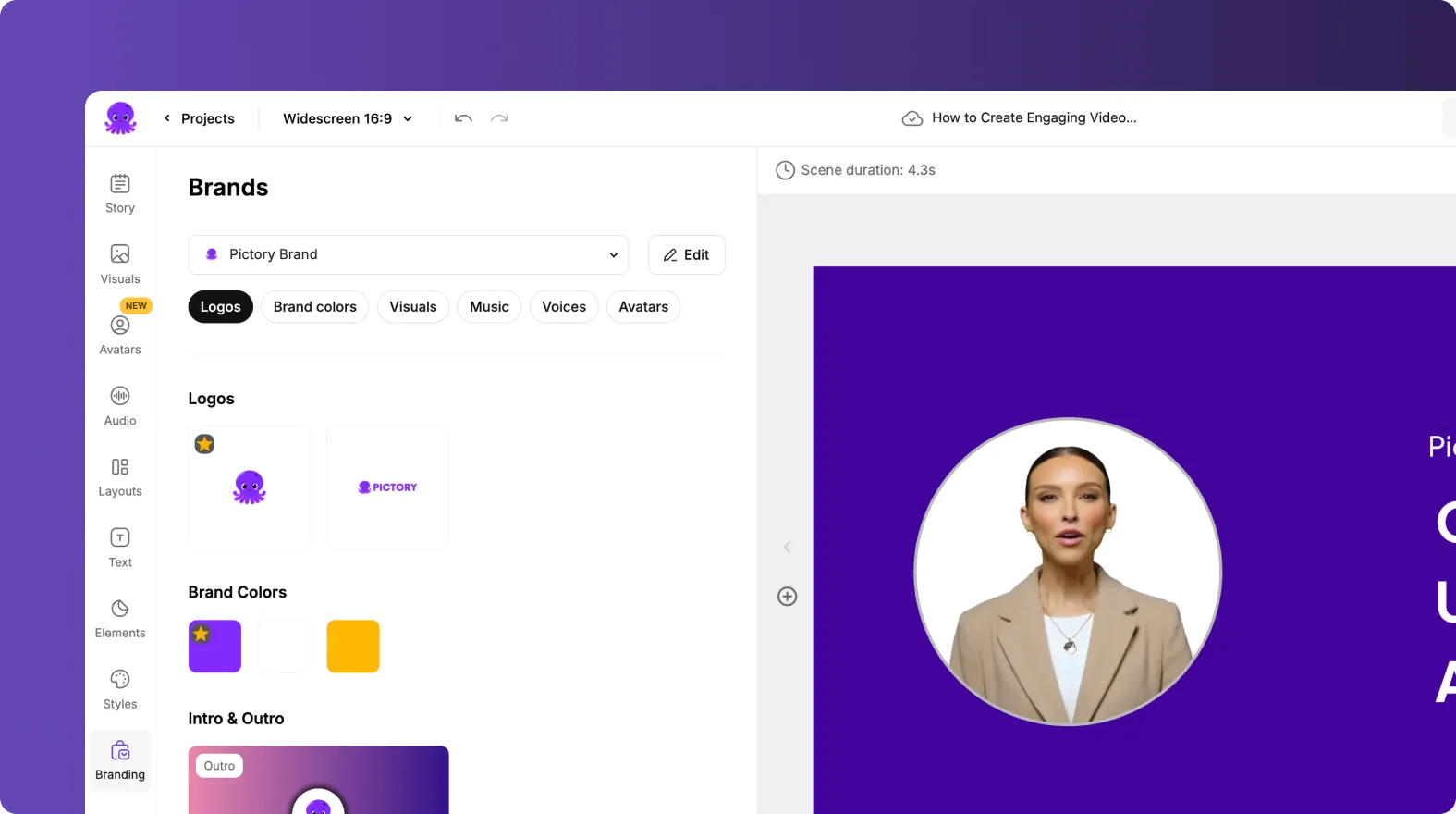
Step 1: Open Brand Kits and review existing enterprise brands
From the left navigation, open Brand Kits. Review “My Brands” to confirm whether your enterprise kit already exists, including logo variations and baseline styling.
Step 2: Create a new Brand Kit for your sales enablement team
Select Create a Brand and complete the required fields:
- Brand Name
- Brand Logo uploads (include variations if your org requires them)
- Brand Colors (primary and secondary)
- Brand Font selection from Pictory’s font library
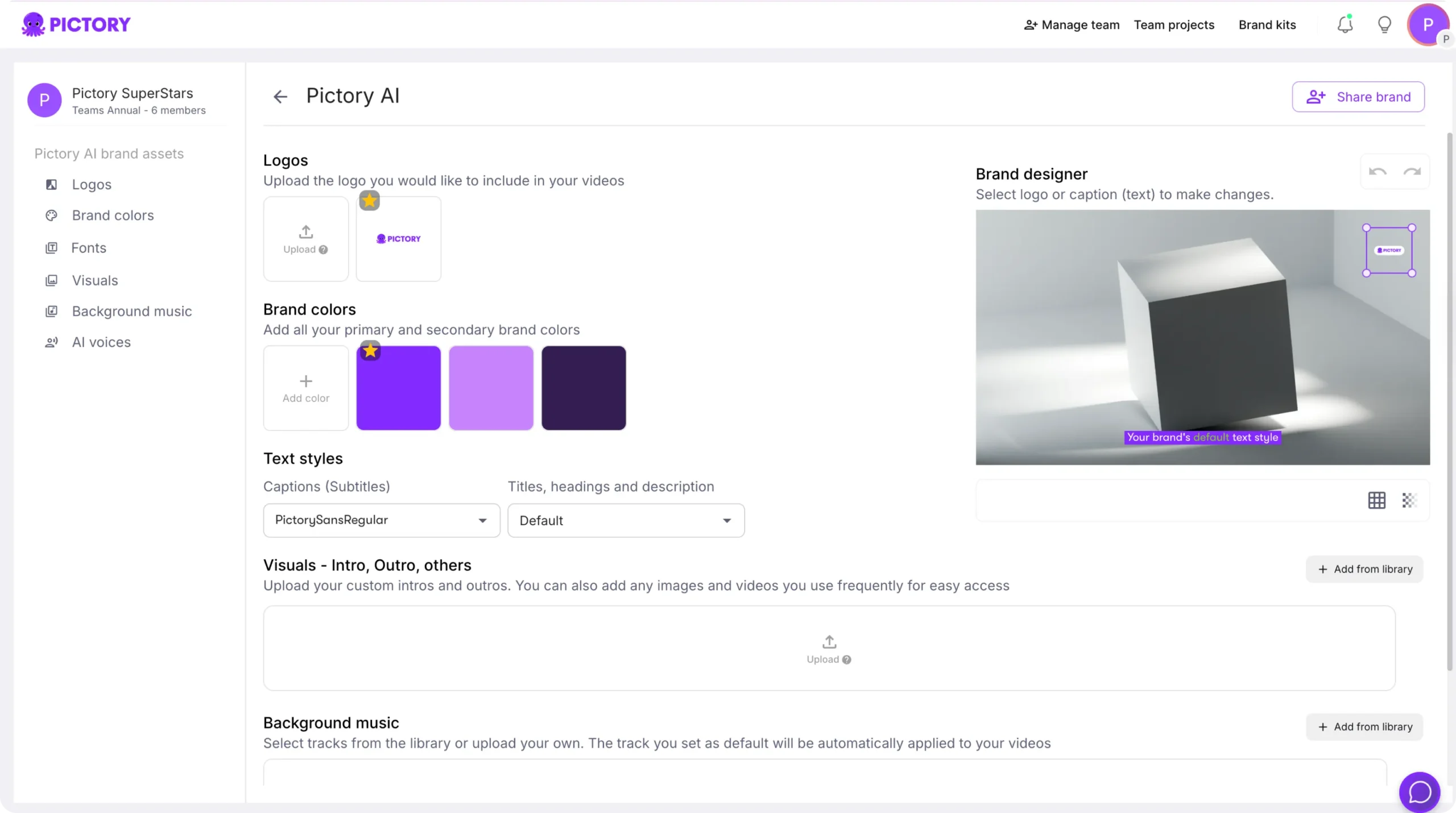
Step 3: Apply your Brand Kit in the editor for every enablement video
Inside the Video Editor, open Branding and select the correct Brand Kit. This ensures your sales training video assets stay consistent across product updates, onboarding videos, and customer-facing snippets.
How to create sales enablement videos from scripts using Text to Video AI (ai sales enablement)
When you have messaging frameworks, talk tracks, or enablement scripts, Pictory Text to Video is the fastest way to turn text into a professional video. This workflow supports enterprise sales enablement teams that need repeatable production.
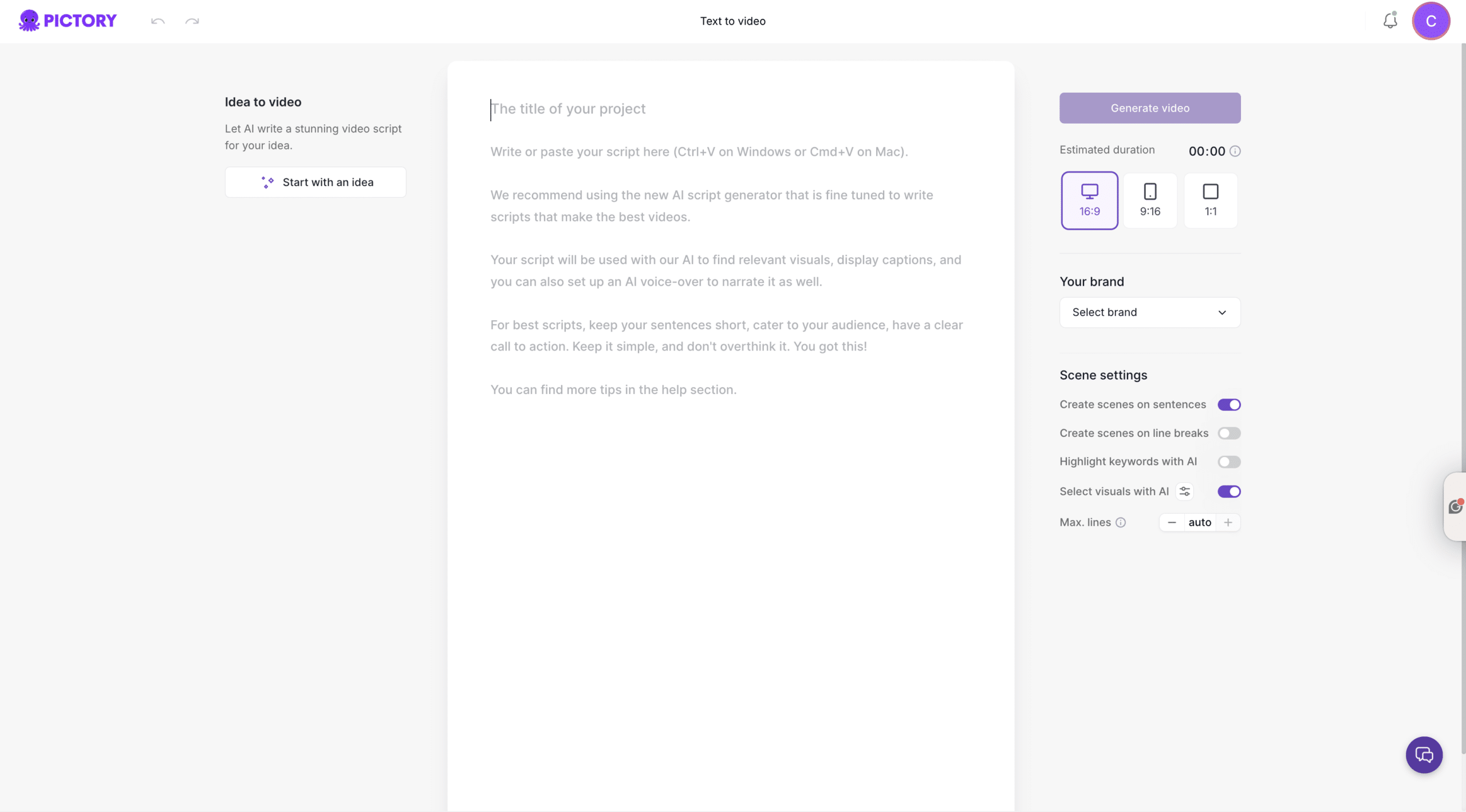
Step 1: Start a Text to Video AI project from the Home page
From Home, choose Text to Video and paste your script into the input field. Keep sentences short, make the call to action clear, and keep each scene focused on one idea.
Step 2: Configure scene settings for sales enablement microlearning
In the Script Editor, set the right panel options to match your enablement format:
- Select aspect ratio: 16:9 for LMS and training, 9:16 for mobile-first reinforcement, 1:1 for multi-channel sharing
- Enable scene creation by sentences or line breaks to control pacing
- Enable keyword highlights if you want key product phrases to stand out
- Set max lines per scene to keep on-screen text readable
- Select your Brand Kit for enterprise consistency
Step 3: Generate the storyboard and choose a professional layout theme
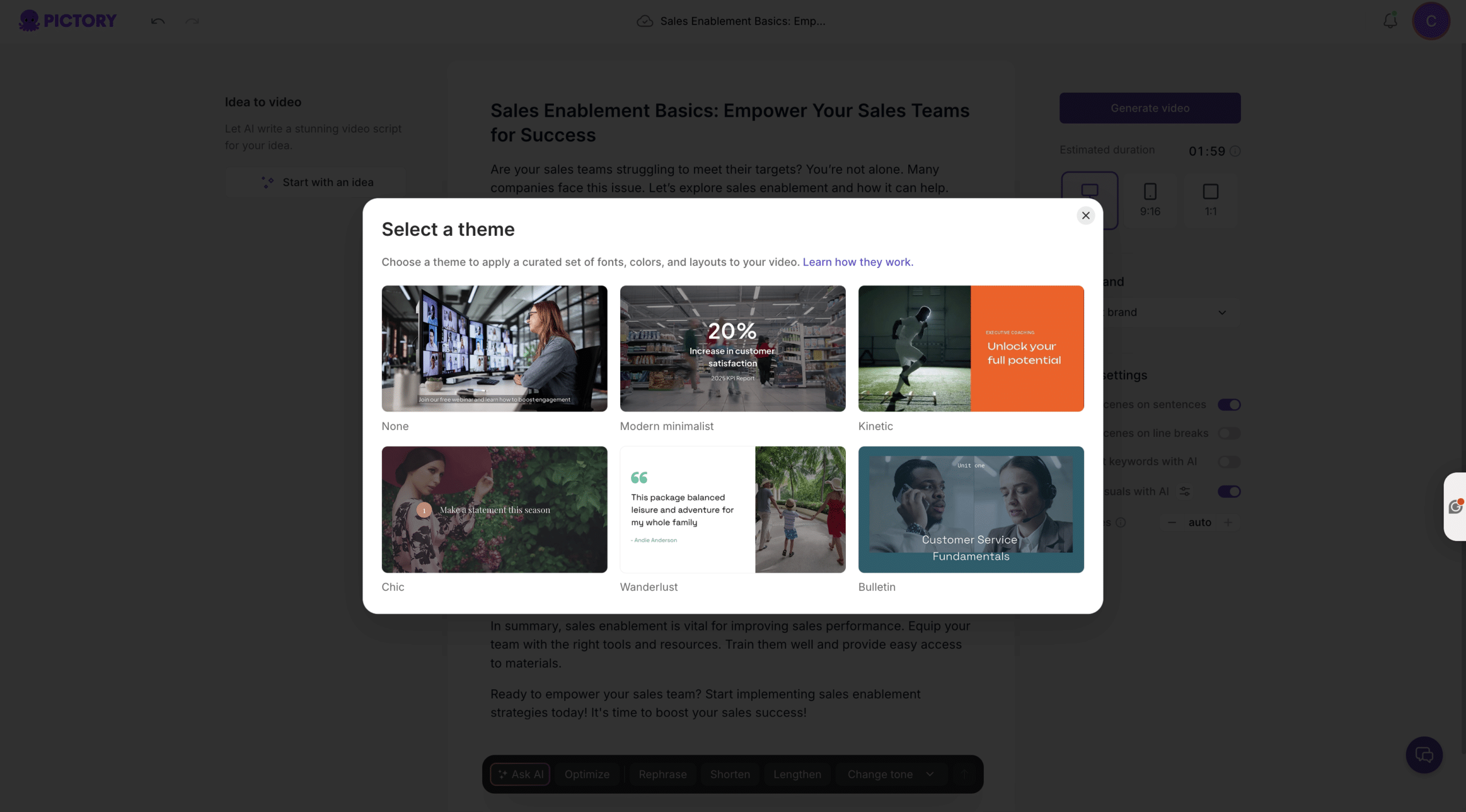
Select Generate video. When prompted, choose a theme such as Modern Minimalist, Kinetic, Chic, Wanderlust, or Bulletin to align with your sales enablement content style.
Step 4: Edit scenes in the AI video editor for accuracy and clarity
In the editor, use the left sidebar tools to refine your enablement video:
- Story to adjust the script per scene
- Visuals to swap in stock media, uploads, or AI Studio generated visuals
- Audio to select AI voiceover and background music
- Text and Elements to add callouts, arrows, and on-screen labels
- Styles and Branding to enforce approved design rules

Use the bottom timeline to navigate scenes. Right-click a scene thumbnail to Duplicate, Link with next, Copy, Paste after, or Delete. Use timeline zoom for long enablement modules.
How to convert sales enablement collateral into video using URL to Video (sales enablement content strategy 2026)
URL to Video is ideal for turning web-based enablement content into a narrated video, including product pages, solution briefs, internal documentation, and partner enablement portals.
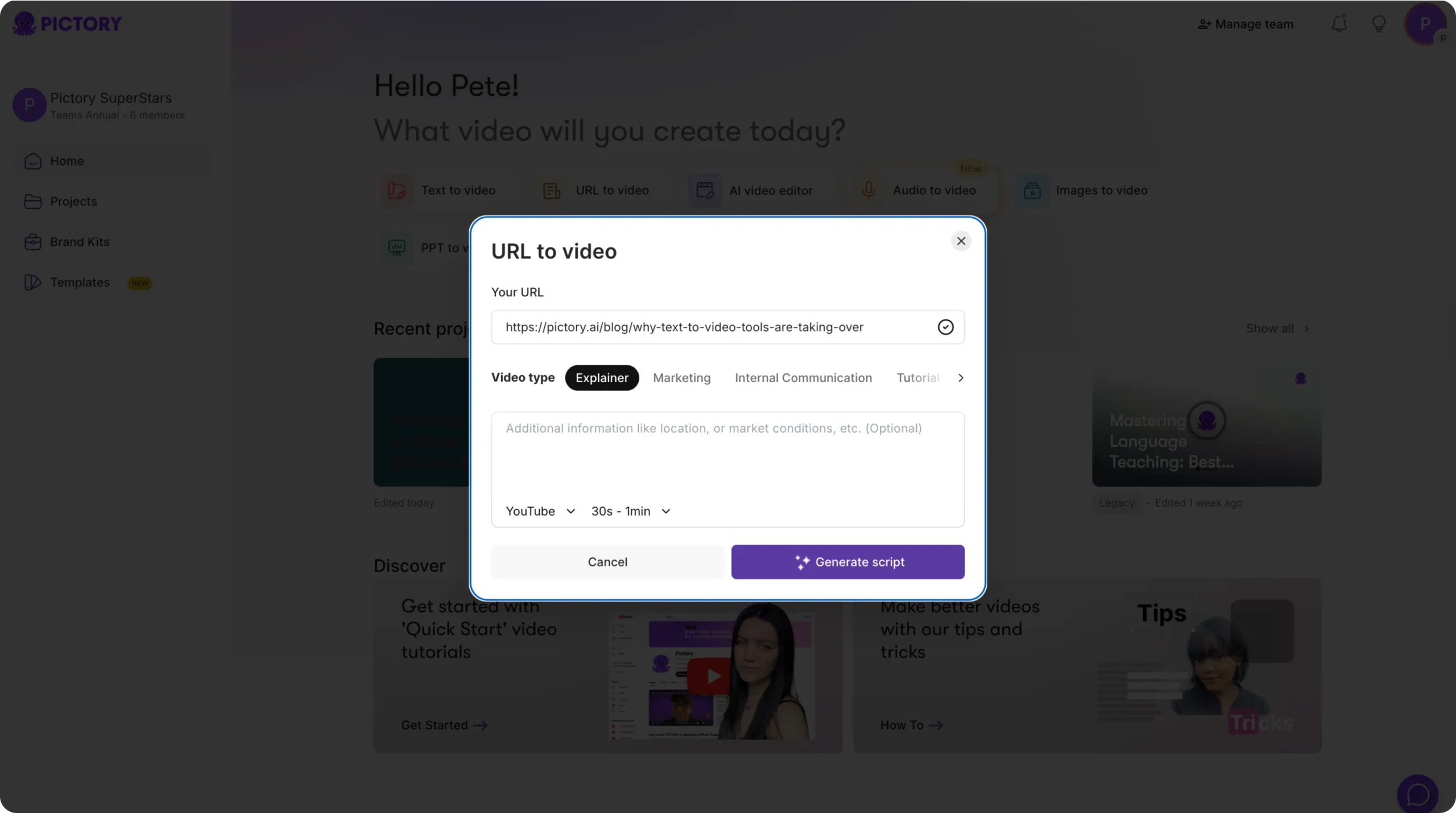
Step 1: Launch URL to Video and paste a valid link
From Home, choose URL to Video, then paste a valid URL that starts with http:// or https://.
Step 2: Select the sales enablement video type and output target
Choose a video type like Explainer, Marketing, Internal Communication, or Tutorial. Select platform and length to match your enablement channel, then click Generate Script.
Step 3: Edit the extracted script for enablement readiness
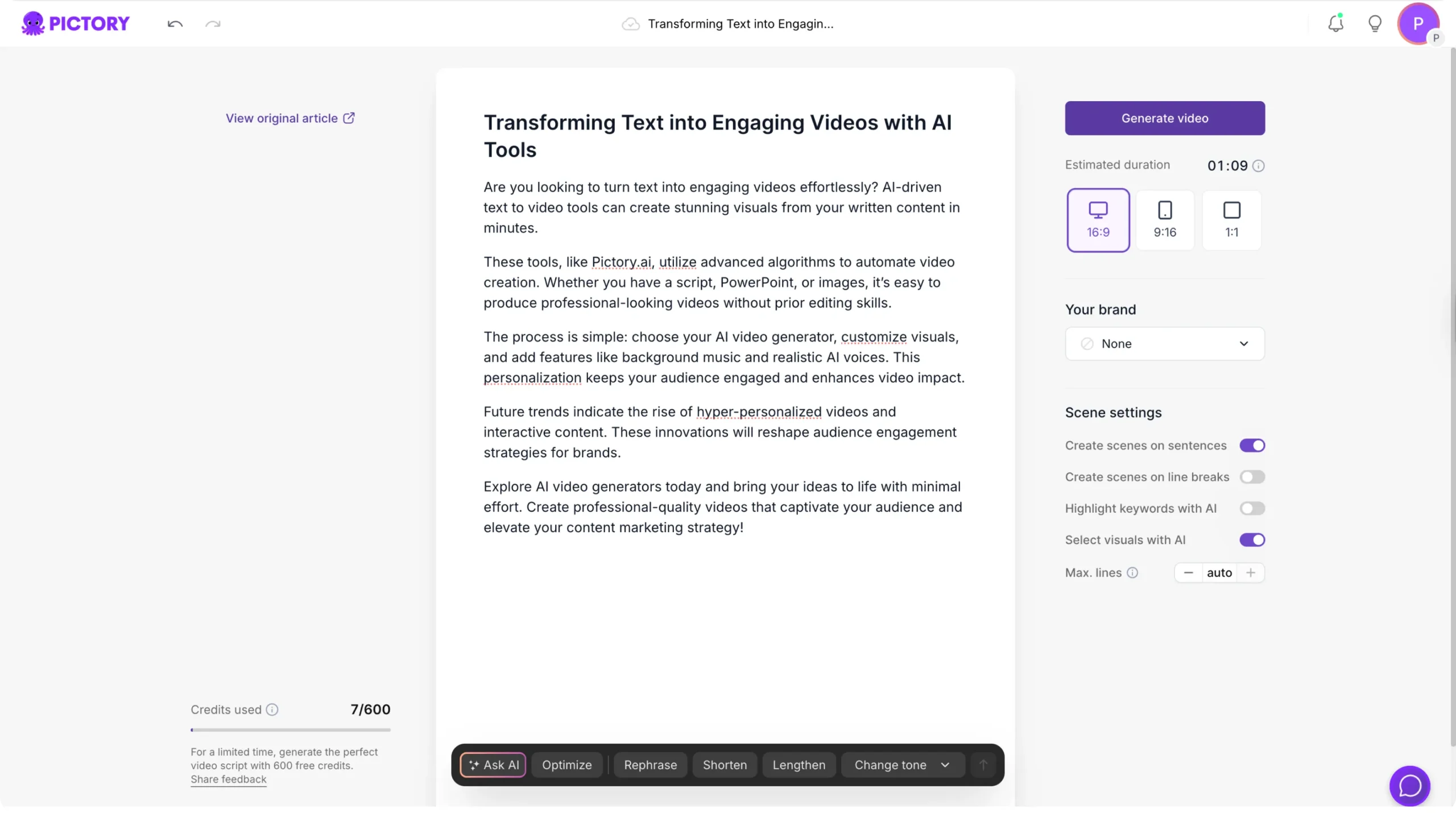
In the Script Editor, refine the draft so it reads like a training asset rather than a web page. Use Ask AI controls to optimize, rephrase, shorten, lengthen, or change tone as needed. Confirm aspect ratio, scene settings, and Brand Kit selection.
Step 4: Generate the video and polish visuals, captions, and branding
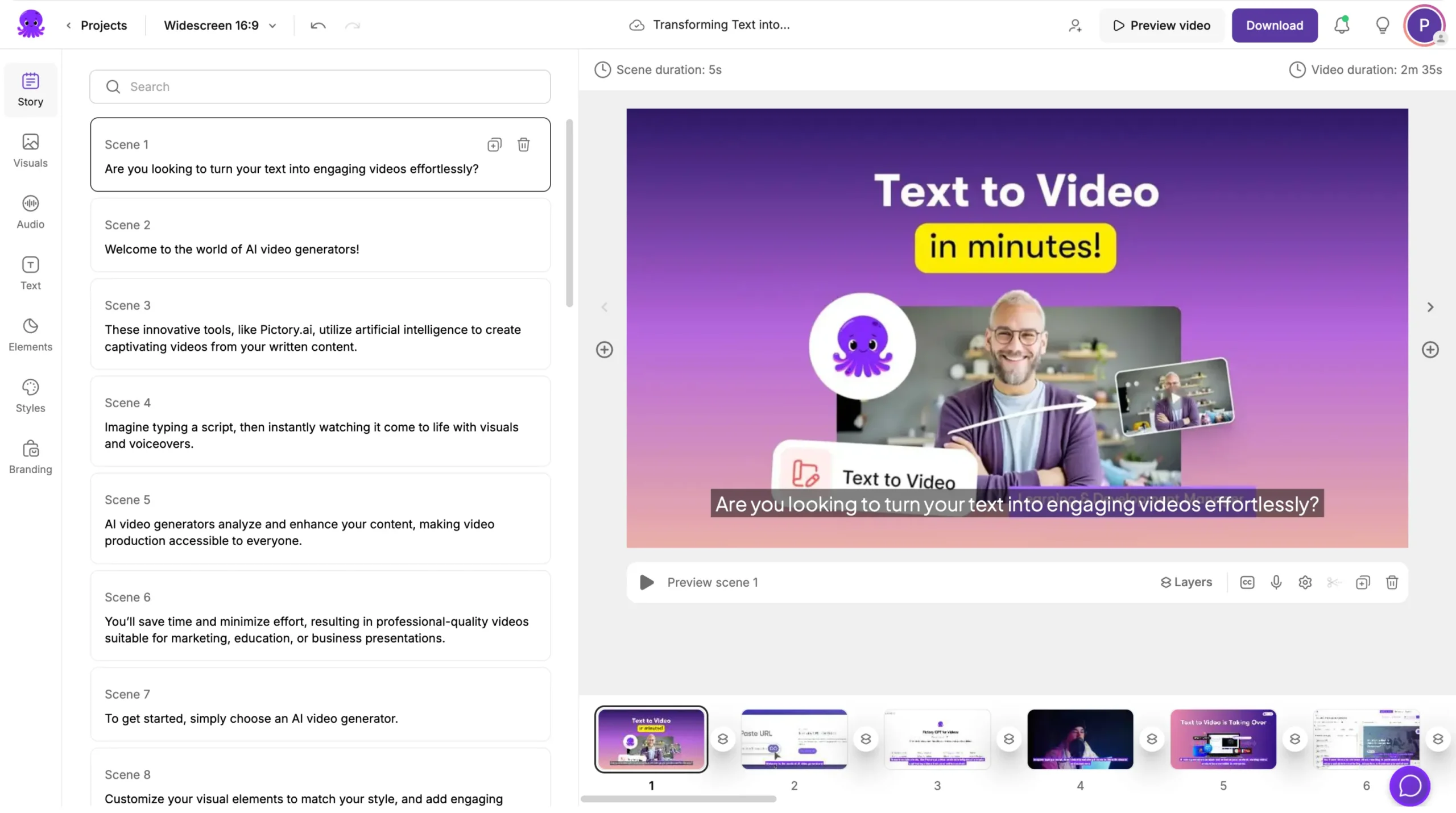
Click Generate video, then use the Video Editor to verify visual relevance and accuracy. Replace any generic visuals with specific product screenshots or approved imagery via Uploads. Preview and download when complete, or share a preview link for stakeholder review.
How to convert PowerPoint decks into sales enablement training video using PPT to Video AI
PPT to Video is designed for enterprise sales enablement teams that already have enablement decks for onboarding, messaging, competitive positioning, and quarterly product updates.
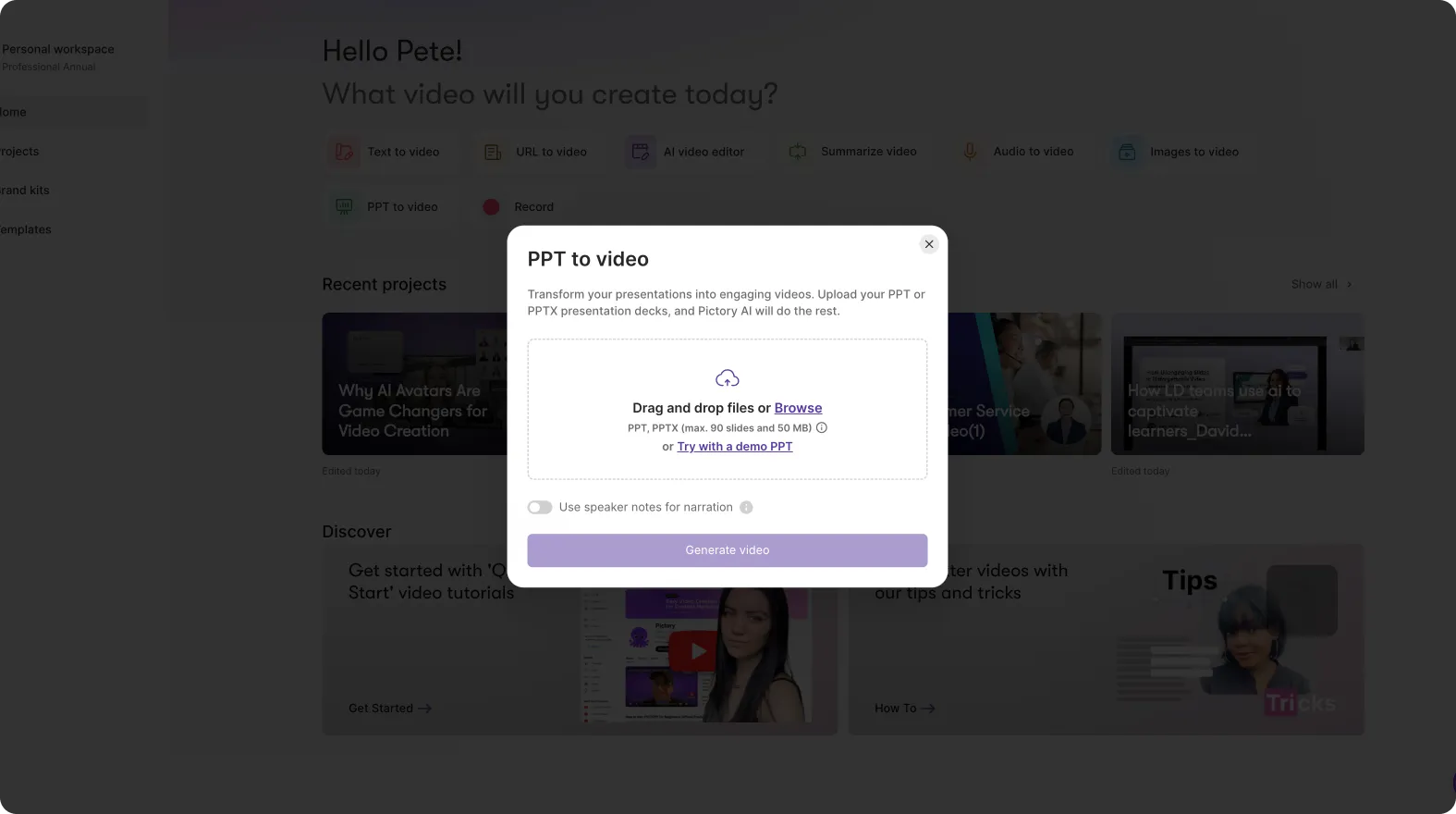
Step 1: Upload the PowerPoint file and choose speaker notes (optional)
From Home, select PPT to Video and upload a .PPT or .PPTX file (up to 90 slides or 50 MB). If your deck includes speaker notes, enable the option to use speaker notes for narration.
Step 2: Generate a storyboard from slides
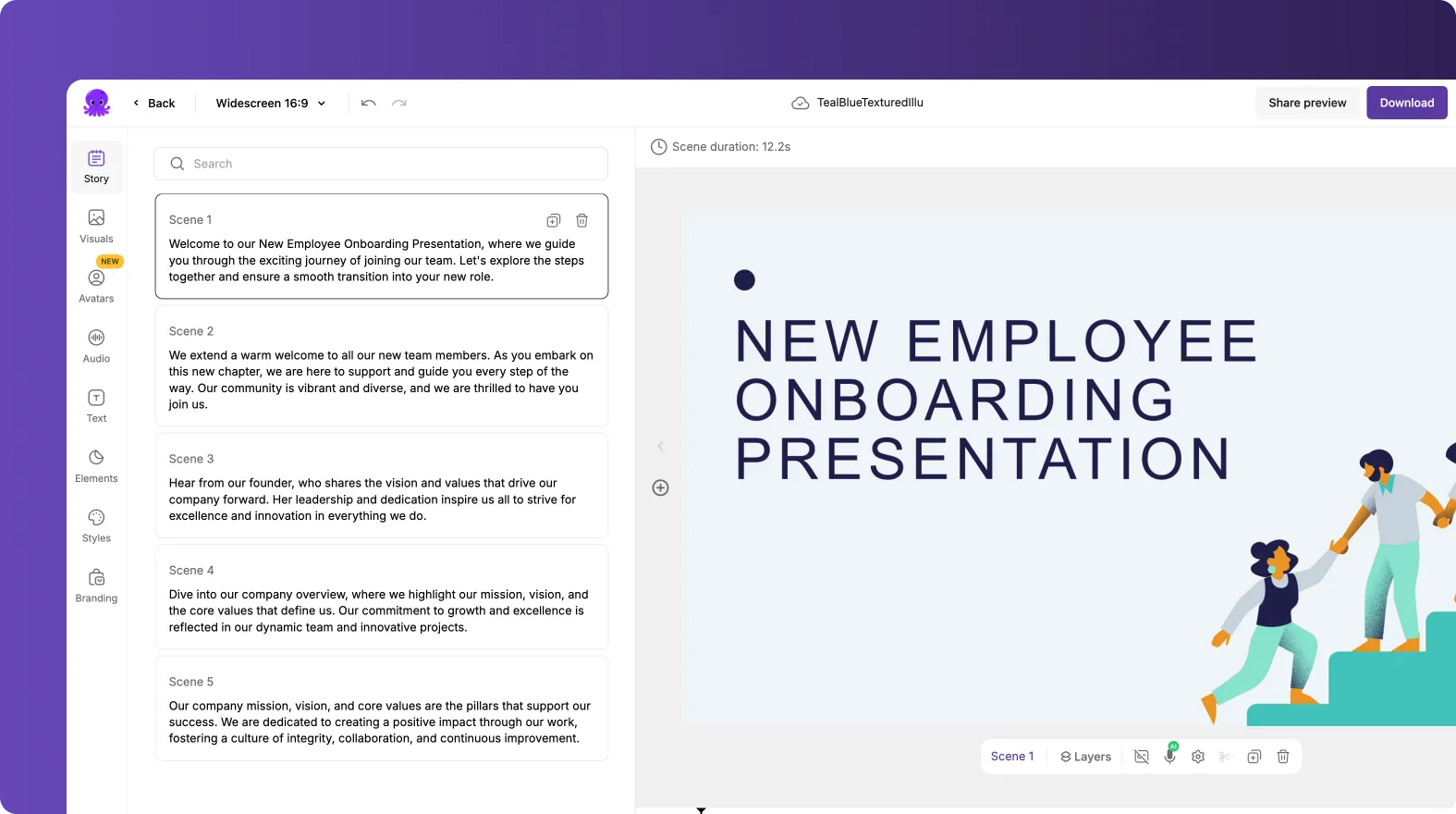
Select Generate video. Pictory converts slides into scenes and displays a progress indicator while scenes are created.
Step 3: Edit slide-based scenes to create a modern enablement experience
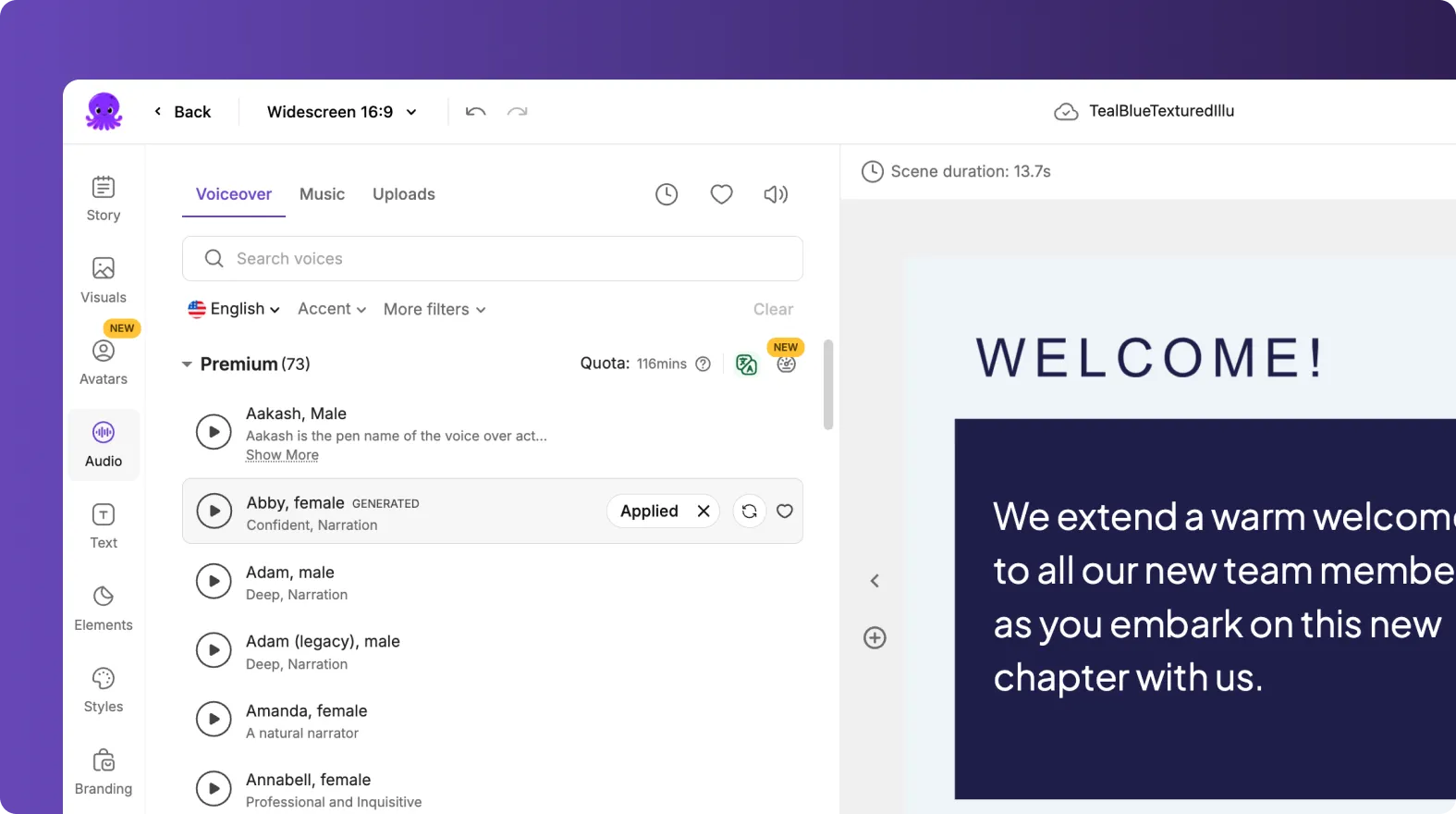
In the AI Storyboard Editor, each slide becomes an editable scene. Use the left tools to refine the experience:
- Trim on-screen text to key points and move detail into voiceover
- Apply Brand Kit for consistent colors, fonts, and logos
- Use Layouts to standardize titles, emphasis slides, lists, and numbers
- Use Text Styles to keep typography uniform across modules
Step 4: Export and store the project for ongoing updates
Preview and Download Video when ready. Save the project in My Projects so you can quickly update messaging later without rebuilding from scratch, which is critical for sales enablement trends 2026 where updates are frequent.
How to update sales training videos fast using the AI Video Editor and video to text transcription
When you need to refresh enablement content, the AI Video Editor turns existing recordings into editable text. This is useful for quarterly messaging updates, process changes, and scaling global training.
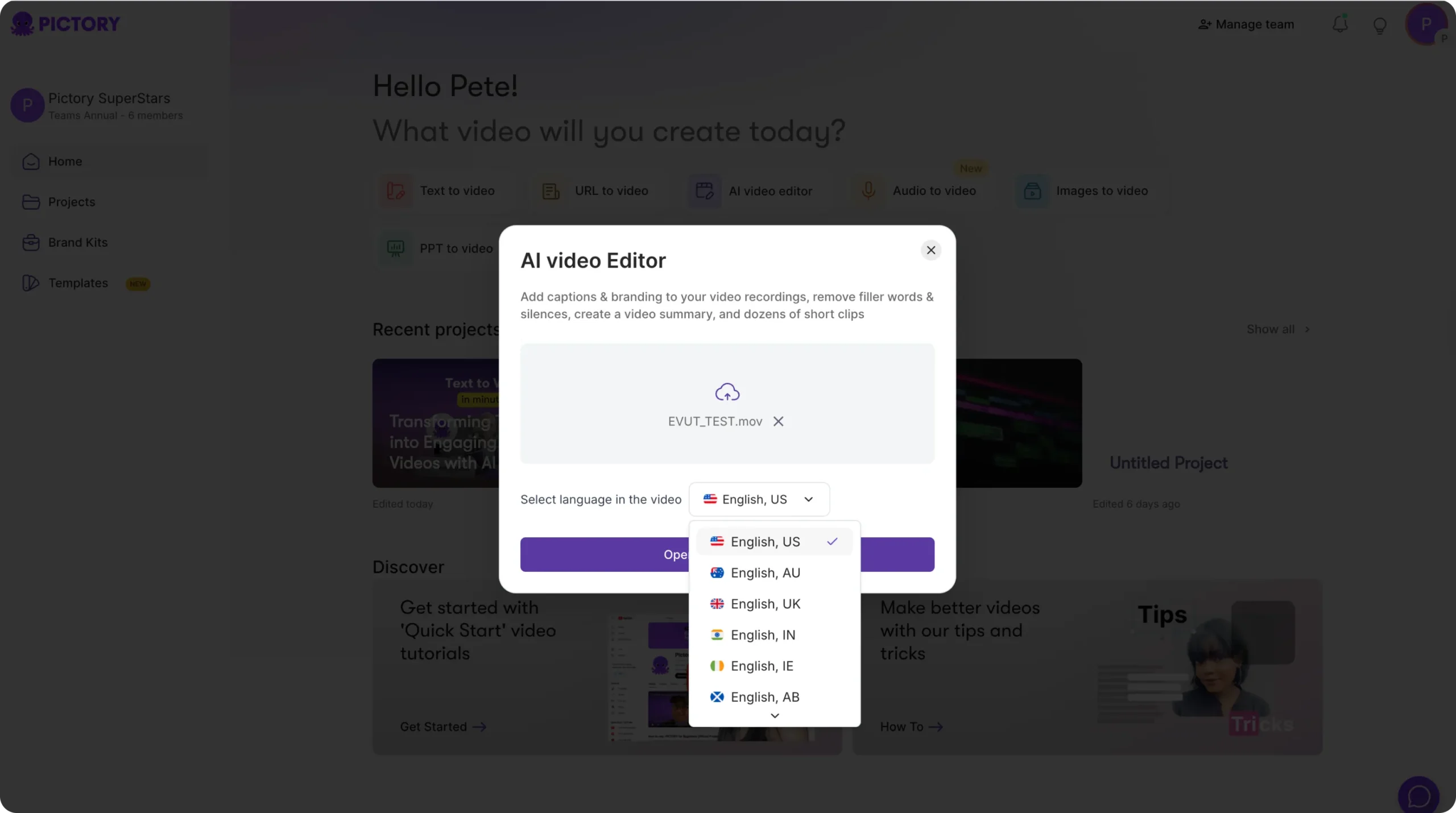
Step 1: Upload a video file and select language
Open the AI Video Editor workflow and upload your file (up to 5 GB, max 180 minutes). Select the correct language to improve transcription quality.
Step 2: Edit the transcript to remove filler words and silences
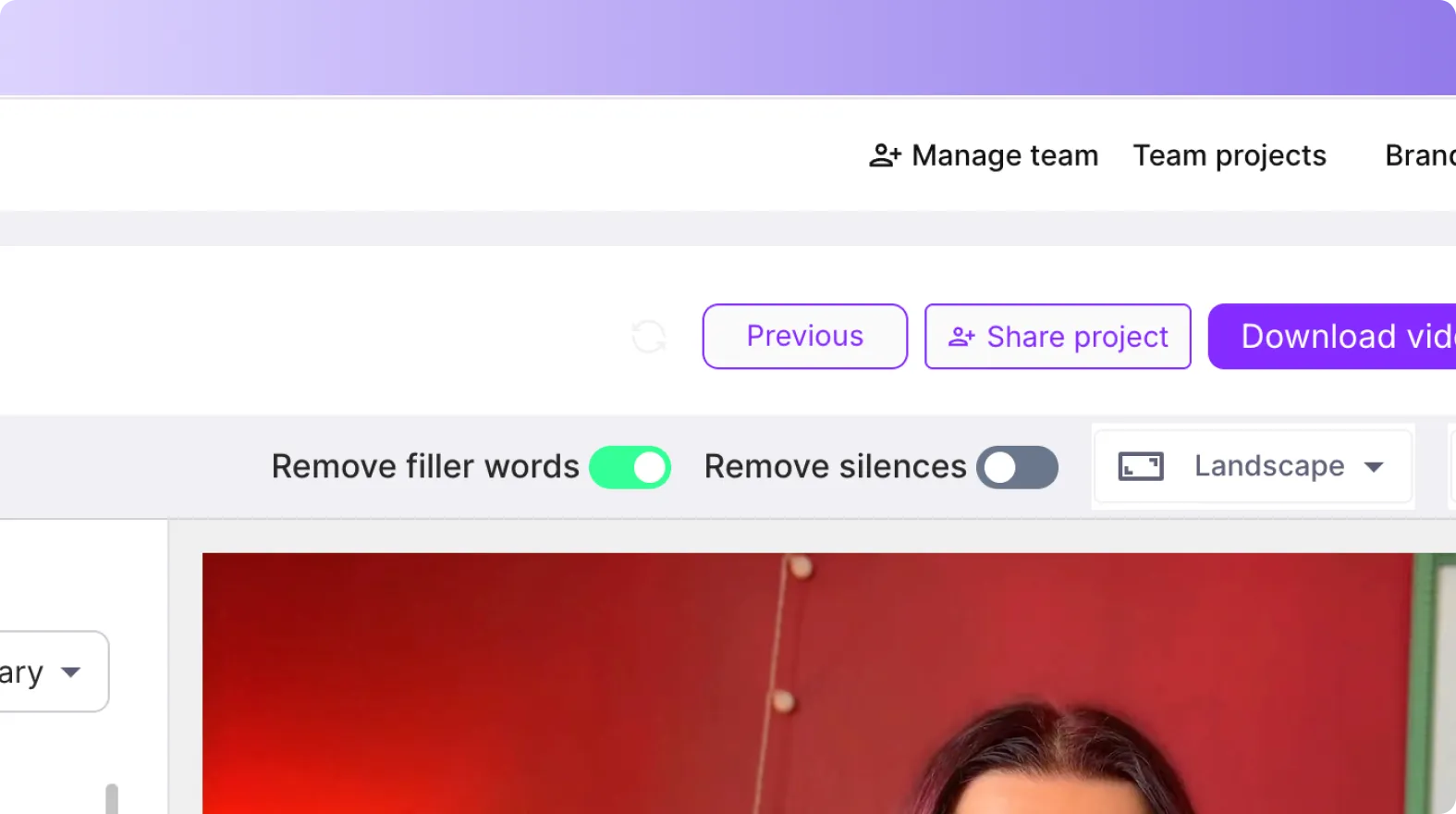
After transcription completes, use the Script and Transcript Editor to clean up the content:
- Search and replace outdated product names or terms
- Enable toggles to remove filler words
- Enable toggles to remove silences for tighter pacing
- Adjust max lines per subtitle and choose a subtitle style
Step 3: Create a storyboard and refine scene structure
Proceed to storyboard creation. Once in the editor, ensure scenes map to your learning objectives. Use timeline actions such as Duplicate, Copy, Paste after, Delete, and Link with next to build a clean microlearning flow.
Step 4: Apply branding, captions, and export updated enablement assets
Apply the correct Brand Kit in the Branding tab, verify captions, and add any necessary on-screen callouts. Preview, then download the updated video. This workflow supports sales enablement best practices by making updates repeatable and fast.
How to use AI avatars in sales enablement videos (ai avatars in sales enablement)
AI presenters can help standardize delivery across regions and reduce dependency on live presenters. This is especially useful for consistent onboarding videos and repeatable product messaging in enterprise sales enablement.
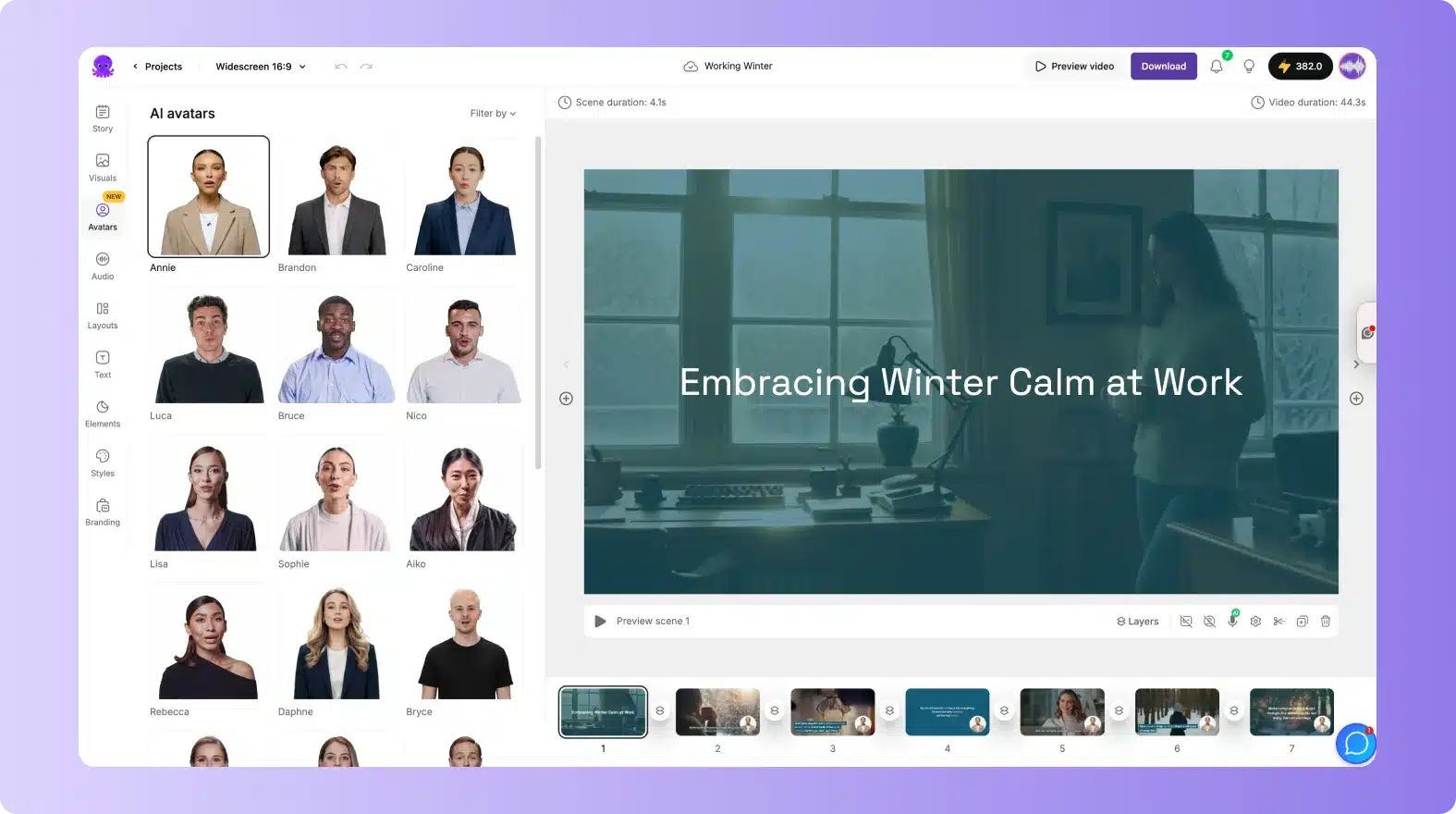
Step 1: Open the Avatars tab inside the editor
In the Video Editor left menu, select Avatars to browse and filter the avatar library. Choose an avatar style variation that fits your brand and audience.
Step 2: Select an AI voice and apply the avatar across scenes
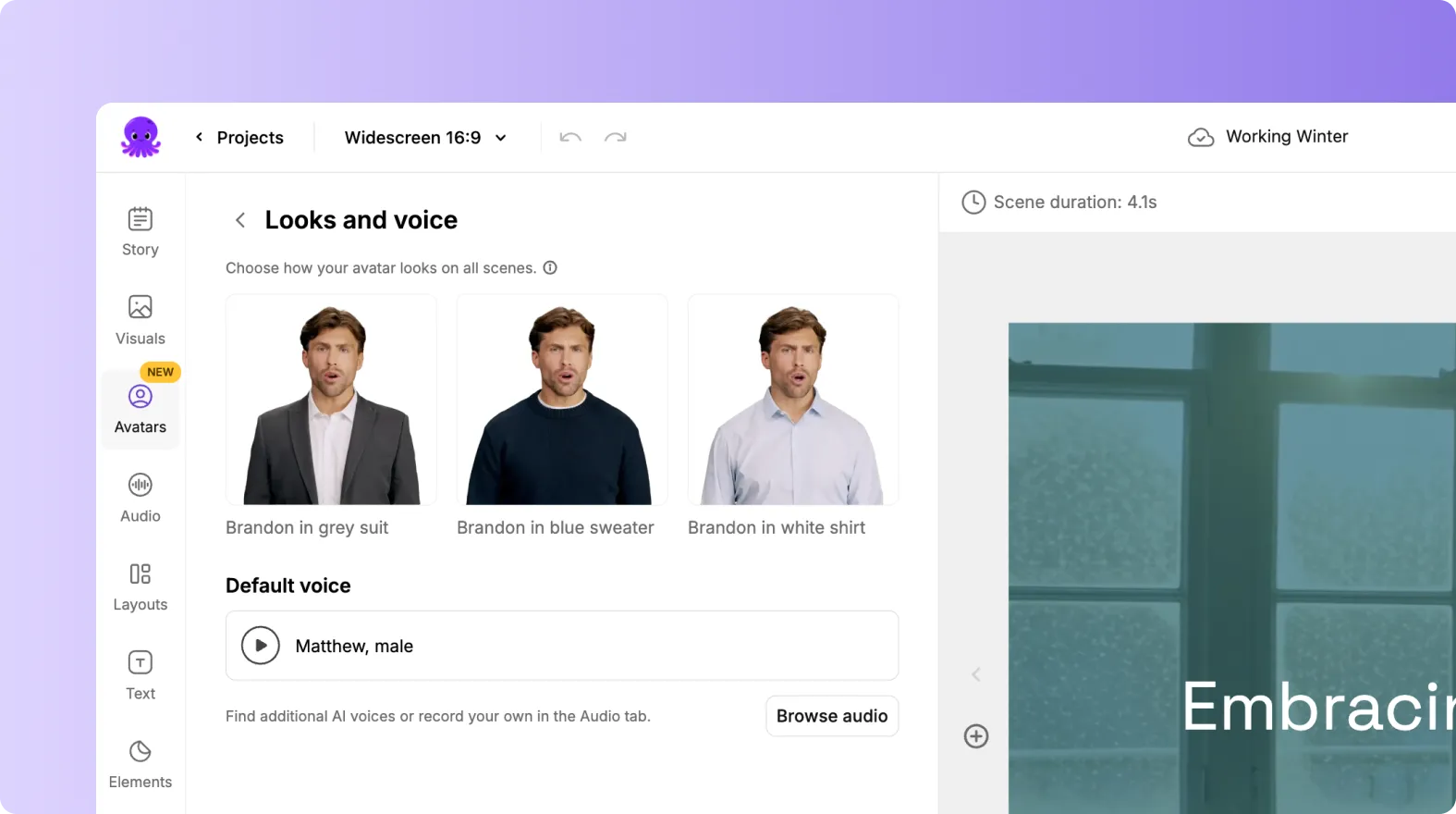
Choose and preview an AI voice, then apply the avatar to one or multiple scenes. Avatar usage consumes credits, so standardize where the avatar appears, such as intros, key transitions, and summary scenes.
Step 3: Adjust avatar placement and visual treatment
Click the avatar in the scene to modify size, position, and any available style controls such as background, border, or outline. Keep placement consistent across modules to reinforce brand recognition.
FAQ: Sales enablement trends 2026
What are the biggest sales enablement trends 2026 for enterprise teams?
Enterprise teams are prioritizing scalable content operations, faster updates, fewer tools, measurable adoption, and brand-consistent video. AI-based repurposing from scripts, URLs, decks, and recordings is becoming a core part of sales enablement technology.
Which Pictory workflow is best for turning sales enablement collateral into video?
Use Text to Video for scripts and talk tracks, URL to Video for web-based enablement pages, PPT to Video for existing slide decks, and the AI Video Editor for updating recorded training with video to text transcription.
How can I keep sales enablement videos brand-consistent across multiple teams?
Create a Brand Kit with approved logos, fonts, and colors, then apply it in the editor using the Branding tab. This helps standardize design across regions, product lines, and content creators.
Can I update sales training videos without rerecording everything?
Yes. Upload the existing training video into the AI Video Editor, edit the transcript, remove filler words and silences, regenerate the storyboard, and export an updated version while preserving the original structure.
How do AI avatars fit into enterprise sales enablement?
AI avatars help standardize delivery, reduce reliance on presenters, and make it easier to scale onboarding and messaging updates. In Pictory, add avatars in the editor, select a voice, apply across scenes, and adjust placement to match brand guidelines.
How do I collaborate with my team on sales enablement video projects?
Use Pictory’s collaboration options to share projects, brand kits, and media across your team. Store ongoing work in My Projects so multiple stakeholders can review, iterate, and maintain a consistent enablement library over time.


