
A strong sales enablement plan 2026 requires more than a content calendar and a playbook. Enterprise enablement teams need a repeatable way to turn product messaging, talk tracks, competitive battlecards, and updated pricing into training videos that are consistent, searchable, and fast to produce.
This guide shows how to use Pictory to build and maintain a modern sales enablement program using AI workflows like Text to Video, URL to Video, PPT to Video, the AI Video Editor (video to text transcription), and the Smart Screen Recorder. You will learn how to create sales enablement assets, standardize branding with Brand Kits, and ship microlearning updates without a full production queue.
Sales enablement strategy 2026: What to standardize before you create video
Before you generate videos, align stakeholders on what “good” looks like. This is the foundation for scalable enterprise sales enablement and reduces rework across regions and teams.
- Enablement content types: onboarding, product updates, pricing changes, objection handling, discovery frameworks, competitive positioning, demo talk tracks, compliance training video.
- Audience: new reps, SDRs, AEs, SEs, channel partners, customer success, or sales managers.
- Distribution: LMS, enablement platform, intranet, Slack, email, knowledge base, or sales enablement software.
- Video format standards: 16:9 for LMS, 9:16 for mobile microlearning, 1:1 for internal feeds.
- Governance: who approves messaging and who owns updates when product changes.
Once these standards are clear, Pictory becomes a repeatable sales enablement tool for converting content into video at scale.
Enterprise sales enablement assets: Choose the right Pictory workflow for each input
Pictory supports multiple creation workflows. Map each workflow to the enablement assets your team already produces.
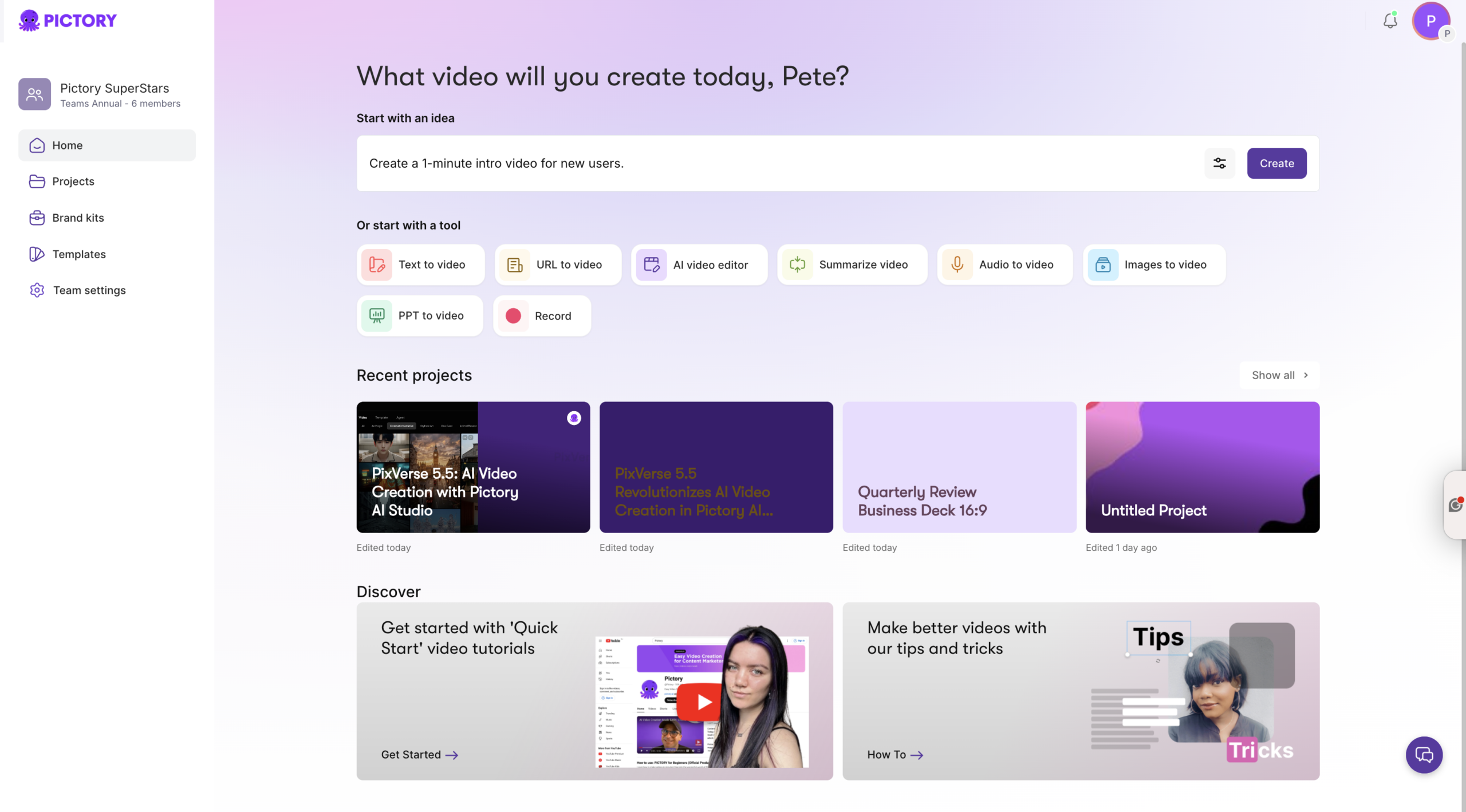
- Text to Video AI: best for talk tracks, objection scripts, discovery questions, pitch narratives, and playbooks.
- URL to Video converter: best for turning internal wiki pages, product launch pages, or blog posts into a video summary.
- PPT to Video AI: best for existing enablement decks, quarterly kickoff slides, and product training presentations.
- Smart Screen Recorder: best for recording demo walkthroughs, tool training, and process changes.
- AI Video Editor (video to text transcription): best for updating old recordings, removing filler words, cutting silences, and creating a refreshed version without re-recording.
This approach turns Pictory into a practical sales enablement technology layer inside your sales enablement tech stack.
Brand consistency at scale with Brand Kits for sales enablement videos
In a sales enablement plan 2026, brand consistency is not optional. It impacts trust, adoption, and executive confidence in the program. Pictory Brand Kits help teams standardize logos, fonts, and colors so every sales training video looks like it came from the same system.
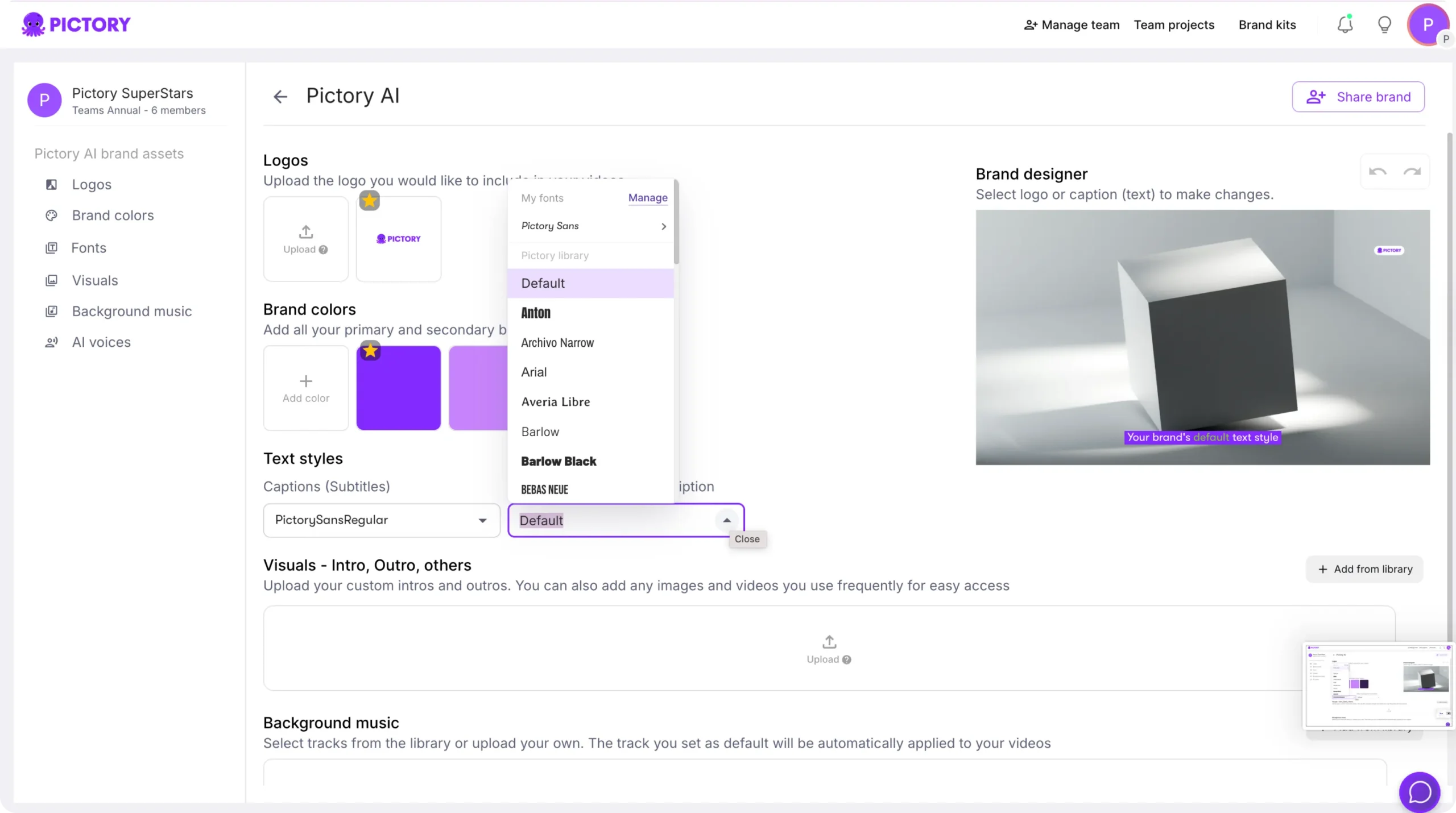
Step 1: Create a Brand Kit for your enablement program
From the left navigation, open Brand Kits and select Create a Brand. Add your brand name, upload logo variations, choose brand colors, and select a brand font from Pictory’s font library.
Step 2: Apply the Brand Kit inside the Video Editor
When editing a video, open the Branding tab and apply the brand kit to automatically style text, overlays, and overall presentation. This reduces manual formatting and speeds up production for enterprise sales enablement teams.
How to build a sales enablement plan 2026 video module using Text to Video AI
Use this workflow to convert your enablement scripts into polished training videos quickly. This is ideal for sales enablement training, objection handling modules, discovery frameworks, and talk tracks.

Step 1: Start a new Text to Video project and add your script
From the Home page, choose Text to Video. Paste your enablement script into the input field. Keep sentences short and include a clear call to action such as what the rep should do on the next call.
Step 2: Configure scenes, aspect ratio, and brand kit
In the Script Editor, set your aspect ratio (16:9, 9:16, or 1:1). Choose your Brand Kit. Then adjust scene settings such as creating scenes on sentences or line breaks, keyword highlights, and max lines per scene to match your microlearning format.
Step 3: Generate video and review the storyboard
Select Generate video. Pictory creates a storyboard while you see the “Creating scenes” progress. When complete, you will land in the Video Editor with scenes on the left and a preview on the right.
Step 4: Edit scenes, timing, and visuals in the AI video editor
In the editor, refine each scene’s text and timing. Use the Visuals tab to select stock media from the Library, use Uploads for internal screenshots, or generate prompt-based visuals in AI Studio to match your message.
Step 5: Add voiceover and music for sales enablement training
Open the Audio tab to select an AI voiceover or upload narration. Add background music if appropriate for pacing, but keep it subtle for training clarity.
Step 6: Preview, share for approval, and download
Use Preview video to quality check. Use Share preview to circulate for stakeholder approval. Then Download video for your LMS or sales enablement software.
How to convert playbooks and product pages using URL to Video for sales enablement content
URL to Video helps enablement teams repurpose existing pages into video quickly, which is valuable when product messaging changes mid-quarter and you need rapid sales enablement automation.
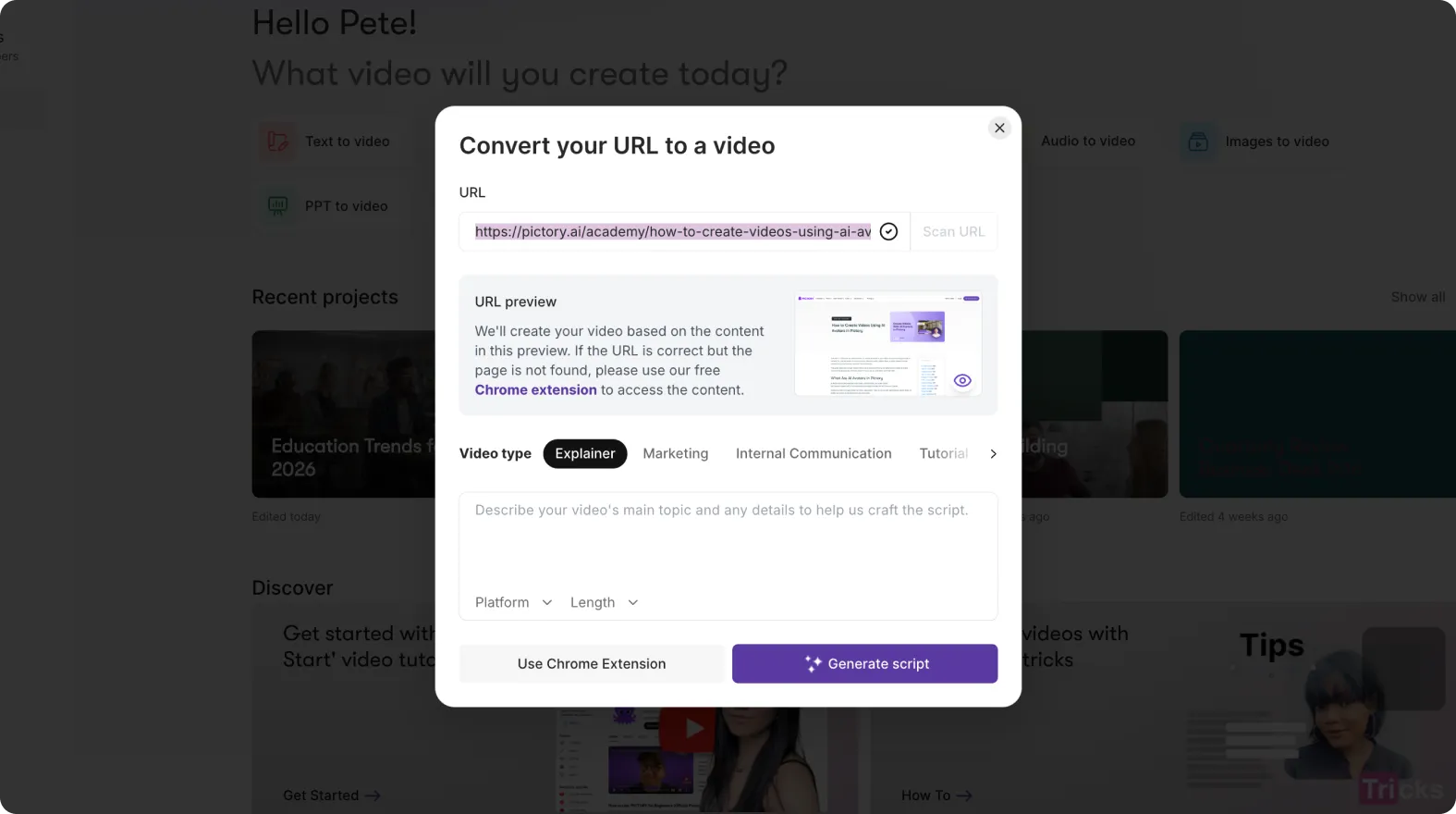
Step 1: Start URL to Video and paste the link
From Home, select URL to Video. Paste a valid URL beginning with http:// or https://.
Step 2: Choose video type, platform, and length
Select a video type such as Internal Communication or Tutorial. Pick the platform and desired length to match your training format and attention span.
Step 3: Generate the script and refine it for selling clarity
Click Generate Script. In the Script Editor, rewrite sections to match your sales enablement strategy. Use short lines, clear definitions, and repeatable talk tracks. Apply your Brand Kit and scene settings.
Step 4: Generate the video and update visuals in the editor
Select Generate video to create the storyboard. In the editor, confirm visuals support the selling points, not just generic imagery. Replace visuals using Library, Uploads, or AI Studio where needed.
PPT to Video AI for sales enablement programs: Turn decks into training in minutes
Many enterprise sales enablement assets already live in slide decks. PPT to Video converts those decks into editable videos while preserving structure, which is ideal for SKO content, product certification, and channel sales enablement.
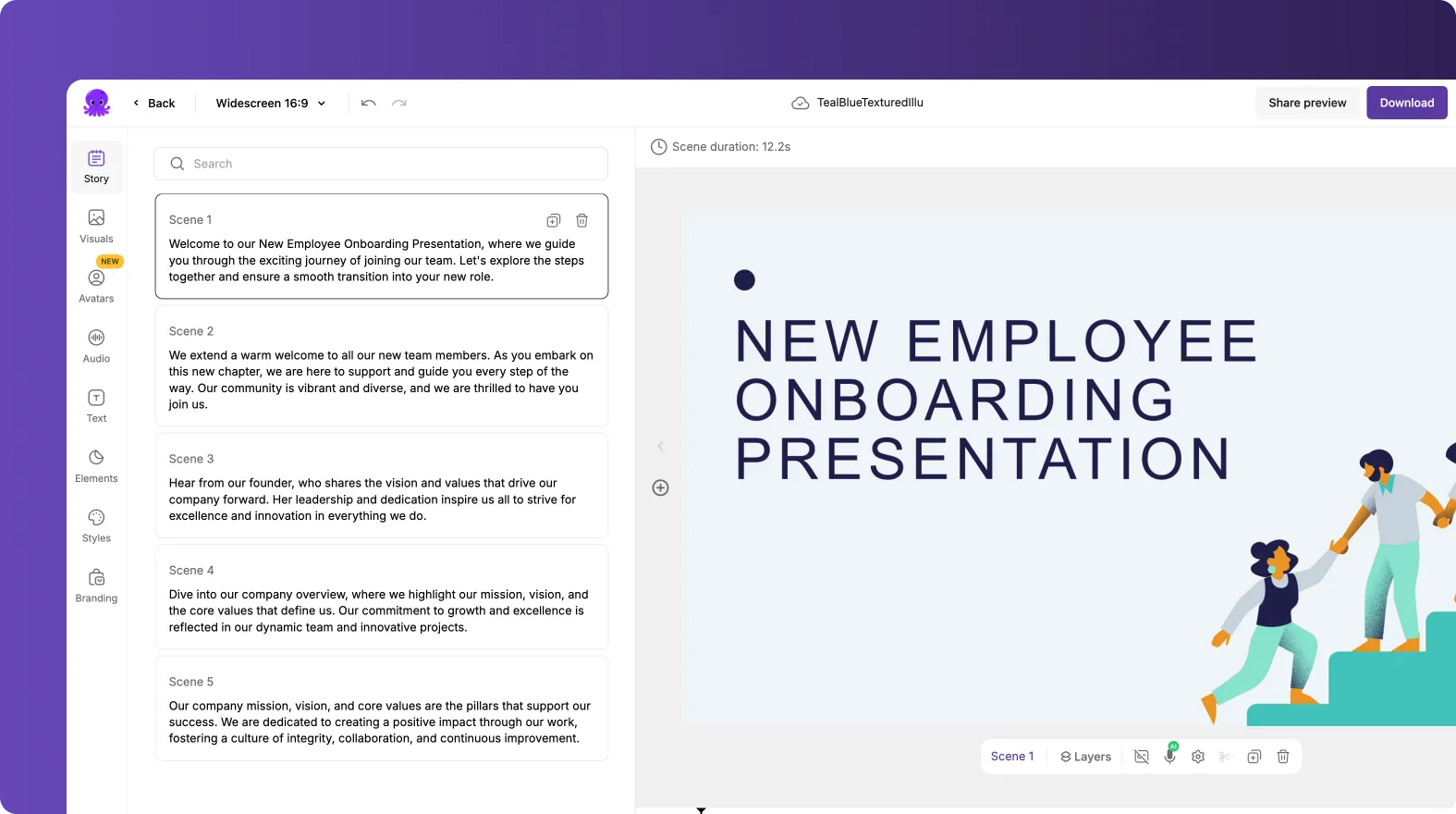
Step 1: Upload your PowerPoint deck
From Home, select PPT to Video. Upload a .PPT or .PPTX file up to 90 slides or 50 MB. If your deck includes speaker notes, enable the option to use speaker notes for narration.
Step 2: Generate the storyboard from slides
Click Generate video. Wait while Pictory converts the slides into storyboard scenes and shows the progress indicator.
Step 3: Edit slide scenes for microlearning and clarity
In the editor, adjust scene text to reduce clutter and improve pacing. Update layouts using the Layouts tab for titles, lists, and emphasis moments such as key differentiators and objection responses.
Step 4: Apply branding and export for your sales enablement platform
Apply your Brand Kit in the Branding tab, preview the full module, then download for distribution.
Update old sales training video fast with AI Video Editor and video to text transcription
A major sales enablement challenge is keeping content current. When pricing, packaging, or positioning changes, you do not want to re-record everything. The AI Video Editor supports video to text transcription so you can edit the words and regenerate the output efficiently.
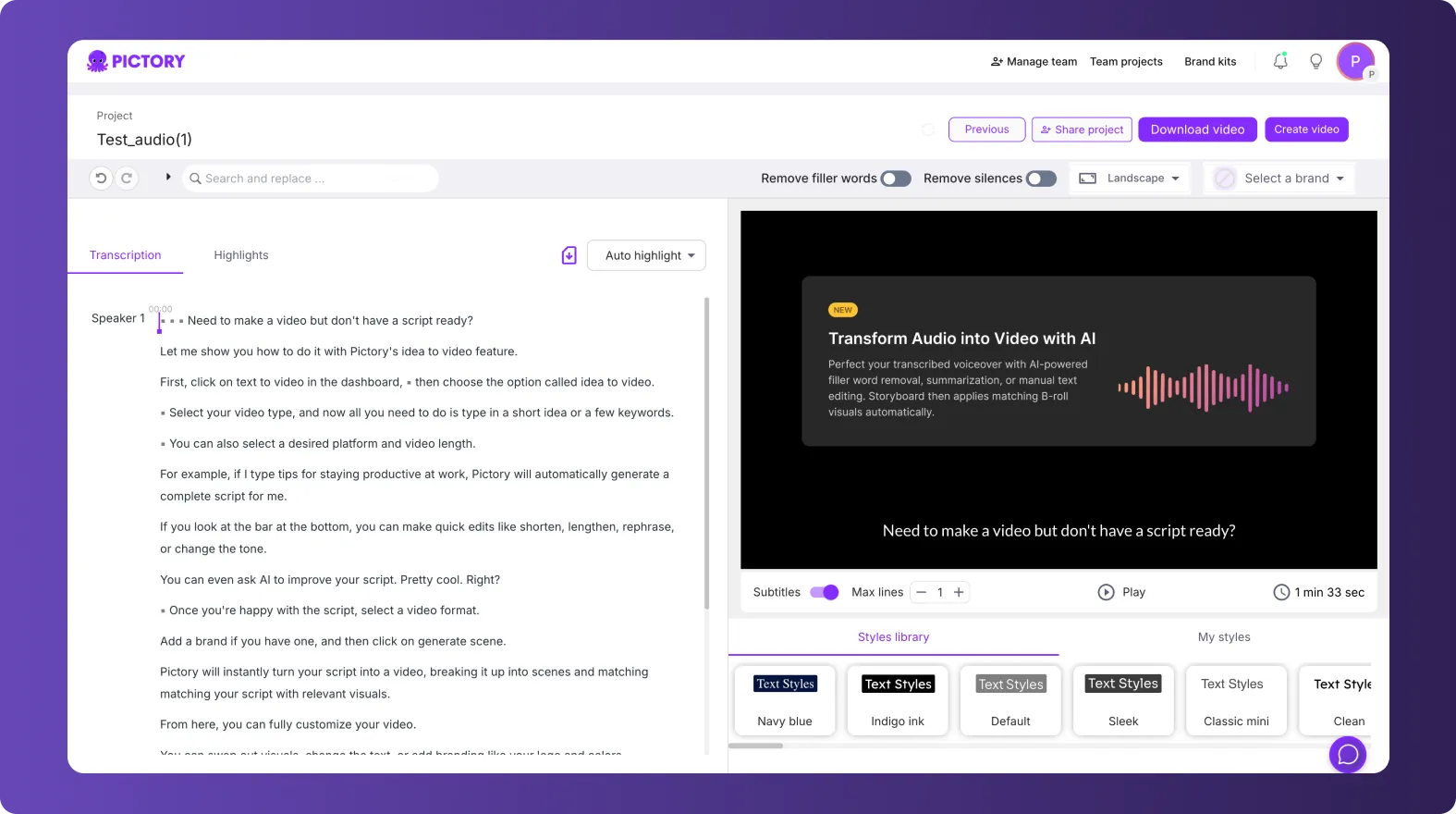
Step 1: Upload the existing training video
Open the AI Video Editor workflow and upload your video file up to 5 GB and 180 minutes. Select the language to improve transcription accuracy.
Step 2: Edit the transcript and remove filler words and silences
When transcription is complete, open the Script and Transcript Editor. Use search and replace for terminology changes, turn on the filler word removal toggle, and remove silences to tighten delivery. Adjust subtitle line limits and choose a style from the style library.
Step 3: Create a new storyboard and finalize in the editor
Select the option to customize and generate the storyboard. In the video editor, refine scenes, captions, and visuals. Preview and download the updated version to replace outdated sales enablement collateral.
Record and ship product demos with Smart Screen Recorder for digital sales enablement
For software demos, workflow walkthroughs, and tool training, recording is often faster than scripting. The Smart Screen Recorder captures the session and then hands off to AI transcription so you can clean it up and produce a polished video.
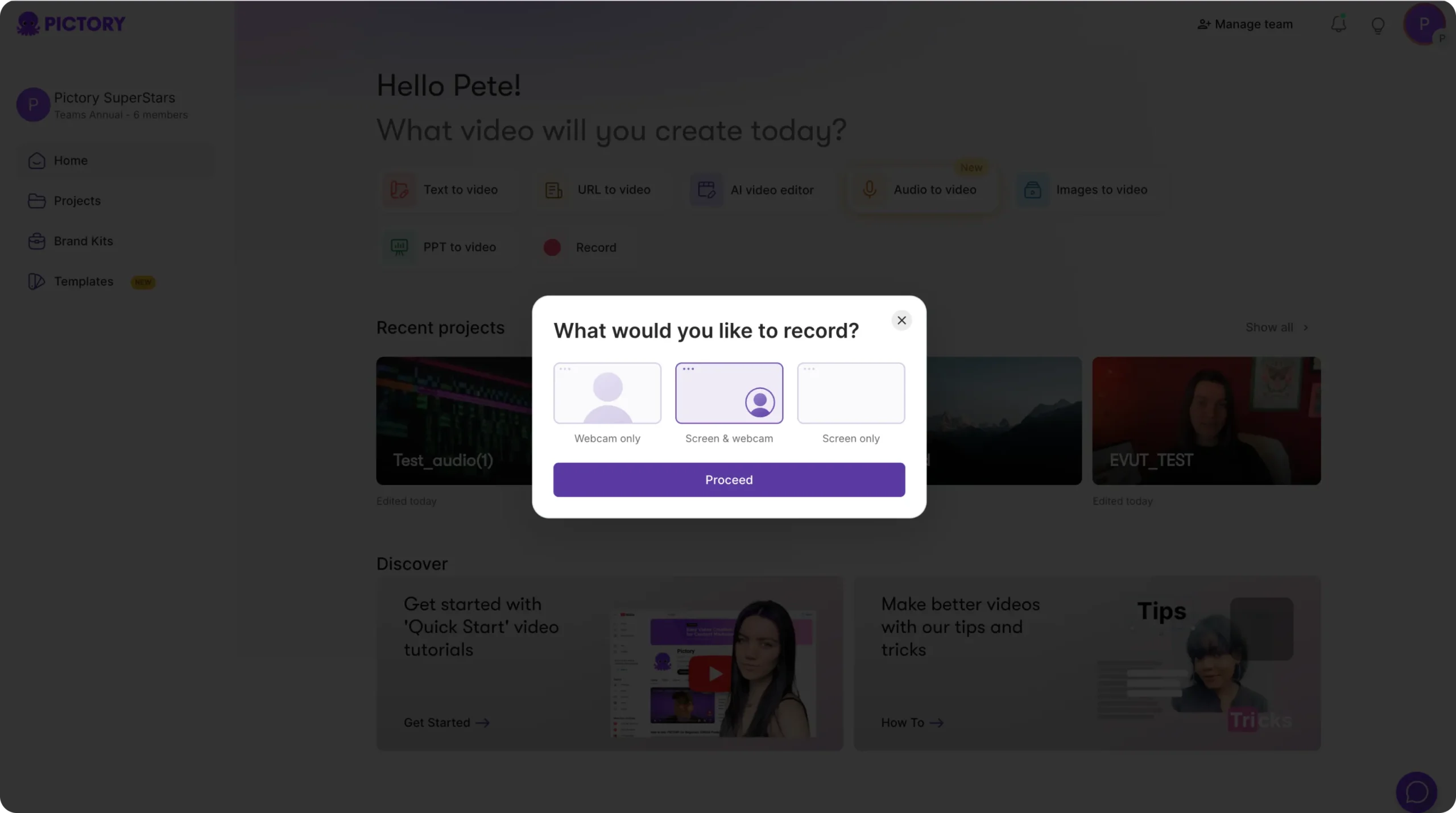
Step 1: Choose your recording mode
From Home, select Record. Choose Webcam only, Screen & webcam, or Screen only, then click Proceed.
Step 2: Record the demo and stop to save
Use Start, Pause, and Stop to control recording. When finished, the system saves automatically and shows a review screen.
Step 3: Edit video using AI transcription and export
Select Edit video using AI to start transcription. In the transcript editor, remove filler words and silences, adjust subtitles, then generate storyboard scenes for final editing. Preview, share for review, and download for your enablement channels.
Make sales enablement videos more engaging with layouts, text, and animations
Enterprise reps and partners will not watch long, static modules. Use visual hierarchy and motion to keep training clear and scannable without overproducing.
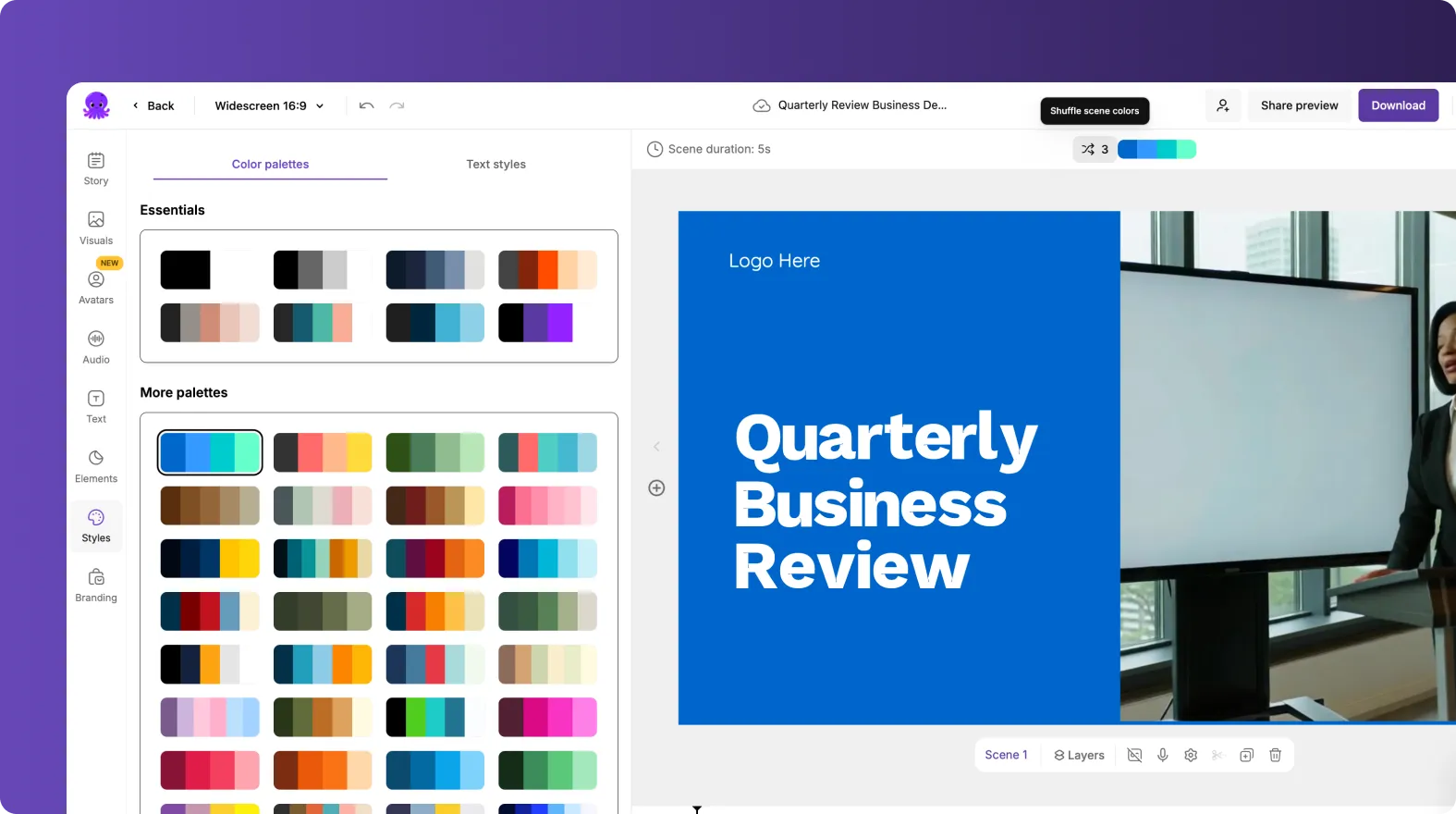
- Layouts: Use Title, List, Number, Quote, and Emphasis layouts to structure frameworks like MEDDICC, SPICED, or objection handling steps.
- On-screen text: Use the Text tab for headings and callouts that reinforce the talk track.
- Text animations: Select a text box, then choose Animate Text in the top toolbar to apply entry and exit effects like Fade, Typewriter, Wipe, or Text Reveal. Adjust speed and apply consistently across scenes.
- Scene management: Use the timeline thumbnail actions such as Duplicate, Copy, Paste after, Delete, or Link with next to build repeatable templates.
FAQ: Sales Enablement Plan 2026
What is a sales enablement plan 2026 and why does video matter?
A sales enablement plan 2026 is an operational roadmap for how your organization equips sellers with training, messaging, content, and processes to improve performance. Video matters because it scales knowledge transfer, improves consistency across teams, and makes updates faster when products and markets change.
Which Pictory workflow is best for sales enablement training videos?
For scripted modules and talk tracks, use Text to Video AI. For existing decks, use PPT to Video AI. For updating old recordings quickly, use the AI Video Editor with video to text transcription. For demos and walkthroughs, use the Smart Screen Recorder.
Can Pictory help with sales enablement automation when messaging changes?
Yes. You can update scripts in Text to Video, regenerate storyboard scenes, or edit the transcript of an existing video using the AI Video Editor. This reduces re-recording and speeds up refresh cycles for sales enablement collateral.
How do we keep enterprise branding consistent across all enablement videos?
Use Brand Kits to standardize logos, fonts, and colors, then apply the kit inside the editor using the Branding tab. This helps every team produce brand-consistent sales enablement assets without manual formatting.
Can we create microlearning videos for mobile-first rep training?
Yes. Set the aspect ratio to 9:16 in the Script Editor, keep scenes short using sentence-based scene creation, and use layouts and concise on-screen text. This format works well for microlearning video examples and quick refreshers.
How do we improve clarity in recorded sales training videos without re-recording?
Upload the video to the AI Video Editor, then use transcript editing, remove filler words, remove silences, and adjust subtitles. After that, generate a new storyboard and finalize the refreshed version in the editor.
Does Pictory support collaboration for enterprise sales enablement teams?
Yes. Pictory supports team collaboration through shared projects, shared brand kits, and shared media. You can also share preview links from the editor to streamline reviews and approvals.


