
Creating visually stunning videos is no longer just about great visuals and strong scripts. Color plays a powerful role in branding, emotional impact, and viewer engagement. With Pictory’s AI-powered Color Palette feature, you can instantly apply vibrant, professional color schemes that automatically enhance every scene in your video.
In this step by step guide, you will learn how to select a color palette, apply it to your project, customize brand palettes, and adjust colors if the default combinations are not the right fit.
What Is the Pictory Color Palette Feature?
The Color Palette feature in Pictory allows you to apply AI-powered color schemes across your entire video project with one click.
Once a palette is selected, Pictory automatically recolors:
Text
Text backgrounds
Graphic elements
Scene backgrounds
Overlays
Visual accents
This ensures your video looks cohesive, professional, and visually appealing without manually adjusting each element.
You can choose from pre-designed palette themes or create your own custom brand palette using the Brand Kit feature.
How to Choose a Color Palette When Creating a New Project
When starting a new project in Pictory, you can select from five different themes. Each theme comes with a unique color palette designed to match different styles and moods.
Step 1: Start Your Video Project
From the Home screen, choose your preferred workflow such as:
Text to Video
URL to Video
AI Video Editor
Audio to Video
Images to Video
PPT to Video
Record
Proceed through the script and setup process until you reach the theme selection step.
Step 2: Select a Theme
During project creation, choose one of the available themes. Each theme automatically applies a curated color palette to your video.

If you select a theme here, its corresponding color palette will be applied across your project by default.
If you select “None,” you can still apply a color palette later inside the editor.
How to Change or Apply a Color Palette from the Storyboard
If you want to change your video’s color scheme after your storyboard has been generated, you can do so directly inside the Video Editor.

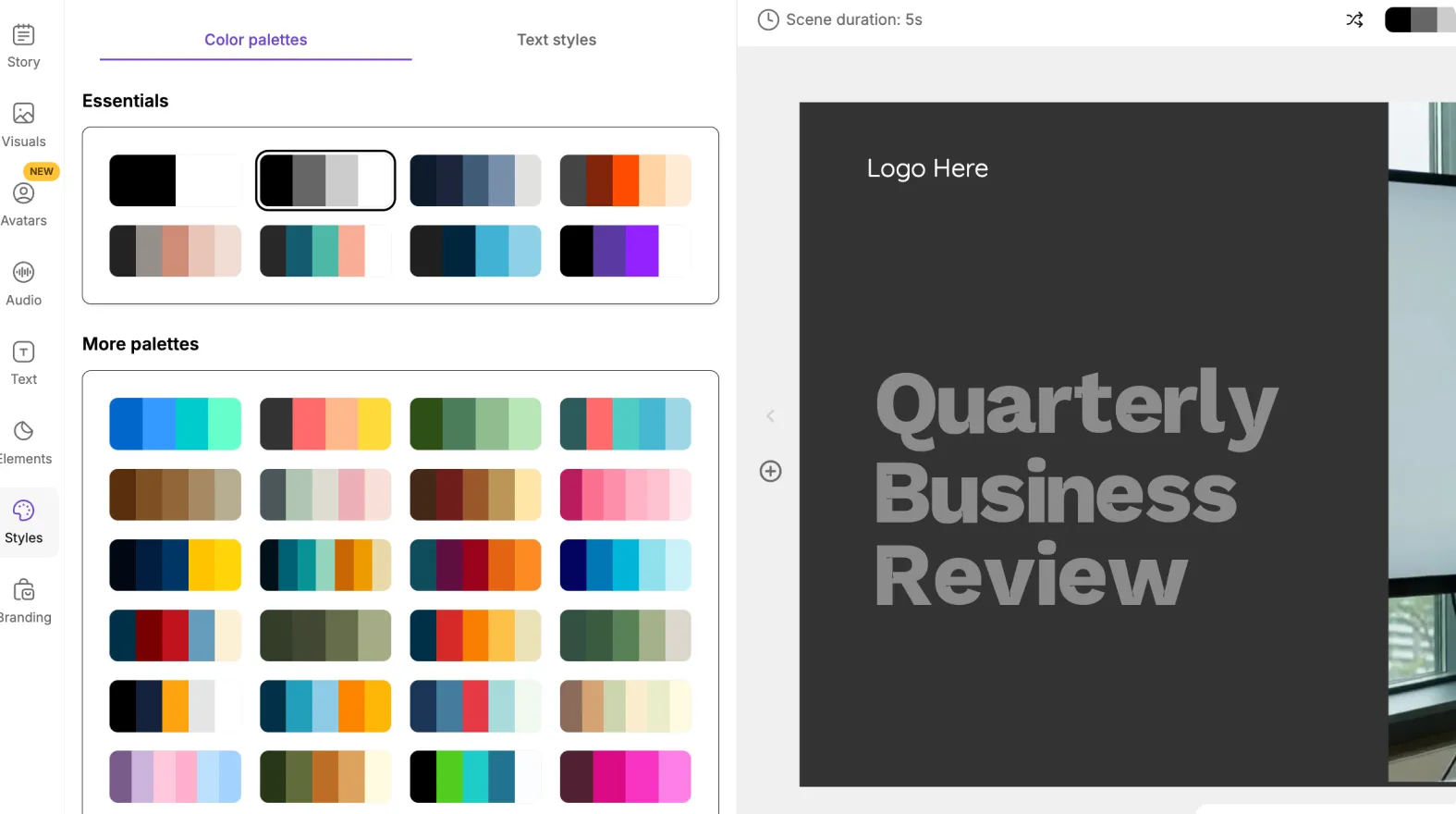
Step 1: Open the Styles Tab
Inside the Video Editor:
Go to the left-hand menu.
Click on the Styles tab.
Open the Color Palettes submenu.
You will see the available color palette library.
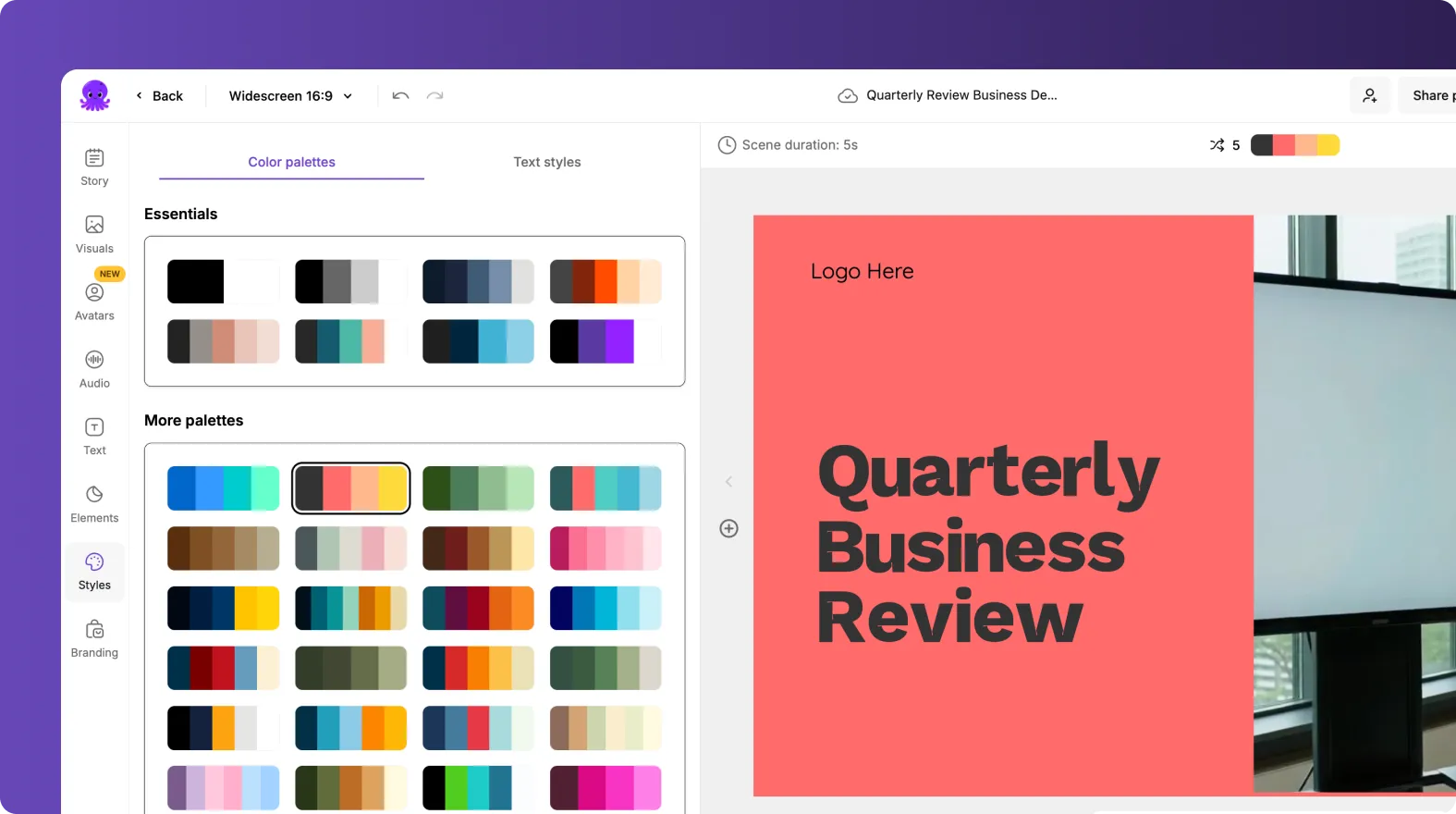
Step 2: Select a Color Palette
Click on any palette from the library.
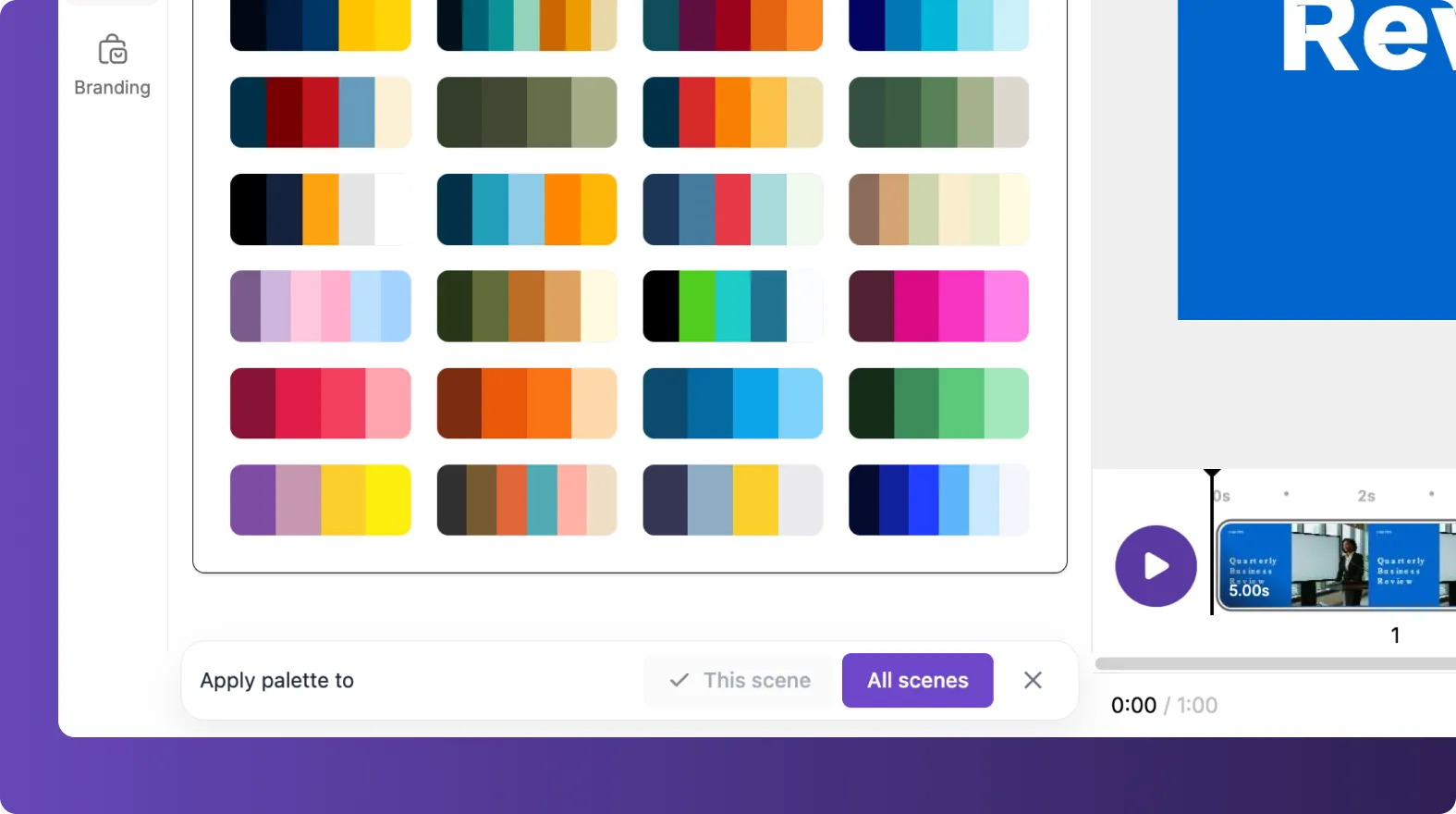
You will have the option to apply it to:
The current scene only
All scenes in the project
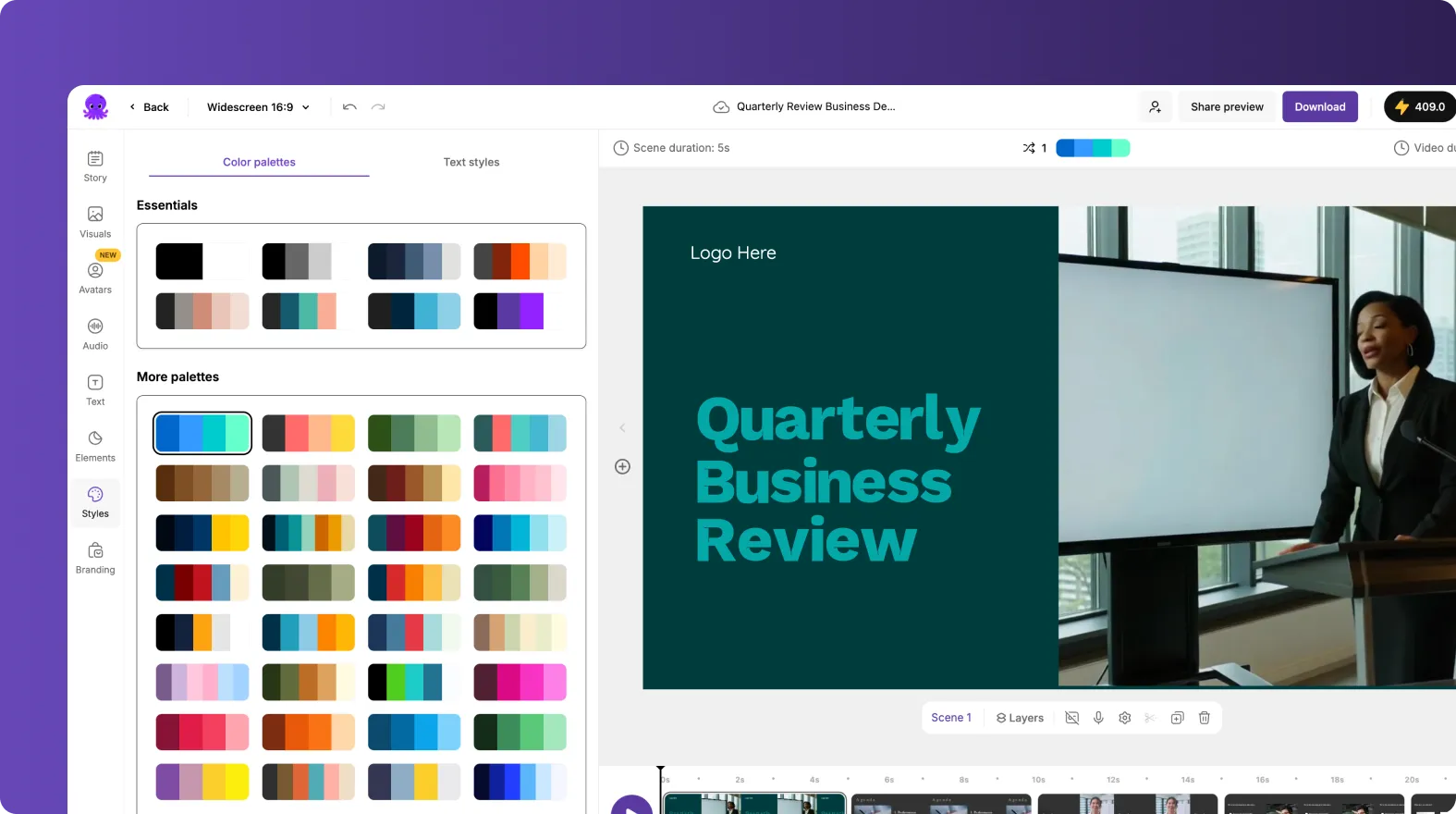
This flexibility allows you to experiment with different looks before committing to a full project update.
How to Create a Custom Brand Color Palette
If you want consistent branding across all your videos, the best option is to create a custom brand palette using the Brand Kit feature.
Step 1: Create or Edit a Brand Kit
Go to Brand Kits from the left sidebar.
Click Create a Brand.
Add your:
Brand name
Logo
Brand colors
Brand font
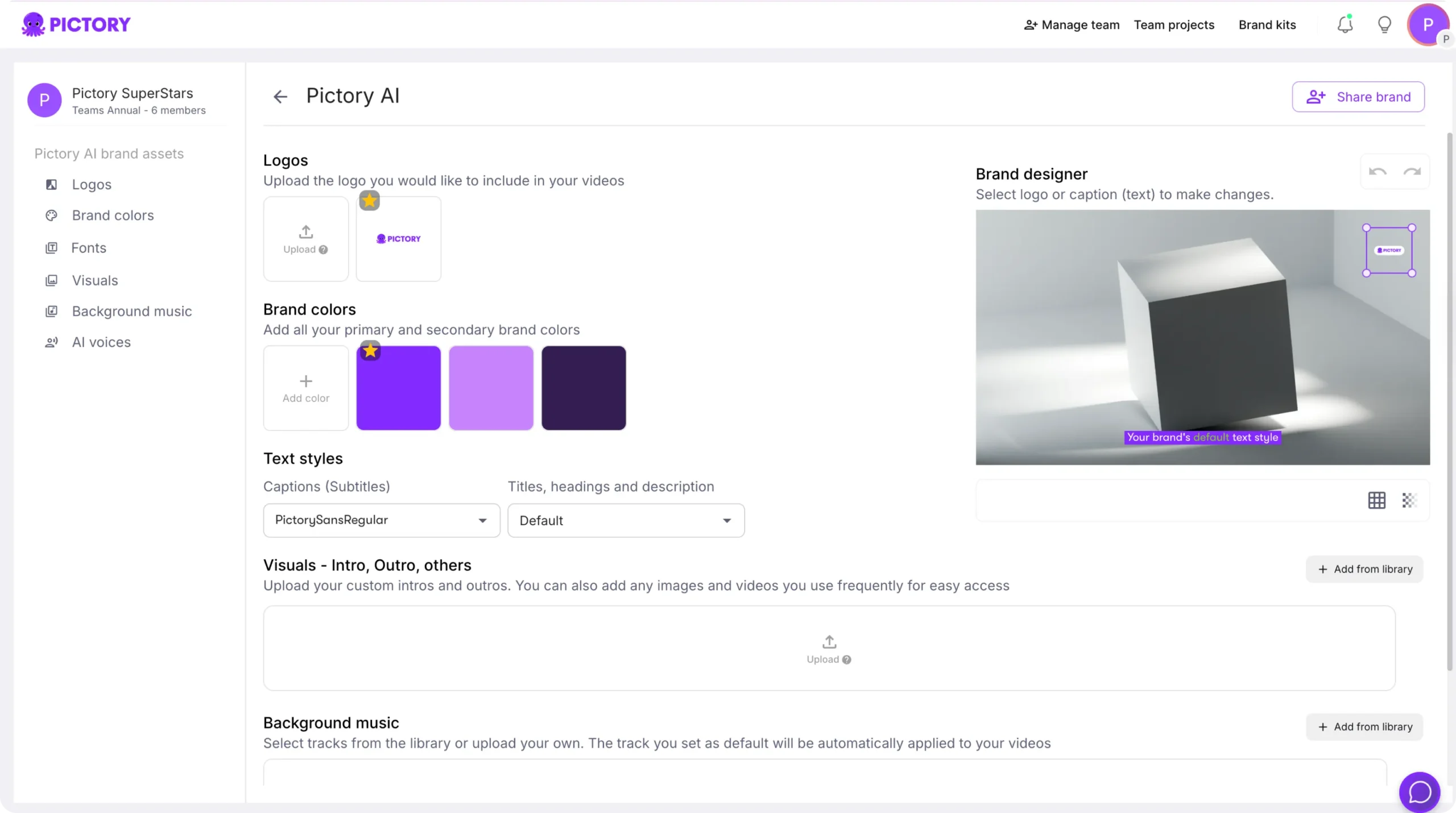
You can define up to seven brand colors. These colors form your custom brand palette.
Step 2: Apply the Brand Palette
Once your Brand Kit is created:
You can select it during project creation.
Or apply it from the Branding tab inside the storyboard.
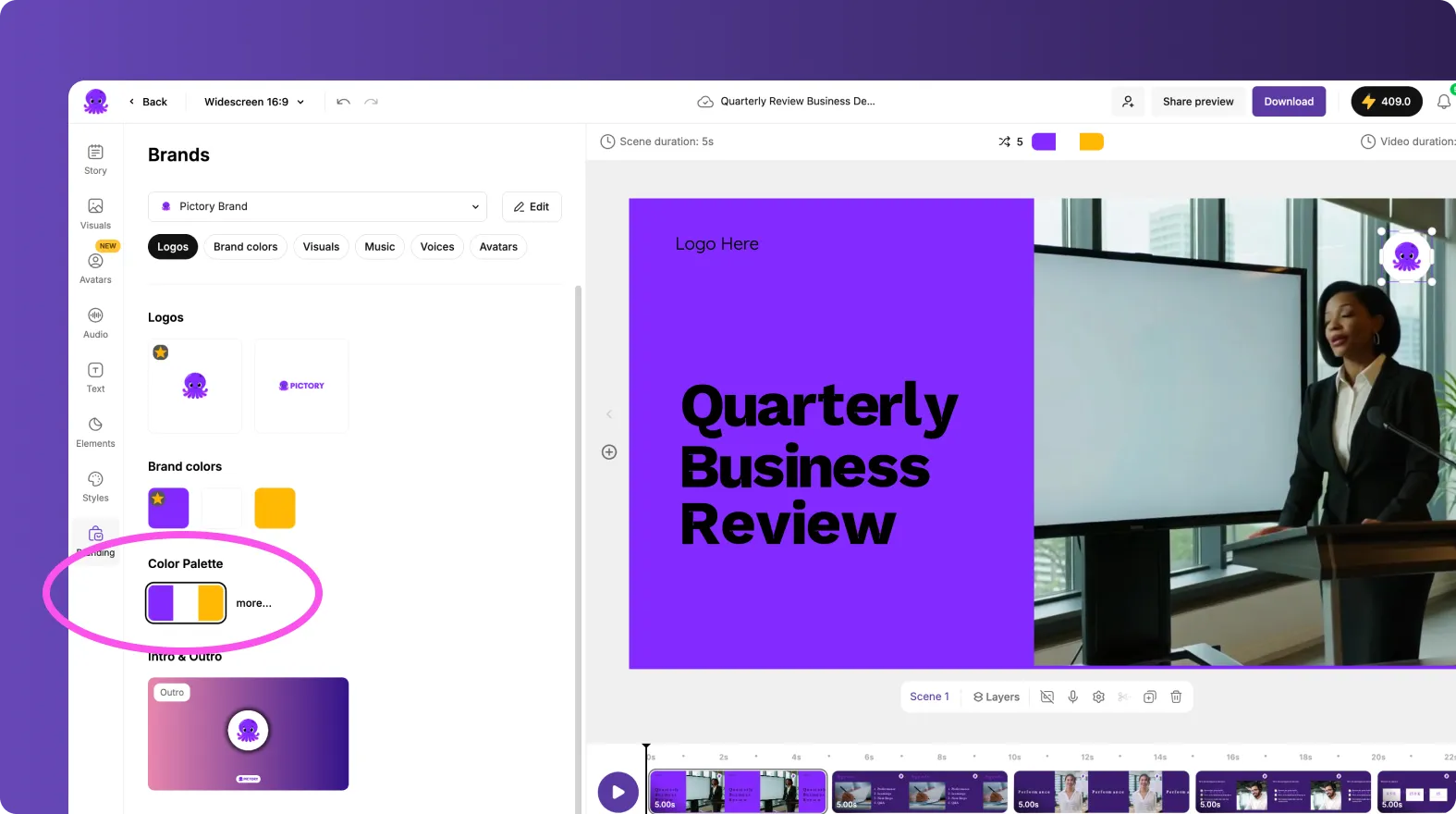
If a brand kit is selected at project creation, the brand palette is automatically applied.
If no brand is selected, the theme palette will be applied instead.
This ensures consistent branding across all videos for marketing campaigns, YouTube content, training materials, and internal communications.
How to Shuffle Color Combinations Within a Palette
Not every scene works perfectly with the first color combination applied. That is why Pictory allows you to shuffle variations within the same palette.
Each palette contains six different color combinations.
Step 1: Click the Shuffle Icon
On a specific scene:
Locate the shuffle icon.
Click it to cycle through different color combinations within the same palette.
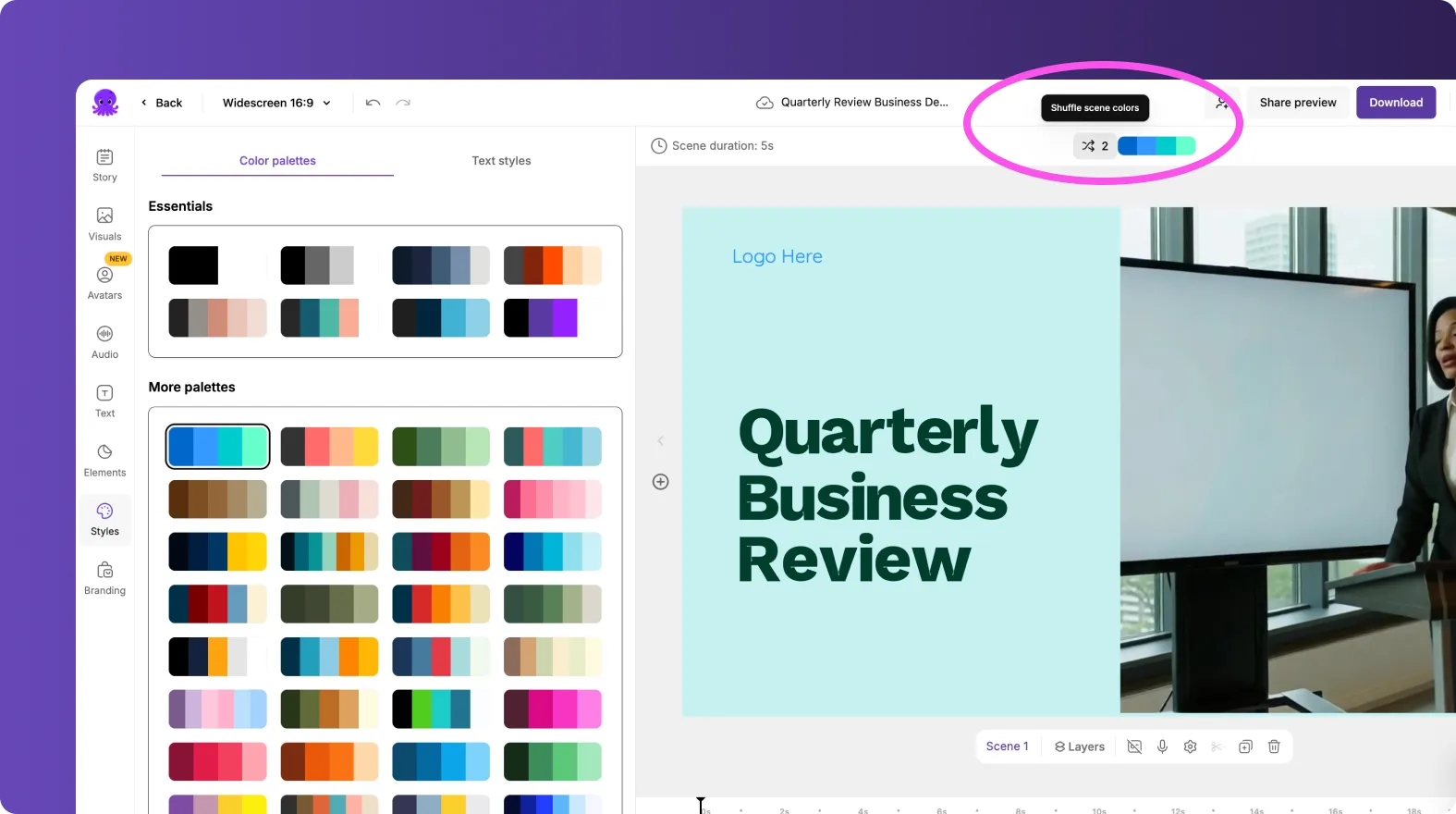
Important: Shuffling affects only the selected scene. It does not change colors on other scenes.
This allows you to fine-tune individual scenes while keeping the overall palette consistent.
What to Do If You Do Not Like the Applied Colors
If the shuffled combinations still do not work for your scene, you have several options.
Option 1: Switch to a Different Palette
Click on the palette to open the Styles tab and select a completely different color palette from the library.
You can apply it to:
Just one scene
The entire project
Option 2: Manually Adjust Specific Elements
You can manually change colors for specific elements such as:
Text
Text background
Shapes
Overlays
This gives you complete creative control while still benefiting from the AI-powered base palette.
Why the Color Palette Feature Matters for Video Branding
Using a consistent video color palette:
Strengthens brand recognition
Improves visual harmony
Enhances emotional impact
Makes videos look more professional
Saves hours of manual design work
Combined with Brand Kits, layouts, text animations, and style presets, the Color Palette feature ensures every video aligns with your brand identity while staying visually dynamic.
Best Practices for Using Color Palettes in Pictory
To get the most out of this feature:
Select your Brand Kit before generating the video for automatic brand palette application
Use shuffle on individual scenes to improve contrast and readability
Apply one palette across all scenes for cohesive storytelling
Ensure text contrast is strong for accessibility
Test different palettes during preview before exporting
Frequently Asked Questions About Pictory Color Palettes
How many color combinations are available within one palette
Each color palette includes six different color combinations that you can shuffle between for a specific scene.
Can I apply a color palette to just one scene
Yes. When selecting a palette from the Styles tab, you can apply it to the current scene only or to all scenes.
How many colors can I add to a custom brand palette
You can define up to seven brand colors inside your Brand Kit. These will form your custom brand palette.
What happens if I select a Brand Kit during project creation
If a Brand Kit is selected at project creation, the brand palette is automatically applied. If not, the theme palette will be used instead.
Can I manually change colors after applying a palette
Yes. You can manually adjust individual text elements, backgrounds, and graphics if needed.
Does shuffling change all scenes
No. Shuffling only affects the current scene. Other scenes remain unchanged.


