
Turning PowerPoint presentations into engaging videos is one of the fastest ways to repurpose training materials, sales decks, webinars, and internal communications. With the Pictory PowerPoint Add-in, you can convert your slides into professional videos directly from inside Microsoft PowerPoint without manually uploading your file to the web app.
In this step by step guide, you will learn how to install the Pictory PowerPoint add-in, generate a video from your presentation, use speaker notes for narration, and understand how it differs from the standard PPT to Video workflow.
What Is the Pictory PowerPoint Add-in?
The Pictory PowerPoint Add-in is a Windows-based integration that allows you to generate videos directly from PowerPoint. Instead of exporting and uploading your PPT file manually, you can initiate video creation from within the PowerPoint ribbon.
This add-in ensures:
Preservation of custom fonts from your PowerPoint installation
Faster performance and enhanced security
Higher fidelity to layouts, element attributes, and slide positioning
Seamless transfer from PowerPoint to the Pictory web app
It is ideal for educators, marketers, corporate trainers, and business teams who regularly convert PowerPoint presentations into videos.
Advantages of Using the Pictory PowerPoint Add-in
Before walking through the setup, here are the main benefits of using the add-in instead of the standard web upload method.
Preserves Custom Fonts
Because the add-in works directly within your PowerPoint environment, it preserves locally installed fonts that may not be available in the browser-based workflow.
Improved Layout Fidelity
Your slide layouts, element alignments, and design attributes are maintained more accurately, ensuring your final video closely matches your original presentation.
Faster and More Secure Workflow
The add-in eliminates the need to manually upload files to the website, reducing friction and improving performance.
Direct Access from PowerPoint
You can initiate video generation without leaving PowerPoint, making it a streamlined PPT to video workflow.
How to Install the Pictory PowerPoint Add-in
The Pictory add-in is available for PowerPoint on Windows only.
Step 1: Download the Add-in
If you are using PowerPoint on a Windows machine, download and install the add-in from:
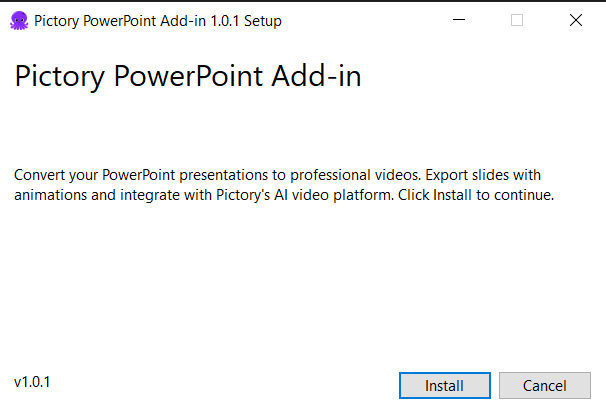
Step 2: Install the Application
Run the installer and follow the setup instructions. Once installation is complete, reopen PowerPoint.
You will now see a new Pictory tab in the PowerPoint ribbon menu.
Getting Started with the Pictory Tab in PowerPoint
After installation, open any PowerPoint presentation.
In the top ribbon menu, locate the Pictory tab. This tab serves as your gateway to converting PowerPoint slides into videos.
Inside this tab, you will find the Generate Video button.
How to Generate a Video from Your PowerPoint Presentation
Converting your presentation into a video takes just a few steps.
Step 1: Open Your Presentation
Open the PowerPoint file you want to convert into a video.

Step 2: Navigate to the Pictory Tab
Click the Pictory tab in the ribbon menu.
Step 3: Click Generate Video
Select Generate Video. This opens the Pictory Video Generation dialog box.
Inside this dialog, you can configure your video creation settings.

How to Use Speaker Notes for Video Narration
One of the most powerful features of the Pictory PowerPoint Add-in is the ability to use speaker notes as your narration script.
This allows you to keep slides clean while adding detailed voice explanations in the final video.
To Use Speaker Notes for Narration
In the Pictory Video Generation dialog box, check the box labeled Use speaker notes for narration.
Proceed with video generation.

Pictory will use your speaker notes as the script for the video narration.
If You Do Not Select This Option
If you leave this box unchecked, Pictory will generate the video script using the visible text content on your slides.
This flexibility allows you to choose between concise slide-based narration or more detailed script-driven explanations.
Finalizing Your PowerPoint to Video Conversion
Once you have selected your preferred settings:
Click the Proceed button.
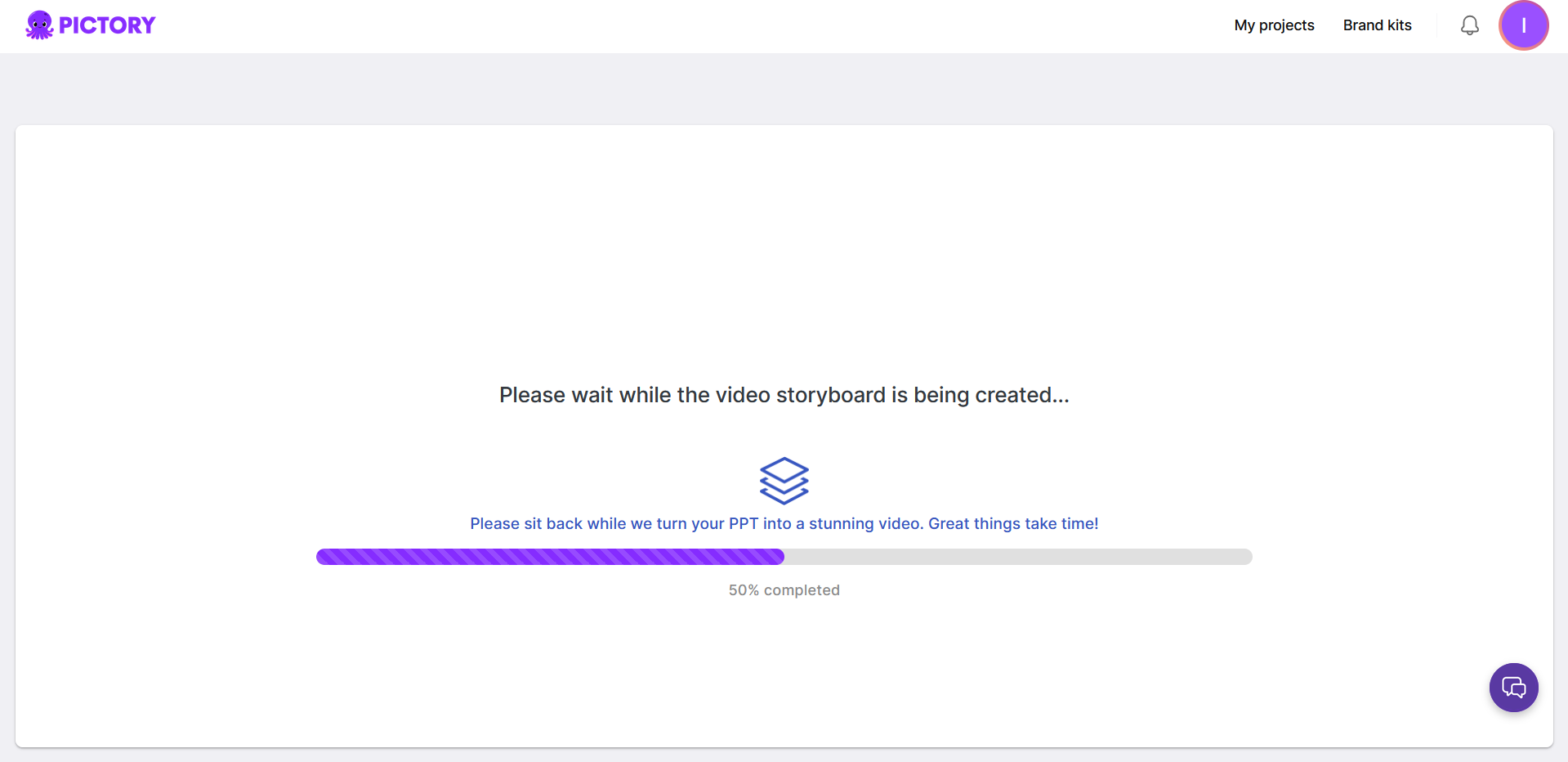
Pictory will process your presentation.
You will be redirected to the Pictory web app to complete the video.
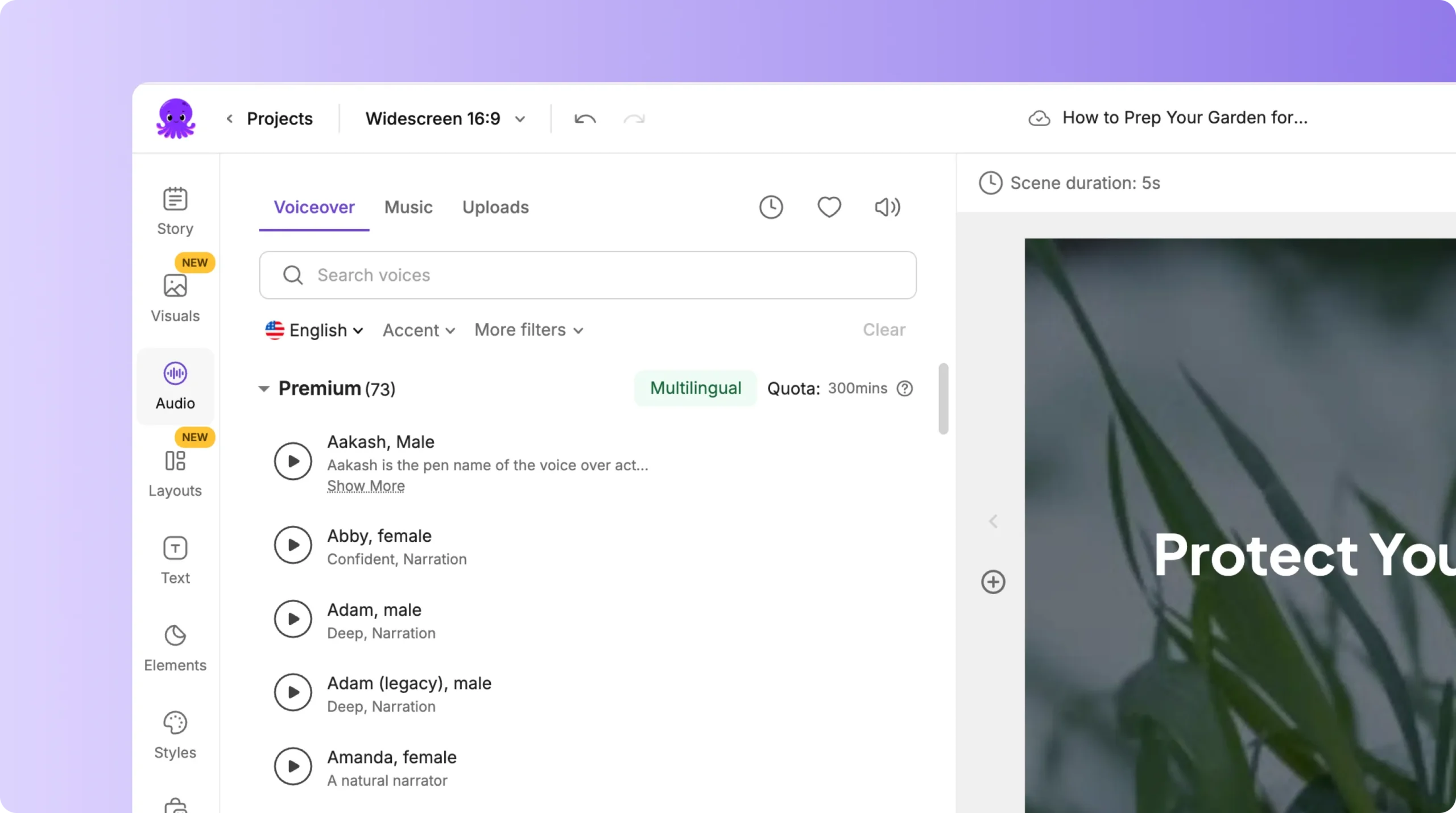
Inside the web app, you can:
Add AI voice-over
Select background music
Customize visuals
Apply brand kits and color palettes
Edit scenes in the Video Editor
Preview and download your final video
Your project will also be saved in My Projects for future editing or collaboration.
Key Differences Between the PowerPoint Add-in and Standard PPT to Video
Pictory has long offered a PPT to Video feature inside the web platform. However, the PowerPoint add-in introduces a more efficient workflow.
Standard PPT to Video Workflow
Upload your PPT or PPTX file to the Pictory website
Wait for processing
Continue editing inside the web app
PowerPoint Add-in Workflow
Start directly inside PowerPoint
No manual file upload required
Use speaker notes for narration
Preserve custom fonts and layout fidelity
The add-in is ideal for users who frequently convert presentations into videos and want maximum design accuracy.
Best Use Cases for the Pictory PowerPoint Add-in
The Pictory PowerPoint Add-in is especially useful for:
Corporate training videos
Sales presentation videos
Educational lessons
Online course modules
Internal communication videos
Webinar repurposing
Marketing presentation videos
By converting static slides into dynamic videos, you increase engagement and expand your content reach across platforms like YouTube, LMS systems, and social media.
Frequently Asked Questions About the Pictory PowerPoint Add-in
Is the Pictory PowerPoint Add-in available on Mac
The current add-in download is designed for PowerPoint on Windows.
Does the add-in preserve my custom fonts
Yes. The add-in preserves custom fonts installed on your PowerPoint environment, ensuring higher visual fidelity.
Can I use speaker notes as a script
Yes. Simply check the Use speaker notes for narration option in the video generation dialog box.
Do I still edit the video in the Pictory web app
Yes. After initiating video generation, you will be redirected to the Pictory web app to finalize voice-over, music, branding, and scene edits.
Is this different from the web-based PPT to Video feature
Yes. The add-in allows you to generate videos directly from PowerPoint and use speaker notes for narration, making it more streamlined and efficient.


