
Creating engaging training or educational videos from PowerPoint presentations is simple with Pictory. Using the PPT to Video feature, you can automatically convert slides into a professional video. Then, with Pictory Central, you can add interactive quizzes to reinforce learning and measure viewer engagement.
This guide walks through the full process of converting a PowerPoint into a video and adding a quiz for an interactive learning experience.
Why Convert PowerPoint to Video with a Quiz
Turning a PowerPoint into a video makes your content more engaging and accessible. Adding quizzes further improves retention and allows you to measure understanding.
Benefits include:
Transform static slides into dynamic video lessons
Add narration and visuals automatically
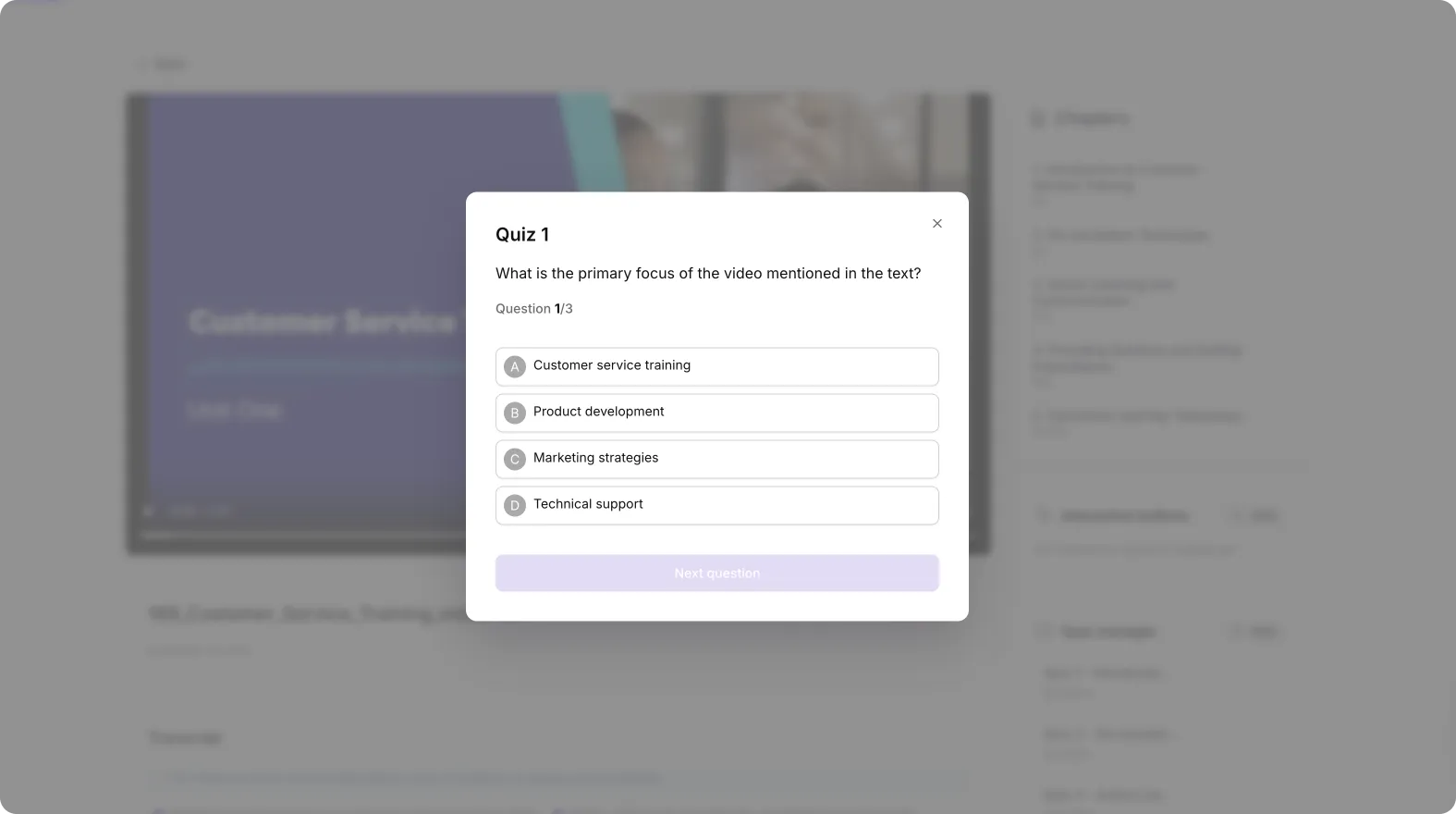
Reinforce learning with interactive quizzes
Share training content easily with teams or students
Track engagement and knowledge retention
With Pictory, this entire workflow can be completed without advanced video editing skills.
Step 1: Upload Your PowerPoint Using
Pictory PPT to Video
The first step is converting your presentation into a video storyboard.
How to upload your PowerPoint
Log in to your Pictory account.
From the Home dashboard, select PPT to Video.
Upload your PowerPoint file (.PPT or .PPTX).
You can drag and drop the file or browse your computer.
Optional: Enable Use Speaker Notes for Narration if your slides contain notes.
Click Generate Video.
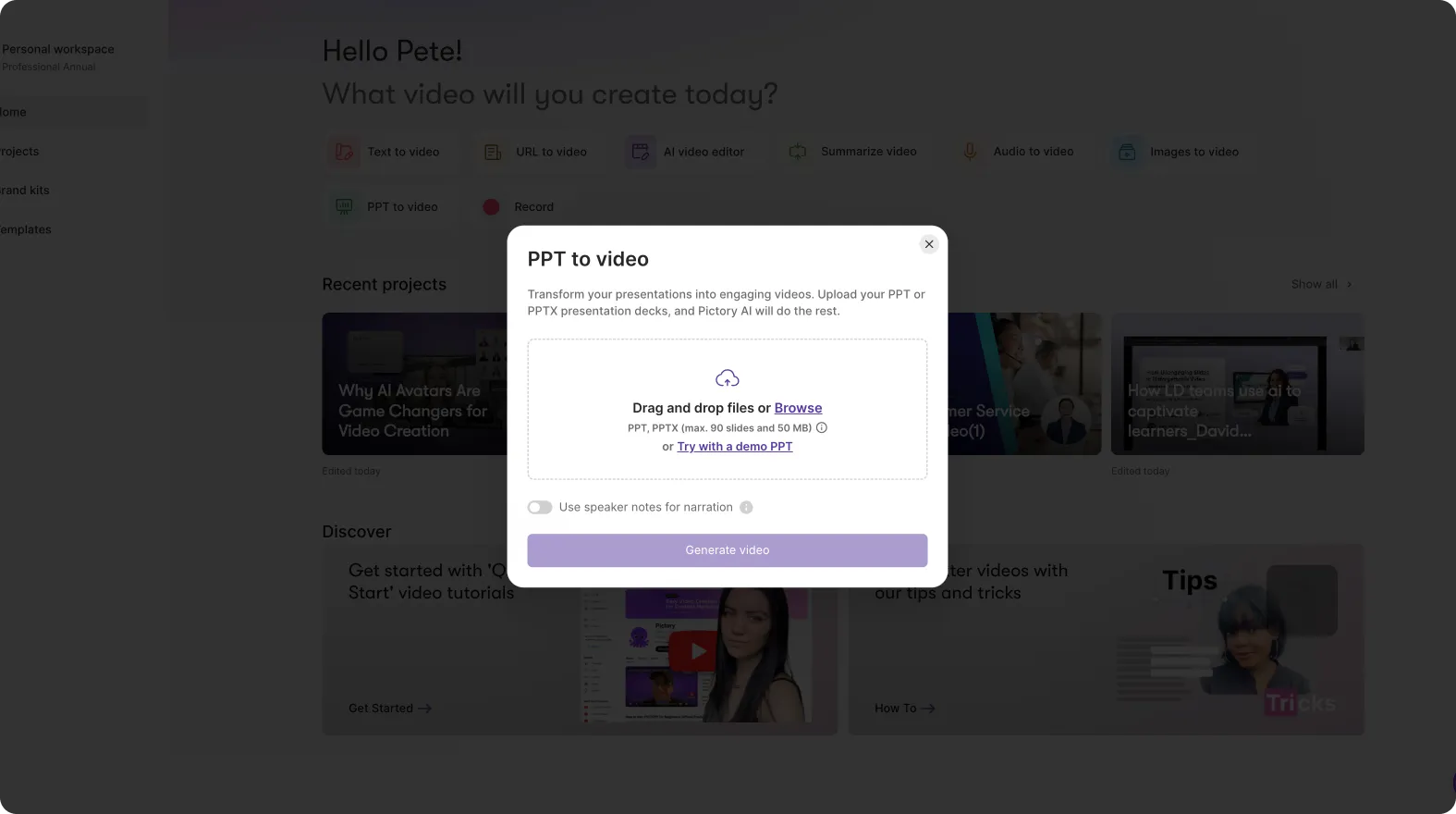
Pictory will automatically begin converting your slides into a storyboard-based video.
Important limits:
Maximum 90 slides
Maximum 50 MB file size
Step 2: Let Pictory Convert Slides into a
Video Storyboard
After uploading your PowerPoint, Pictory’s AI processes the slides and builds a video storyboard.
During this stage:
Slides are converted into individual video scenes
Text from slides becomes captions and narration
A progress bar shows the conversion status
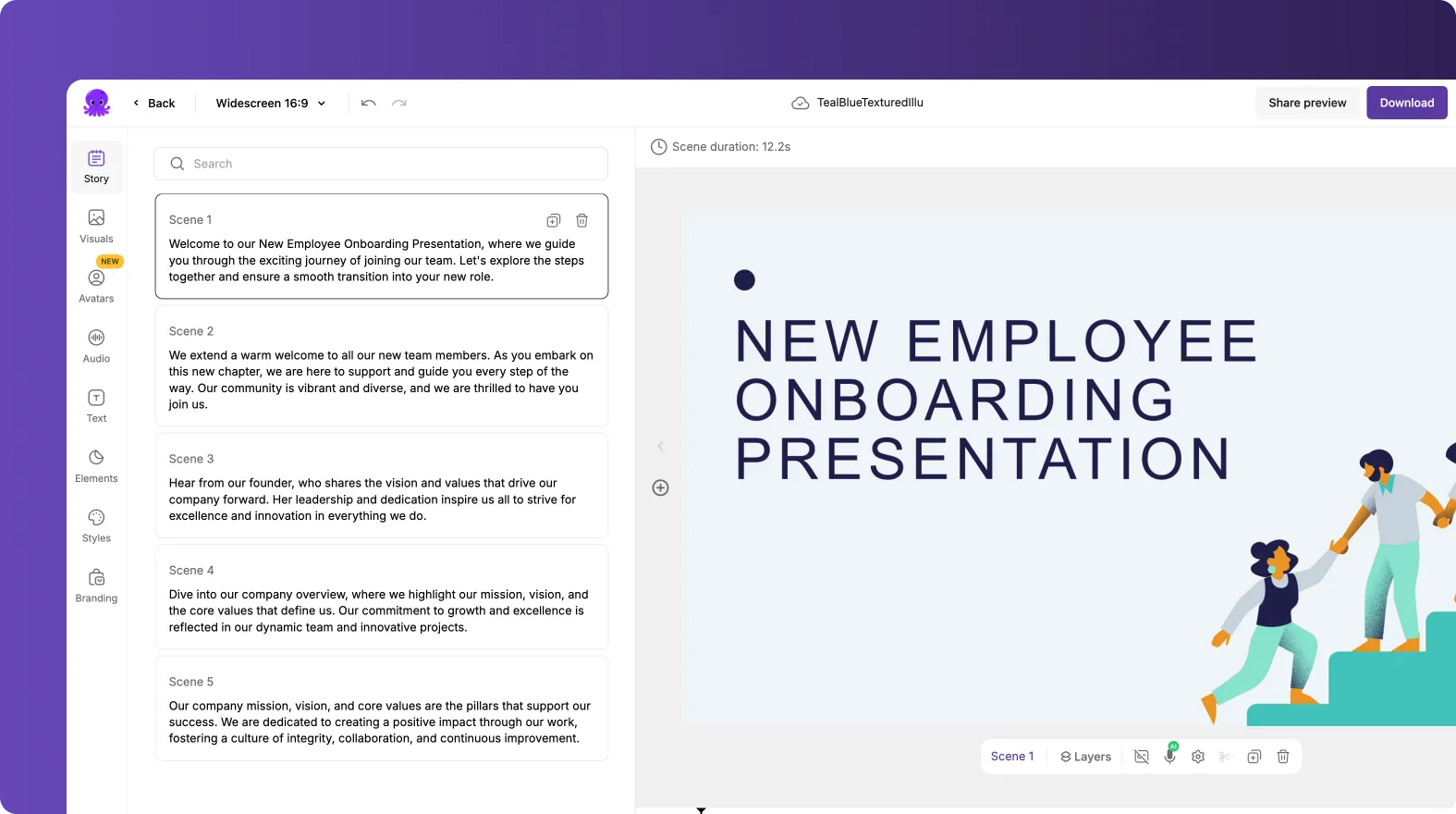
Once processing is complete, you will be taken to the AI Storyboard Editor where you can customize the video.
Step 3: Edit and Customize Your
PowerPoint Video
Inside the Pictory video editor, you can refine the video generated from your PowerPoint.
Editor layout overview
The editor contains several sections:
Left Panel: Script and scenes created from slides
Right Panel: Video preview of the current scene
Bottom Timeline: Scene thumbnails for navigation
How to improve your video
You can enhance your video using the following tools:
Edit scenes
Modify text generated from your slides
Split or merge scenes if needed
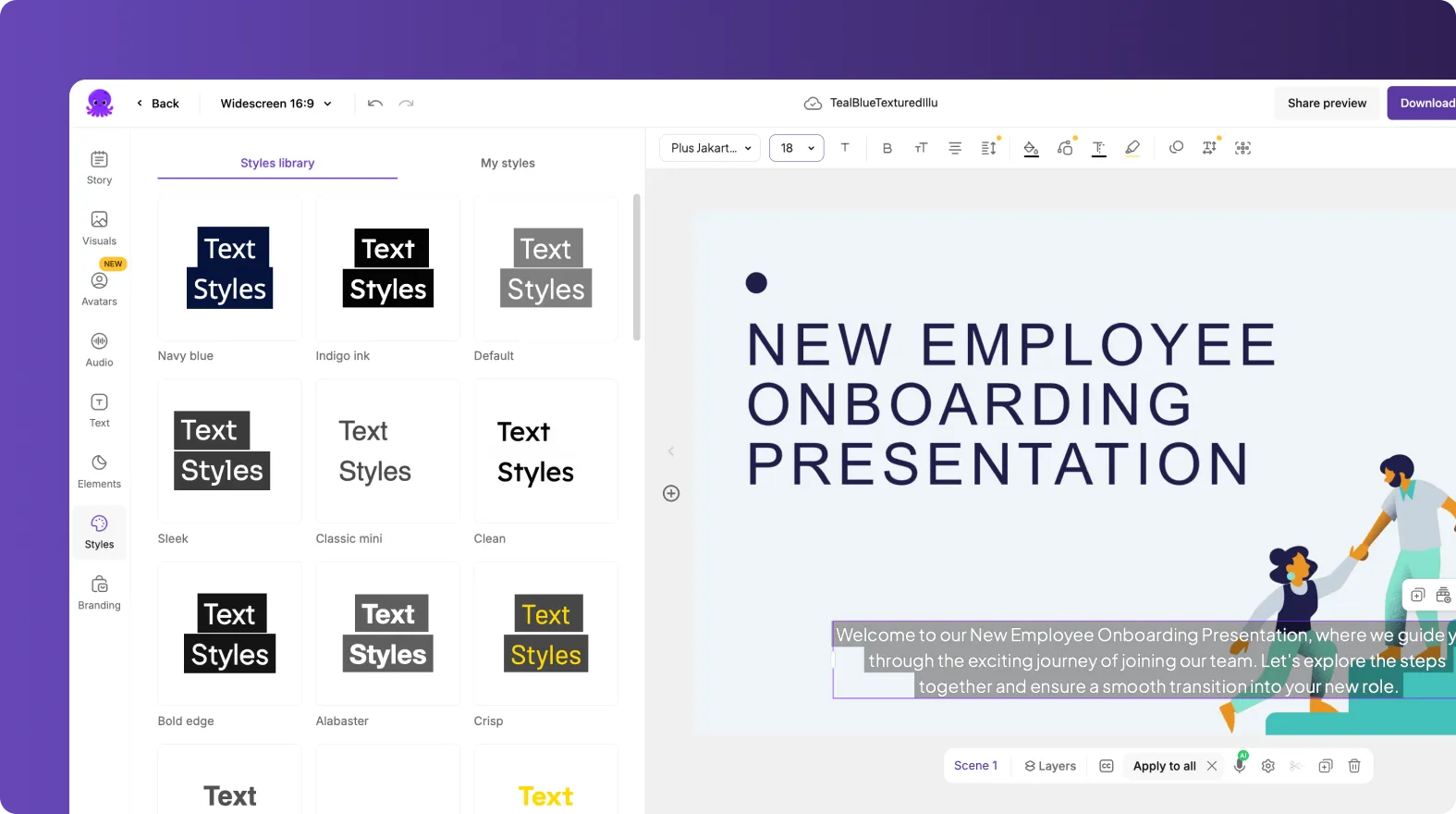
Add visuals
Open the Visuals tab
Choose stock videos or images from the library
Upload your own media
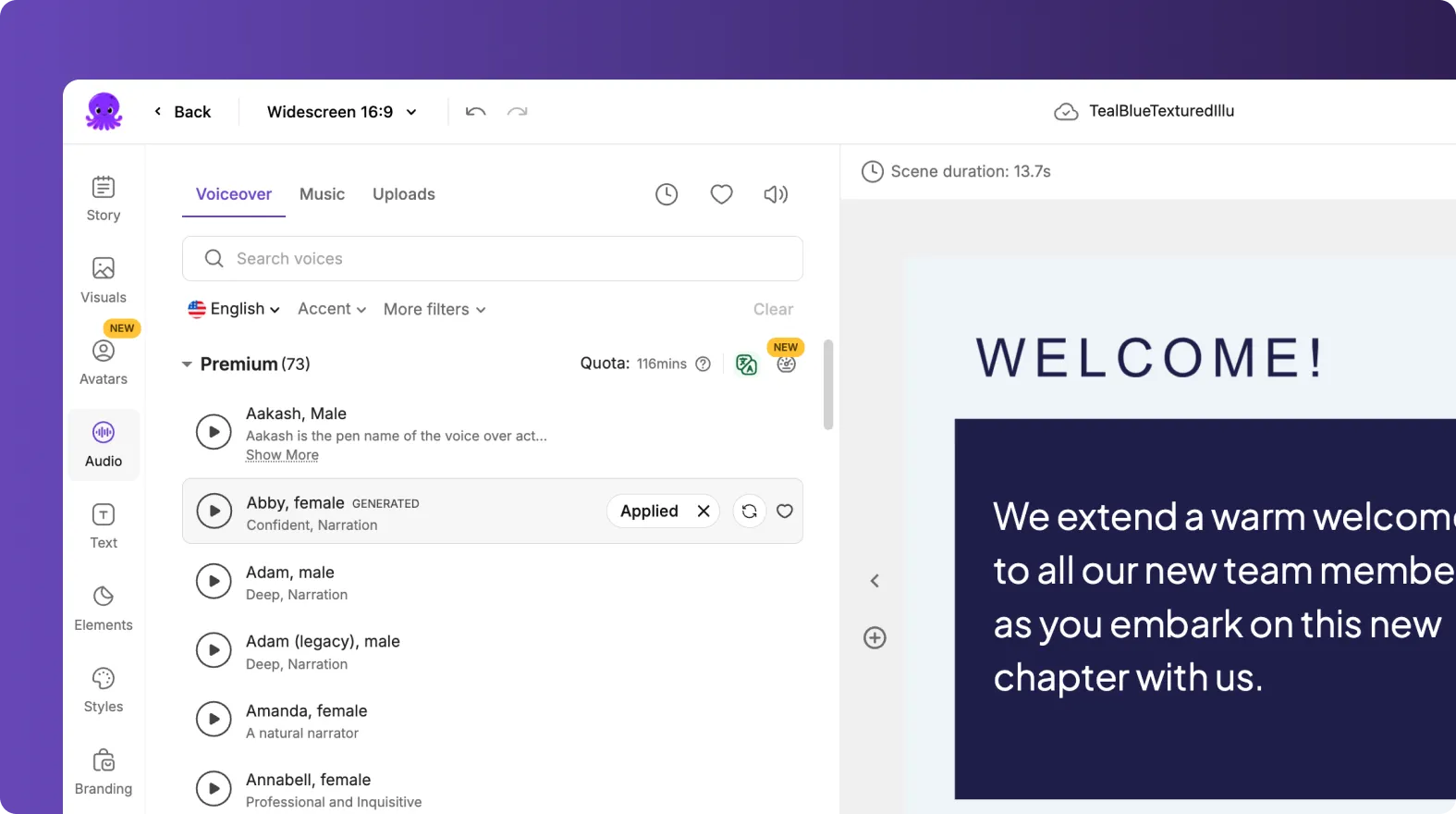
Add AI voiceover
Open the Audio tab
Select an AI voice for narration
Upload your own voice recording if preferred
Apply branding
Go to the Branding tab
Apply your logo, brand colors, and fonts
Adjust layouts
Use the Layouts tab to change how text appears on screen
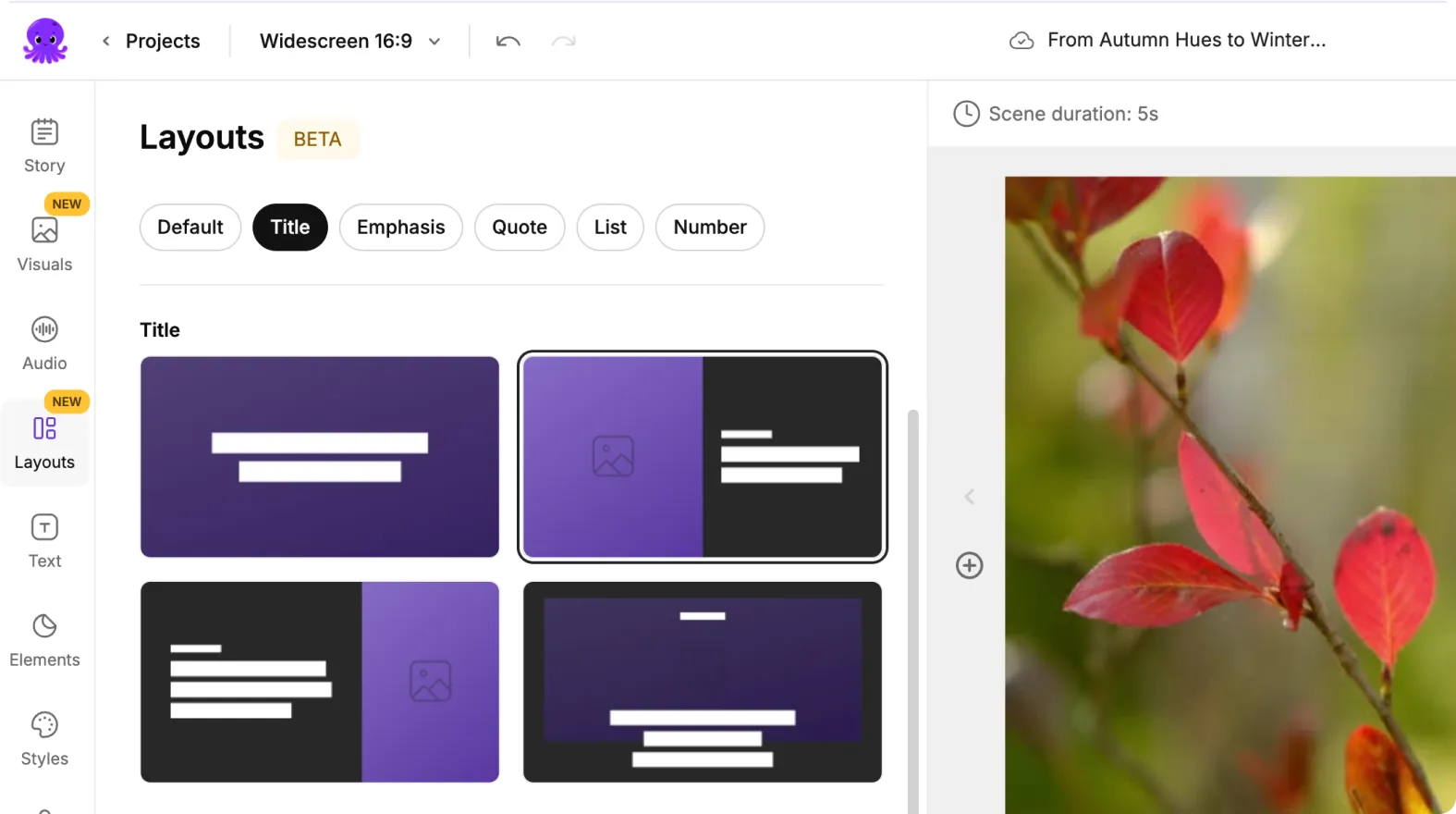
These edits help transform a simple presentation into a polished video.
Step 4: Preview and Export Your PowerPoint Video
Once editing is complete, preview the full video before exporting.
How to export your video
Click Preview Video to watch the full playback.
Review transitions, visuals, and narration.
Click Download Video when ready.
Your PowerPoint presentation is now a professional video ready for training, marketing, or education.
Step 5: Add a Quiz to Your Video Using Pictory Central
After generating your video, you can enhance it with a quiz using Pictory Central.
Pictory Central allows you to turn passive video content into an interactive learning experience.
How to add a quiz to your video
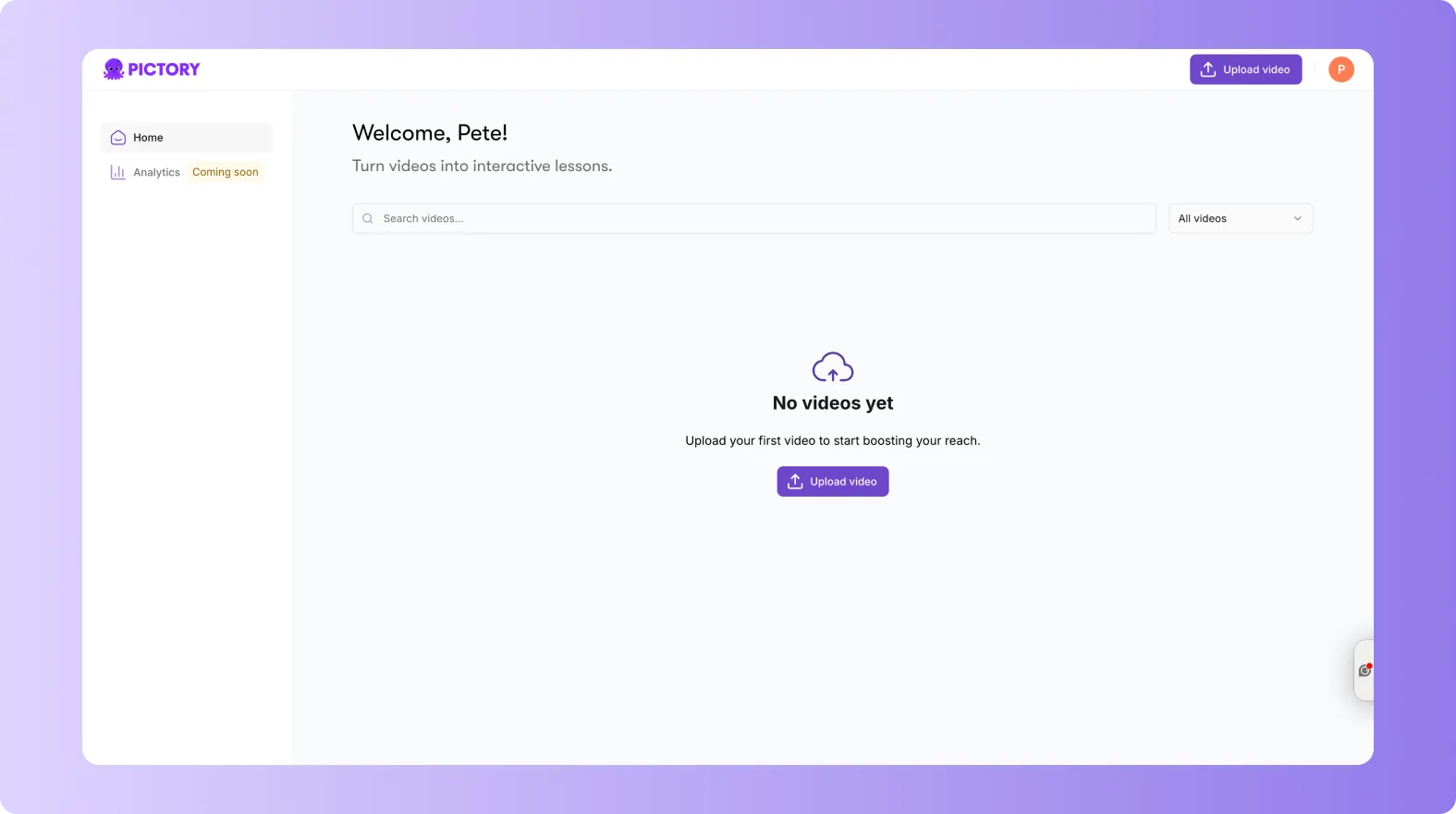
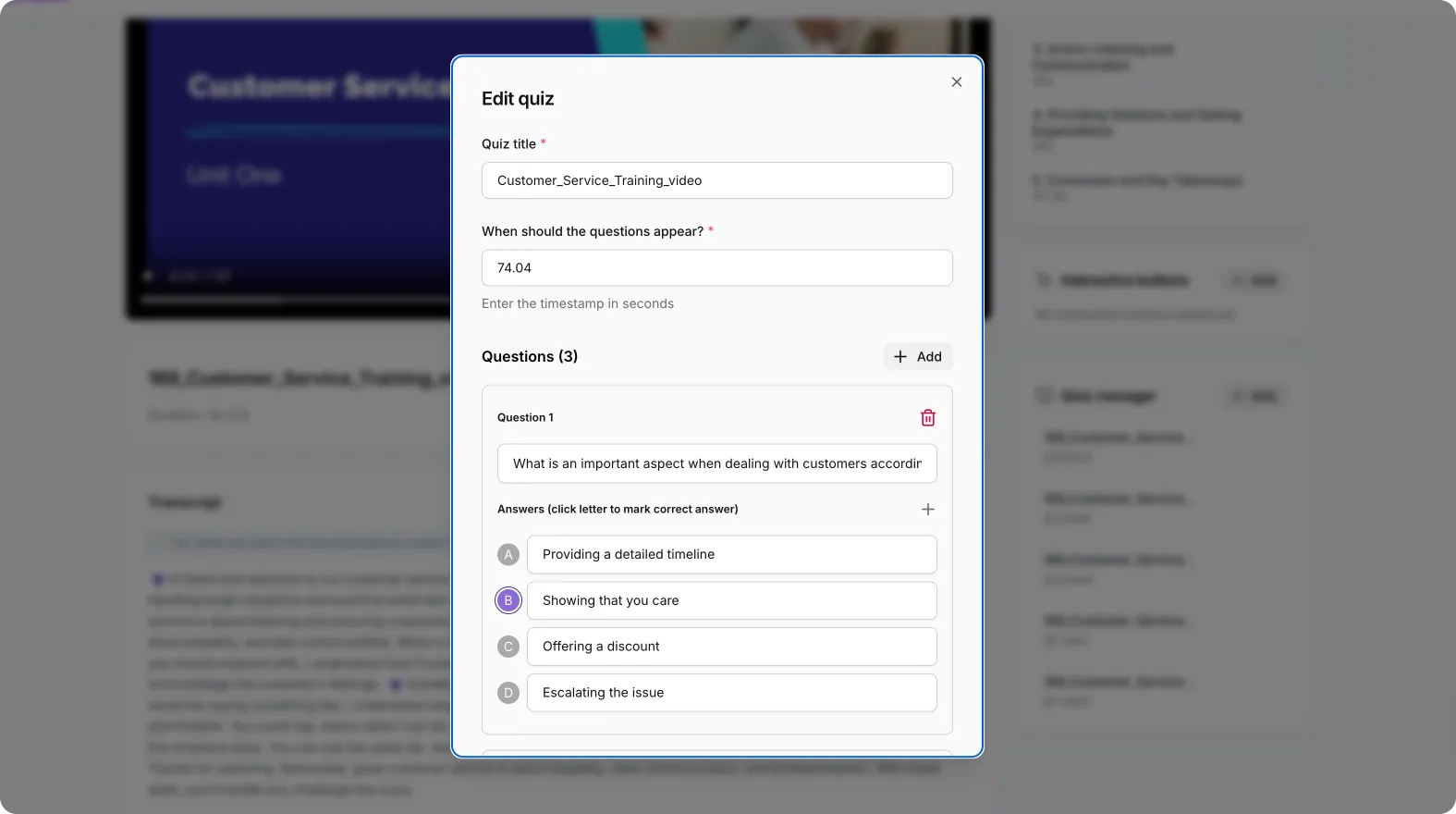
Open Pictory Central.
Upload or select your generated Pictory video.
Navigate to the Interactive Elements or Quiz section.
Add quiz questions at specific timestamps in the video.
Choose question types such as:
Multiple choice
True or false
Knowledge check questions
Save and publish your interactive video.
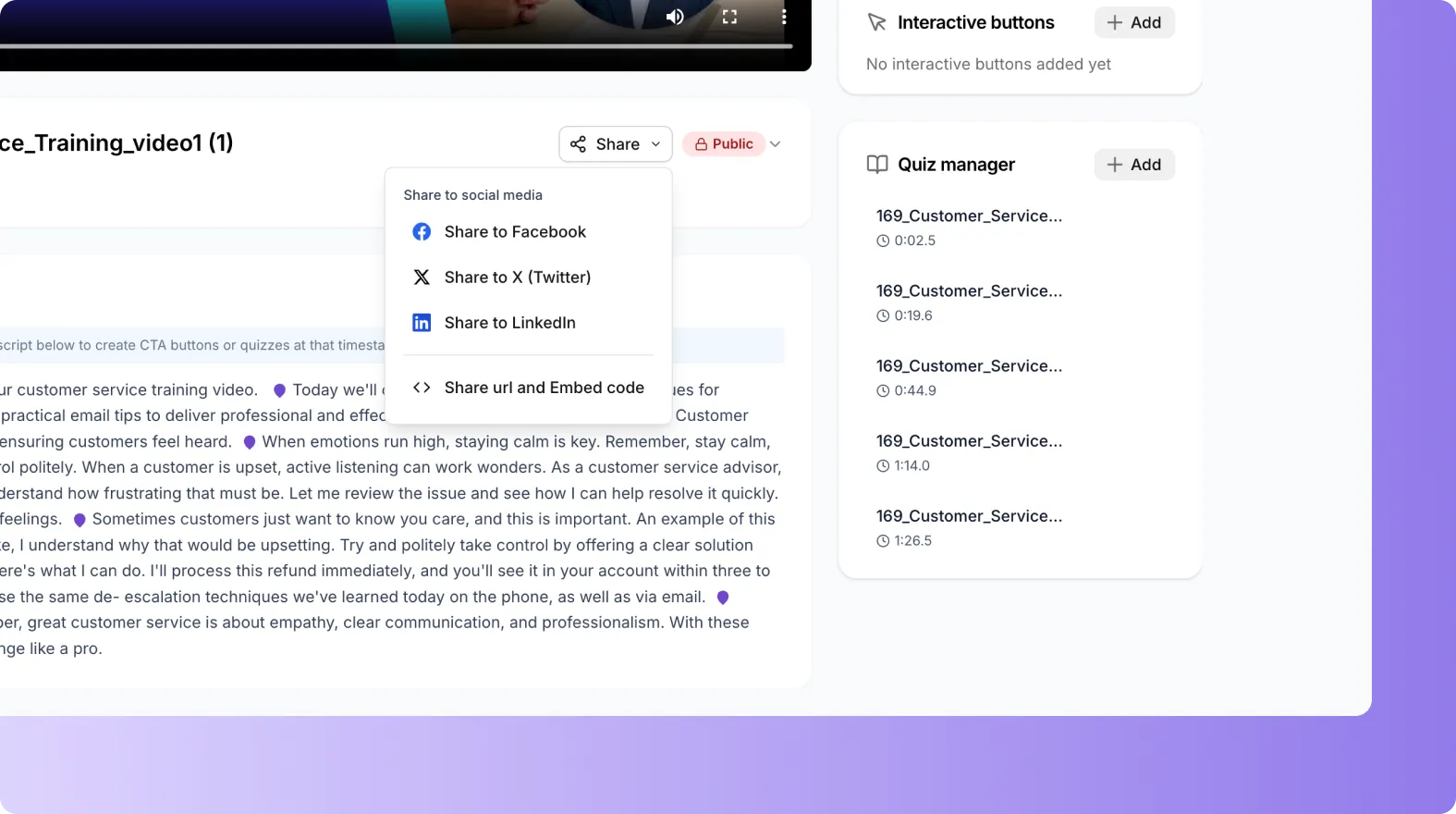
Now viewers will encounter quiz questions during playback, helping reinforce key concepts from your presentation.
Best Practices for PowerPoint to Video Training Content
To get the best results from PPT to Video conversion, follow these tips:
Keep slides concise
Avoid large paragraphs. Use short bullet points that translate well into narration.
Use speaker notes
Speaker notes allow Pictory to generate more natural narration for each slide.
Add visuals during editing
Replace static slides with relevant stock videos or images to increase engagement.
Insert quizzes after key sections
Add questions after important learning segments to test comprehension.
Use Cases for PowerPoint to Video with Quizzes
This workflow is ideal for many types of content:
Employee onboarding and training
Online courses and microlearning
Educational lessons
Sales training presentations
Corporate knowledge sharing
Customer onboarding tutorials
Interactive quizzes help turn passive videos into effective learning tools.
Frequently Asked Questions
Can Pictory convert PowerPoint slides directly into a video?
Yes. The PPT to Video feature converts your slides into video scenes automatically, including captions and optional narration from speaker notes.
What file types are supported for PPT to Video?
Pictory supports .PPT and .PPTX files for PowerPoint uploads.
How many slides can I upload?
You can upload PowerPoint files with up to 90 slides and a maximum file size of 50 MB.
Can I edit the video after converting my PowerPoint?
Yes. After the storyboard is generated, you can edit scenes, change visuals, add voiceovers, apply branding, and adjust layouts in the Pictory video editor.
Why should I add quizzes to my video?
Quizzes increase engagement, reinforce learning, and allow you to measure whether viewers understand the material presented in the video.
Do I need video editing experience to use Pictory?
No. Pictory is designed for beginners and professionals alike. The AI automatically builds the storyboard and video, while the editor allows easy customization without advanced editing skills.


