
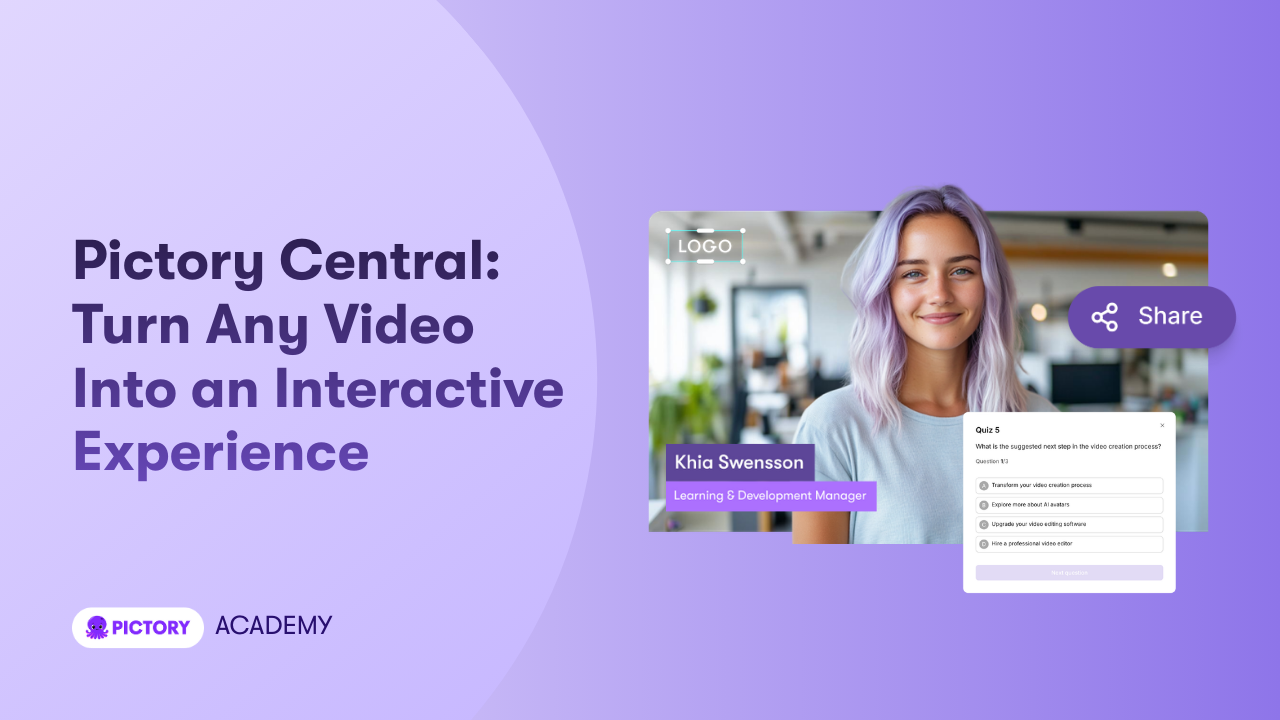
Interactive video is no longer optional for modern training, marketing, and internal communications. Teams need a way to transform passive video content into measurable, engaging learning experiences without rebuilding everything from scratch.
Pictory Central is Pictory’s interactive video hosting and publishing platform. It allows you to upload existing videos and automatically turn them into interactive experiences with chapters, quizzes, and call to action buttons. You can host, stream, track, and export your videos in one place.
In this guide, you will learn what Pictory Central is, how it works, and how to use it step by step to create interactive videos for your website, LMS, or internal training programs.
What Is Pictory Central
Pictory Central is an interactive video platform that adds an intelligent engagement layer on top of your existing videos.
Instead of rebuilding courses in complex authoring tools, you simply upload your video.
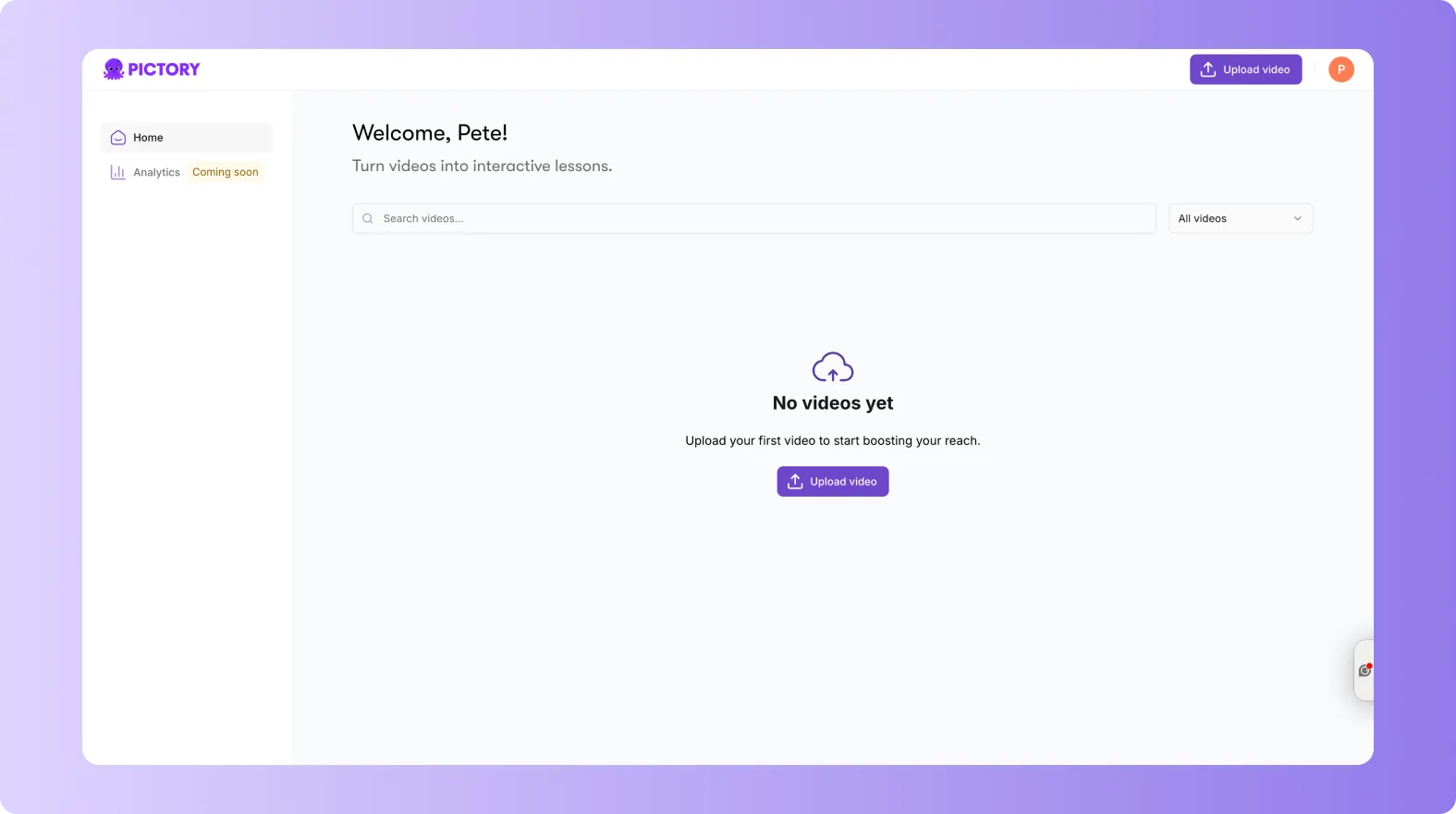
Pictory analyzes the content and automatically creates:
- Automatic chapters based on topic changes
- AI generated quiz questions based on video content
- In video call to action buttons
- Hosting and streaming infrastructure
- SCORM export for LMS integration
Pictory Central works as:
- An interactive video layer for LMS platforms
- A video hosting and streaming solution
- An LMS light solution for teams without a full LMS
- A way to offload heavy video hosting from systems like Articulate
The result is higher engagement, better completion rates, and measurable learning outcomes without tool sprawl.
Why Use Pictory Central for Interactive Video Hosting
Turn Passive Video into Interactive Learning
Instead of viewers passively watching, they can:
- Jump between chapters
- Answer quiz questions
- Click calls to action
- Demonstrate understanding
Interactive video improves retention and accountability.
Reduce Tool Sprawl
With Pictory Central, you do not need:
- Separate video hosting
- Separate quiz software
- Complex authoring tools
- Additional streaming infrastructure
Everything lives inside one platform.
Improve LMS Performance
If you use an LMS, Pictory Central allows you to:
- Export interactive videos as SCORM packages
- Keep heavy video hosting and streaming inside Pictory
- Improve playback reliability
- Reduce LMS storage and bandwidth strain
How to Use Pictory Central to Create Interactive Videos
Follow this step by step guide to create interactive videos in minutes.
Step 1: Upload Your Existing Video to Pictory Central
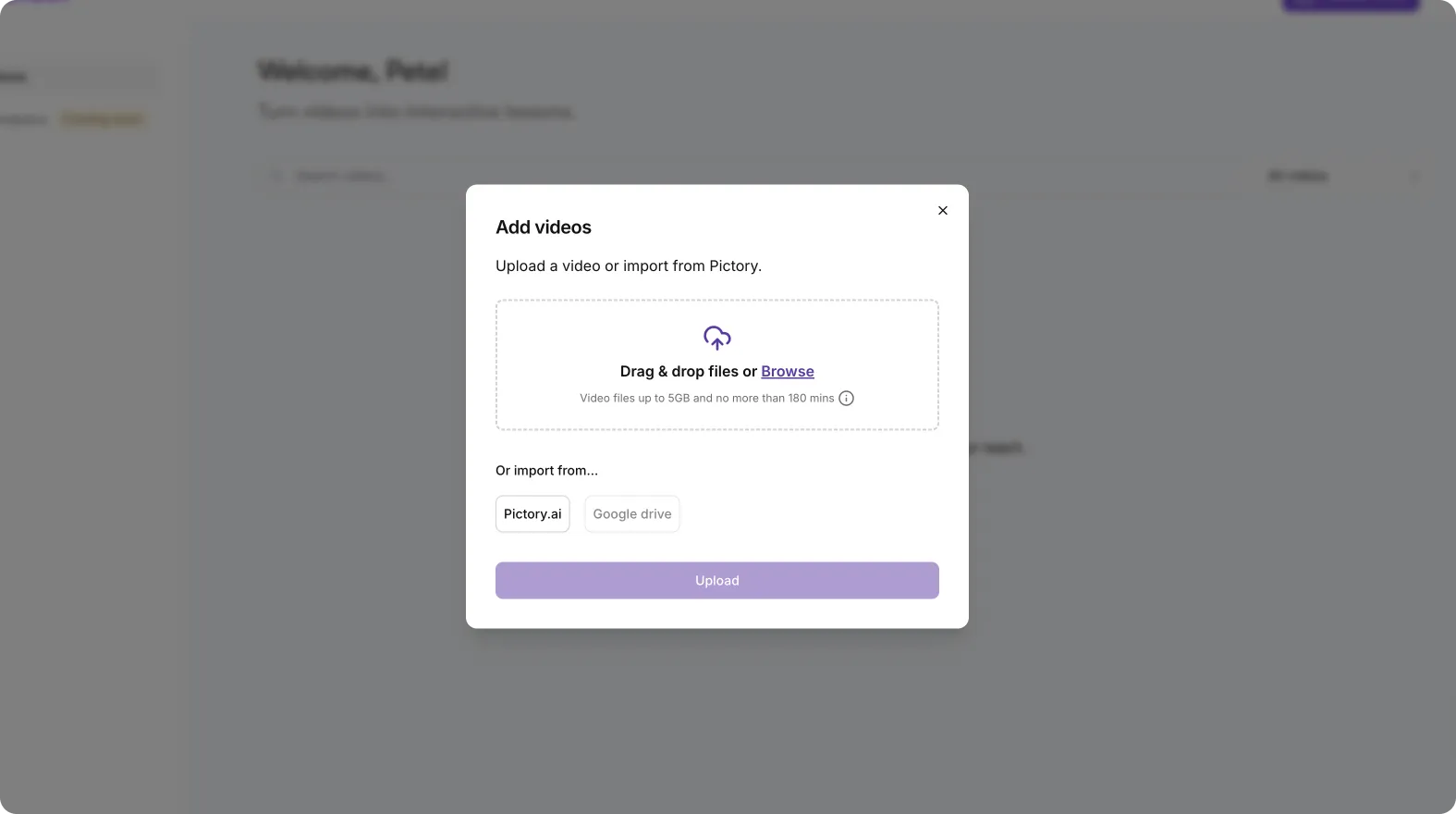
Start by uploading your video into Pictory Central.
You can:
- Upload a video from your computer
- Use an existing video from your Pictory projects
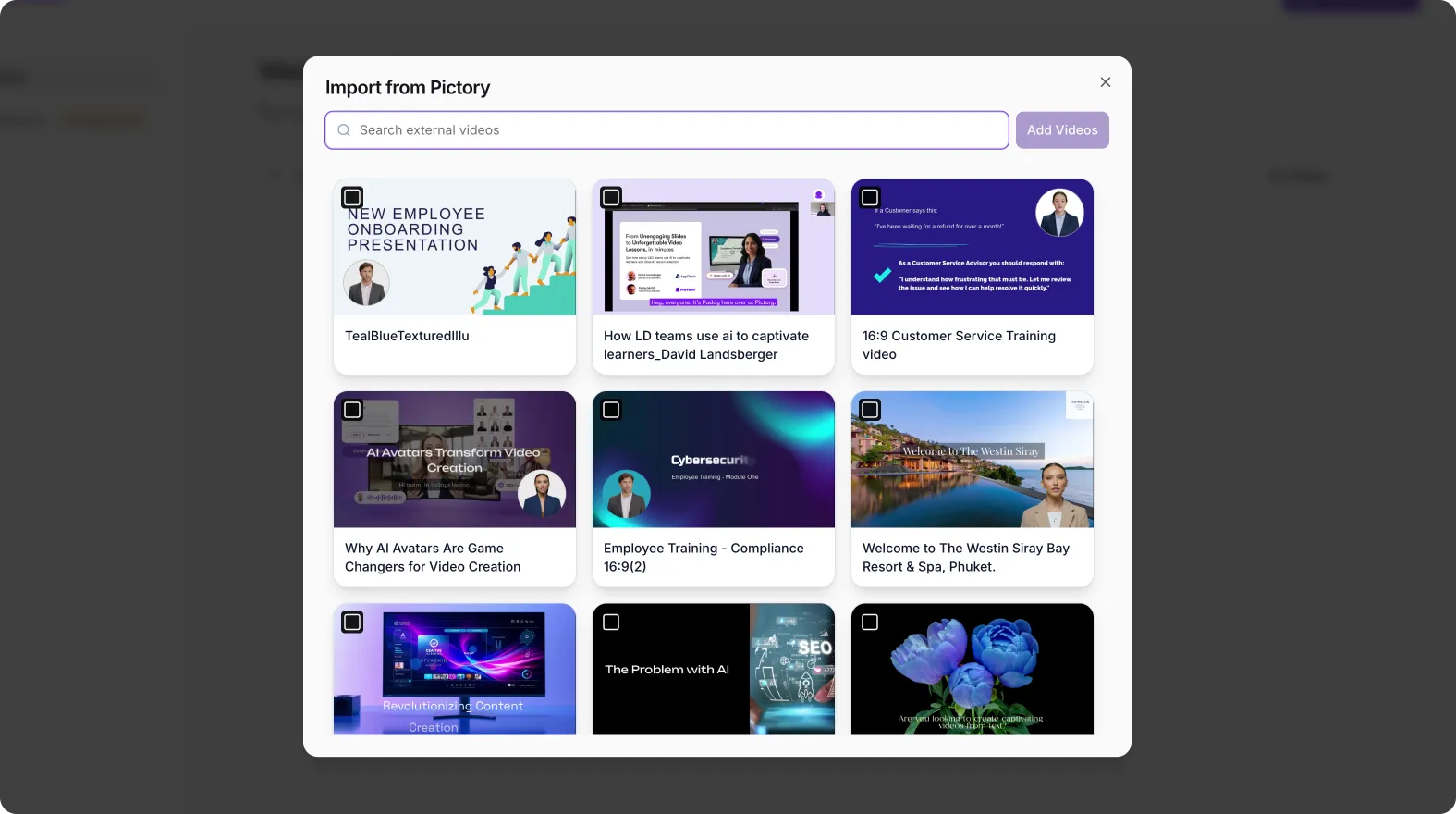
Once uploaded, Pictory begins analyzing your content automatically.
There is no need to manually segment the video or create a structure from scratch.
Step 2: Let Pictory Automatically Create Chapters
After upload, Pictory detects topic changes in your video and creates automatic chapters.
These chapters allow viewers to:
- Jump to specific sections
- Navigate long videos easily
- Review key concepts quickly
You can:
- Rename chapters
- Edit chapter titles
- Reorder chapters
- Delete unnecessary sections
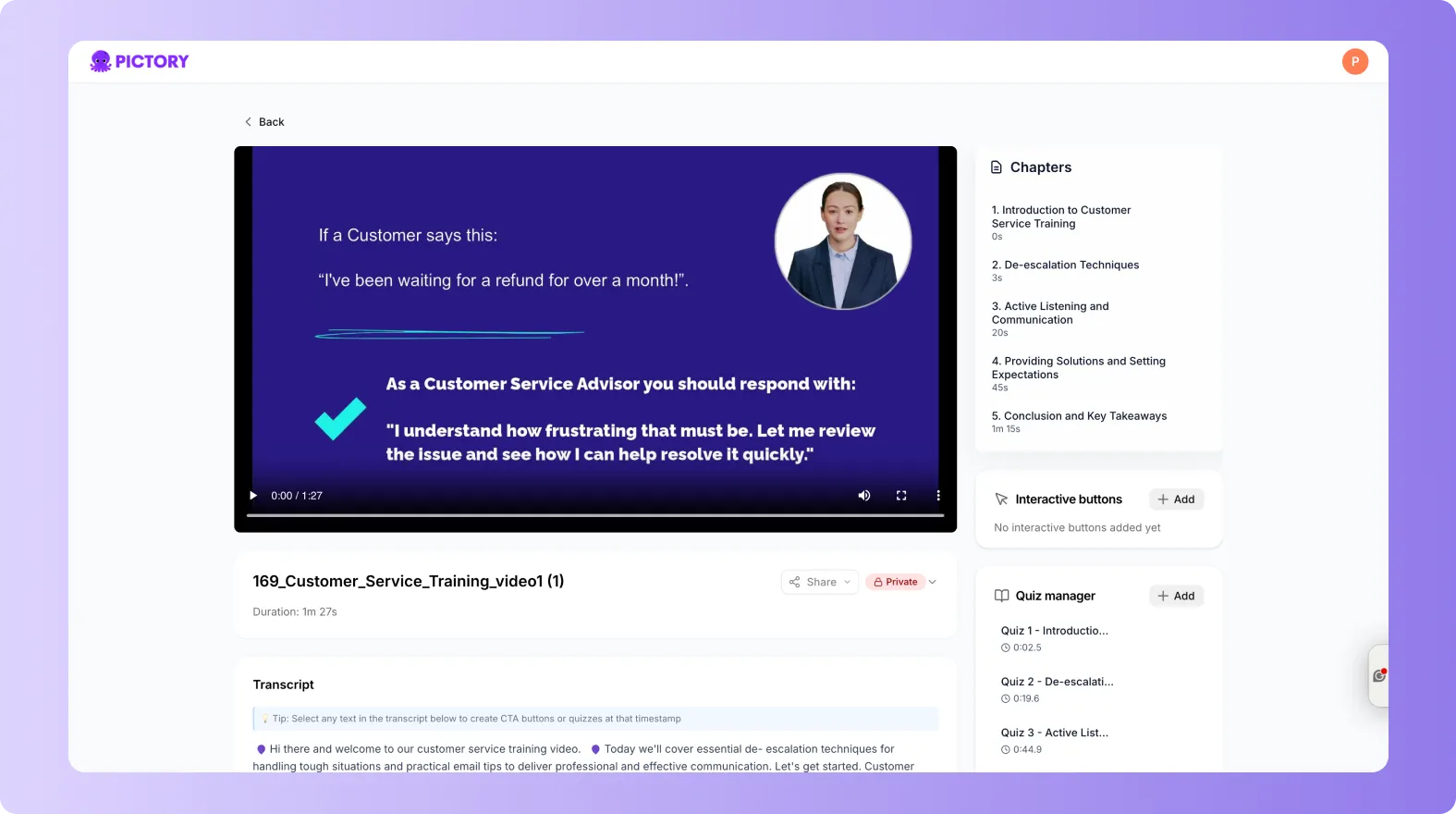
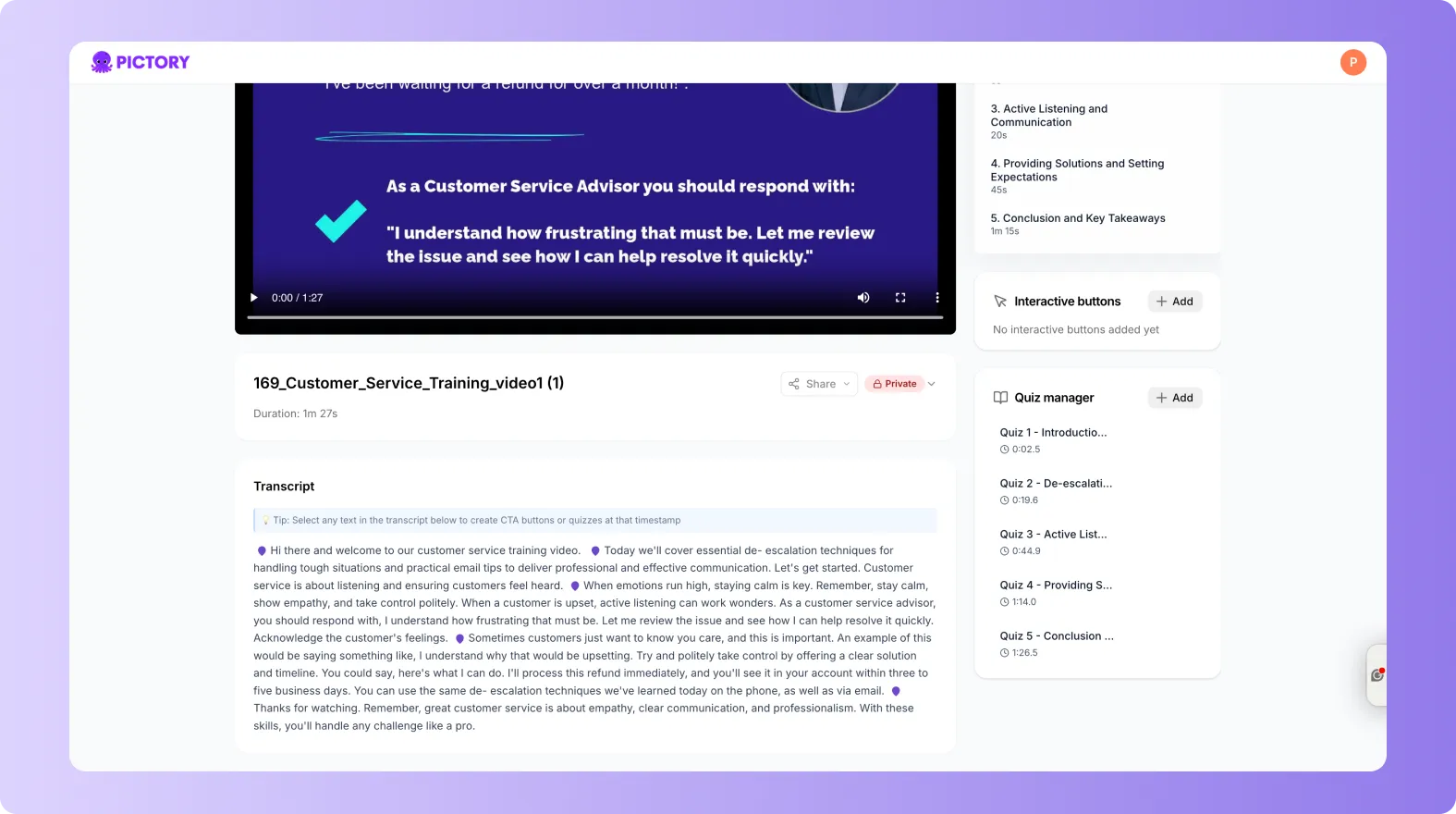
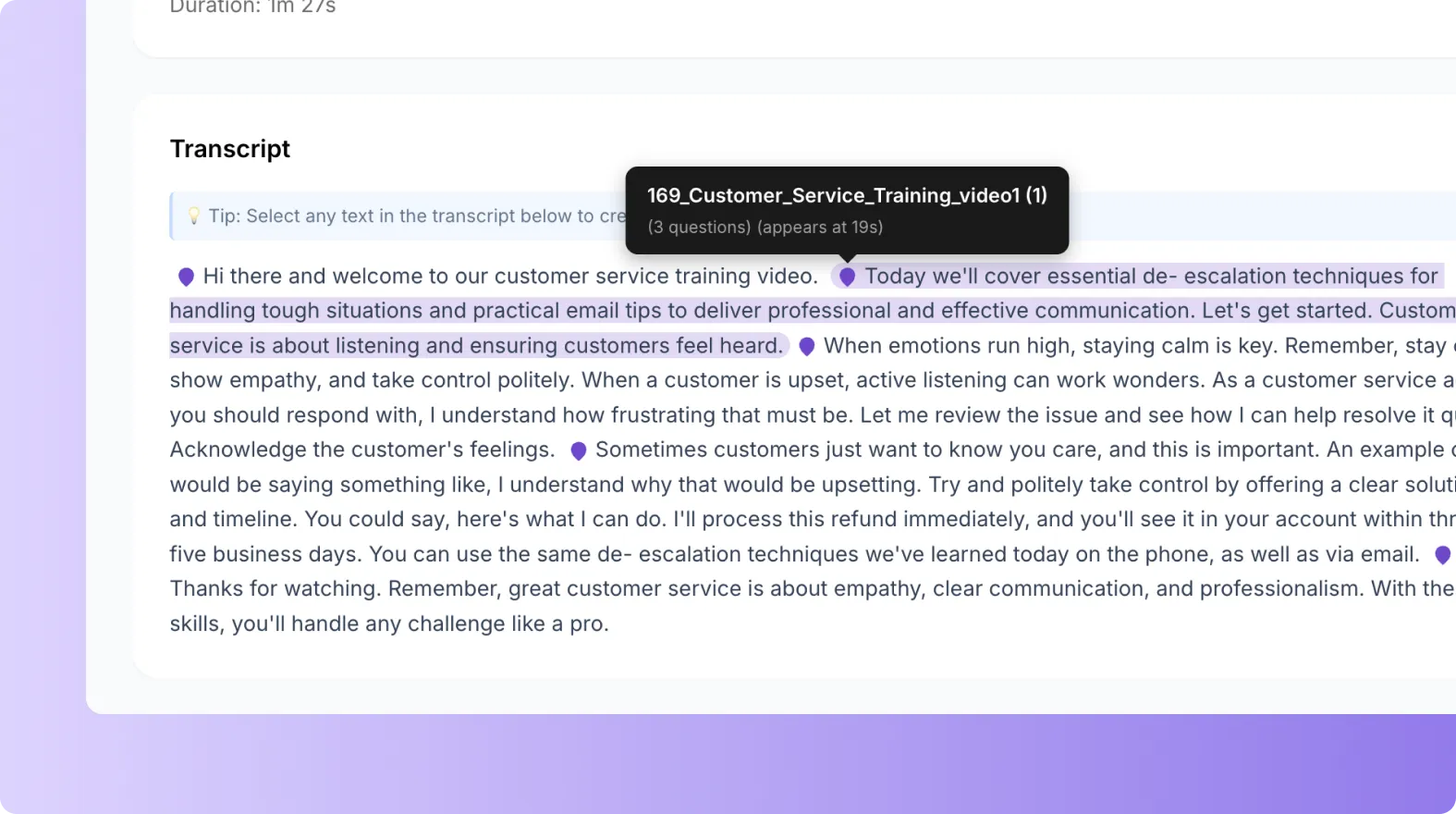
This makes long training or marketing videos easier to consume and more user friendly.
Step 3: Review and Edit Automatically Generated Quiz Questions
Pictory Central uses AI to generate quiz questions based on your video content.
This helps you:
- Confirm understanding
- Reinforce key ideas
- Gate progress before moving forward
You can:
- Review the AI generated questions
- Edit wording for clarity
- Add your own custom questions
- Remove questions you do not need
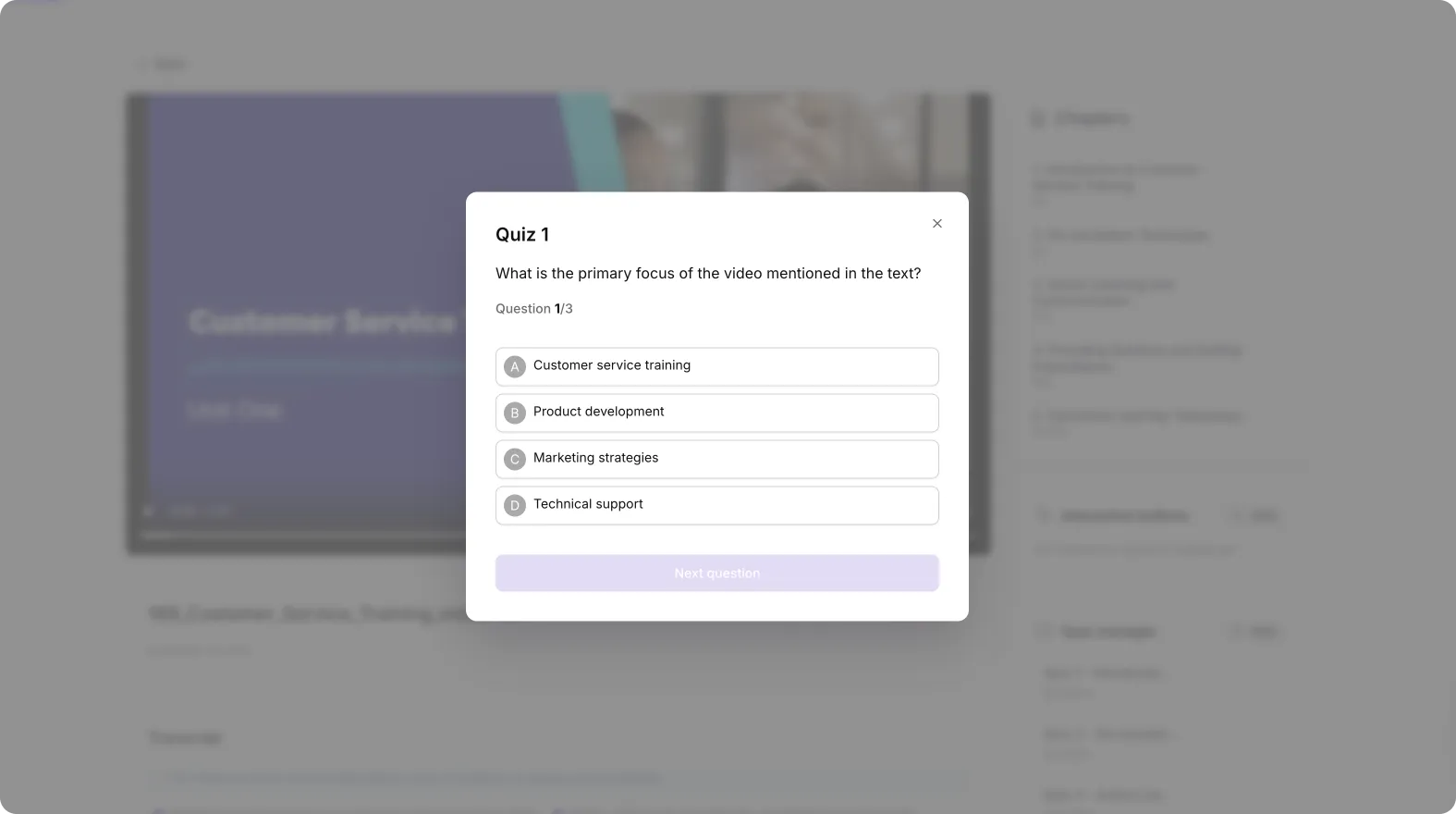
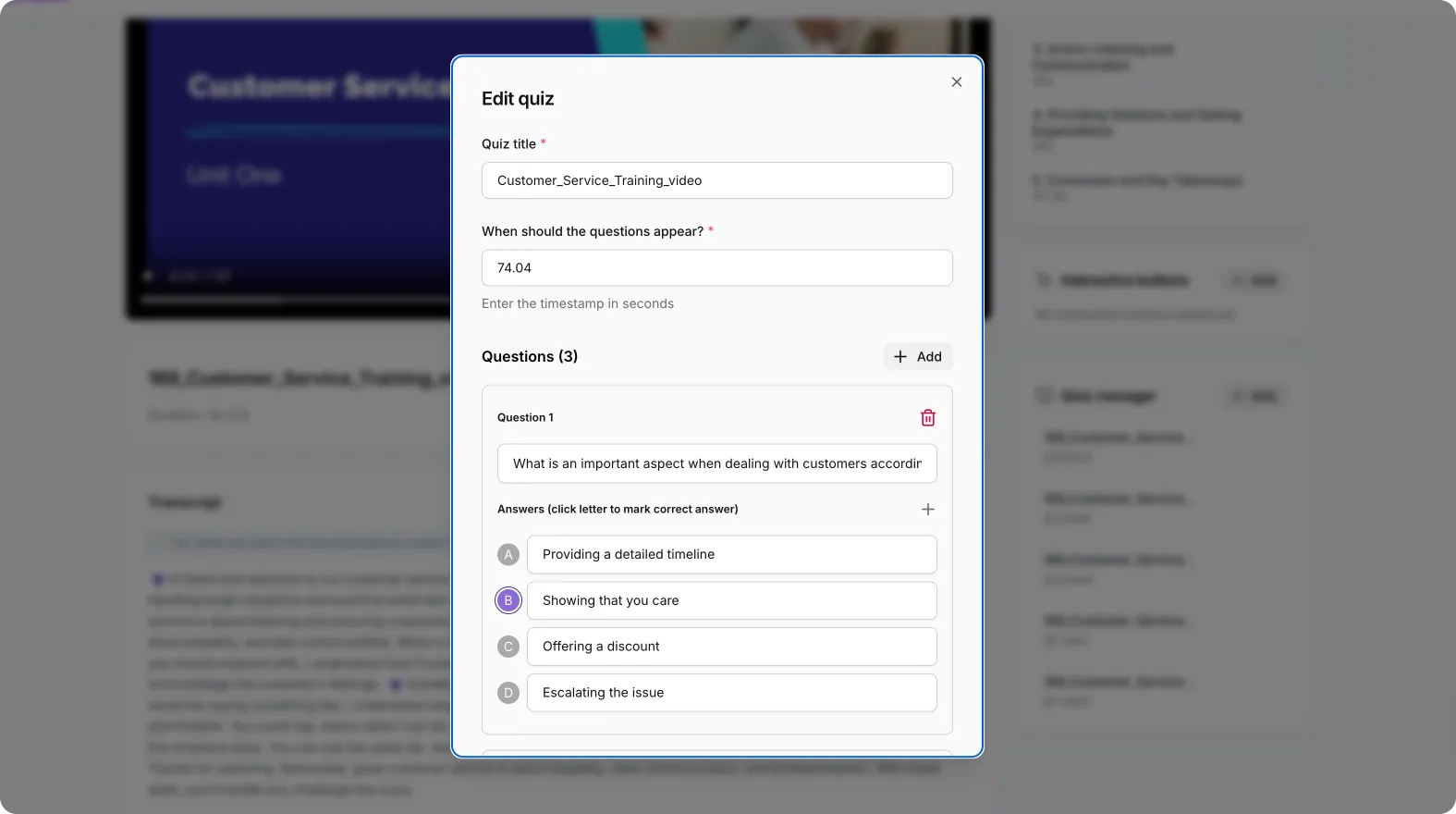
This saves hours compared to manually building assessments.
Step 4: Add Call to Action Buttons Inside the Video
One of the most powerful interactive video features in Pictory Central is in video call to action buttons.
You can insert clickable CTAs at specific moments to:
- Send viewers to a signup page
- Link to additional resources
- Direct them to the next training module
- Trigger the next step in your sales funnel
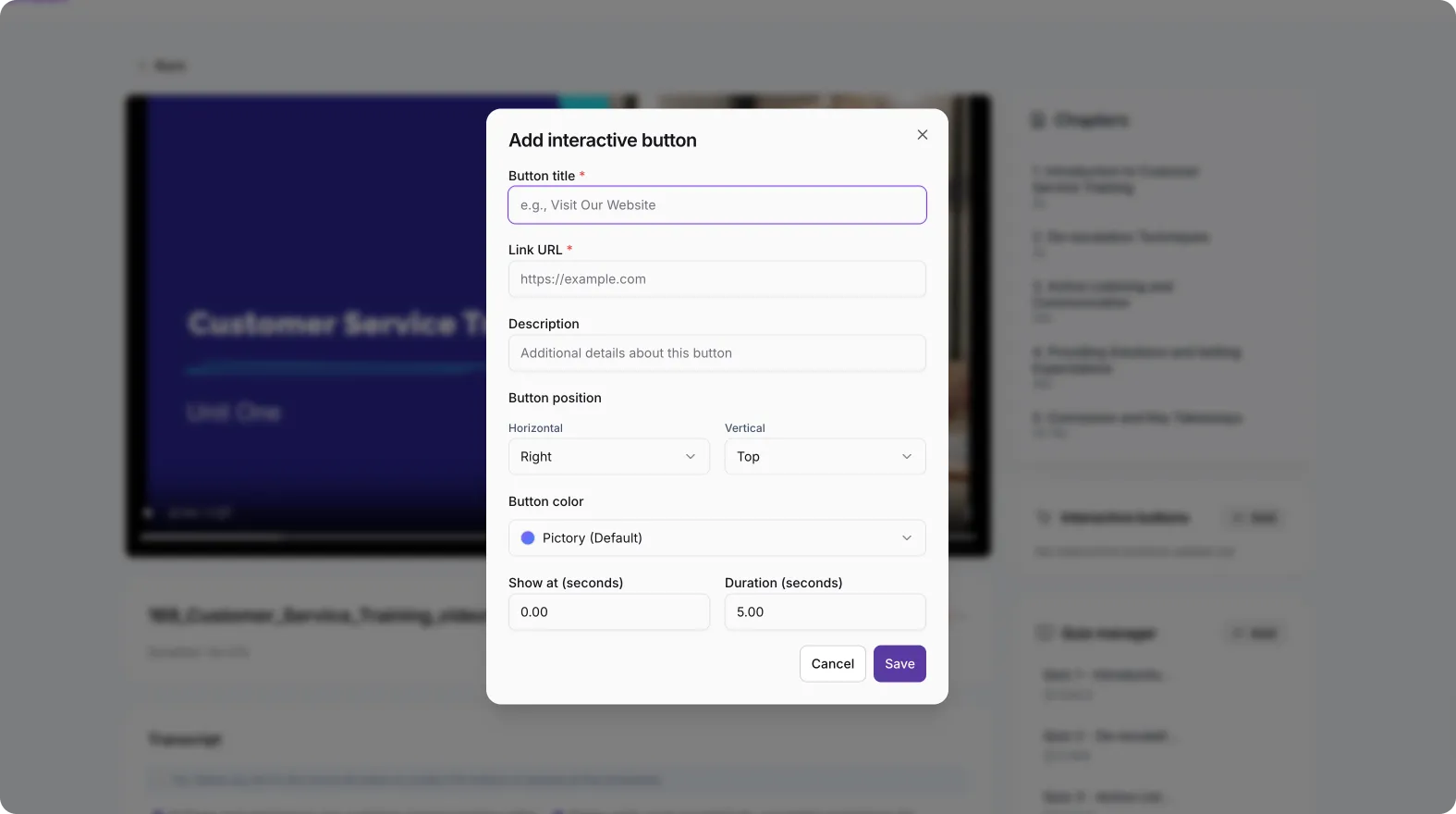
This transforms your video into an active conversion tool instead of a passive asset.
Step 5: Choose How to Publish Your Interactive Video
Once your interactive layer is ready, you can choose how to publish.
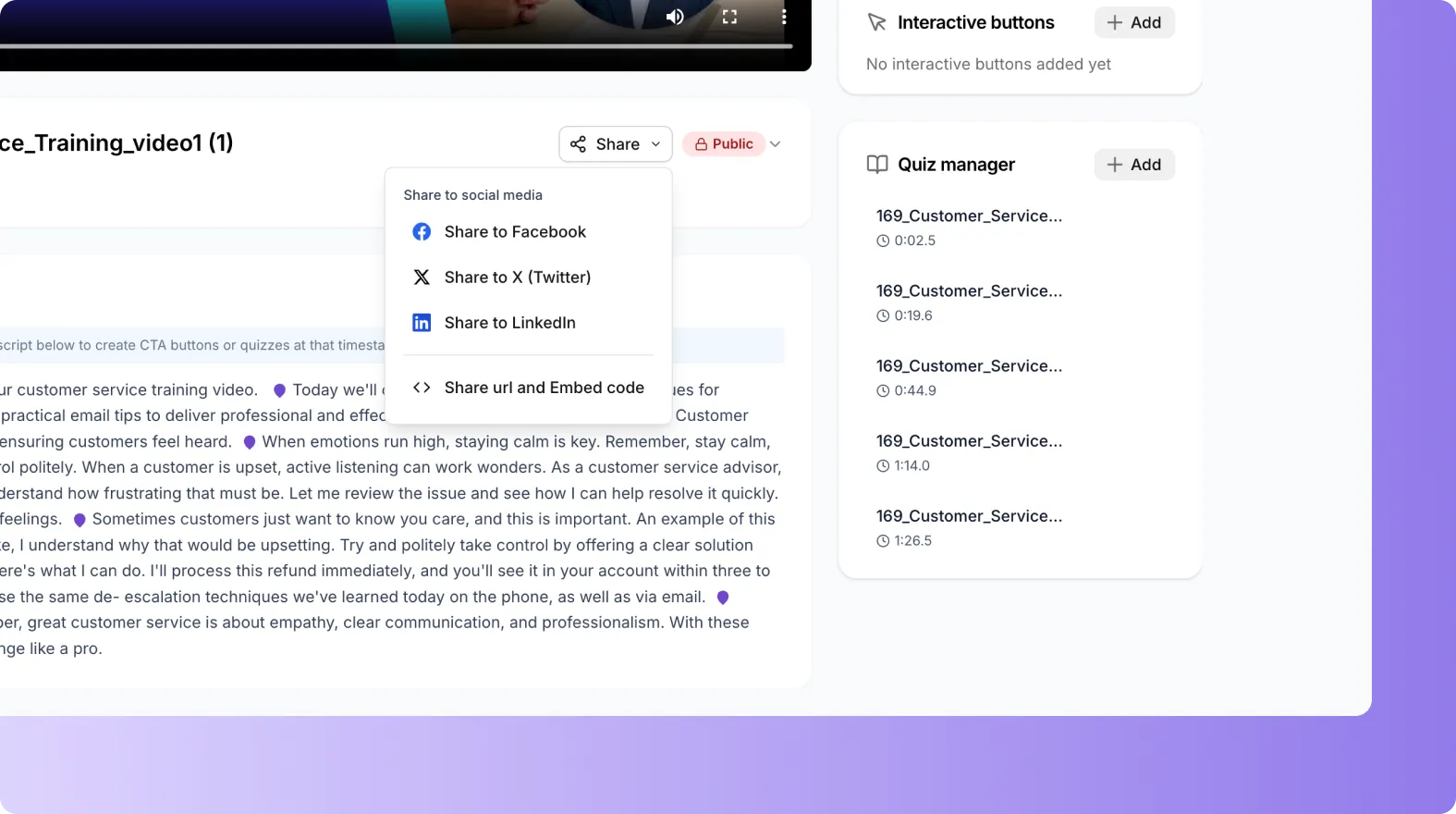
Pictory Central gives you multiple options:
1. Share a Direct Link
Generate a shareable link to send to:
- Employees
- Students
- Clients
- Leads
No additional setup required.
2. Embed on Your Website
Embed your interactive video directly on your:
- Website
- Landing pages
- Knowledge base
- Course portal
This allows you to keep visitors engaged on your own platform.
3. Export as SCORM for Your LMS
Export your interactive video as a SCORM package and upload it into your LMS.
This allows you to:
- Track completion
- Record quiz results
- Maintain LMS reporting
- Keep video hosting inside Pictory
You get the best of both worlds: LMS tracking with optimized video streaming.
Where Pictory Central Fits in Your Workflow
If You Use an LMS and Articulate
Use Pictory Central as your interactive video layer.
You can:
- Offload video hosting
- Improve streaming performance
- Add interactivity without rebuilding entire courses
If You Use an LMS Without Authoring Tools
Turn existing training videos into interactive content quickly.
Add quizzes and assessments without purchasing or learning complex software.
If You Do Not Host Video in Your LMS
Use Pictory Central as your primary video hosting and interactive platform.
Then connect to your LMS using SCORM exports or simple links.
If You Do Not Use an LMS
Pictory Central works as an LMS light solution.
You can:
- Share interactive video links
- Track engagement
- Validate completion
- Deliver structured learning experiences
All without additional infrastructure.
Key Features of Pictory Central
Automatic Chapters
AI detects topic changes and creates structured navigation automatically.
Automatic Quiz Generation
AI creates quiz questions from your video content to reinforce learning.
In Video Call to Action Buttons
Drive engagement and action at the exact right moment.
Reliable Video Hosting and Streaming
Host and stream videos directly through Pictory to avoid LMS overload and playback issues.
SCORM Export
Export interactive videos for seamless LMS integration.
Why Teams Choose Pictory Central
Move Faster
Most of the interactive layer is auto generated. Your team focuses on review, not manual setup.
Improve Engagement
Interactive video increases attention, accountability, and learning outcomes.
Simplify Your Tech Stack
One platform for hosting, interactivity, publishing, and exporting.
Frequently Asked Questions About Pictory Central
What is Pictory Central used for?
Pictory Central is used to turn existing videos into interactive learning experiences with chapters, quizzes, and call to action buttons. It also handles video hosting, streaming, and SCORM export.
Do I need to rebuild my video content?
No. You simply upload your existing video. Pictory automatically creates the interactive layer on top.
Can I use Pictory Central with my LMS?
Yes. You can export interactive videos as SCORM packages and upload them to your LMS while keeping hosting and streaming inside Pictory.
Does Pictory Central host my videos?
Yes. Pictory provides video hosting and streaming, ensuring reliable playback without overloading your LMS.
Can I add my own quiz questions?
Yes. You can review, edit, delete, or add custom quiz questions after Pictory generates them automatically.
Is Pictory Central suitable if I do not use an LMS?
Yes. You can share interactive video links or embed them on your website and use Pictory as an LMS light solution.