
Digital sales enablement in 2026 is defined by speed, personalization, and measurable impact. Sales enablement teams are expected to ship fresh messaging, competitive updates, product walkthroughs, and sales training video content across regions and segments without adding headcount or tools.
Pictory helps enterprise sales enablement teams turn existing content into professional video faster using AI workflows, brand kits, and an all-in-one AI video editor. Use this guide to build a repeatable, scalable workflow for sales enablement content, from script or URL through final review and distribution.
Digital sales enablement 2026 strategy: what to standardize before you build videos
Before you generate any video, align on standards that keep your sales enablement program consistent across teams, products, and quarters.
Audience and use case: new rep onboarding, deal stage enablement, channel sales enablement, product launches, competitive battlecards, executive messaging, customer proof.
Format: microlearning video modules, short clips for internal comms, longer explainers for sales training, vertical cuts for mobile.
Brand governance: approved logo variants, fonts, brand colors, subtitle style, intro and outro rules.
Measurement: define sales enablement KPIs such as content adoption, time to first share, stakeholder approval time, and content freshness cadence.
Once these standards are documented, Pictory Brand Kits and templates become your system for applying them consistently at scale.
Enterprise sales enablement workflow overview: choose the right Pictory creation flow
Pictory supports multiple workflows for digital sales enablement content. Pick the entry point based on your source material and the speed you need.
Text to Video: best for messaging frameworks, talk tracks, objection handling scripts, and repeatable sales enablement assets.
URL to Video: best for converting product pages, launch posts, case studies, and knowledge base articles into a video script and storyboard.
AI Video Editor: best for converting recorded training, webinars, and enablement calls into edited videos with subtitles and cleaner pacing.
PPT to Video: best for converting sales decks and training slides into video quickly.
Screen Recorder: best for product demos and how to videos for reps, partners, and customers.
The rest of this guide focuses on the highest leverage workflow for digital sales enablement 2026: turning enablement scripts and existing content into brand-consistent video with Text to Video and the AI Video Editor.
How to create digital sales enablement videos using Text to Video AI in Pictory
Use Pictory as a text to video AI generator to produce sales enablement content that is easy to update each quarter. This is the fastest path for creating consistent sales training video assets and short-form microlearning.
Step 1: Start a Text to Video project for sales enablement content
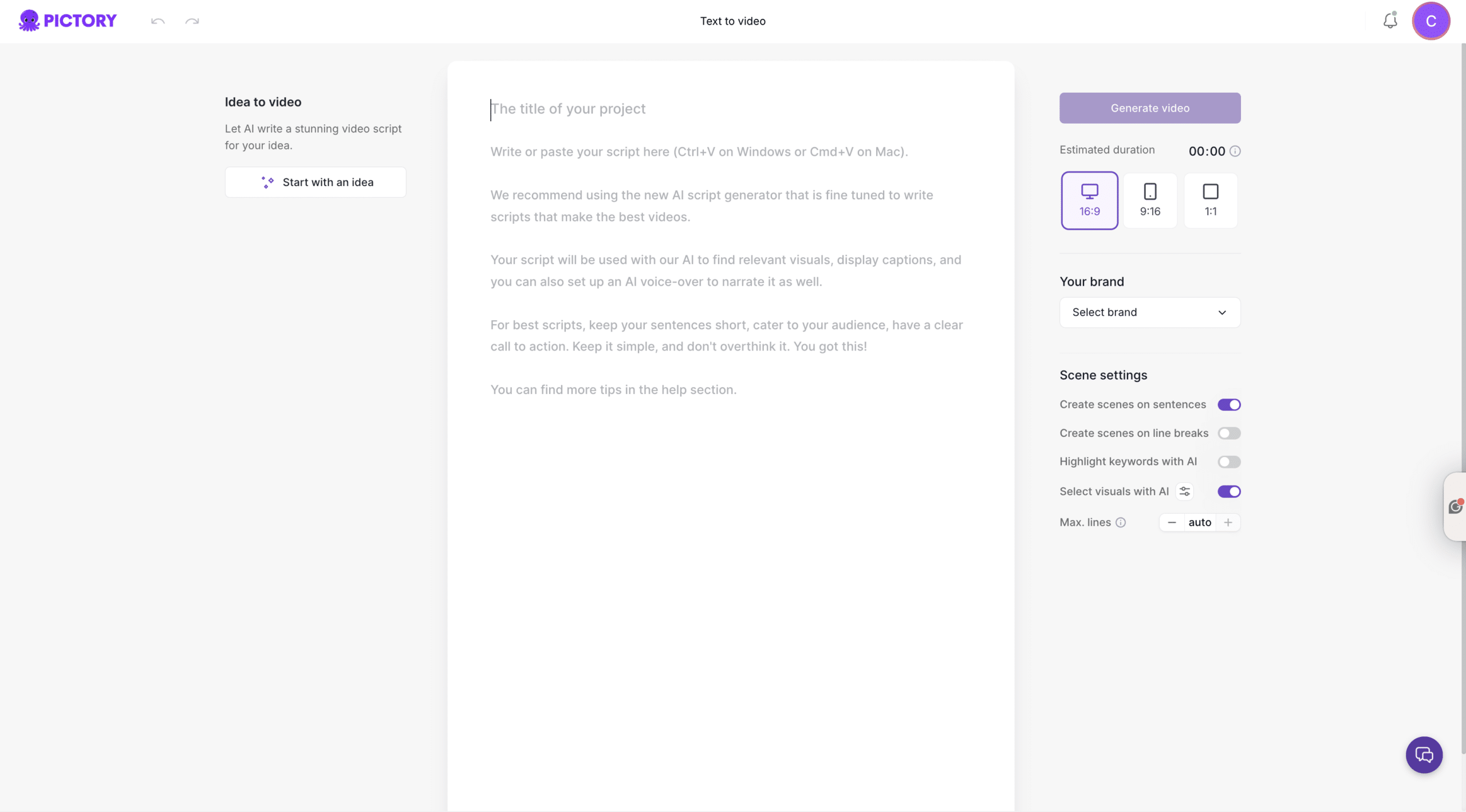
From the Pictory Home page, select Text to Video. Paste your enablement script into the input field. If you only have a topic, use the AI script generator to draft a first version for your sales enablement strategy, product update, or internal communication.
Script tips that work well for digital sales enablement:
Use short sentences for cleaner captions and faster pacing.
Write in the voice of the rep, not corporate copy.
Include a clear call to action for the rep, such as what to say next or what to send.
Step 2: Configure scenes, aspect ratio, and brand kit for enterprise consistency
In the Script Editor, configure the right panel scene settings:
Select an aspect ratio: 16:9 for LMS and internal portals, 9:16 for mobile-first microlearning, 1:1 for multi-platform distribution.
Enable sentence-based scenes or line-break-based scenes depending on how your talk track is structured.
Set max lines per scene to keep sales enablement content scannable.
Select a Brand Kit to apply approved fonts, colors, and logo rules.
This step is the foundation for brand consistency across sales enablement collateral, especially when multiple teams are producing content.
Step 3: Generate the storyboard and select a layout theme
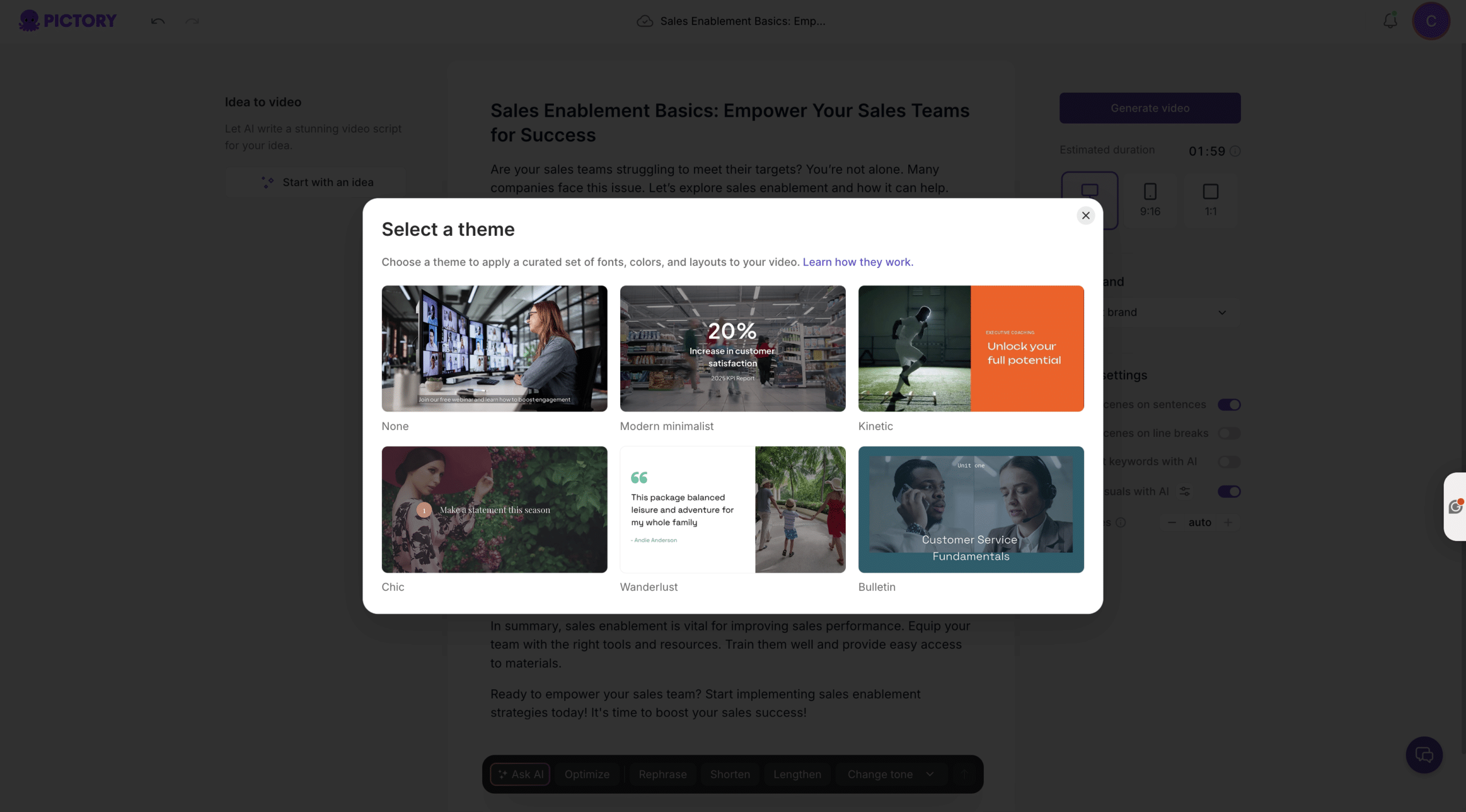
Click Generate video to create the storyboard. Choose a layout theme that matches the tone of the content, such as Modern minimalist for product clarity or Bulletin for training and internal updates.
Pictory will automatically create scenes and begin matching visuals to your text, streamlining how you convert text to video at scale.
Step 4: Edit in the AI video editor to finalize sales enablement assets
In the Video Editor, refine each scene:
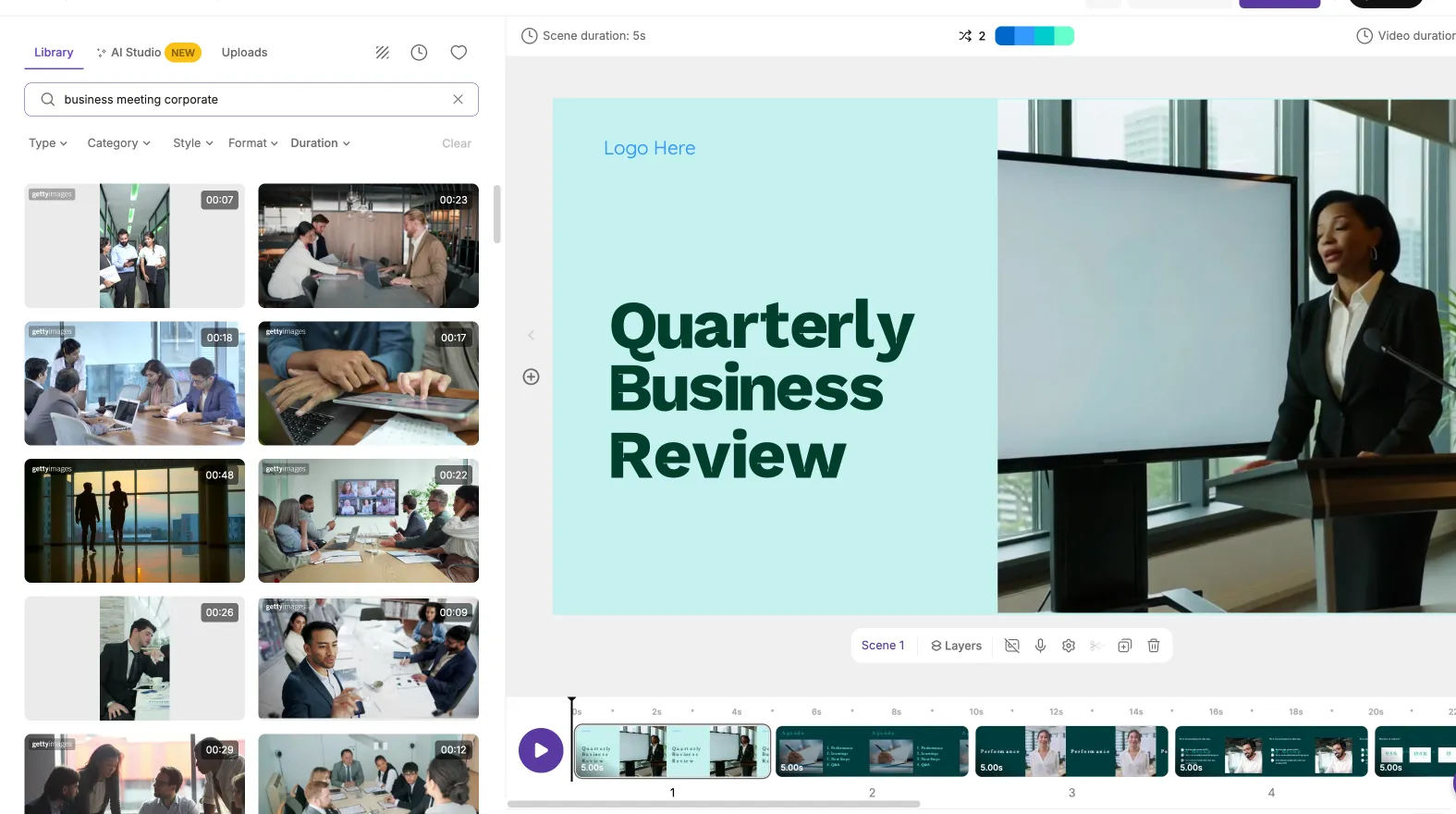
Use the Story tab to adjust on-screen text, scene splits, and pacing.
Use the Visuals tab to replace generic footage with relevant product visuals, industry context, or saved assets.
Use the Audio tab to select an AI voiceover for a consistent narration style across your sales enablement program.
Use Layouts and Styles to standardize titles, emphasis, and lists.
Use Branding to verify logo placement and brand colors across scenes.
When ready, use Preview video and then Download video to publish the finished sales enablement video.
How to convert product pages and collateral with a URL to video converter for sales enablement
URL to Video is a fast way to refresh enablement assets as messaging changes. It helps sales enablement managers turn web content into video scripts without copying and pasting long documents.
Step 1: Paste a URL and select the enablement video type
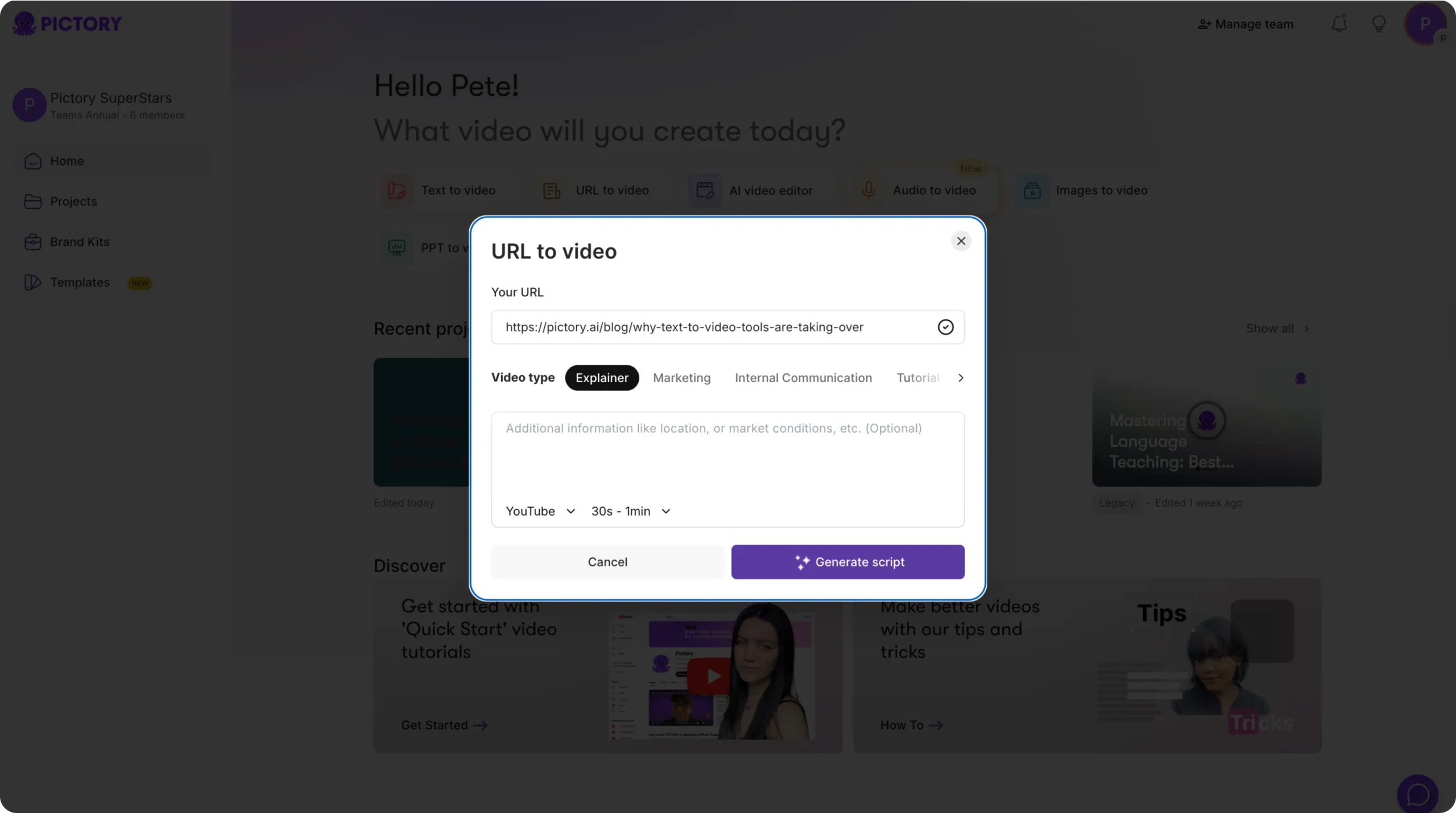
From the Pictory Home page, select URL to Video, then paste a valid link starting with http:// or https://. Choose a video type such as Explainer, Marketing, Internal Communication, or Tutorial to match your sales enablement use case.
Step 2: Generate and refine the script for sales enablement clarity
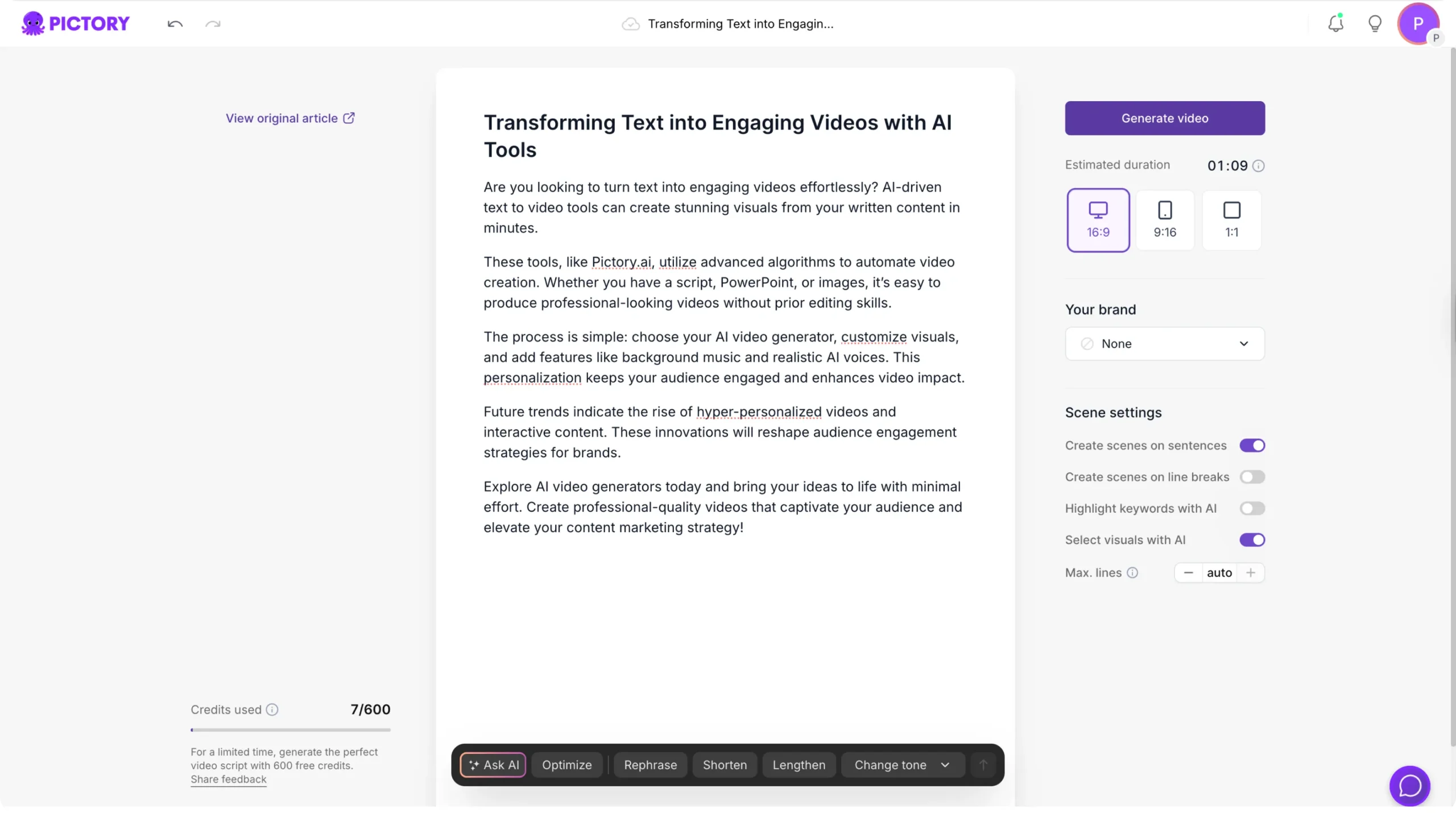
Click Generate Script. In the Script Editor, tighten the script so it matches rep talk tracks and buyer language. Use built-in tools such as Optimize, Rephrase, Shorten, Lengthen, and Change tone to create a version that is clear, concise, and ready for selling.
Step 3: Apply brand kit and generate the video storyboard
Select the correct aspect ratio and apply your Brand Kit. Then click Generate video to create the storyboard. In the editor, swap visuals to align with your product category, customer segment, and region.
This URL to video AI workflow is ideal for converting:
Product launch pages into internal enablement videos
Case studies into customer proof snippets
Solution pages into deal stage explainer videos
How to update sales training videos faster with the AI video editor and video to text transcription
In digital sales enablement 2026, enablement content needs updates weekly, not quarterly. Pictory AI Video Editor speeds updates by transcribing a video to text, letting you remove filler words and silences, then producing an updated version without manual timeline editing.
Step 1: Upload an existing training video for AI editing
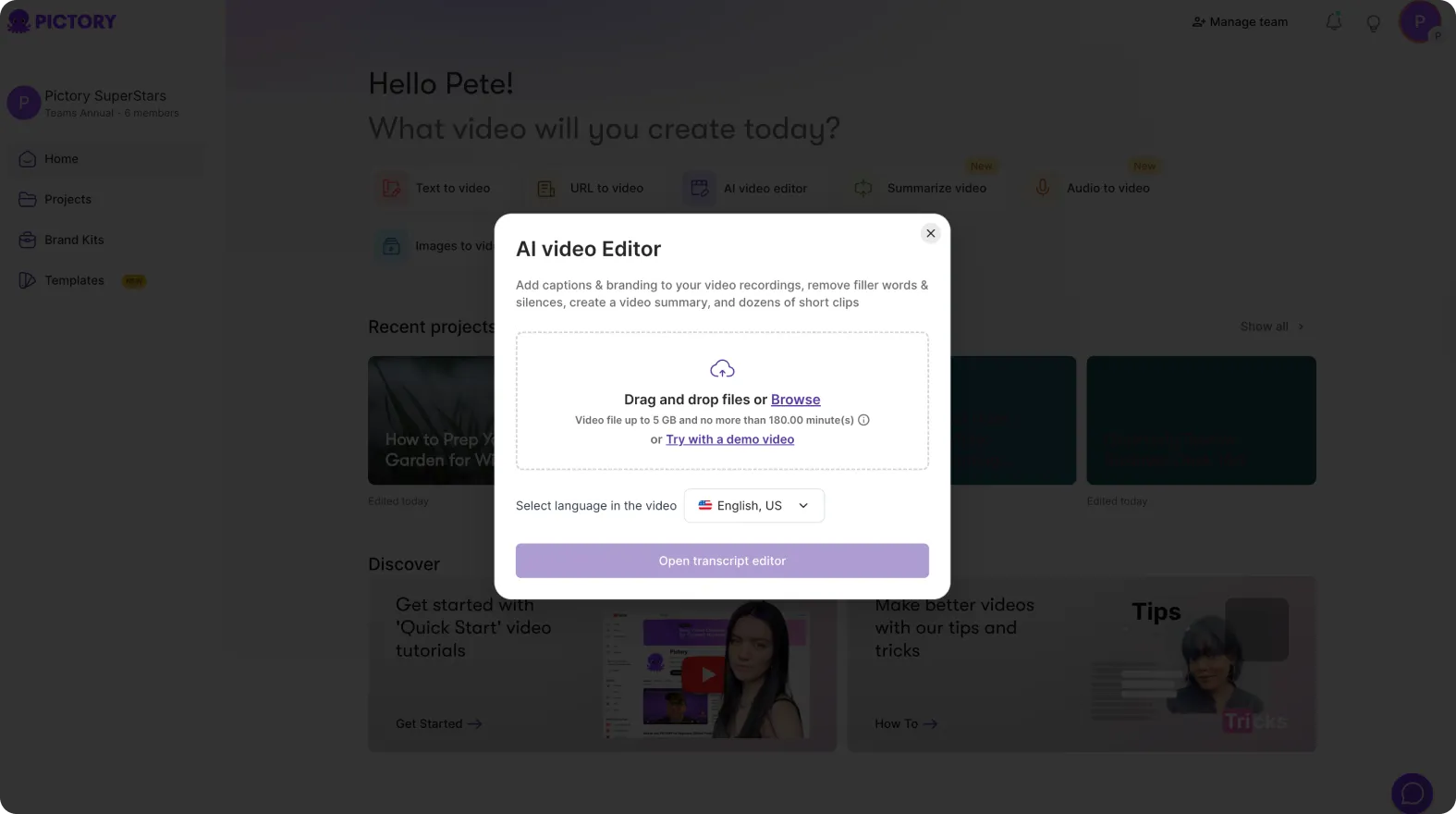
Open the AI Video Editor workflow and upload your video file up to 5 GB and 180 minutes. Select the correct language for accurate transcription. Pictory will begin video to text transcription automatically.
Step 2: Edit the transcript to improve rep learning and pacing
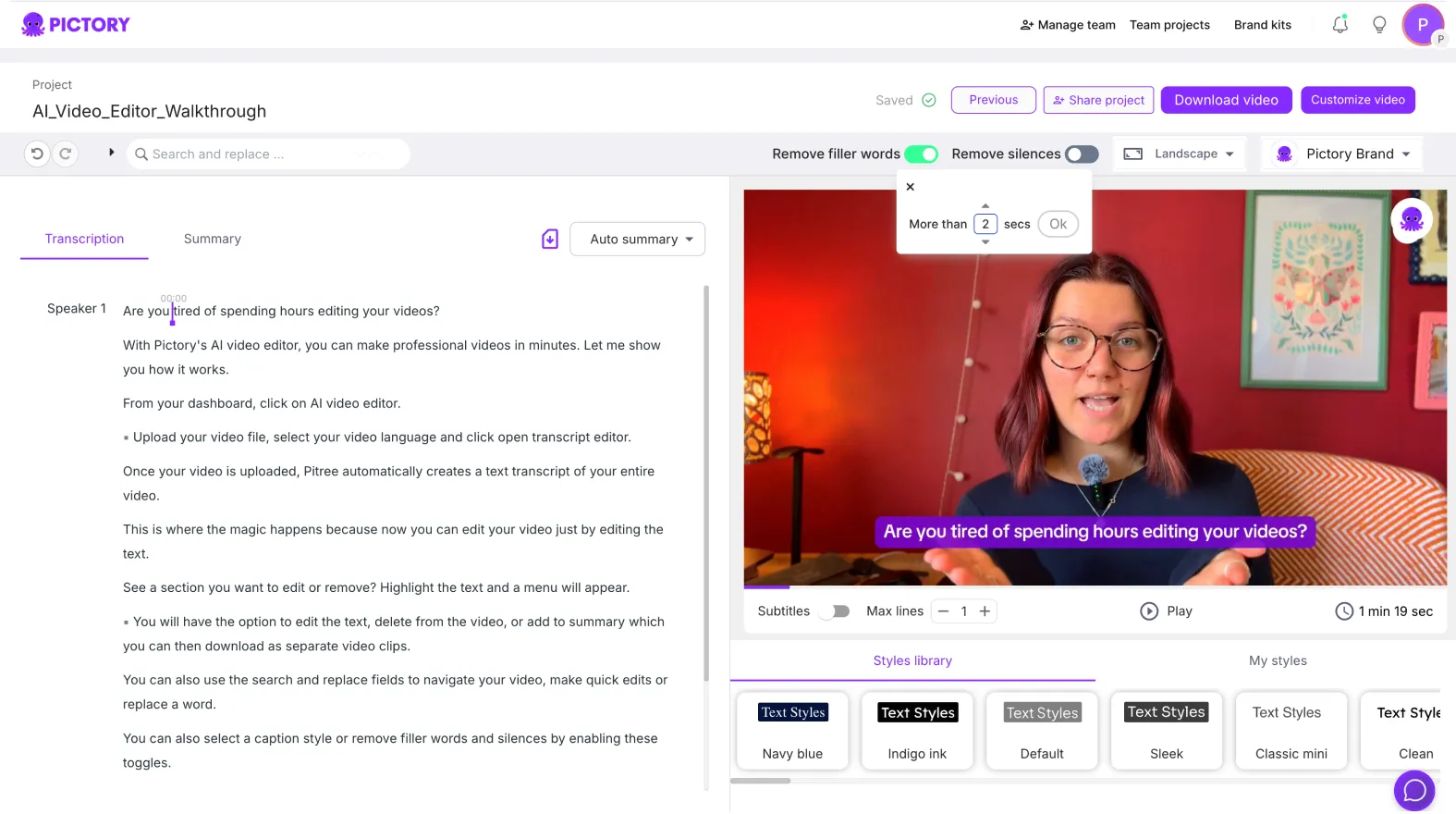
In the Script and Transcript Editor:
Use Search and replace to update positioning statements, pricing language, or competitor names.
Turn on Remove filler words to clean up delivery.
Turn on Remove silences to tighten pacing for microlearning video modules.
Set subtitle max lines and choose a subtitle style that matches brand standards.
When your transcript is ready, select Customize Video to proceed to storyboard creation and the full editor.
Step 3: Generate storyboard scenes and finalize the updated enablement video
Pictory creates storyboard scenes and opens the Video Editor. Make final adjustments with Story, Visuals, Audio, Styles, and Branding. Use Share preview when you need stakeholder review before distributing to reps and partners.
How to standardize enterprise sales enablement branding with Brand Kits and style controls
Brand governance is a core requirement for enterprise sales enablement. Brand Kits ensure every team uses the same visual language without rebuilding styling on every project.
Step 1: Create a Brand Kit for your sales enablement team
From the left navigation, open Brand Kits and select Create a Brand. Add:
Brand name
Logo variants
Primary and secondary brand colors
Brand font from the available library
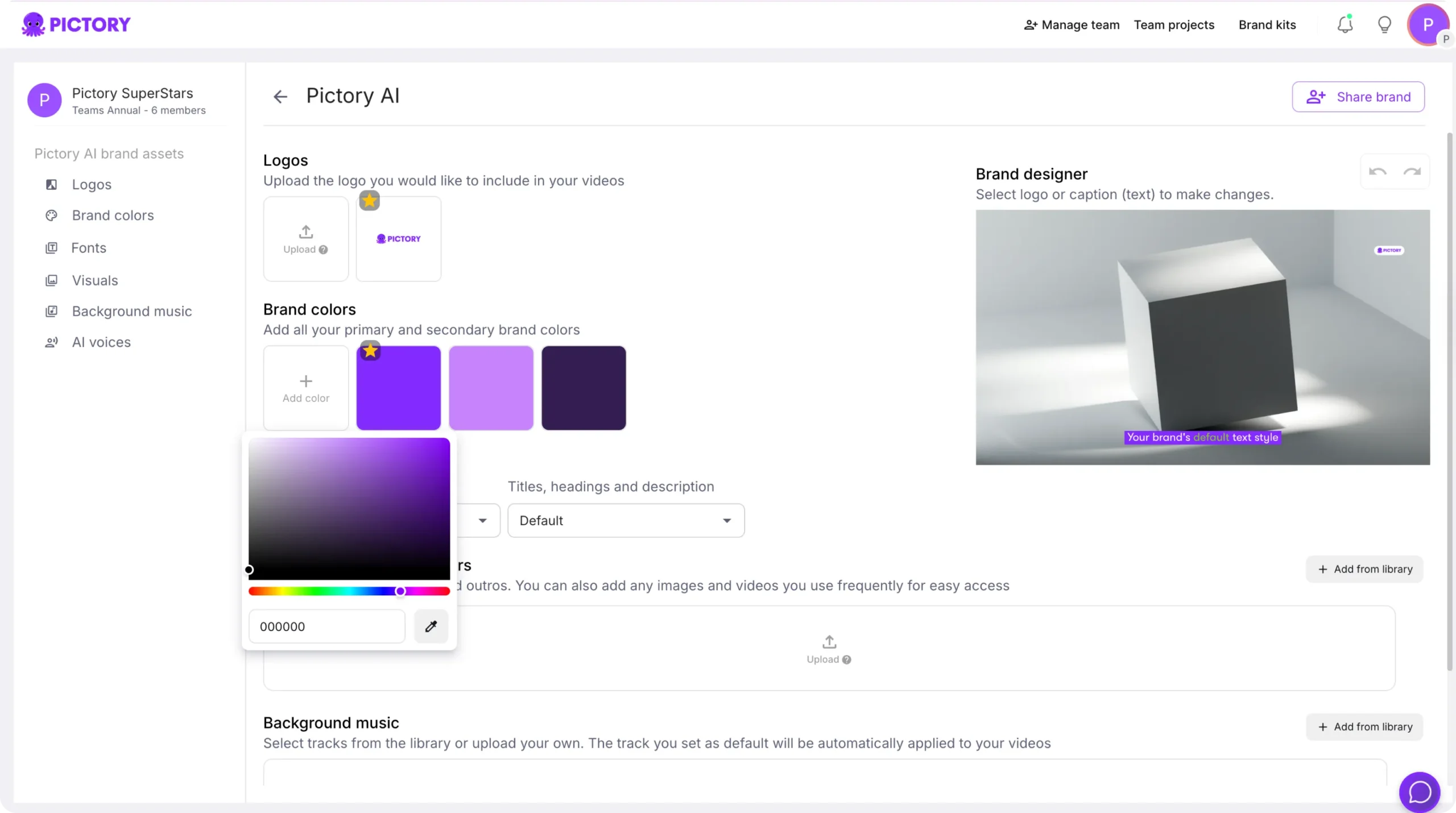
If needed, use the color palette shuffle to test alternate color combinations while maintaining brand consistency.
Step 2: Apply Brand Kits in the editor to enforce consistent visuals
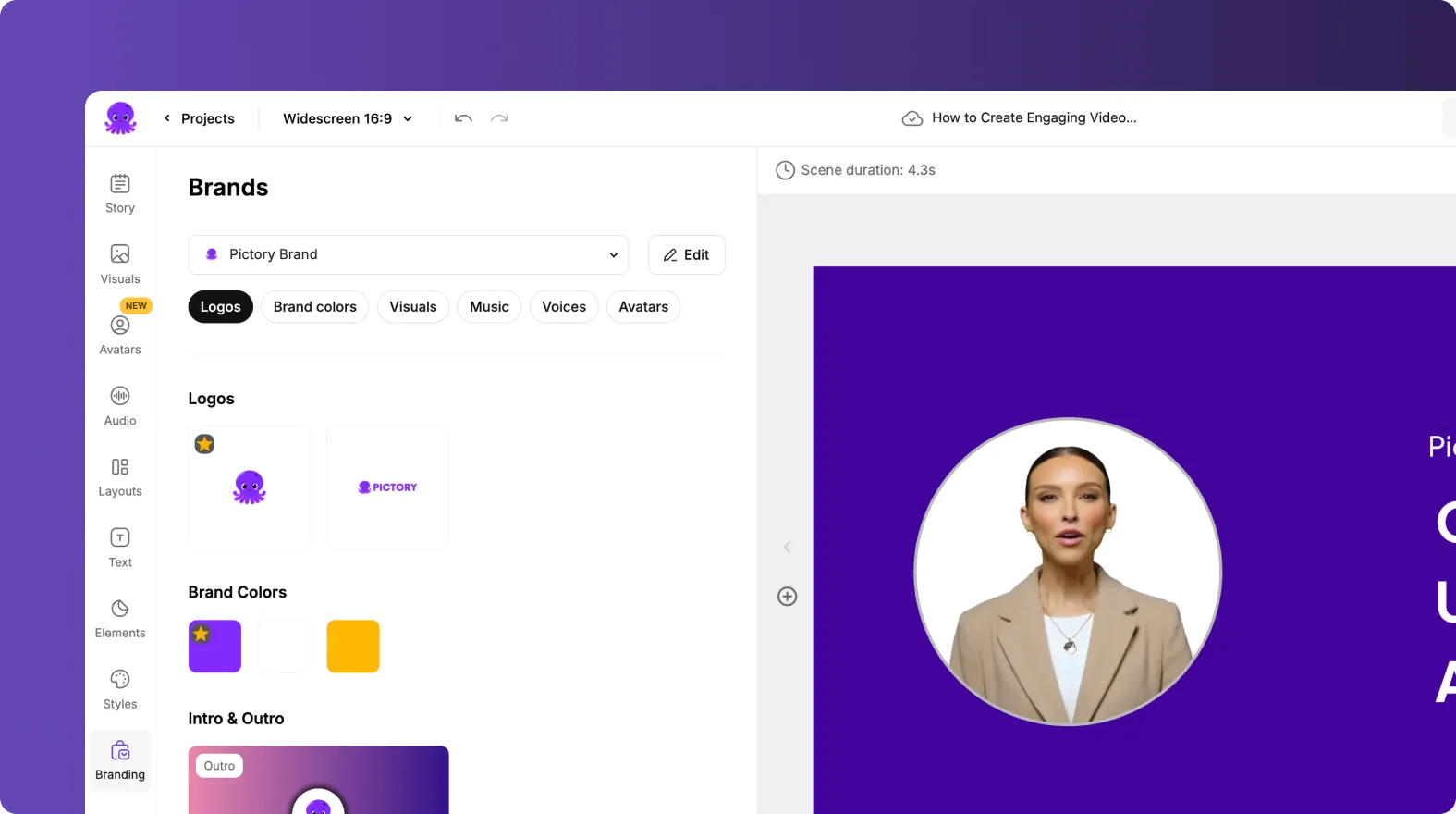
Inside the Video Editor, open the Branding tab and apply your Brand Kit. Verify that logos, fonts, and colors are correct, then save the project to scale consistent output across your sales enablement content library.
Step 3: Use text styling and text animations for clear, scannable enablement content
Select any text element to open the Text Editing Toolbar. Use it to control font, size, alignment, outline, and shadows for legibility. To animate key titles or steps, choose Animate Text to set entry and exit animations, speed, and writing style.
For sales enablement training, reserve animations for emphasis and section headers to keep content professional and easy to follow.
How to create product demo and sales onboarding videos with the Smart Screen Recorder
Screen recording is one of the fastest ways to create software training videos and product walkthroughs for reps. Pictory also supports transcription and AI editing after recording, which is useful for updating onboarding videos and building a searchable enablement library.
Step 1: Choose the recording mode for sales enablement training
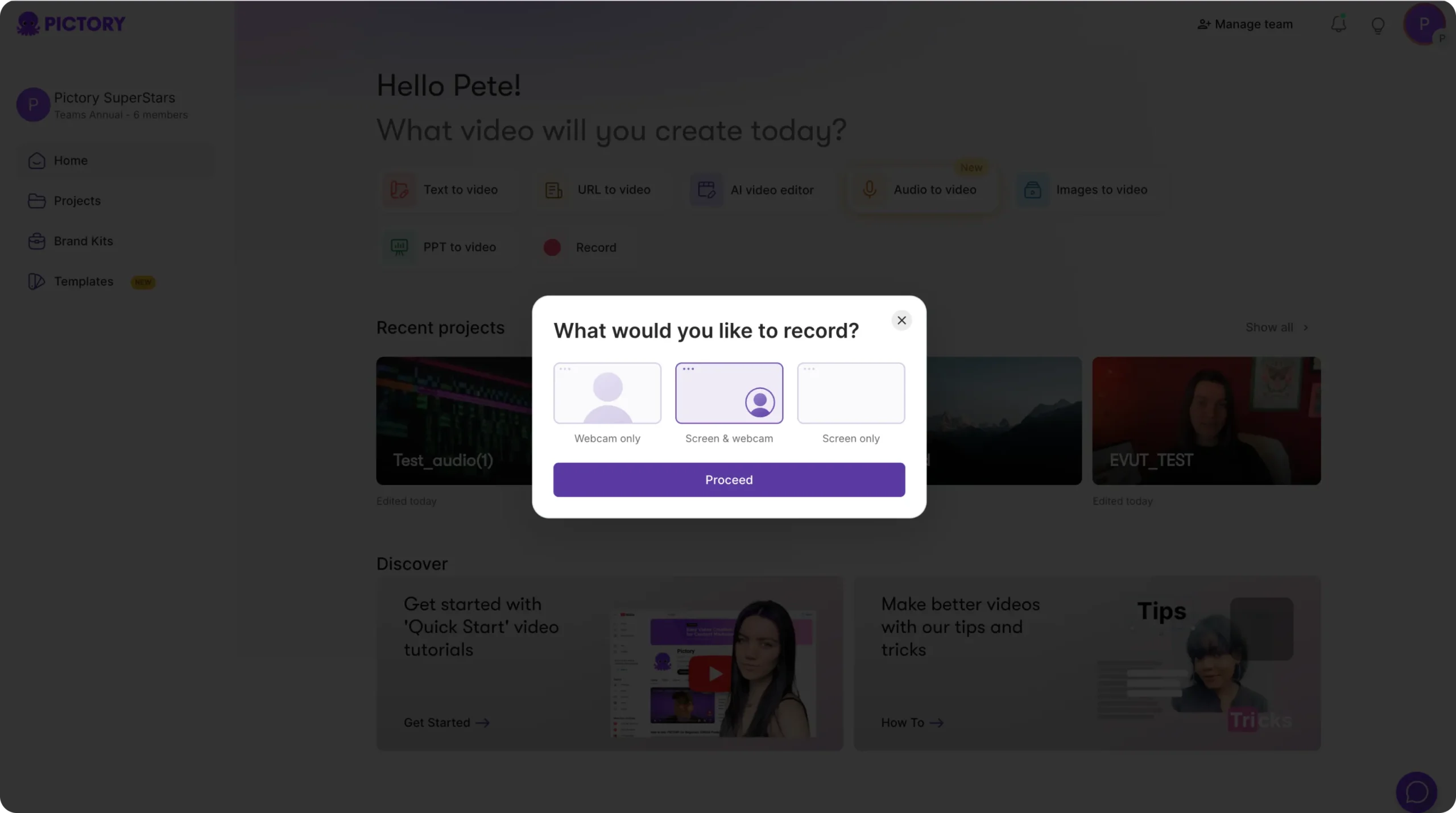
From Home, select Record and choose one mode:
Webcam only for quick internal updates
Screen and webcam for guided training
Screen only for product demos and workflows
Click Proceed to open the in-browser recording interface.
Step 2: Record, review, and send the recording to AI transcription
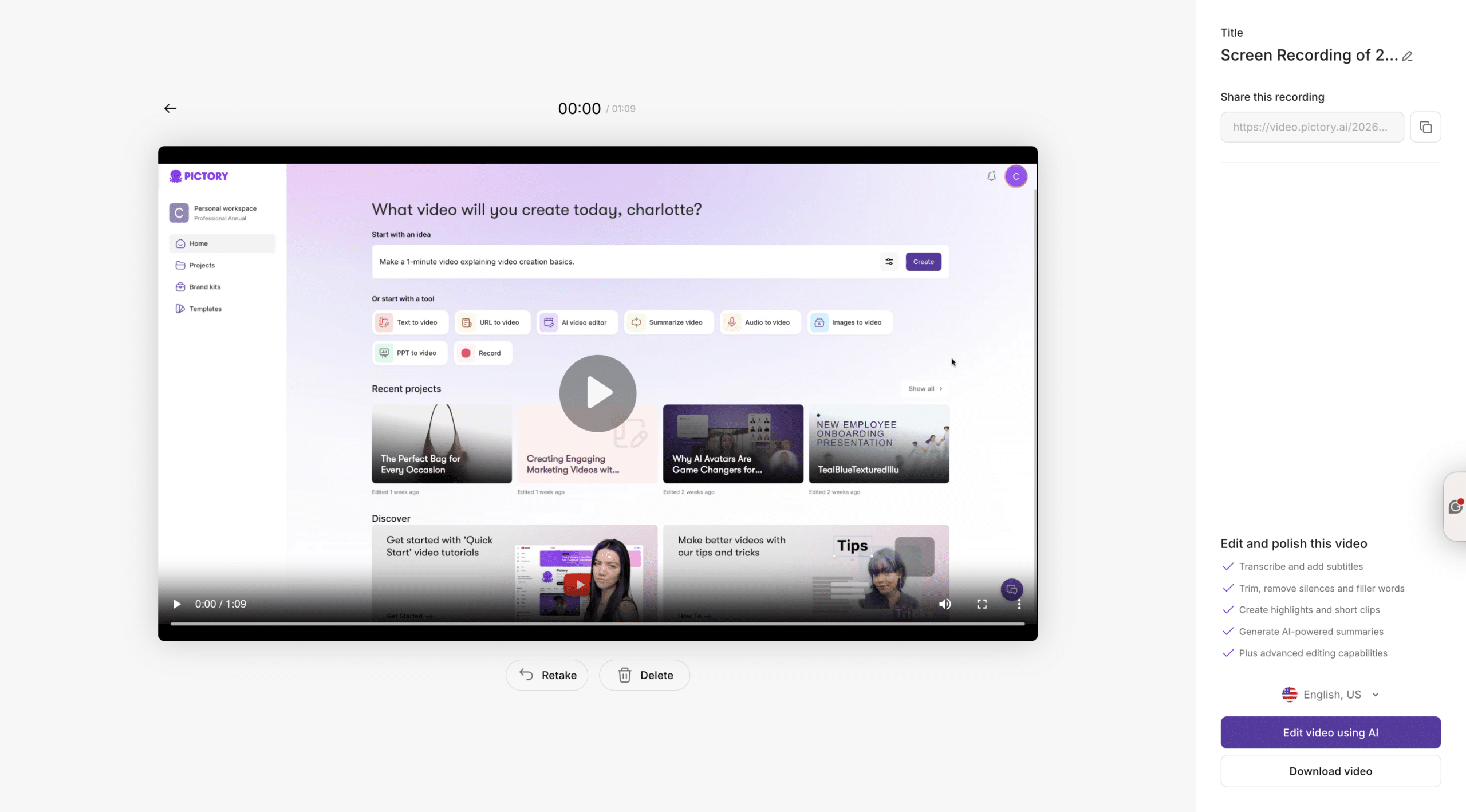
Use Start, Pause, and Stop while recording. After stopping, review the playback. If needed, retake or delete. Then choose Edit video using AI to trigger transcription.
Step 3: Edit transcript, create storyboard scenes, and export the final enablement video
In the transcript editor, remove filler words and silences, adjust subtitle styling, and apply brand elements. After storyboard creation, use the full Video Editor to finalize, preview, and download.
This workflow is ideal for:
Sales onboarding videos for new employees
Quarterly product release training
Channel sales enablement updates
FAQ: Digital Sales Enablement 2026
What is digital sales enablement in 2026?
Digital sales enablement in 2026 is the practice of delivering sales-ready messaging, training, and collateral through scalable digital formats, especially video and microlearning, while maintaining brand consistency and improving rep productivity. It emphasizes speed, personalization, and measurable outcomes.
How can Pictory help enterprise sales enablement teams create videos at scale?
Pictory enables teams to turn scripts, URLs, recorded training, PPTs, and screen recordings into professional videos using AI workflows, an AI video editor, and Brand Kits. This reduces production overhead and standardizes output across regions and teams.
Can I update sales training video content without re-editing the entire timeline?
Yes. With the AI Video Editor, you can transcribe a video to text, edit the transcript, remove filler words and silences, then regenerate storyboard scenes and export an updated version. This is effective for frequent messaging and product updates.
Which workflow is best for converting sales collateral into video quickly?
Use Text to Video for talk tracks and enablement scripts, and URL to Video to convert product pages, case studies, and blog posts into a draft script and storyboard. Both workflows speed up creating consistent sales enablement assets.
How do Brand Kits support enterprise sales enablement governance?
Brand Kits store approved logos, fonts, and color palettes so every video uses consistent styling. Applying a Brand Kit in the editor helps sales enablement teams meet brand requirements without manually formatting each project.
Can Pictory support short-form microlearning video for sales enablement?
Yes. You can select vertical or square aspect ratios, keep scenes short using sentence-based scene settings, and tighten pacing by removing silences in the AI Video Editor. This is a practical way to produce microlearning video modules for mobile-first consumption.
How do I get stakeholder review for sales enablement videos before publishing?
Use the Share preview option in the editor to distribute a preview for review and feedback. This helps sales enablement managers and subject matter experts approve messaging and compliance details before download and distribution.


