
The PPT to Video feature in Pictory AI makes it simple to transform your PowerPoint presentations into engaging, branded videos in minutes. Whether you are turning slides into an explainer video, a client presentation, or an online lesson, Pictory’s AI automatically converts your slides into animated video scenes complete with captions, music, and voiceovers.
What Is the PPT to Video Feature?
The PPT to Video workflow converts your presentation slides into an editable video format. Pictory analyzes your slides, extracts text and visuals, and builds a dynamic storyboard that you can edit and customize inside the AI Video Editor.
Pictory’s AI will:
Extract content from each PowerPoint slide
Convert slides into individual video scenes
Add text captions automatically
Allow full customization with visuals, audio, and branding
Perfect for:
Educators converting lessons or lectures into video lessons
Marketers repurposing sales decks into social or campaign videos
Trainers building e-learning or onboarding materials
Consultants creating narrated presentations for clients
Step-by-Step: How to Use the PPT to Video Tool
Follow these steps to convert your PowerPoint file into a professional video.
Step 1: Access the PPT to Video Tool
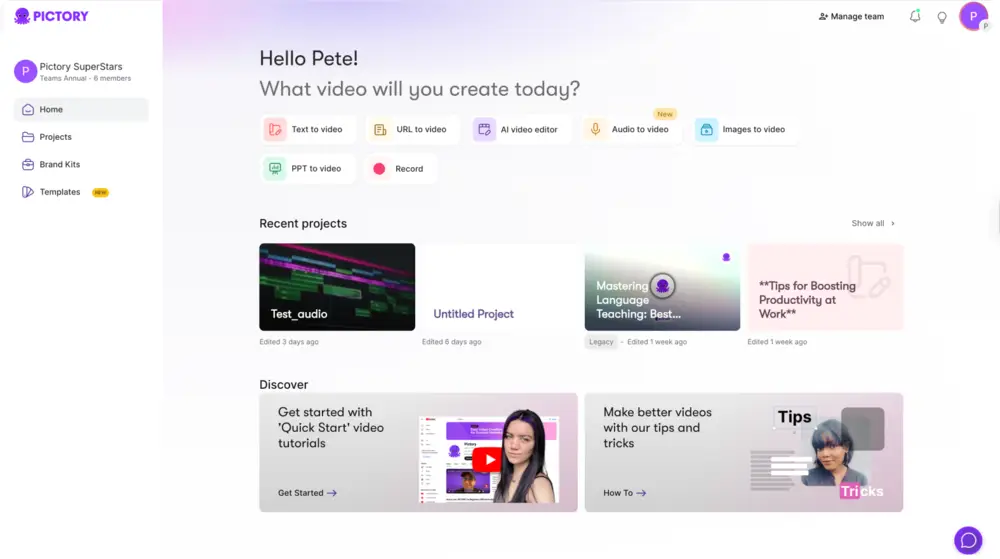
From your Pictory Home Page, click PPT to Video.
Upload your PowerPoint file in .PPT or .PPTX format.
You can either drag and drop your file or click Browse to locate it on your device.
File requirements:
Maximum of 90 slides
Maximum file size of 50 MB
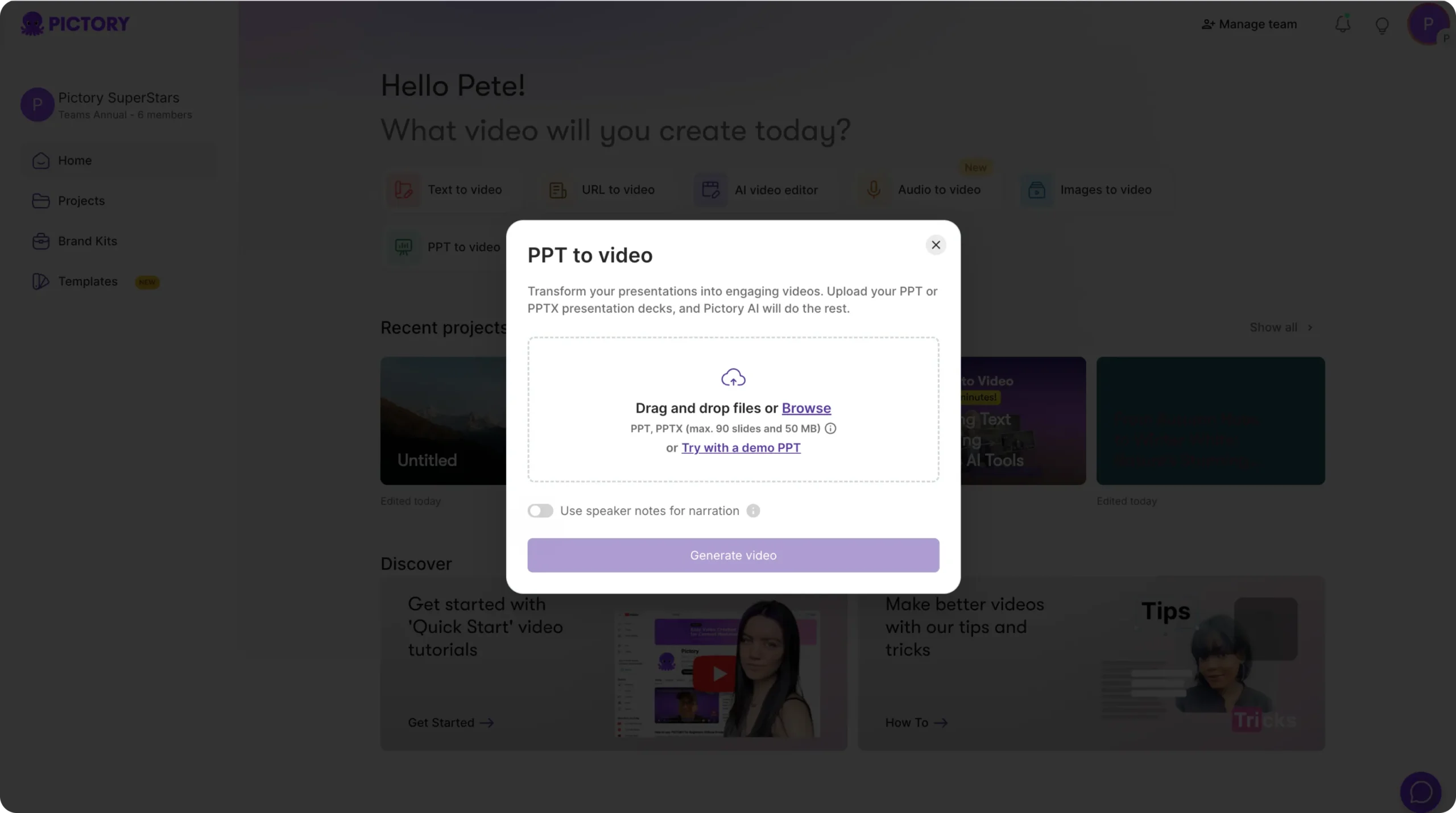

If you want to test the feature, select Try with a demo PPT to use a sample presentation.
Step 2: Use Speaker Notes (Optional)
Before generating your video, you can choose to include speaker notes as narration or captions. If your presentation has speaker notes, check the option Use Speaker Notes for Narration to include them automatically in your scenes.
Step 3: Generate Your Video
Click Generate Video to start the conversion process.
A progress screen will appear with the message: “Please wait while the video storyboard is being created…”
You will also see a progress bar displaying percentage completion and the subtext: “Please sit back while we turn your PPT into a stunning video. Great things take time!”
Once processing is complete, Pictory automatically opens your new storyboard in the AI Video Editor.
Step 4: Review and Edit Your Storyboard
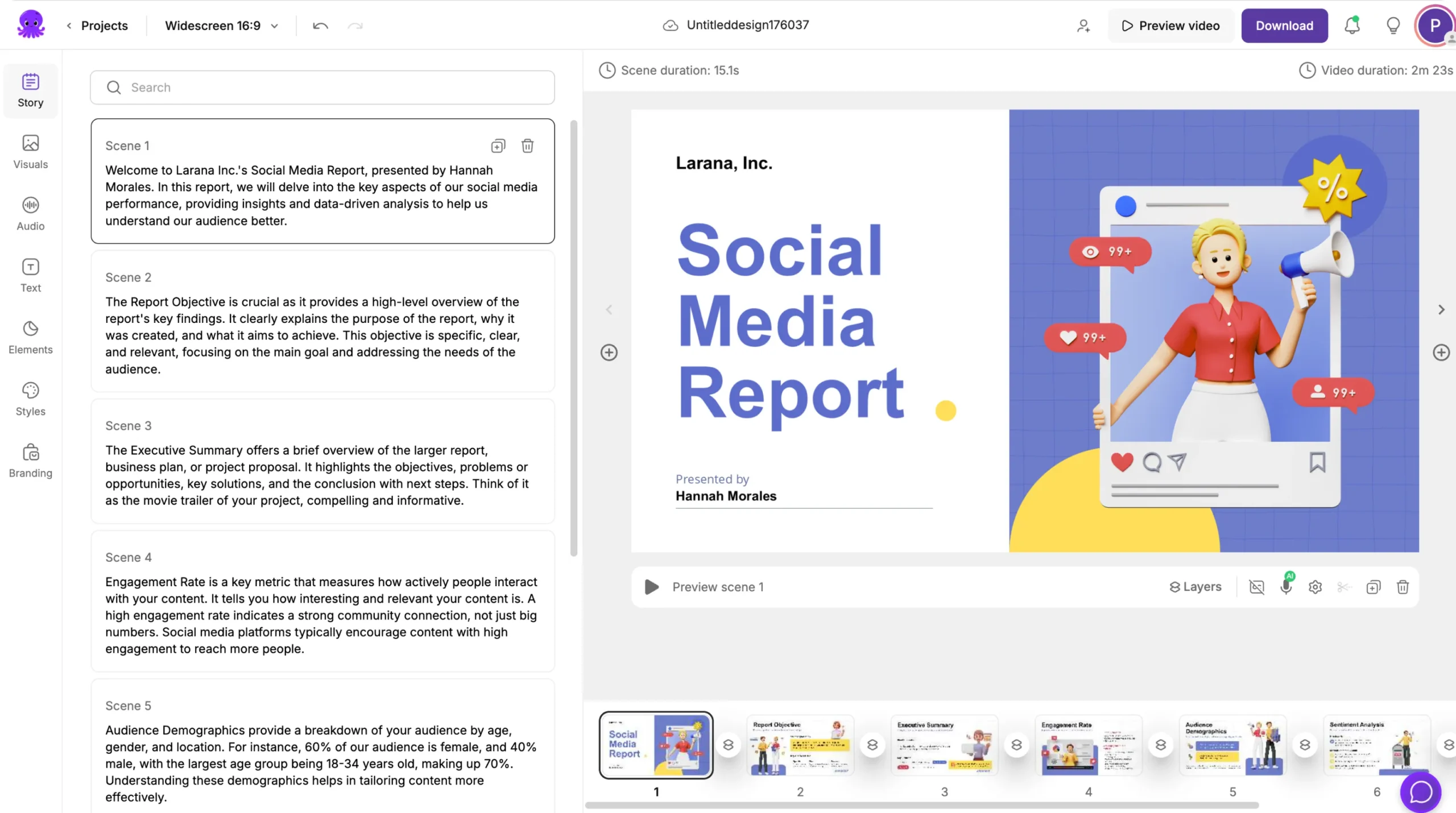
Your PowerPoint slides are now displayed as editable video scenes in the AI Video Editor. Each slide becomes a separate scene with extracted text and visuals.
You can:
Edit text or captions in the Story Tab
Replace slide visuals using the Visuals Tab
Add voiceovers and music in the Audio Tab
Insert extra elements like icons, shapes, or animations
Apply your Brand Kit under the Branding Tab for consistent styling
Use Preview Video at any time to check your progress.
Step 5: Customize Styles and Layouts
In the Styles Tab, you can change the overall look and typography of your video. Choose from built-in visual styles such as:
Sleek
Navy Blue
Bold Edge
Clean
Indigo Ink
You can also create your own custom style to match your presentation theme or brand identity.
Step 6: Adjust Timing and Scene Order
Use the Bottom Timeline to control scene duration and pacing. You can:
Extend or shorten scene lengths
Reorder slides to improve flow
Delete or duplicate scenes if needed
This helps ensure your video follows a clear narrative or learning structure.
Step 7: Apply Branding
In the Branding Tab, apply your Brand Kit to maintain visual consistency across videos. You can:
Add your company logo
Use your official color palette
Apply your brand fonts automatically
Once applied, your entire video will reflect your brand’s visual identity.
Step 8: Preview and Export Your Video
When your project is complete, click Preview Video to view your full presentation as a video.
Then click Download Video to export it in your preferred format and resolution. Your finished project is also saved under My Projects for easy updates or repurposing later.
Pro Tips for Better PPT-to-Video Results
Keep text concise on each slide for better readability.
Include visuals, images, or charts to make slides more dynamic.
Use speaker notes for smoother narration or script flow.
Apply your Brand Kit before exporting to maintain consistency.
Always preview your video to check timing and captions.
Why Use Pictory AI for PPT to Video
Pictory AI eliminates the need for manual slide recording or third-party software.
With this workflow, you can:
Convert PowerPoint presentations into videos automatically
Add music, voiceovers, and captions effortlessly
Apply your logo, fonts, and colors for consistent branding
Create ready-to-publish videos in minutes
It is the fastest way to turn existing presentations into professional, shareable video content.
Frequently Asked Questions
What PowerPoint formats are supported?
Pictory supports .PPT and .PPTX files up to 90 slides or 50 MB.
Can I include my presentation’s speaker notes?
Yes. Select Use Speaker Notes for Narration to include them automatically in your scenes.
Can I change visuals after the video is generated?
Yes. Replace visuals using stock footage, AI Studio, or your own uploads in the Visuals Tab.
Can I use my brand colors and logo?
Yes. Apply your Brand Kit to include your fonts, colors, and logo.
Can I adjust scene length or order?
Yes. Use the Bottom Timeline to trim, reorder, or extend scenes.


