
Creating effective training videos requires more than just a great script. The visuals must reinforce learning objectives, reflect real workplace scenarios, and align with your organization’s tone and brand.
If you are using Pictory AI Visual Studio inside the Visuals tab of the Video Editor, writing strong image prompts is the key to generating high quality AI visuals that support learning outcomes.
This guide will show Learning and Development professionals how to write clear, specific, and instructionally aligned image prompts in Pictory. You will also find practical scenario based prompt examples you can use immediately.
Why Good Image Prompts Matter in Learning and Development Videos
In corporate training, visuals are not decorative. They:
Reinforce key learning points
Demonstrate correct workplace behavior
Provide context for real world scenarios
Increase retention and engagement
Reduce cognitive overload
When prompts are vague, AI generates generic stock style images. When prompts are specific and instructionally aligned, visuals become purposeful teaching tools.
Inside Pictory, you can go to:
Video Editor → Visuals Tab → AI Studio

Then enter a prompt to generate custom AI images or short video clips that match your training content.
The Anatomy of a Strong AI Image Prompt in Pictory
A strong prompt includes five key components:
Role or Subject
Environment
Action
Emotion or Tone
Visual Style
Here is a simple structure you can use:
Subject + Action + Environment + Mood + Style
Example:
“Corporate trainer facilitating a workshop in a modern office training room, diverse employees participating, collaborative atmosphere, professional corporate photography style”
The more specific your prompt, the more accurate the AI generated visual will be.
Step by Step: How to Create AI Visuals in Pictory
Step 1: Open Your Project in the Video Editor
After generating your video from Text to Video, PPT to Video, or Script to Video, open your project in the Video Editor.
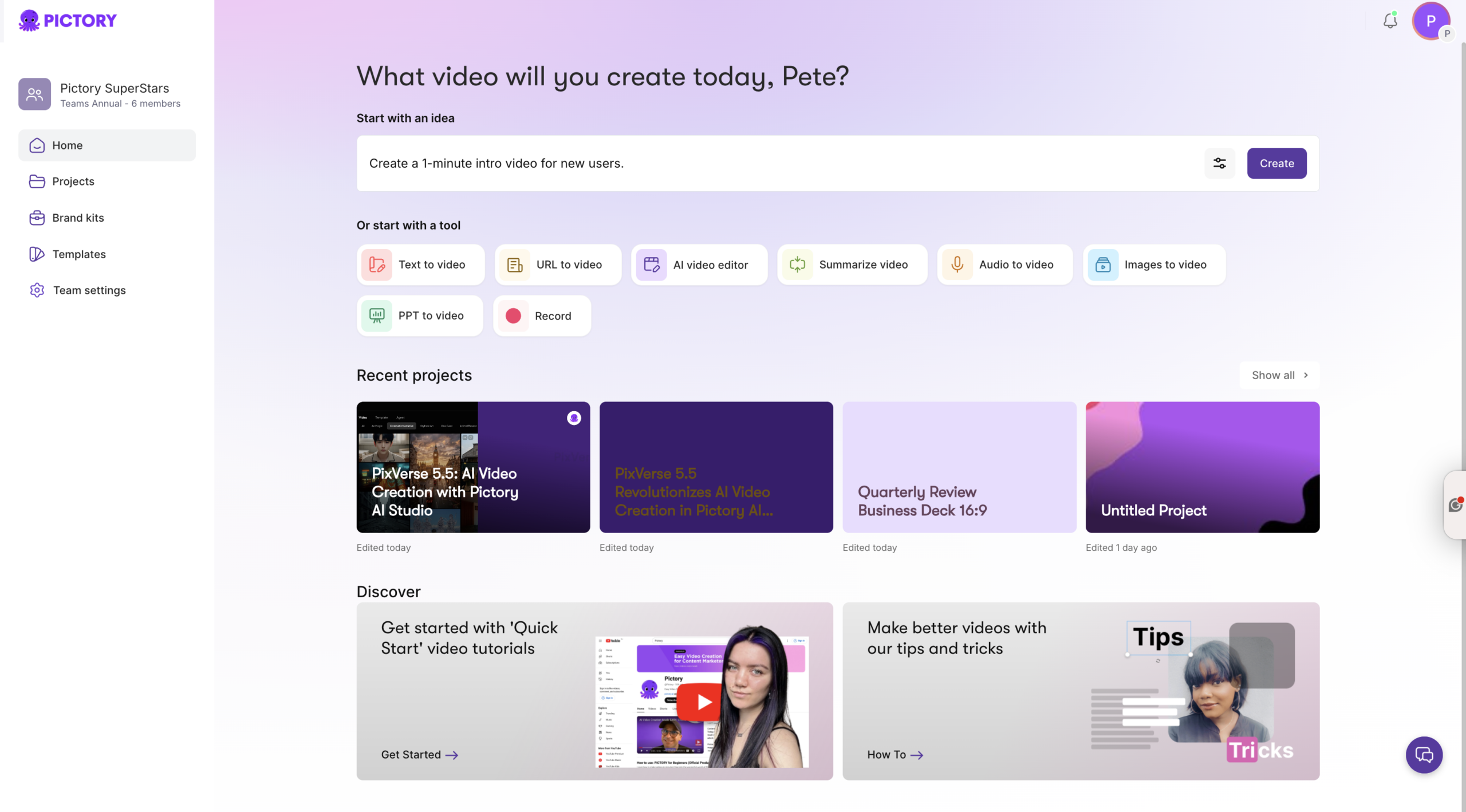
On the left side menu, click Visuals.
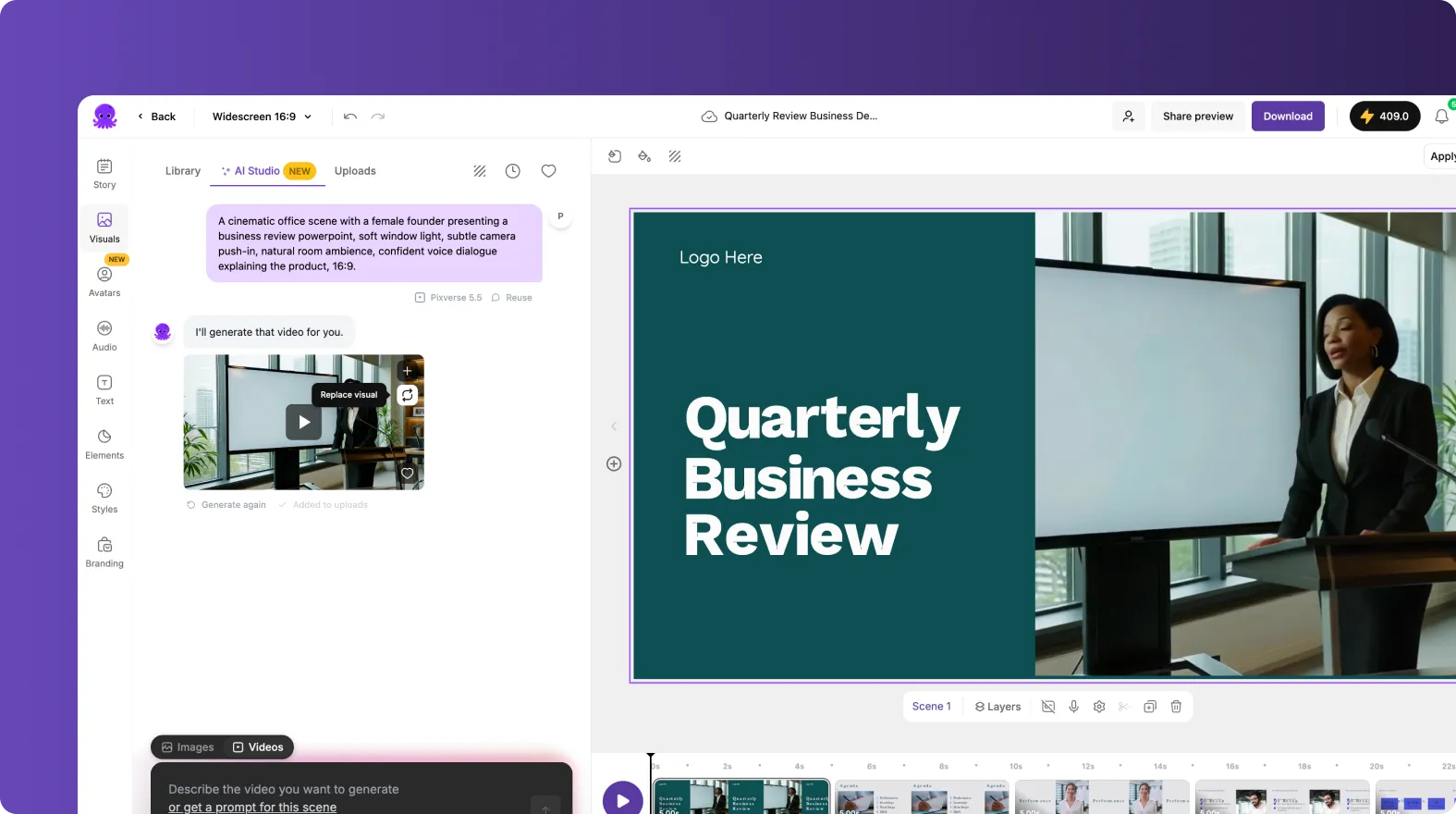
Step 2: Select AI Studio
Inside the Visuals tab, choose AI Studio.
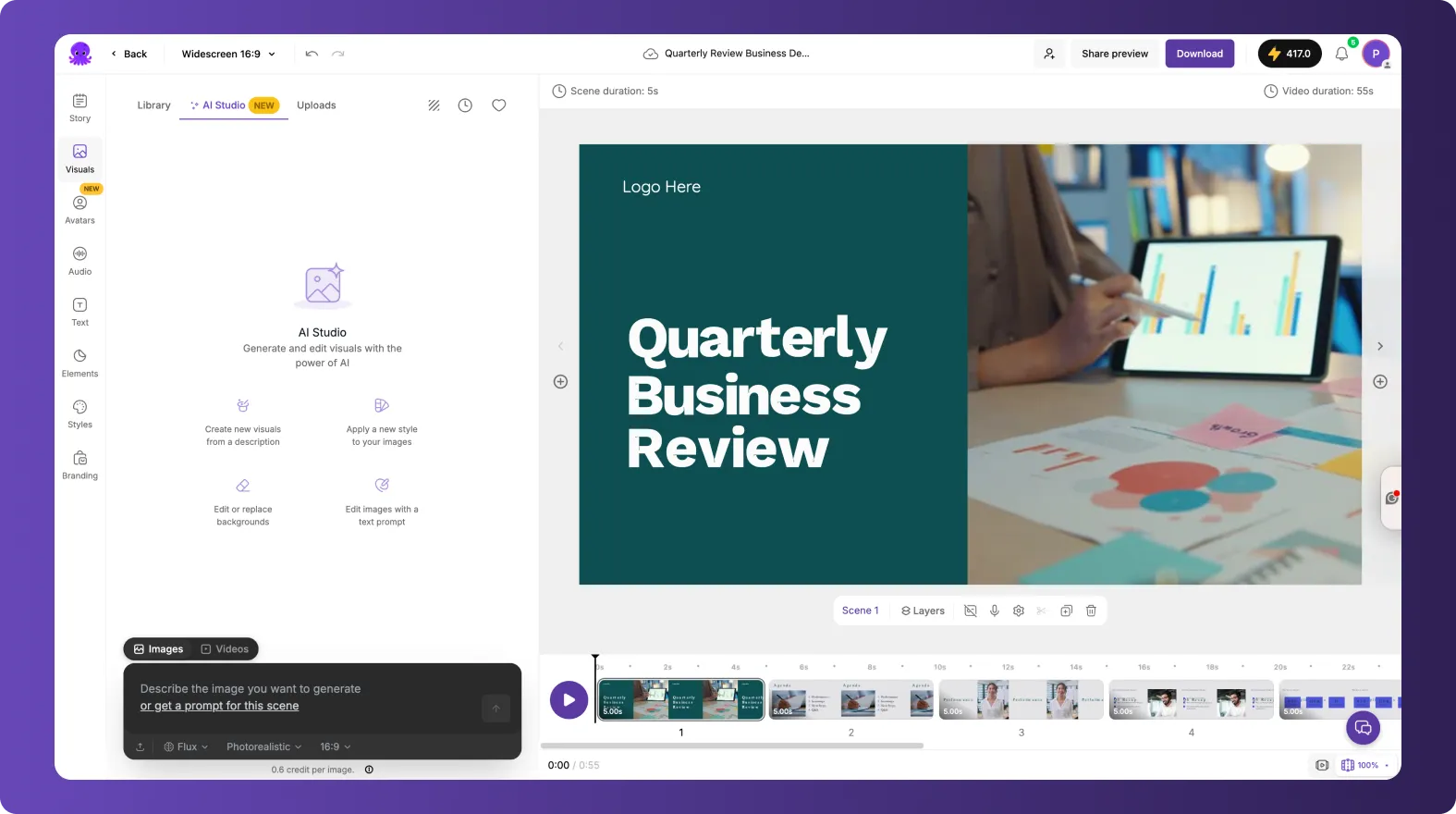
This is where you can:
Generate AI images from text prompts
Create short AI video clips
Save visuals to your library
Add visuals directly to your scene
Step 3: Write a Specific Instructional Prompt
Enter a detailed description of the learning scenario you want to visualize.
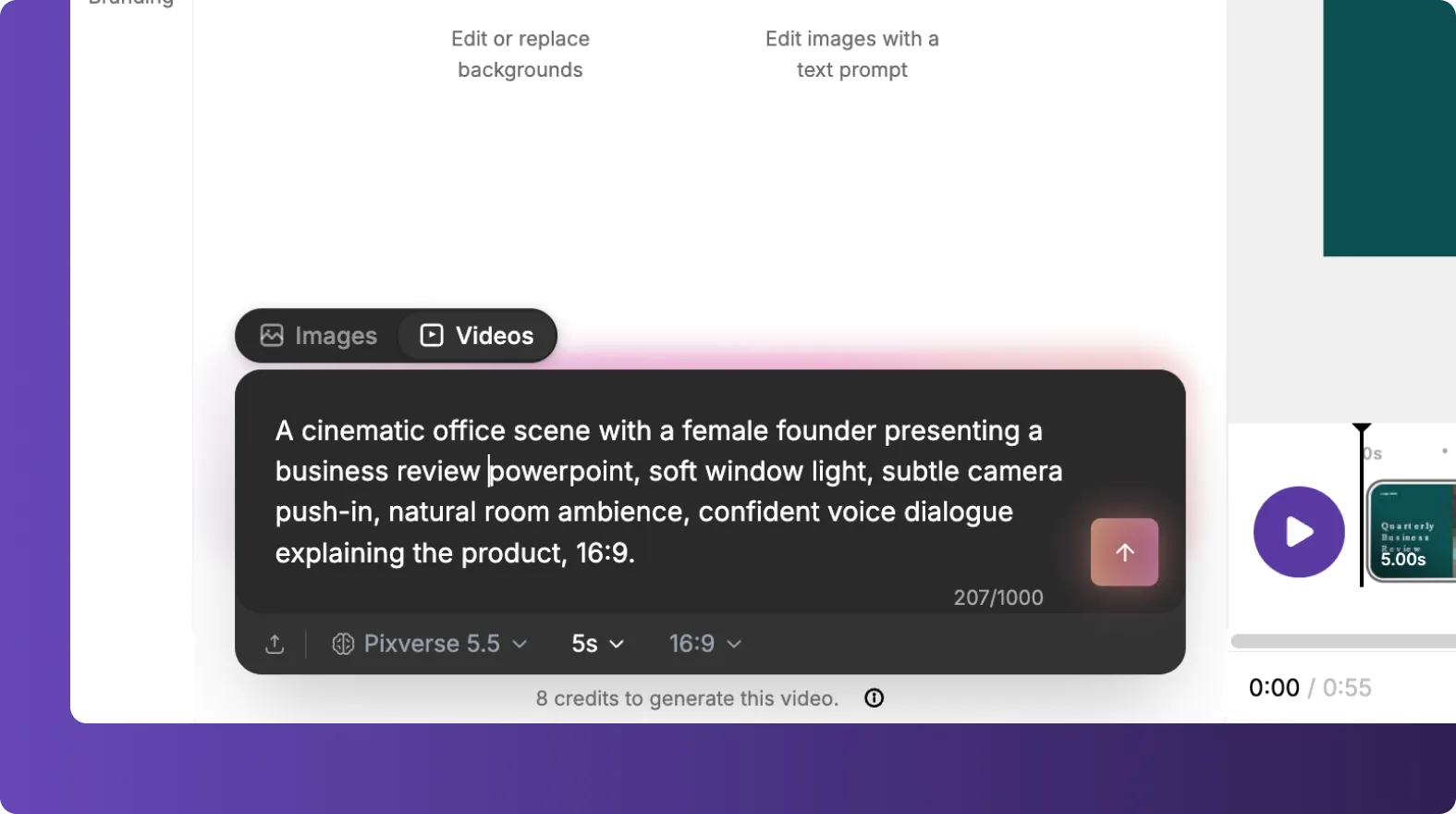
Avoid generic prompts like:
“People in office training”
Instead, write:
“HR manager leading a compliance training session in a conference room, employees taking notes, presentation screen visible in background, professional corporate setting, realistic photography”
Step 4: Review and Add the Visual to Your Scene
Once generated:
Preview the image
Download or save to library
Insert it directly into your current scene
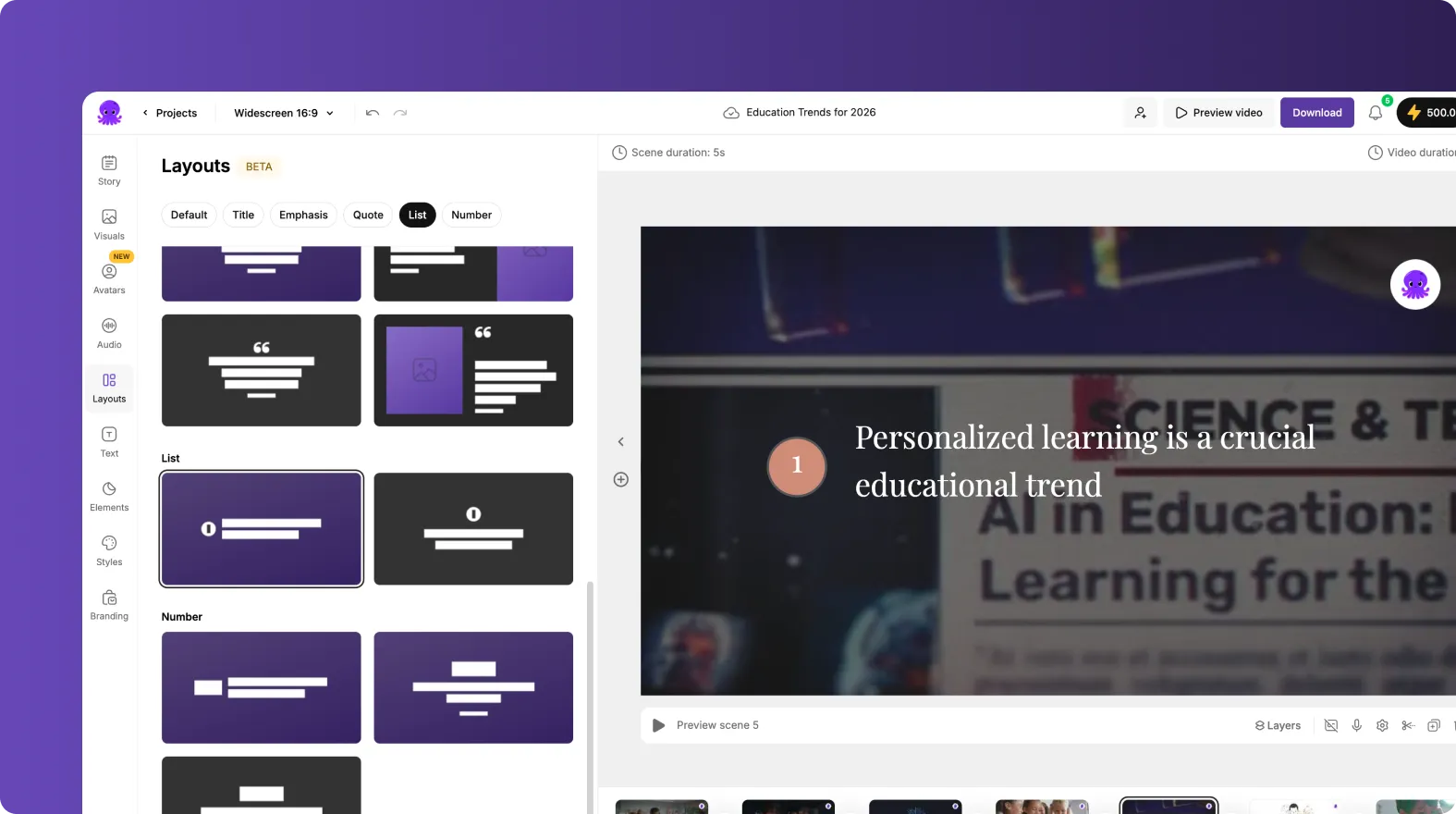
You can then adjust layout using the Layouts tab or apply branding using the Branding tab for consistency.
How Learning and Development Professionals Should Think About Prompts
When writing prompts for training videos, focus on:
Alignment with learning objectives Workplace realism Representation and diversity Clarity of action Consistency with company culture
Ask yourself:
Does this visual demonstrate the skill being taught?
Would employees recognize this as a real workplace scenario?
Does it support the message of this specific scene?
Scenario Based Prompt Examples for Corporate Training
Below are ready to use examples tailored for Learning and Development teams.
Scenario 1: Leadership Training
Weak Prompt
“Manager talking to team”
Strong Prompt
“Senior manager conducting a performance feedback meeting with an employee in a private office, calm and supportive body language, professional business attire, modern corporate office environment, realistic corporate photography”
Why this works:
Clear setting
Specific interaction
Emotional tone defined
Corporate realism
Scenario 2: Compliance Training
Weak Prompt
“Office compliance”
Strong Prompt
“Compliance officer presenting data privacy training on a large screen in a boardroom, employees seated around conference table, serious and attentive expressions, professional business setting, clean and realistic style”
Why this works:
Identifies subject
Shows training context
Defines learner reaction
Matches compliance tone
Scenario 3: Workplace Safety Training
Weak Prompt
“Safety training”
Strong Prompt
“Warehouse supervisor demonstrating proper lifting technique to employee in distribution center, safety vests and helmets visible, industrial environment, clear instructional moment, high resolution realistic photo”
Why this works:
Shows correct behavior
Includes environment details
Reinforces safety equipment
Scenario 4: Remote Work Training
Weak Prompt
“Person working from home”
Strong Prompt
“Remote employee attending virtual team meeting from home office, laptop open with video call interface visible, professional yet comfortable setting, natural lighting, modern realistic photography”
Why this works:
Clarifies activity
Shows technology
Reflects modern work culture
Scenario 5: Diversity and Inclusion Training
Weak Prompt
“Diverse team”
Strong Prompt
“Diverse group of professionals collaborating during inclusive workplace workshop, mixed ages and ethnic backgrounds, open discussion circle, positive and respectful atmosphere, bright corporate training room”
Why this works:
Specifies context
Highlights inclusion
Defines tone and setting
Scenario 6: Customer Service Training
Strong Prompt Example
“Customer service representative handling a difficult customer call at a call center desk, focused expression, headset on, computer screen visible, professional office environment, realistic corporate style”
Alternative version for role play:
“Retail employee calmly resolving customer complaint at store counter, attentive body language, modern retail environment, professional training scenario, realistic photography”
How to Adjust Prompts for Different Training Formats
For Microlearning Videos
Keep visuals simple and focused:
“Close up of manager giving direct eye contact during coaching conversation, neutral office background, professional lighting”
Short, clear, and tightly aligned to one learning point.
For Scenario Based eLearning
Add more environmental detail:
“Two employees in open plan office discussing project deadline conflict, concerned expressions, modern tech company environment, realistic corporate photography”
For Executive Level Training
Elevate tone and setting:
“Executive leadership team in strategic planning session, high end boardroom, city skyline visible through large windows, formal business attire, cinematic professional style”
Common Mistakes to Avoid When Writing AI Image Prompts
Being too vague
Forgetting the learning context
Overloading the prompt with unrelated details
Ignoring emotional tone
Not matching the organization’s culture
In corporate training, clarity is more important than creativity.
Pro Tips for Better Results in Pictory AI Studio
Use professional descriptors such as:
Realistic corporate photography
Modern office environment
Professional business attire
Instructional training scenario
Clean and minimal style
If you want consistency across multiple scenes, repeat key descriptors such as:
“realistic corporate photography” “modern corporate office”
This keeps your AI visuals cohesive throughout the training video.
After generating visuals, you can:
Adjust layout in the Layouts tab
Animate text using the Animate Text option in the top toolbar
Apply Brand Kit settings in the Branding tab for consistent fonts and colors
Final Checklist for Writing High Quality AI Image Prompts
Before generating your image, confirm:
The subject is clearly defined
The action supports the learning objective
The environment reflects a real workplace
The emotional tone matches the topic
The style fits your brand
If you can answer yes to all five, your prompt is strong.
Frequently Asked Questions
What makes a good AI image prompt in Pictory for training videos?
A good prompt is specific, contextual, and aligned to the learning objective. It clearly defines the subject, action, environment, tone, and visual style.
How detailed should my prompt be?
Detailed enough to eliminate ambiguity but not overloaded. Focus on role, setting, action, and tone. One to three well structured sentences are usually ideal.
Can I use AI visuals for compliance and corporate training?
Yes. Pictory AI Studio allows you to create realistic corporate training visuals that match compliance, leadership, onboarding, safety, and other L and D scenarios.
How do I keep visuals consistent across a full course?
Use consistent style descriptors in every prompt and apply your Brand Kit in the Branding tab to maintain fonts, colors, and logos throughout your project.
Should Learning and Development teams use AI generated visuals instead of stock footage?
AI visuals are especially useful when you need highly specific workplace scenarios that are difficult to find in stock libraries. They allow you to create precise, instructionally aligned scenes that directly support your training objectives.


