
Pictory’s Translate feature turns a finished project into localized versions in one action. Pick one or more target languages and Pictory translates the script, captions, and on-screen text into a new, independent project per language, leaving your original untouched. From there you pick a voice and generate a voiceover in the target language.
What video translation does in Pictory
When you translate a project, Pictory:
- Detects the source language automatically, and lets you override it if the detection is wrong
- Translates your script, captions, and on-screen text into every target language you pick
- Adapts the layout so translated text wraps and resizes to fit the scene
- Creates a separate, independent project for each language, so your original stays intact
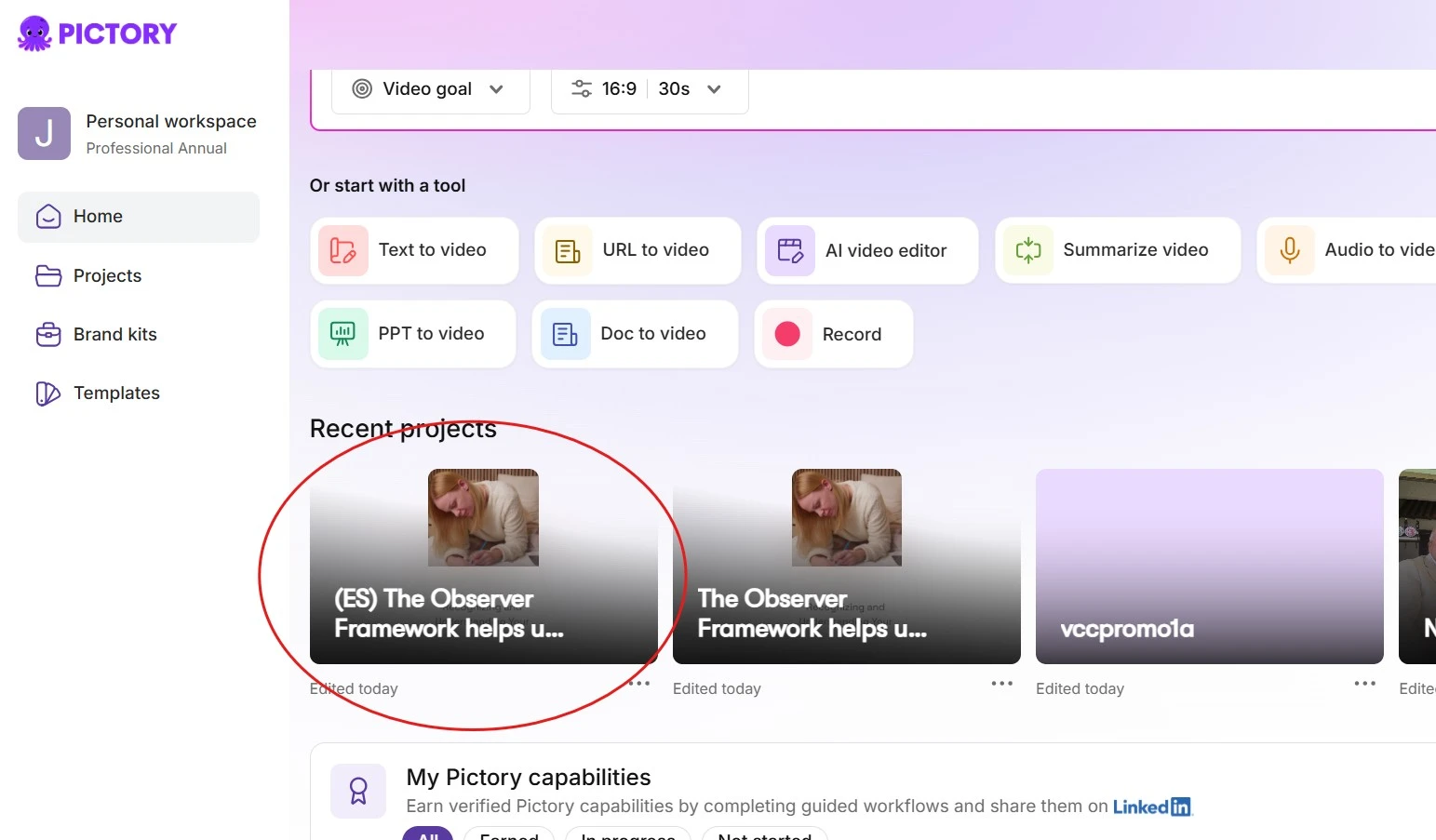
- Names each translated project with a language prefix, for example “(ES) Employee Onboarding”
Scene visuals, uploaded media, scene structure, and aspect ratio stay unchanged. You keep the same video, just in another language.
Who video translation is for
Translate is built for teams that need the same video in more than one language:
- L&D managers publishing onboarding and training to a multilingual workforce
- Marketers running the same campaign across regional markets
- Educators and course creators reaching learners in different languages
- Enterprise teams standardizing policy or compliance videos across offices
- Content creators repurposing one finished video into several language versions
How to translate a video, step by step
You can start a translation from the export screen right after finishing a video, from the actions menu on any project in your dashboard, or from the storyboard while you’re still editing. All three lead to the same dialog and the same result.
Open the project you want to translate
Open it from the Projects dashboard, the storyboard, or the export screen right after generating it.
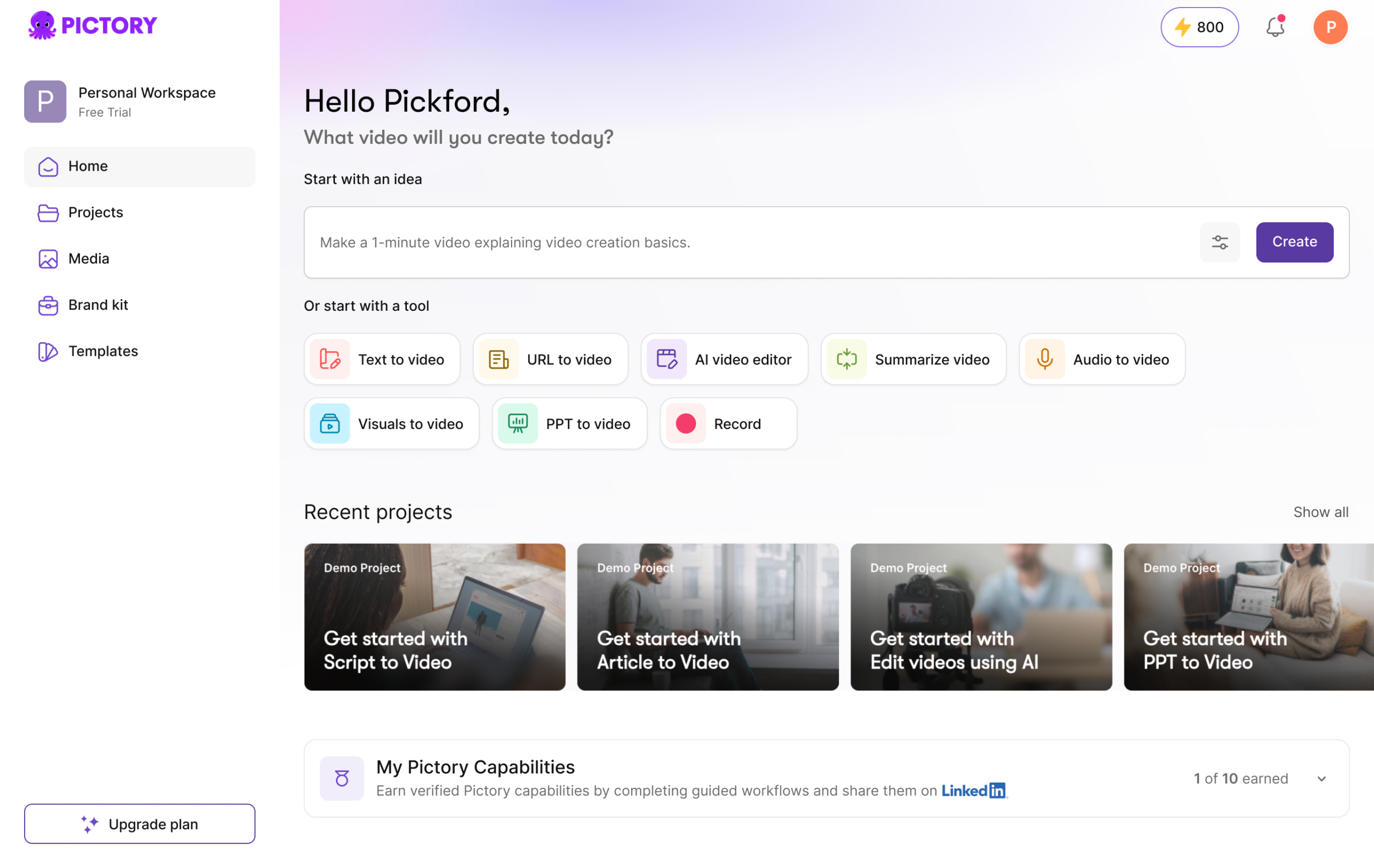
Click Translate
Select Translate from the export screen, the dashboard actions menu, or the storyboard toolbar to open the translation dialog.
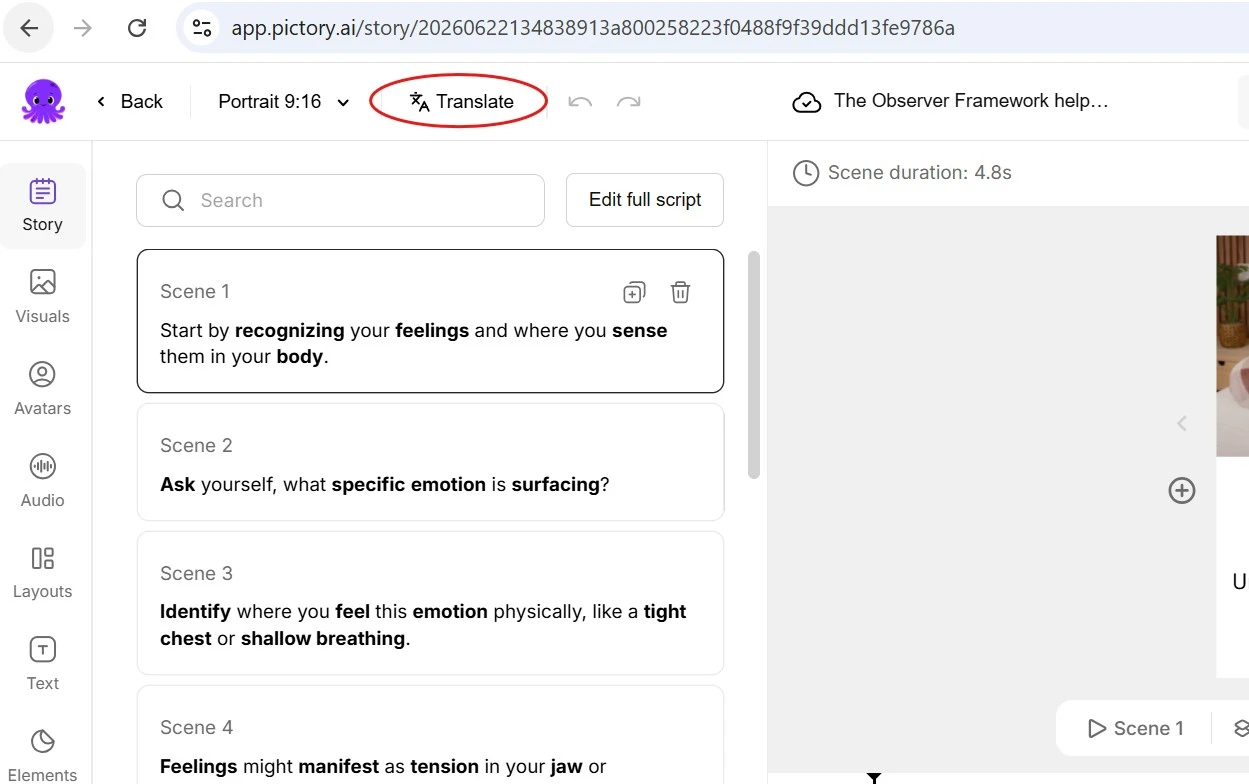
Confirm the source language
Pictory detects it automatically from your script. Override it from the dropdown if it’s wrong.
Pick your target languages
Select one language or several at once. Pictory creates a separate translated project for each one you pick, so batching saves time when you’re localizing into many markets.
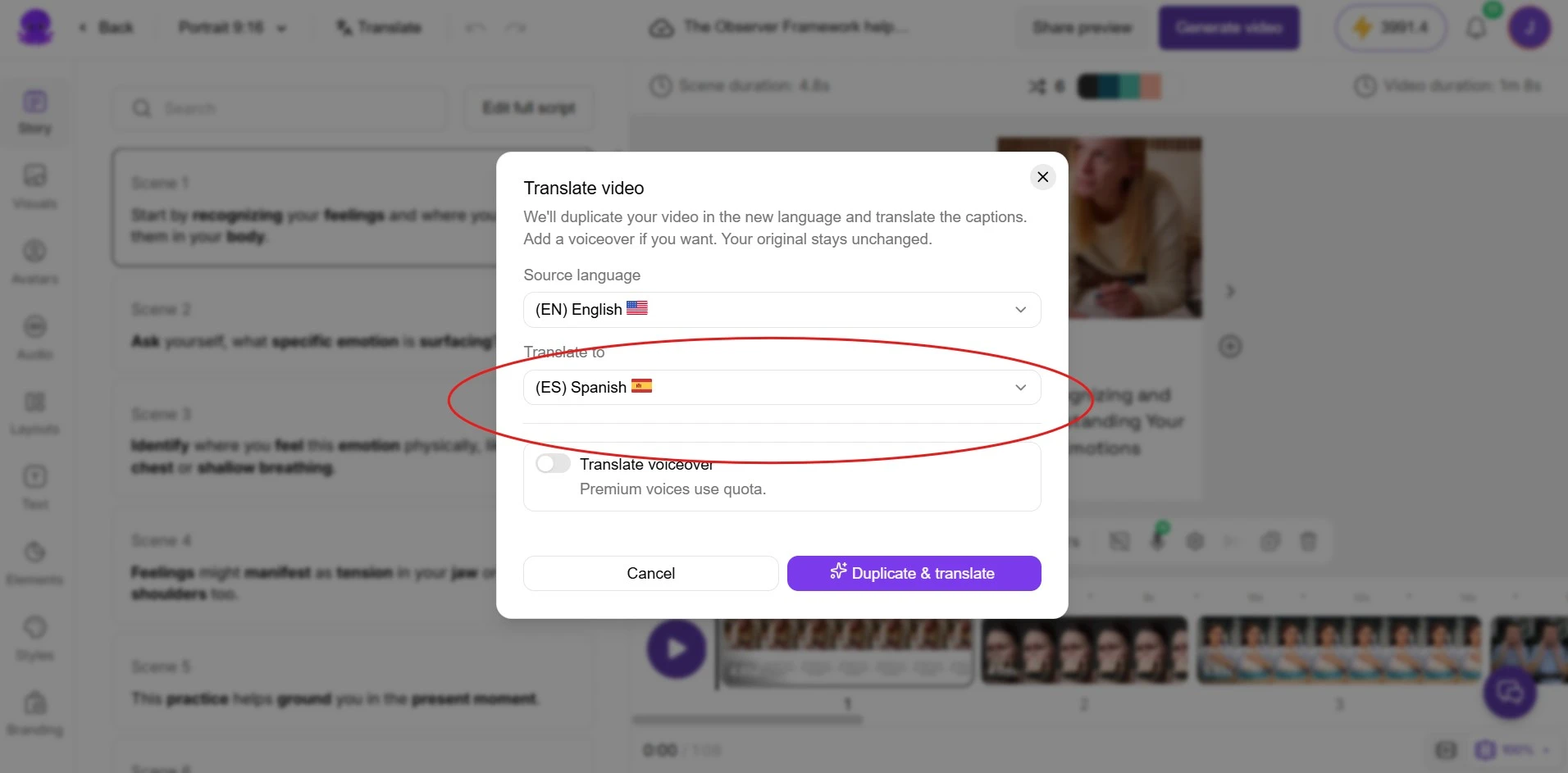
Start the translation
Confirm to run it. Pictory translates the script, captions, and on-screen text, adapts the layout to fit, and creates a new project per language. Your original isn’t touched.
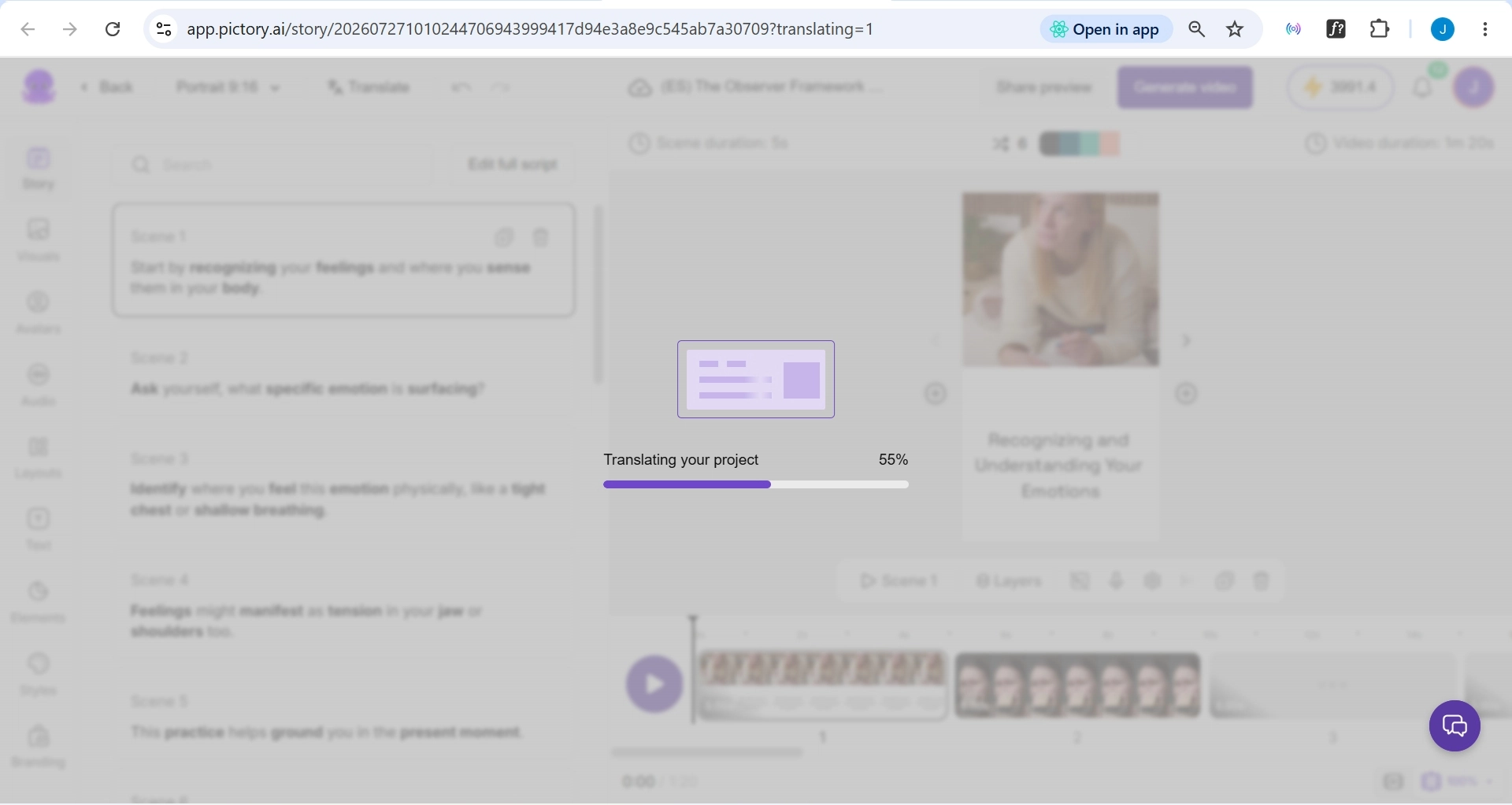
Open your translated project
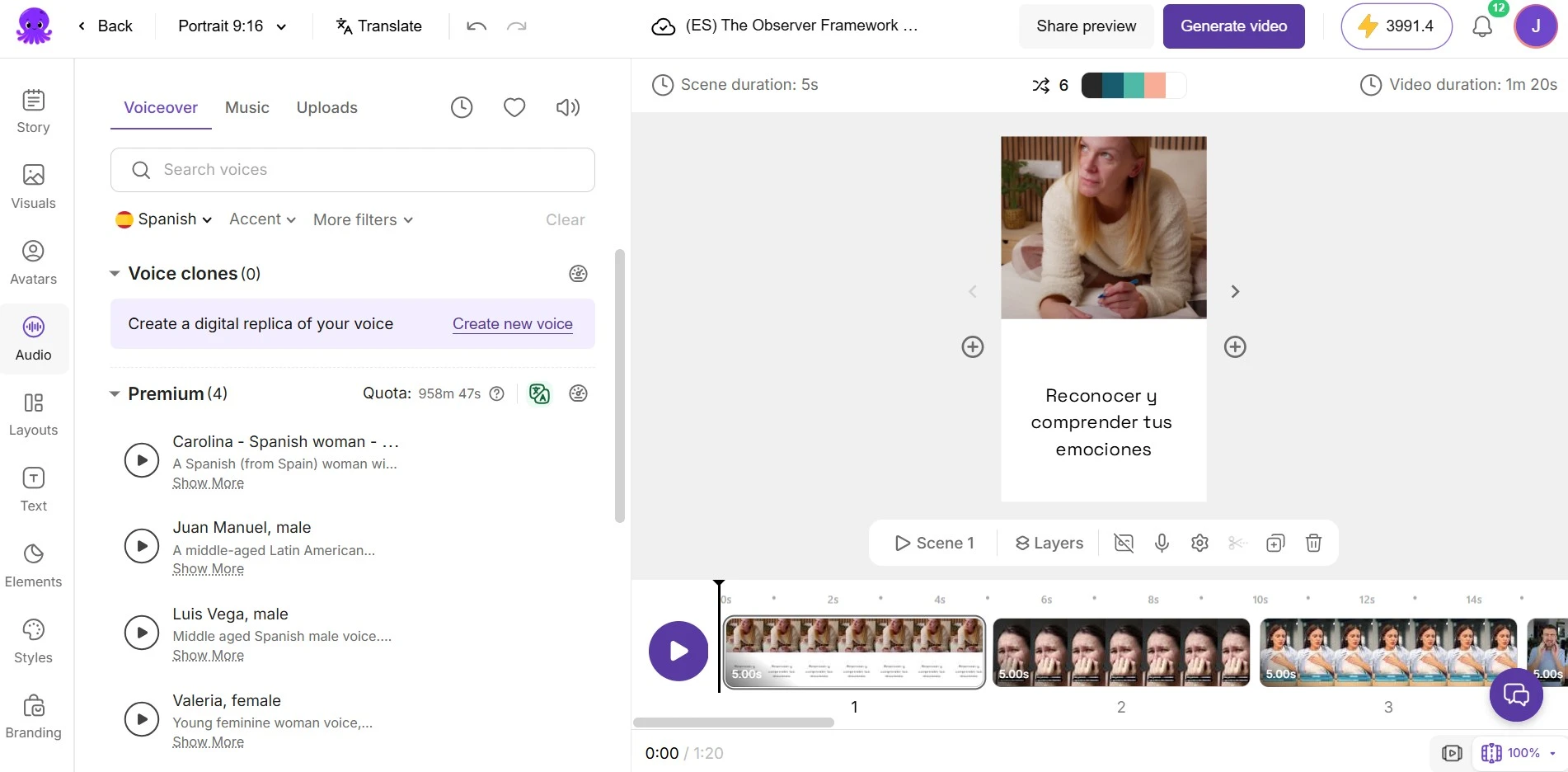
It appears on your Projects dashboard with a language prefix, for example “(ES) Employee Onboarding.” Opening it takes you straight to the Audio tab with the target language pre-selected.
Review, edit, and export
Translations are machine-generated, so read through the script and captions and fix anything that doesn’t land naturally, then export.
How to add a voiceover in the target language
Translation handles the words on screen. Voiceover is a separate step you run afterward, using Pictory’s existing voice tools — and since your translated project already opens in the Audio tab with the right language selected, you’re halfway there.
Pick a voice
Browse the AI voices available in your target language and preview a few. Premium voices are multilingual, so you can keep the same voice across every language version.
Generate the voiceover
Apply the voice and Pictory generates narration from your translated script, synced to your scenes. This uses your existing voice quota and credits.
Preview and adjust
Play it back and check the pacing against your scenes. Adjust script, timing, or voice if anything feels off, then export.
For more on voice selection and settings, see the multilingual voiceovers guide.
Which project types support translation
Video translation works for projects created from these workflows:
Turn a script into a fully edited video with visuals, captions, and voiceover.
Convert a blog post or article URL into a summarized video.
Import a document and generate a video from its content.
Transform a PowerPoint deck into a narrated video with captions.
Translation isn’t available for Recording, Summarizer, Audio to Video, or Images to Video projects, since those either start from spoken audio or don’t produce a translatable script.
Tips for better translations
Keep source scripts short and plainly phrased — idiomatic lines translate less reliably. Read the translated script before you generate a voiceover; a quick pass catches phrasing that sounds mechanical or misses the tone. If you need several languages, pick them all in one action rather than translating one at a time. On-screen text is worth trimming too, since some languages expand by 20–30% after translation, and shorter source text gives Pictory more room to fit it cleanly. If brand consistency matters, use one of the multilingual voices so the same speaker narrates every language version. And because your source project is never touched, you can always come back and add another language later.
What video translation doesn’t do
It doesn’t clone your narrator’s voice or dub over the existing audio — you generate a fresh AI voiceover instead. It doesn’t lip-sync a presenter speaking to camera, so it works best on videos where visuals accompany narration rather than a real person talking on screen. Visuals, uploaded media, scene structure, and aspect ratio all stay as they were, so region-specific imagery still needs a manual swap. And because this is machine translation, a quick human read-through before publishing is worth the few minutes it takes.
Frequently asked questions
Does translation change my original project?
No. Your source project stays exactly as it was. Pictory creates a new, independent project for every target language, so you can translate the same source into more languages later without any risk to the original.
How many languages can I translate into at once?
You can pick multiple target languages in a single action. Pictory creates one translated project per language, so you can localize into every market you need in one go.
Is the voiceover generated automatically?
No. Translation covers your script, captions, and on-screen text. Voiceover is a separate step you run inside the translated project. Pictory drops you into the Audio tab with the target language pre-selected, so you pick a voice and generate the audio in a couple of clicks.
What if Pictory detects the wrong source language?
Override it. In the translation dialog, you can change the source language from the dropdown before you run the translation.
Which languages are supported?
Translation supports every language currently available in Pictory’s AI language and voice stack. The list grows over time as Pictory adds more languages, so any new language available for voiceover becomes available for translation too.
Can I edit the translated script and captions?
Yes. Every translated project is fully editable. Review the script, tweak captions, adjust on-screen text, then generate your voiceover when you’re happy with the copy.
Is video translation available on my plan?
Yes. Video translation is available to all users regardless of plan. Voiceover generation uses your existing voice quota and credits.
Why isn’t Translate available on my project?
Translation is supported for Text to Video, URL to Video, Doc to Video, and PPT to Video projects. It isn’t available for Recording, Summarizer, Audio to Video, or Images to Video flows, since those either start from spoken audio or don’t produce a translatable script.
Localize once, reach everywhere
Video translation turns your best-performing videos into a library of localized versions without a manual rebuild. Pick your target languages, let Pictory handle the script, captions, and on-screen text, then add a voiceover and export — one source project, every market you need to reach.