
Static PowerPoint presentations often struggle to hold attention, especially in training, onboarding, sales, and educational content. Traditional slide animations inside PowerPoint are limited and can require significant manual work to look professional in video format.
Pictory’s PPT-to-Video AI Animation feature helps users turn static slides into dynamic video scenes using AI-generated animations directly from the storyboard.
This guide explains how AI slide animation works in Pictory and how to transform PowerPoint presentations into more engaging videos.
What Is AI PowerPoint Slide Animation
AI PowerPoint slide animation uses artificial intelligence to automatically add movement, pacing, and visual enhancement to static presentation slides.
Instead of manually recreating slides in a video editor, AI can:
• Add motion effects
• Create scene-level animations
• Improve pacing and transitions
• Enhance visual storytelling automatically
This makes presentation videos feel more modern and engaging.
How Does AI Animation Work in Pictory
Pictory’s AI Animation feature works directly inside PPT-to-Video projects.
After generating a presentation video, users can animate scenes individually from the storyboard.
The system automatically applies:
• Motion effects
• Composite animations
• Enhanced scene pacing
• Visual movement
This allows users to improve presentation quality without rebuilding slides from scratch.
Why Static Slides No Longer Work for Modern Video Content
Today’s audiences expect movement, pacing, and visual engagement.
Static slide videos often lead to:
• Lower retention
• Reduced engagement
• Presentation fatigue
• Less effective communication
AI-powered animation helps training teams, educators, and marketers create videos that feel more polished and easier to watch.
Step 1: Generate a PPT-to-Video Project
To begin:
Open the PPT-to-Video workflow in Pictory
Upload your PowerPoint presentation
Generate your video project

Pictory converts your slides into editable storyboard scenes automatically.
Step 2: Open the Storyboard
Once your project is generated:
Open the storyboard view
Navigate to the scene you want to animate
Select the slide or scene
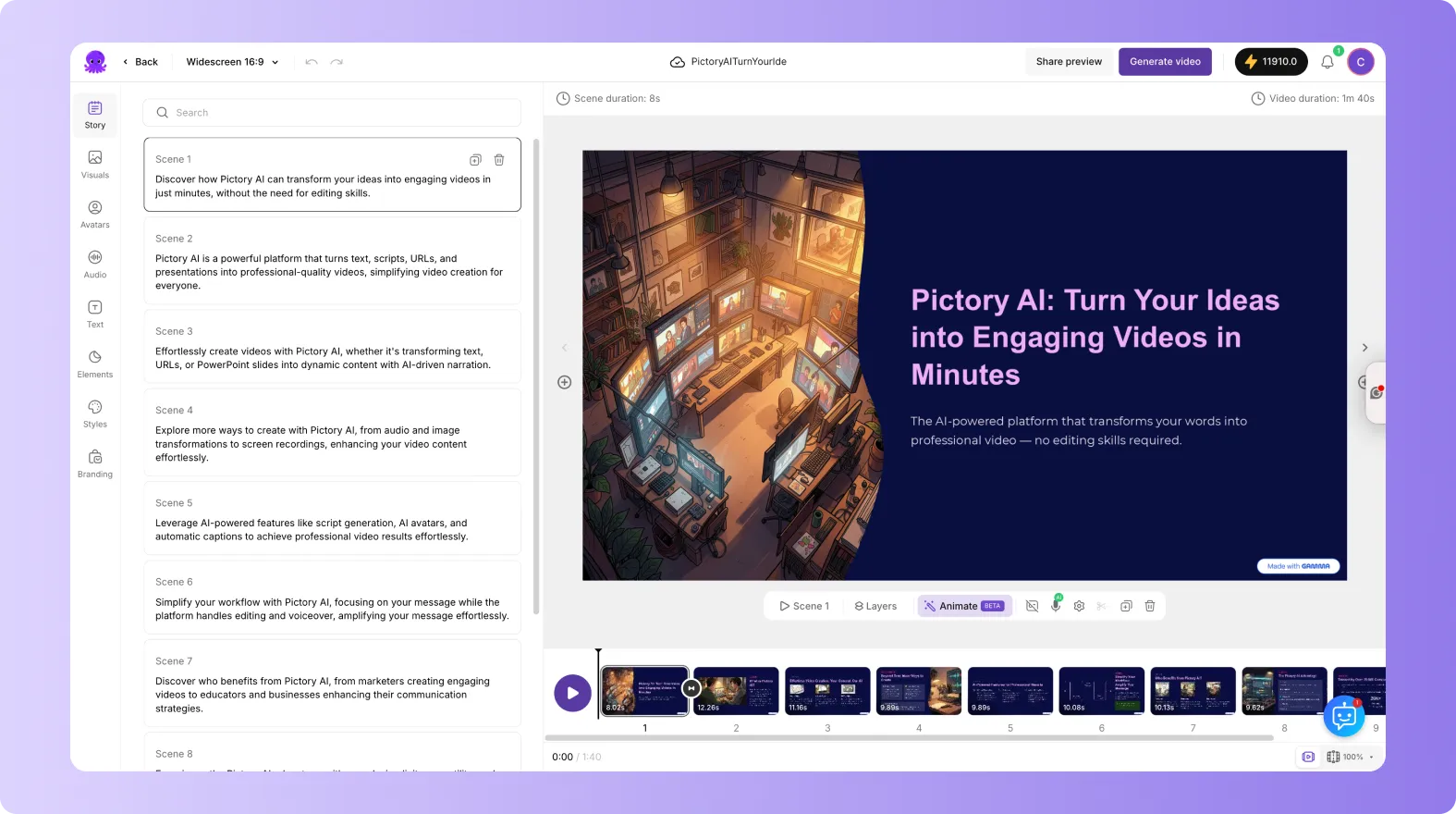
Each PowerPoint slide becomes its own editable video scene.
Step 3: Animate Your Slide With AI
To add animation:
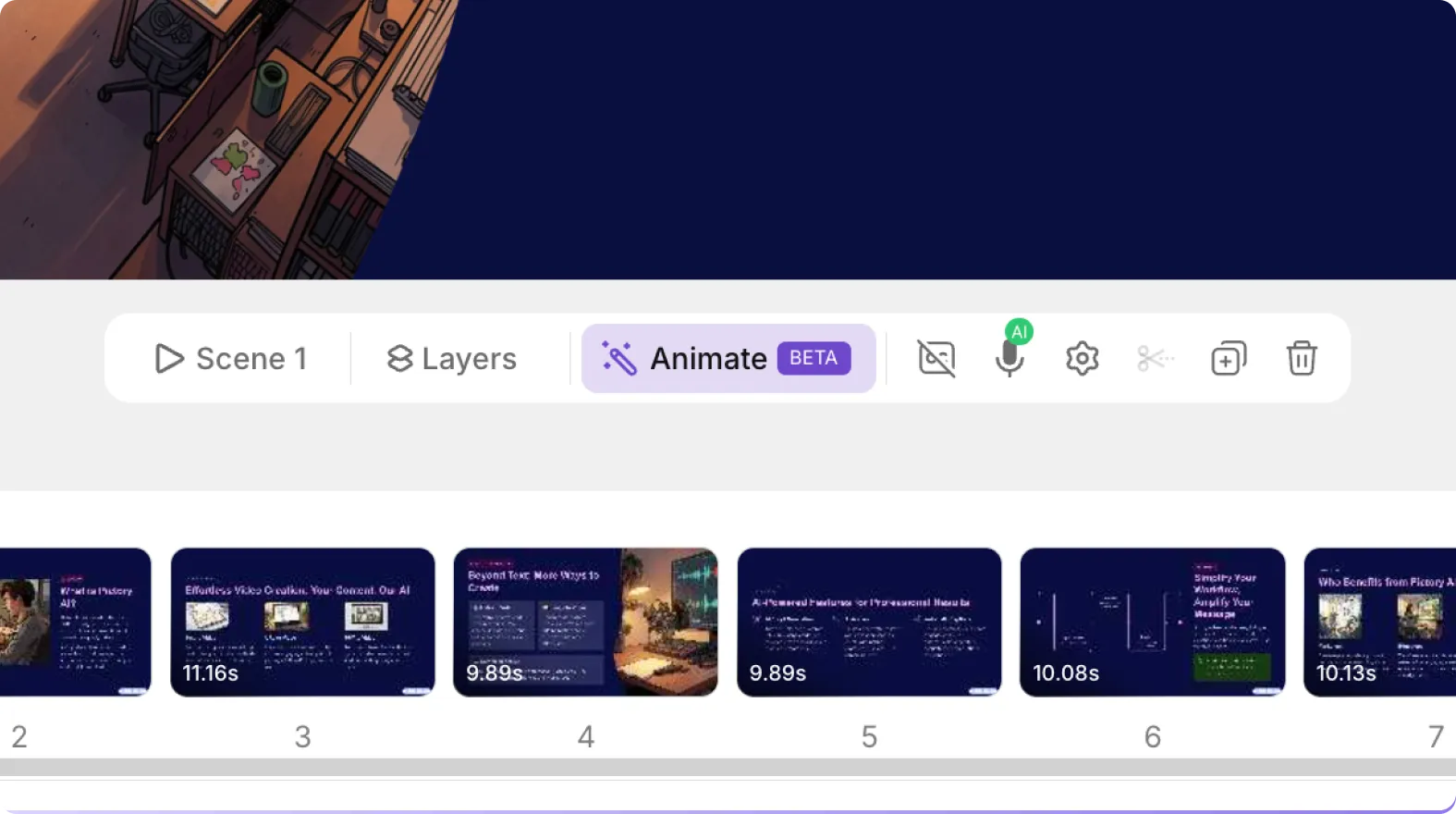
Click Animate With AI
Wait for processing to complete
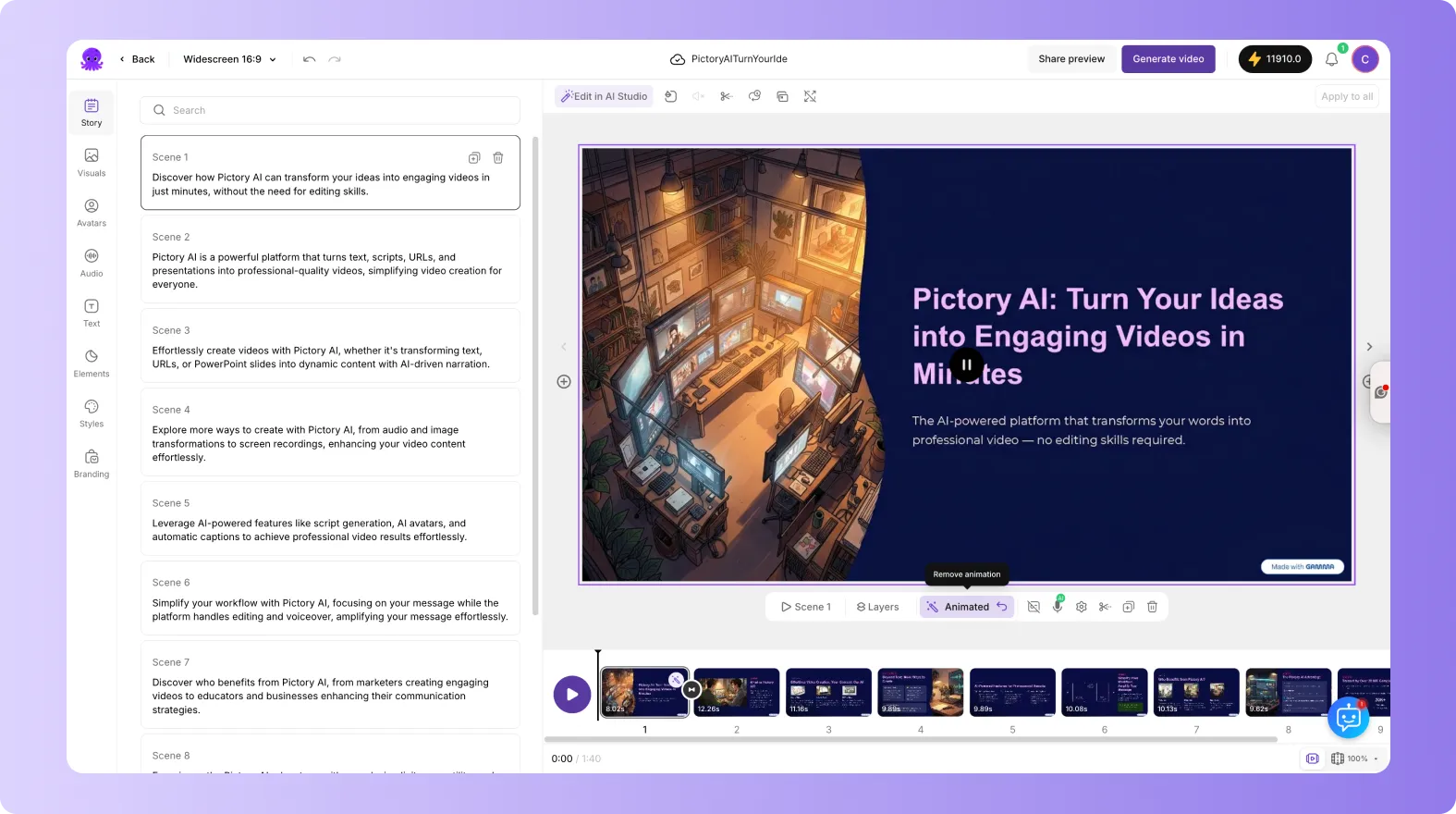
Pictory automatically generates:
• Motion effects
• Composite animations
• Enhanced pacing and movement
The animation is then applied directly to the selected scene.
Can AI Animate PowerPoint Slides Automatically
Yes. Pictory automatically generates motion and scene-level animations from static PowerPoint slides without requiring manual animation work.
This helps users create more engaging presentation videos quickly.
Step 4: Edit Your Scene in AI Studio
For deeper customization:
Open the storyboard
Select the desired scene
Click Edit in AI Studio
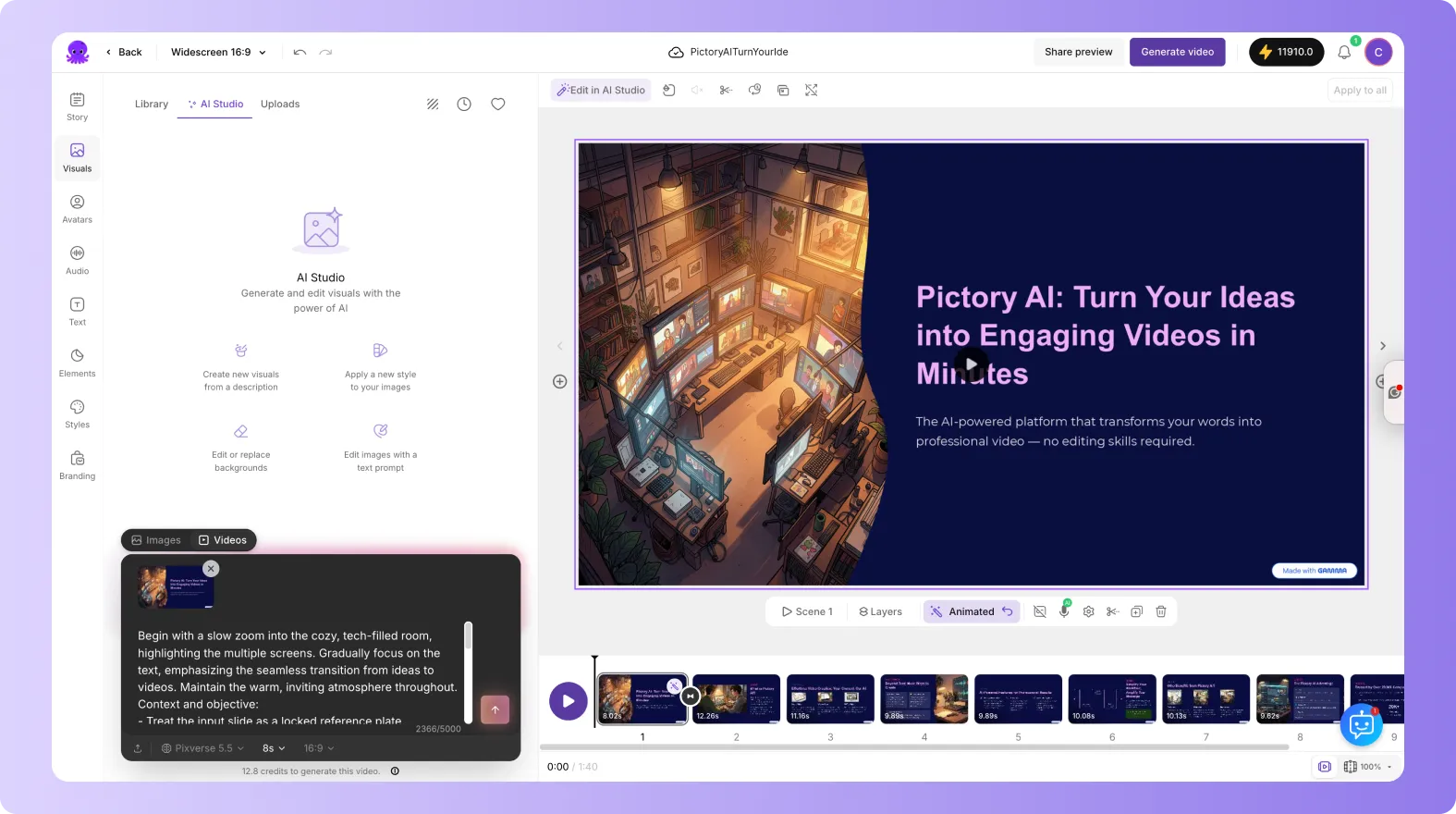
The selected scene opens inside AI Studio for advanced AI-powered editing.
What Can You Do Inside AI Studio
Inside AI Studio, users can:
• Refine scene visuals
• Modify animations
• Enhance motion effects
• Experiment with different styles
• Create more cinematic scenes
This allows for greater creative flexibility beyond the initial animation pass.
Why AI Animation Improves Presentation Videos
AI animation helps presentations feel more dynamic and professional.
Benefits include:
• Better viewer engagement
• Improved pacing
• More modern visual storytelling
• Reduced manual editing effort
• Faster production workflows
This is especially useful for teams producing large volumes of presentation content.
Best Use Cases for AI Animated PowerPoint Videos
Training and Onboarding Turn static training presentations into engaging learning videos.
Sales and Marketing Presentations Improve sales decks with movement and visual storytelling.
Educational Videos Make educational presentations more interactive and easier to follow.
Internal Communications Create more polished company updates and announcements.
Compliance and SOP Content Improve retention for process and compliance training.
Why Pictory Is Different for PPT Animation
Traditional presentation tools require manual animation work or complex video editing.
Pictory simplifies this by combining:
• PPT-to-Video workflows
• AI scene generation
• Automatic slide animation
• AI Studio editing
• AI voices and voice cloning
• AI avatars and avatar cloning
This creates a complete AI-powered presentation video workflow.
Add AI Voices and Avatars to Animated PPT Videos
Pictory also allows users to enhance animated presentations with:
• AI narration
• Voice cloning
• AI avatars
• Avatar cloning

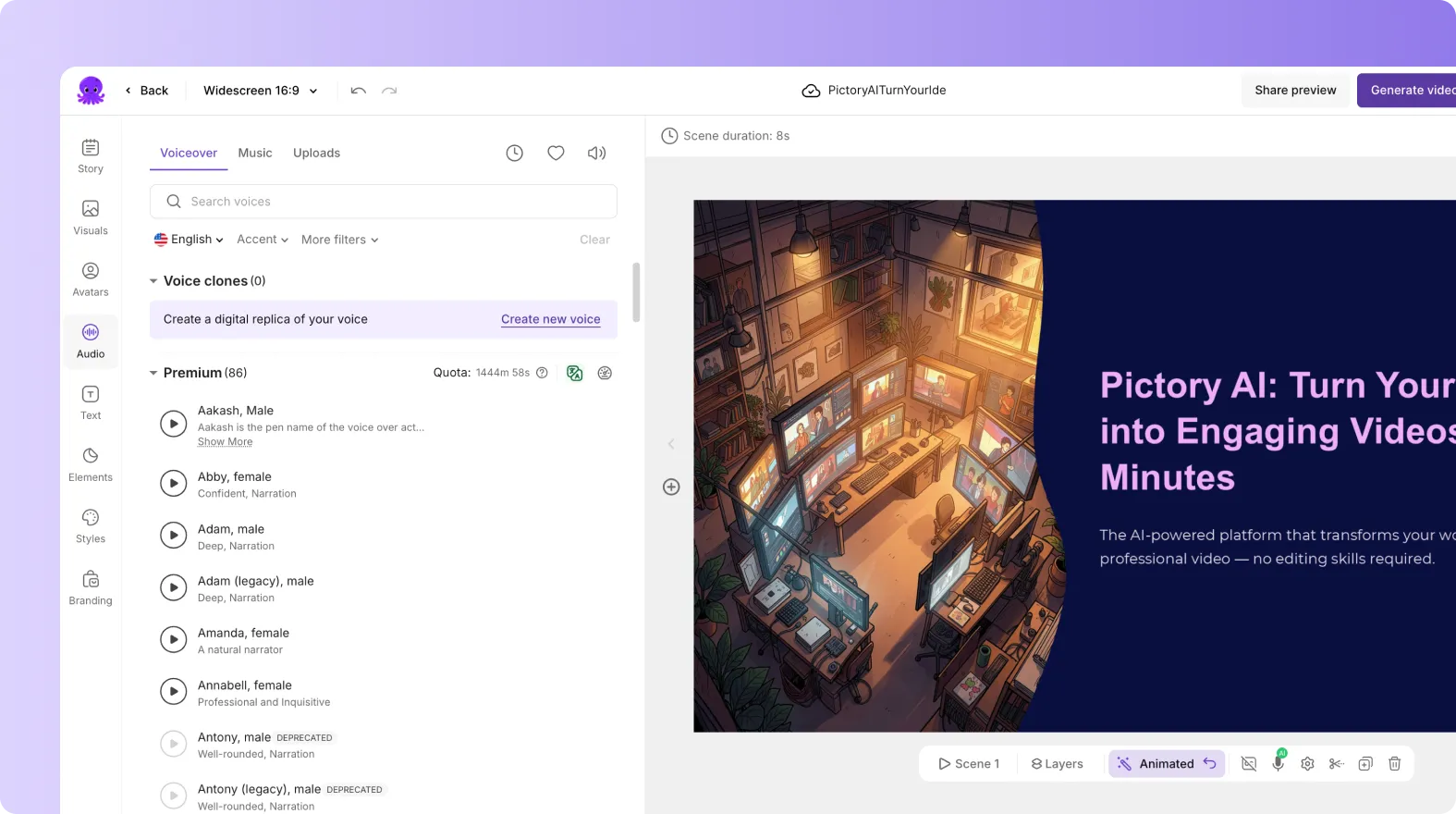
This helps teams create presenter-led training and educational videos without filming.
Supported Workflows
Currently supported:
• PPT-to-Video projects on the Pictory web application
• Scene-level AI animation
• AI Studio editing directly from storyboard scenes
Limitations to Be Aware Of
There are some important limitations.
• AI animation currently works at the individual scene level
• Some complex PowerPoint animations may not fully translate
• Advanced timeline editing is not included in Phase 1
• Feature availability may vary by subscription plan
Reviewing scenes after animation is recommended.
The Future of PowerPoint Presentations Is AI Video
PowerPoint remains one of the most widely used business and training tools in the world. The challenge is transforming static slides into content people actually want to watch.
AI-powered animation workflows help bridge that gap.
With Pictory, users can turn PowerPoint presentations into dynamic videos using AI-generated motion, narration, avatars, and intelligent scene enhancement, helping teams modernize presentations without rebuilding content from scratch.
Frequently Asked Questions About AI PowerPoint Animation
Can AI animate PowerPoint slides automatically?
Yes. Pictory automatically applies motion effects and scene-level animations to PowerPoint slides.
Does AI animation change my original PowerPoint?
No. Your original presentation remains unchanged.
Can I edit the AI-generated animations?
Yes. You can continue refining scenes inside AI Studio.
Can I animate all slides at once Currently, AI animation works at the individual scene level.
Can I add AI avatars and narration?
Yes. Pictory supports AI voices, voice cloning, AI avatars, and avatar cloning.
Is AI slide animation free?
The initial AI enhancement is free. Additional AI-powered edits may consume credits depending on usage.


