
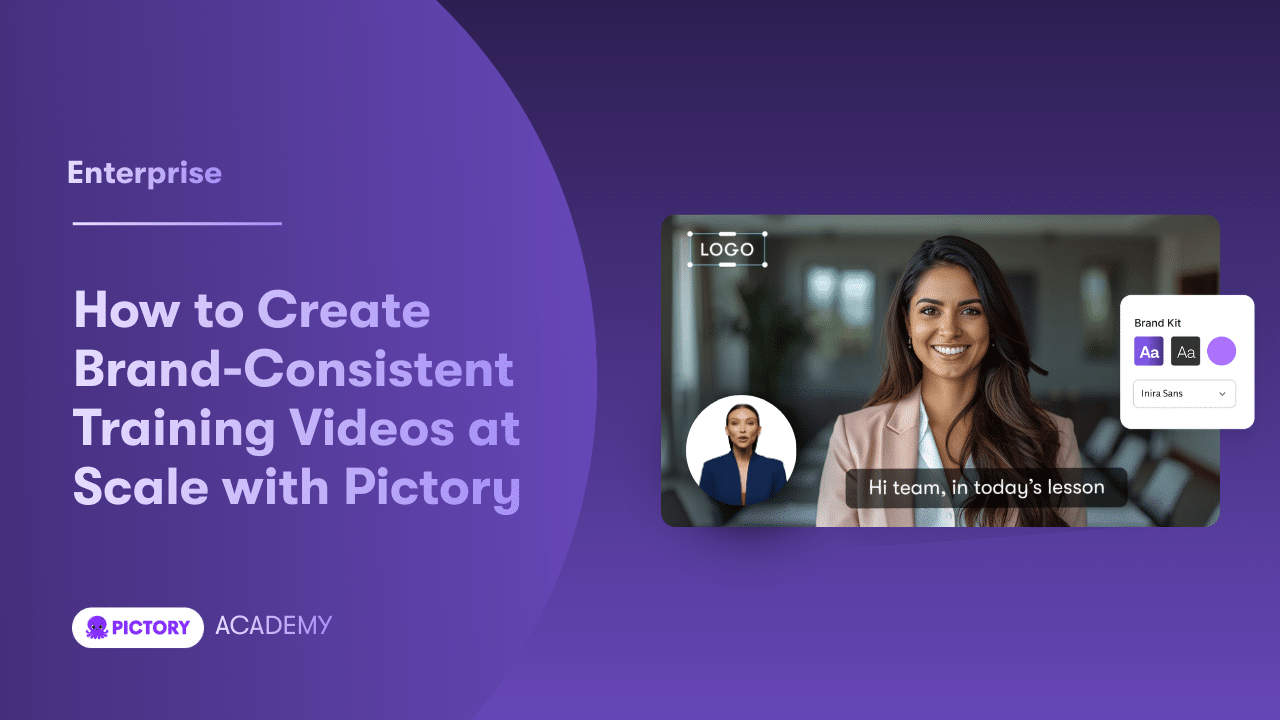
Employee training video production is no longer limited to studios, expensive editing software, or specialized video teams. With Pictory, enterprise L&D, compliance, sales enablement, and HR teams can turn scripts, URLs, slide decks, recordings, and existing media into professional-quality training videos quickly, while maintaining brand consistency across departments.
This guide walks you through proven workflows for corporate training video production using Pictory, including text to video, PPT to video, screen recording, transcription-based editing, and AI-driven updates.
Why Pictory Works for Enterprise Employee Training Video Production
Enterprise training teams are asked to deliver more learning content with fewer resources. Pictory helps reduce production overhead by standardizing workflows and automating time-consuming steps like scene creation, visual selection, captions, voiceover, and brand styling.
Scale faster: Convert existing training materials into video without rebuilding from scratch.
Stay on brand: Apply Brand Kits for consistent logos, fonts, and colors across all training videos.
Update quickly: Use transcription-based editing to revise recorded training without re-recording.
Standardize output: Use templates, styles, layouts, and repeatable workflows for team-wide consistency.
Plan Your Corporate Training Video Production Workflow (Before You Create)
Before you generate a training video, align stakeholders on the target learner, delivery format, and what success looks like. This reduces rework and accelerates approvals.
Define the training objective: onboarding, compliance training video, software training, or sales training video.
Choose the source format: script, blog/knowledge base URL, PPT, recorded screen demo, or existing video.
Decide distribution needs: internal LMS, intranet, knowledge base, or team channels.
Pick the aspect ratio: 16:9 for LMS and desktop viewing, 9:16 for mobile-first microlearning, 1:1 for internal social feeds.
Step-by-Step: Employee Training Video Production Using Text to Video AI
Use this workflow when you already have a draft script or training outline and want Pictory to generate scenes, visuals, captions, and voiceover quickly. This is ideal for how to make training videos for employees 2026 initiatives where teams need speed and consistency.
For onboarding videos, start with PPT to Video if you already have onboarding decks, or Text to Video if you have a scripted onboarding flow. Add consistent branding, use layouts like List and Number for steps, and export in 16:9 for LMS delivery or 9:16 for mobile onboarding microlearning.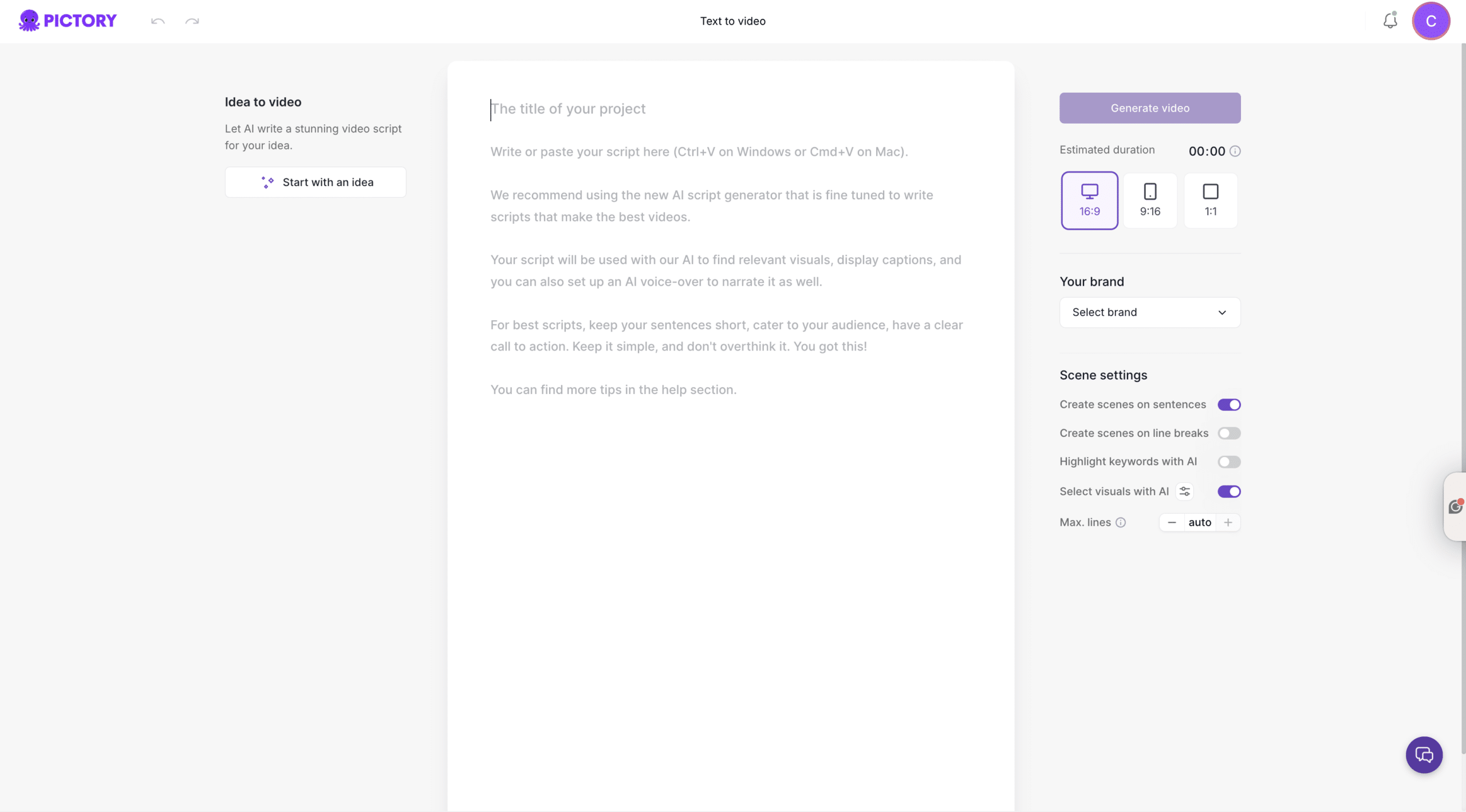
Step 1: Start a Text to Video AI project
From the Pictory Home screen, select Text to Video. Paste or write your training script in the input field. If you need help, use the AI script generator to draft an initial version.
Script tips for more engaging training videos:
Keep sentences short and direct.
Use one idea per scene for clarity.
Include a clear call to action such as “Complete the quiz” or “Follow the checklist.”
Step 2: Configure scene settings and brand options
In the Script Editor, choose settings that control pacing and layout:
Select an aspect ratio: 16:9, 9:16, or 1:1.
Choose a Brand Kit to apply your logo, fonts, and colors.
Enable scene creation by sentences or line breaks.
Optional toggles: highlight keywords, select visuals with AI, and set max lines per scene.
Step 3: Generate the storyboard and pick a layout theme
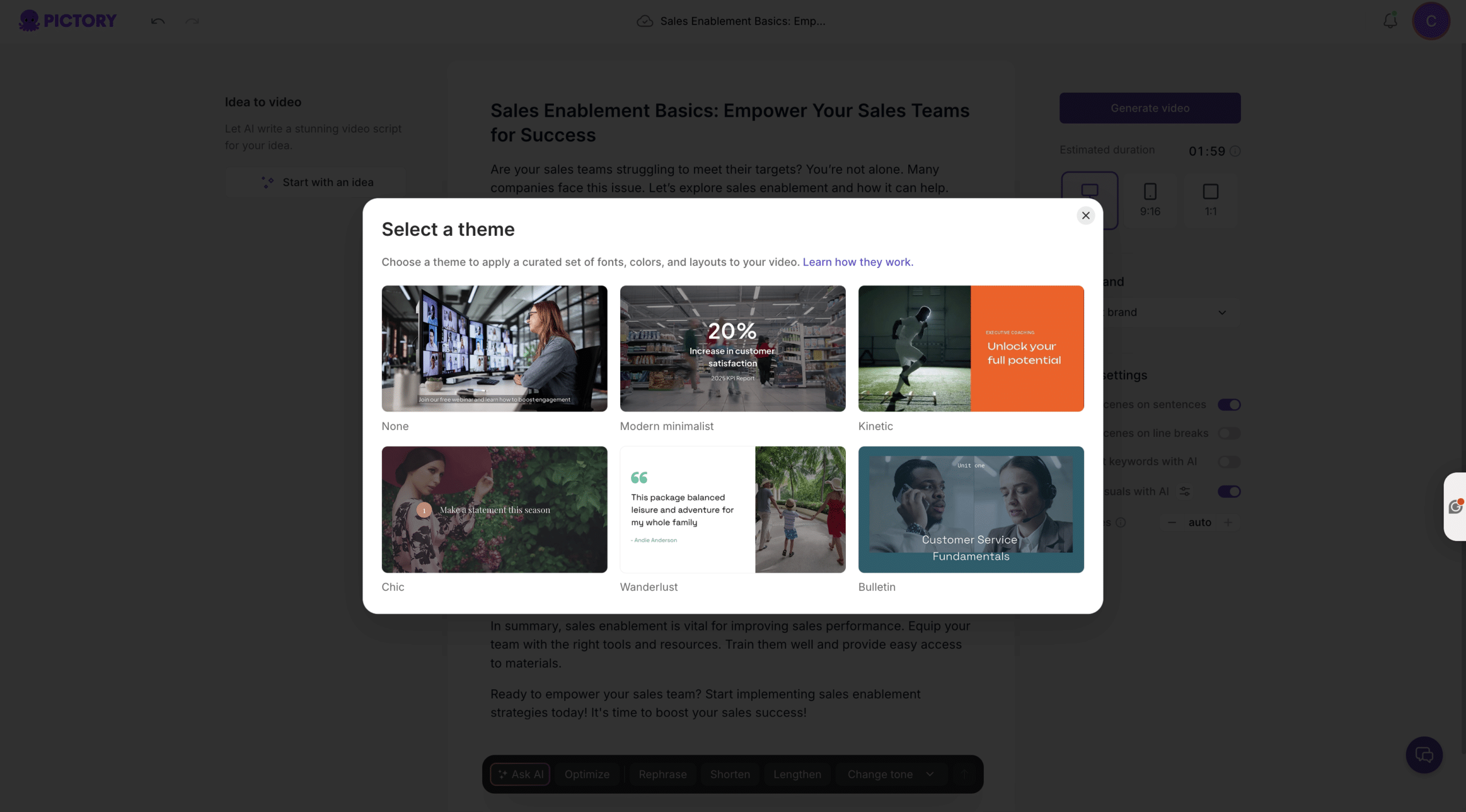
Click Generate video. Choose a theme such as Modern minimalist, Kinetic, Chic, Wanderlust, or Bulletin. Pictory will create scenes automatically and build your storyboard.
Step 4: Edit scenes in the AI Video Editor
In the editor, use the storyboard on the left and preview on the right to fine-tune each training scene.
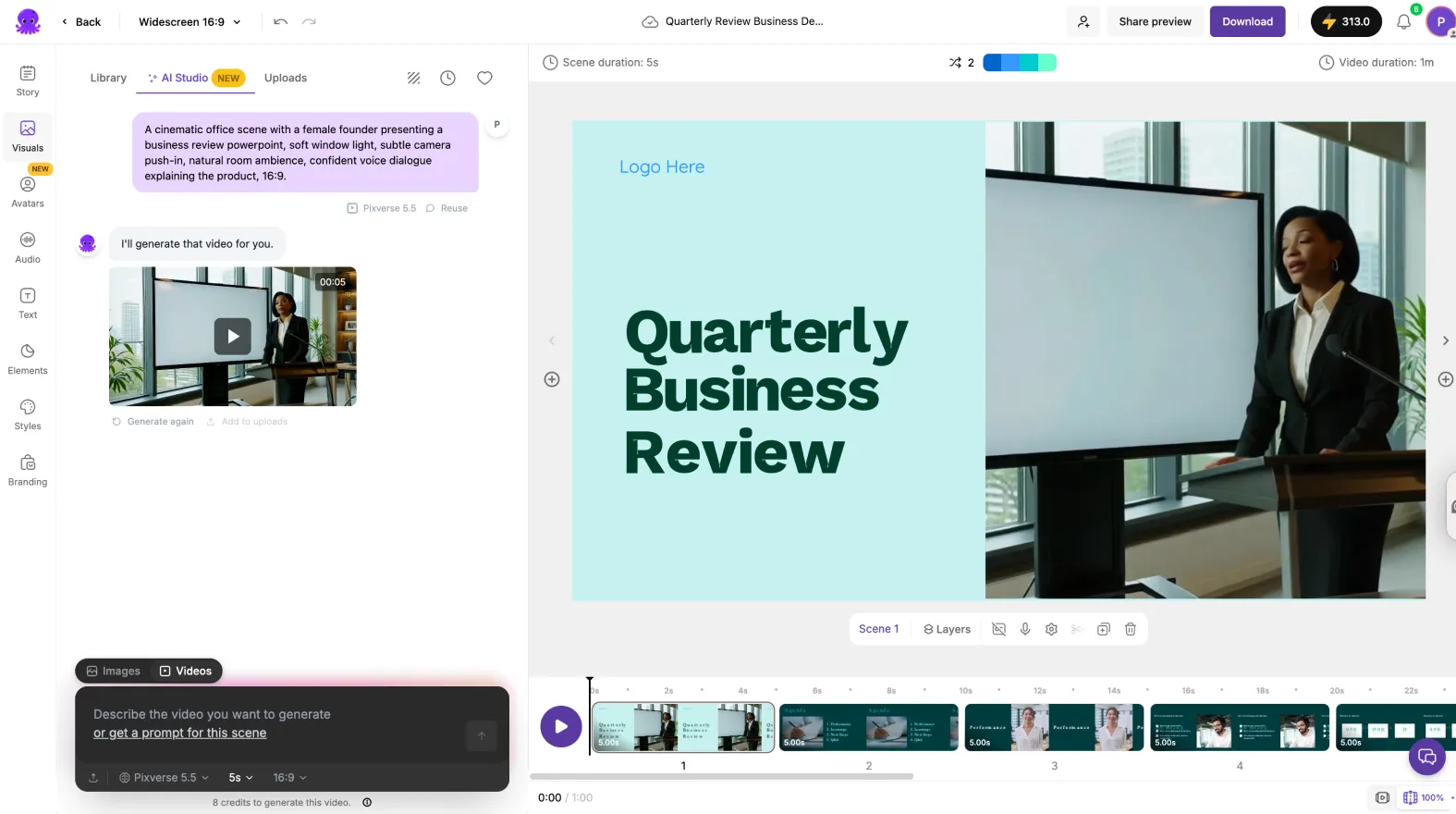
Replace or refine visuals in Visuals using the Library, Uploads, or AI Studio.
Adjust on-screen text and captions in Story and Text.
Add icons, shapes, or emphasis markers in Elements.
Apply consistent formatting across scenes using Styles and Branding.
Step 5: Preview, share for review, and export
Use Preview video for a full playback check. If your workspace supports it, use Share preview to route the training video for stakeholder review. When approved, select Download video to export.
Step-by-Step: AI Training Video Production from PPT to Video
PPT to Video is a fast path for company training video production because most enterprises already maintain slide-based content for onboarding, compliance, and enablement.
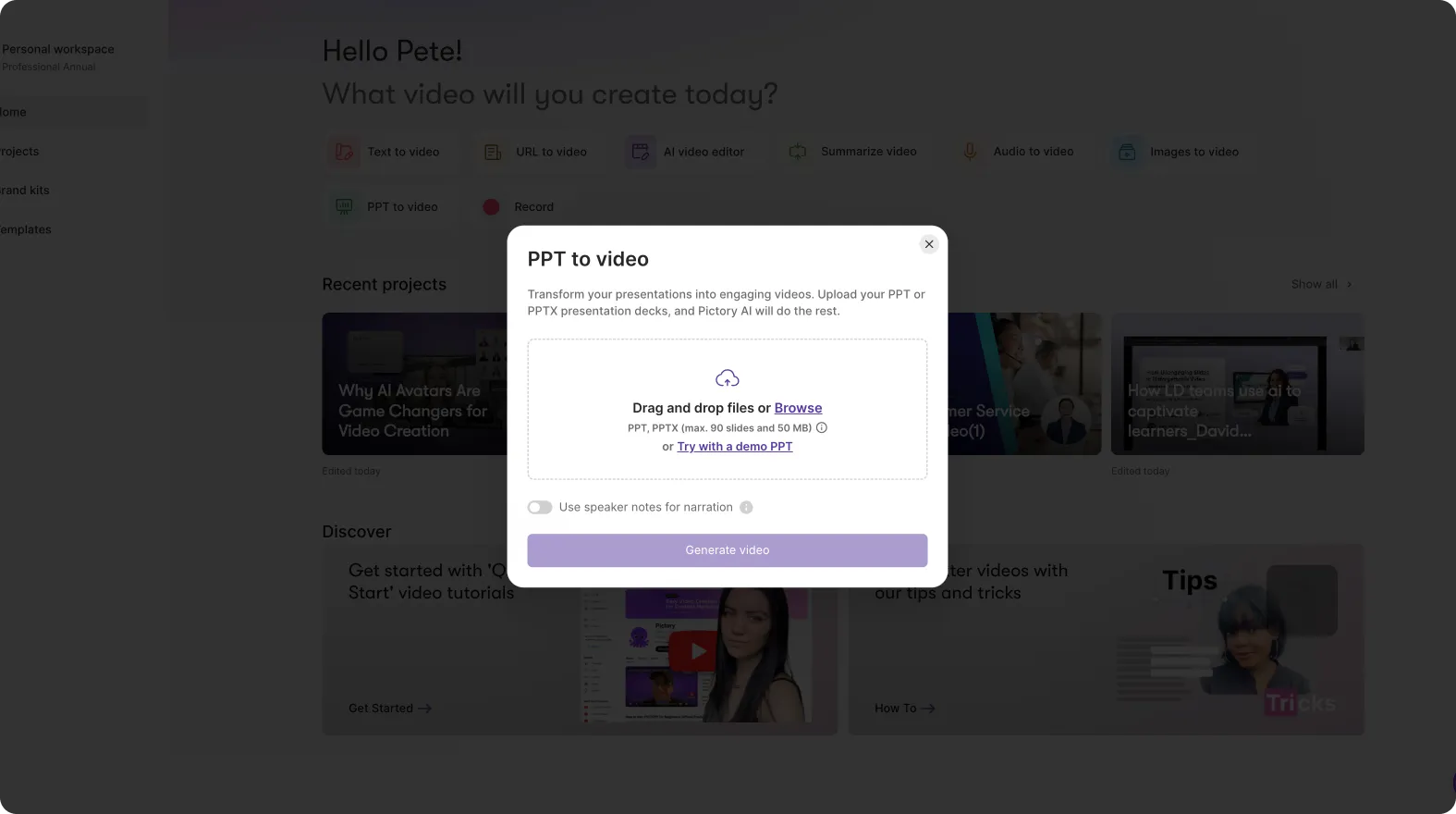
Step 1: Upload your PowerPoint deck
From the Home screen, choose PPT to Video. Upload a .PPT or .PPTX file (up to 90 slides or 50 MB). If your deck includes speaker notes, enable the option to use speaker notes for narration.
Step 2: Generate the storyboard from slides
Click Generate video. Pictory converts slides into storyboard scenes. Wait for the progress bar to complete.
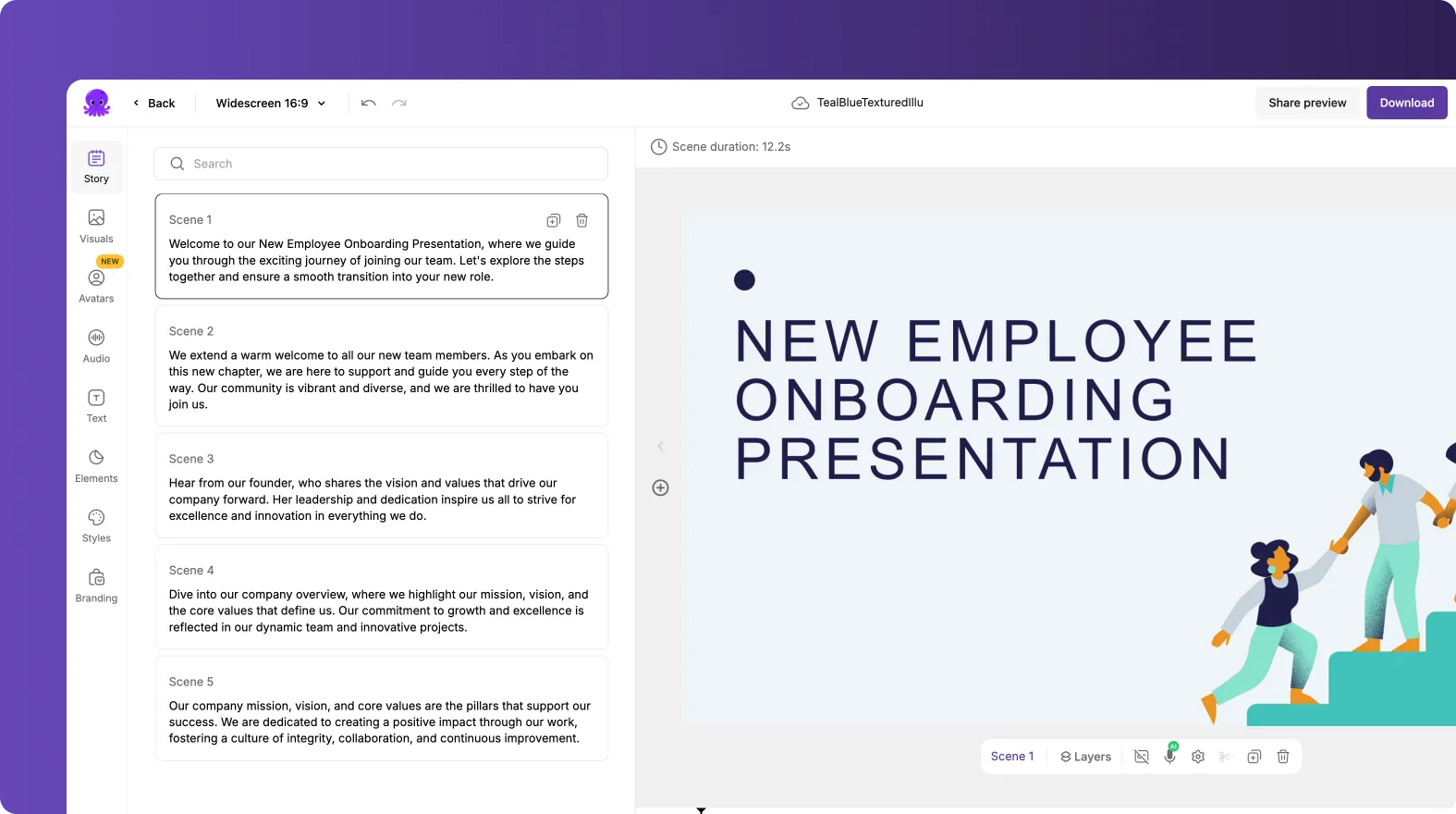
Step 3: Edit slides as scenes in the storyboard editor
After conversion, each slide becomes an editable scene. Use the bottom timeline to navigate quickly and refine pacing.
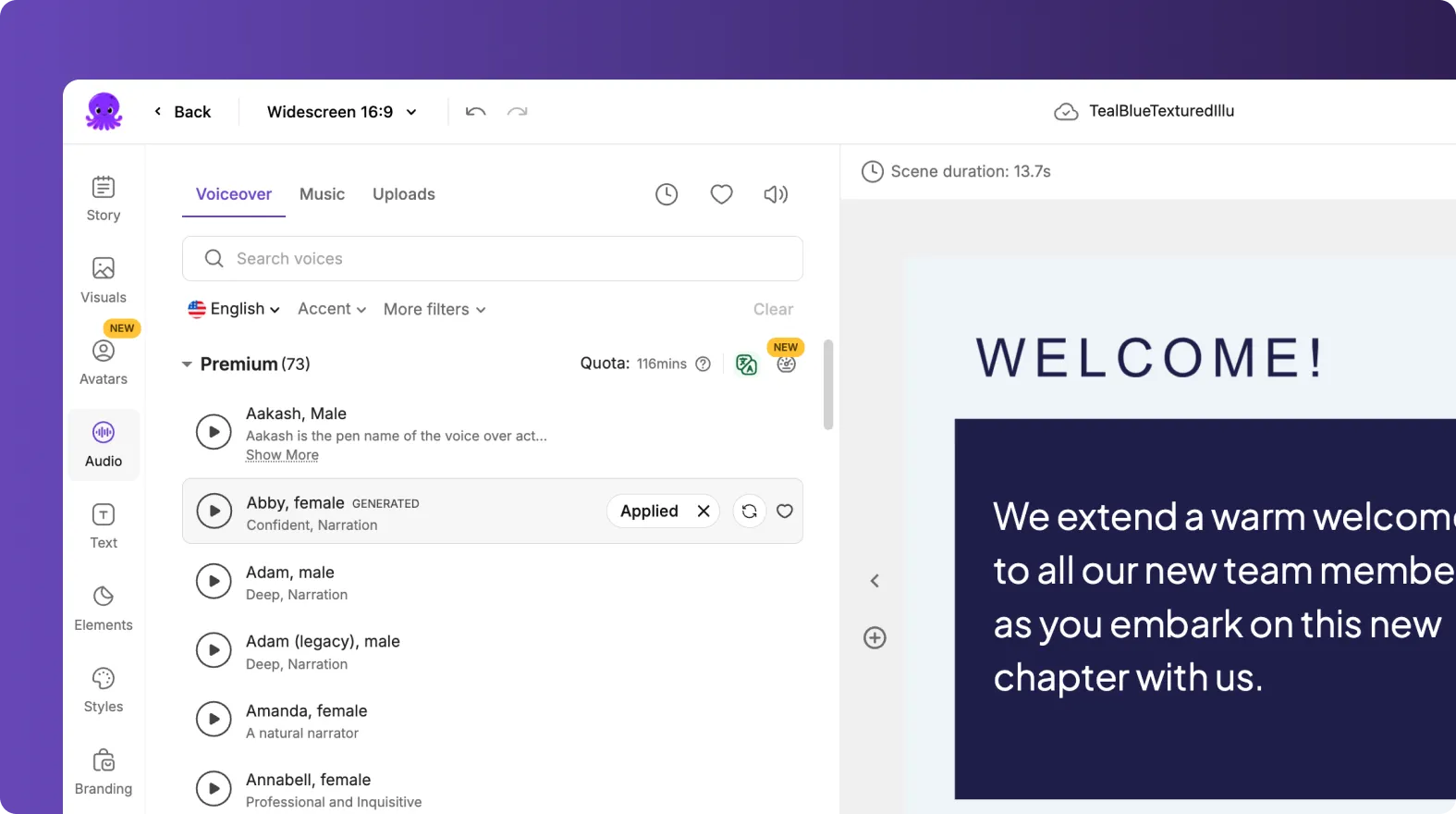
Adjust scene duration to match complexity of the topic.
Update text for clarity and readability.
Add supporting visuals or overlays for key moments.
Step 4: Apply Branding and Styles for enterprise consistency
Open Branding to apply the appropriate Brand Kit. Use Styles to ensure consistent typography and captions across every module. If needed, test options using the brand color palette shuffle within Branding to preview alternate combinations while staying on brand.
Step 5: Preview and export the final training video
Run a full preview for layout, audio timing, and readability. Then download the training video and store it under My Projects for version control and future updates.
Step-by-Step: Record Training Videos and Edit with AI (Screen Recorder + Transcription)
If your team needs to record training videos 2026 style for software walkthroughs, SOP demos, or internal tools training, Pictory lets you record and then edit via transcript for rapid iteration.
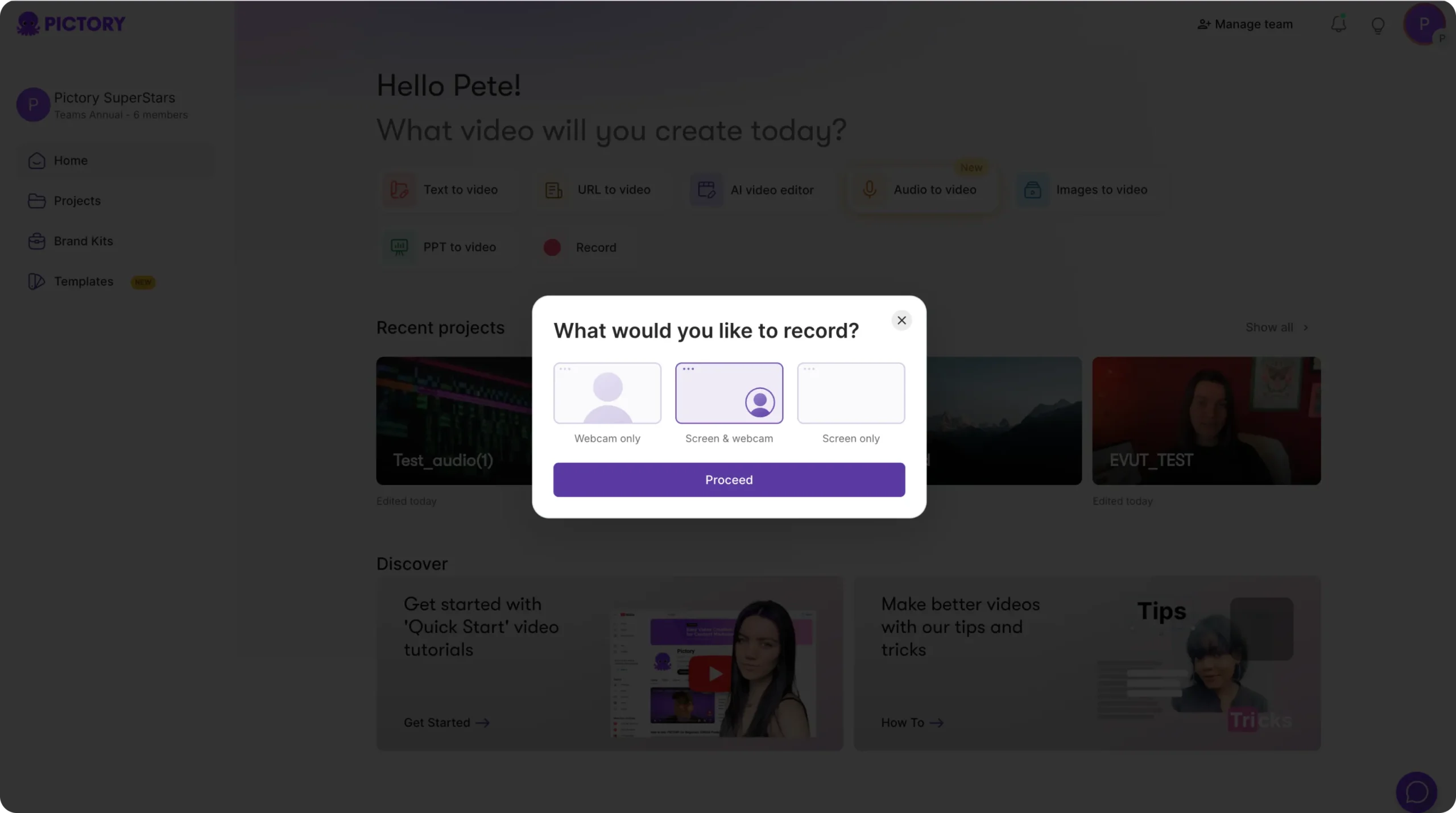
Step 1: Choose a recording mode for software training videos
Select Record from the Pictory home screen. Choose one option:
Webcam only
Screen & webcam
Screen only
Click Proceed to open the in-browser recorder.
Step 2: Record your training and review the capture
Use Start, Pause, and Stop controls to capture your training session. When you stop, review the recording. If needed, retake or delete and record again.
Step 3: Edit the training video using AI transcription
Click Edit video using AI to begin transcription. Once complete, you will see a Script and Transcript Editor.
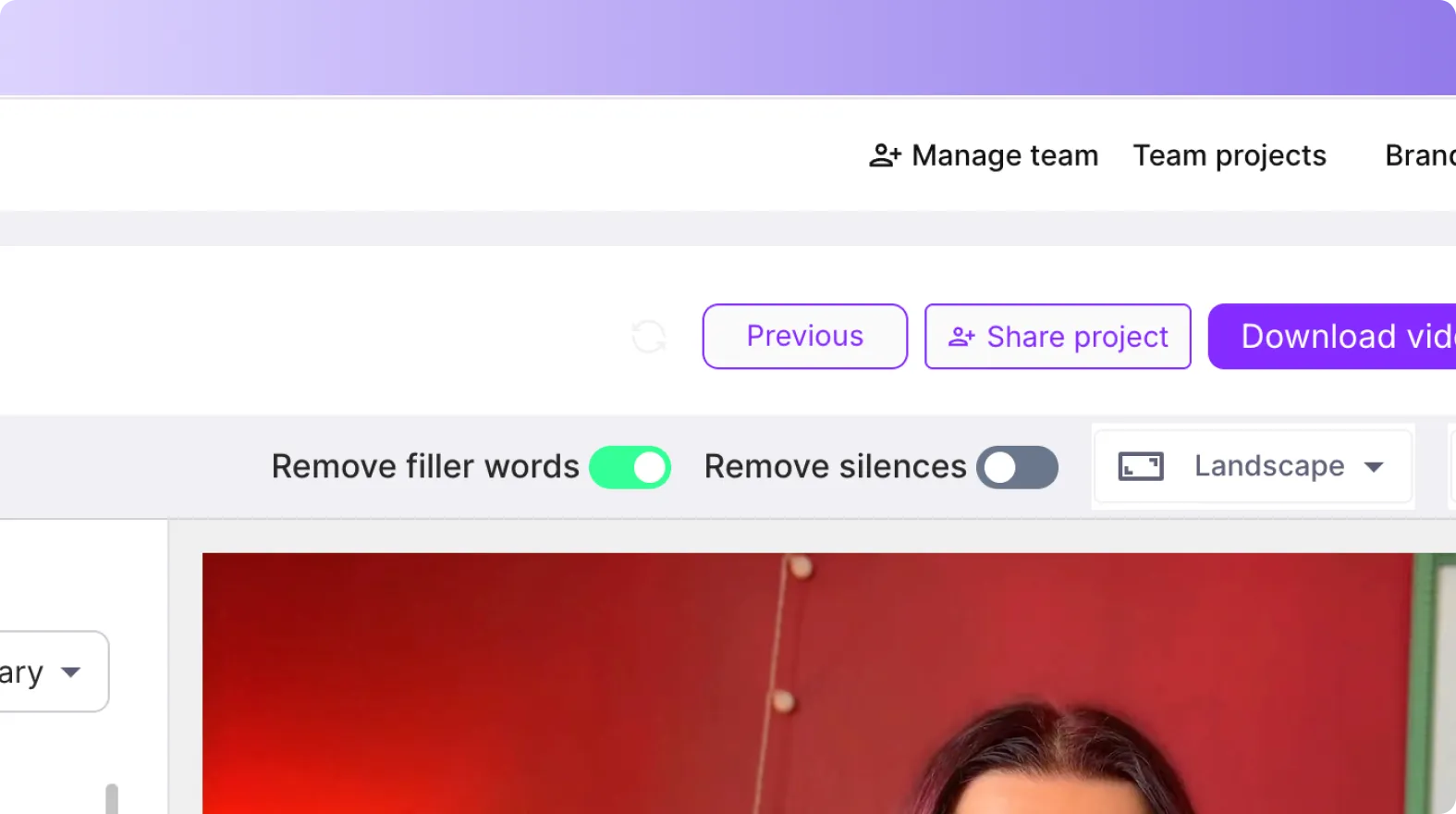
Use search and replace to update terminology and product naming.
Enable remove filler words to clean up delivery.
Enable remove silences to tighten pacing for microlearning video segments.
Set subtitle max lines and choose a subtitle style from the style library.
Step 4: Convert transcript edits into storyboard scenes
After transcript edits, Pictory generates storyboard scenes and opens the final editor. Use timeline thumbnails to navigate, duplicate scenes for variations, and delete outdated segments without re-recording.
Step 5: Add brand styling, captions, and export
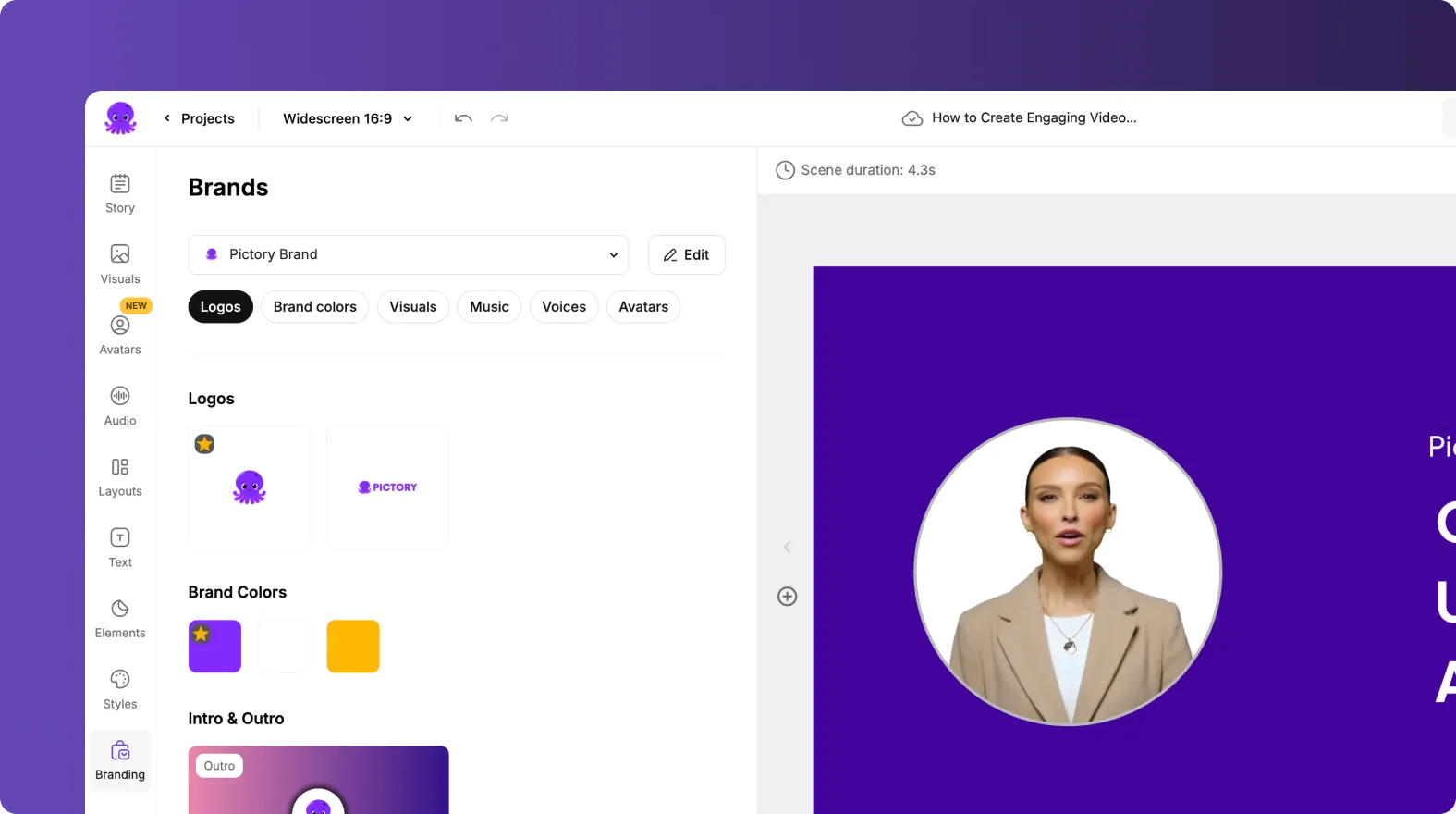
Apply your Brand Kit in Branding, refine visual layers, then preview and download. This workflow is especially effective for how to update training videos using AI because you can revise the transcript and regenerate scenes quickly.
How to Make Training Videos More Engaging with Avatars, Visuals, and Text Animations
Engagement is often the difference between training that is completed and training that is remembered. Pictory includes enterprise-ready tools to improve clarity and viewer retention without requiring advanced editing skills.

Avatars: Use the Avatars tab to add an AI presenter for consistent delivery across global teams. You can apply or remove the avatar across scenes and select an AI voice.
AI Studio visuals: In Visuals, generate AI images or AI videos from prompts to match internal concepts that stock libraries may not cover.
Layouts: Use Layouts for consistent formatting like Title, Quote, List, and Number scenes in onboarding videos for new employees.
Text animations: Select any text layer, then use the top toolbar Animate Text option to apply entry and exit animations like Fade, Typewriter, Wipe, or Text Reveal with speed controls.
Brand Kits for Professional Training Video Production at Scale
Brand consistency is critical in enterprise video training, especially when multiple teams create content across regions. Brand Kits standardize visual identity so every training asset looks like it came from the same organization.
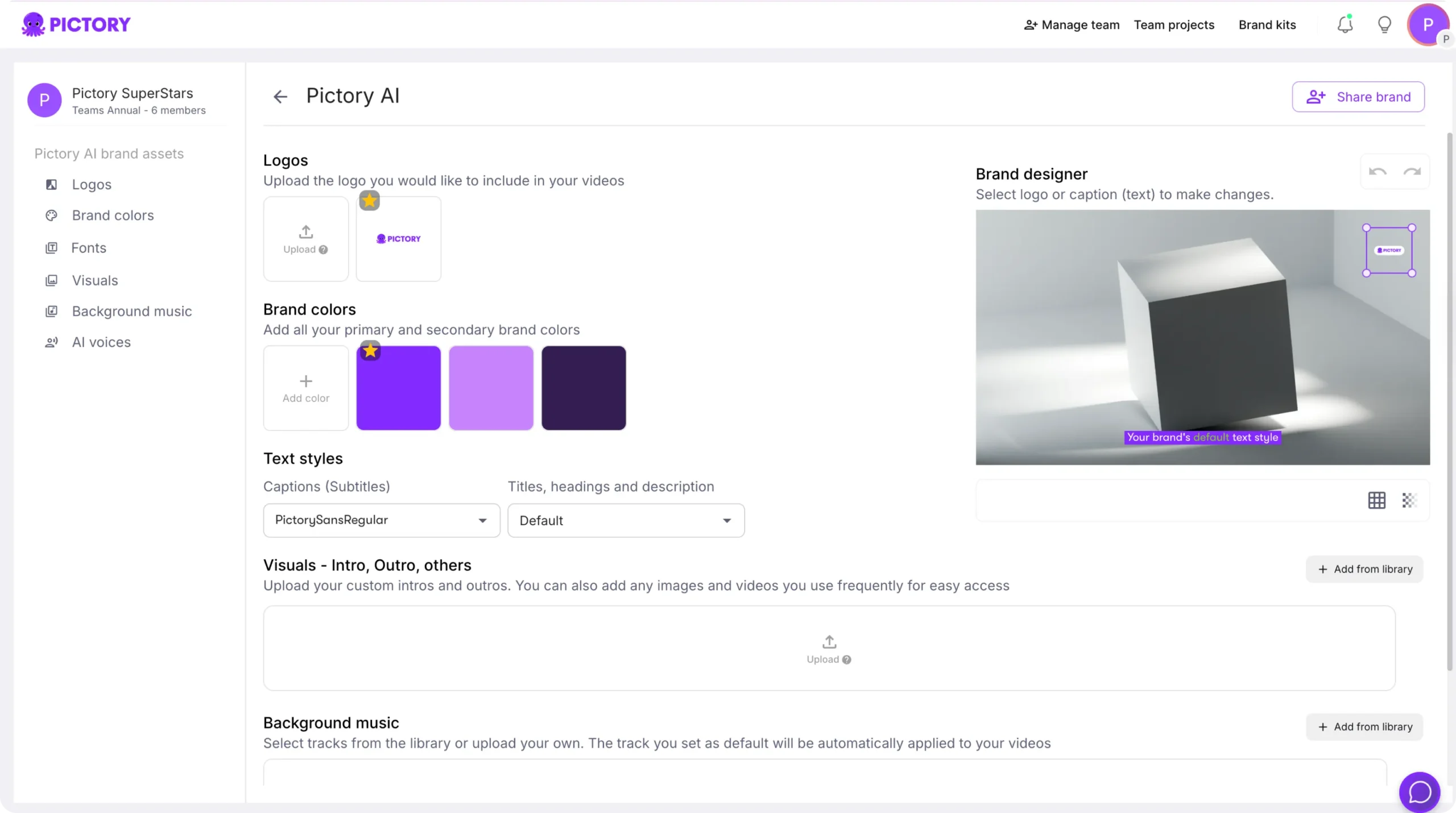
To create or manage Brand Kits:
Open Brand Kits from the left navigation.
Select Create a Brand and add a brand name, logos, brand colors, and a font.
Save the Brand Kit and apply it in the editor using the Branding tab.
This is a key foundation for corporate training video production, compliance video training, and sales enablement content that must remain consistent across quarters.
FAQ: Employee Training Video Production
What is the fastest way to create training videos for employees in Pictory?
The fastest approach is Text to Video if you already have a script, or PPT to Video if you have slide decks. Both workflows automatically generate scenes and a storyboard, then you refine the result in the AI Video Editor.
How can I update training videos using AI without re-recording everything?
Use the AI Video Editor workflow on recorded content. Upload your video, let Pictory transcribe it, then edit the transcript with search and replace, remove filler words, and remove silences. After that, regenerate storyboard scenes and export the updated training video.
Can Pictory help with compliance training video production and consistency?
Yes. Use Brand Kits to ensure logos, fonts, and colors stay consistent, and use Styles for standardized subtitle and caption formatting. This helps compliance modules maintain a consistent look and reduces review cycles.
How do I make software training videos more engaging in Pictory?
Record your walkthrough using Screen Recorder, then tighten pacing in the transcript editor by removing silences and filler words. Add on-screen callouts with Text and Elements, and apply Text Animations to highlight key actions learners must follow.
Can multiple teams collaborate on training video production in Pictory?
Yes. Pictory includes collaboration prompts such as “Collaborate with your team” for sharing projects, brand kits, and media, helping enterprise teams coordinate on standardized training video production.


