Creating videos from documents traditionally requires rewriting content, building scenes manually, recording narration, and editing visuals one by one. This process is slow, especially for teams working with training materials, reports, SOPs, and long-form documentation.
Pictory’s Doc-to-Video feature changes this workflow by automatically transforming PDFs into professional videos using AI.
This guide explains how to turn PDFs and Word documents into videos using Pictory AI and why document-to-video workflows are becoming essential for modern content creation.
What Is Doc-to-Video in Pictory AI
Doc-to-Video is an AI-powered workflow that converts written documents into structured video projects automatically.
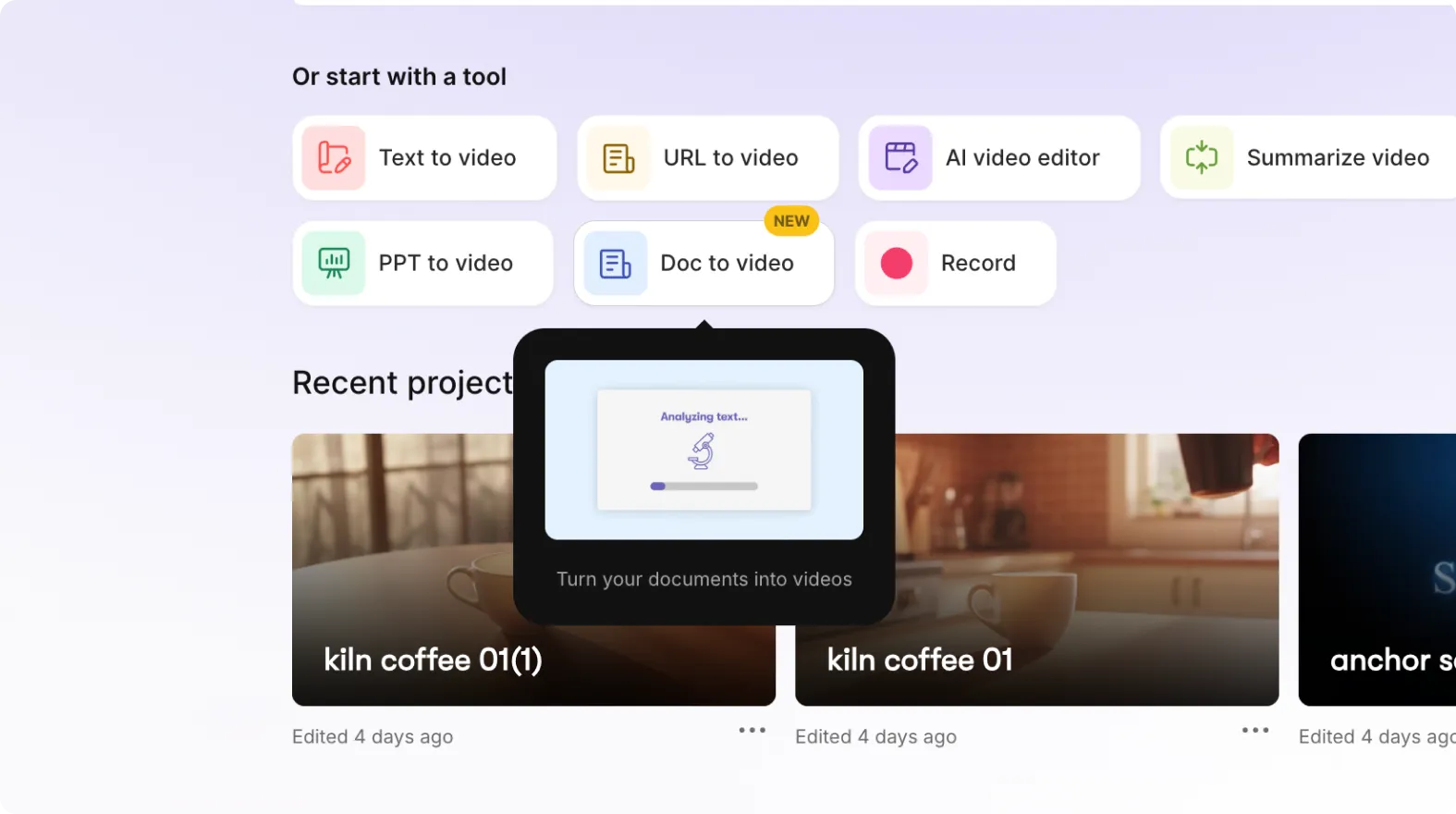
Pictory analyzes your uploaded document and:
• Extracts key text and structure
• Identifies important sections and talking points
• Reuses charts, graphs, tables, and images
• Generates scenes automatically
• Creates a ready-to-edit video project
This allows users to turn static documents into engaging video content within minutes.
How Does AI Turn Documents Into Videos
AI document-to-video workflows use natural language processing and visual extraction to understand document structure.
Pictory automatically:
• Reads headings and sections
• Detects important content
• Extracts embedded visuals
• Structures scenes for video presentation
The result is a storyboard-style video project that can be edited immediately.
Why Document-to-Video Workflows Matter
Businesses and creators already have large amounts of valuable written content.
The challenge is that long documents are often difficult to consume, especially for modern audiences who prefer visual and video-first learning.
Turning documents into videos helps teams:
• Repurpose content faster
• Improve engagement
• Reduce manual production work
• Scale communication and training
• Make information easier to understand
This is especially valuable for Learning and Development teams, marketers, educators, and enterprise organizations.
What Types of Documents Work Best
Structured documents typically produce the best results.
Examples include:
• Training manuals
• Compliance documents
• SOPs and process documentation
• Educational PDFs
• Internal enablement content
• Sales onboarding documents
• Reports and summaries
Documents with clear headings, readable text, and embedded visuals usually generate stronger video outputs.
Step 1: Open the Doc-to-Video Workflow
To begin:
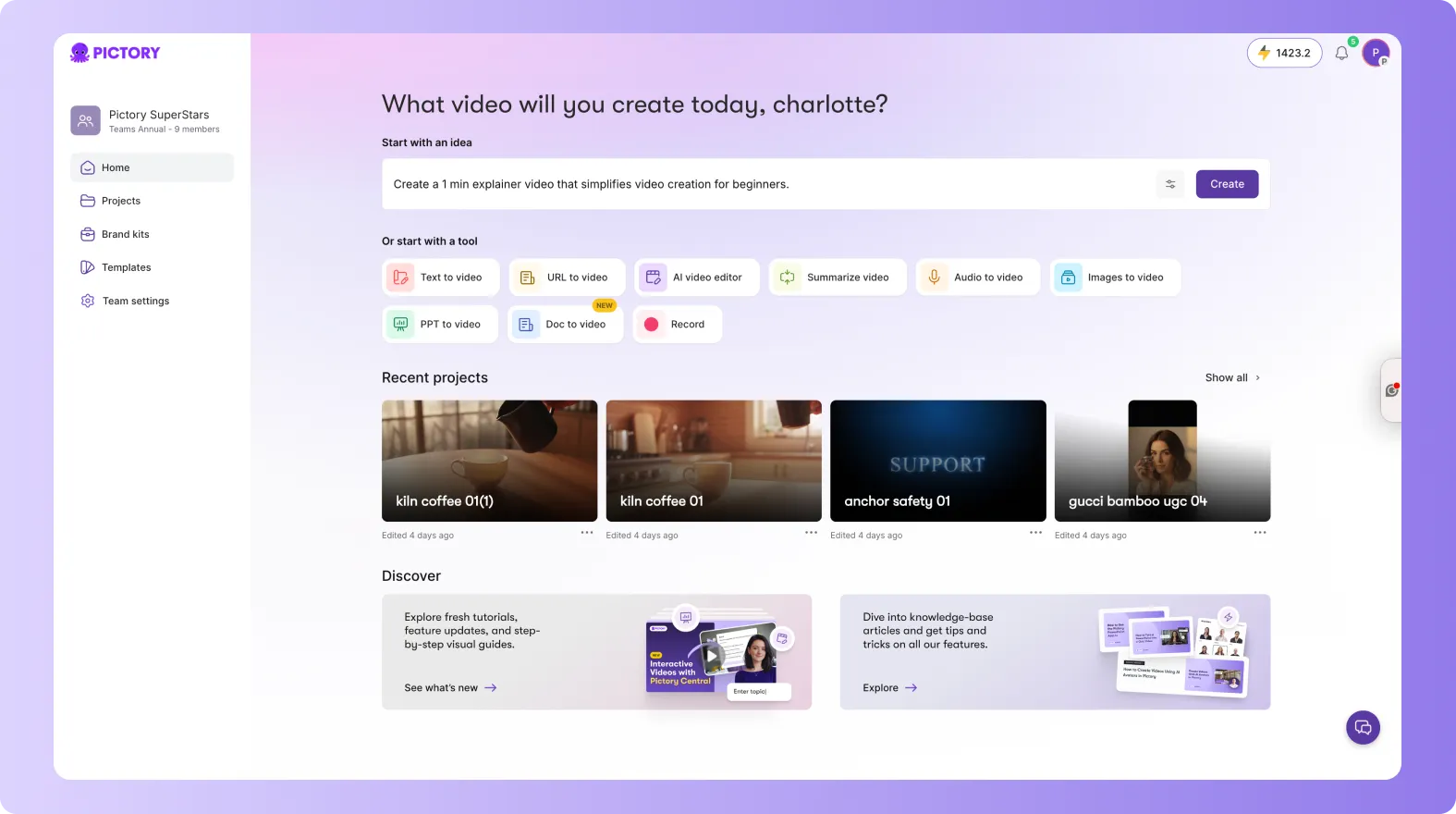
Open Pictory AI
Select the Doc-to-Video workflow
Upload your document
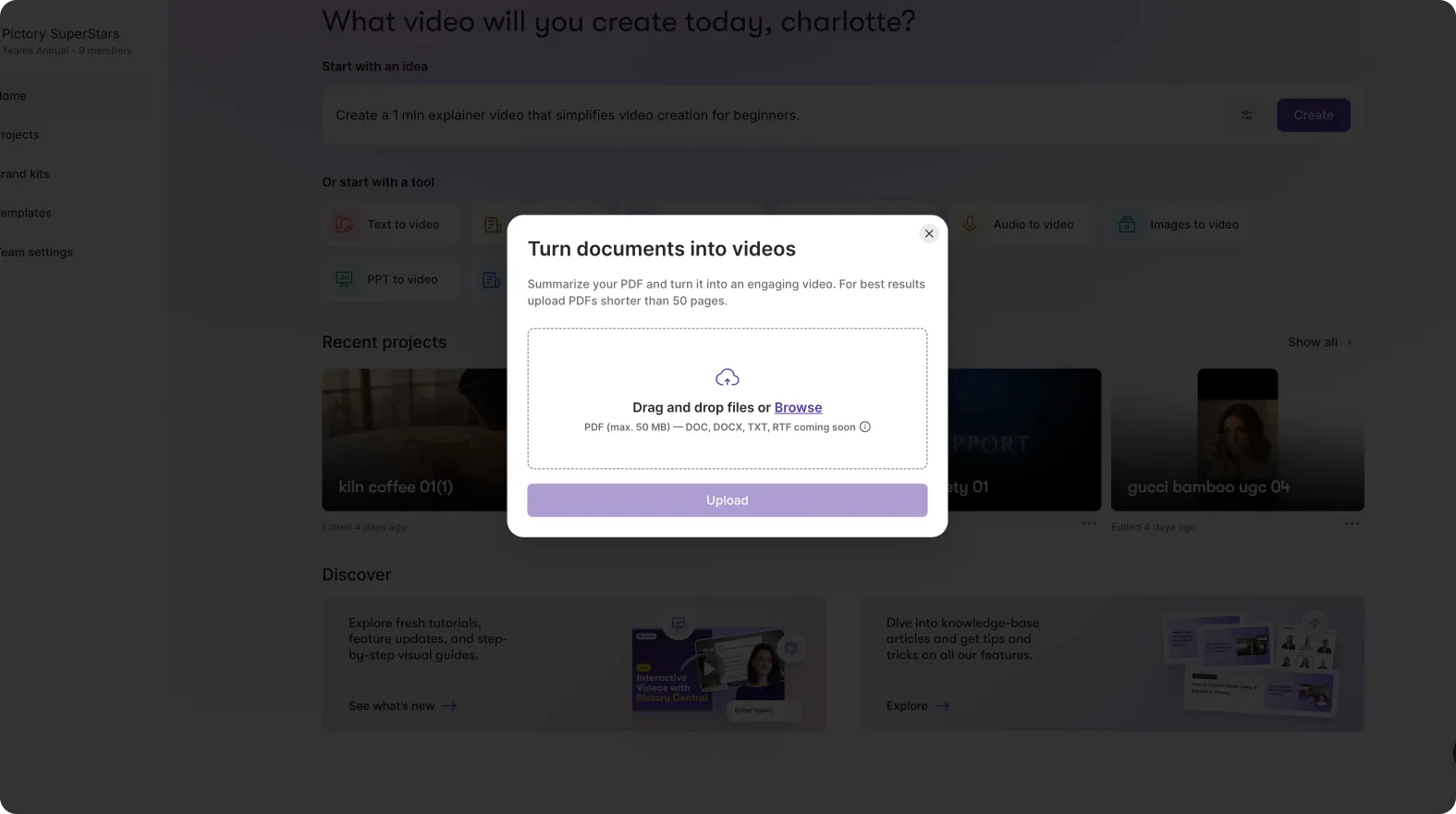
Pictory currently supports PDF uploads.
DOC and DOCX support are coming soon.
Step 2: Upload Your PDF Document
Upload your PDF file and wait for processing to begin.
For best results:
• Use readable, well-structured PDFs
• Include headings and sections
• Use embedded visuals where possible
• Avoid low-quality scanned documents
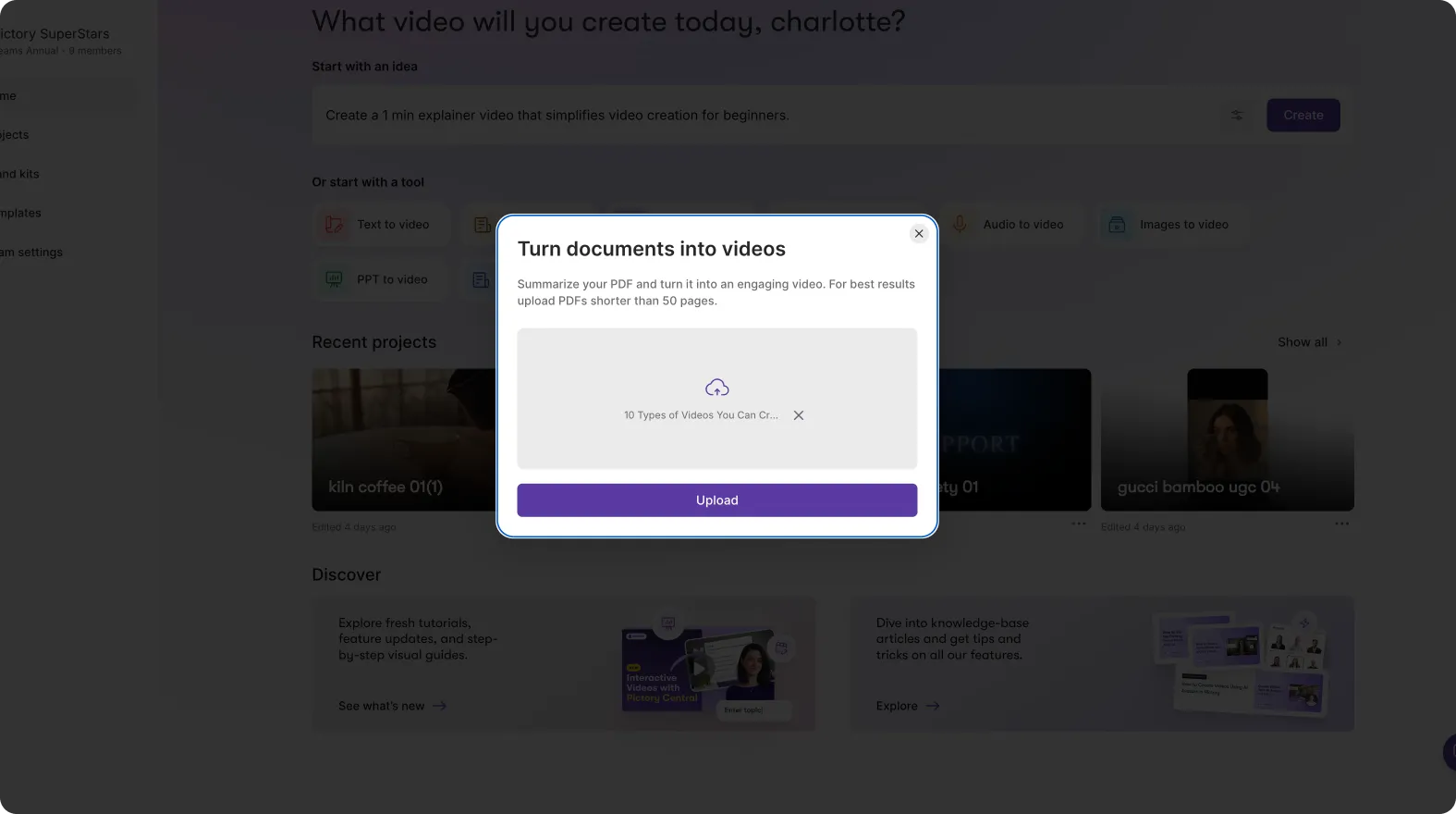
Once uploaded, Pictory begins analyzing the content automatically.
Step 3: Pictory Creates Your Script
During processing, Pictory:
• Extracts document text
• Detects structure and sections
• Identifies key information
• Builds a script based on the document provided.
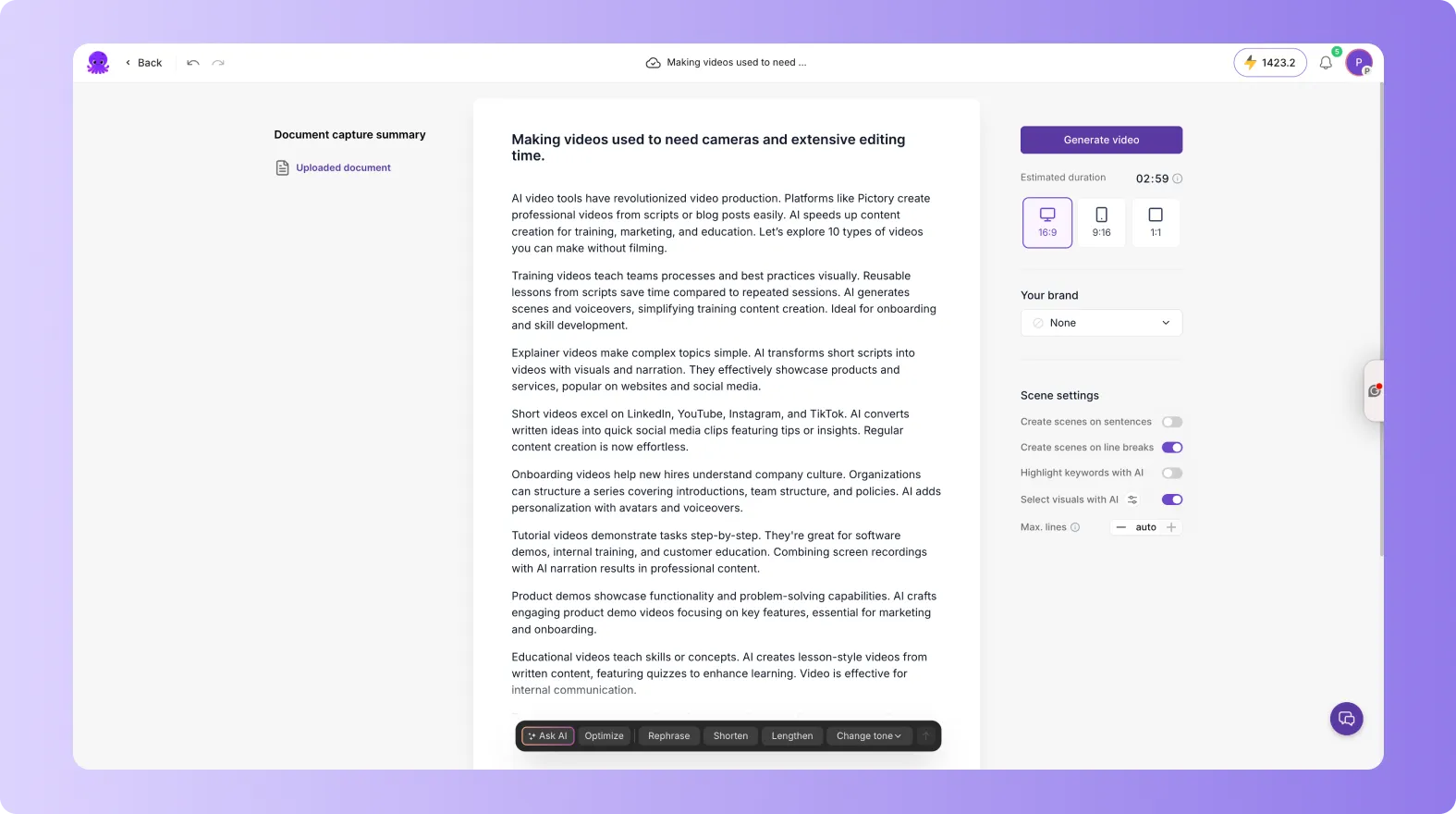
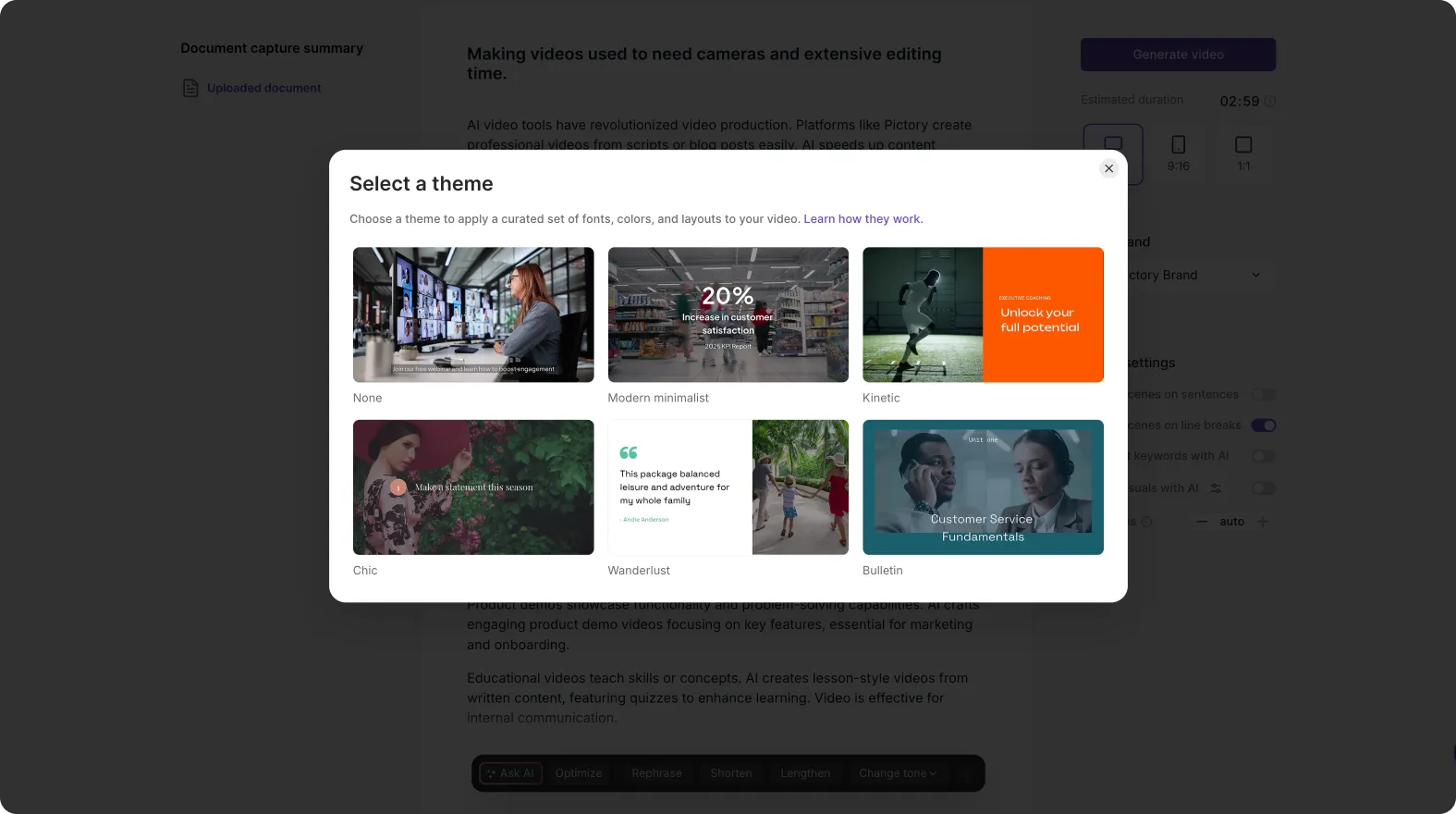
This removes the need to manually script or structure the video yourself.
Read and edit your script. You can edit your script with AI, or edit manually. Once you're happy with your script, generate your video and choose a video theme.
Can Pictory Extract Visuals From PDFs Automatically?
Yes. Pictory automatically extracts visuals from uploaded PDFs wherever possible.
This includes:
• Charts
• Graphs
• Tables
• Embedded images
• Screenshots
These visuals are reused directly inside the generated video project.
Step 4: Review the Generated Video Project
Once processing is complete:
• A video project is created automatically
• Scenes are generated from the document
• Extracted visuals are reused in relevant scenes
• The project opens inside the editor and storyboard
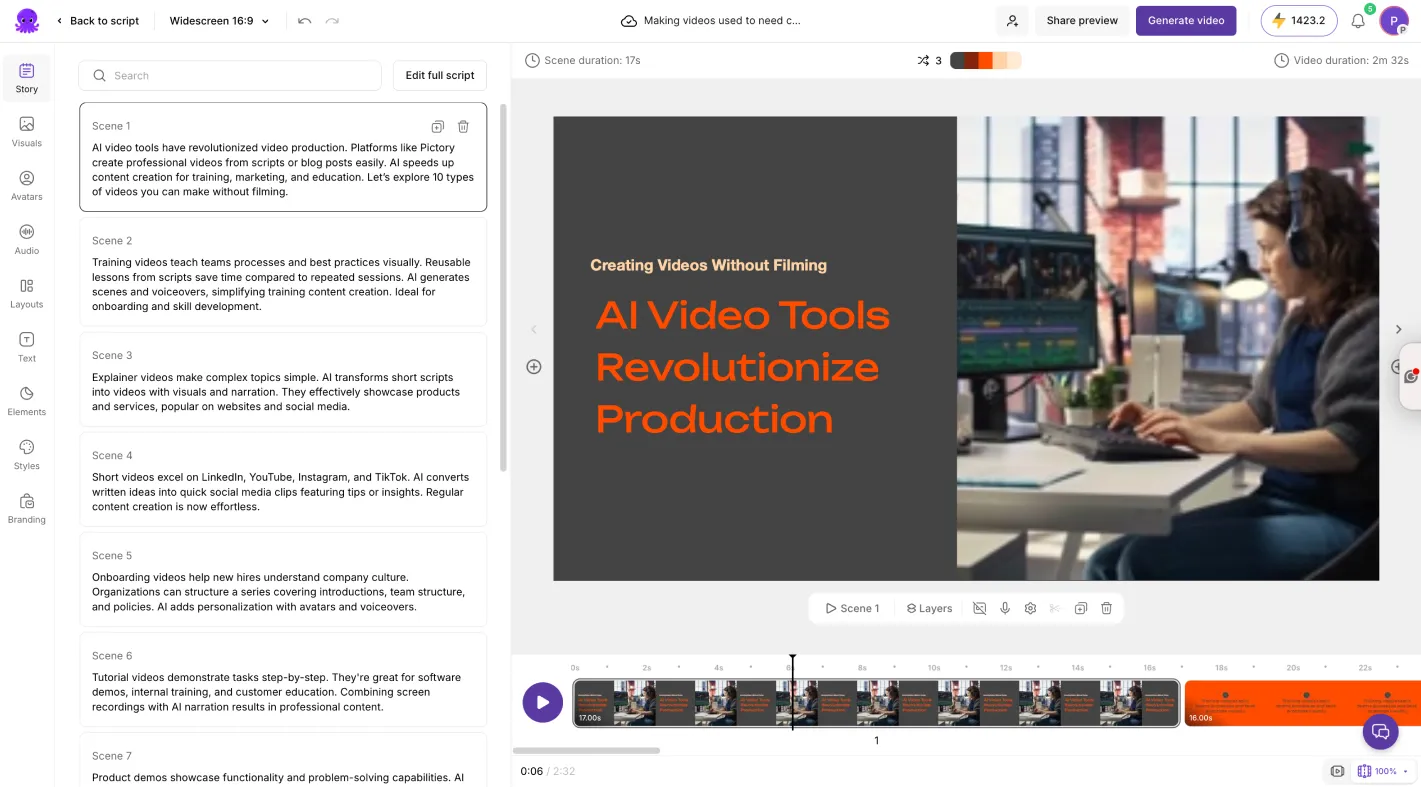
You can now continue refining your video.
Step 5: Edit and Customize Your Video
After generation, every scene remains editable.
You can:
• Adjust scene text
• Replace visuals
• Add AI voices
• Apply subtitles
• Add branding and logos
• Use AI avatars and voice cloning
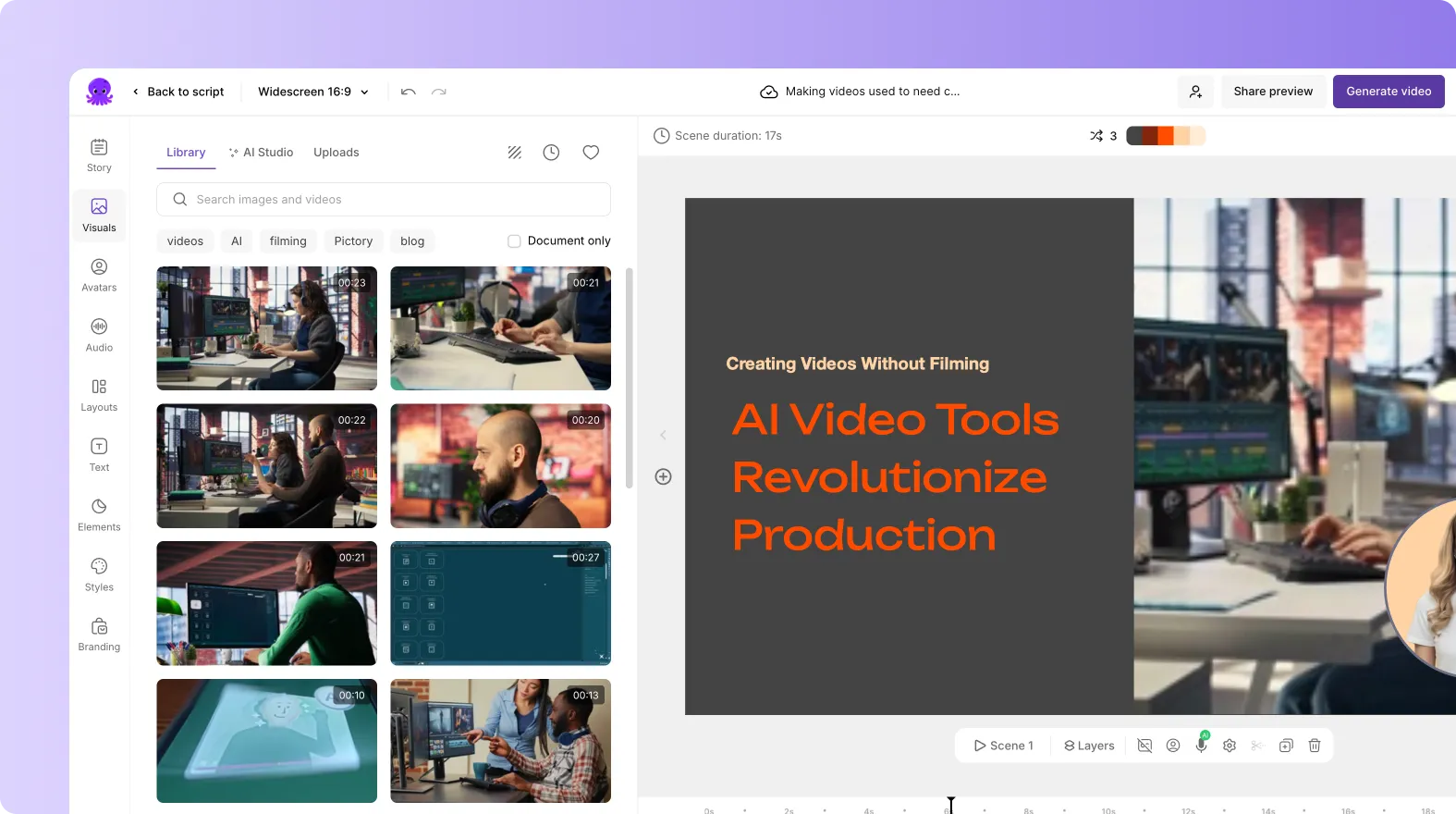
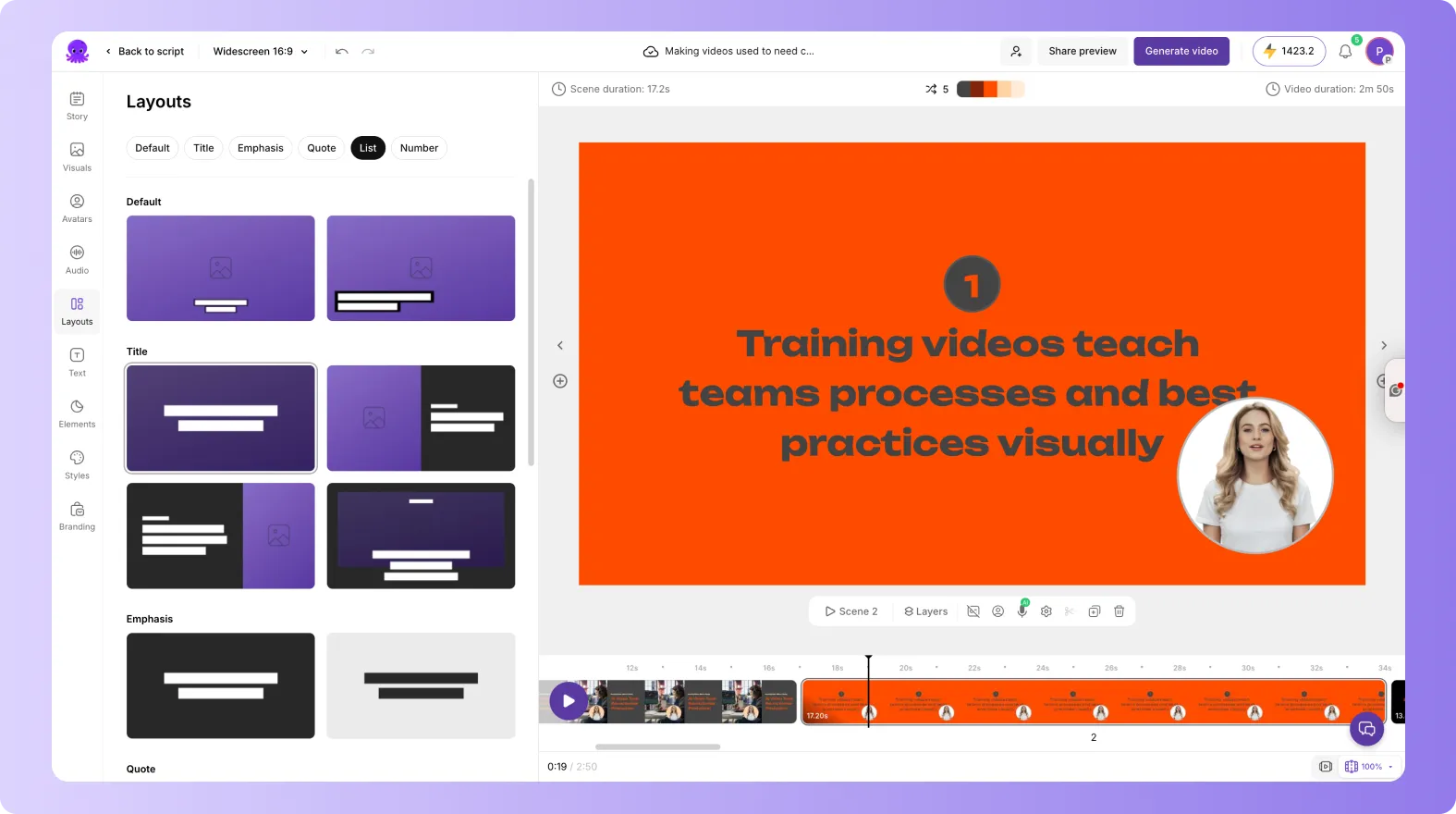
This gives you full creative control after automation.
Add AI Voices and Voice Cloning to Your Document Videos
Pictory allows you to add AI narration automatically.
You can use:
• AI-generated voices
• Instant voice cloning
• Multilingual narration
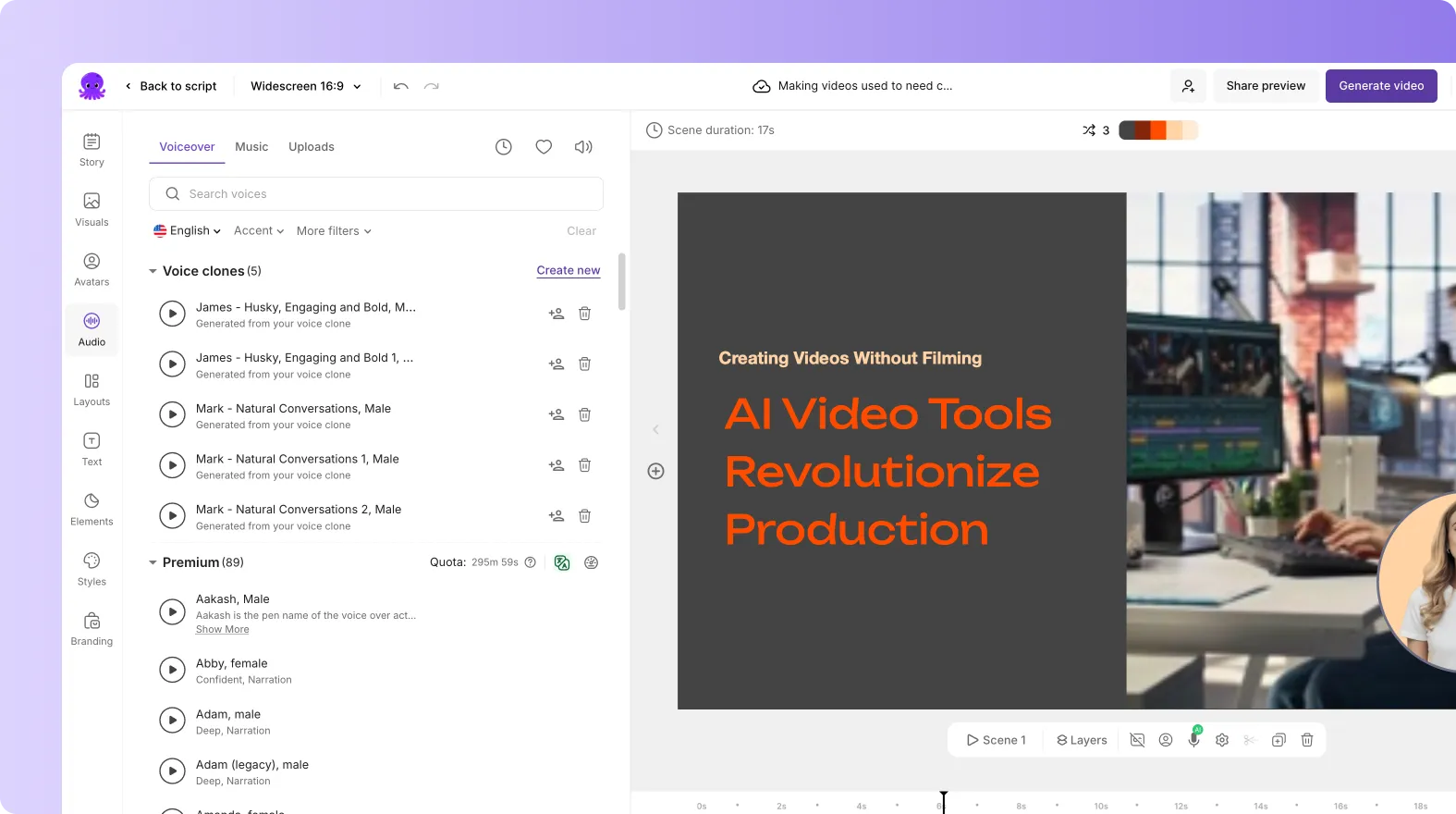
This makes document-based videos more engaging and easier to consume.
Use AI Avatars for Presenter-Led Videos
You can also add AI avatars or avatar clones to your generated videos.

This allows you to:
• Create presenter-led training videos
• Add digital instructors to educational content
• Personalize onboarding and enablement videos
• Scale video communication without filming
AI avatars make static documents feel more interactive and human.
Why AI Document-to-Video Workflows Save Time
Traditional document-to-video production often requires:
• Manual scripting
• Scene planning
• Visual sourcing
• Voiceover recording
• Video editing
Pictory automates much of this process, dramatically reducing production time.
This helps teams create more videos without increasing workload.
Best Use Cases for Doc-to-Video
Training and Onboarding Turn employee training documents into video lessons.
Compliance and SOP Videos Convert operational procedures into visual walkthroughs.
Educational Content Transform PDFs into engaging educational videos.
Sales Enablement Turn onboarding and product materials into scalable video content.
Internal Communications Convert reports and updates into digestible video summaries.
What Makes Pictory Different for Document-to-Video
Unlike traditional video editors, Pictory combines:
• AI scene generation
• Visual extraction
• AI voices and voice cloning
• AI avatars and avatar cloning
• Branding tools
• Automated video workflows
This allows users to turn existing knowledge into scalable video content much faster.
Limitations to Be Aware Of
There are a few important considerations.
• Output quality depends on document readability and structure
• Large PDFs may take longer to process
• Complex charts may need refinement
• Some visuals may require repositioning after generation
Reviewing your project before export is recommended.
The Future of Content Repurposing Is Document-to-Video
Modern teams already have valuable knowledge stored inside PDFs, reports, manuals, and presentations. AI-powered document-to-video workflows allow organizations to transform those assets into engaging videos without starting from scratch.
With Pictory AI, you can convert documents into videos automatically using AI narration, avatars, branding, subtitles, and intelligent scene generation, helping you scale content creation faster and more efficiently.
Frequently Asked Questions About Doc-to-Video
Can I turn a PDF into a video automatically?
Yes. Pictory automatically converts PDFs into editable video projects using AI.
Does Pictory support Word documents?
DOC and DOCX support are coming soon.
Can Pictory extract charts and visuals from PDFs?
Yes. Pictory can extract charts, graphs, tables, screenshots, and embedded visuals automatically.
Can I edit the generated video?
Yes. All scenes remain fully editable inside the editor.
Can I add AI voices and avatars?
Yes. You can use AI voices, voice cloning, AI avatars, and avatar clones inside your generated videos.
What types of PDFs work best?
Structured PDFs with headings, readable text, and embedded visuals generally produce the best results.