
Professional training video production does not have to require a studio, specialized editors, or a long toolchain. With Pictory, enterprise teams can turn existing content into brand-consistent training videos using AI-assisted workflows such as Text to Video, URL to Video, PPT to Video, and the AI Video Editor for updating recorded sessions.
This guide shows how to create training videos for employees, sales enablement, onboarding, compliance, and internal communications using a repeatable, scalable process that supports fast updates, consistent branding, and efficient collaboration.
Professional training video production for enterprise teams: what to prepare
Before you start, gather the source material you already have. Pictory is designed to repurpose content into video quickly, which is ideal for doing more with fewer resources.
Script or outline for a Text to Video AI workflow
Existing web page or knowledge base article for URL to Video (blog to video, link to video maker)
PowerPoint deck for PPT to Video (convert PowerPoint to video)
Recorded Zoom, webinar, or screen recording for the AI Video Editor (video to text transcription and edits)
Brand assets such as logo variations, brand colors, and approved fonts for Brand Kits
Tip for corporate training video production: define the audience and objective per module (onboarding, compliance training video, software training, or sales training video). This helps you choose the best workflow and the right video length.
How to set up Brand Kits for brand-consistent corporate training videos
Brand Kits help teams maintain consistent visuals across departments, courses, and regions, which is essential for enterprise employee training video production.
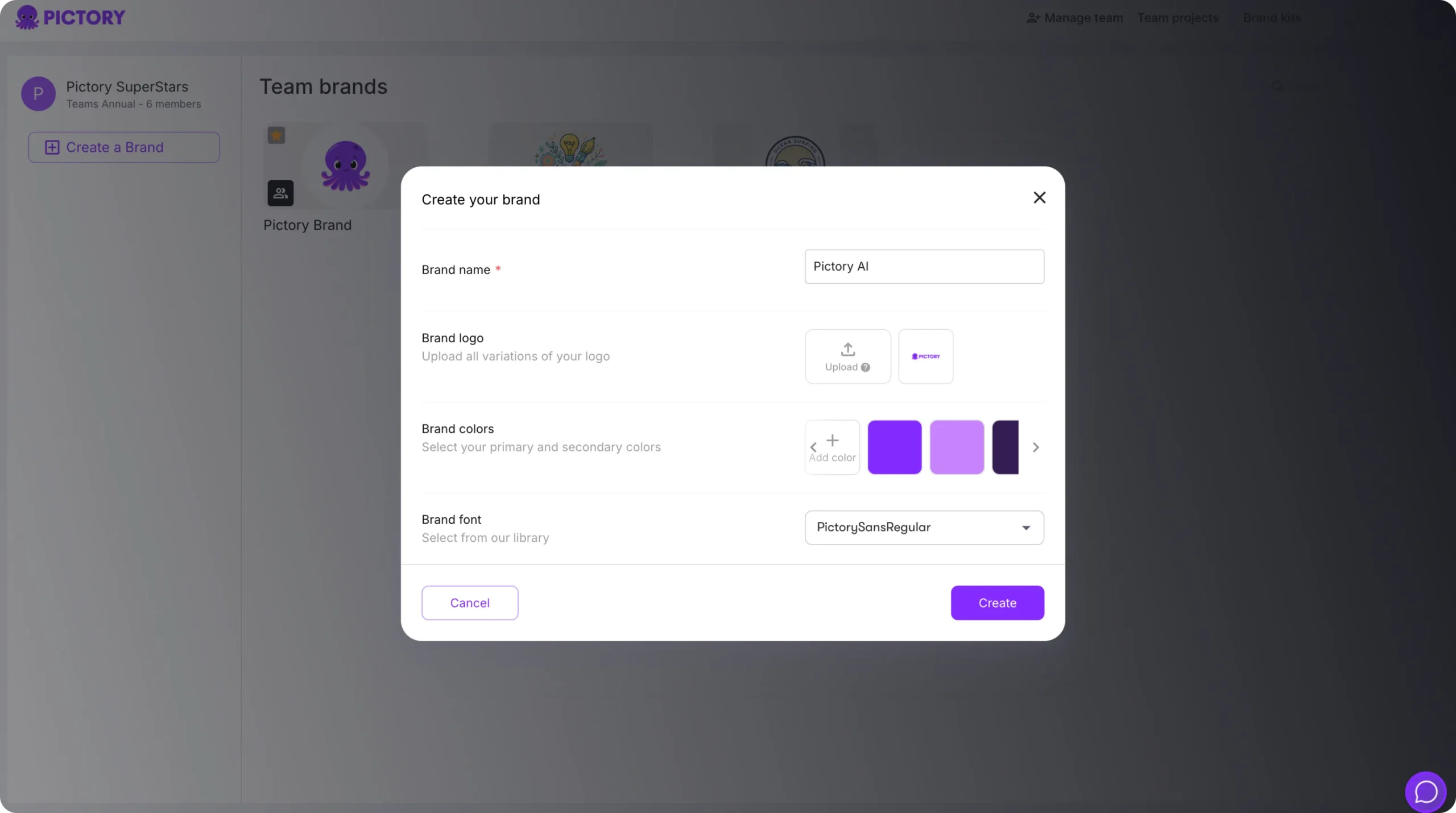
Step 1: Open Brand Kits from the left navigation
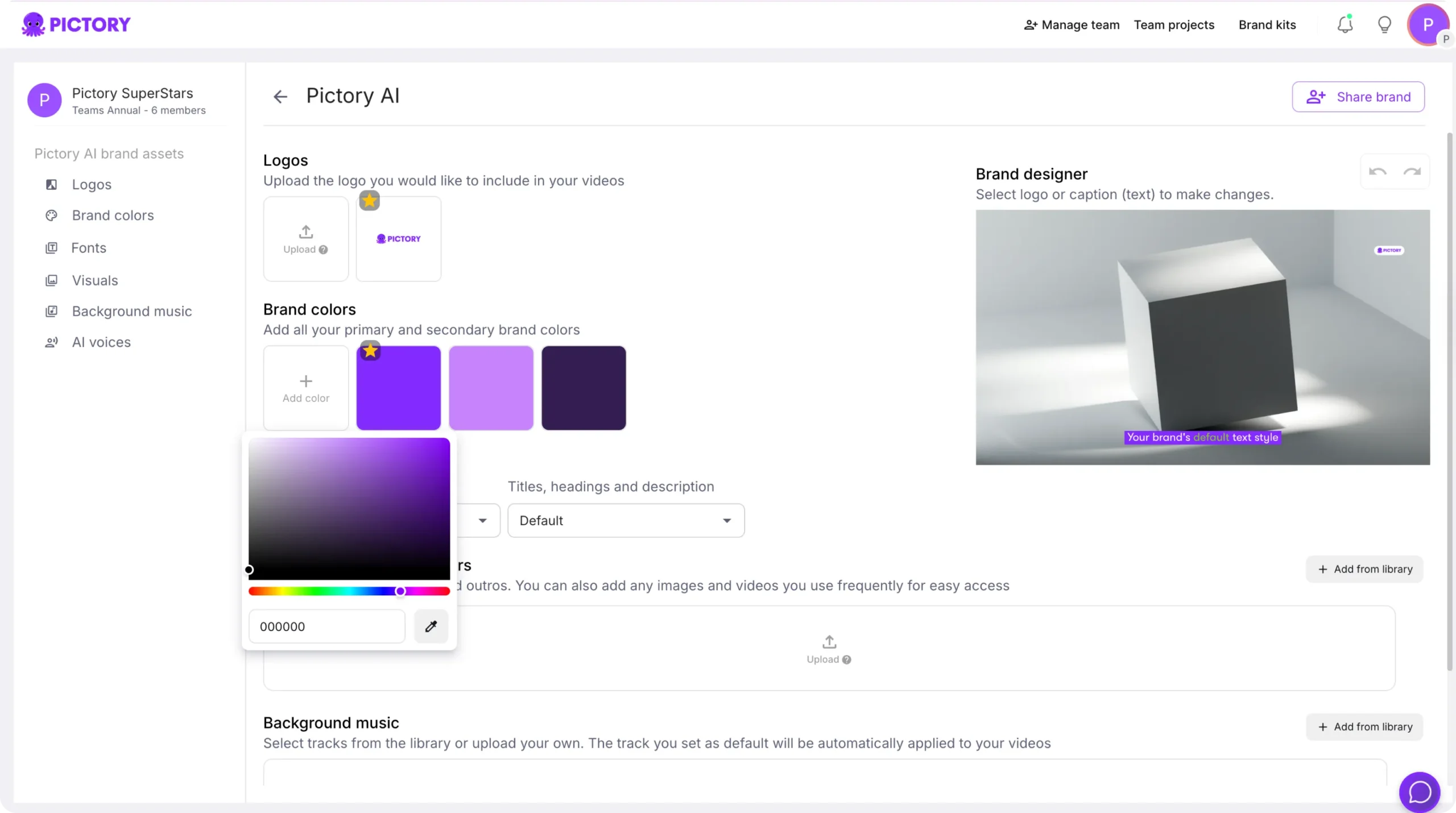
From the Pictory app navigation, go to Brand Kits. You will see your existing kits under “My Brands” and the option to create a new one.
Step 2: Create a Brand and add logo, colors, and fonts
Click Create a Brand, then enter a Brand Name and upload logo variations. Add your brand colors and select a font from Pictory’s font library.
Step 3: Apply the Brand Kit inside the Video Editor
In the editor, open the Branding tab and select your Brand Kit to apply consistent logos, fonts, and colors across scenes.
How to create training videos using Text to Video AI (script to video)
Text to Video is ideal when you already have an approved training script, SOP, enablement talk track, or compliance narration. It is also a strong option when you need AI training video production at scale.
Step 1: Start a Text to Video AI project
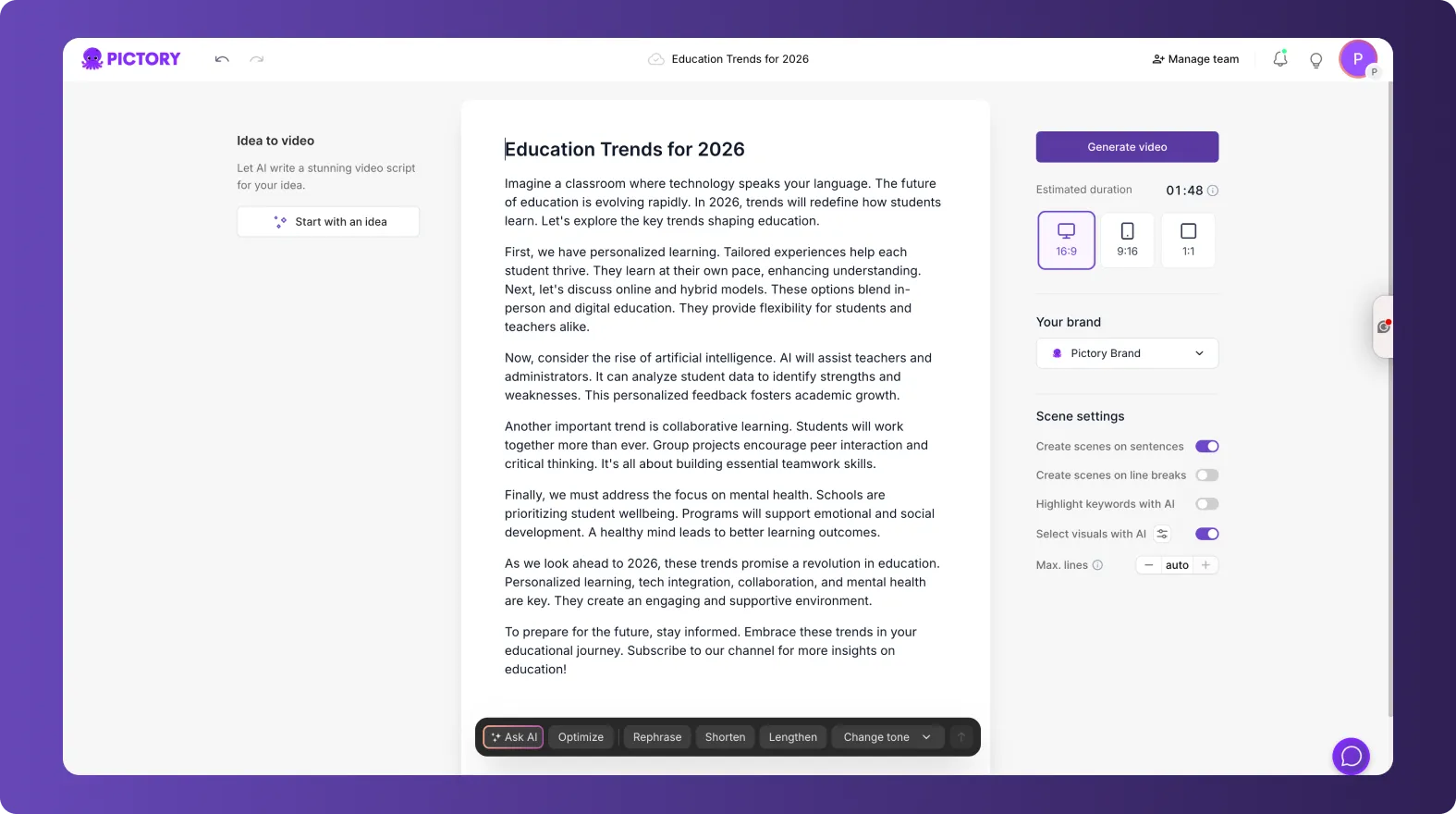
From the Home screen, select Text to Video. Paste or write your script in the input field. For best results, keep sentences short and use clear calls to action for the learner.
Step 2: Configure scene settings and video format
In the Script Editor, set your aspect ratio (16:9 for LMS and desktop training, 9:16 for mobile microlearning, 1:1 for internal social channels). Configure scene creation options such as sentence-based scenes, line-break scenes, keyword highlights, and selecting visuals with AI.
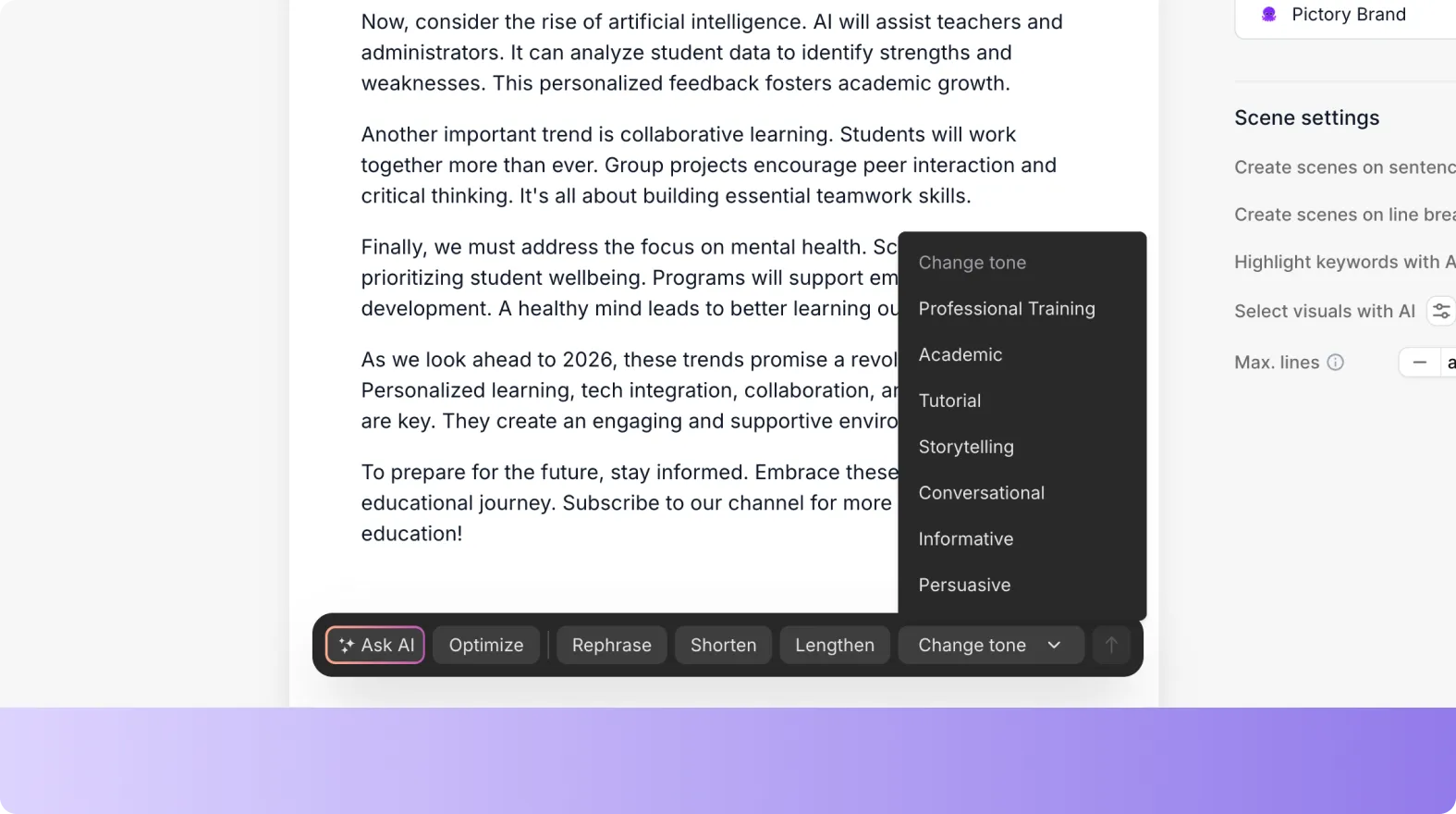
Step 3: Refine the script with Ask AI tools
Use Ask AI controls to optimize, rephrase, shorten, lengthen, or change tone. This is helpful for turning technical documentation into learner-friendly narration without rewriting from scratch.
Step 4: Choose a theme layout for professional training video production
Select a theme such as Modern minimalist, Kinetic, Chic, Wanderlust, or Bulletin to apply a consistent design system across the video.
Step 5: Generate the video and edit in the AI Video Editor
Click Generate video to create the storyboard. In the editor, adjust scene text, timing, visuals, audio, and branding using the left sidebar tools such as Story, Visuals, Audio, Text, Elements, Styles, Branding, and Avatars.
How to convert a URL to video for training and internal communications (blog to video)
URL to Video is a fast way to turn internal documentation, help center pages, or public-facing product articles into video. This supports enterprise content reuse and reduces production overhead.
Step 1: Start the URL to Video workflow
From the Home screen, choose URL to Video and paste a valid URL that begins with http:// or https://.
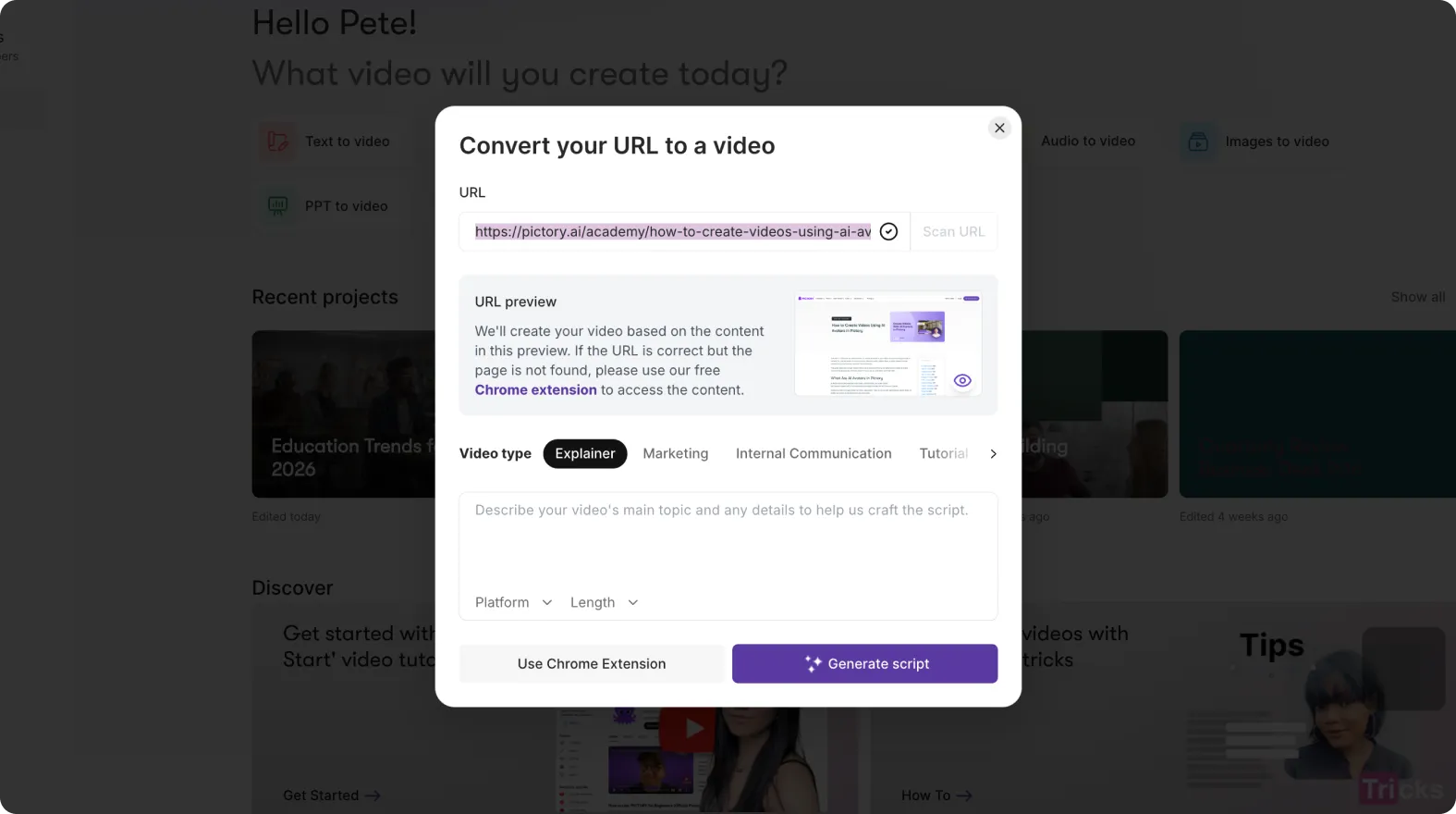
Step 2: Select video type, platform, and length
Choose a video type such as Tutorial or Internal Communication. Select the platform and target length to fit your delivery channel, such as an LMS module, knowledge base embed, or internal newsletter.
Step 3: Generate and edit the script
Click Generate Script. Pictory extracts content from the page and creates a draft script. Edit the script and adjust scene settings such as aspect ratio, max lines per scene, keyword highlights, and AI visual selection.

Step 4: Generate the storyboard and finalize in the editor
Click Generate video to build scenes. In the editor, confirm that visuals match your policies and message, then apply Brand Kits for consistency and export the final training video.
How to convert PPT to video with audio for employee training (PPT to Video AI)
PPT to Video is the fastest path from slides to a professional training video, especially for compliance, onboarding, quarterly updates, and sales enablement training where decks already exist.
Step 1: Upload your PowerPoint deck
From the Home screen, select PPT to Video. Upload a .PPT or .PPTX file up to 90 slides or 50 MB. You can optionally use speaker notes for narration.
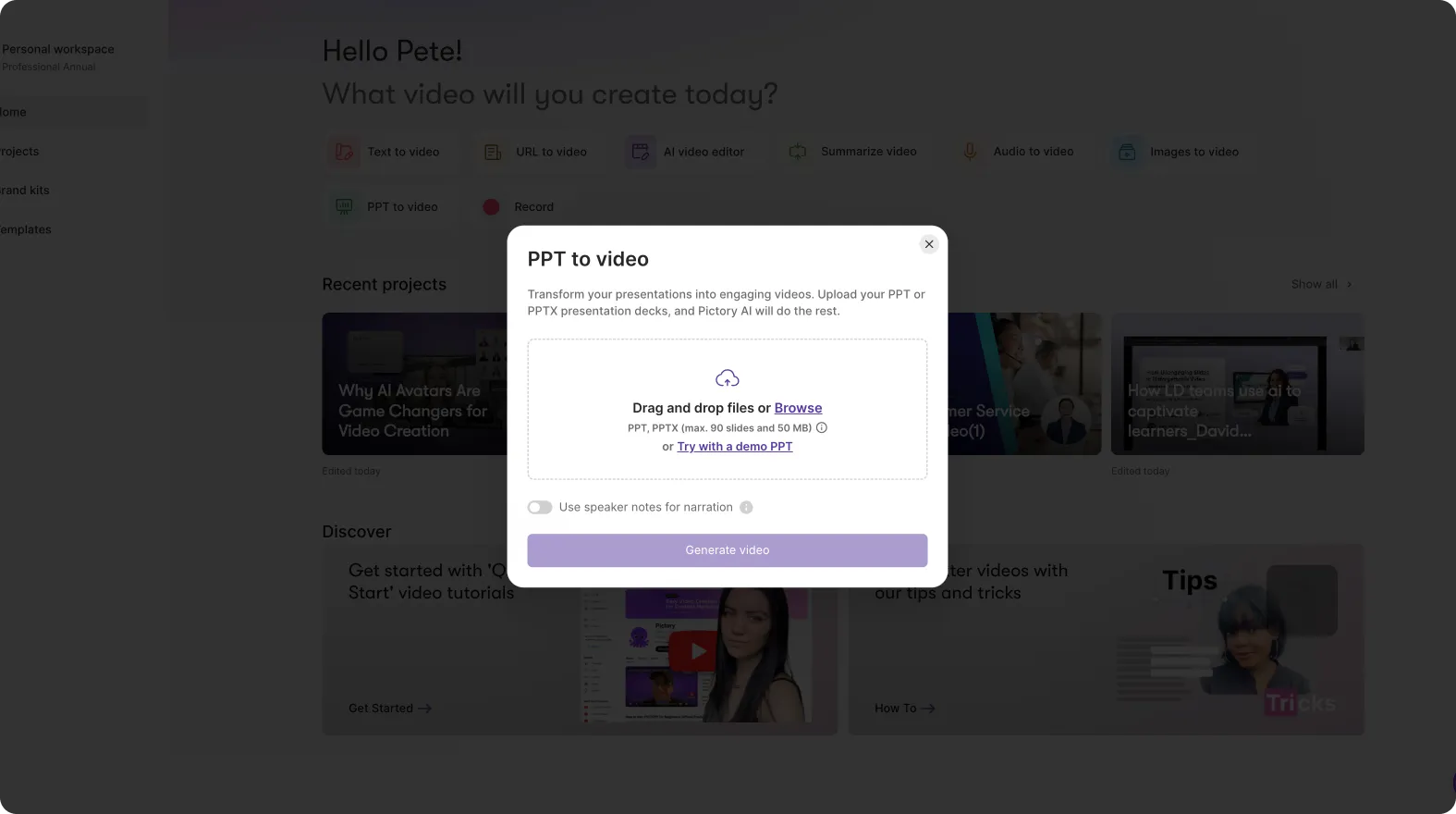
Step 2: Generate the video storyboard
Click Generate video. Wait while Pictory converts slides into storyboard scenes. A progress bar will show completion percentage.
Step 3: Edit scenes in the AI Storyboard Editor
In the editor, your slide text is organized into scenes with a timeline of thumbnails. Adjust scene text, timing, layouts, and visuals as needed for clarity and pacing.
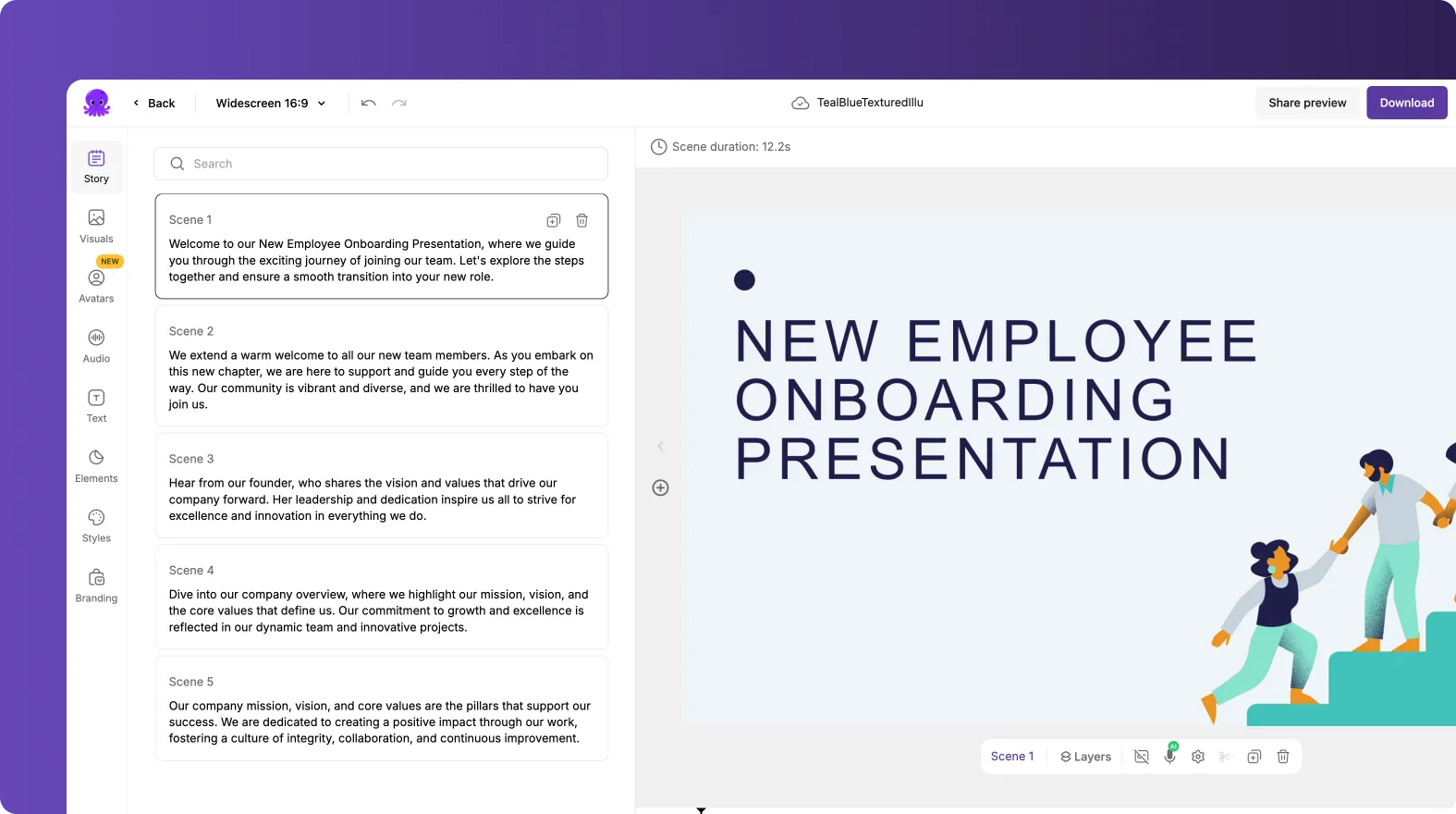
Step 4: Apply branding and export the training video
Use the Branding tab to apply your Brand Kit. Preview, then download the final video for distribution to your LMS, intranet, or sales enablement platform.
How to update recorded training using the AI Video Editor (video to text transcription workflow)
If you already have recorded training sessions, product demos, or webinars, Pictory’s AI Video Editor helps you transcribe a video to text, remove filler words, tighten pacing, and regenerate scenes efficiently. This supports ongoing updates without reshoots.
Step 1: Upload the training recording
Open the AI Video Editor workflow and upload a video file up to 5 GB and 180 minutes. Select the correct language to improve transcription accuracy.
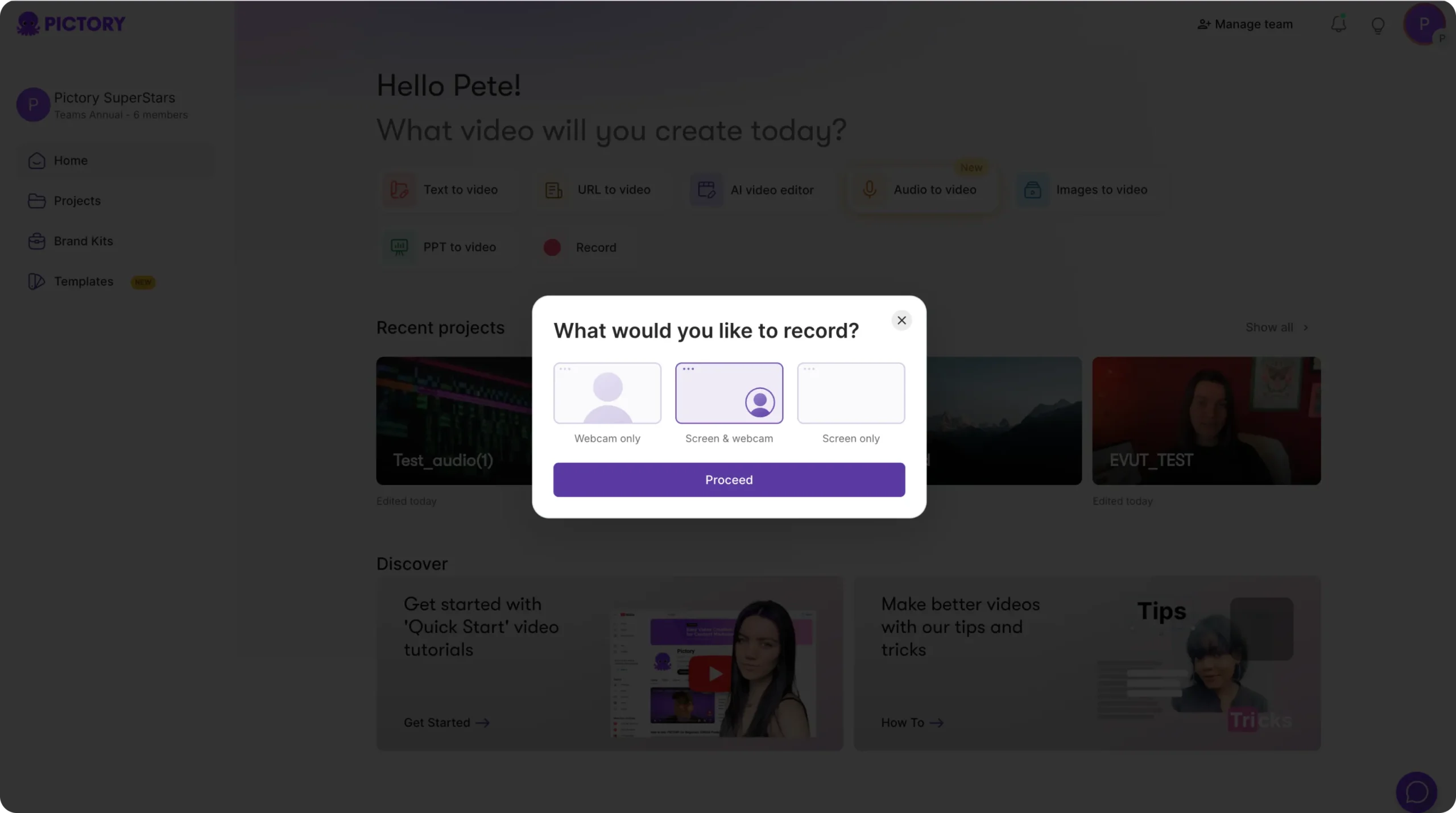
Step 2: Edit the transcript to improve clarity and compliance
After transcription completes, use tools like search and replace, auto highlight important phrases, and toggles to remove filler words and remove silences. Adjust subtitle settings including max lines per subtitle and choose a style from the style library.
Step 3: Customize with Brand Kits and generate storyboard scenes
Apply brand elements (logos, fonts, colors) from your Brand Kit, then proceed to create storyboard scenes. Pictory will segment the transcript into scenes for faster editing and navigation.
Step 4: Finalize in the editor and share a preview for stakeholder review
In the editor, use the updated timeline layout to manage scenes. Right-click scene thumbnails to duplicate, link with next, copy, paste after, or delete. Use Share preview to collect feedback from legal, compliance, or enablement stakeholders before exporting.
How to polish training videos with captions, text animations, and enterprise-ready pacing
Professional training video production depends on clarity and consistency. After your video is generated, use the editor tools to improve comprehension and engagement without adding production complexity.
Step 1: Add or adjust on-screen text and captions
Use the Text tab to insert headings, subheadings, or body text overlays. If your workflow includes subtitles, confirm readability by limiting lines per subtitle and selecting an approved style.
Step 2: Use Animate Text to make key points easier to retain
Select a text box, then use Animate Text in the top toolbar to open animation controls. Choose entry and exit animations such as Fade, Typewriter, Wipe, or Text Reveal, then set speed to match your training pace.

Step 3: Standardize layouts and styles for course-level consistency
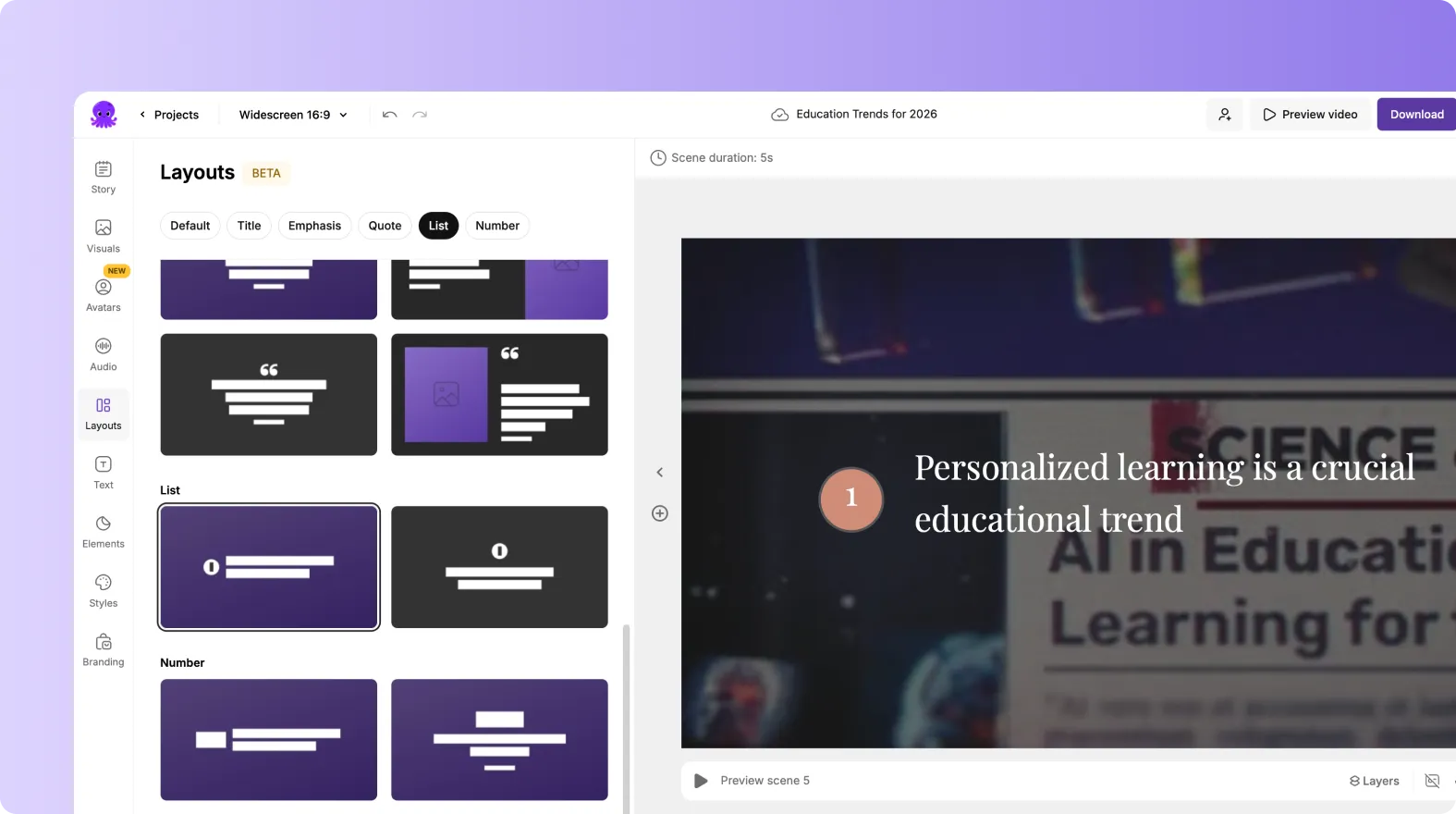
Use Layouts for structured scenes like lists, quotes, emphasis, and titles. Use Styles to apply cohesive typography and color themes, then save custom options under “My Styles” if your team produces recurring training series.
Step 4: Improve scene flow with timeline management
Use the timeline zoom to navigate long training modules, and right-click scene thumbnails to duplicate or link scenes. This speeds up reuse across versions like regional compliance updates or role-based sales enablement training.
FAQ: Professional Training Video Production
What is the fastest way to create professional training videos in Pictory?
If you already have a script, use Text to Video AI to generate a storyboard quickly, then apply a Brand Kit and finalize visuals and audio in the editor. If you have an existing deck, PPT to Video is often the fastest route.
How do I update training videos without re-recording everything?
Use the AI Video Editor workflow to upload your existing recording, edit the transcript, remove filler words and silences, regenerate storyboard scenes, and export an updated version. This is especially effective for policy, product, or compliance updates.
Can Pictory help with corporate training video production at scale across teams?
Yes. Use Brand Kits to standardize logos, fonts, and colors, then reuse themes, styles, and layouts across projects. The storyboard and timeline workflow also supports efficient scene-level reuse and fast iteration.
What workflow should I use for turning documentation into training videos?
If the documentation is on a web page, use URL to Video to convert a link to video and then refine the AI-generated script. If it is in an internal document, copy the content into Text to Video and use Ask AI to rephrase it into learner-friendly narration.
How can I make training videos more engaging without complex editing?
Add clear headings and on-screen prompts using the Text tab, apply consistent Layouts for lists and key messages, and use Animate Text for emphasis. Keep scenes short and adjust pacing by trimming silences in transcript-based workflows.
Does Pictory support subtitles and readable captions for training content?
Yes. In transcription-based workflows, you can adjust subtitle max lines, choose from text styles, and preview readability in the right-side video panel. You can also add additional on-screen text overlays for key definitions, steps, or warnings.


