
Corporate training video production often gets stuck between tight timelines, limited production bandwidth, and the need for consistent, compliant messaging across teams. Pictory helps enterprise L&D, compliance, sales enablement, and HR teams turn existing training content into professional, brand-consistent videos quickly using AI-driven workflows like Text to Video, PPT to Video, URL to Video, and the AI Video Editor.
This guide walks you through a practical, repeatable process to create training videos at scale, using Pictory’s enterprise-ready workflows, Brand Kits, and editor tools.
Corporate training video production: What to prepare before you start
Before you build your first training module, collect the inputs your team already has. This reduces production overhead and speeds up approvals.
-
Source content: SOPs, onboarding docs, compliance policies, playbooks, knowledge base articles, or a live training recording.
-
Training objective: what learners should know or do after watching.
-
Audience and format: onboarding, internal communication, tutorial, compliance, sales training.
-
Brand requirements: logo, fonts, approved colors, and any template rules.
-
Distribution targets: LMS, intranet, Teams, email, help centre, or social channels.
If you need a fast starting point, Pictory supports multiple input formats so your team can repurpose content instead of producing from scratch.
How to choose the best Pictory workflow for enterprise training videos
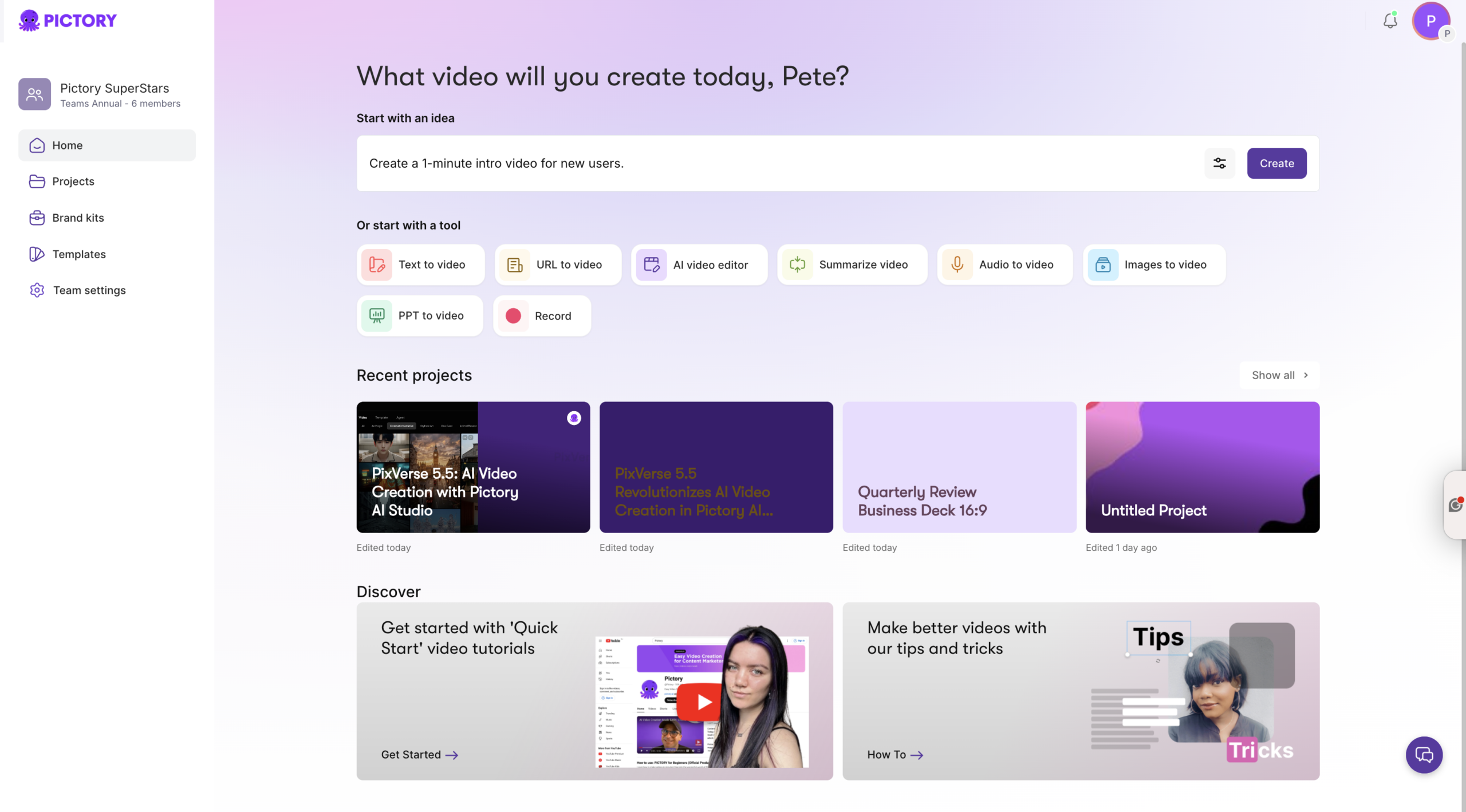
Pick the workflow that matches your training input. This is the fastest way to scale corporate training video production without adding more tools.
-
Text to Video AI: Best when you already have a script, SOP, outline, or policy text.
-
PPT to Video: Best for slide-based training, instructor-led decks, or enablement presentations.
-
URL to Video converter: Best for turning knowledge base pages, internal articles, or public documentation into a video.
-
AI Video Editor: Best for repurposing existing recordings by transcribing and auto-editing.
-
Smart Screen Recorder: Best for product training, walkthroughs, and internal demos with narration.
You can standardize these workflows across departments to create a consistent training video pipeline.
Step-by-step: Corporate training video production using Text to Video AI
Use this workflow when you want to turn a script into a professional training video with captions, visuals, and optional AI voiceover. This is a fast path to an AI training video generator style workflow for enterprise teams.
Step 1: Start a Text to Video project and paste your training script
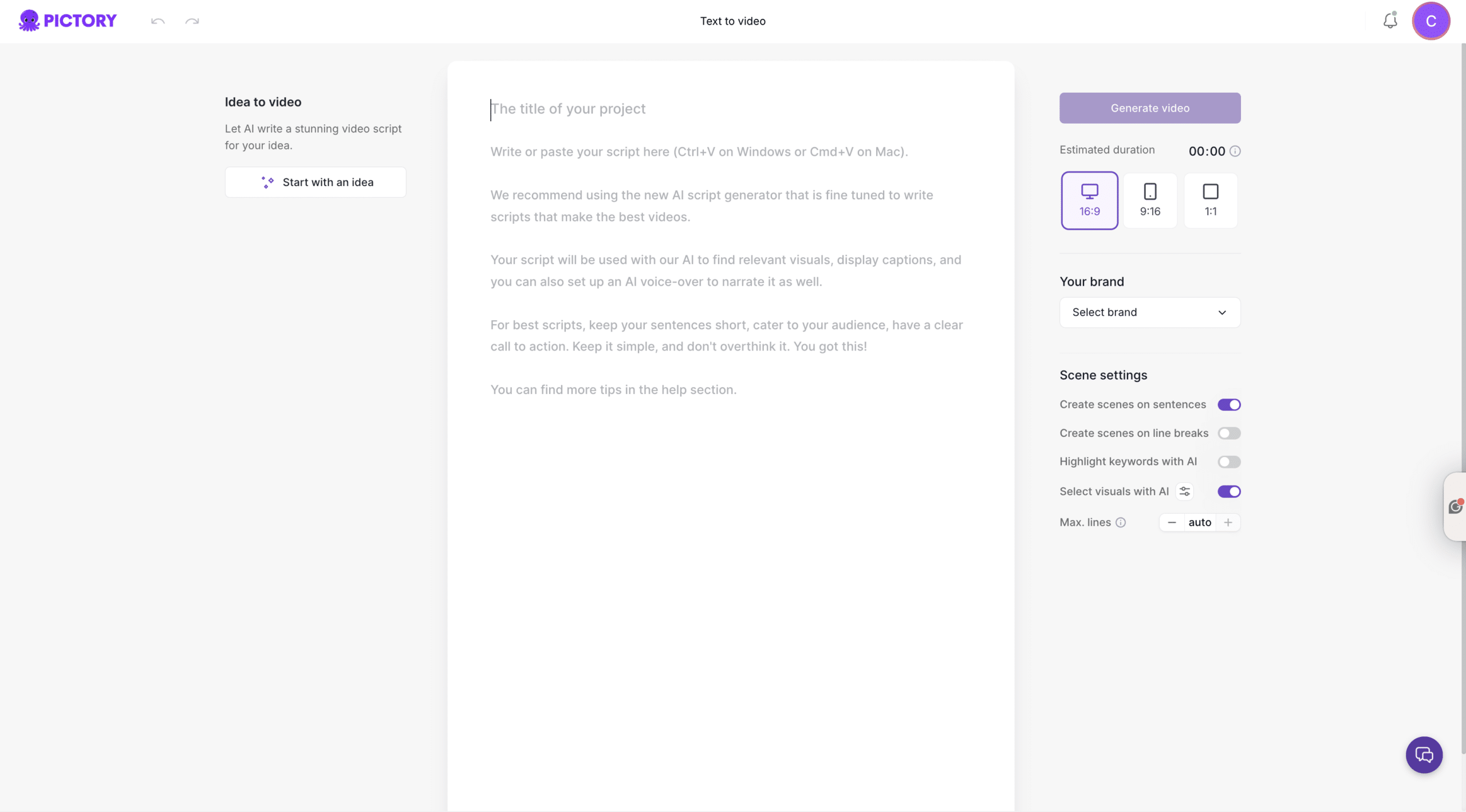
From the Pictory home screen, select Text to Video, then paste or write your training script in the input field. Keep sentences short, keep the structure simple, and include a clear call to action such as “Complete the quiz” or “Follow the checklist.”
If needed, use the AI script generator to draft a first version, then refine it in the editor.
Step 2: Configure scenes, aspect ratio, and brand kit settings
In the script editor, set your scene rules and formatting:
-
Select an aspect ratio: 16:9 for LMS and desktop training, 9:16 for mobile-first microlearning, or 1:1 for internal social posts.
-
Choose a Brand Kit to apply logo, fonts, and colors.
-
Enable scene settings such as sentence-based scenes, line-break scenes, keyword highlights, and AI visual selection.
When ready, click Generate video.
Step 3: Select a layout theme and review the AI storyboard
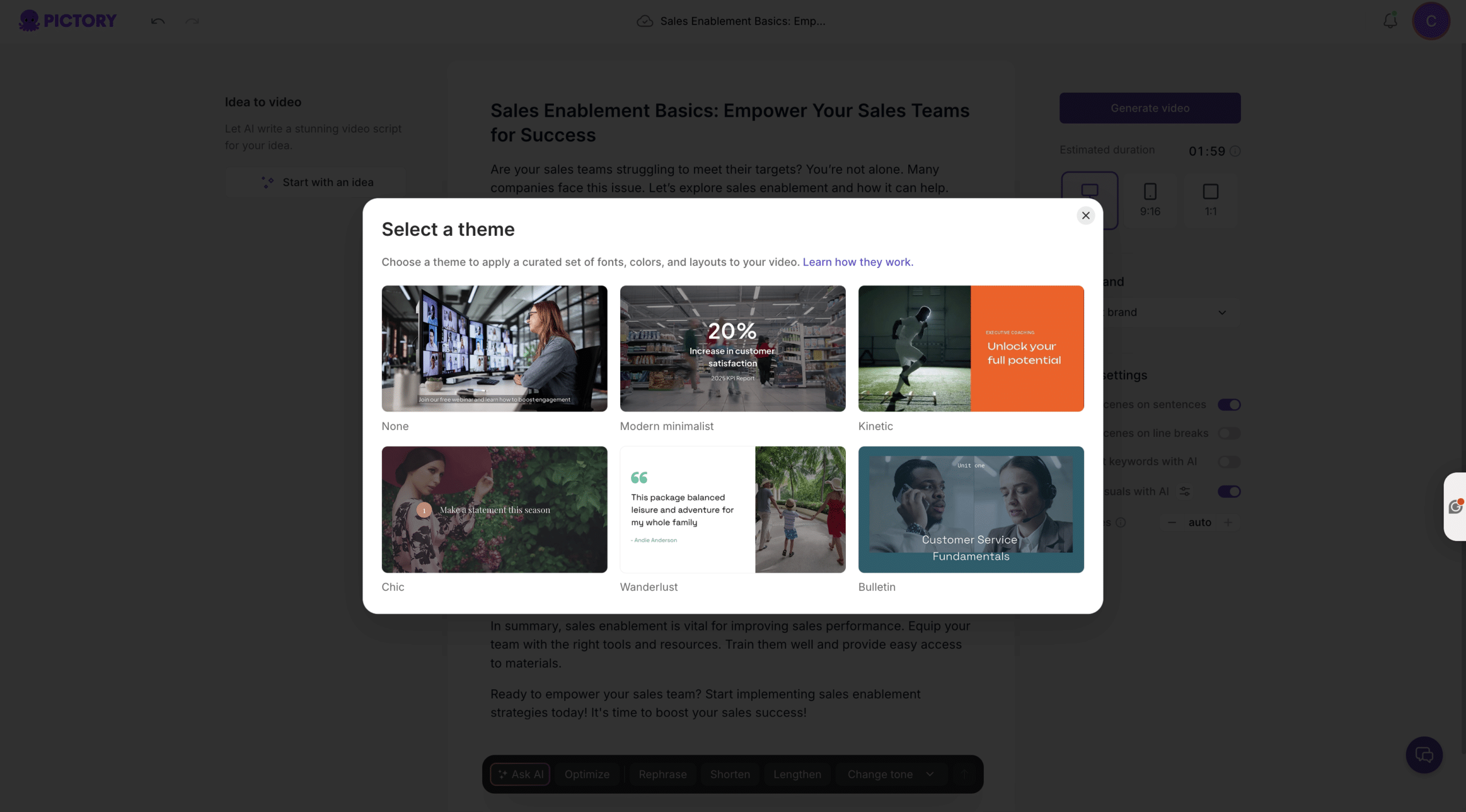
Choose a theme such as Modern Minimalist, Kinetic, or Bulletin to quickly standardize the training look across modules. Pictory converts the script into storyboard scenes automatically.
When the editor loads, review each scene for pacing, clarity, and any compliance-sensitive wording.
Step 4: Edit visuals, captions, and timing in the AI video editor
Use the left sidebar to make production-quality updates without complex software:
-
Story: refine on-screen text and scene copy.
-
Visuals: replace background footage with stock media, uploads, or AI Studio prompt-to-image and prompt-to-video assets.
-
Audio: add AI voiceover and background music, or upload approved narration.
-
Text and Elements: add titles, callouts, arrows, icons, and compliance notices.
-
Styles and Branding: keep typography and colors consistent across every video.
Use the updated timeline to navigate scenes quickly, and right-click scene thumbnails to Duplicate, Copy, Paste after, Link with next, or Delete. Preview, then download when approved.
Step-by-step: Corporate training video production from PowerPoint using PPT to Video
If your organization already trains from slide decks, this is the fastest way to convert PowerPoint to video and maintain brand consistency.
Step 1: Upload your presentation and choose speaker notes for narration
From Home, select PPT to Video and upload a .PPT or .PPTX file (up to 90 slides or 50 MB). If your deck has speaker notes, enable the option to use them for narration structure.
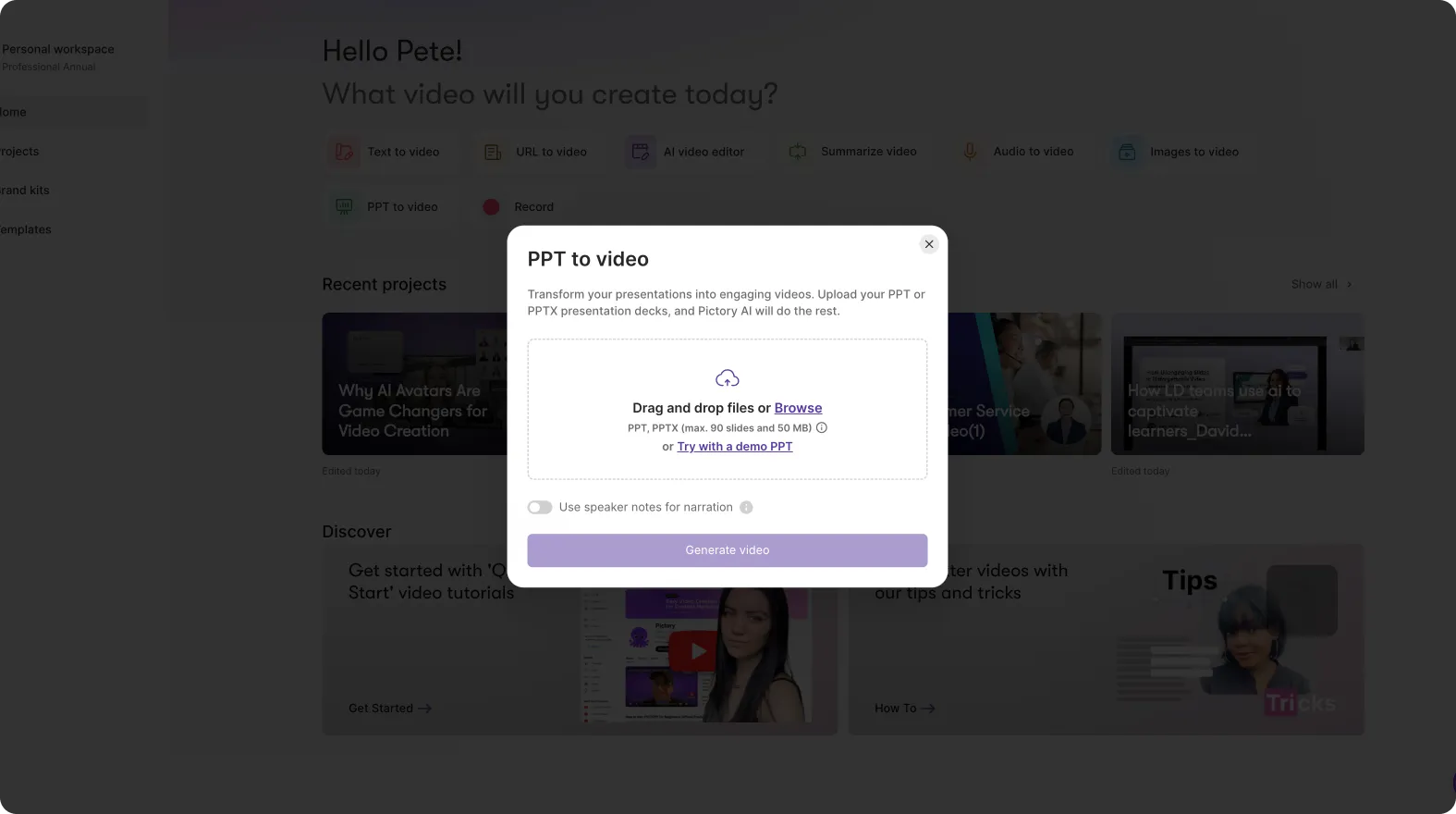
Click Generate video.
Step 2: Wait for storyboard creation and enter the editor
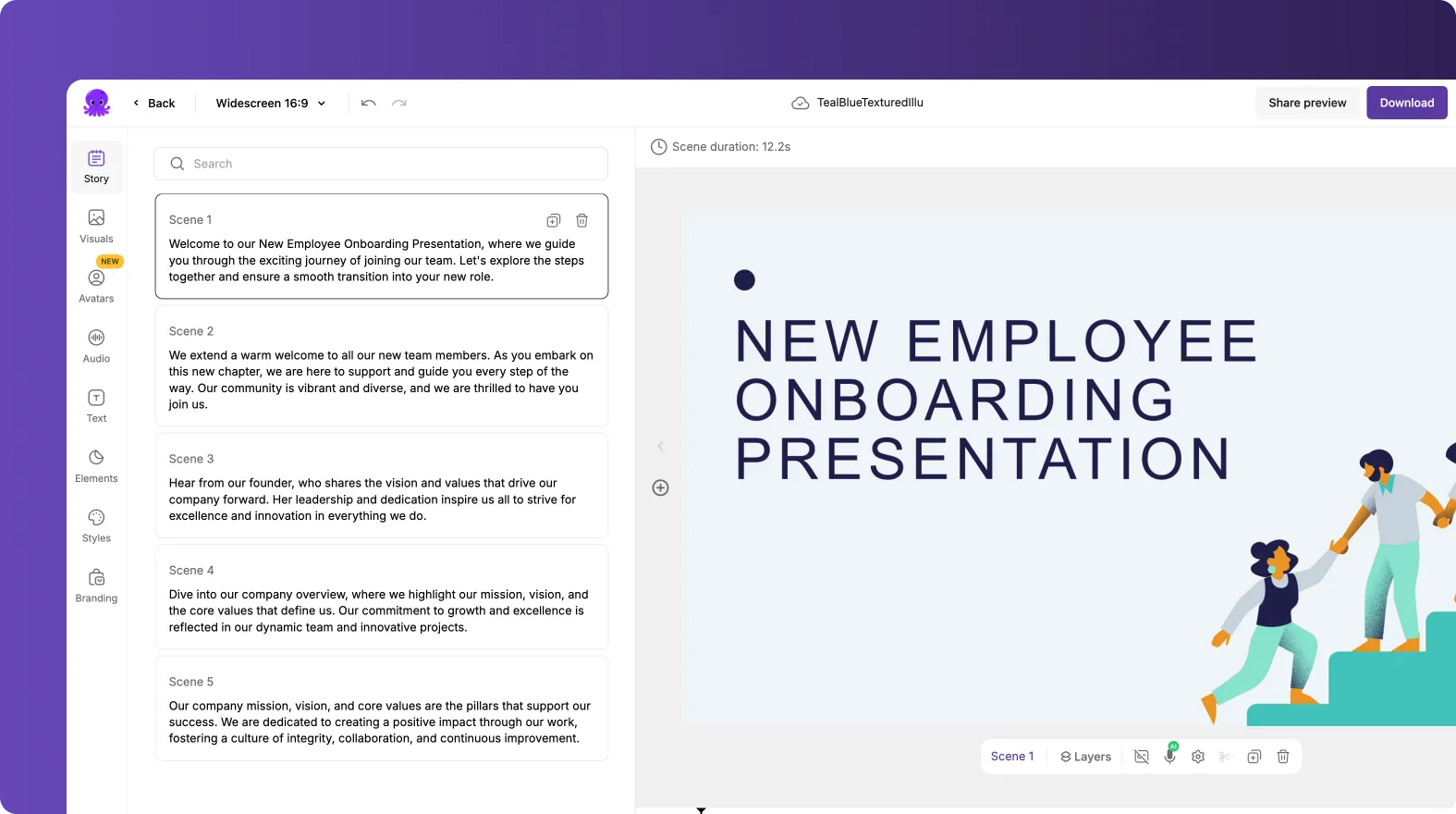
Pictory converts slides into video scenes and displays a progress screen while building the storyboard. When ready, the AI storyboard editor opens with scenes on the left, preview on the right, and slide thumbnails on the timeline.
Step 3: Standardize training modules with branding, styles, and layouts
Apply your Brand Kit to align fonts, colors, and logo placement. Then refine:
-
Scene text for clarity and accessibility
-
Scene duration for pacing and comprehension
-
Visual enhancements using Visuals, Text overlays, and Elements
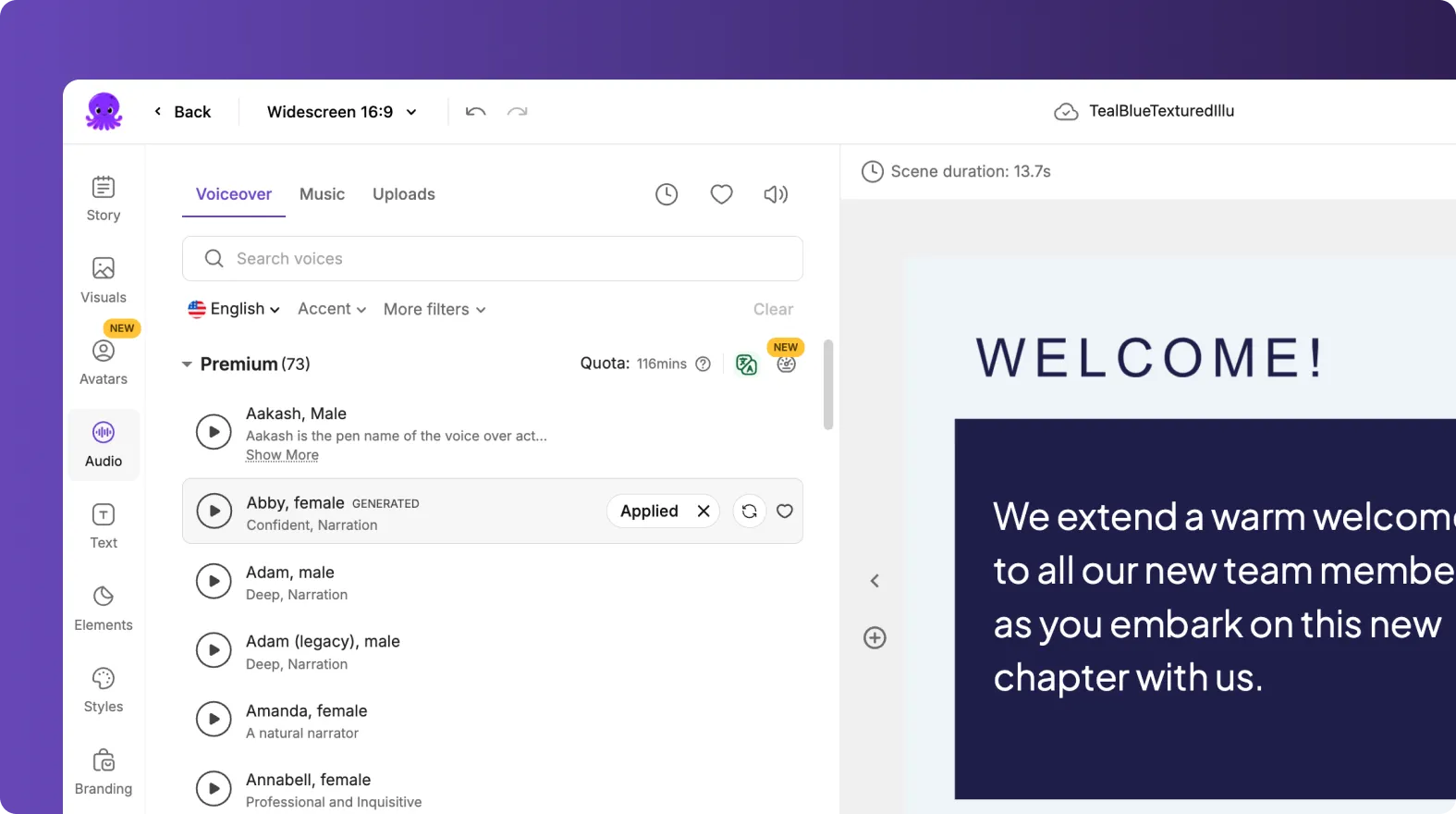
Preview the full module, then download the final training video for your LMS or internal platform.
Step-by-step: Convert internal documentation using a URL to Video converter workflow
When training content lives in a knowledge base, help center, or internal wiki, use URL to Video to repurpose it into an engaging training format.
Step 1: Paste the URL and choose a training-friendly video type
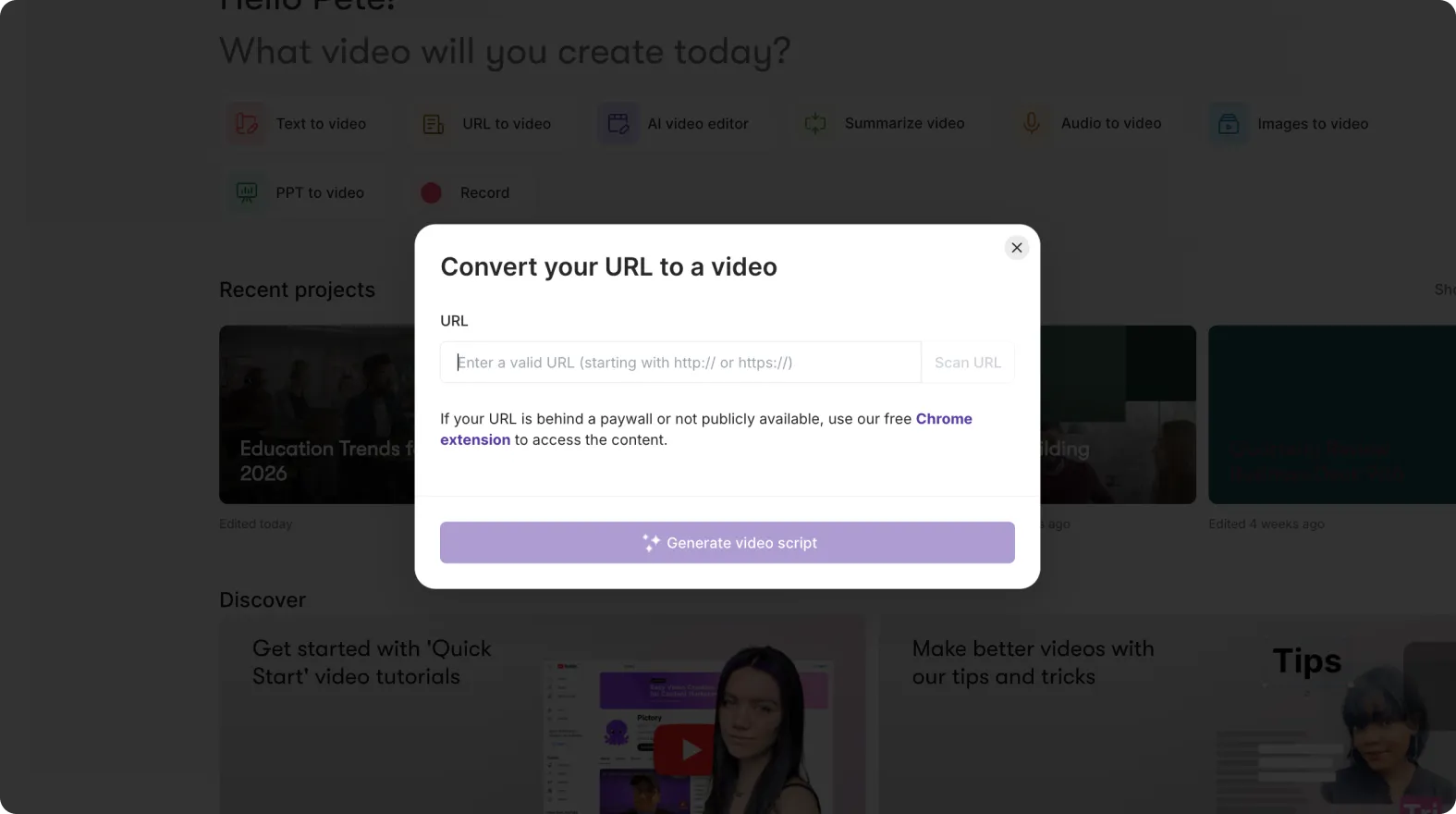
Select URL to Video from the home screen, paste a valid http or https link, and choose a video type such as Tutorial or Internal Communication. Select platform and length, then click Generate Script.
Step 2: Edit the script and set scene rules for microlearning
In the script editor, trim to the essentials and format for learning:

-
Use short scenes and simple language
-
Enable sentence-based scenes for clean segmentation
-
Highlight keywords to reinforce key concepts
-
Apply your Brand Kit for brand-consistent training output
Click Generate video to create the storyboard.
Step 3: Finalize visuals, captions, and compliance notes in the editor
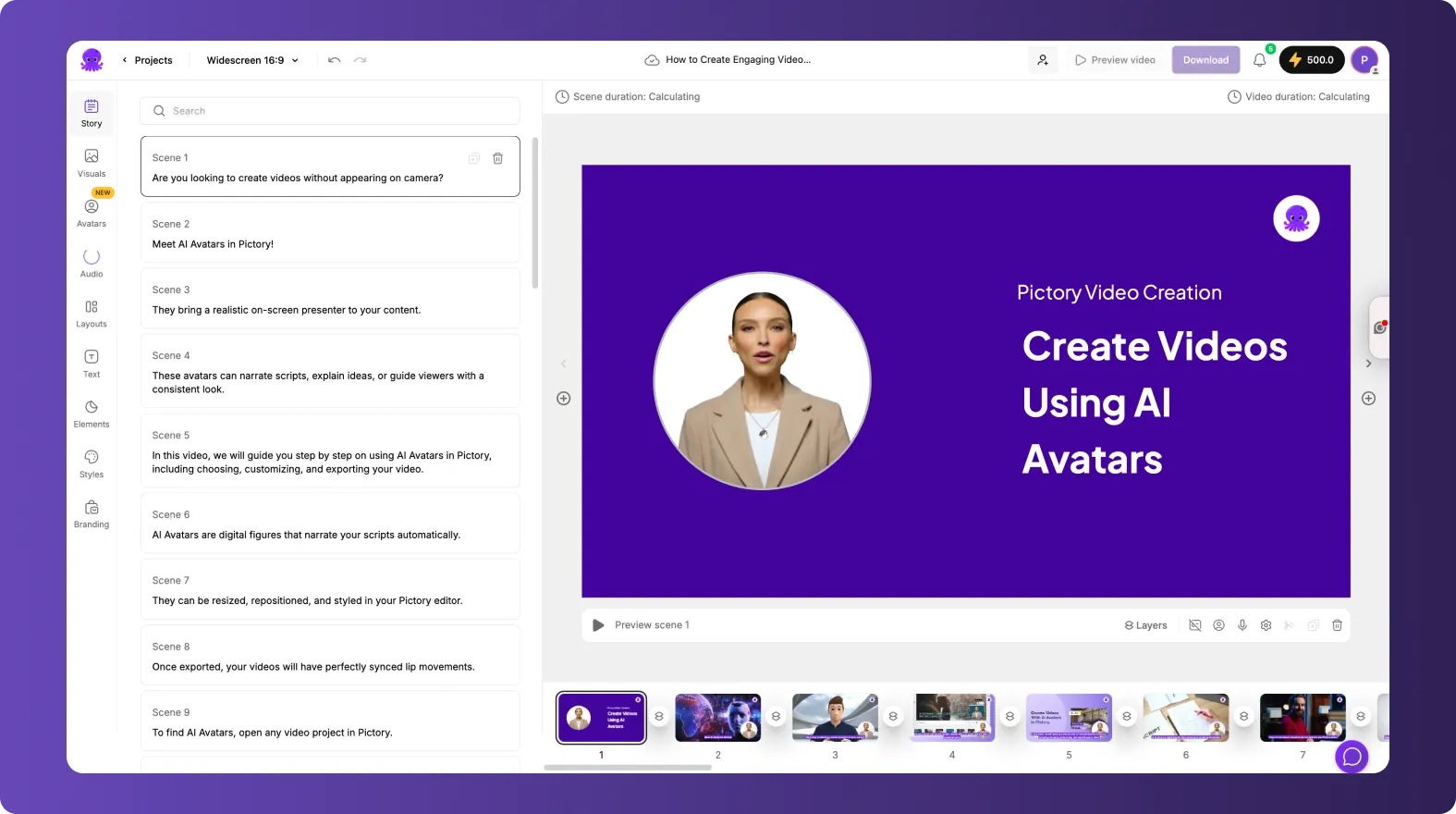
In the editor, verify each scene’s visuals and on-screen text. Add required disclaimers or policy statements using Text and Elements. Use Preview to confirm timing and readability, then Download for distribution.
Step-by-step: Repurpose recorded training with the AI Video Editor and video to text transcription
For teams modernizing instructor-led sessions, webinars, and recorded trainings, the AI Video Editor provides video to text transcription, quick cleanup, and fast publishing without manual editing.
Step 1: Upload the training recording and select the language
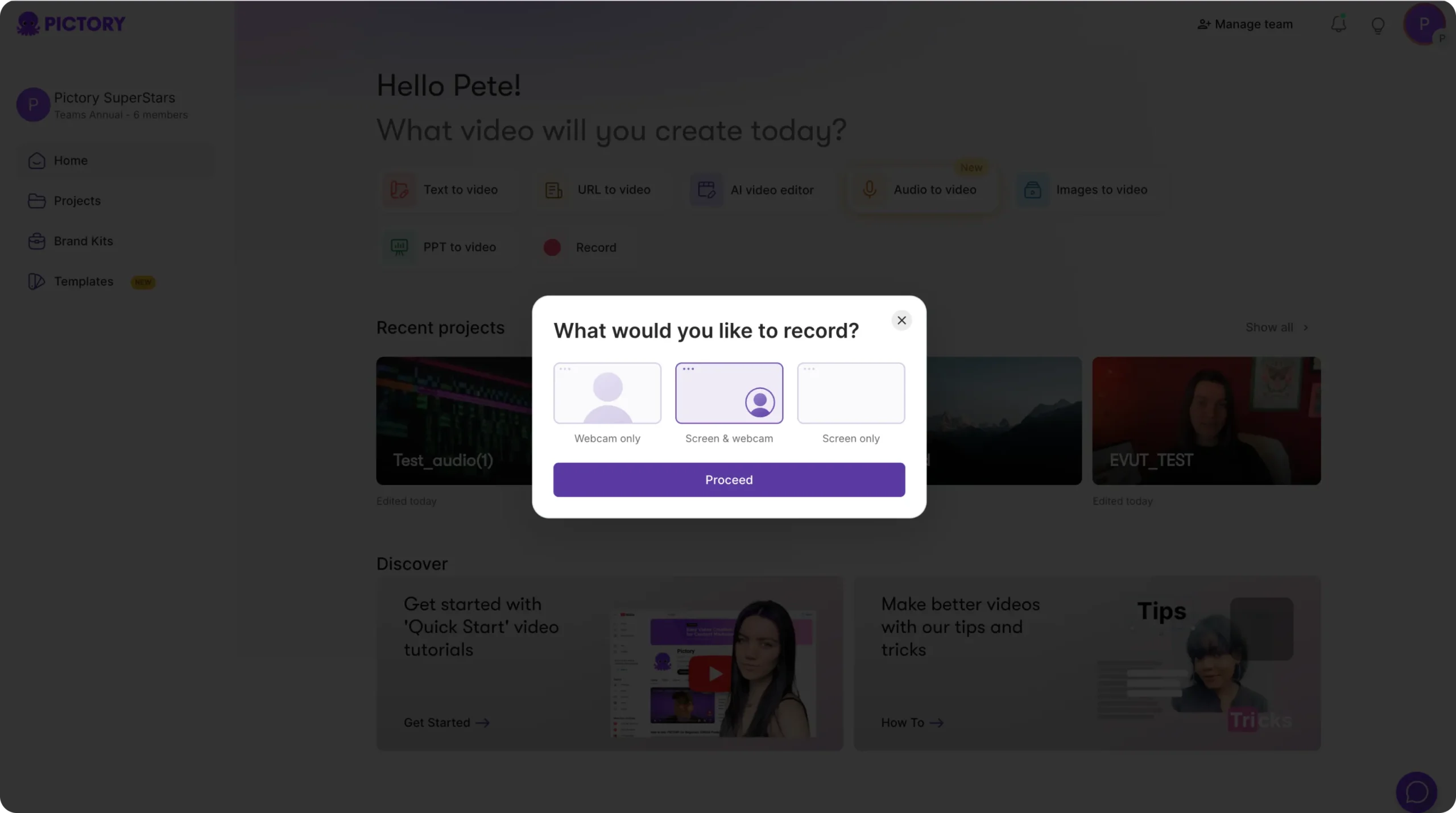
Open the AI Video Editor workflow and upload your video file (up to 5 GB, max 180 minutes). Choose the language to improve transcription accuracy.
Step 2: Edit the transcript and remove filler words and silences
After transcription completes, use the transcript editor tools:
-
Search and replace for standardized terminology
-
Auto highlight important phrases for learning emphasis
-
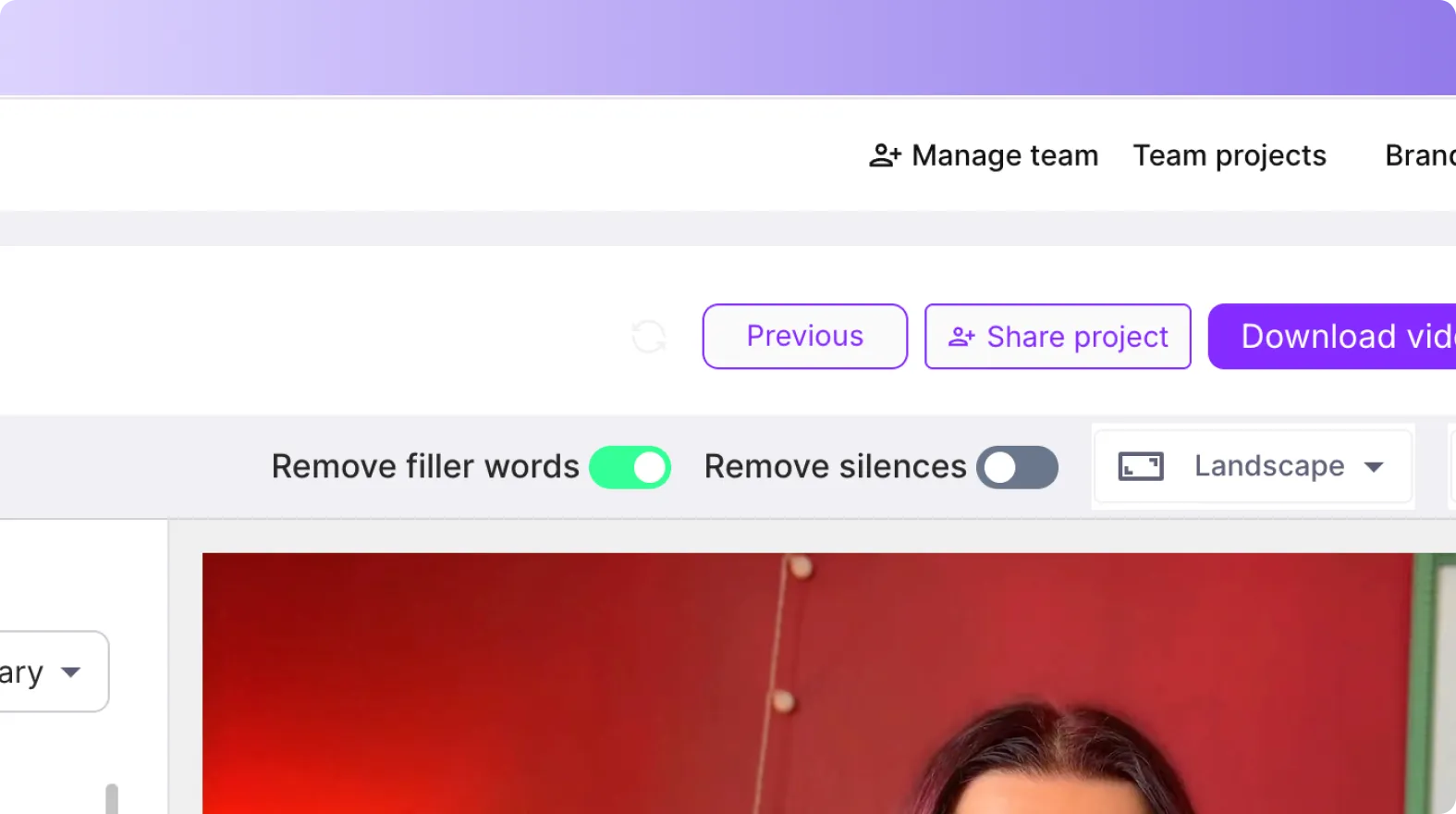
Toggle to remove filler words
-
Toggle to remove silences for tighter pacing
-
Set max lines per subtitle and choose a subtitle style
Apply Brand Kit settings so captions and overlays match enterprise brand guidelines.
Step 3: Generate scenes, then refine the storyboard for clarity and consistency
After transcript edits, Pictory creates storyboard scenes automatically. Use the editor timeline to quickly navigate and restructure content. Duplicate or delete scenes to create multiple versions, such as a full training module and shorter recap clips.
When approved, export using Download Video, or use Share preview for internal stakeholder review.
Brand consistency for enterprise training videos using Brand Kits and styling controls
Brand consistency is a major bottleneck in corporate training video production. Pictory’s Brand Kits help teams apply the same visual identity across every training module without manual formatting.
-
Create and manage Brand Kits from the Brand Kits page
-
Include logo variations, approved fonts, and brand colors
-
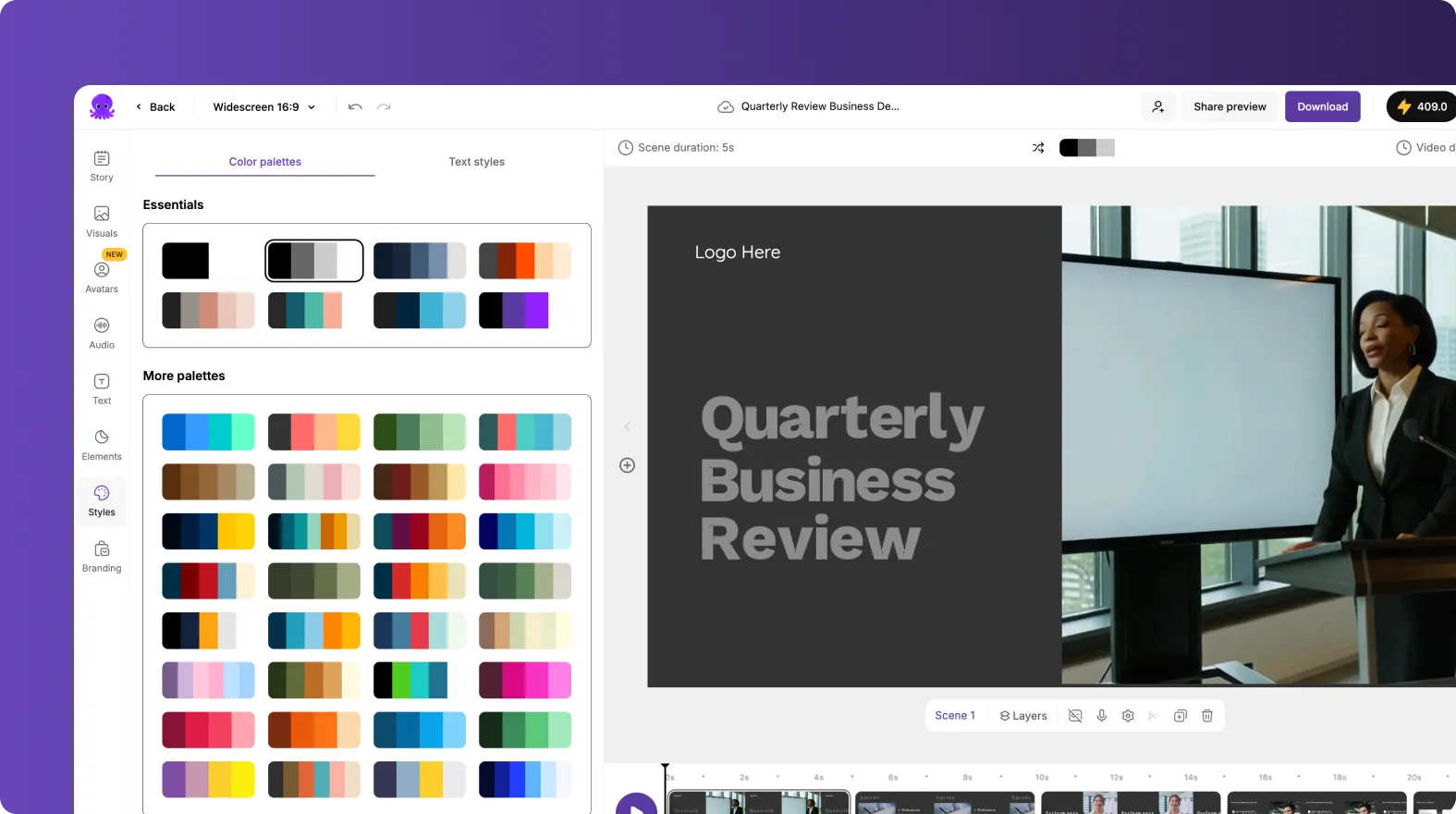
Shuffle color palette combinations to test alternate brand-safe options
-
Apply a Brand Kit inside the editor using the Branding tab
This is especially useful for large organizations where multiple departments contribute training videos and need a unified standard.
Speed up editing and learner engagement with text animations, avatars, and timeline tools
Once your training video structure is solid, use Pictory’s editor enhancements to improve clarity and retention while keeping production efficient.
-
Text Animations: Select a text box, open Animate Text in the top toolbar, and apply entry and exit effects like Fade, Typewriter, or Wipe. Adjust speed and apply across scenes for consistency.
-
Avatars: Use the Avatars tab to add an AI presenter for introductions, summaries, or policy reminders. Choose avatar variations and an AI voice, then apply across scenes as needed.
-
Updated timeline controls: Use zoom for long modules, and right-click scene thumbnails for fast scene management.

These tools help enterprise teams produce professional, modern training videos while staying within brand and compliance expectations.
FAQ: corporate training video production
What is the fastest way to modernize corporate training video production with existing materials?
Start with PPT to Video if your training is slide-based, URL to Video if content lives in documentation, or the AI Video Editor if you have recorded sessions. These workflows repurpose existing assets into video quickly without rebuilding everything from scratch.
Can Pictory help convert recorded training into subtitles and edited modules?
Yes. The AI Video Editor provides video to text transcription, subtitle formatting controls, and toggles to remove filler words and silences. After editing the transcript, Pictory generates storyboard scenes for quick restructuring and export.
How do we keep training videos brand-consistent across departments?
Use Brand Kits to standardize logos, fonts, and colors across every project. Apply the Brand Kit inside the editor using the Branding tab so teams follow the same visual rules without manual formatting.
Which workflow is best if we already have a written SOP or compliance script?
Use Text to Video AI. Paste your script, configure scene rules, apply your Brand Kit, generate the storyboard, and then refine visuals, captions, and audio in the editor before exporting.
Can we create different versions of the same training video for different teams or regions?
Yes. Duplicate scenes and adjust text, visuals, and voiceover as needed. You can also create separate projects from the same source and keep brand consistency using the same Brand Kit.
How do we improve engagement in internal training videos without complex editing?
Use text animations for key callouts, add icons and shapes from Elements for step reinforcement, and consider an AI avatar for introductions or summaries. These updates can be applied quickly inside the editor while keeping a consistent enterprise style.


