
eLearning teams are expected to ship more training content with fewer resources, while maintaining quality, accessibility, and brand consistency. With Pictory, you can convert training scripts into professional modules using an AI text to video workflow that auto-creates scenes, captions, and voiceover, then lets you polish everything in an enterprise-ready editor.
This guide shows eLearning developers and L&D teams how to use Pictory’s Text to Video generator inside AI Studio to build training videos faster, keep styling consistent with Brand Kits, and iterate efficiently for onboarding, compliance, and internal communications.
Why AI text to video helps eLearning teams build courses faster
Traditional training video production requires scripting, slide design, recording, editing, captioning, and brand checks. A modern text to video AI generator compresses that workflow by turning your approved script into a storyboard automatically, while still giving you scene-level control.
Speed: generate a first-cut storyboard in minutes, then refine.
Consistency: apply Brand Kits so every module follows the same fonts, colors, and logo rules.
Scalability: reuse scripts, duplicate scenes, and produce variations for different roles or regions.
Accessibility: create readable captions and voiceover quickly, then adjust subtitle settings for standards.
Plan your training script for an AI text to video generator
Before you convert text to video, make your script easy for AI to segment into scenes. This reduces rework and improves pacing for microlearning and longer modules.
Keep sentences short and direct, ideally one idea per sentence.
Use clear line breaks where you want a new scene or new on-screen caption.
Include role specific examples and a clear call to action for assessments or next steps.
Decide your target format early, such as 16:9 for LMS modules or 9:16 for mobile microlearning.
If you are starting from existing materials, you can also accelerate course updates by converting slides with PPT to Video or turning a policy page into video using URL to Video.
How to convert text to video in Pictory AI Studio for eLearning
This step-by-step process uses the core ai text to video workflow. You will paste a training script, choose scene settings and branding, generate a storyboard, then refine in the editor.
Step 1: Start a new Text to Video project in AI Studio
Open AI Studio and select Text to Video. Paste or write your course script in the input field. If you need a draft outline for a new module, use the AI script generator and then edit for accuracy and compliance alignment.
Yes. Record with , then use AI transcription and editing to remove filler words, reduce silences, and refine subtitles before exporting the final training video.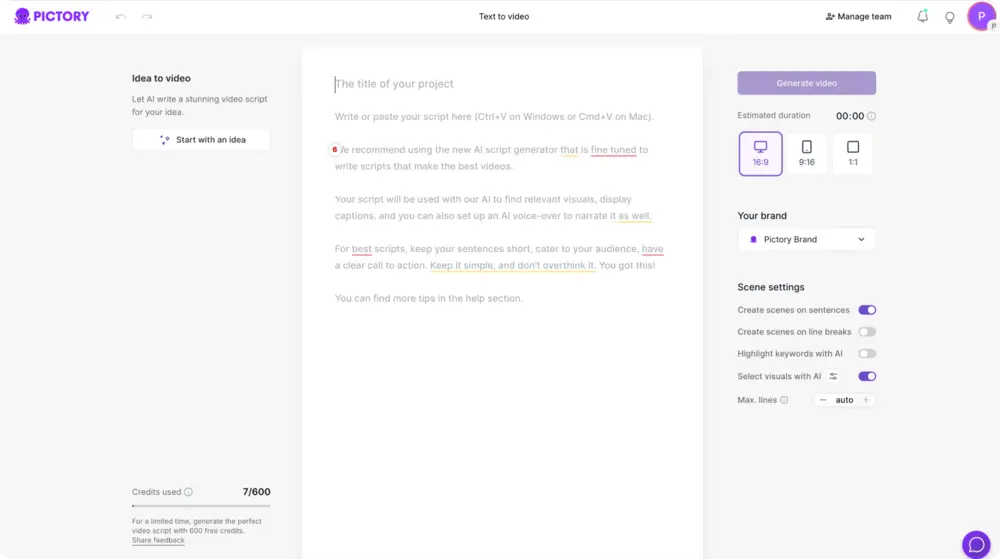
Step 2: Configure scene settings for training readability
In the script editor, set up how Pictory will break your script into scenes and captions.
Select an aspect ratio: 16:9 for standard eLearning players, 9:16 for mobile-first training, or 1:1 for internal hubs.
Enable sentence-based or line-break-based scenes depending on how you wrote the script.
Set maximum lines per scene to keep captions readable.
Optionally enable keyword highlights to emphasize policy terms, safety steps, or product names.

Step 3: Apply brand consistency with Brand Kits
Select your team’s Brand Kit to automatically enforce logo usage, fonts, and color palette. This is critical for enterprise training libraries where multiple authors must publish consistent modules across departments.
Later, you can refine styling further in the Branding and Styles tools, and even test alternate approved palettes using color palette shuffle within Branding.
Step 4: Choose a theme and generate the storyboard
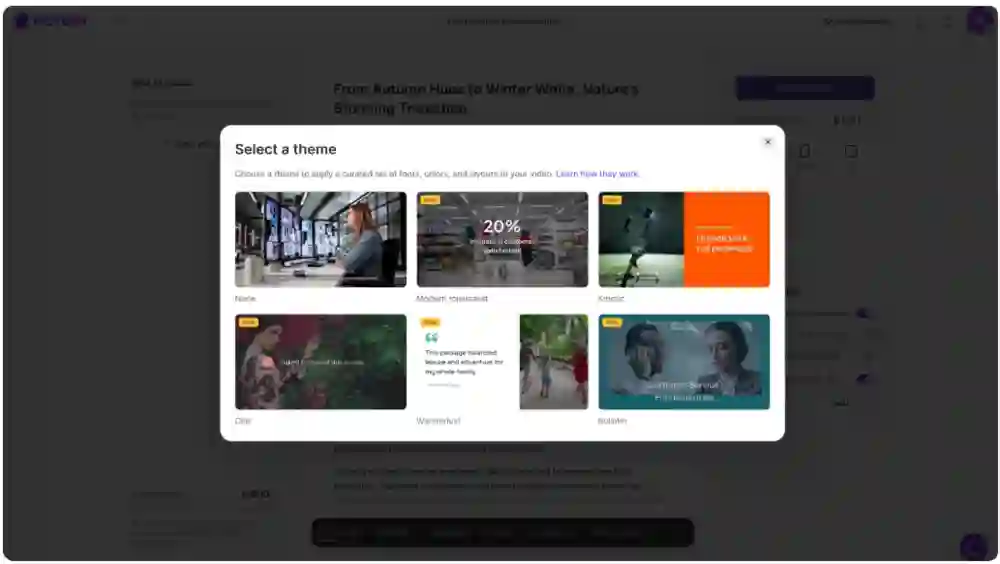
Pick a layout theme that matches your training style, such as modern minimalist for compliance or kinetic for sales enablement. Then click Generate video. Pictory will create scenes and load your project into the editor once storyboard creation is complete.
Edit and polish training modules in the AI Video Editor
After generation, you will land in the editor where the storyboard appears on the left and the preview on the right. This is where you turn a fast first draft into a publish-ready training asset using the AI Video Editor.
Step 1: Refine scene text, pacing, and structure
In the Story panel, edit each scene’s text for clarity and instructional tone. Reorder scenes to match your learning objectives. Use the timeline thumbnails to jump quickly across the module. For faster iteration, right-click scene thumbnails to duplicate, copy, paste after, link with next, or delete.
Step 2: Replace or fine-tune visuals for instructional accuracy
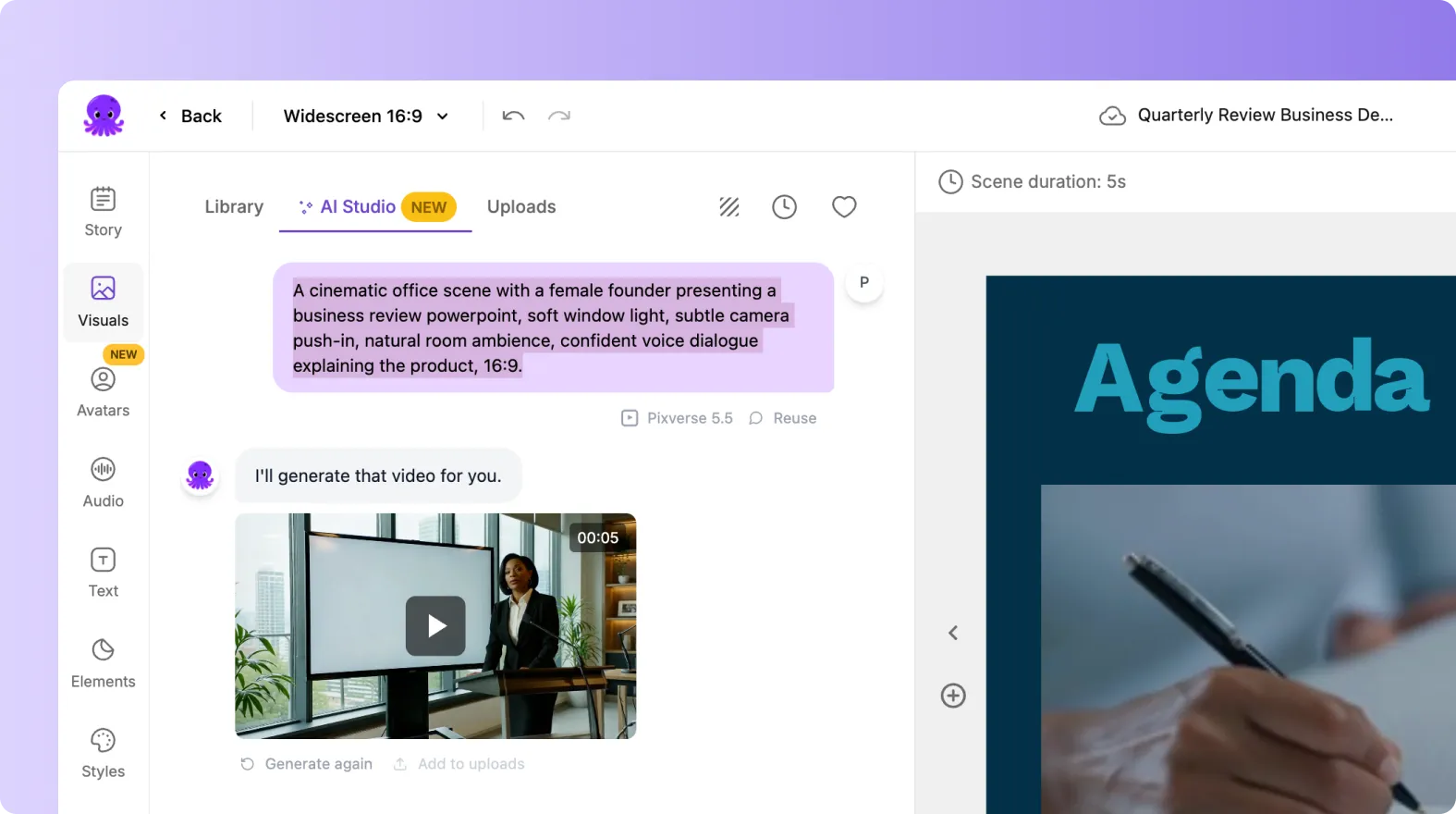
Open the Visuals tab to choose media from the stock Library, your Uploads, or generate custom visuals directly inside the editor using AI Studio. For regulated training, prioritize visuals that clearly match the script, especially for safety, compliance, and process demonstrations.
Use stock footage or images for generic concepts.
Upload screenshots, diagrams, or UI captures for software training.
Generate AI visuals when you need a consistent look without custom design work.
Step 3: Add professional voiceover and background audio
In the Audio tab, select an AI voiceover that fits your audience and region, preview options, and apply voice across scenes. Add subtle background music only if it does not compete with narration. For internal training, clarity usually beats intensity.
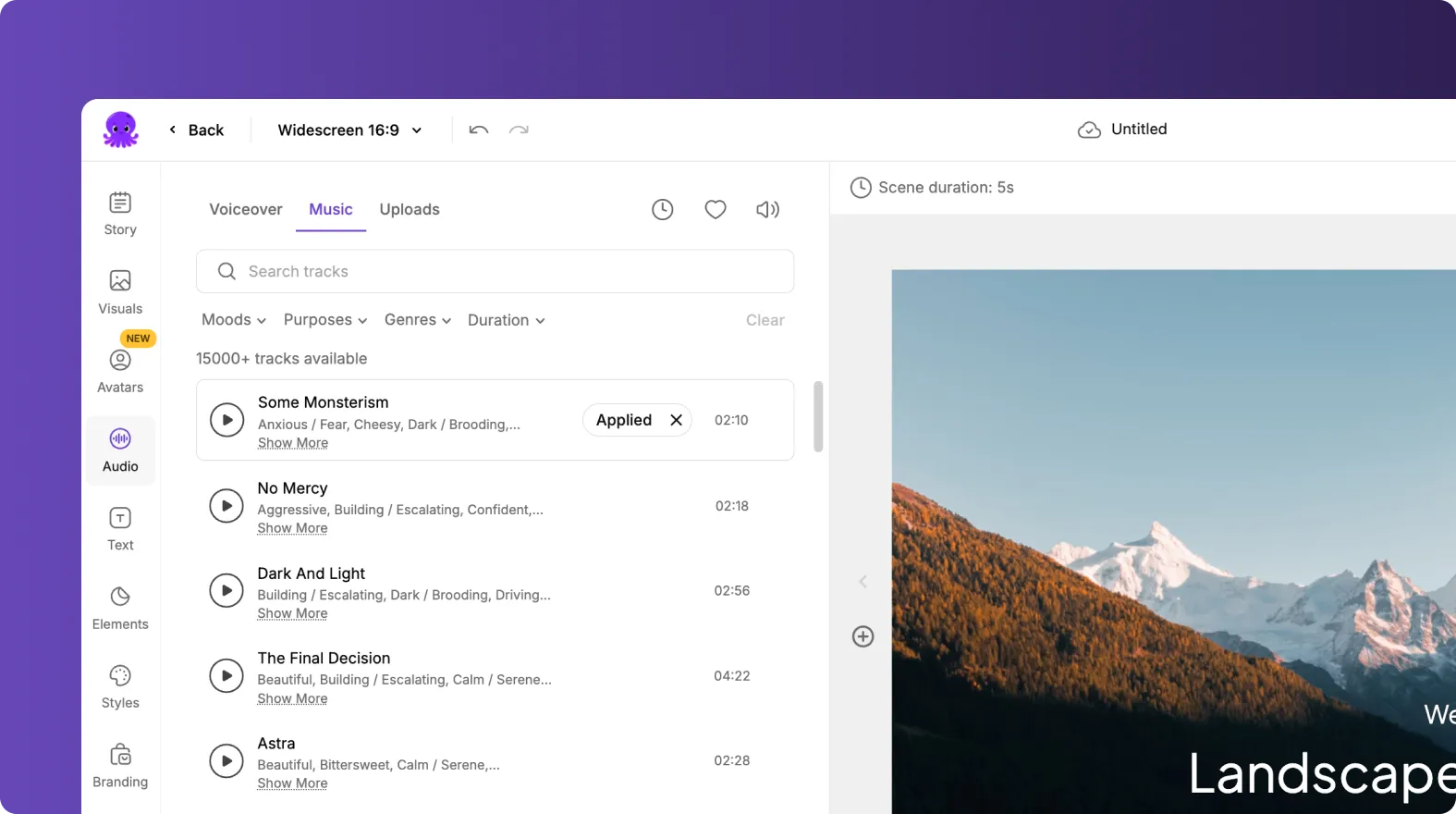
If you already have recorded narration, you can upload audio and build visuals around it using an audio-based workflow, then still finish in the same editor.
Step 4: Improve caption readability and on-screen text layout
Use Text and Layouts to ensure headings, key steps, and callouts are readable on different devices. Apply consistent Styles across the module to align with brand and accessibility guidelines. Adjust subtitle line limits to avoid dense captions.
If you add overlay text for definitions or step lists, use Animate Text in the top toolbar to apply subtle entry and exit effects and guide attention without distracting learners.
Add AI avatars and presenter-led scenes for enterprise training videos
When you need a more human delivery without scheduling SMEs on camera, add a presenter using the Avatars tab inside the editor. This can help with onboarding, policy updates, and internal communications where a consistent spokesperson improves trust and retention.
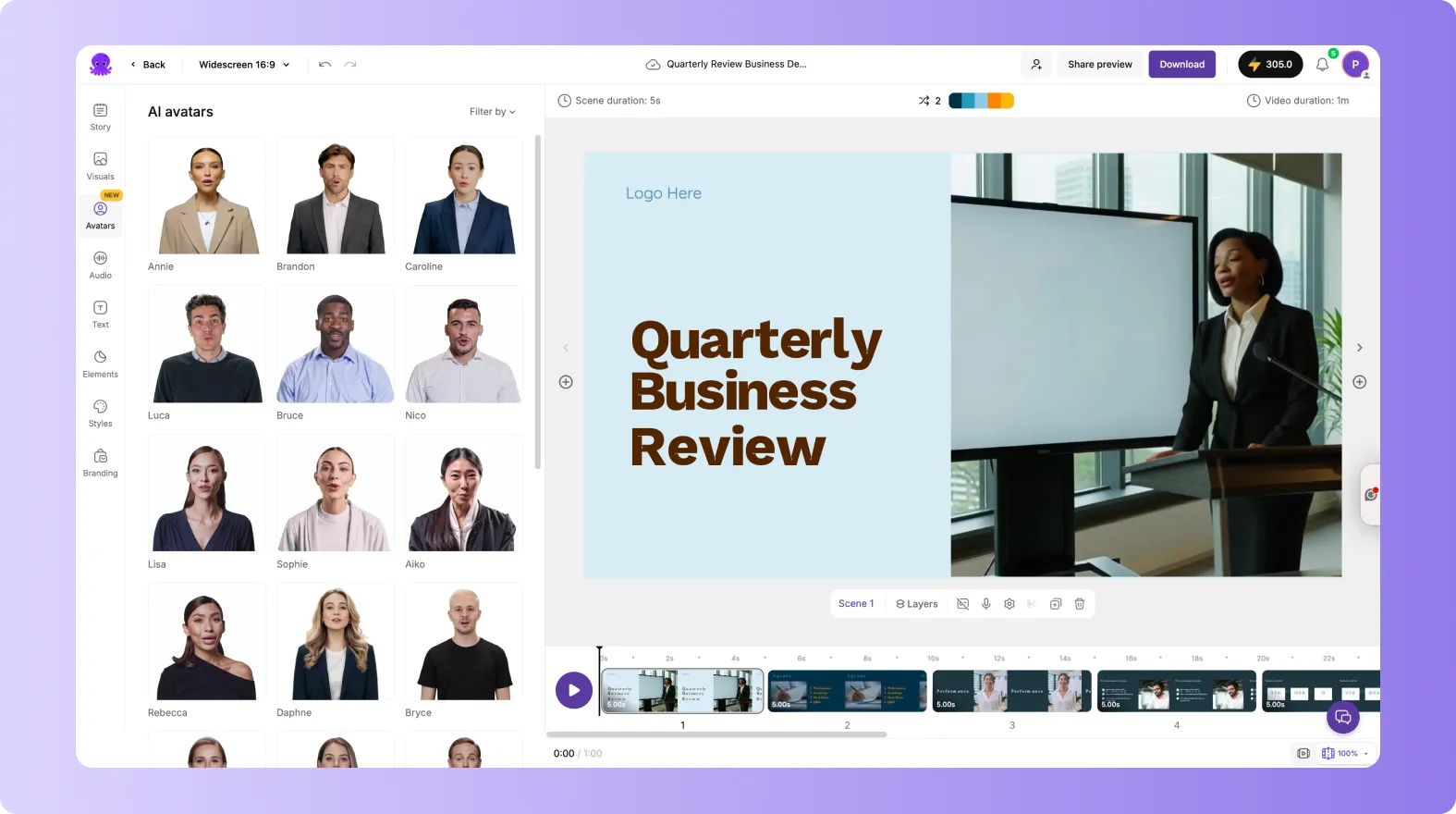
- Browse and filter avatars, then select an outfit or look variation.
- Choose a voice that matches the module tone and audience.
- Apply the avatar to one scene for announcements, or across multiple scenes for consistent instruction.
- Resize and reposition the avatar so it does not block key on-screen elements.
For software walk-throughs and demos, consider recording the process first with Smart Screen Recorder, then edit and caption it with AI for fast updates.
Quality checks, collaboration, and export for LMS-ready delivery
Before publishing, run a quick QA pass to ensure instructional integrity and brand compliance.
- Preview the full video to confirm pacing, scene cuts, and visual accuracy.
- Verify spelling for policy terms, product names, and regulated language.
- Confirm logo placement, fonts, and colors match your Brand Kit standards.
- Check captions for readability and timing.
When ready, use Download Video to export. You can also use Share preview from the editor to collect stakeholder feedback faster. Save projects under My Projects so your team can duplicate modules, localize versions, or update a single scene without rebuilding the entire course.
FAQ: Text to Video for eLearning Developers: Building Courses Faster With AI Video
What is the best way to format a script for a text to video AI generator?
Write short sentences, keep one idea per line, and use line breaks where you want scene breaks. This helps the AI segment content cleanly and makes captions easier to read in training modules.
Can I add text to a video and control where it appears on screen?
Yes. In the editor, use the Text and Layouts tools to place headings, subheadings, and body text overlays. You can also apply Styles and adjust spacing, outlines, and shadows for readability.
How do I keep training videos brand-consistent across multiple course authors?
Use Brand Kits to standardize logo, fonts, and colors, then apply the brand in the project. This ensures every video produced by your team follows the same visual system without manual formatting in every scene.
Is Pictory an AI video editor or only a text to video tool?
Pictory supports both. You can generate from scripts using Text to Video and then refine using the AI Video Editor with scene-level controls, visuals, audio, styles, branding, and avatars.
How can eLearning teams update training videos quickly when policies change?
Keep projects saved in My Projects, duplicate the module when needed, and edit only the affected scenes. For policy pages and documentation updates, using URL to Video can also speed up refresh cycles by generating a new draft script from the updated source.


