
Pictory AI Studio
AI Studio: Create Images and Video Clips From a Prompt
AI Studio is the generative engine inside Pictory’s video editor: a prompt in, an image or a short clip out, straight into your scene.
- Images and video clips from a prompt
- Ten AI models for images and video
- Edit, animate or extend what you make
- Saved to Uploads for your next video

4.6/5Trusted by over 20,000 teams and institutions worldwide.





What is AI Studio?
AI Studio is the generative AI tool inside Pictory’s video editor, in the Visuals tab. You describe the image or video clip you need, AI Studio makes it, and you add it to a scene without leaving the editor. It is Pictory’s own studio, built into the AI studio editor.
An AI image and video generator for your scenes. Use it when the stock library has nothing that fits: a product on a set, a scene from a story, a background for a title. Pictory AI Studio works with the rest of the Pictory platform, so the voice, captions and brand stay in one place.
Generated visuals are saved to Uploads, so you can use them again in your next video.

PromptA bright office, clean style
VisualAdded to scene 2
How it works
How to use AI Studio
To use AI Studio, select a scene, open the Visuals tab and choose AI Studio. Describe the image or clip you need, pick a model and a style, and generate. Preview the options, change the prompt and generate again if you need to, then apply one to the scene or save it to Uploads.
Open AI Studio
Select a scene, open Visuals and choose AI Studio.
Write a prompt
Describe the subject, style, setting and mood.
Pick a model and generate
Choose a model, a style and a shape, then generate.
Apply it or save it
Add it to the scene, or save it to Uploads for later.

Features
AI video studio features: images, clips and edits
Images
Images from a prompt, edited with a prompt
Go from prompt to image, or edit an image you have with a prompt such as “Make it purple”. Pick a style: Photorealistic, Artistic, Cartoon, Minimalist, Vintage or Futuristic.
- Images from a prompt
- Edit an image with a prompt
- Six styles
Video clips
Short video clips, extended or with sound
Generate video clips from a prompt, animate an image, or extend a clip with a new prompt, even one you uploaded. AI Studio is also an AI video clip generator with sound: on the video models that make it, characters can talk.
- Video clips from a prompt
- Animate an image
- Extend any clip
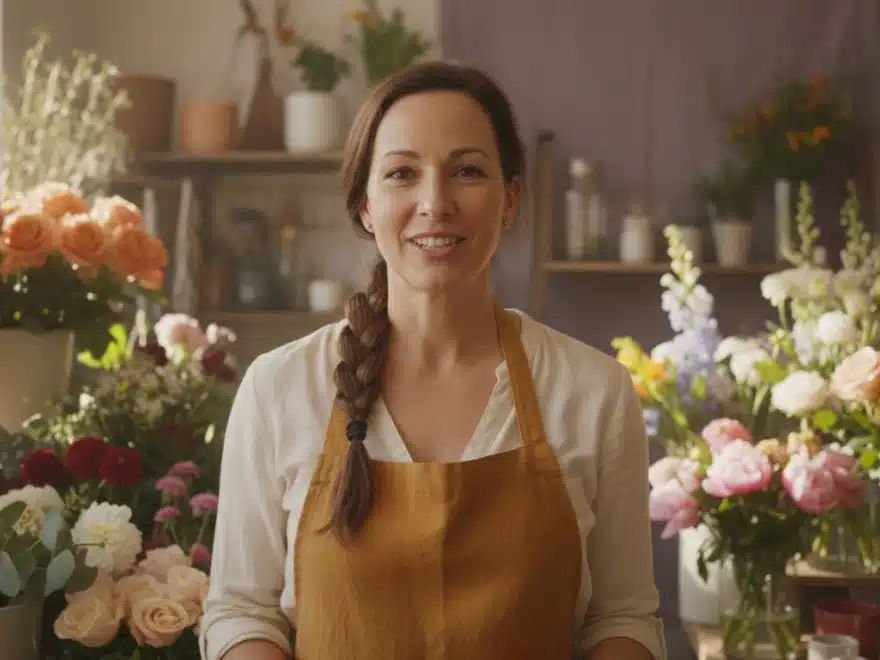
Clip with soundFrom a prompt
ExtendedNew prompt
Consistency
The same character, product and brand in every scene
Add reference images to keep a person or a product the same from scene to scene, get up to four versions to choose from, and let your brand kit guide the look.
- Reference images
- Up to four versions at once
- Brand kit guidance
AI Studio
Create any image or video you need with generative AI
The latest image and video models, built into the editor. Generate it, then drop it straight into your scene.

Generate and edit images
Describe it, or edit an existing image with a prompt.

Keep characters consistent
Use reference images to keep the same person or product in every scene.

Create video clips with sound
Generate clips with audio. Yes, characters can talk.

Extend any clip
Keep any clip going with a new prompt, even one you uploaded.
 ✓
Get four options at once
Generate up to four versions and keep the best one.
Stay on brand
Bring in your brand from a website, a document or a logo, and it is applied to every scene.


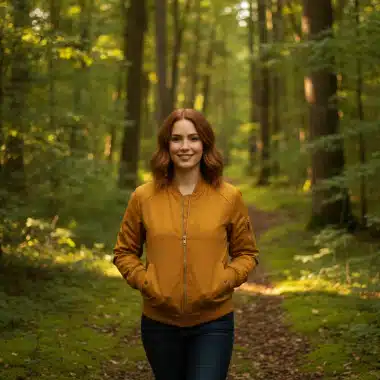


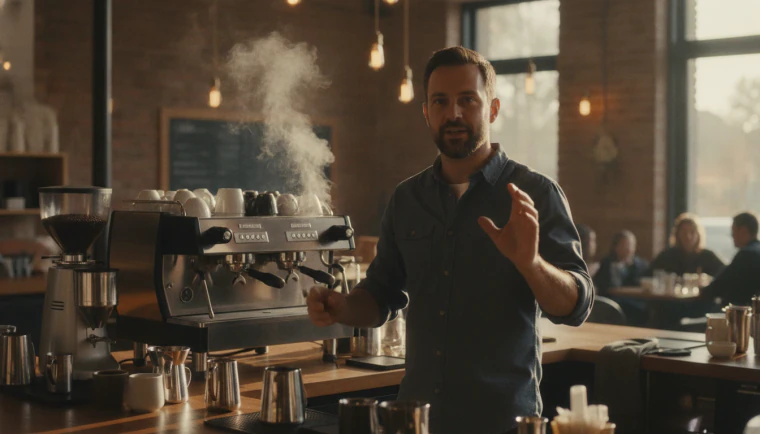
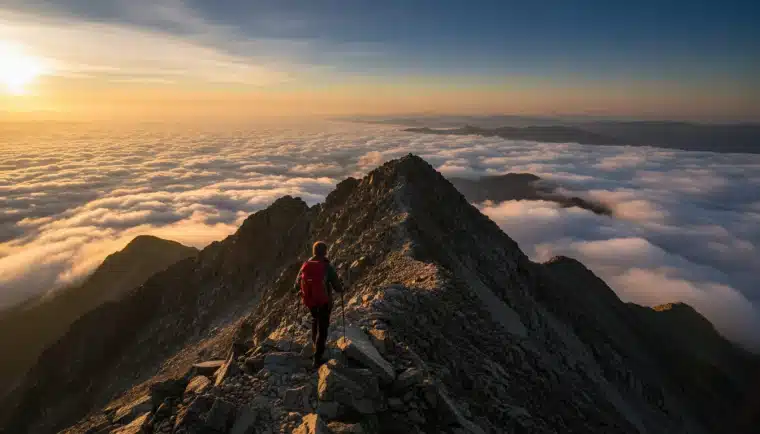


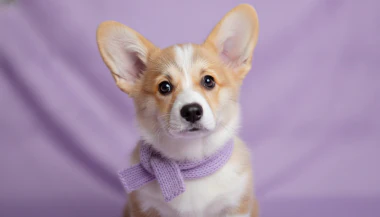
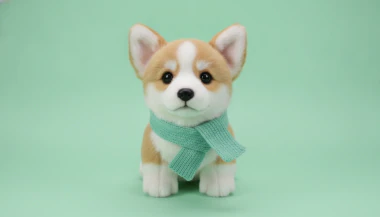

 ✓

Choose your model
Pick a model for stills or 5 to 10-second clips.
Also in AI Studio: Nano Banana Lite for images and Omni Flash for video.
Models
Choose an AI model for each visual
The models are built for different jobs: a quick social clip, a realistic hero shot, a title card with words in it. AI Studio has four video models and six image models, named in the band above, and every model’s credits are on the AI models page.
Prompts
Write a good prompt
Subject, style, setting and mood
A good prompt names the subject, the style, the setting and the mood. Start from one of the Academy’s examples: “Person typing on a laptop in a bright office, clean style”, “A futuristic city skyline at night, high detail” or “Simple illustration of a team meeting, flat design”. If the result is close, try a different style word, such as “photo realistic”, “minimal illustration” or “warm color palette”, and generate again.
How to write good image prompts
PromptTeam meeting, flat design
StyleMinimalist
B-roll
AI b roll and scene visuals from a prompt
When a scene needs footage the stock library doesn’t have, AI Studio works as an AI b roll generator: describe the shot, go from prompt to video, and add it as the scene’s visual or as a layer. Use it as an AI scene generator, an AI video background generator for a title or an AI visuals generator for any scene. You choose and place every visual.
Compare
AI Studio or stock?
Stock is searched and picked; AI Studio makes a new visual from your description when nothing in the library fits. Use both in one video: the stock library, your Uploads and AI Studio sit side by side in the Visuals tab.
| AI Studio | Stock library | |
|---|---|---|
| What you get | A new image or clip made from your description | Photos and clips you search for and pick |
| When to use it | Nothing in the library fits the scene | The library has the shot you need |
| Where it is | Visuals tab, AI Studio | Visuals tab, stock search |
| Credits | Generated visuals use AI credits | Stock visuals use no AI credits |
Brand
Keep AI visuals on brand
Your brand kit guides the look of what AI Studio makes: colors, fonts and logo. Generated visuals are saved to Uploads, so a character or a product shot can be used again, and on the Teams plan the whole team shares the brand kits.
Use cases
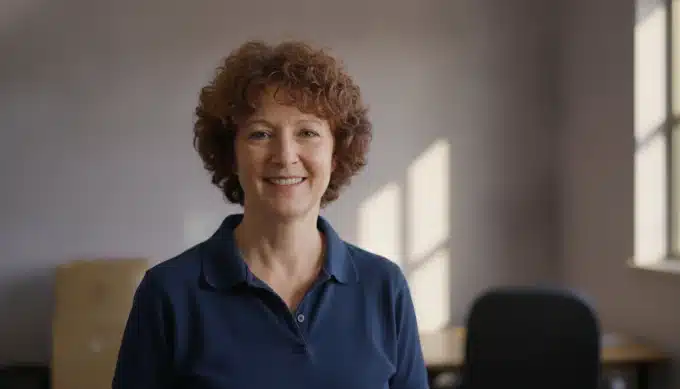
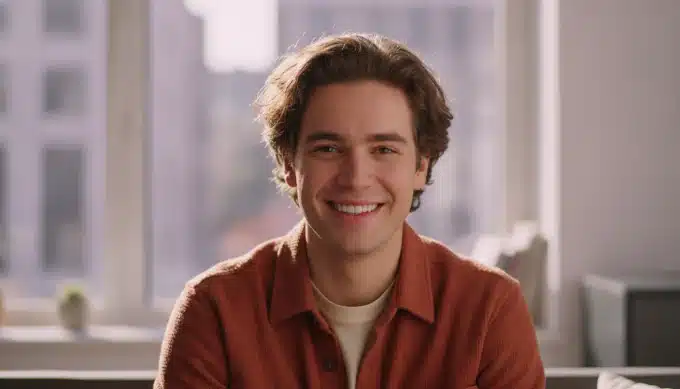
Who is using the AI video studio?


Free trial
Free trial and credits
The free trial’s 300 credits work on every model. Generated visuals use credits, and each model’s cost is on the AI models page; stock library visuals use no AI credits. The trial lasts 14 days with no credit card required, downloads on it are watermarked, and plans start at $25 a month, billed annually.
More AI video features
Your complete AI video generation tool
AI avatars
Add a talking presenter, or a digital twin of you.
Captions
Accurate, synced captions in your brand style.
Translation
Captions and voiceover for every market.
Text editing
Edit the transcript to edit the video.
Team workspaces
Share projects and brand kits with your team.
API
Generate branded videos from your own product.




Why Pictory
Loved by creators, trusted by enterprise teams
From solo creators to global marketing teams. Read the case studies
4.6 / 5
Average rating on G2, plus Capterra’s Best Ease of Use award for 2025.
20,000+
companies and institutions creating video with Pictory.
SOC 2
and GDPR compliant, ready for enterprise security reviews

 GDPR





Case studies
Teams that scaled video with Pictory

“Pictory is the easiest, most efficient way to get from an idea in text to multimedia imagery on the screen. It’s the critical component to get us out of death by PowerPoint.”
Read the Whirlybird Labs case study“Pictory helps us consistently deliver the high-quality videos we’re known for, content we’re proud of and our clients are proud to use. They always get a five-star response.”
Read the VRC case study“82% of our 10,000+ partners keep coming back to our training videos even though they aren’t mandatory courses. That’s how we know the content’s working.”
Read the AppDirect case study“It increased subscriber growth by 78% and cut my video creation time from a couple of hours to a few minutes. It’s been a godsend.”
Read the NetRock case study“Through Pictory videos, leads up by 500%, video production costs are down 90%.”
Read the Online Super Tutors case study“We only launched our new app a few months ago and already have over 500 subscribers. People come back regularly to watch more videos made with Pictory.”
Read the Game of Yield case study


In Pictory’s editor: select a scene, open the Visuals tab and choose AI Studio. It sits beside the stock library and your Uploads.
Both. Choose image or video, describe what you need and pick a model. Video clips come from the video models, and some of them make sound too.
Yes. Edit an image with a prompt, change its style, animate it into a clip, or extend a clip with a new prompt. You can also generate again for new options.
Four video models (Veo 3.1, Veo 3.1 Fast, Pixverse 5.5, Omni Flash) and six image models (Nano Banana Pro, Nano Banana, Nano Banana Lite, Seedream, Flux, Nova Canvas). The AI models page compares them.
Yes. The free trial’s 300 credits work on every model, and each model’s cost per image or per second is on the AI models page. Downloads on the free trial are watermarked.
Stock is footage and photos you search for and pick. AI Studio makes a new visual from your description, which helps when nothing in the library fits. You can use both in one video.
Yes. Describe the shot and add the clip as a scene’s visual or as a layer. You choose where it goes.
Not Just a Studio
Explore our AI Generative Tools and Other Features