
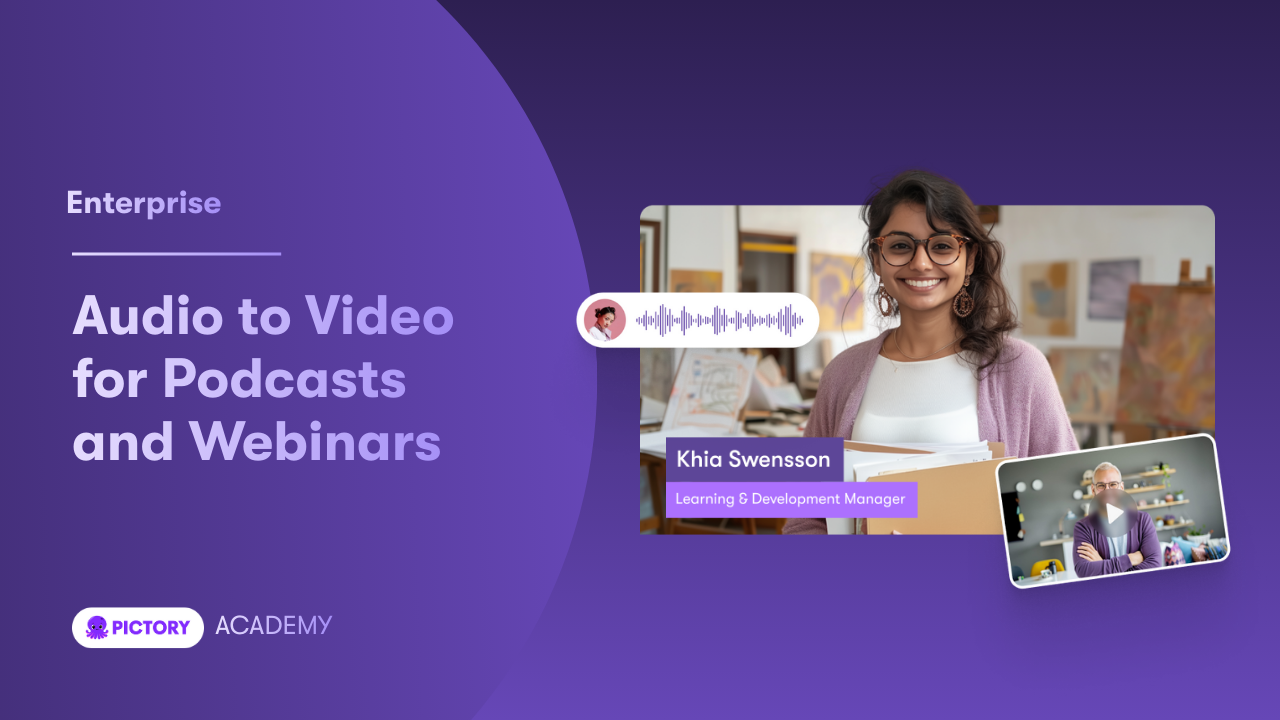
Podcast growth increasingly happens on video-first platforms. With Pictory, you can turn podcast audio into professional video assets quickly, at scale, and with brand consistency across your team. This workflow is ideal for marketing, sales enablement, L&D, and creator teams that need a repeatable way to convert episodes into shareable clips, audiograms, and full-length YouTube videos without expensive editing resources.

To get started in the full workspace, open Pictory and choose an audio-first workflow, then customize visuals, captions, music, and branding in the editor.

Why text to video AI matters for podcast creators and enterprise teams

Using a text to video AI workflow for podcasts helps teams repurpose long-form audio into multiple formats while maintaining speed and quality. Pictory automatically transcribes audio, builds scenes, and matches visuals to your spoken content, so you can produce video content without manual timeline editing.

  • Scale output: Convert one episode into multiple video assets for YouTube, LinkedIn, and Shorts.

  • Reduce production overhead: Replace expensive editing cycles with an AI-powered workflow.

  • Improve accessibility: Captions and on-screen text make your content easier to consume without sound.

  • Maintain brand consistency: Apply brand kits for logos, fonts, and colors across every video.

Best use cases for AI text to video for podcast repurposing

This text to video generator approach works for both external marketing and internal communications. If you want to create additional video formats from text sources too, you can also use Pictory’s Text to Video generator or URL to Video for blog and landing-page repurposing.

  • Full episode videos with captions and stock visuals

  • Short highlight clips for social media from key moments

  • Video podcasts with branded layouts and lower-thirds

  • Internal podcast updates for leadership communications

  • Sales enablement soundbites and microlearning snippets

How to convert podcast audio to video in Pictory (Audio to Video workflow)

Follow these steps to turn podcast audio into video assets using Pictory’s Audio to Video workflow. This is the fastest way to go from audio upload to captioned video with a storyboard you can refine in the AI Video Editor.

Step 1: Start an Audio to Video project in AI Studio

From your Pictory dashboard, select Audio to Video to begin a podcast-to-video project.

Step 2: Upload your podcast audio file and choose the language

Upload your audio by dragging and dropping the file or browsing your computer. Pictory supports files up to 5 GB and up to 180 minutes. Select the correct language so transcription and captions are accurate.

When the upload finishes, click Open Transcript Editor to proceed.

Step 3: Wait for transcription and storyboard processing

Pictory automatically transcribes your audio and starts building a video storyboard. During processing, you may see status updates such as visual searching progress while scenes are generated.

Step 4: Edit the transcript for clarity and pacing

In the Transcript Editor, refine your transcript before finalizing the video. Use the available editing tools to improve readability and reduce post-production work.

  • Search and replace to standardize terms, product names, and speaker labels

  • Auto highlight important phrases to identify clip-worthy moments

  • Toggle to remove filler words

  • Toggle to remove silences to tighten pacing

Step 5: Set subtitle style and brand elements for a professional look

Configure subtitles to match your brand and platform requirements:

  • Set maximum lines per subtitle for readability

  • Choose from the style library such as Navy Blue, Indigo Ink, Sleek, Clean, or Default

  • Apply your brand kit for consistent logos, fonts, and colors

This is also where teams standardize formatting across series and departments for brand-safe, enterprise-ready video output.

Step 6: Create the video and open the AI Video Editor

Click Create Video to generate the storyboard-based video. You will enter the editor where you can refine scenes, visuals, audio, and on-screen text using the same workflow found in the AI Video Editor.

How to enhance podcast videos with visuals, layouts, and captions (text to video editor tips)

Once you are in the editor, use the left sidebar tools to turn a basic captioned video into a polished video podcast. This is where text to video generation becomes a repeatable production system.

  • Story: Adjust scene text, split or merge scenes, and refine narration structure.

  • Visuals: Choose stock footage from the Library, upload custom brand visuals, or generate fresh assets inside the Visuals tab using AI Studio.

  • Audio: Add background music or upload audio stingers for intros and outros.

  • Text: Add titles, speaker names, and chapter markers for easier skimming.

  • Elements: Add icons, shapes, or badges to highlight key ideas and calls to action.

  • Styles and Branding: Standardize fonts, colors, logos, and overall style across episodes.

If you also create companion content like episode recap posts, you can repurpose them into videos with URL to Video or build short scripted promos using the Text to Video generator.

How to create short clips and highlight reels from podcast audio using AI

For social-first distribution, create multiple short videos from a single episode. In the Transcript Editor, use the Highlights tab to identify moments that should become clips, then generate shorter outputs for different platforms.

  • Create short-form assets for product announcements, guest quotes, or key insights

  • Use captions and on-screen text to improve retention on silent autoplay feeds

  • Maintain consistent branding across all micro-content

For teams that also record webinars or on-screen interviews, you can capture new content directly with the Smart Screen Recorder and then edit it using the same transcript-based workflow.

Enterprise best practices for brand-consistent podcast video production at scale

Enterprise teams need speed, governance, and predictable outputs. Use these practices to operationalize your text to video AI process across shows, business units, and campaigns.

  • Use Brand Kits: Standardize logo, fonts, and color palette so every video matches your identity.

  • Build repeatable templates: Keep consistent title cards, lower-thirds, and outro calls to action.

  • Set subtitle rules: Define maximum lines and approved styles for accessibility and compliance.

  • Create a clip taxonomy: Define categories like Thought Leadership, Product Proof, Customer Stories, and Hiring to accelerate distribution.

  • Reduce review cycles: Share previews from the editor for stakeholder feedback before exporting.

If your team also turns slide decks into narrated videos, you can standardize that workflow with PPT to Video, and if you have image-heavy stories or case studies, use Image to Video to generate fast sequences.

FAQ: Text to Video for Podcast Creators: Turn Audio Content Into Video Assets

Can I turn a podcast episode into a video automatically with AI?

Yes. With Pictory’s Audio to Video workflow, you upload your podcast audio, Pictory transcribes it, generates captions, and builds a storyboard with matched visuals. You can then refine everything in the editor for a polished result.

How do I transcribe a video or audio to text for captions?

Pictory automatically performs video to text transcription and audio transcription during processing. After upload, you can edit the transcript, remove filler words, remove silences, and format subtitles before creating the final video.

Is Pictory a text to video AI generator or an audio to video tool?

It is both. Podcast creators typically use Audio to Video, while scripts and written content are best produced with the Text to Video generator. Many teams use both workflows to support episode videos plus promotional clips and ads.

How do I add text to a video for my podcast clips?

In the editor, use the Text tool to add headings, speaker labels, and callouts on top of your visuals. You can also control subtitle styling and line limits to ensure readable, professional captions.

What file size and length limits should enterprise podcast teams plan for?

Pictory supports audio uploads up to 5 GB and up to 180 minutes. For best performance and faster processing, many teams segment very long recordings into episodes or chapters before uploading.

Can I keep podcast videos brand-consistent across a team?

Yes. Apply Brand Kits to enforce logos, fonts, and colors across projects. This makes it easier for multiple creators and departments to produce consistent, on-brand video assets from podcast audio.

What other Pictory workflows help podcast creators repurpose content?

In addition to Audio to Video, teams often use URL to Video for episode pages and blog recaps, PPT to Video for webinar slide conversions, and the Smart Screen Recorder to capture interviews, demos, or training content that can be edited with AI.

Harness the power of AI for your enterprise with amazing video creation tools to grow your audience while saving you time!


