

In B2B sales enablement 2026, teams are expected to ship more video content across the funnel with fewer resources, tighter brand governance, and clearer proof of impact. Pictory helps enterprise sales enablement teams turn existing assets like scripts, webpages, decks, webinars, and recordings into professional, brand-consistent videos using an all-in-one AI video platform.
This guide shows how to build a scalable workflow for sales enablement video creation using Pictory workflows like text to video AI, URL to video, PPT to video, and the AI video editor, then standardize with Brand Kits and collaborate through Projects.
B2B sales enablement 2026 video strategy: what to build and why it wins
Modern enablement requires video that is modular, reusable, and optimized for where sellers actually work. Use Pictory to create a repeatable video system for:
- Outbound and prospecting: short explainers, product teasers, objection handling clips
- Mid-funnel acceleration: case study snippets, competitive positioning, security and compliance explainers
- Internal readiness: training updates, talk tracks, feature releases, playbooks, certification
- Customer expansion: onboarding walkthroughs, release notes, adoption campaigns
Enterprise teams benefit most when every video follows the same brand kit, layout rules, subtitle styling, and review flow so content can be produced quickly without rework.
Enterprise setup for sales enablement at scale with Brand Kits, Templates, and Projects
Before you generate your first enablement video, set up governance so every output matches your standards.
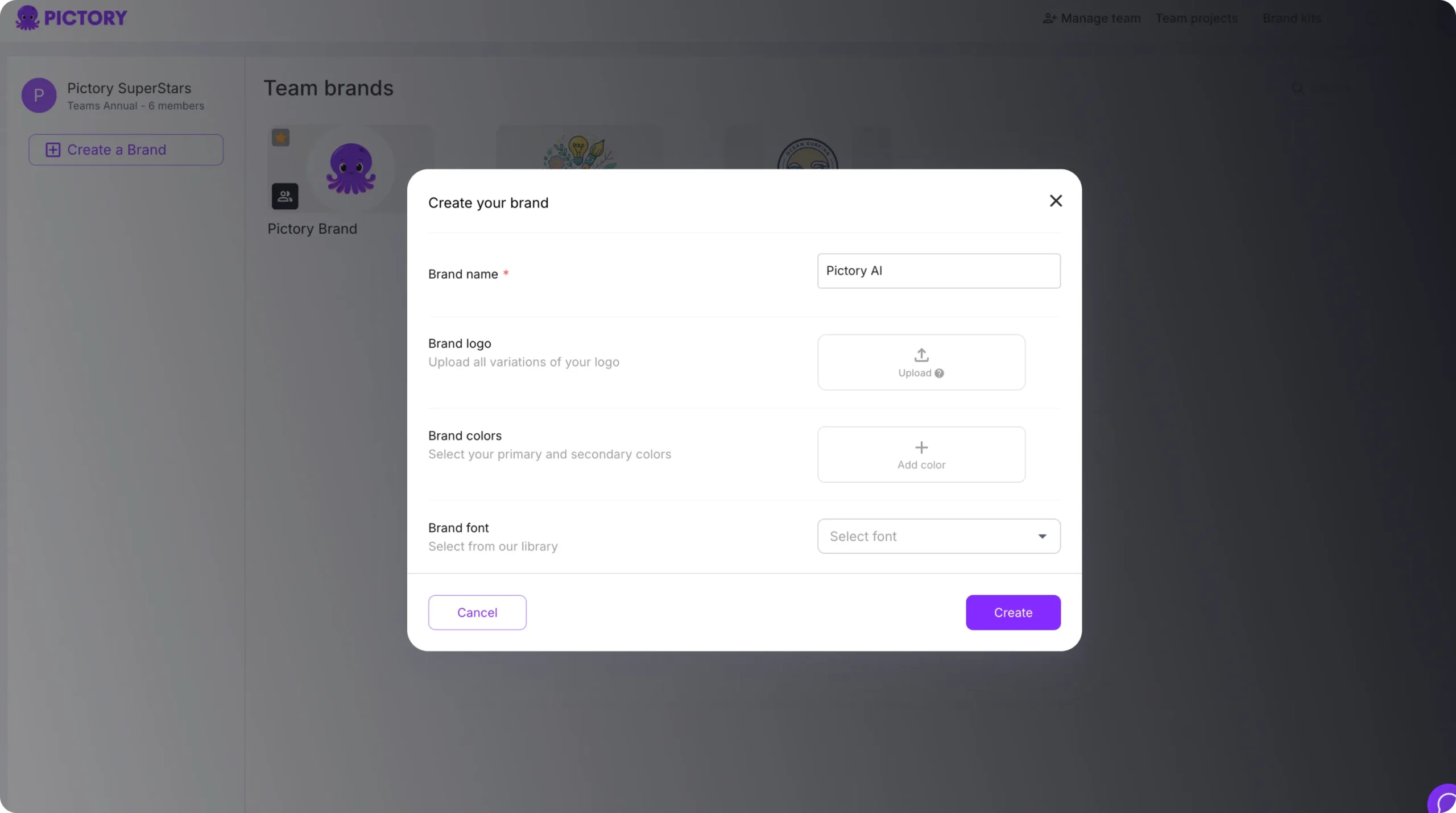
Step 1: Create a Brand Kit for brand-consistent sales videos
From the left navigation, open Brand Kits to create a standardized kit used across sales enablement videos.
- Brand Name: use a clear naming convention like “Sales Enablement Global” or “Product Line A”
- Brand Logo: upload approved logo variants
- Brand Colors: define primary and secondary colors for overlays and text
- Brand Font: select a consistent font from Pictory’s library
When testing alternates for accessibility or dark mode, use the color palette shuffle to preview combinations while staying on brand.
Step 2: Standardize design with Templates and Styles
Use Templates and the editor Styles to keep spacing, subtitles, and typography consistent across teams. Styles like Sleek, Clean, Bold, and Navy Blue help enforce a repeatable look without custom design work each time.
Step 3: Organize enablement assets with My Projects for search and reuse
Open Projects to manage your enablement library. Use search and sorting to quickly locate videos by launch, persona, industry, or region. This is essential when your B2B sales enablement 2026 library grows into dozens or hundreds of assets.
How to use text to video AI for sales enablement scripts and talk tracks
Use text to video AI when you have a finished script, a talk track, a messaging doc, or a sales sequence that needs a video version fast.
Step 1: Start a text to video AI generator project
From the Home page, select Text to Video. Paste your enablement script into the input field. Keep sentences short and include a clear call to action for the seller or the buyer.

Step 2: Configure scene settings for clarity and pacing
In the Script Editor, set your scene rules so the video is easy to skim and easy to localize:
- Choose an aspect ratio: 16:9 for LMS and internal enablement, 9:16 for mobile, 1:1 for social
- Enable scene creation based on sentences or line breaks
- Set max lines per scene to avoid dense captions
- Turn on highlight keywords for product claims, differentiators, and proof points
- Select your Brand Kit to enforce logo, fonts, and colors
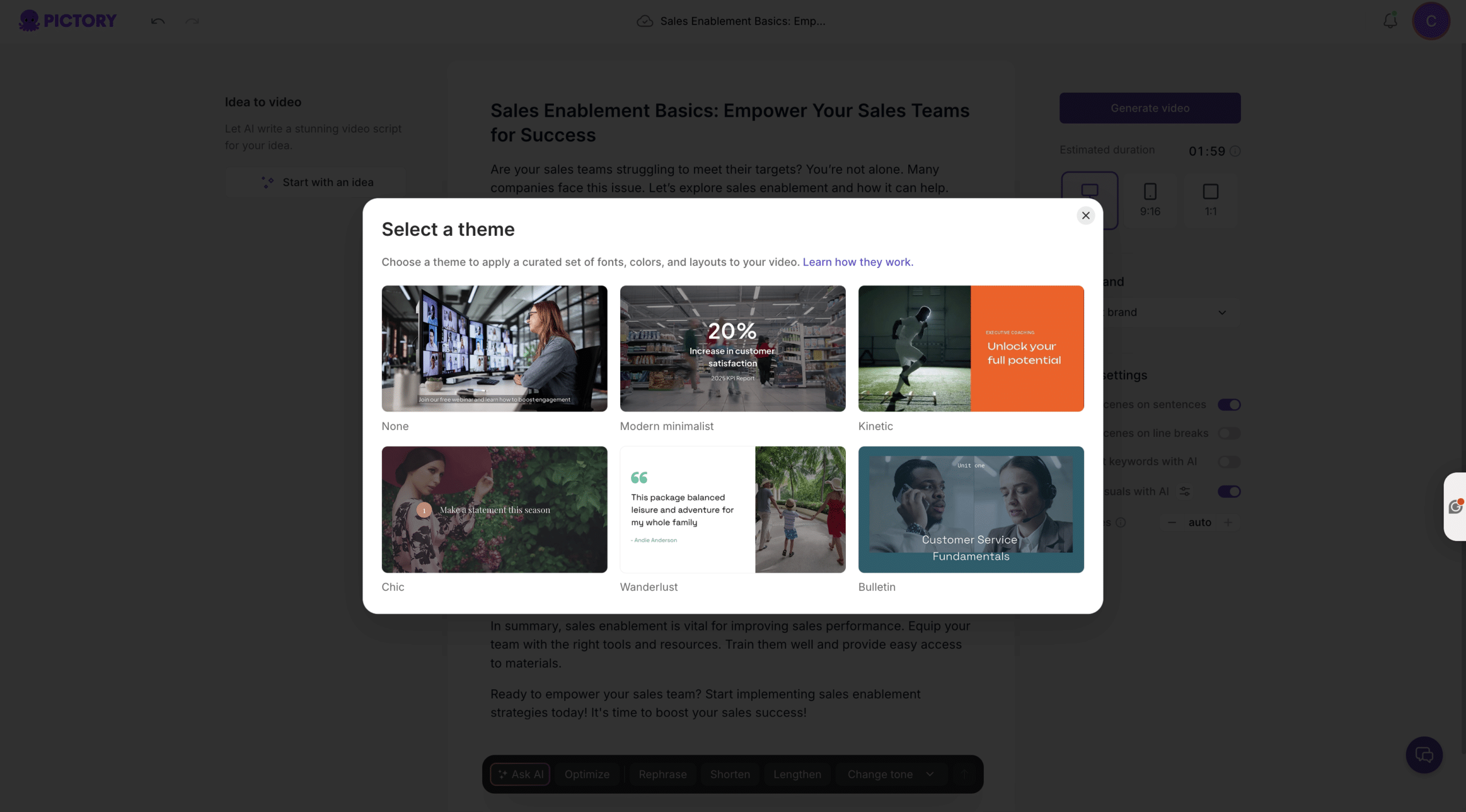
Step 3: Generate the video and choose a layout theme
Click Generate video, then pick a theme such as Modern Minimalist, Kinetic, or Bulletin depending on the enablement use case. A kinetic style can help for outbound hooks, while a clean bulletin style can work better for compliance or product training.
Step 4: Edit in the AI video editor and finalize for distribution
In the editor, refine scenes and timing. Use the left sidebar tools to quickly improve production quality:
- Story: tighten copy, reorder scenes, standardize the talk track
- Visuals: swap stock visuals, use Uploads, or generate scene-specific visuals using AI Studio prompt-to-image or prompt-to-video
- Audio: add AI voiceover and background music, or upload approved narration
- Text: add on-screen callouts and labels for features, proof points, and steps
- Elements: add icons, arrows, and shapes for “how it works” moments
- Branding: re-apply brand standards across the full project
How to convert product pages into enablement videos using URL to video AI
Use URL to video when your team already has product pages, solution pages, press releases, or knowledge base articles. This is a fast route to blog to video and convert URL to video workflows without manual rewriting.
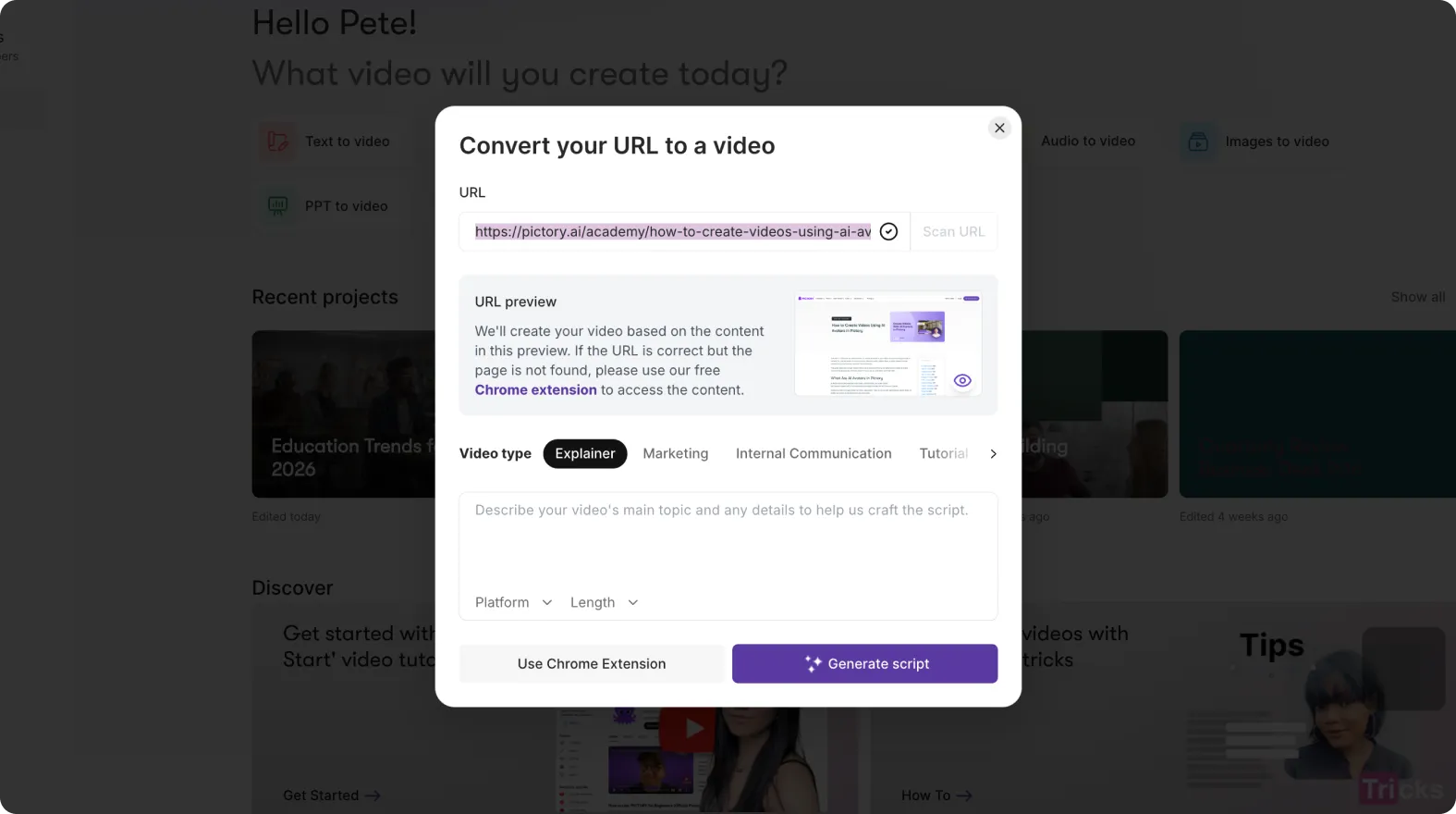
Step 1: Create a URL to video converter project
From Home, select URL to Video. Paste a valid link that starts with http:// or https://.
Step 2: Select video type, platform, and length for sales enablement usage
Choose a video type such as Explainer, Marketing, Internal Communication, or Tutorial. Then select the target platform and length to match how sellers will use the asset.
Step 3: Generate script, edit, then generate video
Click Generate Script. In the Script Editor, refine the extracted content into a seller-ready narrative. Apply your Brand Kit, confirm scene rules, then click Generate video to build the storyboard.
Step 4: Refine visuals, captions, and pacing in the editor
In the AI video editor, ensure the video does not read like a webpage. Replace dense paragraphs with crisp captions, add keyword highlights for differentiators, and swap visuals so the story supports common enablement outcomes like objection handling and competitive positioning.
How to convert PPT to video for sales training, playbooks, and product launches
Enablement teams often live in decks. Use PPT to video to turn internal slideware into reusable training videos, launch summaries, and onboarding modules.
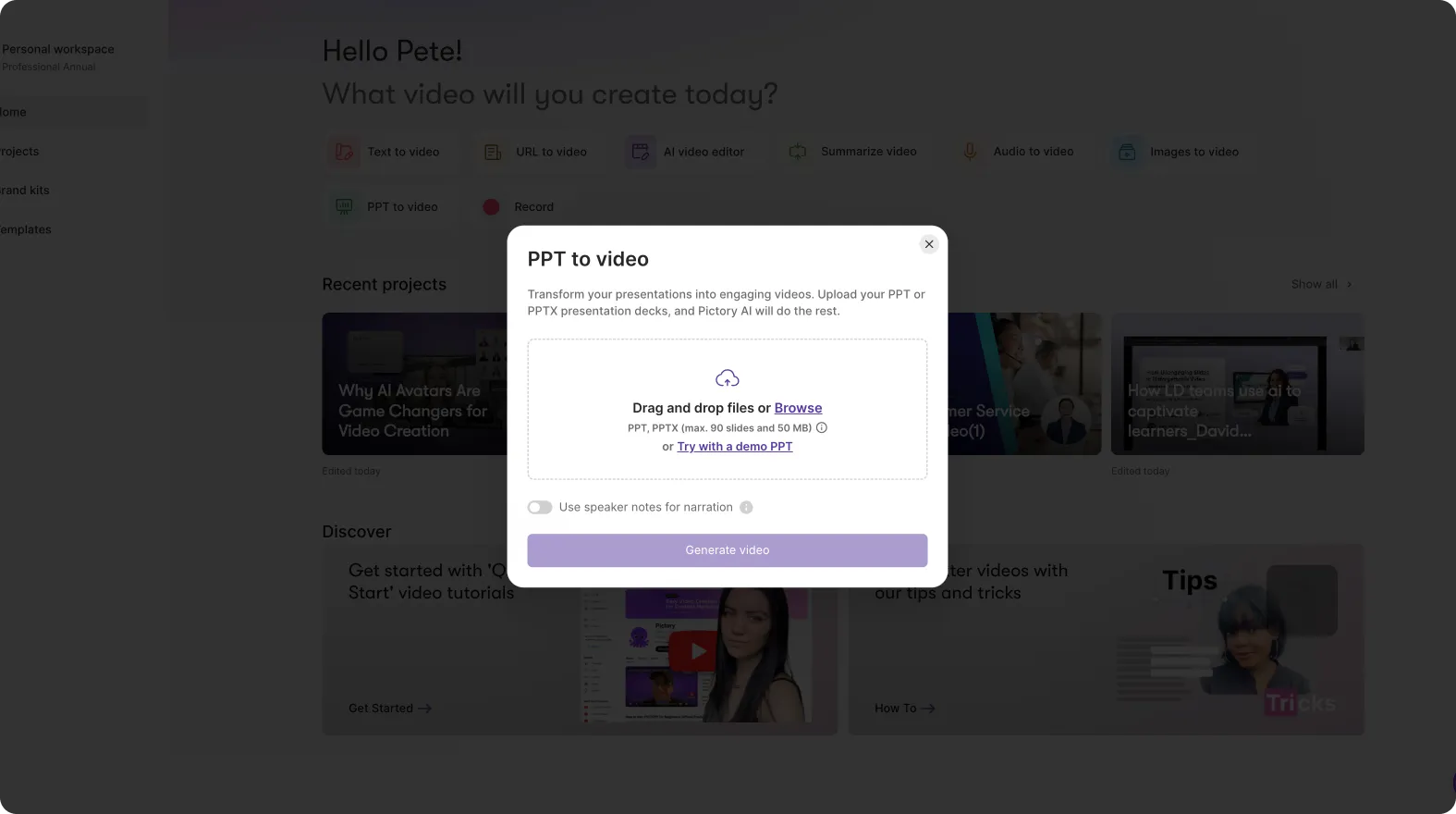
Step 1: Upload your PowerPoint and select narration options
From Home, choose PPT to Video. Upload a .PPT or .PPTX file up to 90 slides or 50 MB. If your deck has speaker notes, enable the option to use them for narration.
Step 2: Generate the storyboard and review scene mapping
Click Generate video. Pictory converts slides into a storyboard while showing progress. When ready, review how slides map into scenes and adjust text for clarity.
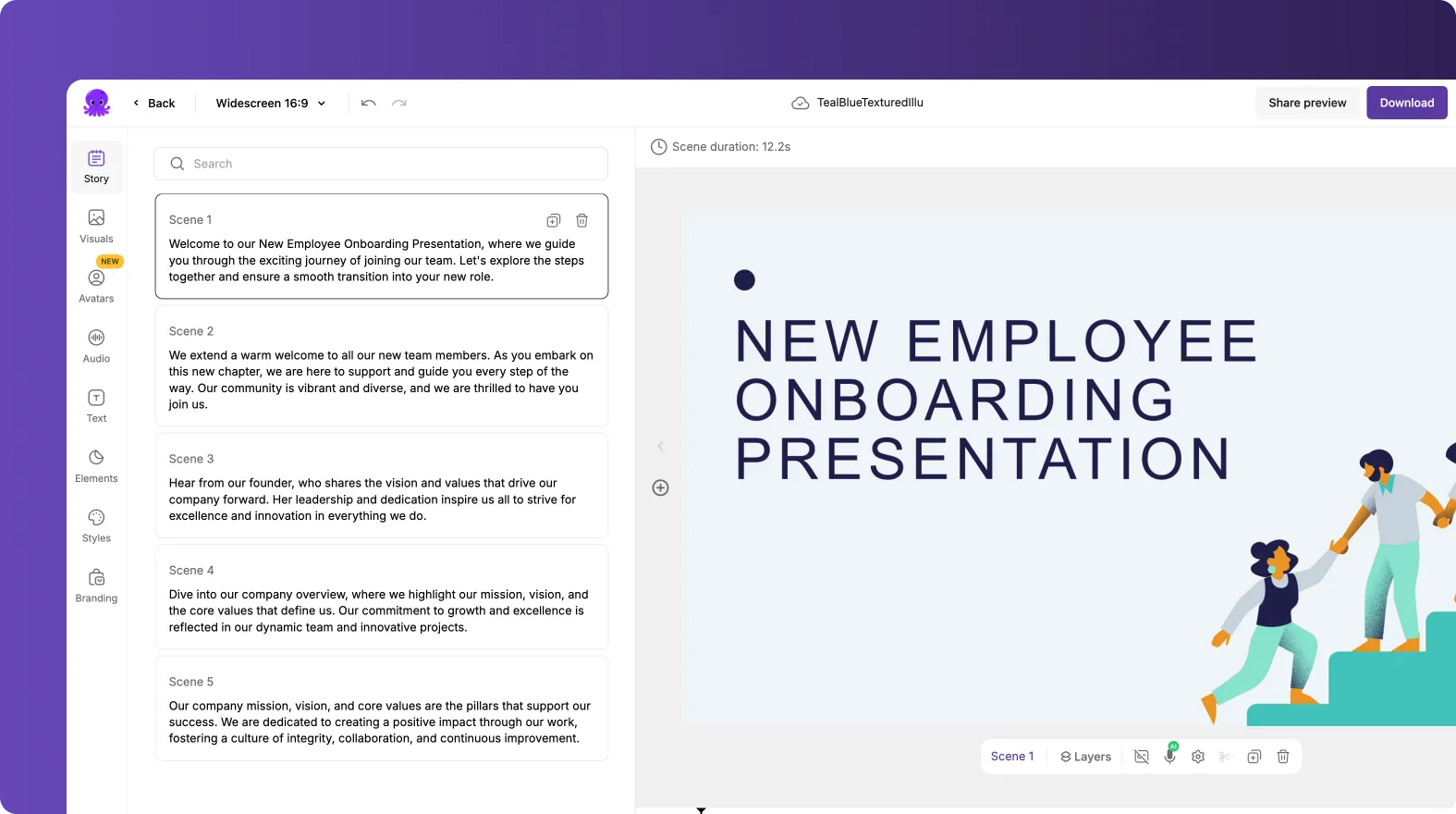
Step 3: Apply Brand Kit, update layouts, and standardize subtitle styling
Inside the editor, apply your Brand Kit, then use Styles and Layouts to standardize:
- Title and section break slides for chaptering
- Consistent subtitle max lines per caption
- On-screen labels for “Who it’s for,” “Problem,” “Solution,” “Proof,” and “Next step”
Step 4: Export versions for LMS, Slack, and field distribution
Use aspect ratios and concise versions to meet each channel requirement. Keep a long 16:9 training cut for LMS and create shorter updates for internal channels where attention is limited.
How to repurpose call recordings and webinars with the AI video editor and video to text transcription
In B2B sales enablement 2026, one of the highest ROI plays is turning real customer conversations into training and messaging assets. Use Pictory’s AI video editor to transcribe, clean up, and repackage recordings.
Step 1: Upload a video and generate video to text transcription
Open the AI Video Editor workflow and upload your file up to 5 GB and 180 minutes. Choose the language. Pictory automatically transcribes the video and notifies you when processing is complete.
Step 2: Clean the transcript to create seller-ready clips
In the Script and Transcript Editor:
- Use search and replace to standardize terms and product names
- Toggle remove filler words to tighten delivery
- Toggle remove silences to improve pacing
- Use auto highlight to surface key phrases for coaching and reinforcement
Step 3: Customize subtitles and apply brand governance
Set a readable subtitle style and max lines per subtitle. Apply your Brand Kit for consistent colors, fonts, and logo treatment across training libraries.
Step 4: Create storyboard scenes and polish in the editor
After transcript edits, generate storyboard scenes and refine in the editor. Use the updated timeline controls to move quickly through long enablement recordings, and use scene thumbnail actions like Duplicate, Copy, Paste after, and Delete to create multiple versions.
How to add AI avatars and on-screen text for sales enablement communications
When you need a consistent presenter for announcements, policy updates, or internal training, Pictory Avatars help teams scale delivery without booking studio time.

Step 1: Add an avatar to your enablement video
In the editor, open the Avatars tab in the left menu. Browse and filter avatar options, select a look variation, then choose an AI voice. Apply the avatar to one scene or across scenes as needed. Avatar usage consumes credits.
Step 2: Add text overlays for playbooks and talk tracks
Use the Text tab to add headings, subheadings, and body text overlays that reinforce seller actions, discovery questions, and next steps. This is also the fastest way to add text to video for enablement checklists and call scripts.
Step 3: Animate key callouts for attention and retention
Select a text box in the scene, then use the top toolbar Animate Text control to open Text Animations. Choose entry and exit effects like Fade, Typewriter, Wipe, or Text Reveal, set Speed, and apply to Entry only or both Entry and Exit. Use animations sparingly to keep enterprise videos clean and credible.
How to collaborate and review sales enablement videos using Projects and Share Preview
Enterprise enablement often requires feedback from product marketing, legal, and leadership. Pictory supports a simpler review loop by keeping everything in Projects.
Step 1: Save and organize your enablement content in My Projects
Use Projects as the source of truth. Name projects by use case and audience, and keep versions separate when testing different narratives or lengths.
Step 2: Share a preview for stakeholder feedback
From the editor, use the Share preview option to distribute a viewable preview to stakeholders. This reduces time spent exporting multiple drafts just to collect comments.
Step 3: Export final video deliverables for your enablement stack
When approved, use Preview for a final quality check, then Download video for distribution to your LMS, content hub, CRM, sales engagement platform, or internal channels.
FAQ: b2b sales enablement 2026
What is the fastest way to create enablement videos in Pictory for B2B sales enablement 2026?
Use Text to Video when you already have a talk track or script, or URL to Video to convert existing product pages and articles into a draft script and storyboard quickly. Then apply a Brand Kit for instant brand consistency.
Can Pictory help repurpose sales calls or webinars into training clips?
Yes. Upload the recording in the AI Video Editor workflow to generate video to text transcription, remove filler words and silences, then create storyboard scenes and export short, focused clips for coaching and onboarding.
How do we keep sales enablement videos on brand across regions and teams?
Create and enforce Brand Kits with approved logos, fonts, and colors, then apply the kit in the editor through the Branding tab. You can also standardize Styles and Layouts to keep subtitles and formatting consistent.
What Pictory workflow is best for turning decks into scalable sales training?
PPT to Video is the best fit. Upload your .PPT or .PPTX, optionally use speaker notes for narration, then generate a storyboard and apply Brand Kit styling for a consistent enablement library.
How do we add on-screen text and captions for talk tracks and objection handling?
Use the Text tab to add headings and callouts, and adjust subtitle settings such as max lines per subtitle and style presets. This is ideal for “how to” moments and playbook reinforcement.
Can we use AI avatars for internal enablement announcements or training?
Yes. Use the Avatars tab in the editor to add an AI presenter, select a voice, and apply the avatar across scenes. This helps deliver consistent messaging at scale without additional production overhead.
How do we speed up reviews with product marketing and legal?
Use Projects as your central library, then share a viewable draft using the editor’s Share preview option. This reduces rework and keeps approvals tied to the latest version.


