
Enterprise sales enablement in 2026 requires faster content production, tighter brand control, and proof of impact across the buyer journey. Pictory helps sales enablement teams, revenue leaders, and L&D partners convert existing assets into professional videos using an all-in-one AI video platform: text to video AI, URL to video, PPT to video AI, and an AI video editor for transcript based editing.
Use this guide to standardize how your team produces onboarding videos, product updates, competitive battlecards, customer stories, objection handling clips, and internal communications without increasing headcount or tool sprawl.
Enterprise sales enablement 2026 goals and the video workflows that support them
In enterprise sales enablement 2026 programs, video is no longer a nice to have. It is a scalable format for:
Sales onboarding and continuous training
New product launches and messaging updates
Competitive enablement and objection handling
Executive communications and internal alignment
Customer proof and use case libraries
Pictory supports these goals through enterprise friendly workflows that turn scripts, URLs, PPTs, and recordings into video quickly, then allow centralized editing and branding for consistency.
Enterprise video governance: brand kits, templates, and collaboration for sales enablement teams
Before you build your first enablement video, set up governance so every output matches brand and compliance expectations.
Brand Kits for logos, fonts, and colors to ensure brand consistency across regions and teams.
Templates and Styles to standardize title cards, lower thirds, and caption design.
Projects workspace to manage, search, and reuse approved assets across campaigns.
Collaboration to share projects, brands, and media across enablement and marketing teams.
How to set up Brand Kits for enterprise sales enablement videos
Step 1: Open Brand Kits and review existing brands
From the left navigation, open Brand Kits. Review the cards under My Brands to confirm whether your corporate brand, product line brand, or regional variants already exist.
Step 2: Create a new enterprise brand kit
Select Create a Brand and complete the required fields:
Brand Name
Brand Logo uploads (include variants used across light and dark backgrounds)
Brand Colors (primary and secondary)
Brand Font selection
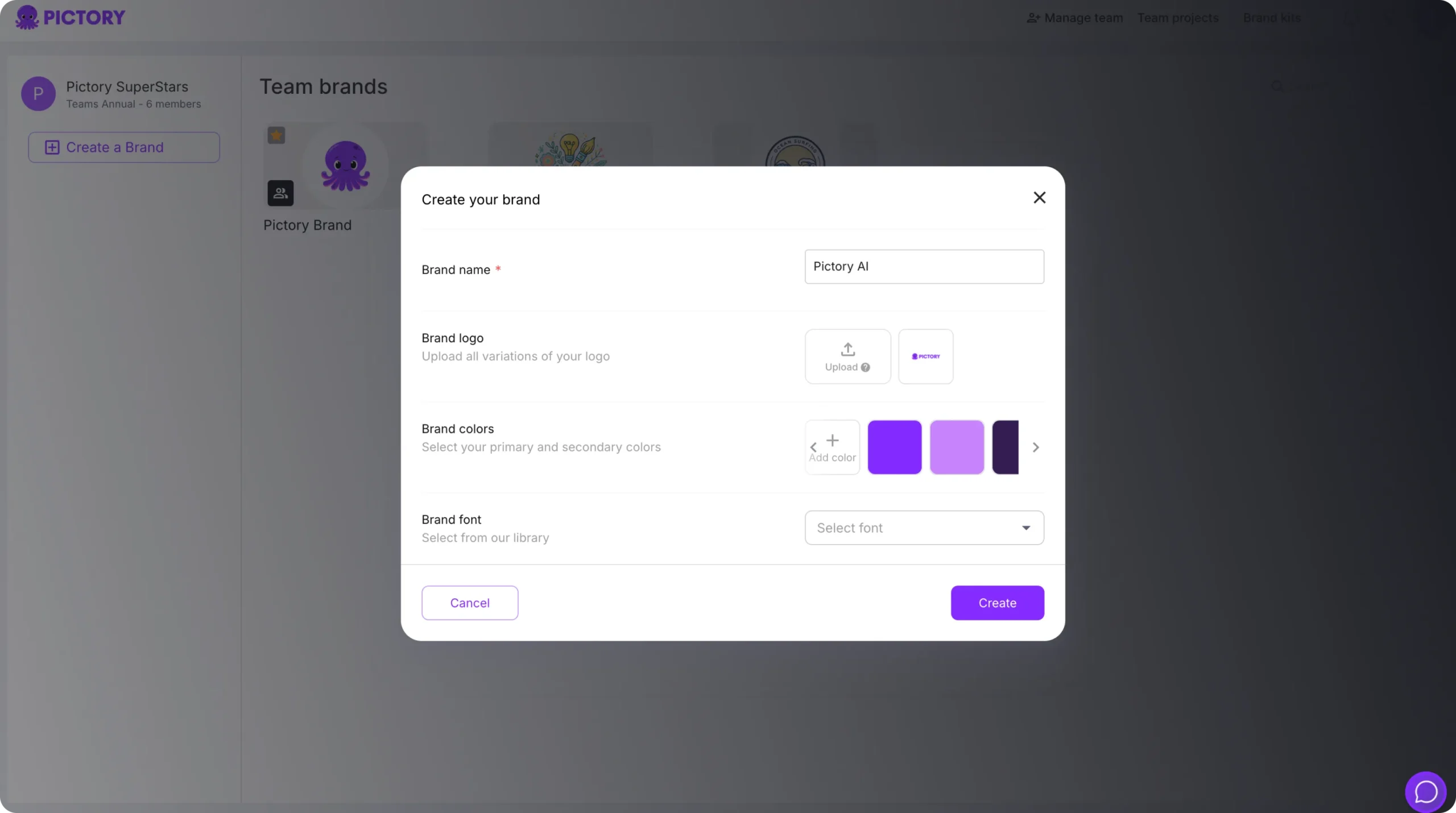
If your team supports multiple business units, create separate brand kits so enablement content stays accurate by audience and region.
Step 3: Apply the brand kit inside the AI video editor
In any project, open the editor and use the Branding tab to apply your brand kit. This ensures logos, fonts, and colors carry through consistently across scenes.
How to use text to video AI for sales enablement scripts and messaging updates
Use the text to video AI workflow when you already have approved messaging or a enablement script and need fast production. This approach is ideal for:
- Objection handling scripts
- New feature talk tracks
- Sales plays and call opening frameworks
- Internal communication updates from leadership
Step 1: Start a text to video AI project
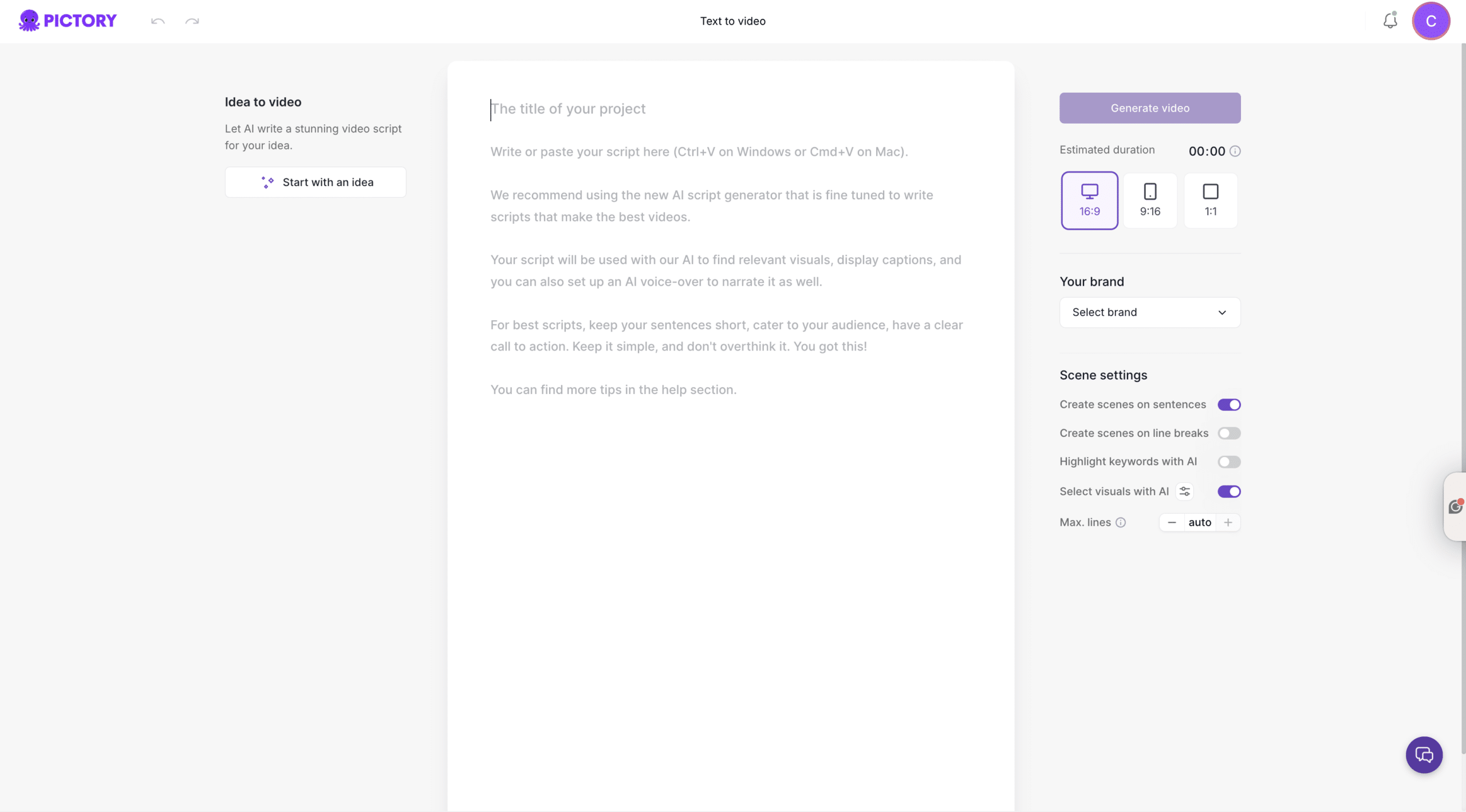
From the Home page, select Text to Video. Paste your script into the input field. Keep sentences short and include a clear call to action aligned to your sales motion.
Step 2: Configure scene settings for enterprise clarity
In the Script Editor, set your scene rules and layout constraints:
- Choose aspect ratio: 16:9 for LMS and internal portals, 9:16 for mobile first enablement clips, 1:1 for multi channel reuse
- Enable sentence based scenes or line break based scenes depending on how your script is formatted
- Set max lines per scene to keep captions readable for sales teams watching on mobile
- Select your brand kit for consistent fonts and colors
Step 3: Generate video and choose a theme
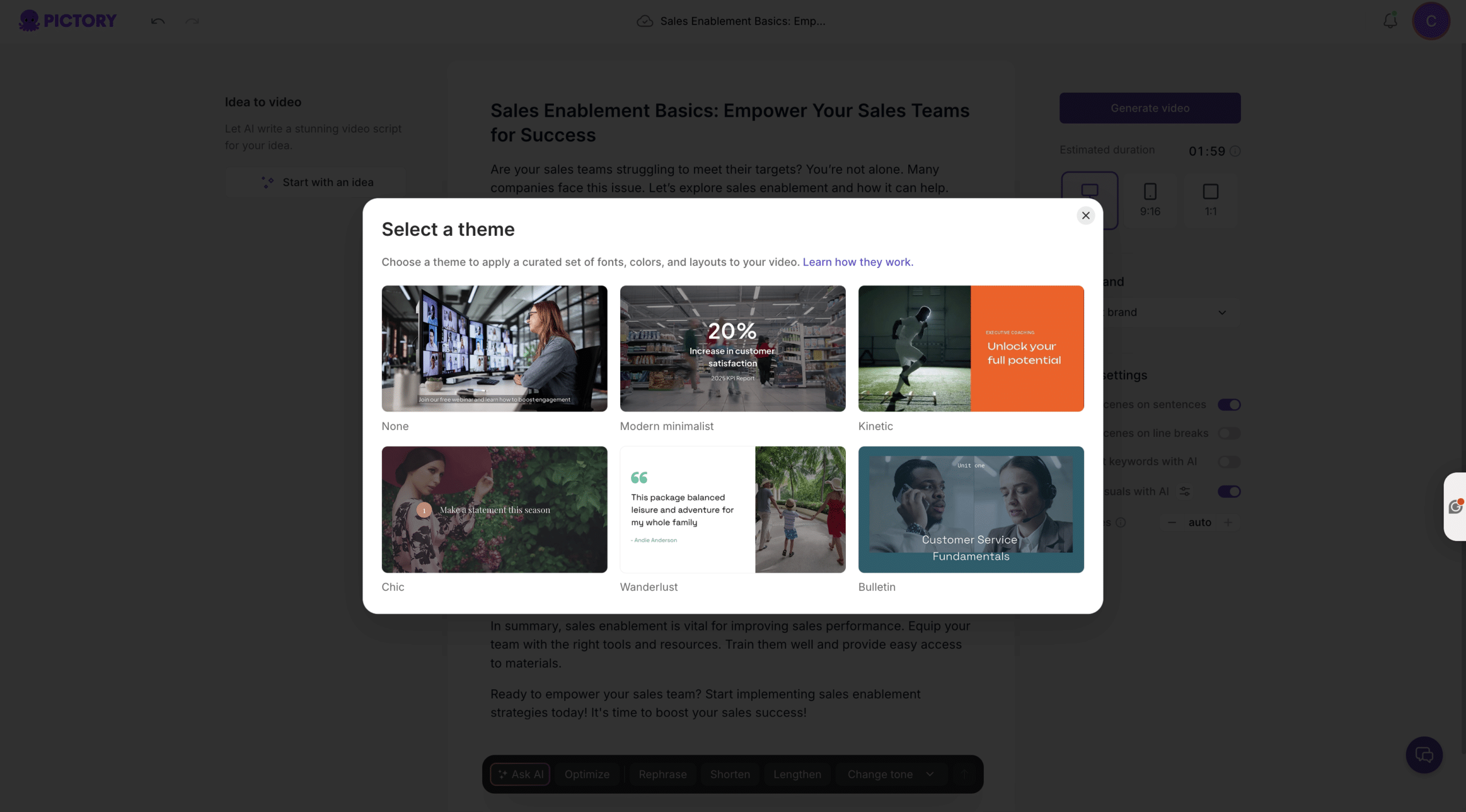
Select Generate video, then pick a theme such as Modern minimalist, Kinetic, or Bulletin. Themes provide standardized layouts and styling for brand consistent outputs.
Step 4: Edit scenes in the video editor for final polish
In the editor, refine each scene from the storyboard:
- Adjust on screen text per scene for clarity and compliance
- Use the Visuals tab to replace or refine AI chosen visuals with stock or uploads
- Preview the full video and validate pacing, terminology, and CTA accuracy
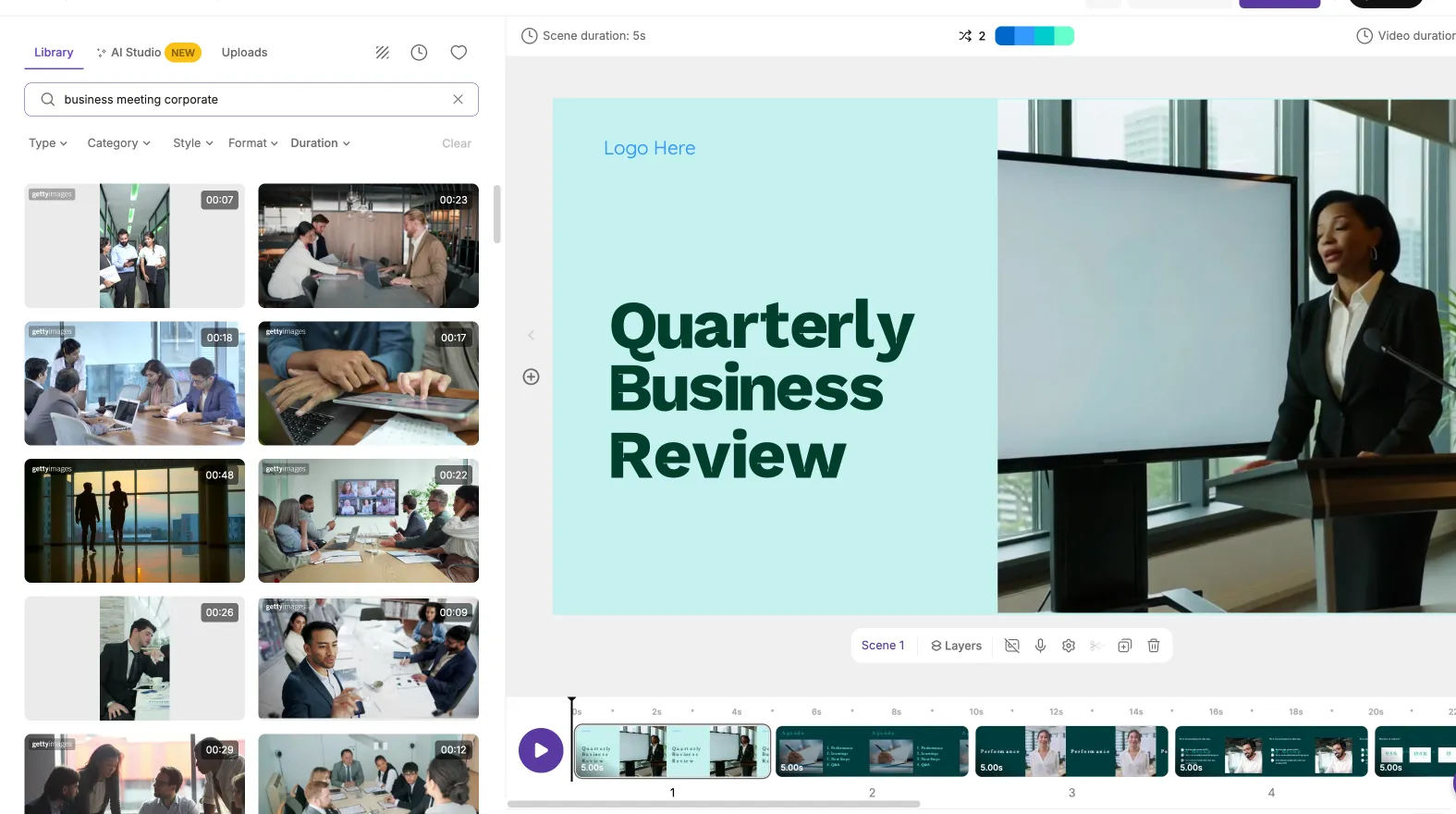
This workflow acts as a repeatable text to video generator for enablement teams that need frequent updates without involving production resources.
How to convert a URL to video for enterprise sales enablement in 2026
URL to video is ideal for enterprise sales enablement 2026 teams that need to repurpose existing web content such as product pages, solution briefs, partner pages, or thought leadership posts into short enablement videos.
Step 1: Start a URL to video project and paste a valid link
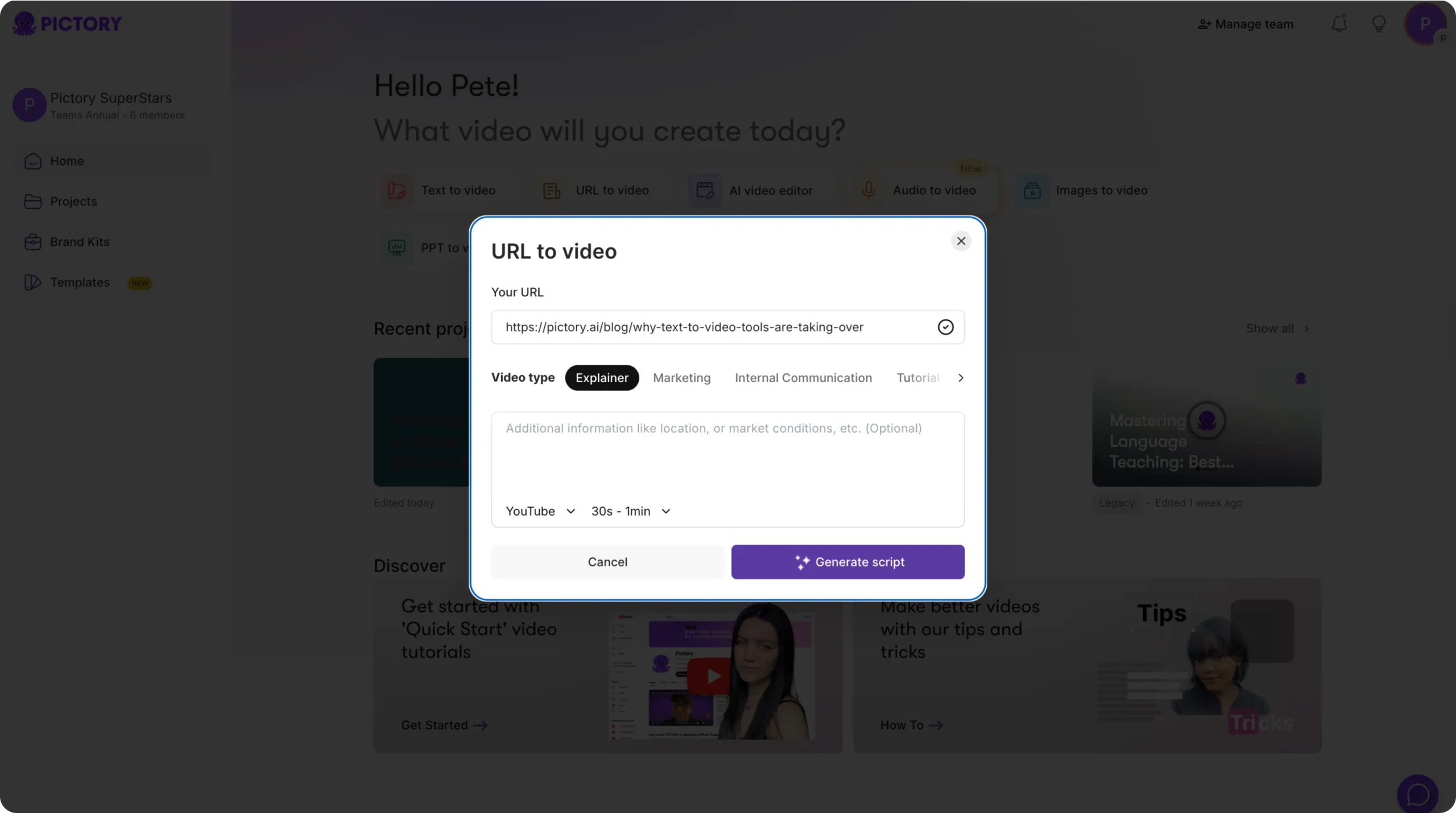
From Home, choose URL to Video and paste a full URL including http:// or https://.
Step 2: Select video type, platform, and length for your enablement channel
Choose the video type such as Explainer, Marketing, Internal Communication, or Tutorial. Select the platform and length so the output fits where sellers will actually use it.
Step 3: Generate and edit the script before producing the storyboard
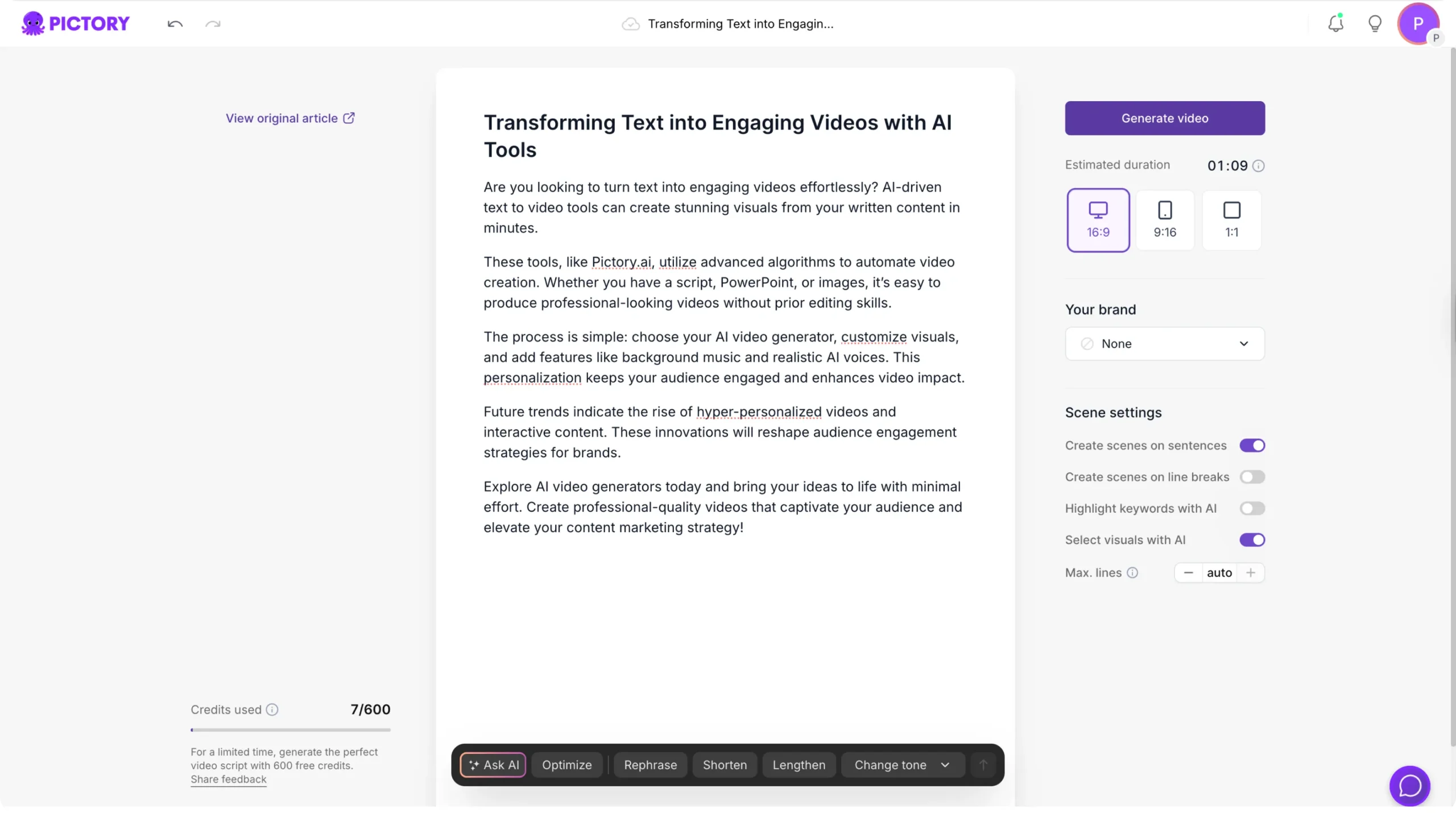
Click Generate Script. In the Script Editor, refine the extracted copy into sales ready messaging. Use Ask AI options to optimize, rephrase, shorten, lengthen, or change tone while keeping claims accurate.
Step 4: Generate the video and update visuals for brand and compliance
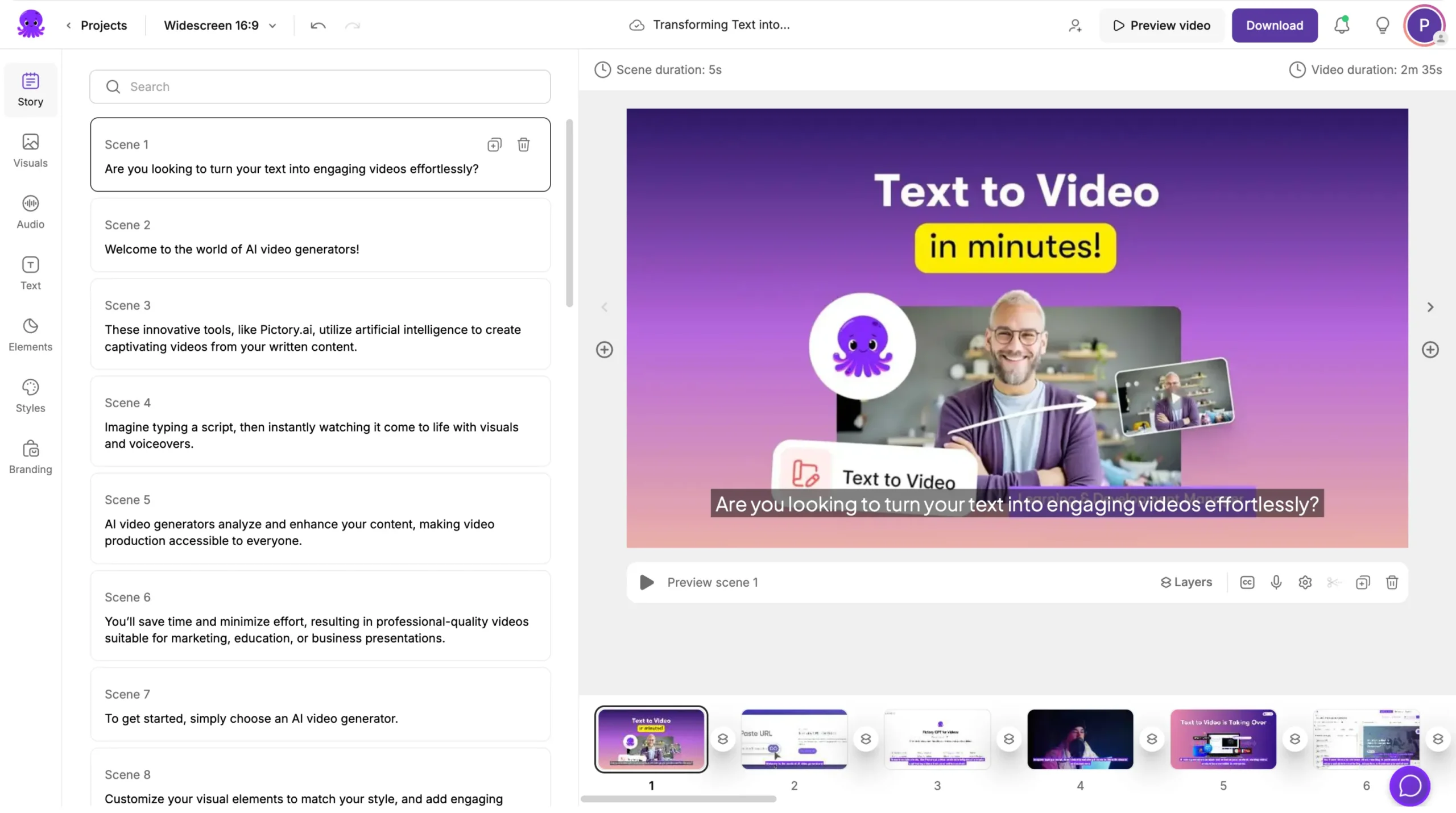
Select Generate video to create the storyboard, then review in the editor. Replace any visuals that do not match your product environment or enterprise audience expectations.
How to convert PPT to video AI for onboarding, playbooks, and product training
PPT to video AI is a high leverage way to modernize enablement decks into video for onboarding and reinforcement. It works especially well for:
- New hire onboarding modules
- Quarterly product updates
- Security and compliance messaging for sellers
- Sales playbooks and competitive positioning
Step 1: Upload your PowerPoint and enable speaker notes if needed

From the PPT to Video workflow, upload a .PPT or .PPTX file (up to 90 slides or 50 MB). If your deck uses speaker notes as narration, enable the option to use speaker notes.
Step 2: Generate the storyboard and review slide to scene mapping
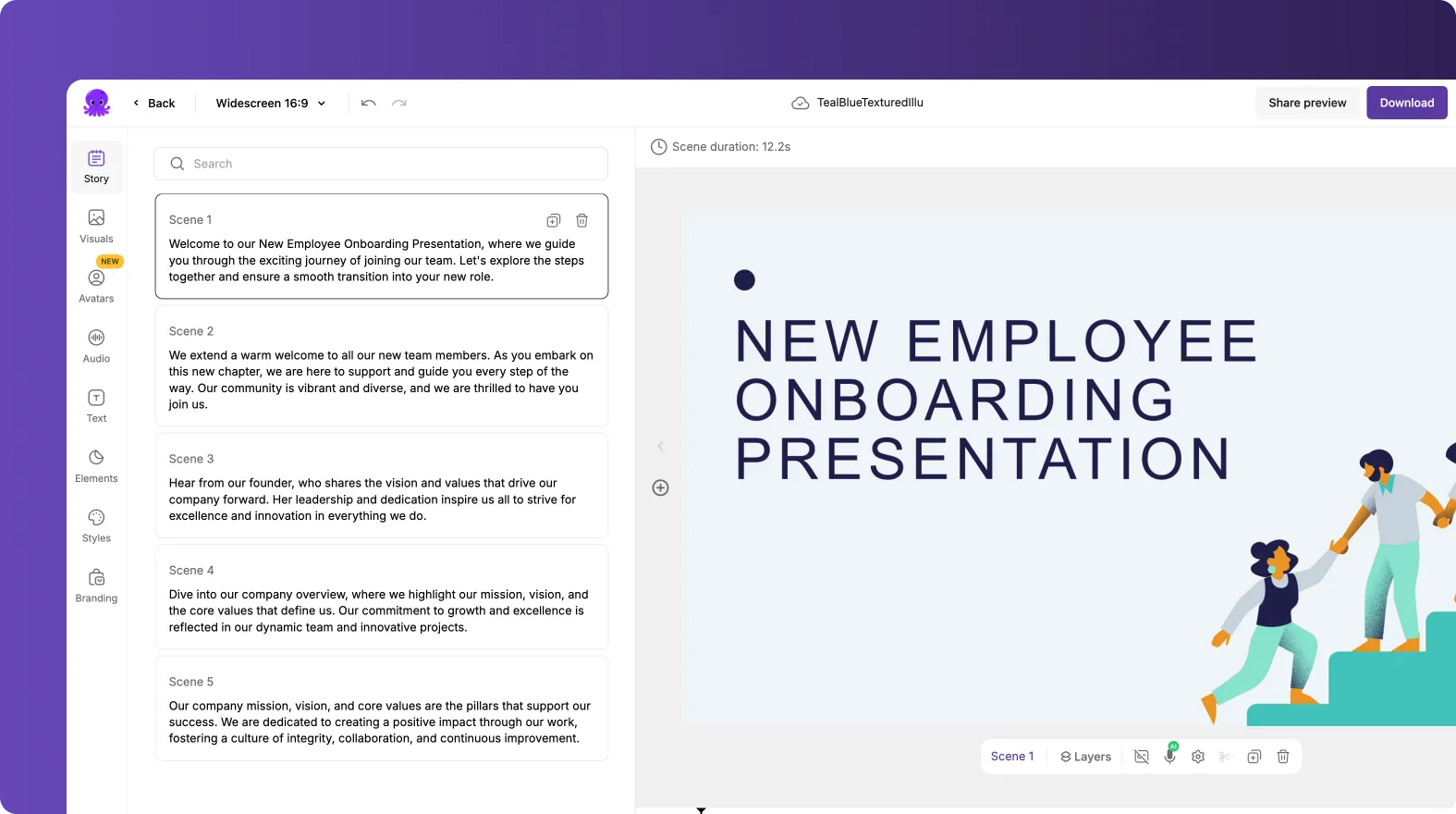
Click Generate video and wait for storyboard creation. Once complete, verify that slide content has been mapped correctly into scenes and that any sensitive internal material is handled appropriately.
Step 3: Edit scenes, pacing, and on screen text in the storyboard editor
Use the editor to improve clarity and pacing:
- Shorten dense slides into multiple scenes
- Standardize terminology to match your sales messaging framework
- Apply your brand kit and update styles for consistent training modules
Step 4: Preview and download the final enablement video
Preview the full video, then download. Save the project in My Projects so your team can refresh modules each quarter without rebuilding from scratch.
How to use the AI video editor to turn recordings into searchable enablement clips
The AI video editor workflow supports transcript based editing, which is valuable for enterprise sales enablement 2026 programs that capture:
- Product webinars and roadmap updates
- Sales kickoff sessions
- Manager coaching calls
- Internal training recordings
Step 1: Upload a video and select the correct language
Upload a video file (up to 5 GB, max 180 minutes). Select the language to improve transcription accuracy.
Step 2: Edit the transcript to remove filler words and silences
When transcription completes, use the transcript editor to clean the content:
- Search and replace outdated terms and messaging
- Toggle to remove filler words
- Toggle to remove silences for tighter pacing
- Adjust subtitle max lines to improve readability
Step 3: Customize subtitles and apply enterprise branding
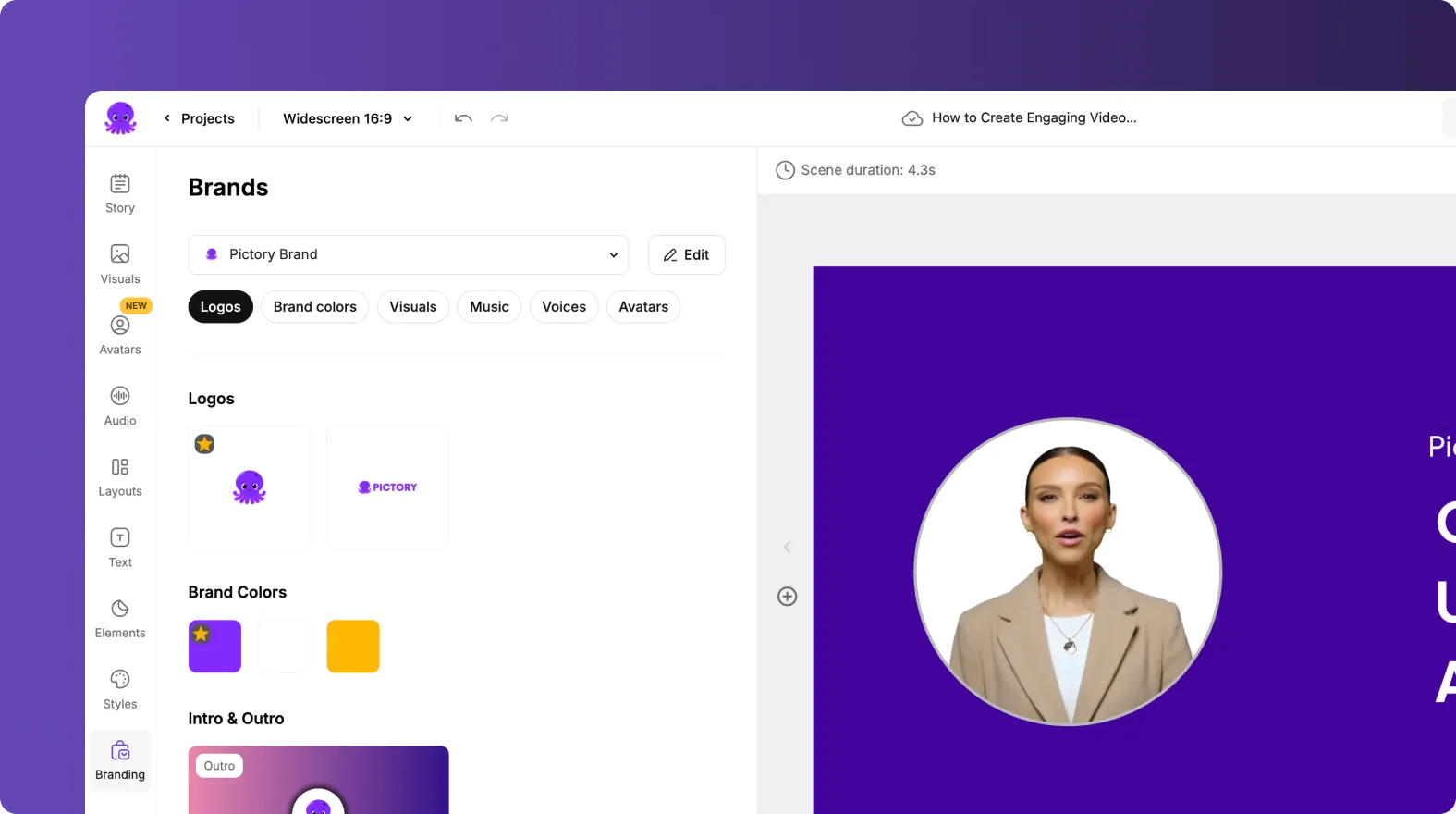
Choose a subtitle style from the style library and apply your brand kit for consistent fonts and colors. This improves adoption because sellers can watch without sound while still following the message.
Step 4: Create storyboard scenes and produce final clips
Select Customize Video to generate storyboard scenes, then use the editor timeline to navigate, duplicate scenes, link scenes, and delete unnecessary sections. Preview and download the final version.
How to add text to a video and standardize captions for enterprise sales enablement
Enablement videos often require precise on screen text for frameworks, talk tracks, and compliance statements. Pictory supports adding text to video and keeping it consistent across scenes.
Step 1: Add or select a text layer in the editor
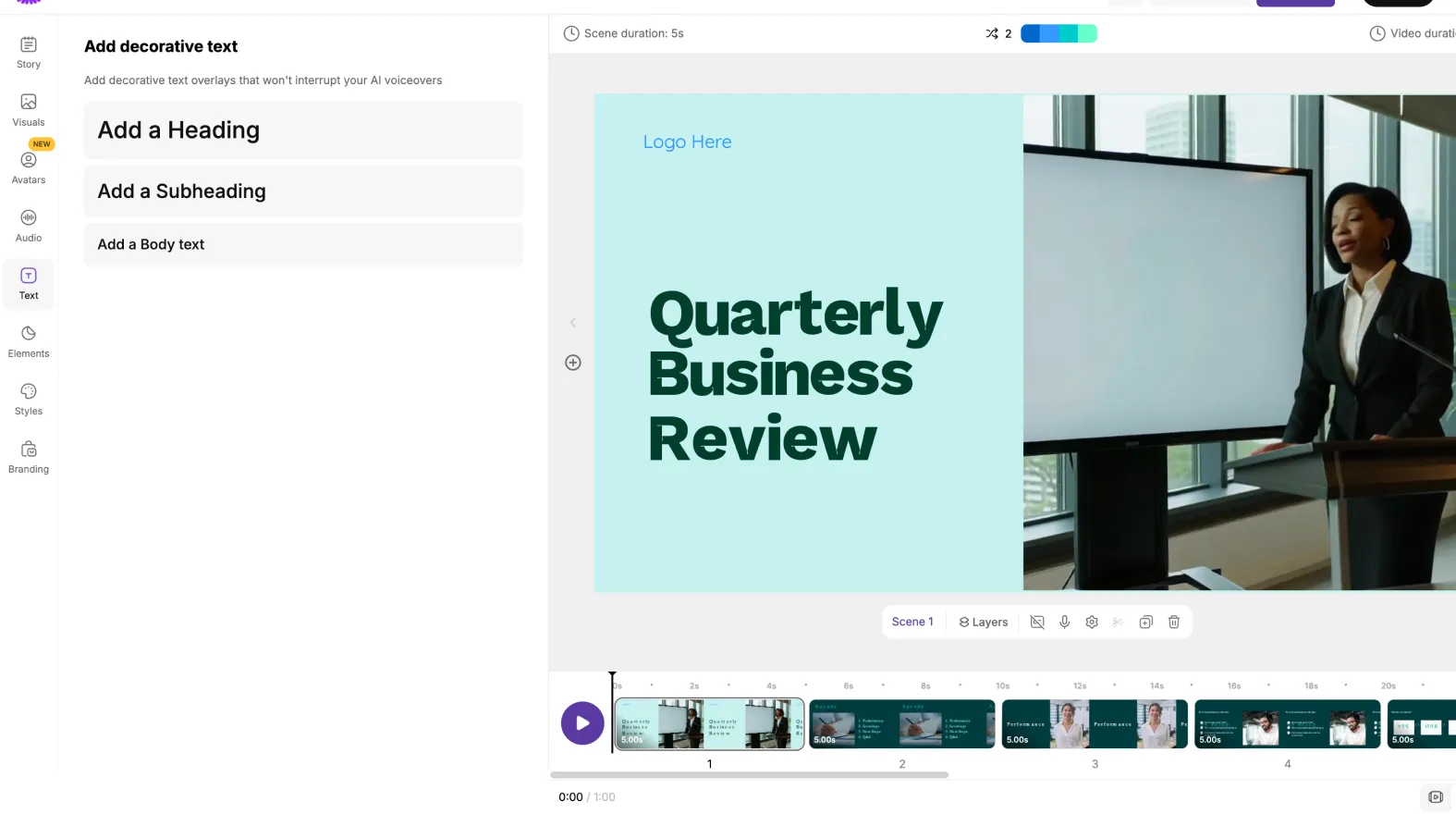
Open the Text tab to insert Heading, Subheading, or Body text, or select an existing text element in the scene preview.
Step 2: Format text using the top toolbar
Use the text editing toolbar to set font, size, bold, alignment, text color, background highlight, outline, shadow, and spacing. Apply your brand kit to keep typography consistent across departments.
Step 3: Animate key messages for retention

Select Animate Text to open the Text Animations panel. Choose entry and exit effects such as Fade, Typewriter, Wipe, or Text Reveal. Keep animations subtle for enterprise training and internal communication content.
Step 4: Reuse formatting for scalable production
When building series content like objection handling libraries, copy and reuse text styling and animations across scenes to maintain a consistent enablement experience.
FAQ: enterprise sales enablement 2026
What is the fastest way to produce enterprise sales enablement videos in 2026 using existing assets?
Use Pictory workflows based on your source asset: text to video AI for approved scripts, URL to video for product pages and articles, PPT to video AI for enablement decks, and the AI video editor for transcript based editing of webinars and recordings.
How do I keep sales enablement videos brand consistent across global teams?
Create and enforce Brand Kits with approved logos, fonts, and colors, then apply the brand kit in the editor using the Branding tab. Standardize styles and themes so every region produces on brand outputs without manual design work.
Can Pictory help with video to text transcription for training recordings?
Yes. In the AI video editor workflow, Pictory automatically transcribes uploaded videos into editable text. You can search and replace, remove filler words, remove silences, and adjust subtitle line limits before generating storyboard scenes.
How do I convert a PPT to video with audio for onboarding?
Upload the PPT file in the PPT to Video workflow and enable the option to use speaker notes for narration when applicable. Generate the storyboard, edit pacing and scene text, apply branding, then preview and download the finished onboarding module.
What is the best workflow to create short enablement clips from long SKO sessions?
Upload the recording into the AI video editor, then use transcript based editing to clean and tighten the content. After generating storyboard scenes, use the timeline to delete, duplicate, and reorganize sections into short clips for specific plays or teams.
How do I add text to a video for objection handling frameworks and talk tracks?
Use the Text tab to insert headings and body text overlays, then format them with the top text toolbar. For consistency, apply your Brand Kit and use the Animate Text option to add subtle entry and exit animations where needed.
Can we share enablement video drafts for stakeholder review before export?
Yes. In the editor, use the Share preview option to distribute a preview link for review. This supports faster approvals across sales enablement, product marketing, legal, and leadership before you download the final video.


