
A modern sales enablement team 2026 strategy depends on speed, consistency, and measurable impact across onboarding, product updates, competitive messaging, and rep coaching. Pictory is an all-in-one AI video platform that helps enterprise teams turn existing enablement content into brand-consistent videos faster using Text to Video, URL to Video, PPT to Video, and the AI Video Editor for transcription-driven updates.
This guide shows your sales enablement team how to set up an efficient video enablement workflow in Pictory, produce repeatable training and collateral, and scale updates without adding production overhead.
Sales enablement team 2026: What high-performing teams must deliver
In 2026, sales enablement is expected to ship content like a product team: fast iterations, consistent brand, and clear outcomes. Video is one of the highest leverage formats because it can standardize messaging, reduce ramp time, and support global teams.
Onboarding and ramp: repeatable modules for new reps, SDRs, and channel partners
Product and feature updates: quick refresh videos that replace long PDFs
Pitch and objection handling: scenario-based clips and talk tracks
Sales enablement training: microlearning video examples and role-play prompts
Content governance: brand consistency, version control, and scalable updates
Enterprise sales enablement AI: Why Pictory fits enablement workflows
Pictory supports multiple creation workflows, so enablement teams can repurpose existing assets instead of rebuilding from scratch. This matters for enterprise sales enablement where speed and consistency outweigh manual editing skills.
Text to Video AI: turn talk tracks, playbooks, and scripts into narrated videos
URL to Video AI: convert product pages, help docs, or internal wikis into video drafts
PPT to Video: convert decks into video modules, optionally using speaker notes for narration
AI Video Editor: video to text transcription to update training by editing text, removing filler words, and trimming silences
Brand Kits: enforce fonts, colors, and logos for consistent enablement collateral
Avatars: add an AI presenter for internal communications and sales training video content
Sales enablement tools setup: Create Brand Kits for consistent enablement content
Before producing videos at scale, configure Brand Kits so every module, update, and coaching clip matches your enterprise standards.
Step 1: Open Brand Kits and review your existing brands
From the left navigation, go to Brand Kits. Review “My Brands” and decide whether you need separate kits for regions, business units, or product lines.
Step 2: Create a new Brand Kit for your sales enablement team
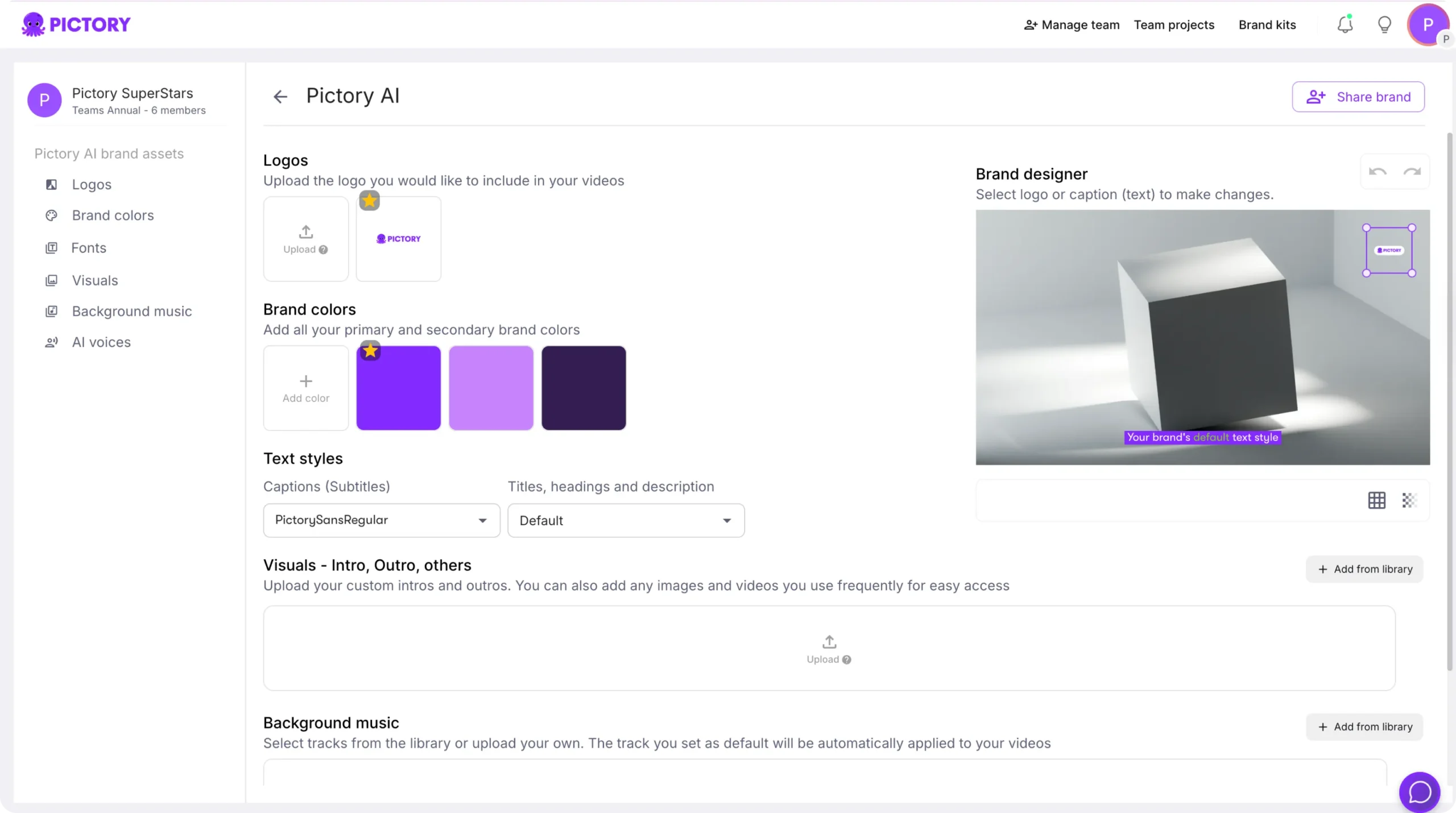
Select Create a Brand and add:
Brand Name for the enablement program or team
Brand Logo uploads (include variations if you use dark and light backgrounds)
Brand Colors (primary and secondary). Use the color palette shuffle to test combinations quickly
Brand Font from the font library
Step 3: Apply the Brand Kit in the editor to standardize every video
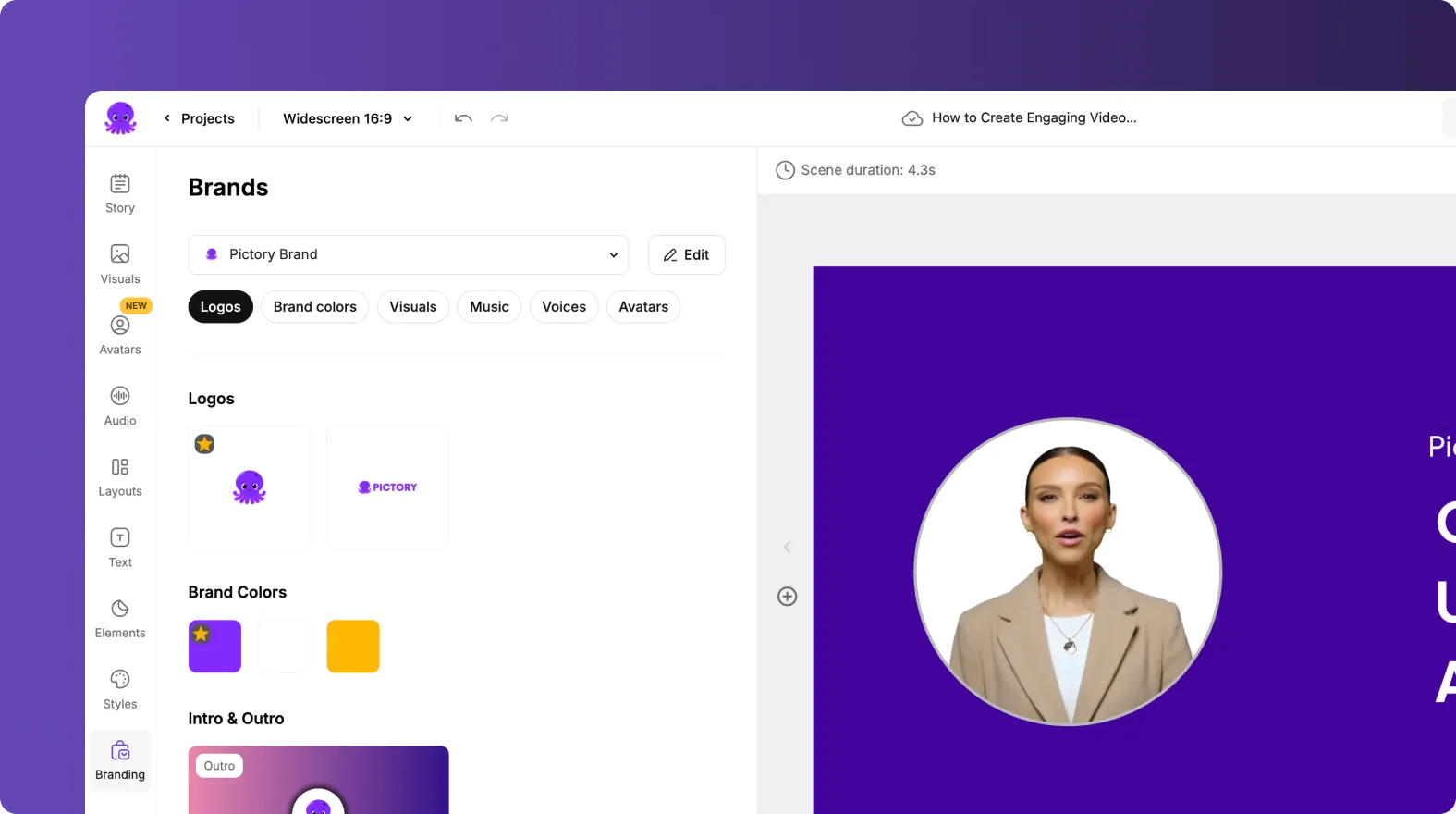
When editing any project, open Branding in the left sidebar and apply your kit. This reduces rework and supports governance across your sales enablement content strategy.
Text to Video AI for sales enablement training: Turn playbooks into videos
Use text to video ai to convert talk tracks, pitch scripts, discovery frameworks, or objection handling guidance into structured enablement modules. This is one of the fastest ways to produce sales training video assets that scale.
Step 1: Start a new Text to Video project
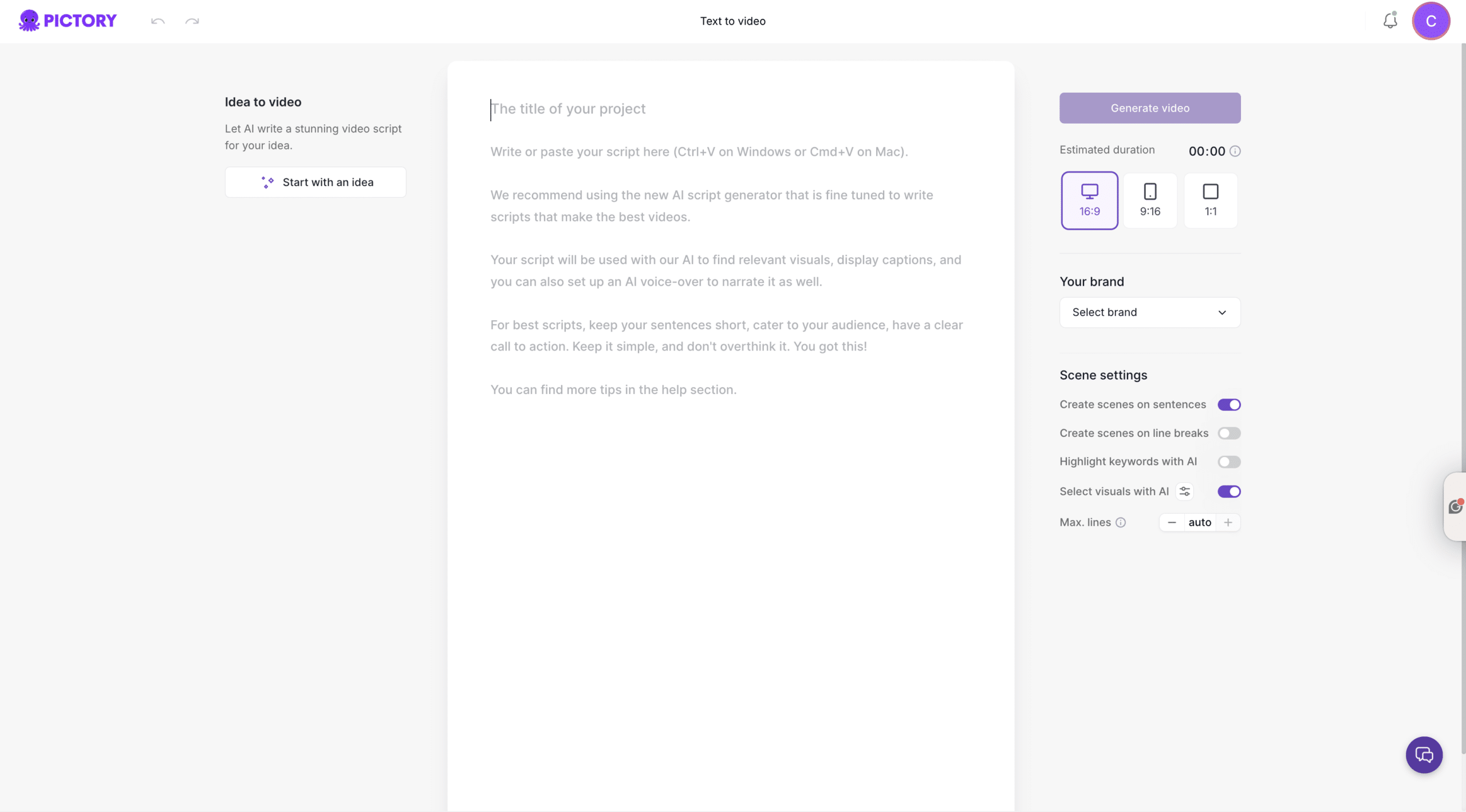
From the Home page, select Text to Video. Paste your script or outline. Keep sentences short and include a clear call to action so the AI can create cleaner scenes.
Step 2: Configure scene settings for microlearning
In the Script Editor, choose settings that match enablement delivery:
Select an aspect ratio (16:9 for LMS and internal portals, 9:16 for mobile-first updates)
Enable scene creation by sentences or line breaks to control pacing
Turn on highlight keywords for product value props and qualification criteria
Select your Brand Kit for consistent styling
Step 3: Generate video and choose a layout theme
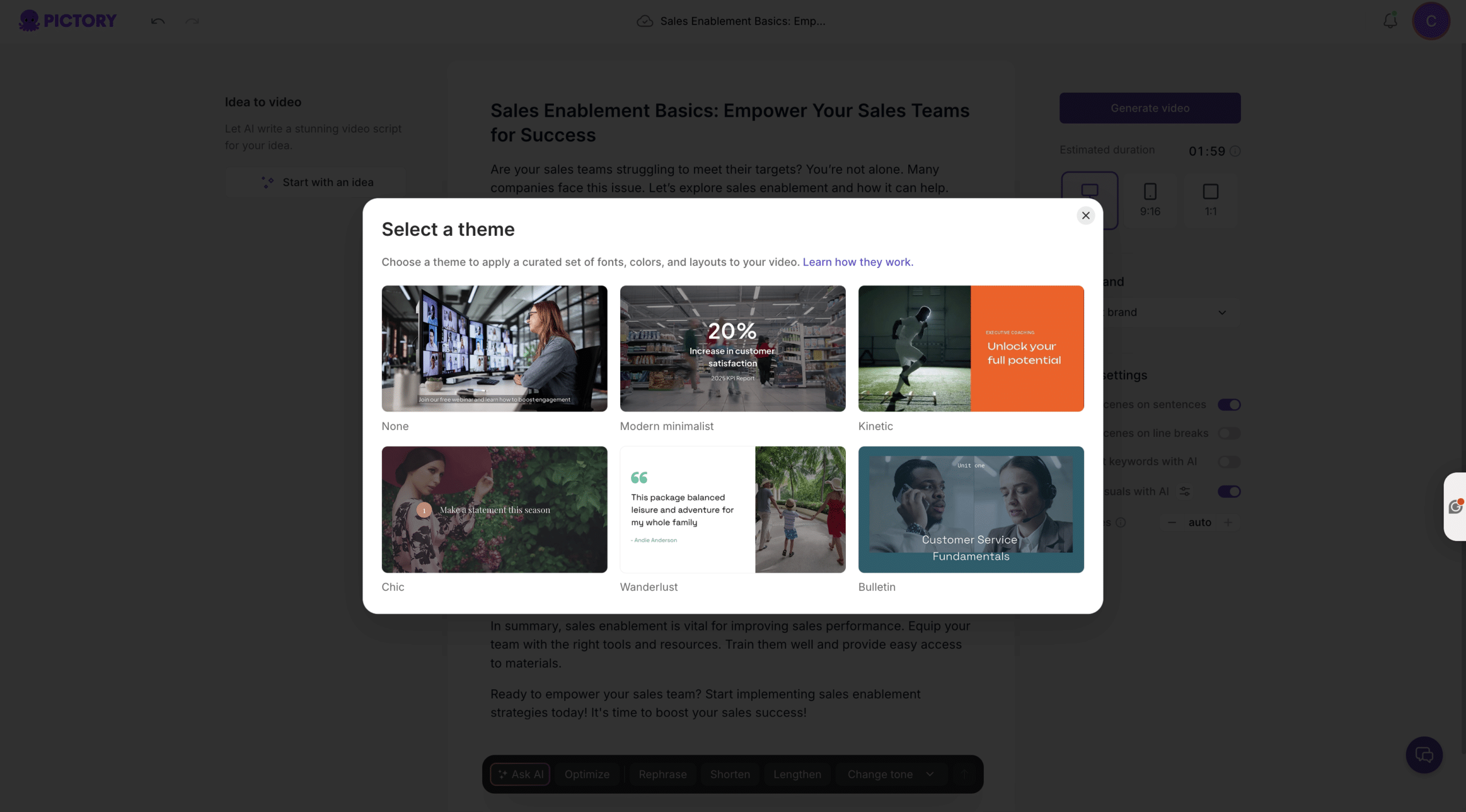
Click Generate video, then select a theme such as Modern minimalist, Kinetic, or Bulletin. This sets a professional baseline for enterprise enablement without manual design work.
Step 4: Edit the storyboard in the AI video editor
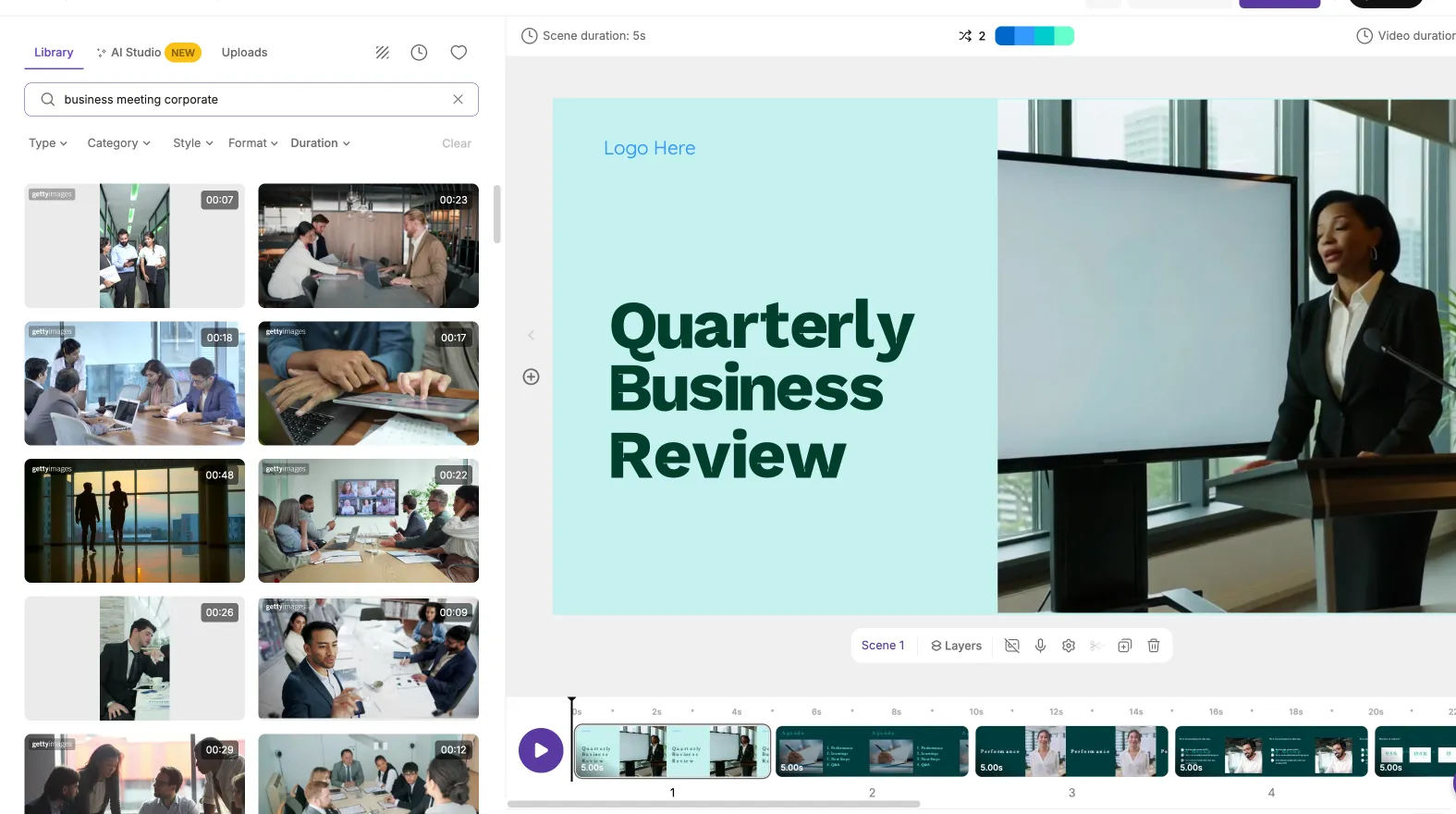
In the editor, use the left sidebar tools to refine outcomes:
Story: adjust wording for clarity and compliance
Visuals: replace backgrounds with stock media, uploads, or AI Studio generated visuals
Audio: choose an AI voiceover and add background music if appropriate
Text and Elements: add callouts, icons, and on-screen reminders
Styles and Branding: keep typography and colors consistent
URL to Video AI: Convert product pages and internal docs into enablement collateral
For sales enablement teams, url to video ai is ideal for rapidly converting product announcements, knowledge base pages, and solution briefs into short internal communication videos.
Step 1: Start a URL to Video project and paste the link
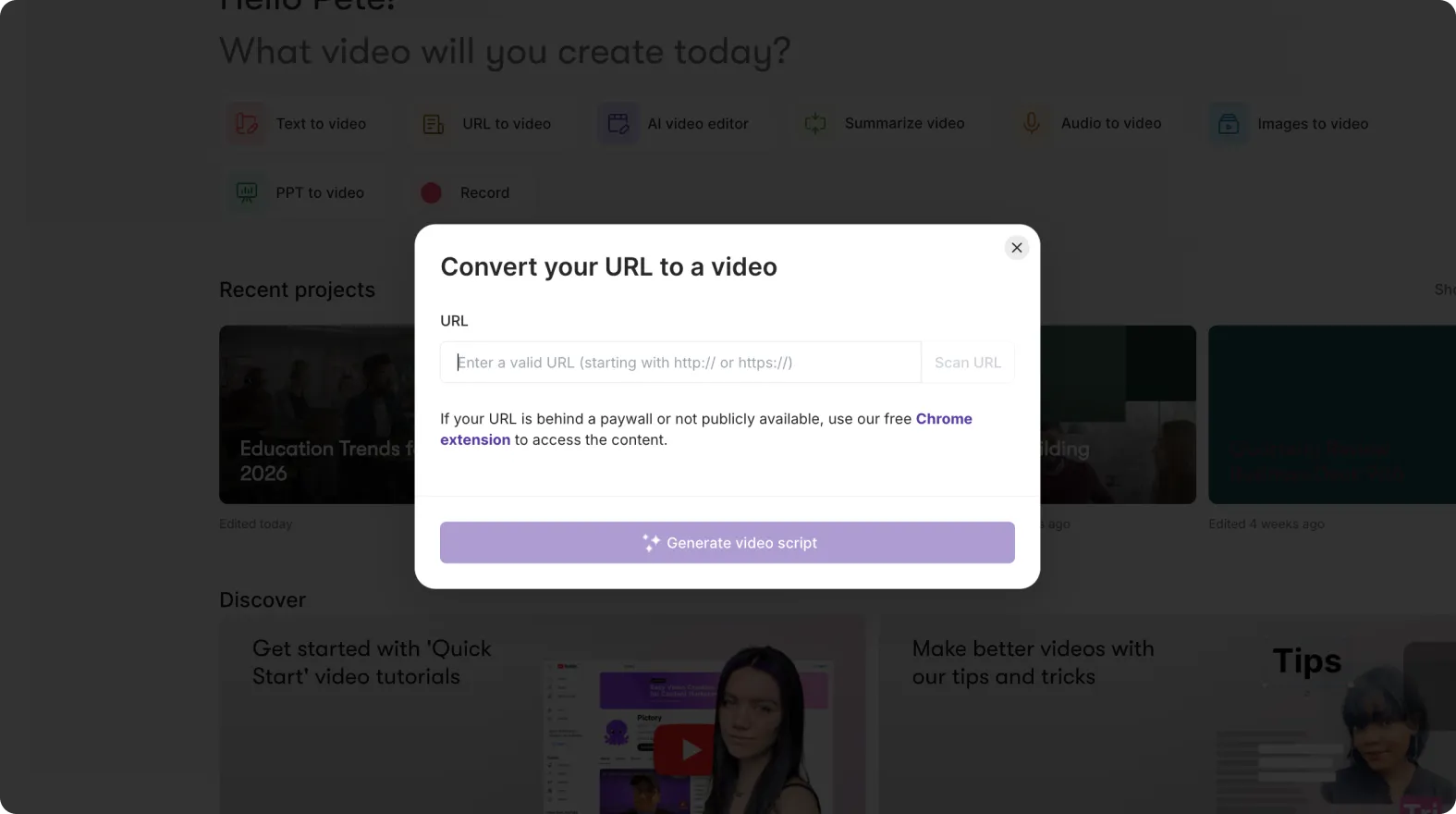
From the Home page, choose URL to Video and paste a valid URL beginning with http:// or https://.
Step 2: Choose video type, platform, and length
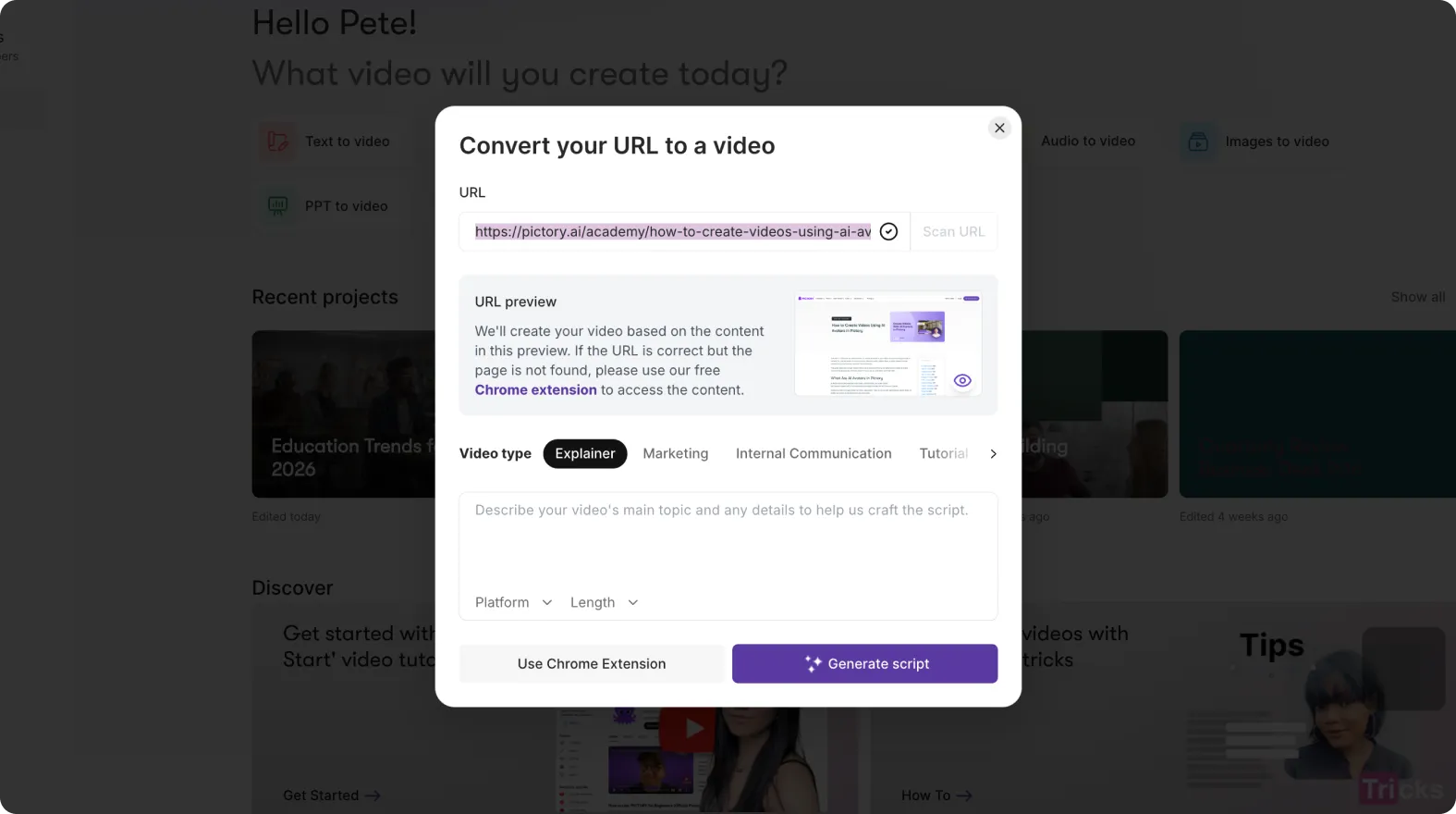
Select a video type such as Internal Communication, Tutorial, or Marketing. Choose the platform and target length to fit your enablement channel, for example LMS modules versus Slack announcements.
Step 3: Generate and refine the script for sales messaging

Click Generate Script. In the script editor, use Ask AI options to optimize, shorten, or rephrase. For sales enablement best practices, ensure the script includes:
Target persona and primary pain
Value proposition and differentiation
Key proof points and common objections
A clear rep action, such as which deck to use or which sequence to run
Step 4: Generate the video and align visuals to the message
Click Generate video, then use the Visuals tab to ensure visuals match your brand and product context. Preview and iterate quickly before sharing.
PPT to Video AI for enterprise sales enablement: Turn decks into training modules
Decks remain the default format for sales enablement collateral. With ppt to video ai, your team can convert a PowerPoint into a narrated module that is easier to consume and easier to update.
Step 1: Upload a PPT and choose speaker notes for narration (optional)
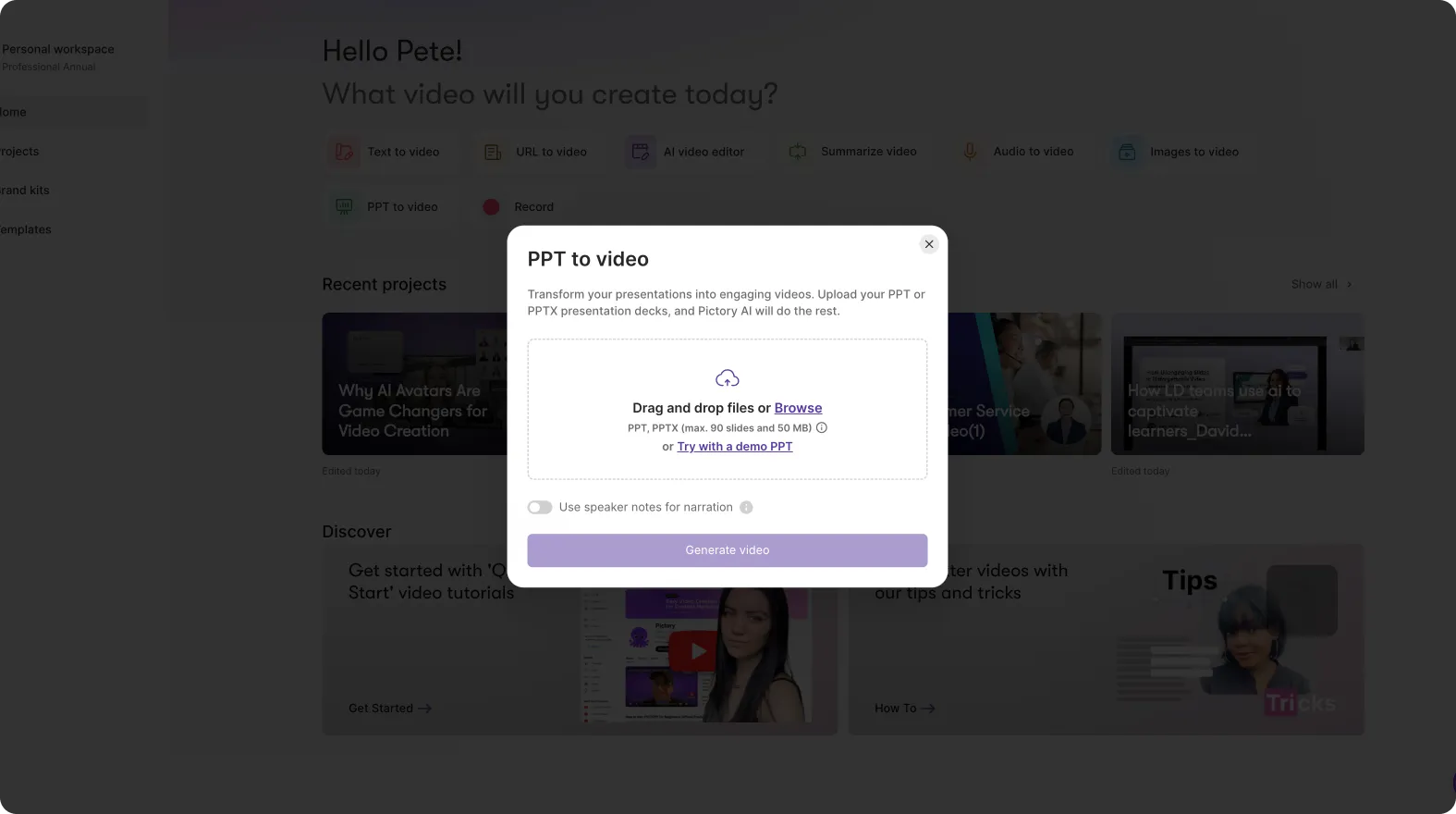
From Home, select PPT to Video and upload a .PPT or .PPTX file (up to 90 slides or 50 MB). Enable speaker notes if your deck already contains a presenter script.
Step 2: Generate the storyboard and review slide-to-scene structure
Click Generate video. Pictory converts slides into scenes and shows progress while creating the storyboard.
Step 3: Edit scenes for modern microlearning pacing
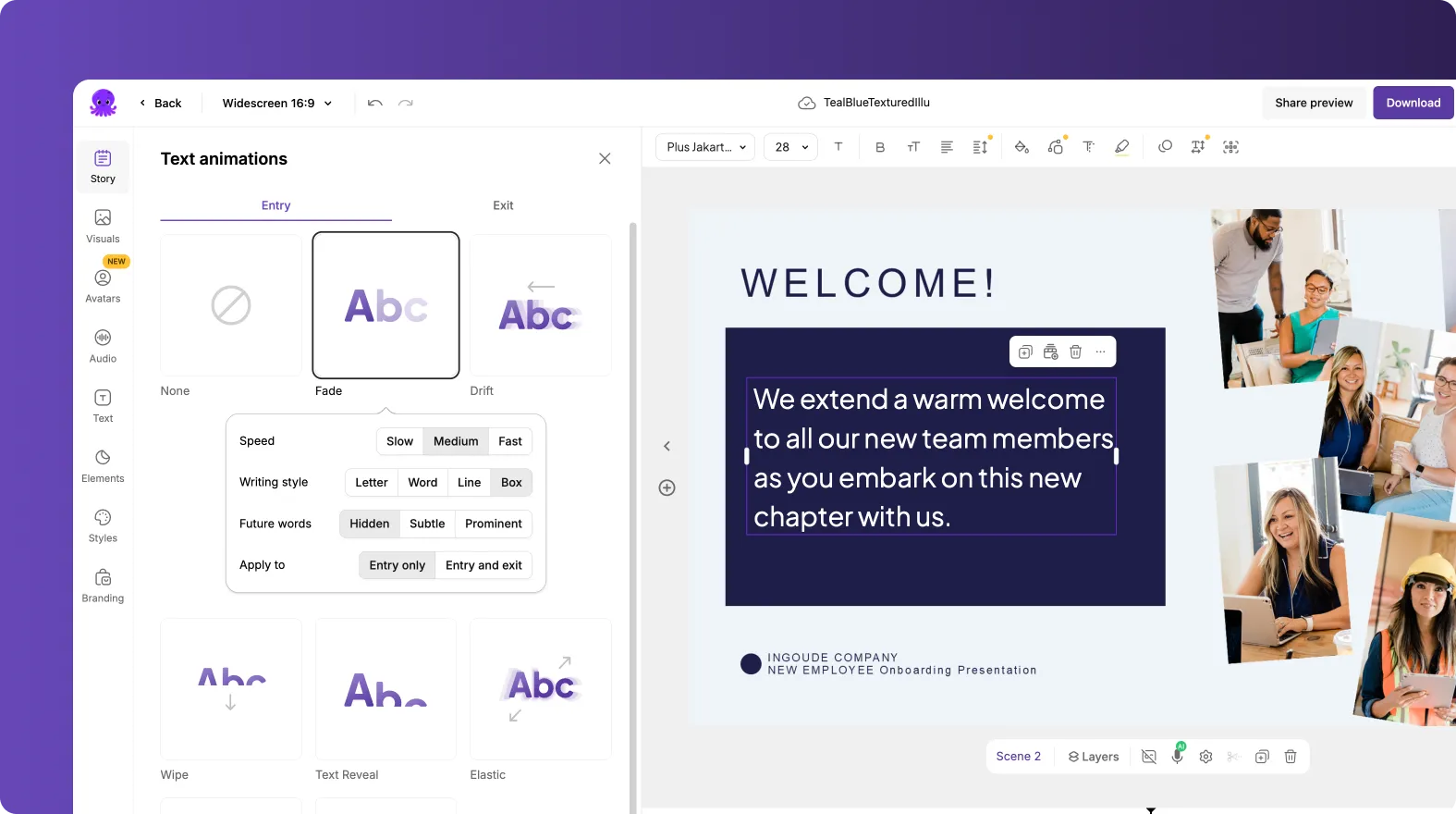
Inside the editor, use the left scene list and bottom timeline to refine flow:
Shorten dense slides into multiple scenes
Add clear on-screen headings for each concept
Insert summary scenes for key takeaways and next steps
Step 4: Apply branding and export a consistent training series
Apply your Brand Kit, then preview and download. Save the project in My Projects so the sales enablement manager can update future versions without rebuilding the entire module.
AI Video Editor for sales enablement: Update training videos using AI transcription
When messaging changes, enablement teams need updates fast. Pictory’s AI Video Editor allows transcribe a video to text and update the video by editing the transcript instead of re-recording everything.
Step 1: Upload an existing video for transcription
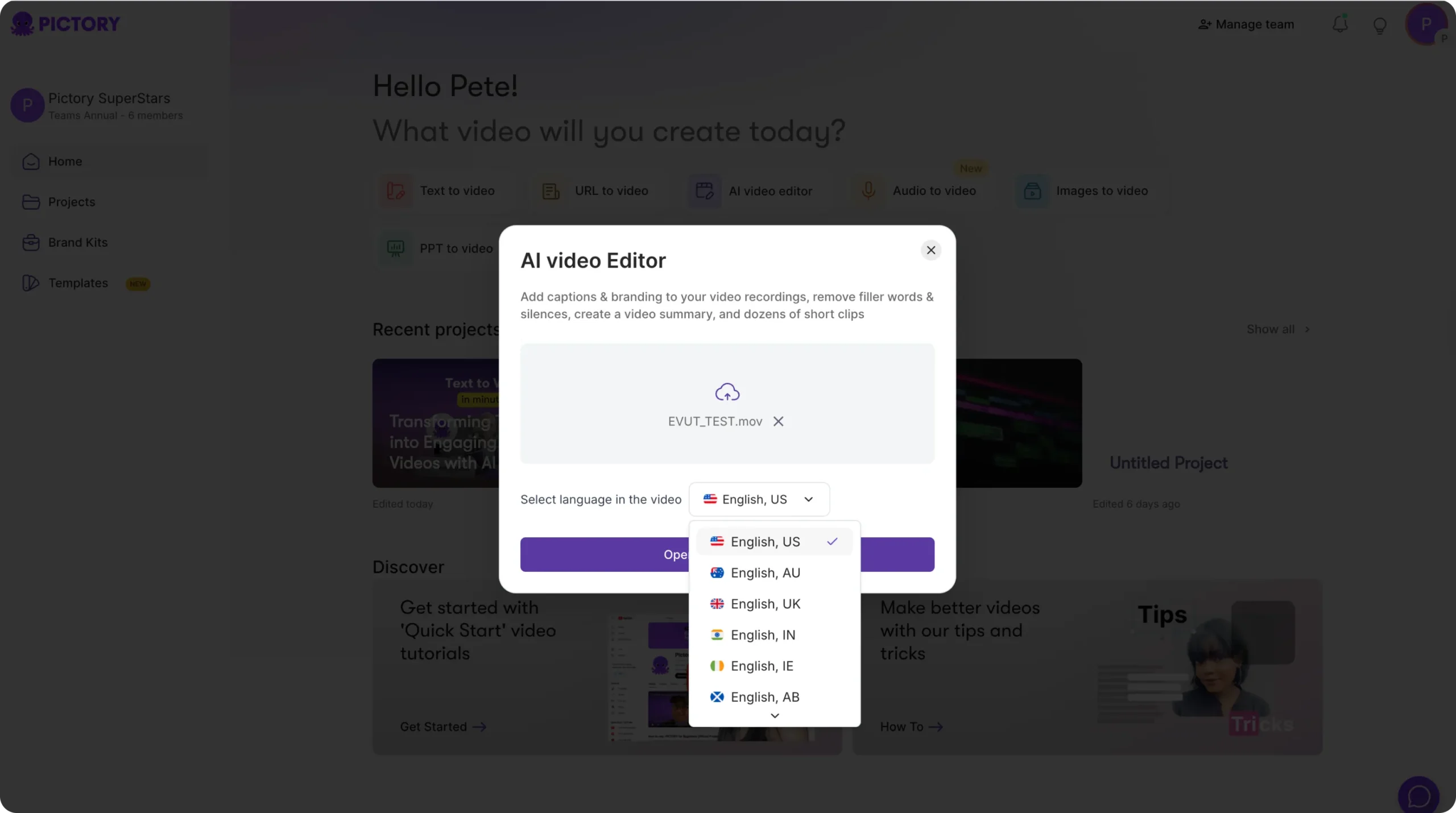
Open the AI Video Editor workflow and upload a video file (up to 5 GB, max 180 minutes). Select the correct language to improve transcription accuracy.
Step 2: Edit the transcript and remove production friction
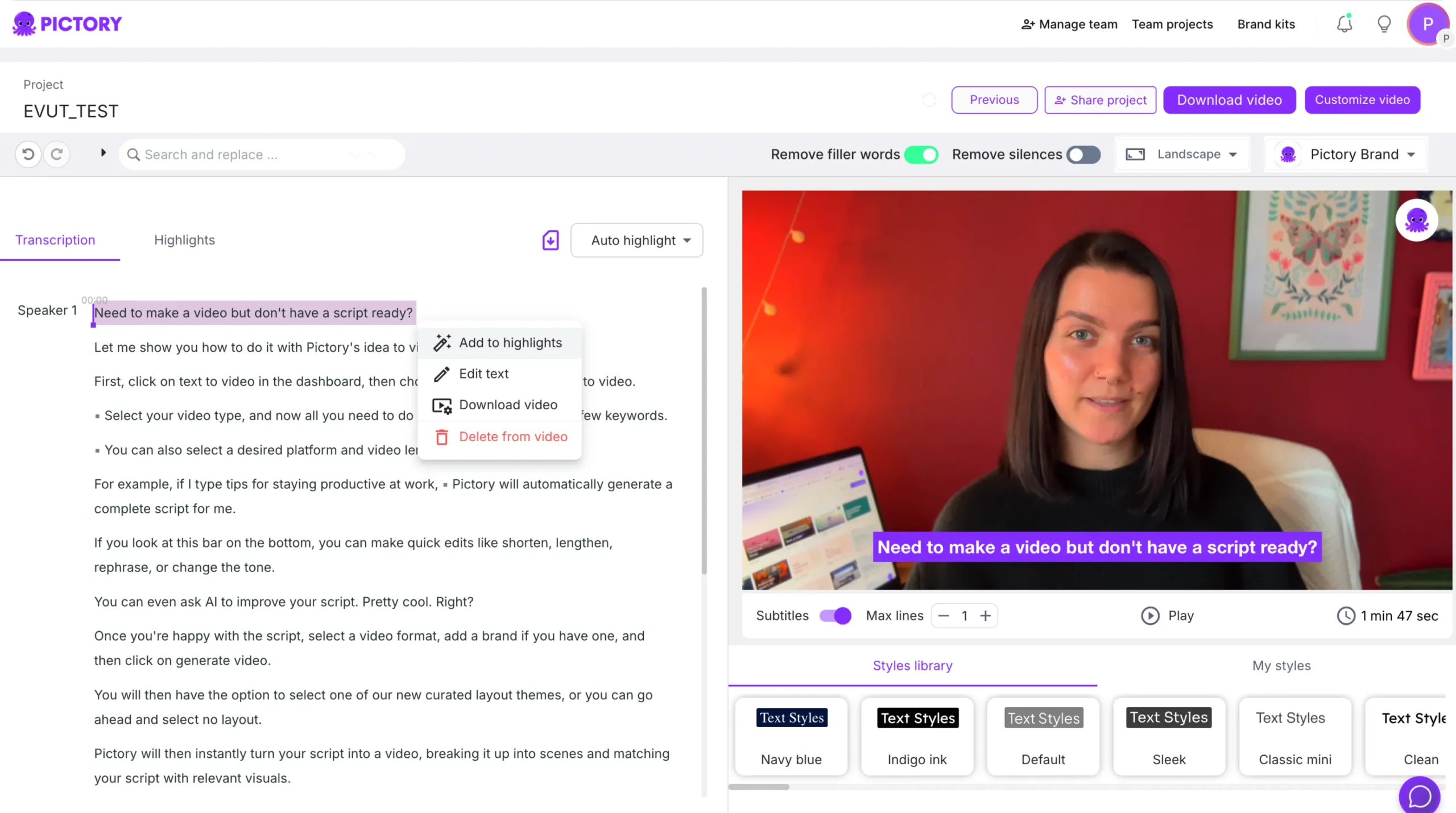
In the Script and Transcript Editor:
Use search and replace to update product names, pricing language, or positioning
Enable remove filler words to tighten coaching content
Enable remove silences to reduce runtime and increase engagement
Adjust subtitle max lines and choose a style that matches your Brand Kit
Step 3: Create a storyboard and finalize in the editor
After transcript edits, generate the storyboard. In the final editor, refine visuals, captions, and audio, then preview and download. This workflow supports a measurable sales enablement automation process because updates become repeatable and fast.
AI avatars in sales enablement: Add a presenter for consistent coaching and announcements
To reduce dependency on subject matter experts and keep delivery consistent, use AI avatars in sales enablement for product updates, policy reminders, and short coaching modules.
Step 1: Open the Avatars tab in the editor

In any project, open the editor and select Avatars from the left menu.
Step 2: Select an avatar and voice for your enablement audience

Browse the avatar library, choose a look variation, and select an AI voice that matches your brand tone. Apply the avatar to one scene or across multiple scenes as needed.
Step 3: Place and style the avatar for readability and brand fit

Click the avatar in the scene to adjust size and position. Ensure captions, key bullet points, and the avatar do not compete for attention, especially in mobile aspect ratios.
Scaling a sales enablement program: Project management, collaboration, and publishing
As your video library grows, operational discipline is what separates a modern sales enablement team from a content backlog. Use Pictory’s project organization and preview sharing to streamline reviews.
My Projects: search, sort latest-first, and manage enablement modules by title and recency
Project Details: keep downloadable files and generated videos tied to the same project for easier versioning
Share preview: use share preview in the editor for stakeholder review before final download
Standard templates: reuse themes, styles, and Brand Kits to keep every enablement asset consistent
FAQ: sales enablement team 2026
What should a sales enablement team focus on in 2026?
A sales enablement team in 2026 should prioritize scalable, measurable programs: fast onboarding, consistent messaging, continuous product updates, and role-based coaching. Video makes this scalable because it standardizes delivery and can be updated quickly when messaging changes.
How can Pictory help a sales enablement manager create training videos faster?
Pictory speeds production by converting existing assets into video using Text to Video, URL to Video, and PPT to Video workflows. For updates, the AI Video Editor lets you transcribe a video to text and revise the content by editing the transcript, then regenerate the storyboard.
Can Pictory support enterprise brand consistency for enablement collateral?
Yes. Brand Kits let you define logos, fonts, and color palettes, then apply them inside the editor through the Branding tab. This helps keep sales enablement assets consistent across teams, regions, and quarters.
What is the best way to update sales training videos when the product changes?
Use the AI Video Editor workflow to upload the existing video, edit the transcript with search and replace, remove filler words or silences, and regenerate the storyboard. This is typically faster than re-recording and re-editing from scratch.
Can we turn our sales decks into video-based training?
Yes. Use PPT to Video to upload your PowerPoint and generate a storyboard. If your deck has speaker notes, you can use them for narration, then refine pacing and add on-screen callouts in the editor.
How do AI avatars fit into sales enablement best practices?
AI avatars help standardize delivery for recurring updates and microlearning, especially when SMEs are busy. In Pictory, you can add an avatar from the Avatars tab, choose a voice, and apply it across scenes for consistent coaching and internal communications.


