
Company training video production often slows down when teams rely on scattered tools, lengthy review cycles, and high-cost editing resources. Pictory helps enterprise teams create professional, brand-consistent training videos faster by turning existing content into video using automated workflows, AI-assisted editing, and centralized Brand Kits.
This guide shows practical, repeatable ways to produce internal training videos using Pictory workflows like Text to Video, URL to Video, PPT to Video, and the AI Video Editor. Use these steps to reduce production overhead, maintain brand standards, and scale training content across departments.
What Enterprise Teams Need for Scalable Company Training Video Production
Before you build, align on a production system that supports speed, compliance, and consistency across programs like onboarding, security training, sales enablement, and SOP documentation.
One platform for multiple inputs: Script, URL, PPT, audio, or recorded demos.
Brand consistency: Standard fonts, colors, logo placement, and style presets via Brand Kits.
Fast editing: Scene-based editor with timeline controls, duplication, and quick visual swaps.
Efficient reviews: Shareable preview options and reusable templates.
Repurposing: Convert long training into short clips for reinforcement and internal comms.
Set Up Brand Kits for Consistent Company Training Video Production
Brand Kits help training teams maintain a consistent look across every module, course, and department, even when multiple creators contribute.
Step 1: Open Brand Kits and review existing enterprise brand standards
From the left navigation, go to Brand Kits. You will see existing brand cards under “My Brands” with logos and saved settings.
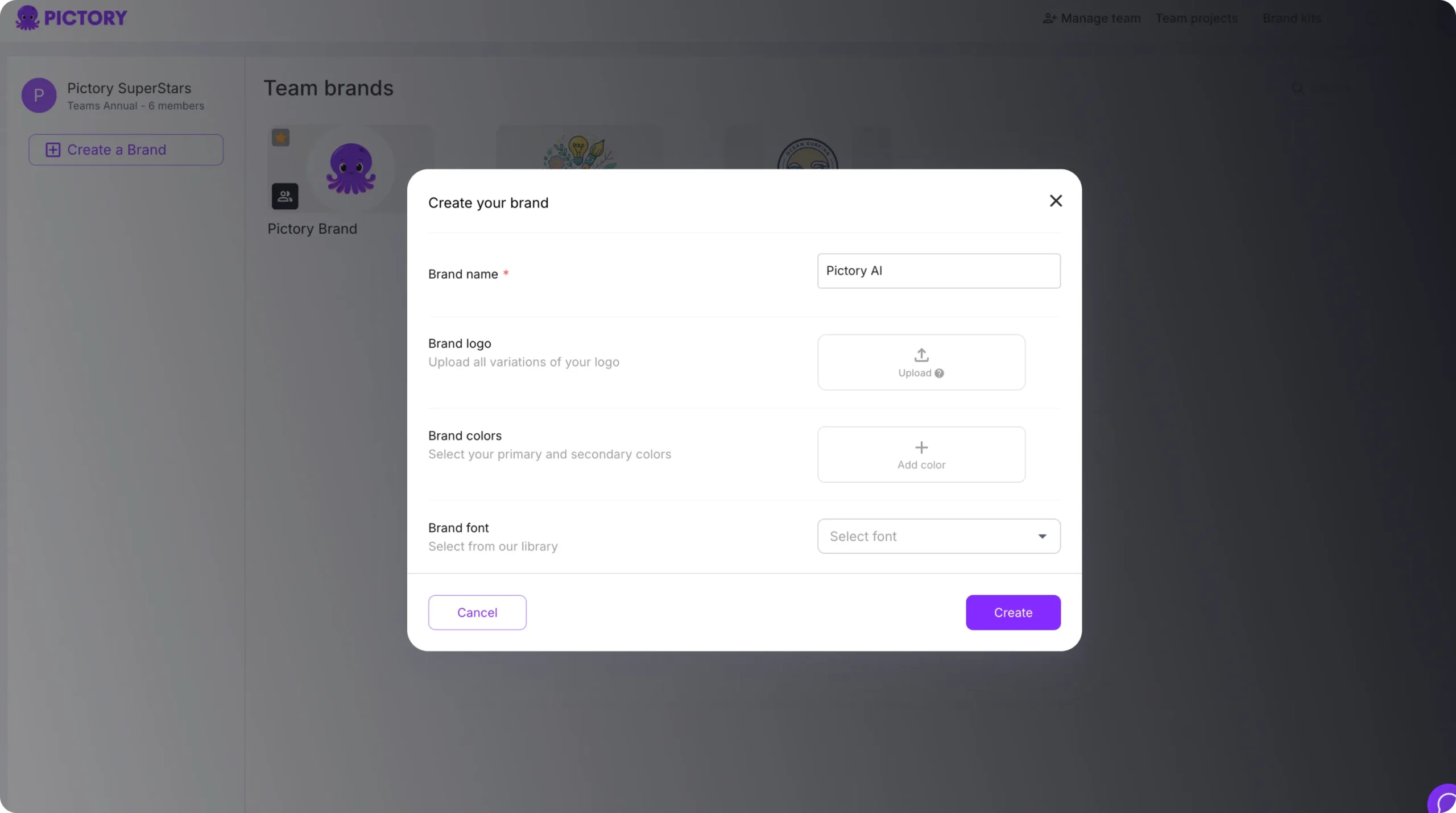
Step 2: Create a new Brand Kit for training videos
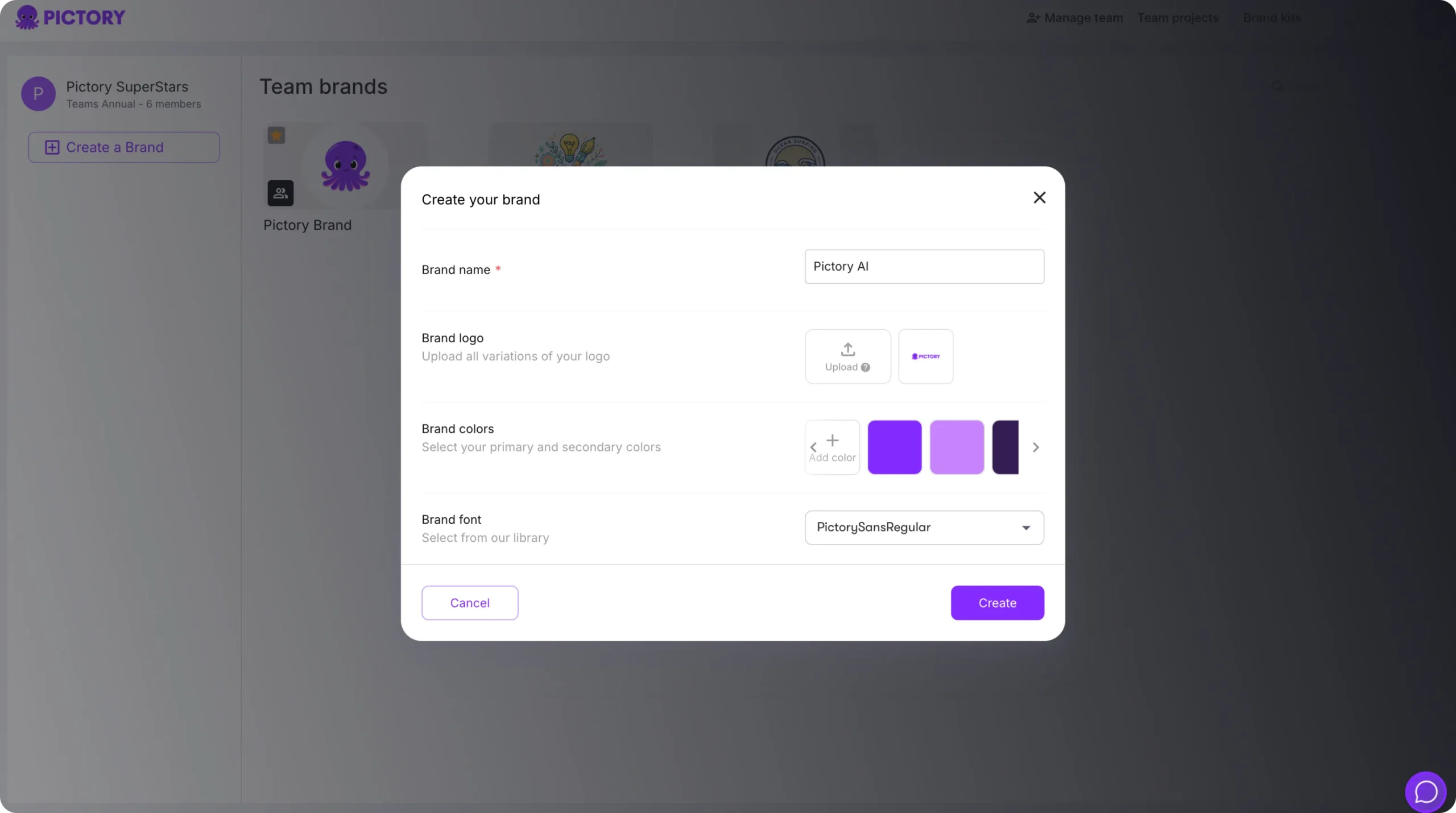
Select Create a Brand and complete the required fields:
- Brand Name (example: “Global L&D Training”)
- Upload logo variations (drag and drop or browse)
- Add Brand Colors using the color picker
- Select a Brand Font from the font library
How to Create Company Training Videos Using Text to Video AI Workflows
Text to Video is ideal when your training team already has a script, SOP steps, or a knowledge base article and wants a fast way to produce a professional module. This workflow functions as a practical text to video AI generator for internal training content.
Step 1: Start a Text to Video project and paste your training script
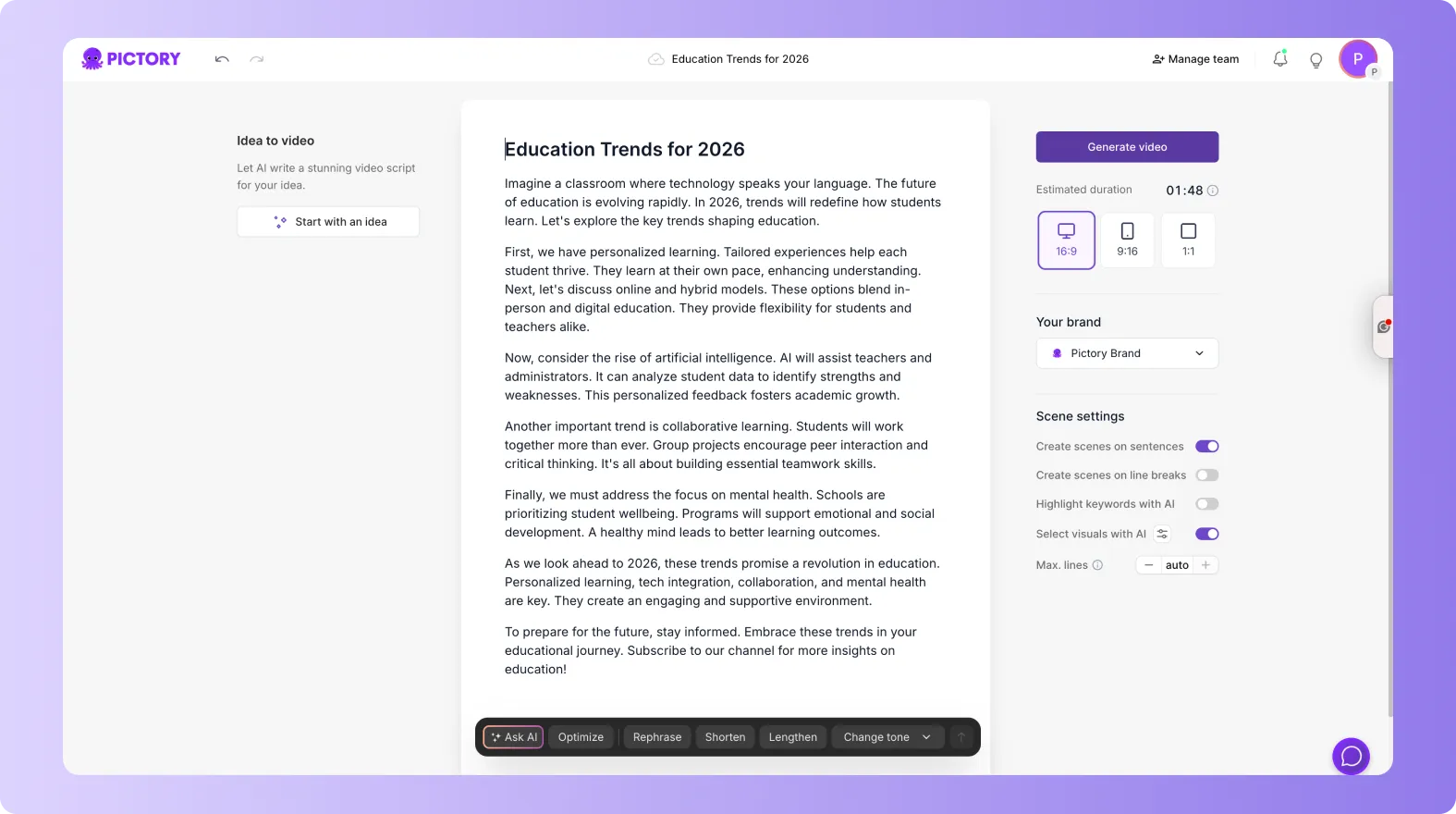
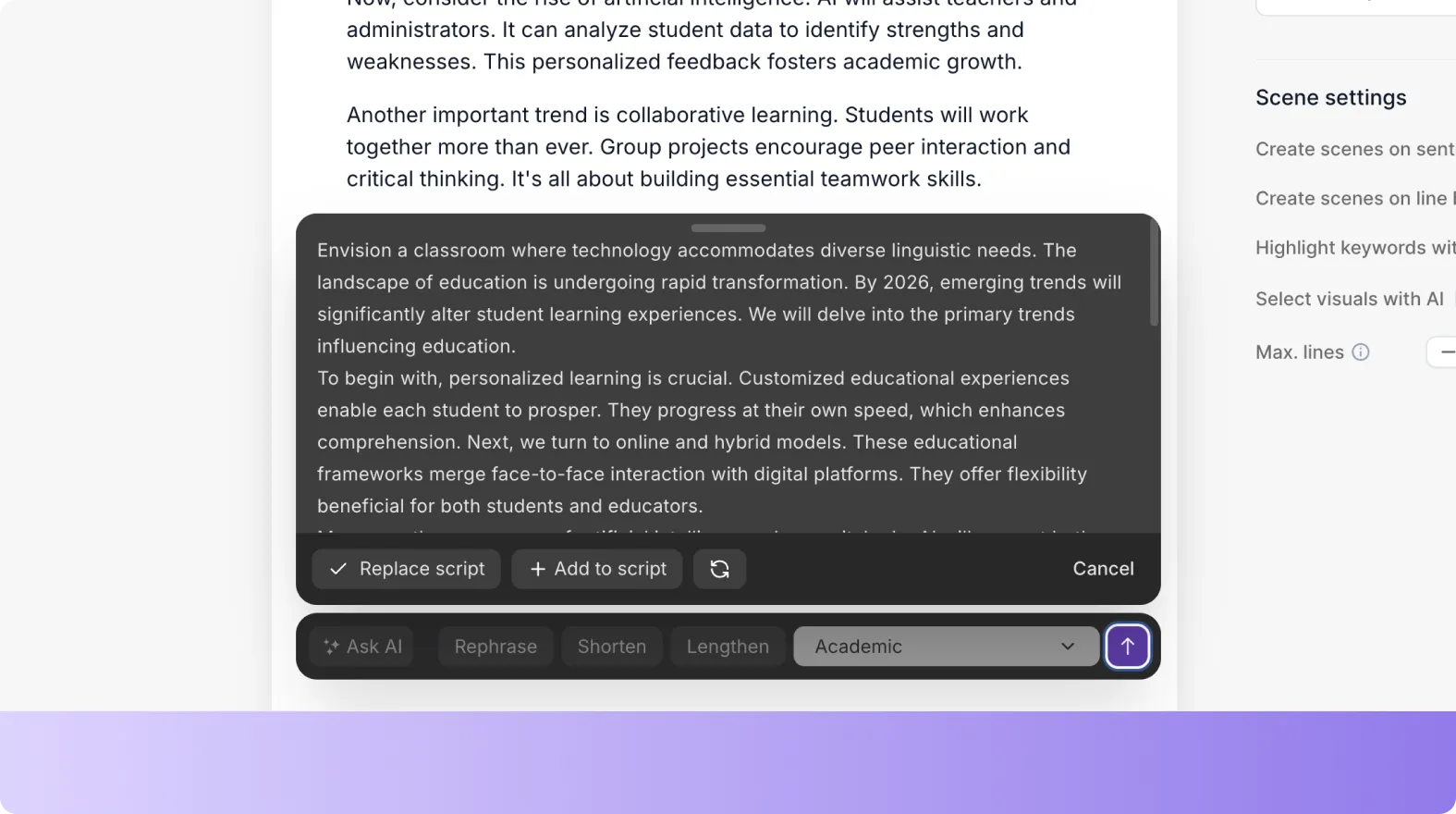
From the Pictory home screen, select Text to Video and paste or write your training script. For clearer pacing, keep sentences short and use direct action language for procedures.
Step 2: Configure scene settings for training clarity
In the Script Editor, set the structure and formatting that best fits training content:
- Choose aspect ratio: 16:9 for LMS and internal portals, 9:16 for mobile-first microlearning, 1:1 for intranet posts.
- Toggle scenes created by sentence or by line breaks for step-based SOPs.
- Set max lines per scene for readability.
- Enable keyword highlighting when you need to reinforce critical terms like policy names or safety rules.
- Select your Brand Kit to ensure enterprise consistency.
Step 3: Generate video, then refine in the AI video editor
Click Generate video. Pictory creates a storyboard and opens the editor where each scene can be updated. Use the left sidebar tools to finalize the training module:
- Story: Edit narration text and scene pacing.
- Visuals: Swap to stock footage, uploads, or AI Studio visuals for role-based training scenarios.
- Audio: Add AI voiceover, upload narration, and add background music if appropriate.
- Text: Add on-screen labels and compliance reminders.
- Styles: Apply standardized text styling for readability.
- Branding: Confirm logo, fonts, and colors remain consistent across scenes.
How to Convert Policies and Knowledge Base Pages with URL to Video for Training
If your organization maintains training content in web-based documentation, URL to Video converts those pages into a draft script and video storyboard. This is useful for policy refreshers, internal process updates, and compliance reminders.
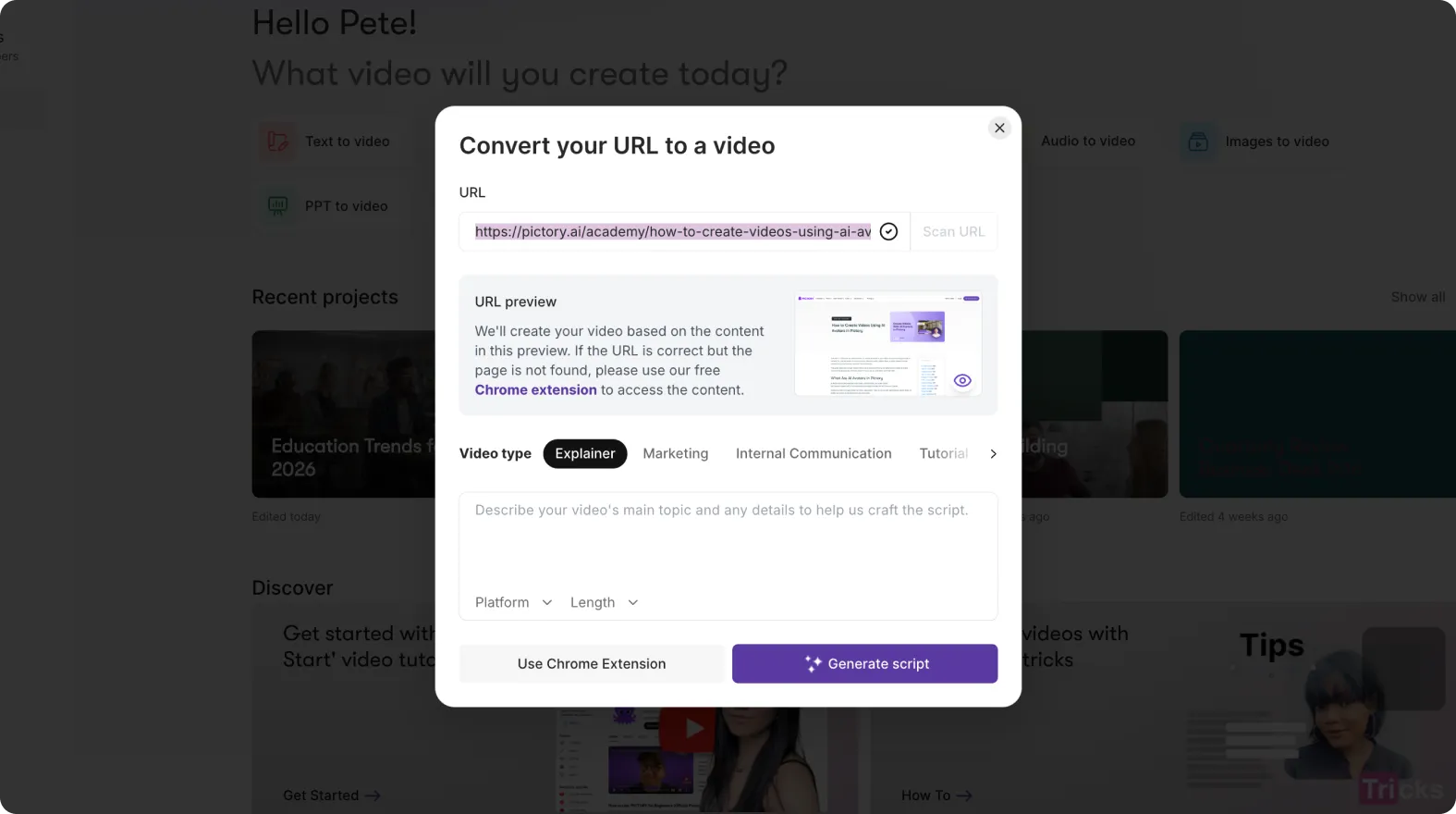
Step 1: Open URL to Video and paste a valid link
From the home screen, select URL to Video and paste a URL starting with http:// or https://. Choose a video type such as Internal Communication or Tutorial.
Step 2: Generate a script draft and align it to training outcomes
Click Generate Script. Review the script in the editor and adjust it to match your learning objectives. Use Ask AI tools to rephrase, shorten, lengthen, or change tone so the script matches your internal training voice.

Step 3: Generate the storyboard and standardize branding
Click Generate video to build the storyboard and open the editor. Apply your Brand Kit, then confirm visuals and captions match policy language. Use consistent layout choices across modules to create a uniform course experience.
PPT to Video AI for Enterprise Training Decks and Instructor-Led Content
PPT to Video is the fastest path when training content already exists as slides. It supports company training video production for onboarding decks, quarterly compliance training, product training, and enablement programs.
Step 1: Upload your PowerPoint for PPT to video conversion
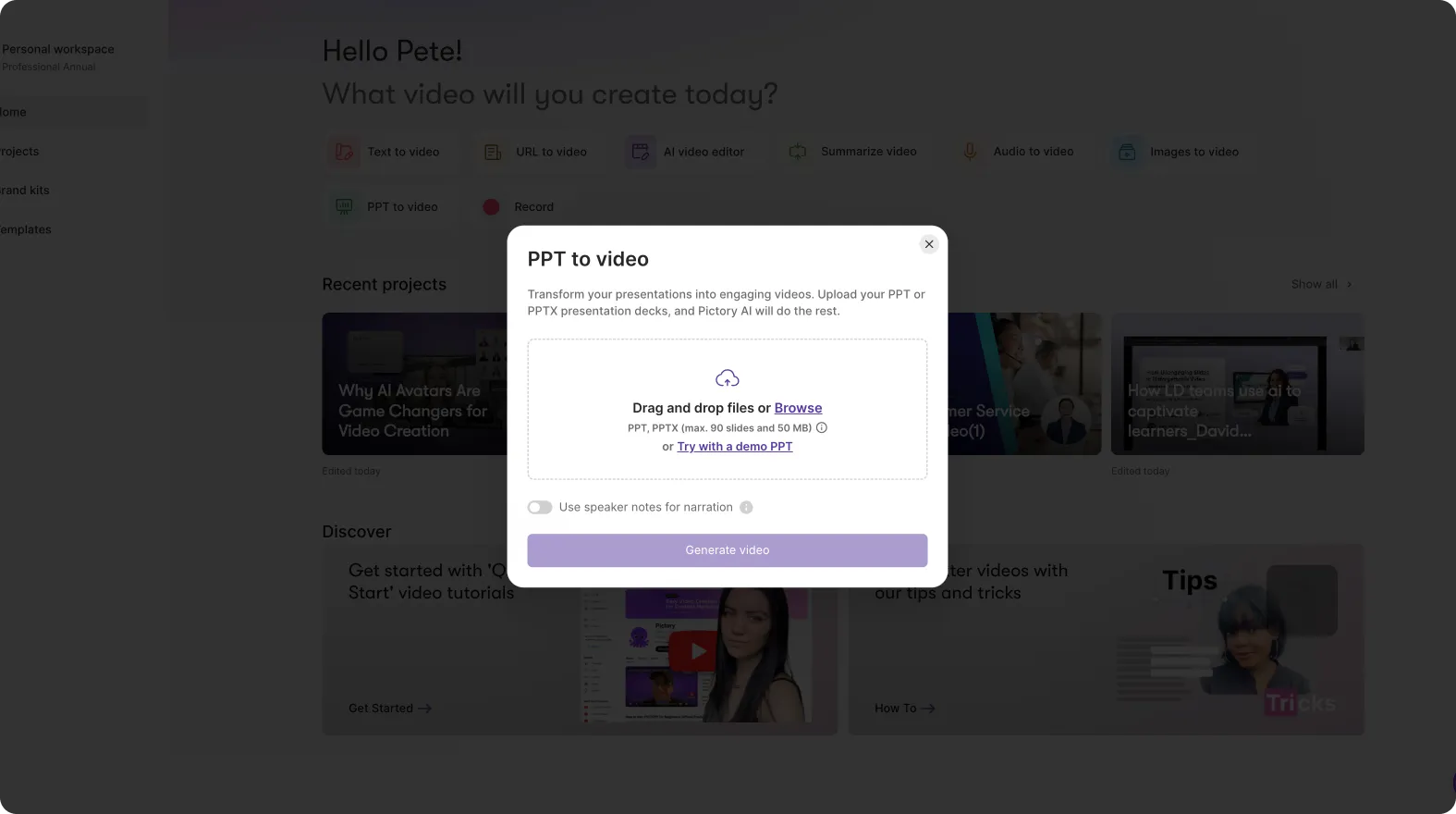
Select PPT to Video and upload a .PPT or .PPTX file (up to 90 slides or 50 MB). If your deck includes speaker notes, enable the option to use speaker notes for narration.
Step 2: Generate a storyboard and validate slide-by-slide structure
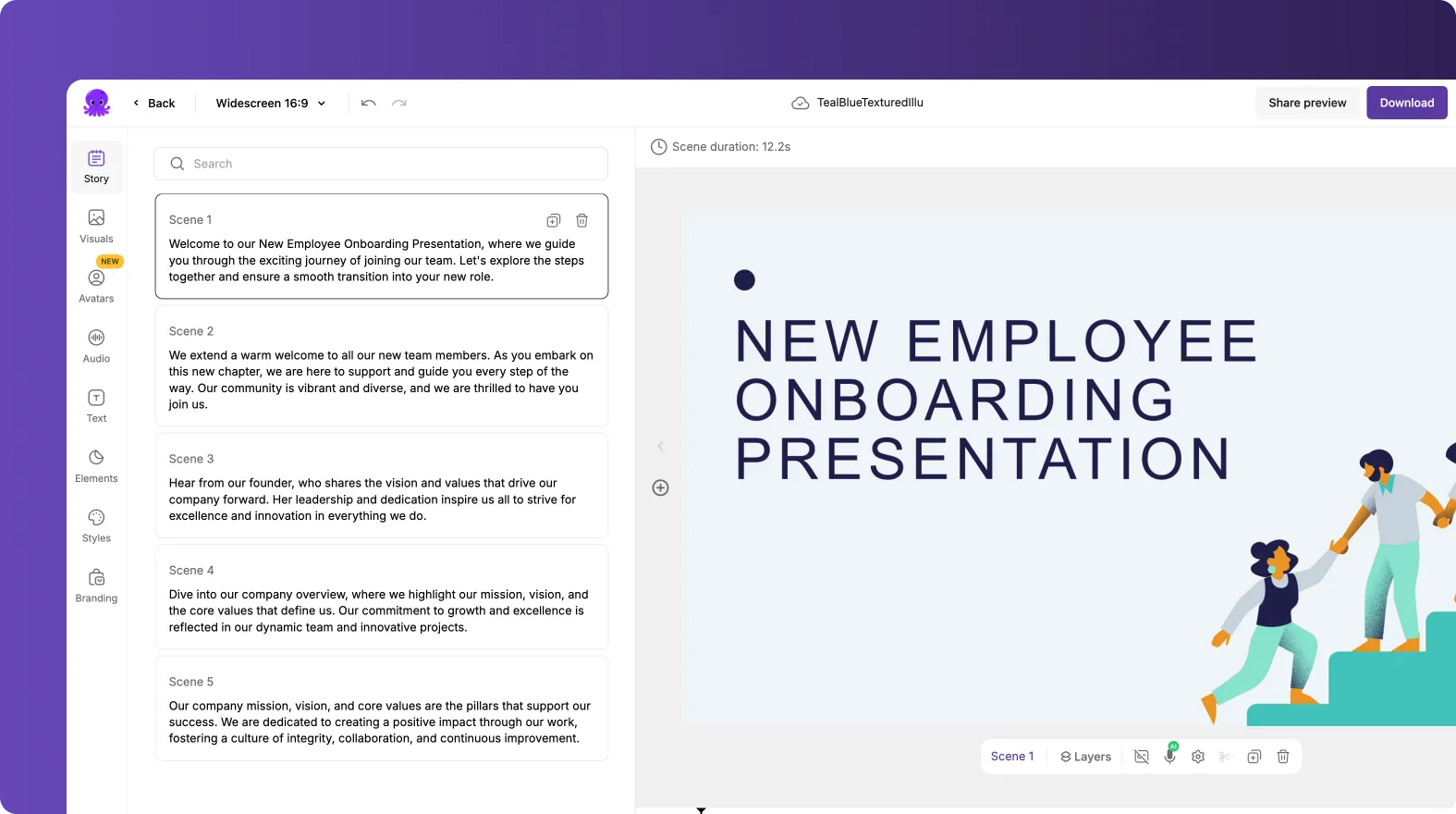
Click Generate video. Pictory converts slides into storyboard scenes. When the editor opens, confirm each slide is mapped logically to a scene and that the pacing supports comprehension.
Step 3: Enhance engagement with layouts, captions, and standardized design
In the editor, use these tools to improve training clarity:
- Layouts: Apply Title, List, Quote, or Emphasis layouts to improve hierarchy.
- Text: Add callouts for key policies, definitions, or steps.
- Styles: Apply preset styles or your saved “My Styles” for consistent visuals.
- Branding: Apply your Brand Kit for logo and color consistency.
AI Video Editor Workflow for Company Training Video Production from Existing Recordings
If your team already has recorded sessions, webinars, demos, or instructor-led training, the AI Video Editor speeds up editing using transcription, filler word removal, silence removal, and scene-based storyboarding. This is especially effective for producing training modules at scale without manual editing.
Step 1: Upload a training recording and select language
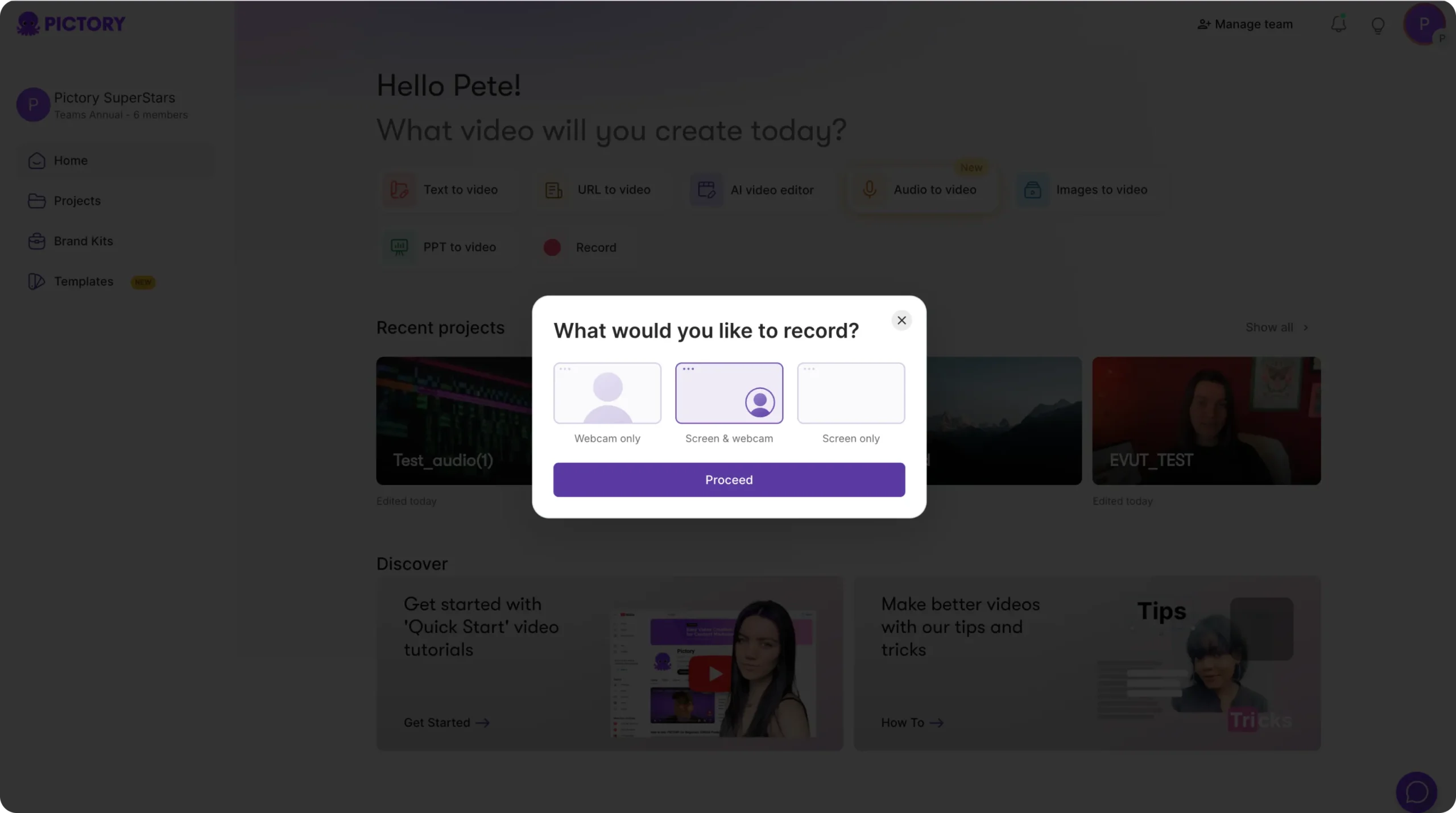
Open the AI Video Editor workflow and upload your file (up to 5 GB, max 180 minutes). Select the correct language to improve transcription accuracy.
Step 2: Edit transcript for clarity and compliance
When transcription completes, open the transcript editor to refine training language:
- Use search and replace to standardize terminology.
- Toggle remove filler words to tighten delivery.
- Toggle remove silences to improve pacing.
- Adjust subtitle max lines and apply an approved subtitle style.
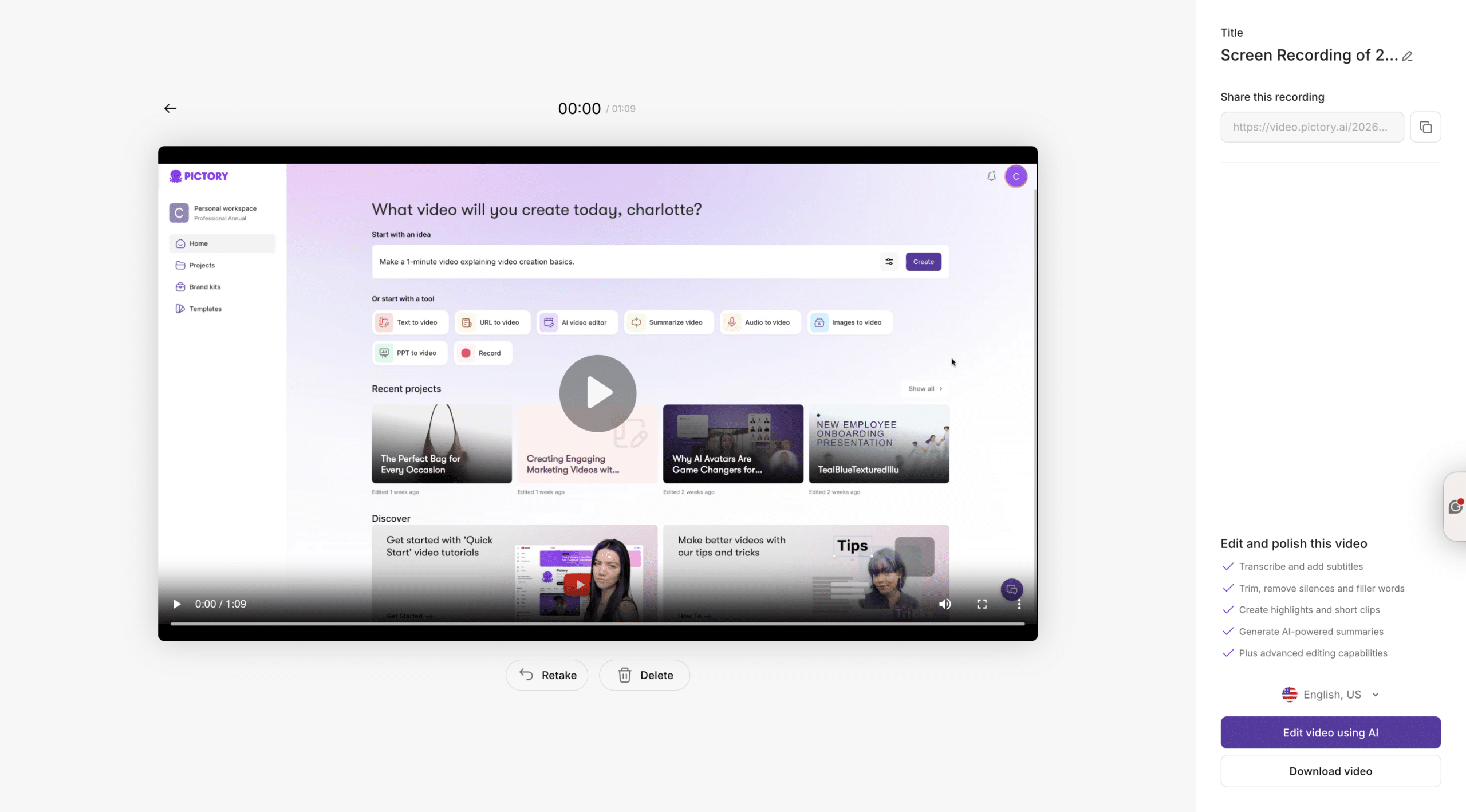
Step 3: Create storyboard scenes and finalize visuals, audio, and branding
Choose Customize Video to generate storyboard scenes, then use the editor to replace visuals, adjust text overlays, and apply Brand Kits. Use the updated timeline tools to duplicate scenes, copy and paste segments, and manage navigation with zoom for long training videos.
Speed Up Training Video Editing with Scene Tools, Text Animations, and Share Preview
Enterprise training teams often need fast iteration cycles. Pictory includes scene operations, timeline navigation tools, and controlled text motion to improve engagement without heavy editing overhead.
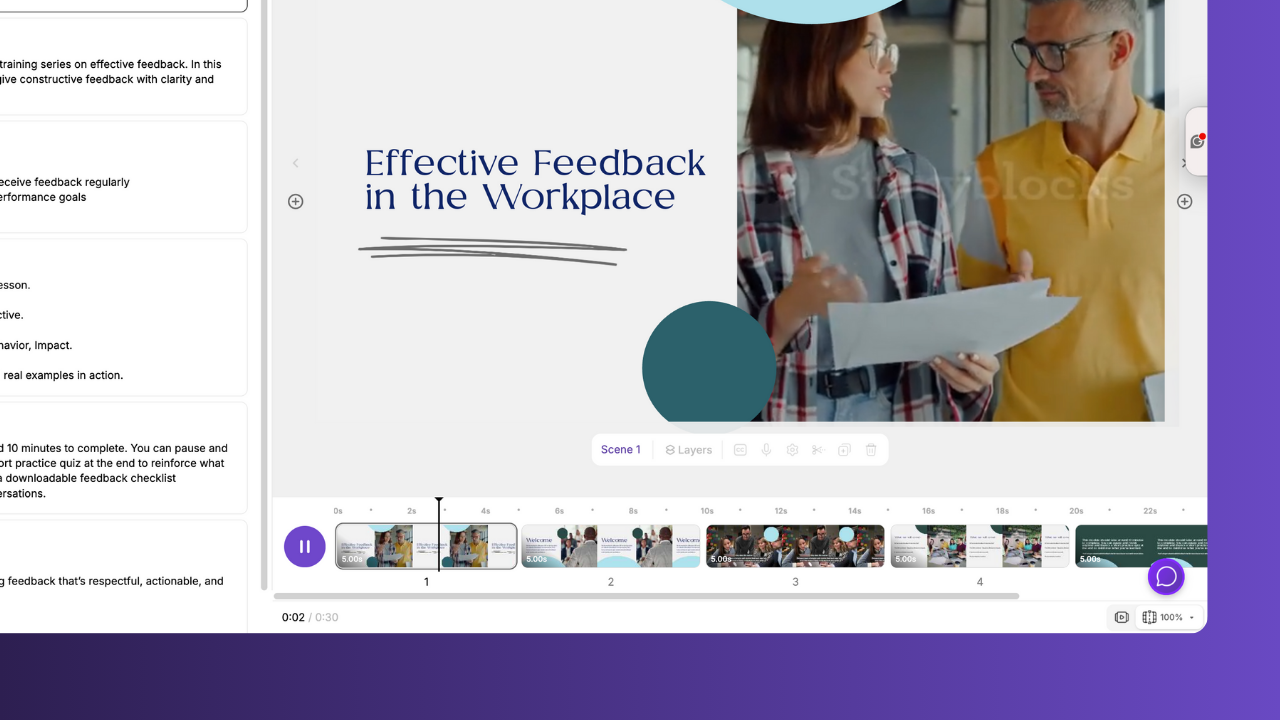
Step 1: Use timeline actions to duplicate and reuse training scenes
In the editor timeline, right-click a scene thumbnail to:
- Duplicate a scene for repeated instruction patterns
- Copy and paste after for standard chapter transitions
- Delete outdated steps during SOP updates
- Link with next when you want two steps to flow as a unit
Step 2: Add readable on-screen instruction text and animate only when helpful
Open the Text tab to add headings or callouts like “Step 1,” “Safety Check,” or “Do not share credentials.” Select a text box and use the top toolbar Animate Text option to apply entry and exit animations such as Fade, Typewriter, or Wipe. Keep motion subtle for compliance and accessibility.
Step 3: Share preview for stakeholder review before export
Use Share preview in the editor to streamline reviews with Compliance, Legal, or department owners. After approval, use Preview Video for final QA and Download Video for LMS upload or internal distribution.
FAQ: Company Training Video Production
What is the fastest way to scale company training video production without hiring more editors?
Use Pictory workflows that start from existing assets such as PPT to Video for slide decks, URL to Video for documentation pages, and the AI Video Editor for recorded sessions. Apply Brand Kits to standardize design so multiple teams can create videos consistently.
How do we keep training videos on brand across departments?
Create a Brand Kit with approved logos, fonts, and colors, then apply it inside the editor using the Branding tab. This ensures every module maintains the same visual identity, even when different contributors build content.
Can we turn a policy page or internal documentation into a training video?
Yes. Use URL to Video to convert a web page into a script draft, then generate a storyboard. Edit the script to match learning objectives and confirm visuals and captions reflect the policy language.
What workflow is best for converting PowerPoint training decks into video modules?
Use PPT to Video. Upload your .PPT or .PPTX, optionally use speaker notes for narration, generate the storyboard, then refine layouts, captions, and branding inside the editor before exporting.
How can we clean up recorded training sessions quickly?
Upload the recording in the AI Video Editor to generate a transcript. Use toggles to remove filler words and silences, edit subtitles for readability, then generate storyboard scenes for fast, structured editing.
Can we create short reinforcement clips from long training content?
Yes. After generating scenes in the editor, duplicate, copy, paste, and delete sections using timeline actions to isolate key moments. Export short clips for follow-up training, internal comms, or team refreshers.


