
Pictory helps enterprise sales enablement teams turn scripts, URLs, PPTs, recordings, and existing training content into brand-consistent videos faster, without adding new production headcount. This guide shows a practical workflow you can standardize across product marketing, revenue enablement, and field teams to create sales-ready videos at scale.
Why Pictory Works as a Sales Enablement Video Creator for Enterprise Teams
Sales enablement video programs succeed when content is consistent, easy to update, and fast to produce. Pictory is designed for high-volume, multi-stakeholder video creation with an all-in-one AI workflow that supports common enablement inputs like scripts, product pages, PPT decks, webinar recordings, and internal documentation.
Common enterprise use cases include:
Product explainer videos for new releases and competitive updates
Sales kickoff recaps and internal communication videos
Microlearning and L&D videos for new hire onboarding
Customer proof point and case study snippets
Account-based video variations for different verticals or segments
Plan Your Sales Enablement Video Content and Inputs (Scripts, URLs, PPT, Recordings)
Before you start generating videos, choose the fastest source material for your team. Pictory supports multiple creation workflows, so you can match the input to the enablement asset you already have.
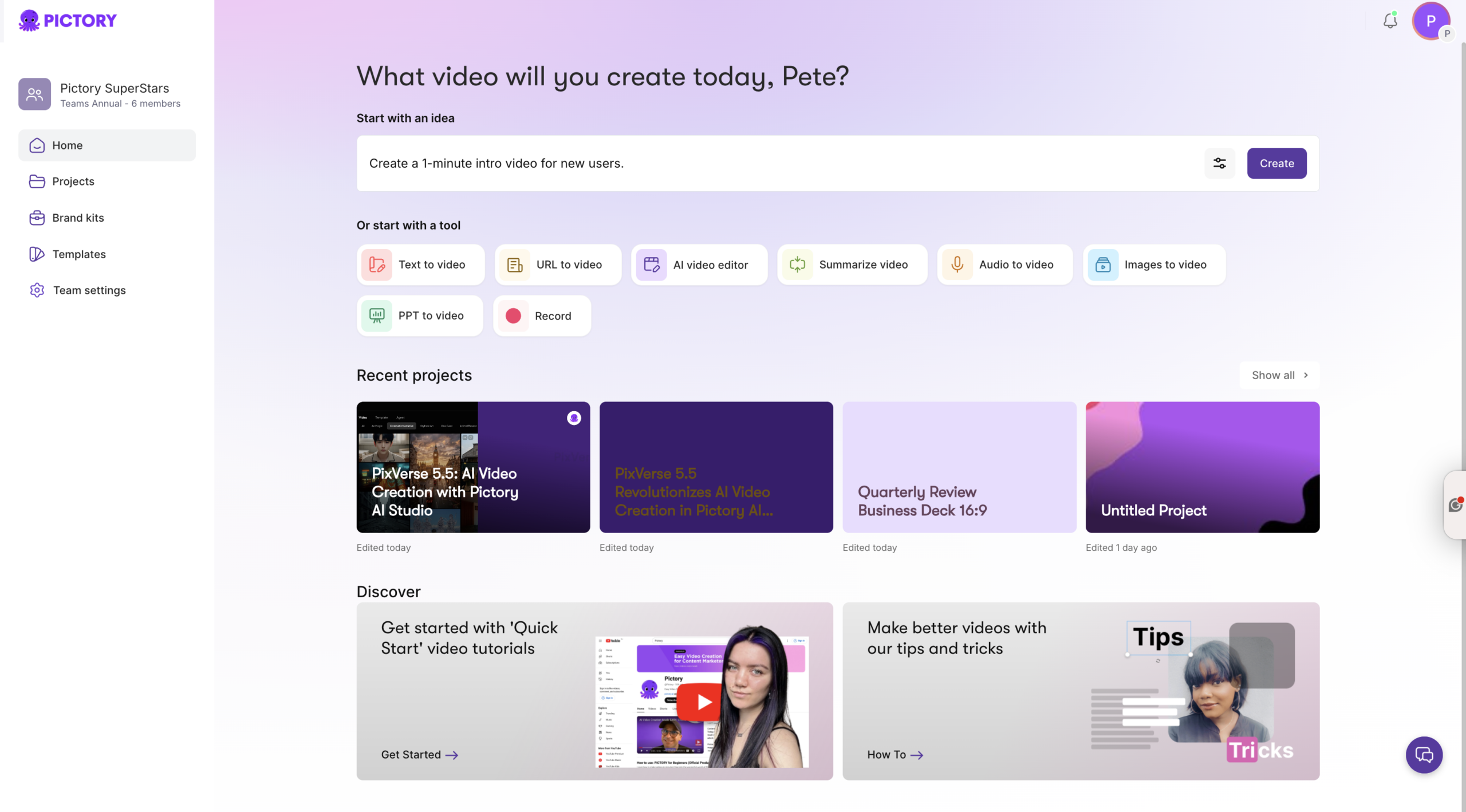
Text to Video for talk tracks, one-pagers, battlecards, and messaging docs
URL to Video for product pages, solution pages, and blog content you want to repurpose
PPT to Video for existing decks, sales plays, and training presentations
Record (Screen/Camera) for demos, walkthroughs, and enablement sessions
AI Video Editor for uploaded videos that need transcription, highlights, and fast edits
For enterprise sales enablement, pick a primary template and a repeatable structure. Examples: 60 to 90-second product overview, 2-minute sales play, 3 to 5-minute onboarding module.
Step-by-Step: Create a Sales Enablement Video from a Script (Text to Video AI Workflow)
Use this workflow when you have a finalized message, talk track, or enablement script and want Pictory to automatically build scenes, visuals, captions, and voiceover. This is the most direct “sales enablement video creator” process for repeatable production.
Step 1: Start a Text to Video AI project
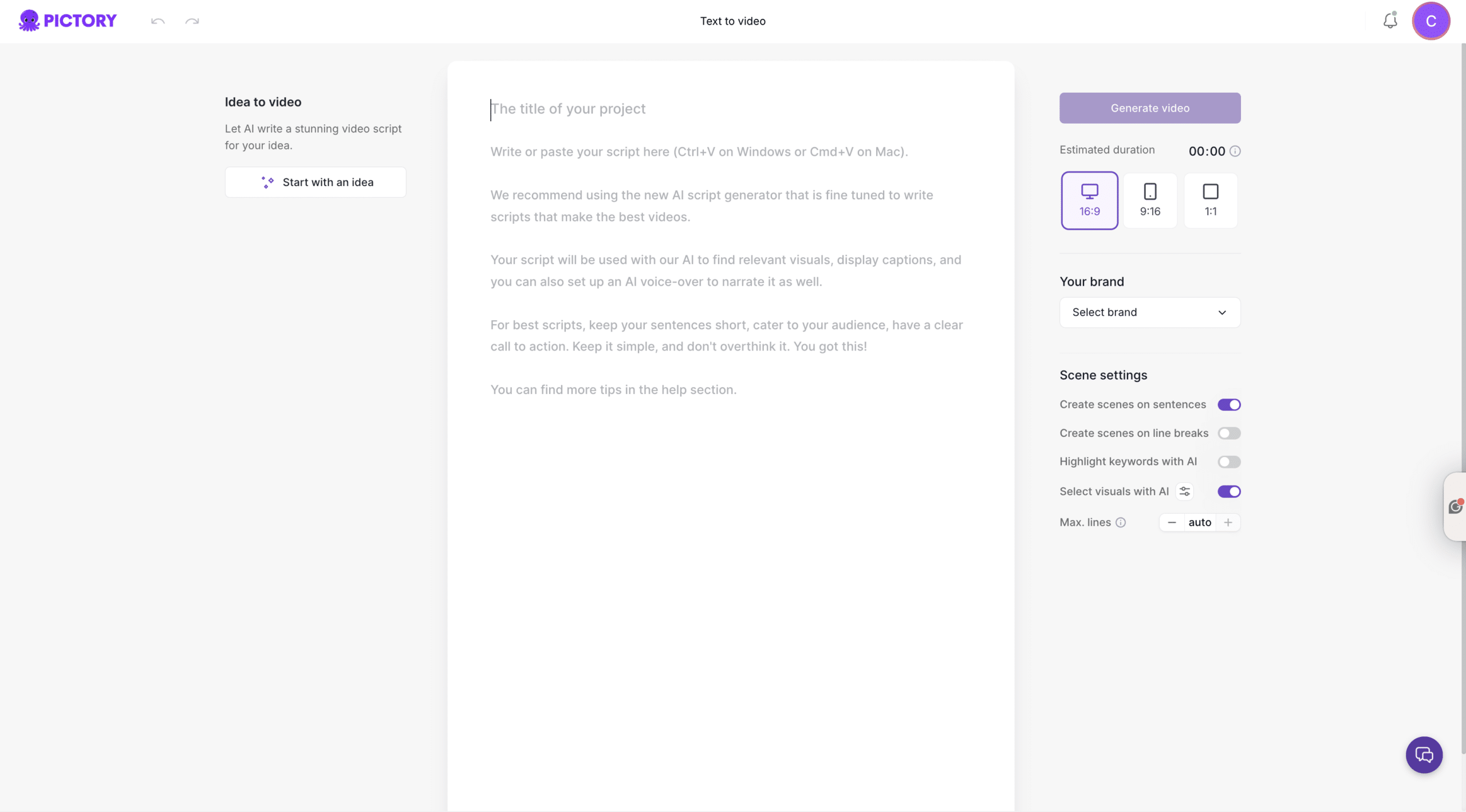
From the Pictory Home page, select Text to Video. Paste or write your script directly in the input field. Keep sentences short, keep the message simple, and include a clear call to action.
Step 2: Refine messaging in the Script Editor with Ask AI
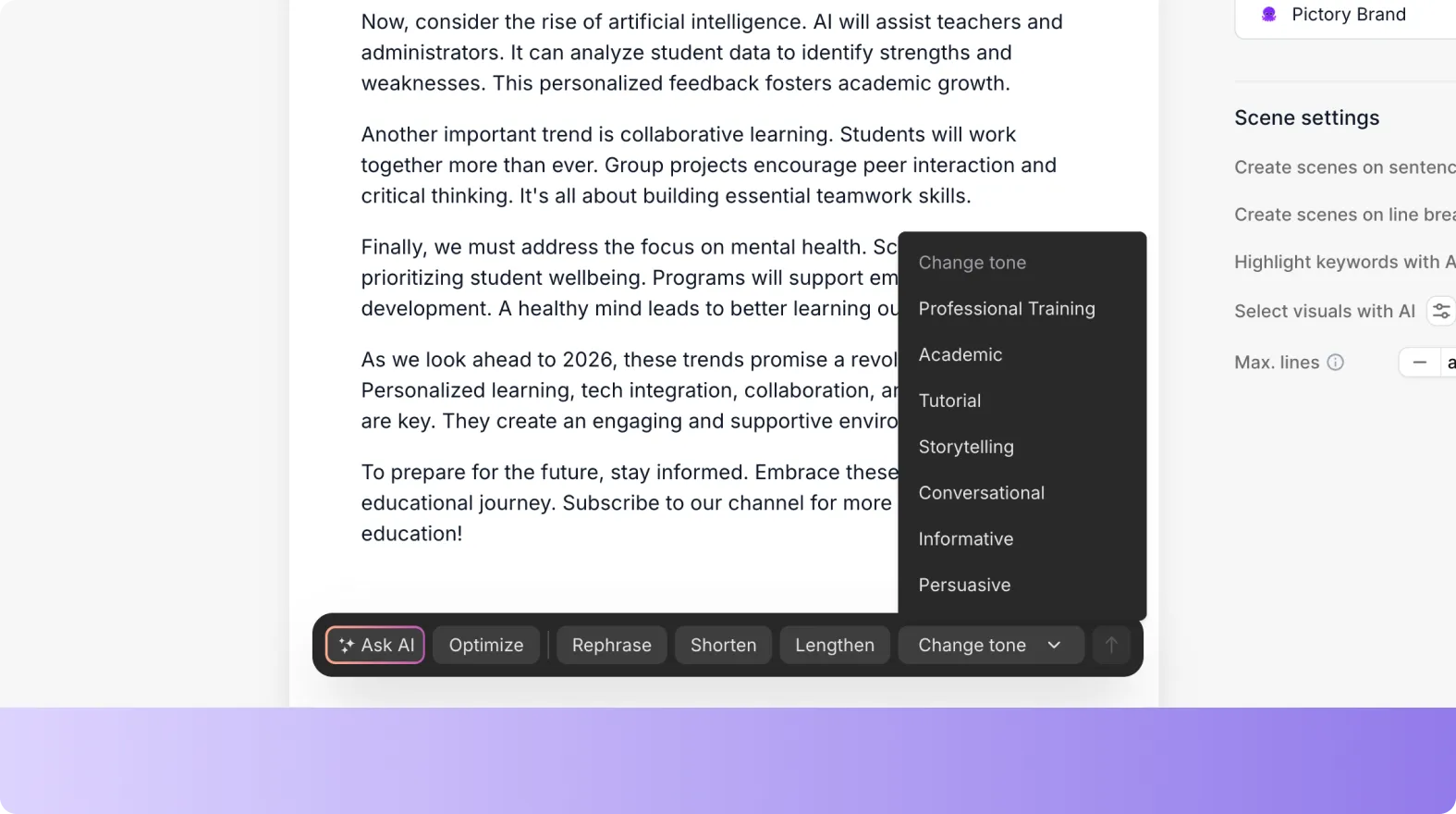
In the Script Editor, revise your copy as needed. Use Ask AI controls to optimize, rephrase, shorten, lengthen, or change tone so the narrative matches your enablement objective and target persona.
Step 3: Set scene structure and brand controls
In the right-side scene settings:
Select an aspect ratio: 16:9 for LMS and internal enablement, 9:16 for mobile-first updates, 1:1 for multi-channel posting
Choose whether scenes are created based on sentences or line breaks
Enable keyword highlighting if you want key terms to stand out for sales retention
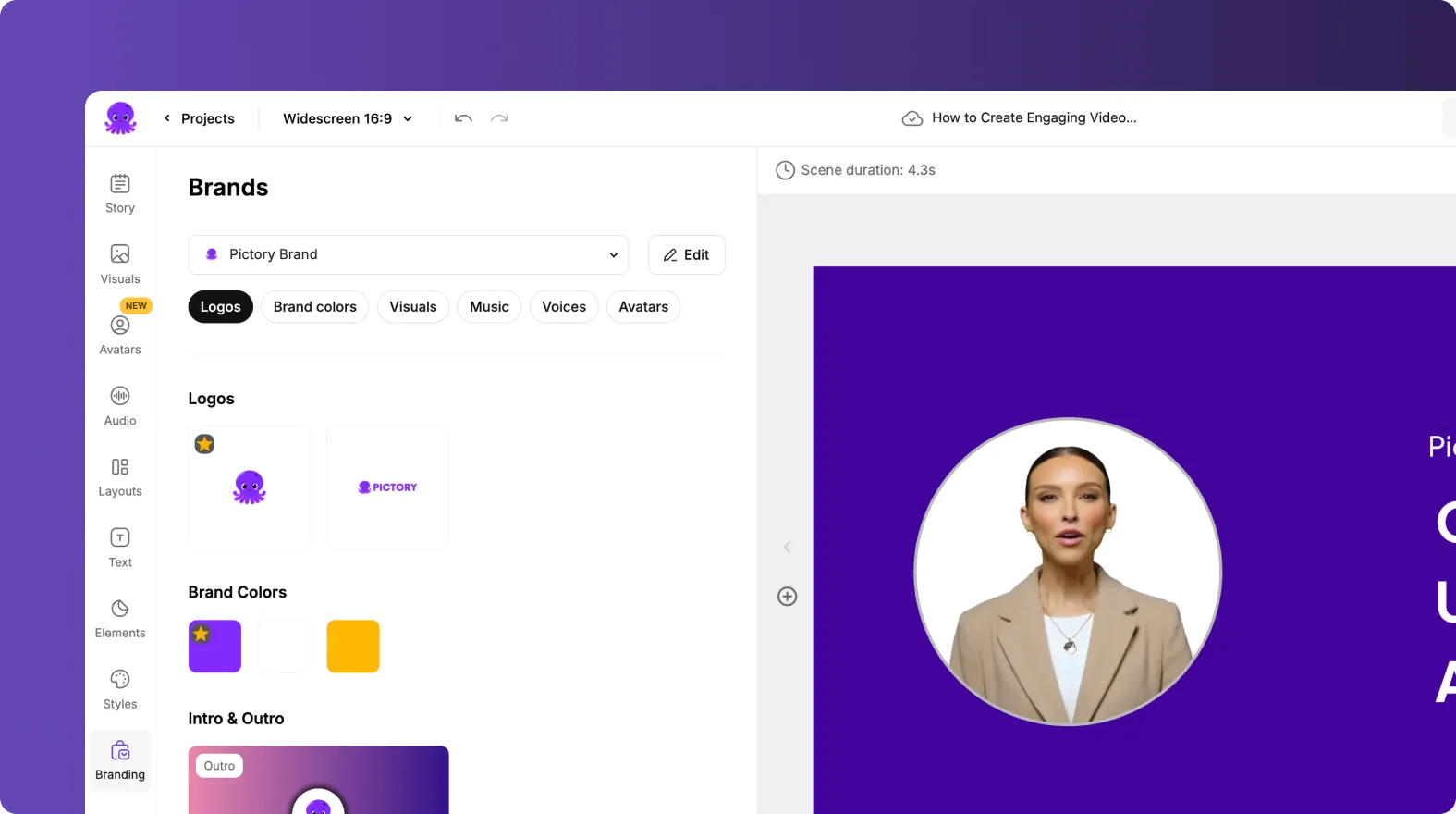
Select a Brand Kit to enforce approved colors, fonts, and logos
Step 4: Generate the storyboard and choose a layout theme
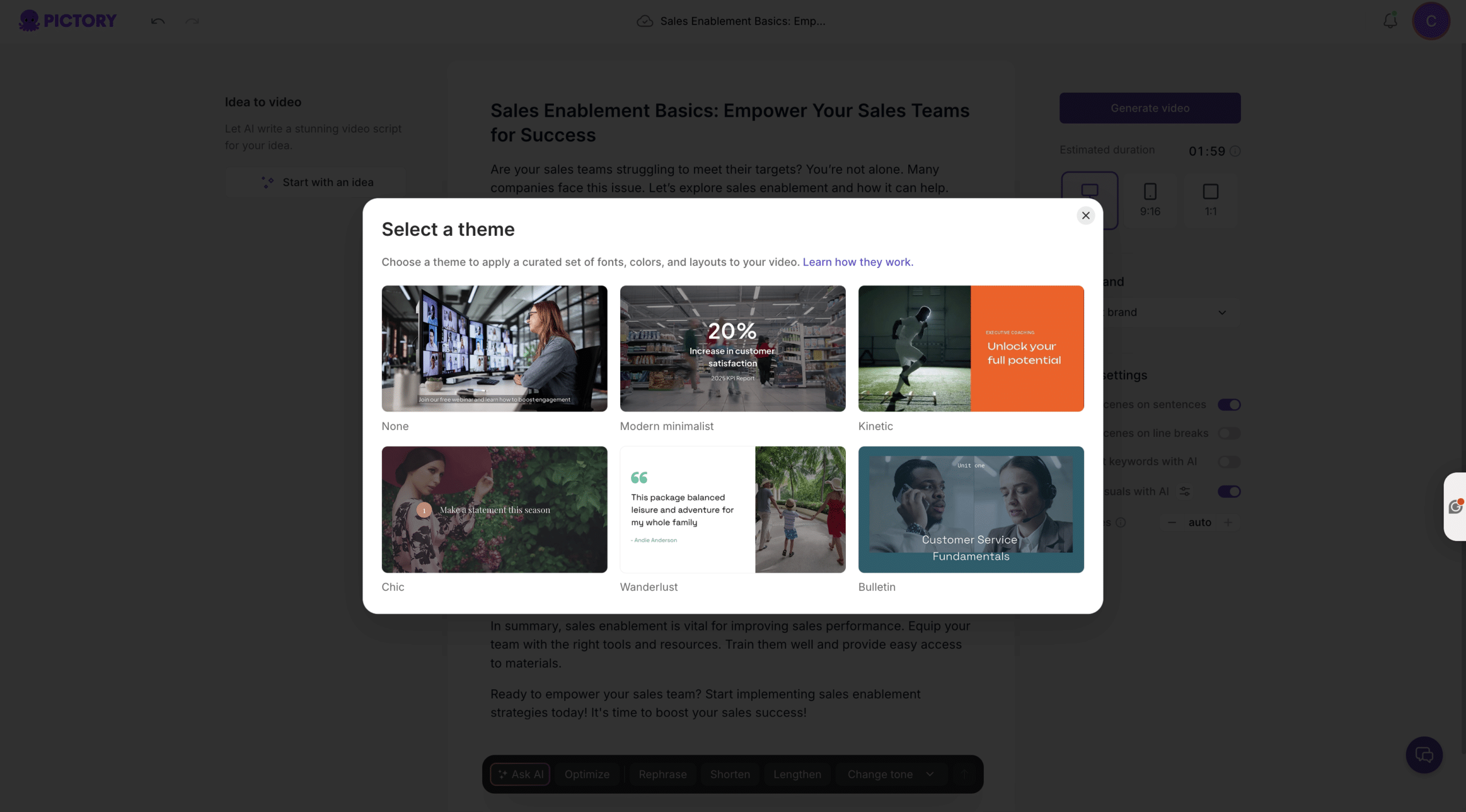
Click Generate video. Choose a theme such as Modern minimalist, Kinetic, Chic, Wanderlust, or Bulletin to match your enablement style. Pictory will create a storyboard and begin creating scenes.
Step 5: Edit scenes in the AI Video Editor
In the editor, review the storyboard scene-by-scene. Use the left menu to refine:
Story to edit scene text and pacing
Visuals to swap footage or images (Library, Uploads, or AI Studio)
Audio to select AI voiceover and background music
Styles and Branding to keep everything on brand
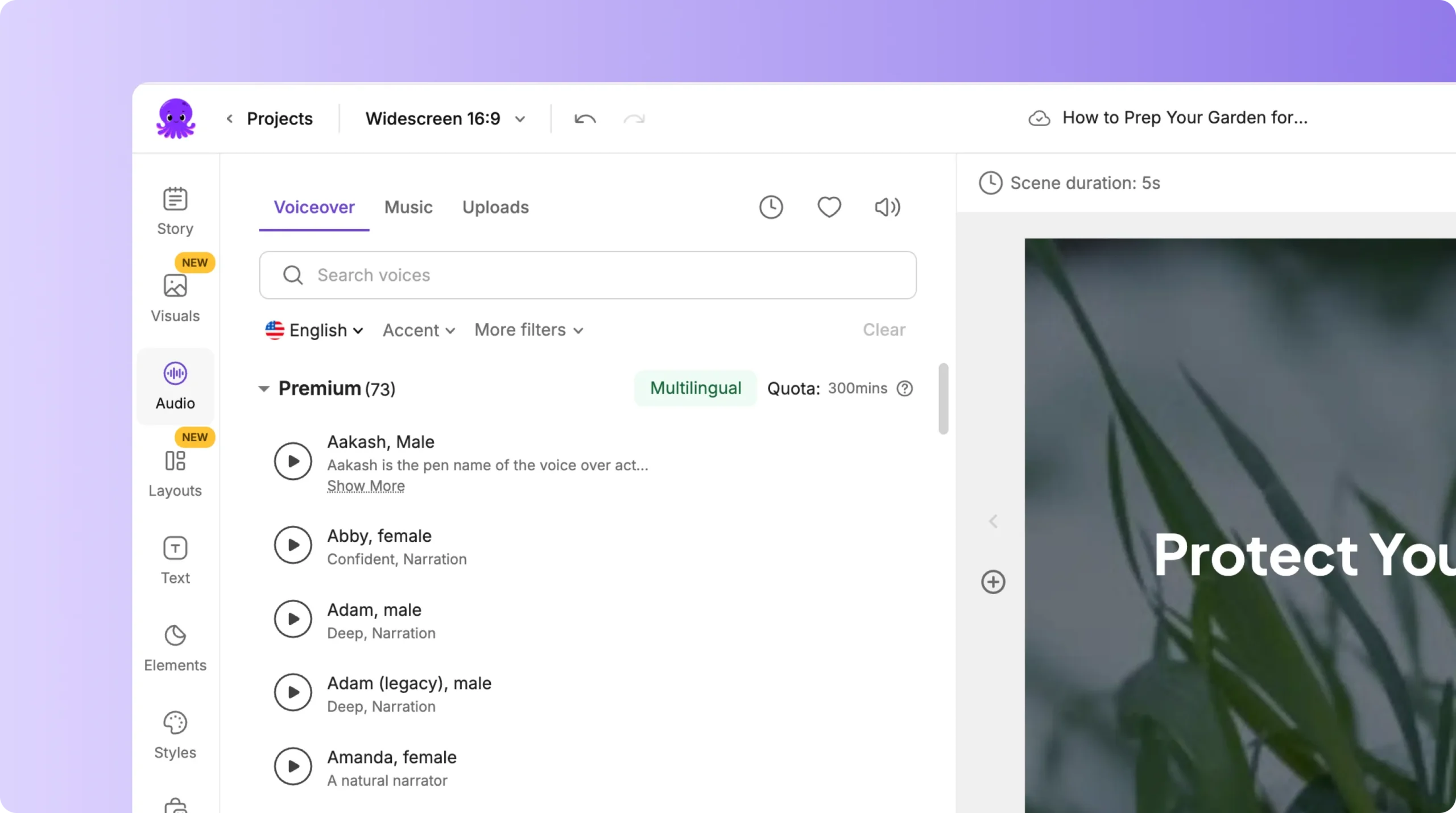
Use the bottom timeline to navigate quickly. Right-click scene thumbnails to Duplicate, Link with next, Copy, Paste after, or Delete. Use timeline zoom for long enablement videos.
Step 6: Preview, share a review link, and export
Preview the video inside the editor, then use Share preview to collect feedback from stakeholders. When approved, select Download Video to export for your LMS, sales portal, or internal comms channel.
Step-by-Step: Turn Product Pages into Enablement Content with a URL to Video Converter
Use this workflow to repurpose existing web content. It is ideal when product marketing maintains accurate pages and enablement needs a video version quickly.
Step 1: Start a URL to Video project
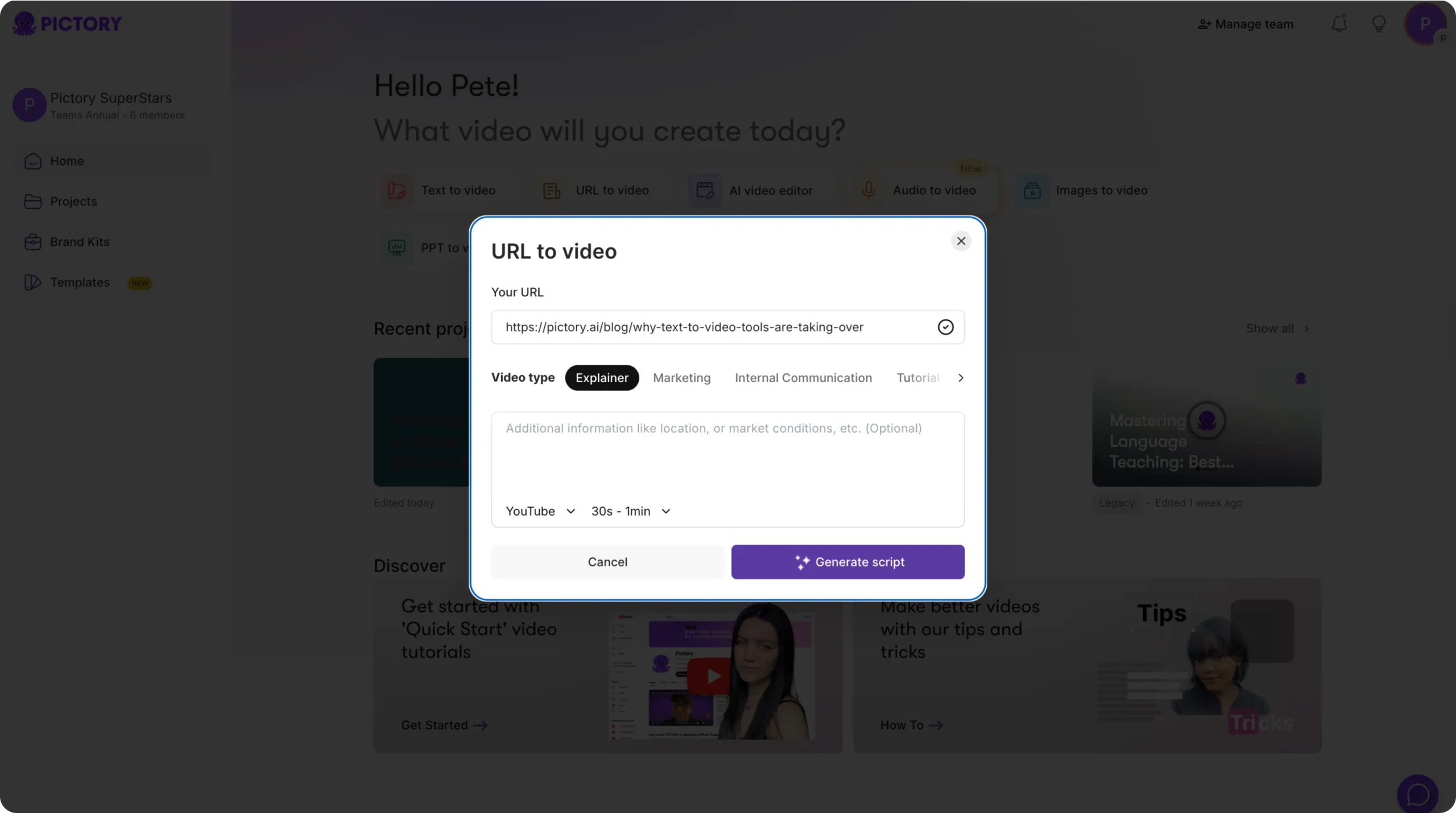
From Home, select URL to Video and paste a valid link (http:// or https://). Choose your video type, such as Explainer, Marketing, Internal Communication, or Tutorial.
Step 2: Generate and edit the script extracted from the link
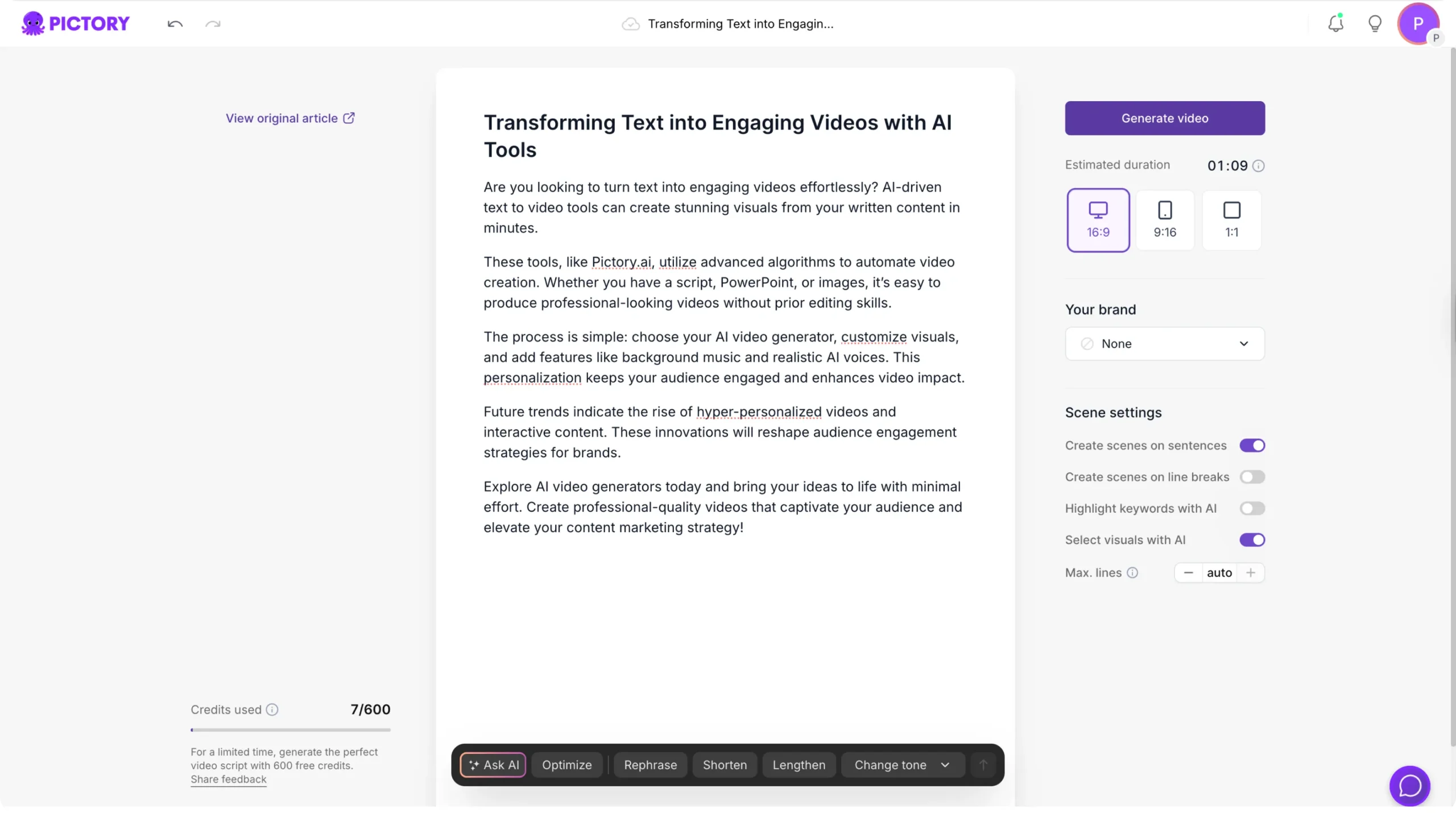
Click Generate Script. Pictory will extract content from the URL and create a draft script. Edit the script to match sales enablement language, add proof points, and remove unnecessary page sections.
Step 3: Apply enterprise brand settings and generate the video
Set aspect ratio, select your Brand Kit, and configure scene settings like sentence-based scenes and keyword highlights. Click Generate video to create the storyboard, then fine-tune visuals, captions, and audio in the editor.
Step-by-Step: Convert Sales Enablement Slides with PPT to Video AI
If your team already has sales plays and training in PowerPoint, this workflow converts decks into video without rebuilding everything from scratch.
Step 1: Upload your PowerPoint deck

Select PPT to Video and upload a .PPT or .PPTX file (up to 90 slides or 50 MB). If your deck includes speaker notes, enable the option to use them for narration.
Step 2: Generate the video storyboard from slides
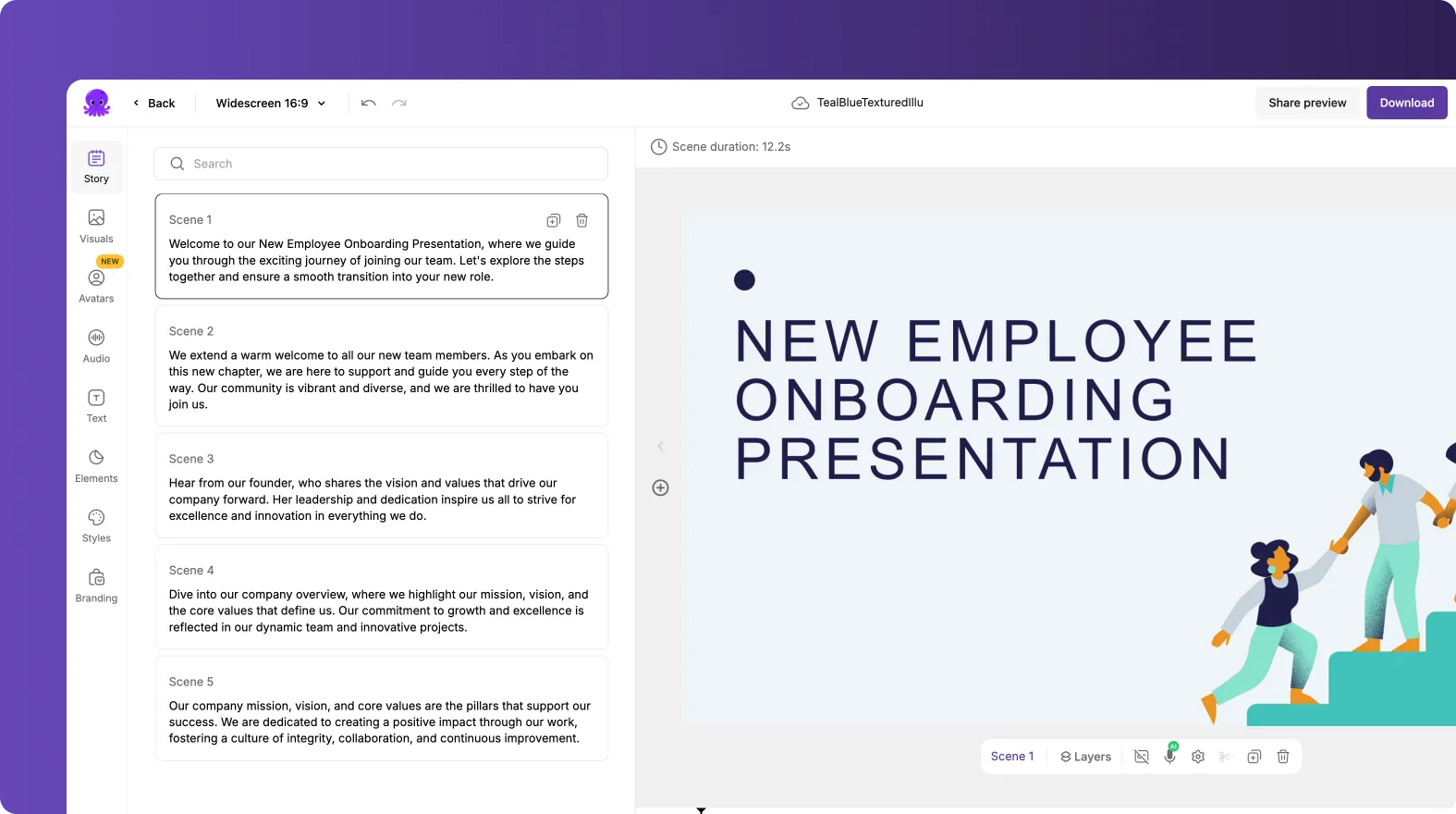
Click Generate video. Pictory will convert slides into storyboard scenes. Wait for the progress bar to complete while scenes are created.
Step 3: Edit the storyboard for pacing, clarity, and brand consistency
In the editor, tighten the message for each scene, adjust scene duration, and ensure the visual hierarchy supports learning. Use Styles and Branding to match your enablement design system, then preview and export.
Standardize Brand Consistency with Enterprise Brand Kits for Enablement Videos
Brand Kits help enterprise teams produce consistent sales enablement videos across regions, product lines, and departments.
To create or manage Brand Kits:
- Open Brand Kits from the left navigation
- Select Create a Brand
- Add Brand Name, upload logo variations, set brand colors, and choose a brand font
Inside the editor, apply the Brand Kit from the Branding tab to automatically align logos, colors, and typography across scenes.
Enhance Sales Enablement Videos with Avatars, AI Voiceover, Captions, and Text Animations
Enterprise enablement videos often need to be engaging, accessible, and easy to consume without sound. Pictory supports presenter-style delivery and polished motion text without complex editing tools.
Recommended enhancements for sales enablement:
- Avatars for consistent “presenter” delivery across internal updates and training modules
- AI voiceover to scale narration across teams and regions
- Captions to support mobile viewing and accessibility
- Text animations to emphasize key claims, differentiators, and next steps
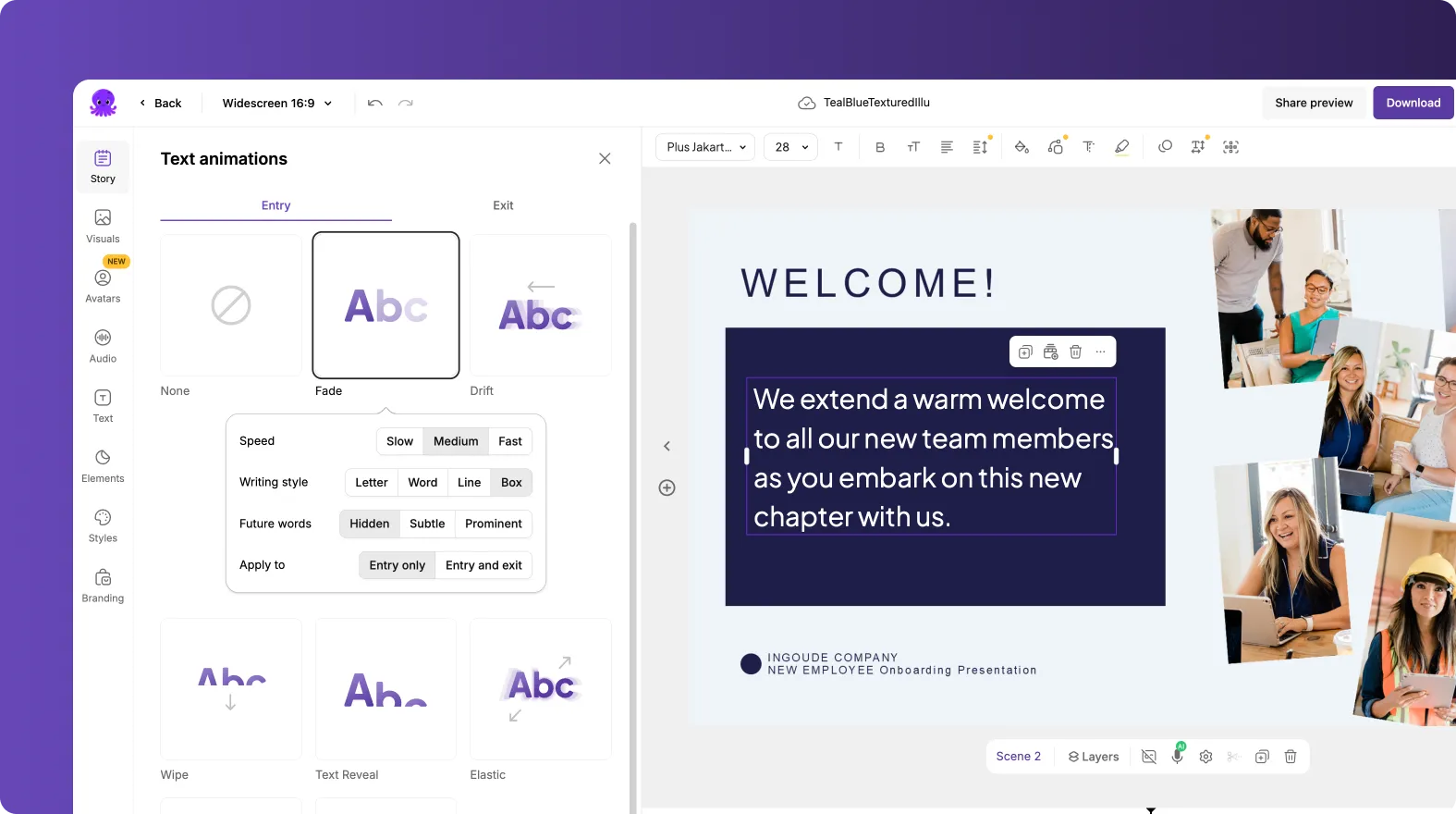
To animate on-screen text, select a text layer in a scene and use the Animate Text option in the top toolbar. Choose entry and exit effects (Wipe, Text Reveal, Elastic, Typewriter, Blur, Fade, Drift), then adjust speed and apply settings consistently across scenes.
FAQ: sales enablement video creator
What is the fastest way to create sales enablement videos in Pictory?
For most teams, the fastest workflow is Text to Video using a finalized talk track. Paste the script, apply a Brand Kit, generate the storyboard, then make quick edits in the AI Video Editor before exporting or sharing a preview link for review.
Can I repurpose existing product pages or blogs into enablement videos?
Yes. Use URL to Video as a URL to video converter. Paste the link, generate the script, refine it for sales messaging, then generate the video and adjust visuals, captions, and branding in the editor.
How do I keep sales enablement videos brand-consistent across teams?
Create and apply Brand Kits with approved logos, fonts, and colors. Then, in each project, select the Brand Kit in the editor’s Branding tab so your enablement videos follow consistent styling across departments and regions.
Can sales enablement teams turn PowerPoint decks into video?
Yes. Use PPT to Video AI. Upload a .PPT or .PPTX, optionally use speaker notes for narration, generate the storyboard, and then edit pacing and branding before exporting.
How can we streamline stakeholder review and approvals?
Use the Share preview option in the editor to distribute a reviewable version to product marketing, sales leadership, and enablement stakeholders. This reduces back-and-forth and helps standardize feedback before export.
Does Pictory support presenter-style enablement videos?
Yes. Use the Avatars tab in the editor to add an AI presenter, choose voice and look variations, and apply the avatar across scenes where appropriate. This is useful for training modules, internal announcements, and repeatable sales play videos.


