

Sales enablement in 2026 is defined by speed, consistency, and measurable impact. Sales teams need repeatable, on-brand video content for onboarding, product updates, objection handling, and competitive battlecards without adding production bottlenecks. Pictory helps enterprise enablement teams turn existing content into professional video using AI workflows like text to video AI, URL to video converter, PPT to video AI, and the AI video editor.
This guide shows exactly how to build a scalable video workflow in Pictory for modern sales enablement programs, including brand governance, collaboration, and fast repurposing.
Sales enablement 2026 video strategy: What to standardize before you create
Before you generate your first video, align stakeholders on the standards that keep sales enablement content consistent and easy to update.
Audience and use case: onboarding, product launches, competitive updates, compliance, call coaching, or deal-stage enablement.
Distribution channels: LMS, CRM, internal wiki, email sequences, enablement platform, and team chat.
Video formats: 16:9 for LMS and internal training, 9:16 for mobile-first microlearning, 1:1 for internal feeds.
Governance: approved terminology, brand voice, required disclaimers, and update cadence.
Measurement: completion rates, quiz outcomes, adoption of new messaging, reduced ramp time, and fewer support escalations.
Enterprise Brand Kits for sales enablement 2026: Lock in brand consistency
Brand consistency is non-negotiable for enterprise sales enablement. Use Brand Kits to standardize logos, fonts, and colors so every training video and update looks like it came from one team.
Step 1: Open Brand Kits and review existing kits
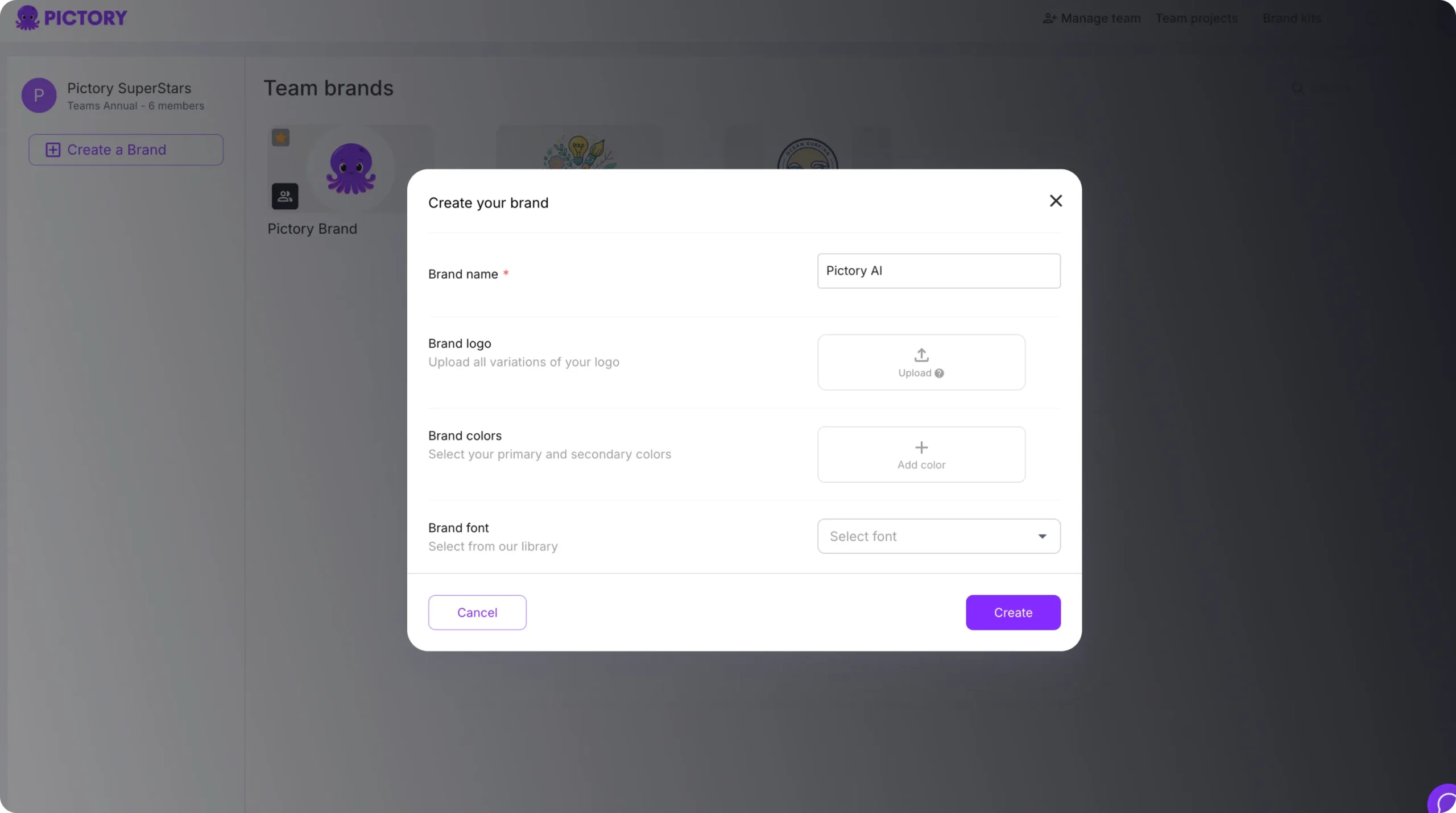
From the left navigation, go to Brand Kits to see your existing brands under “My Brands.” Enterprise teams typically maintain separate kits for internal enablement, external customer-facing content, and regional variations.
Step 2: Create a new Brand Kit for enablement videos
Select Create a Brand and add:
- Brand name for the enablement program or business unit
- All logo variations used in training content
- Primary and secondary brand colors
- Preferred brand font from Pictory’s font library
Step 3: Apply the Brand Kit inside the Video Editor
Yes. Select a text layer, then use Animate Text to add entry and exit animations like Fade, Wipe, Typewriter, or Text Reveal. Adjust speed and apply consistent animations across scenes for a cohesive enablement style.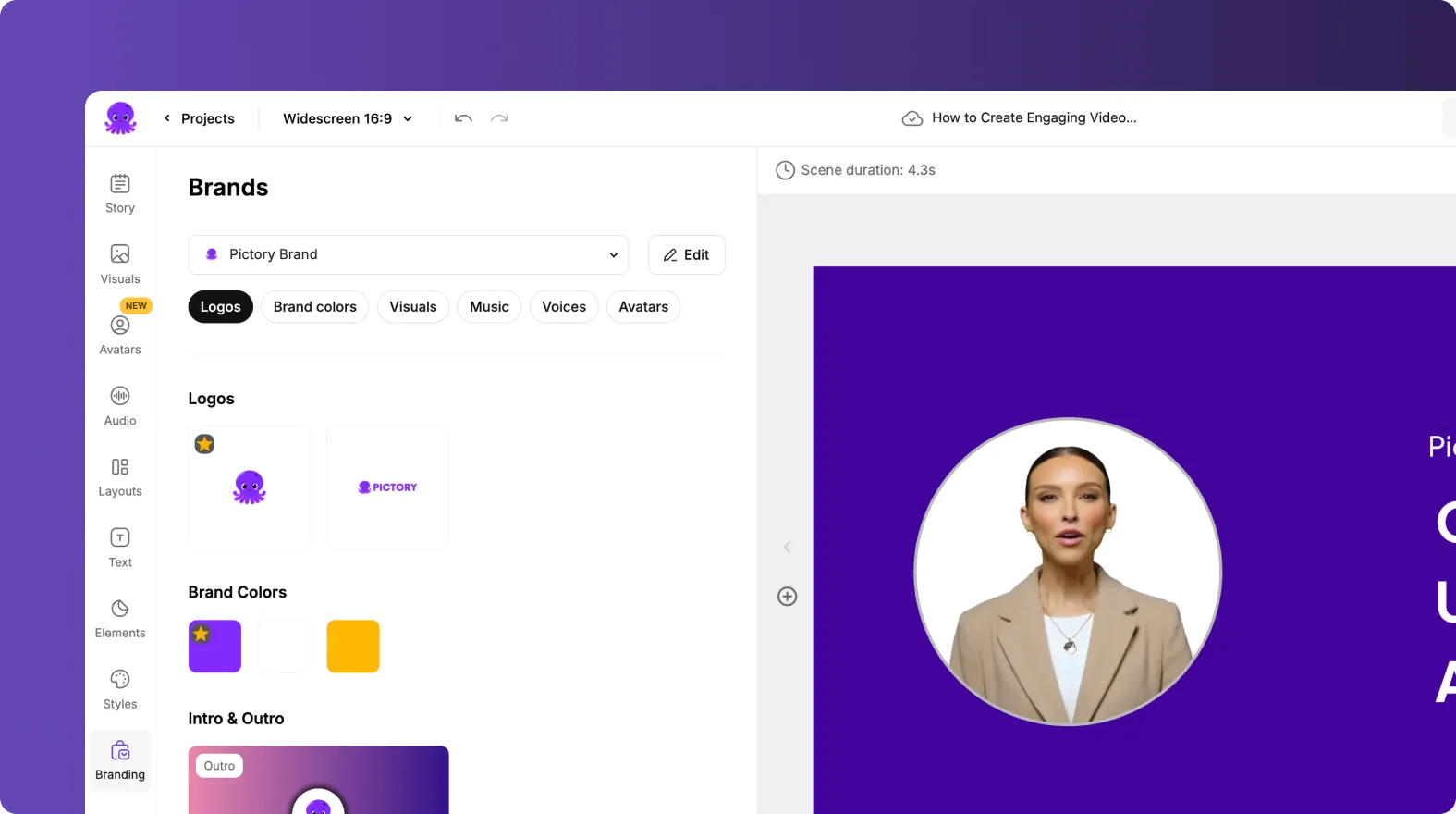
When editing a video, open the Branding tab and apply the kit to ensure consistent logos, fonts, and colors across scenes. This reduces rework and helps enablement teams scale content without relying on design resources.
Text to video AI for sales enablement 2026: Build training modules from scripts
Use Pictory as a text to video AI generator when you already have a script or narrative, such as an onboarding lesson, new product pitch, objection handling talk track, or renewal playbook. This workflow is ideal when standardizing messaging across regions and teams.
Step 1: Start a Text to Video AI project
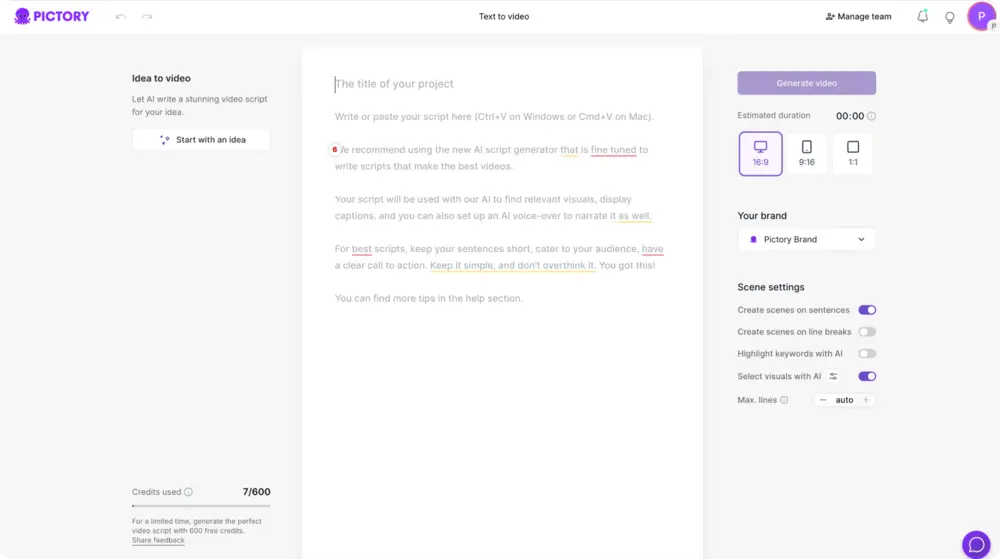
From the Home page, select Text to Video. Paste your script into the input field. Keep sentences short, use clear CTAs, and structure content into small chunks for microlearning.
Step 2: Configure scene settings for fast production
In the Script Editor, set your preferences in the right panel:
- Choose aspect ratio: 16:9, 9:16, or 1:1
- Enable sentence-based scenes or line-break-based scenes for consistent pacing
- Toggle keyword highlights for critical product terms and differentiators
- Enable AI visual selection to match scenes with relevant visuals
- Select your Brand Kit for consistent styling
Step 3: Use Ask AI to refine enablement messaging
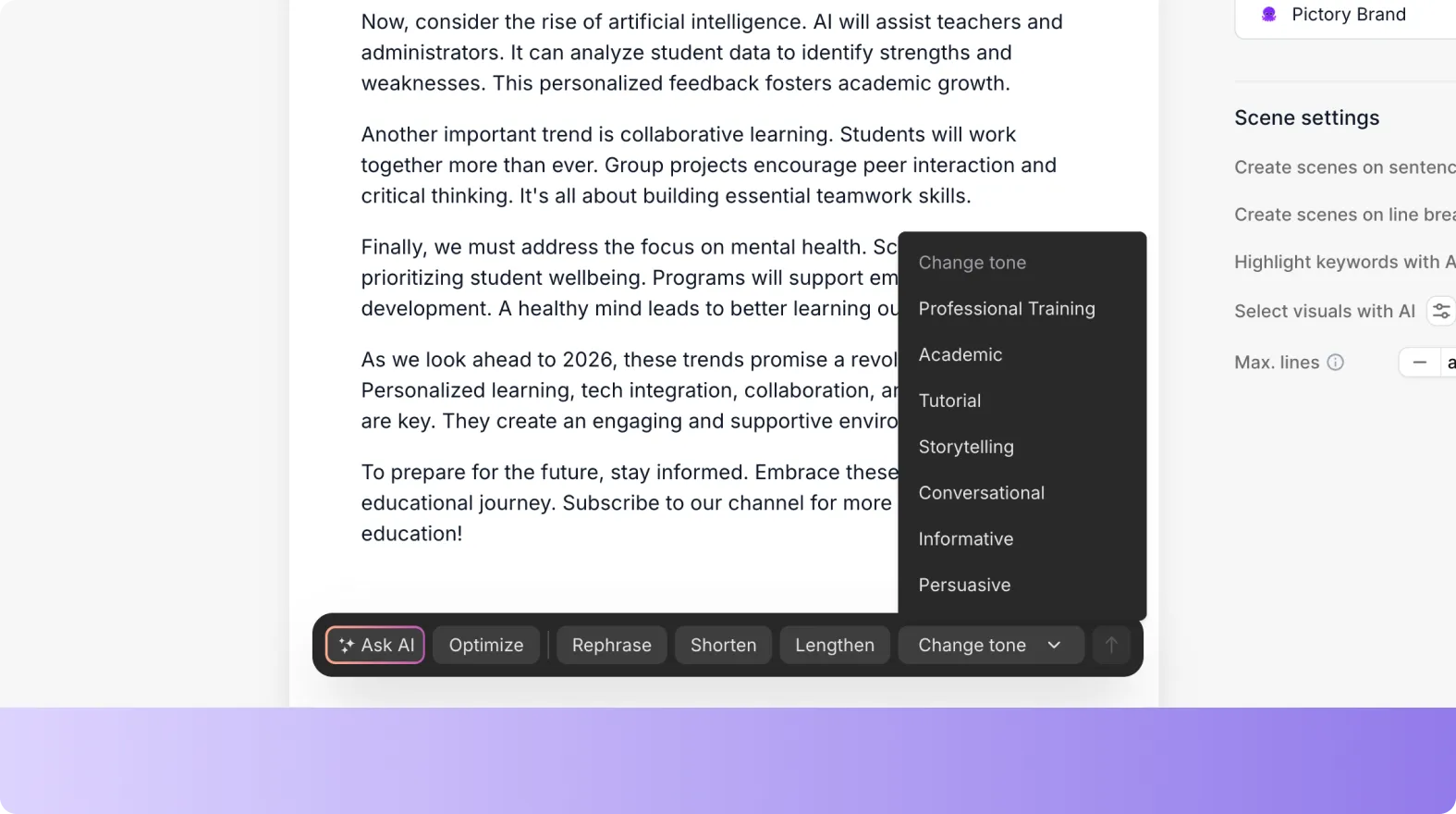
In the editor toolbar, use Ask AI to optimize, rephrase, shorten, lengthen, or change tone. This is useful for sales enablement 2026 programs that require modular content versions for SDRs, AEs, and CSMs.
Step 4: Choose a layout theme and generate the video
Select a theme such as Modern minimalist, Kinetic, or Bulletin, then click Generate video. Pictory will create a storyboard and assemble scenes automatically.
URL to video converter for sales enablement 2026: Turn product pages and internal docs into video
When new messaging changes weekly, URL to video AI workflows help enablement teams convert updated web pages, knowledge base articles, or release notes into video faster than manual editing. This is also a reliable way to convert blog to video for thought leadership that supports sales conversations.
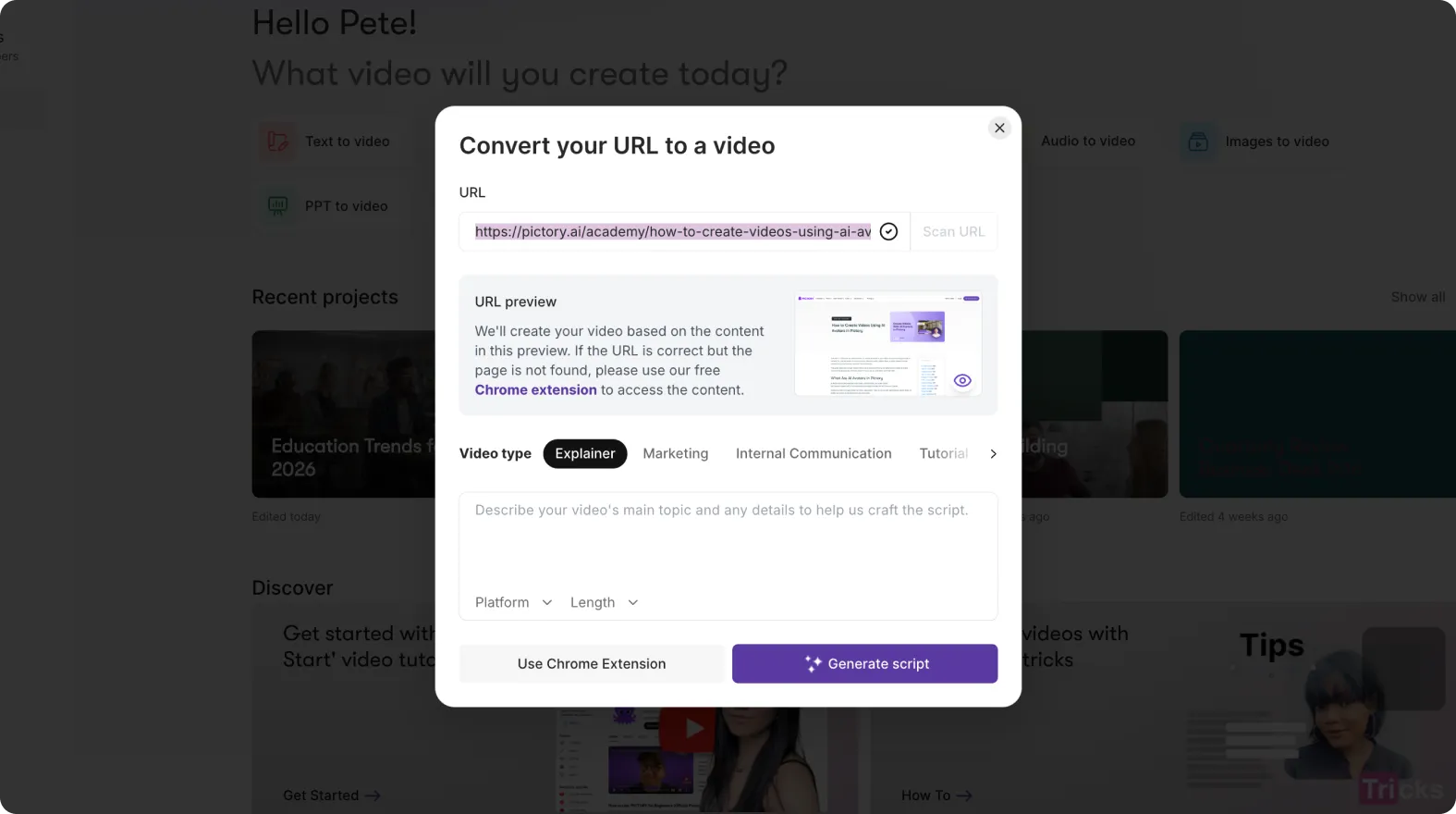
Step 1: Launch URL to Video and paste a valid link
From the Home page, choose URL to Video and paste a full URL that begins with http:// or https://.
Step 2: Select video type, platform, and length
Pick a video type such as Explainer, Internal Communication, or Tutorial. Choose your platform and target length to match enablement needs such as 60 to 120 second updates or 5 to 8 minute onboarding lessons.
Step 3: Generate and edit the script for accuracy
Click Generate Script. Review the extracted content, then edit directly in the Script Editor. Apply your Brand Kit, confirm aspect ratio, and adjust scene settings before generating the video.
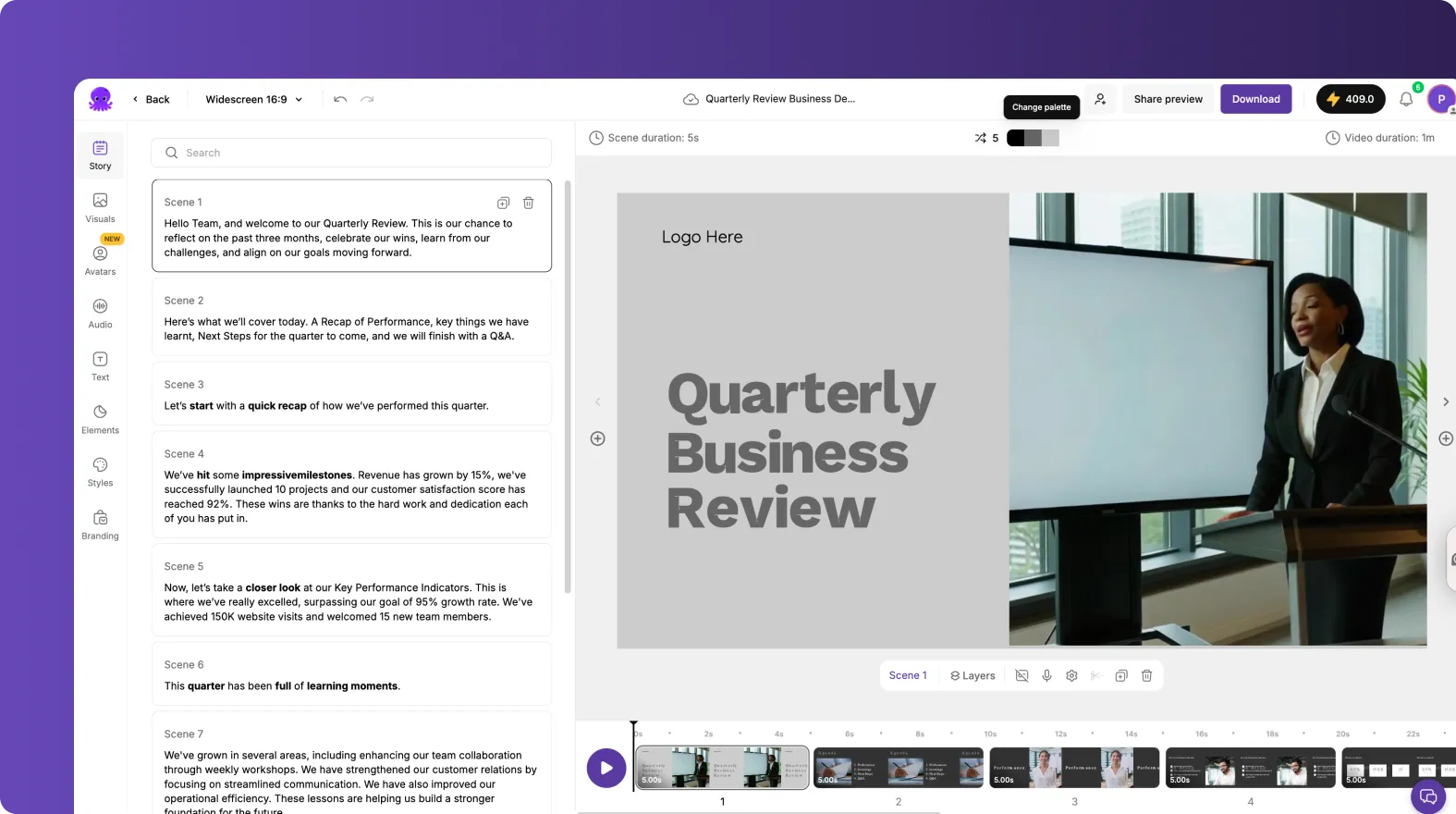
Step 4: Generate the storyboard and move to the Video Editor
Click Generate video to create scenes. Once the storyboard is ready, open the Video Editor to polish visuals, captions, and timing.
PPT to video AI for sales enablement 2026: Convert training decks into on-demand video
PPT to video converter workflows are ideal for organizations that already have enablement decks for onboarding, product training, and competitive positioning. Pictory converts PowerPoint to video while preserving the structure, then lets you refine the output for modern video-first learning.
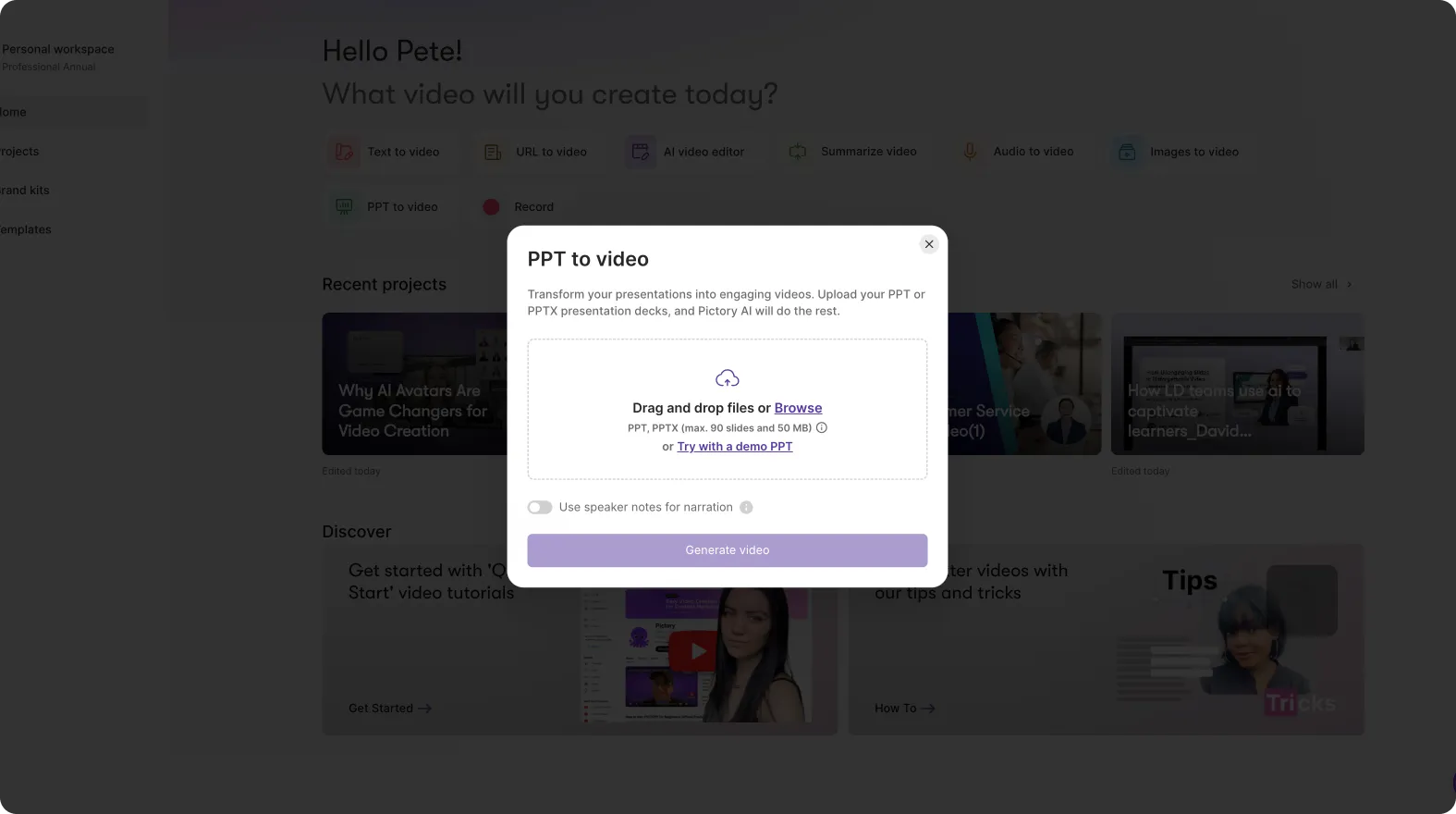
Step 1: Upload your PowerPoint deck
Choose PPT to Video and upload a .PPT or .PPTX file up to 90 slides or 50 MB. If your deck uses speaker notes, enable the option to use speaker notes for narration.
Step 2: Generate the storyboard from slides
Click Generate video. Pictory will convert slides into scenes and display a progress bar while the storyboard is created.
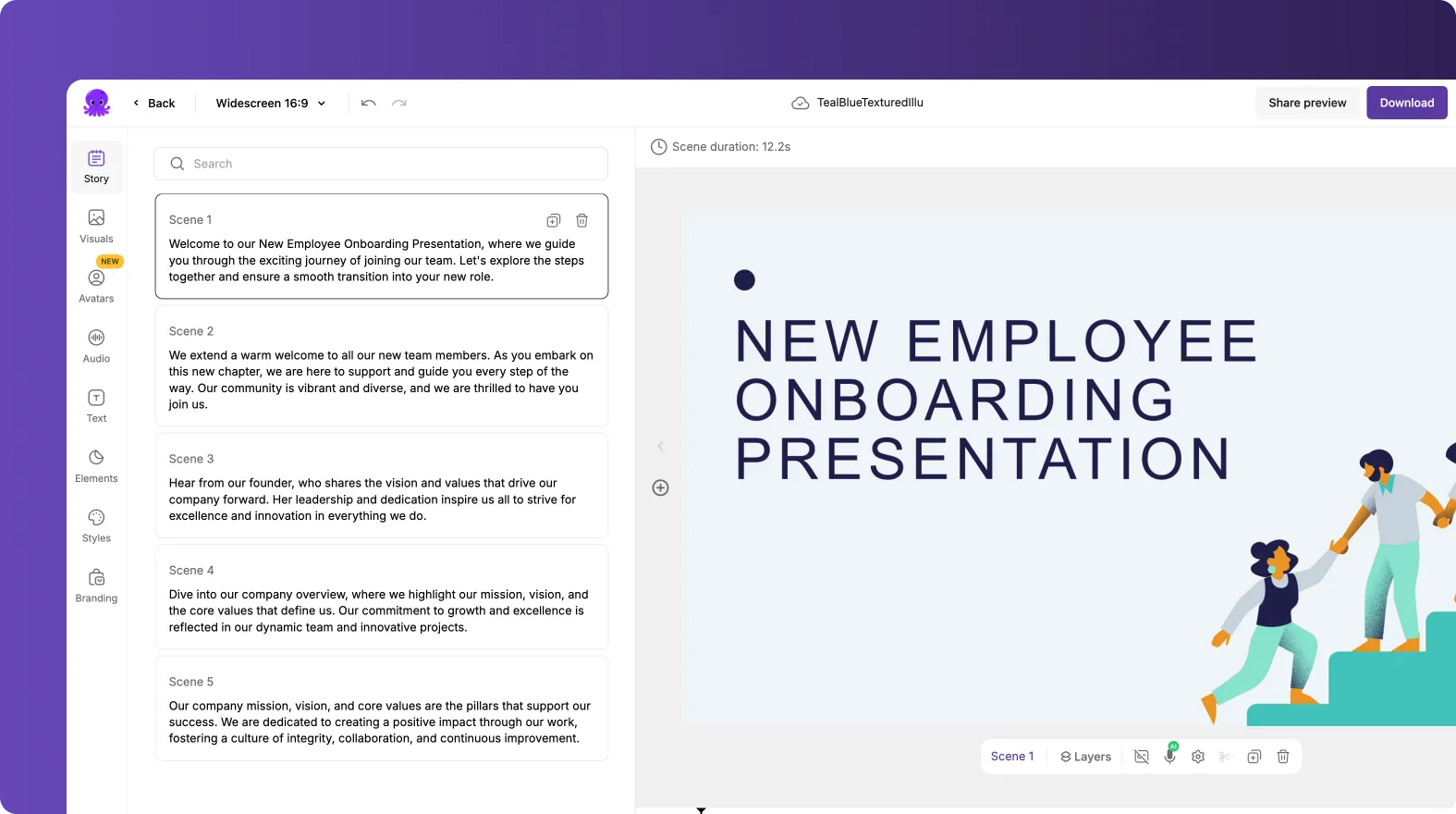
Step 3: Edit slide scenes for clarity and pacing
In the AI Storyboard Editor, adjust scene text, scene duration, and layouts. Sales enablement 2026 content performs best when each scene focuses on one concept, one objection, or one key differentiator.
Step 4: Apply branding and export
Use the Branding tab to apply your Brand Kit. Preview the video, then download and distribute through your enablement platform or LMS. The project remains saved in My Projects for future updates.
AI video editor for sales enablement 2026: Edit and repurpose recordings with transcription
For coaching libraries, call reviews, and internal training sessions, the AI video editor turns long recordings into usable enablement assets. It also supports video to text transcription so teams can edit content by editing text.
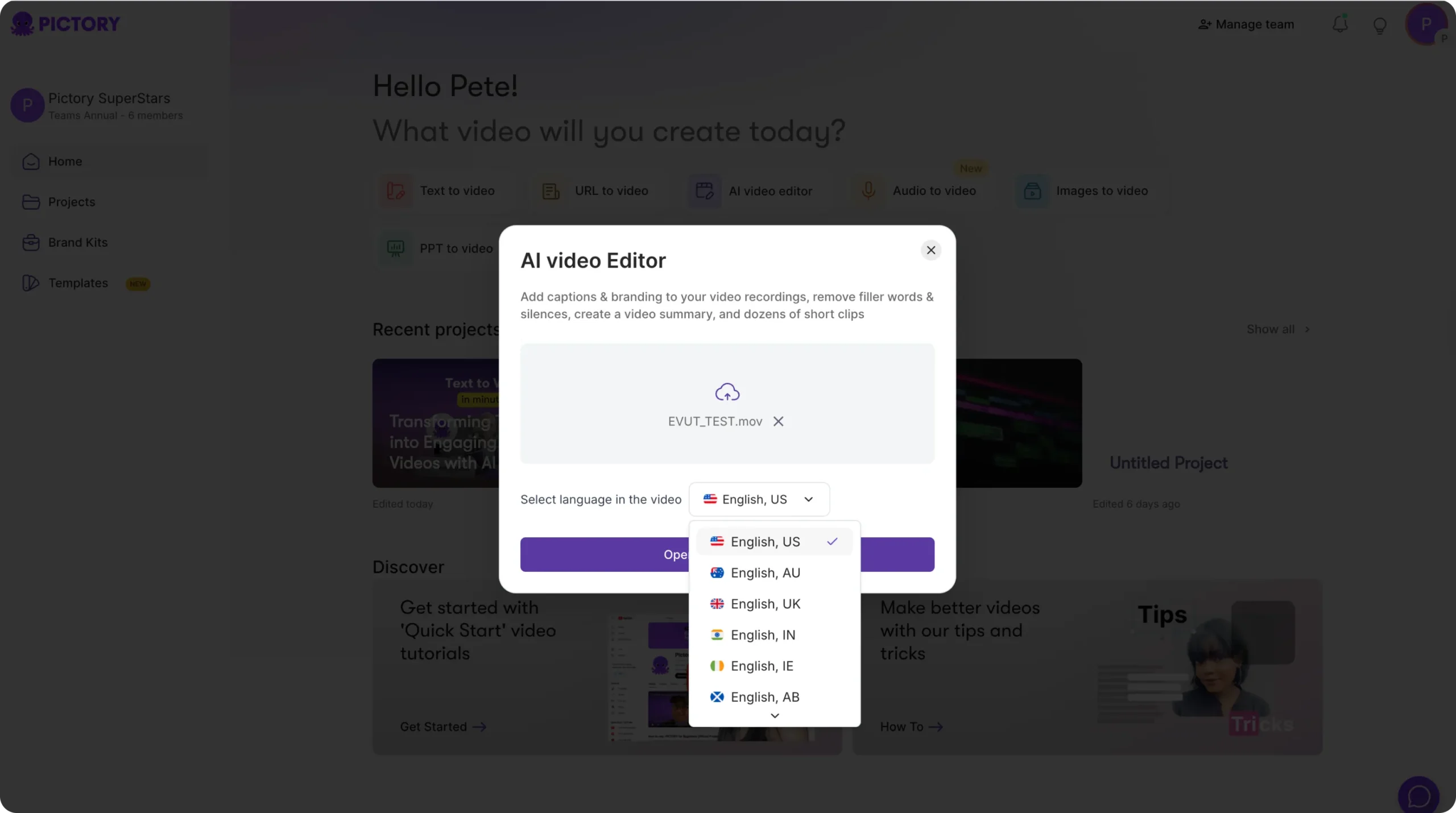
Step 1: Upload a video and select the language
In the AI Video Editor workflow, upload a file up to 5 GB and 180 minutes. Select the correct language to improve transcription accuracy.
Step 2: Edit transcript and clean up delivery
After transcription completes, use the Script and Transcript Editor tools:
- Search and replace terminology to match approved messaging
- Auto highlight important phrases for quick edits
- Toggle to remove filler words
- Toggle to remove silences for tighter pacing
- Set subtitle max lines and choose a style preset
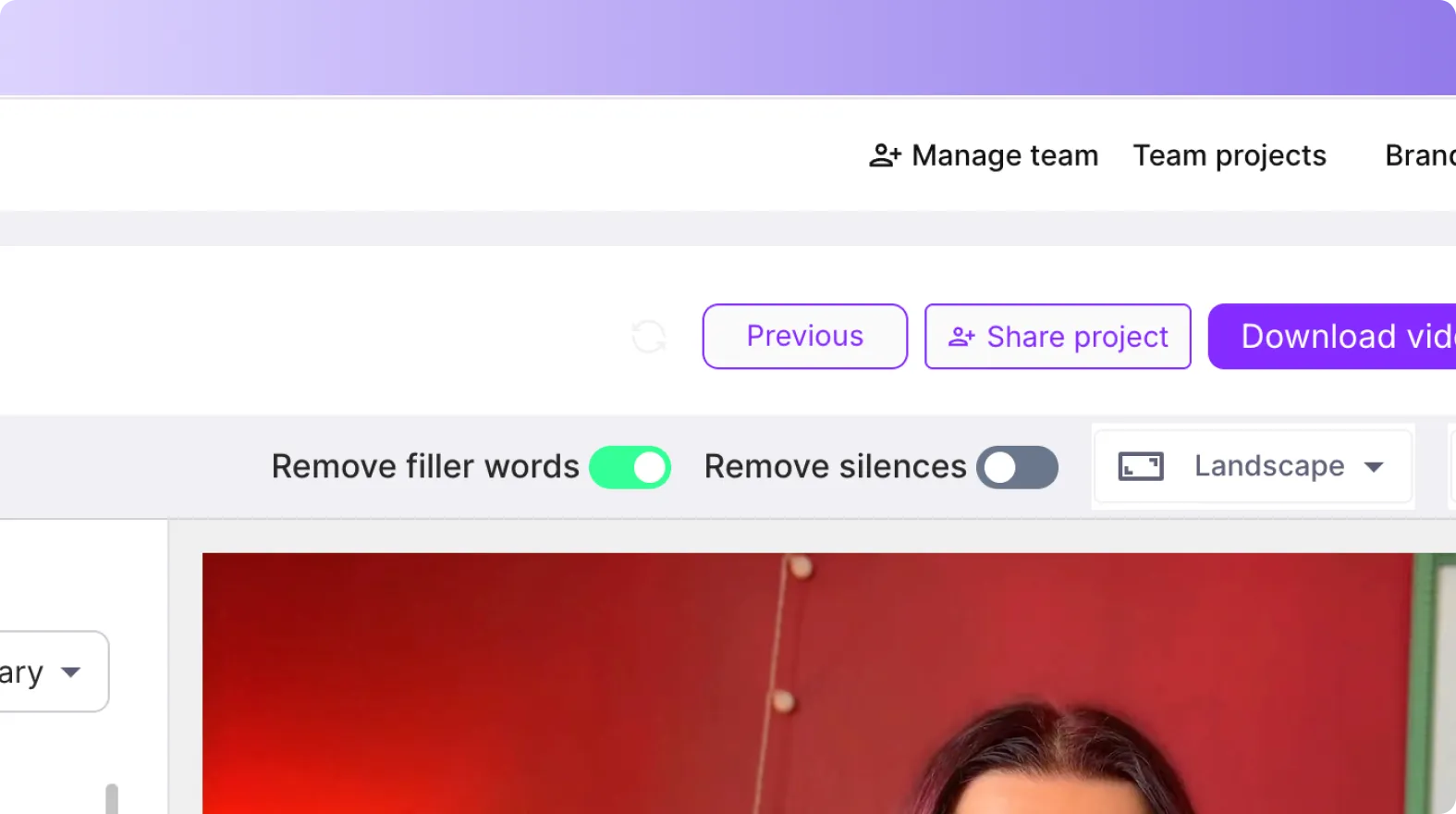
Step 3: Create storyboard scenes and refine in the editor
Proceed to storyboard creation, then open the Video Editor to fine-tune scenes. Use the updated timeline layout for faster navigation, and right-click scene thumbnails to duplicate, copy, paste after, link with next, or delete.
Step 4: Add on-screen text, elements, and consistent styles
Use left sidebar tools to finalize the enablement-ready cut:
- Text: add headings, subheadings, or body overlays for key points
- Elements: add icons and shapes for callouts and frameworks
- Styles: apply or save a consistent series style under My Styles
- Branding: enforce brand identity for enterprise-ready delivery
Text animations and captions for sales enablement 2026: Keep training engaging and skimmable
Modern enablement videos must work with sound off, support quick scanning, and reinforce retention. Use Pictory text tools to add captions, callouts, and lightweight motion.
Step 1: Add or select a text layer in a scene
In the Video Editor, add text via the Text tab or click an existing text box in the scene preview.
Step 2: Use the top toolbar to format for readability
Adjust font, size, color, alignment, outline, and shadow. Keep text high-contrast for enterprise training environments, especially if videos are watched on mobile.
Step 3: Animate text for emphasis using Animate Text
Click Animate Text in the top toolbar to open the Text Animations panel. Choose entry and exit effects such as Fade, Typewriter, Wipe, Blur, or Text Reveal, then set speed and apply the same animation across scenes when appropriate.

Collaboration and project management for sales enablement 2026: Scale production across teams
Enablement programs succeed when updates are easy to find, re-edit, and redistribute. Pictory provides a project-centric workflow to support scalable creation.
Step 1: Organize assets and versions in My Projects
Go to Projects to search, sort by latest, and manage all videos. Use consistent naming conventions like “Onboarding Module 03, Discovery Questions” or “Product Update Q2, Feature X.”
Step 2: Use Project Details as a single source of truth
Open a project to view the project title, downloadable file preview, and whether videos or text have been generated. This helps maintain auditability for compliance-heavy enablement workflows.
Step 3: Share and collaborate with your team
Use the built-in collaboration prompts to share projects, brands, and media with stakeholders. This streamlines review cycles across Sales Enablement, Product Marketing, L&D, and Compliance.
FAQ: Sales enablement 2026
How does Pictory support sales enablement in 2026?
Pictory helps enablement teams repurpose existing content into brand-consistent videos using workflows like text to video AI, URL to video converter, PPT to video AI, and the AI video editor with transcription. This reduces production time and improves consistency across regions and roles.
What is the best workflow to convert enablement scripts into video quickly?
Use Text to Video to paste a script, set scene settings, apply your Brand Kit, and generate a storyboard automatically. This is a fast way to produce onboarding lessons, objection-handling modules, and product messaging updates.
Can I convert a product page or internal article into an enablement video?
Yes. Use URL to Video as a URL to video converter, paste the link, generate a script, edit for accuracy, then generate the video and refine it in the editor.
How do I convert PowerPoint training decks into video for an LMS?
Use PPT to Video, upload a .PPT or .PPTX file, optionally use speaker notes for narration, then generate the storyboard. Apply your Brand Kit and export the finished video in a format suitable for LMS delivery.
Does Pictory include video to text transcription for coaching and training recordings?
Yes. The AI video editor automatically transcribes uploaded videos and lets you edit content through the transcript. You can remove filler words, remove silences, and adjust subtitles before generating storyboard scenes for final editing.
How can an enterprise team maintain brand consistency across hundreds of enablement videos?
Use Brand Kits to standardize logos, fonts, and colors, then apply the kit in the Branding tab inside the editor. You can also use style presets and reusable layout patterns to keep series consistent across departments.
What aspect ratio should I use for sales enablement videos in 2026?
Use 16:9 for LMS and desktop learning, 9:16 for mobile-first microlearning and internal social feeds, and 1:1 for square placements. Pictory lets you choose the aspect ratio in the Script Editor before generating the video.


