
Sales enablement teams in 2026 are expected to ship more content, faster, with fewer resources while still proving impact. Pictory helps enterprise teams repurpose existing enablement assets into professional-quality, brand-consistent videos using repeatable AI workflows, Brand Kits, templates, and collaborative project management.
This guide shows how to build a scalable sales enablement content strategy 2026 using Pictory workflows like Text to Video, URL to Video, PPT to Video, Screen Recorder, and the AI Video Editor to accelerate production of sales enablement collateral, training videos, microlearning clips, and internal communications.
Sales enablement content strategy 2026: What to produce and why video wins
In an enterprise sales enablement program, video improves adoption because it is easier to consume, easier to share, and easier to standardize across regions and teams. A modern sales enablement content strategy focuses on modular assets that can be reused and updated.
High-impact enablement video asset types include:
Product and feature explainers for new releases
Competitive battlecards converted into short videos for rep productivity
Objection-handling libraries as microlearning video examples
Sales training video modules for onboarding and continuing education
Internal communication videos for field updates and messaging changes
Customer-facing “what changed” updates based on release notes and blogs
To scale, standardize how content becomes video. Pictory makes that repeatable with multiple input formats (script, URL, PPT, audio, screen recording), a central editor, and Brand Kits for consistent styling.
Enterprise sales enablement strategy: Plan your AI video workflow and governance
Before you generate your first video, align on an enterprise-ready operating model. This keeps your sales enablement content strategy durable as volume increases.
Inputs: scripts, enablement docs, launch blogs, LMS decks, call recordings, webinar clips
Outputs: long-form training, short-form clips for Slack and email, role-based tracks
Brand rules: fonts, colors, logo usage, subtitle style, approved music
Quality checks: message accuracy, compliance language, accessibility (captions), regionalization
Collaboration: shared projects, shared Brand Kits, shared media library
Pictory supports this model by letting teams apply Brand Kits inside the editor, maintain consistent Styles, and manage deliverables through Home and My Projects workflows for faster review cycles.
Sales enablement content at scale: Set up Brand Kits, templates, and reusable styles in Pictory
Step 1: Create an enterprise Brand Kit for enablement videos
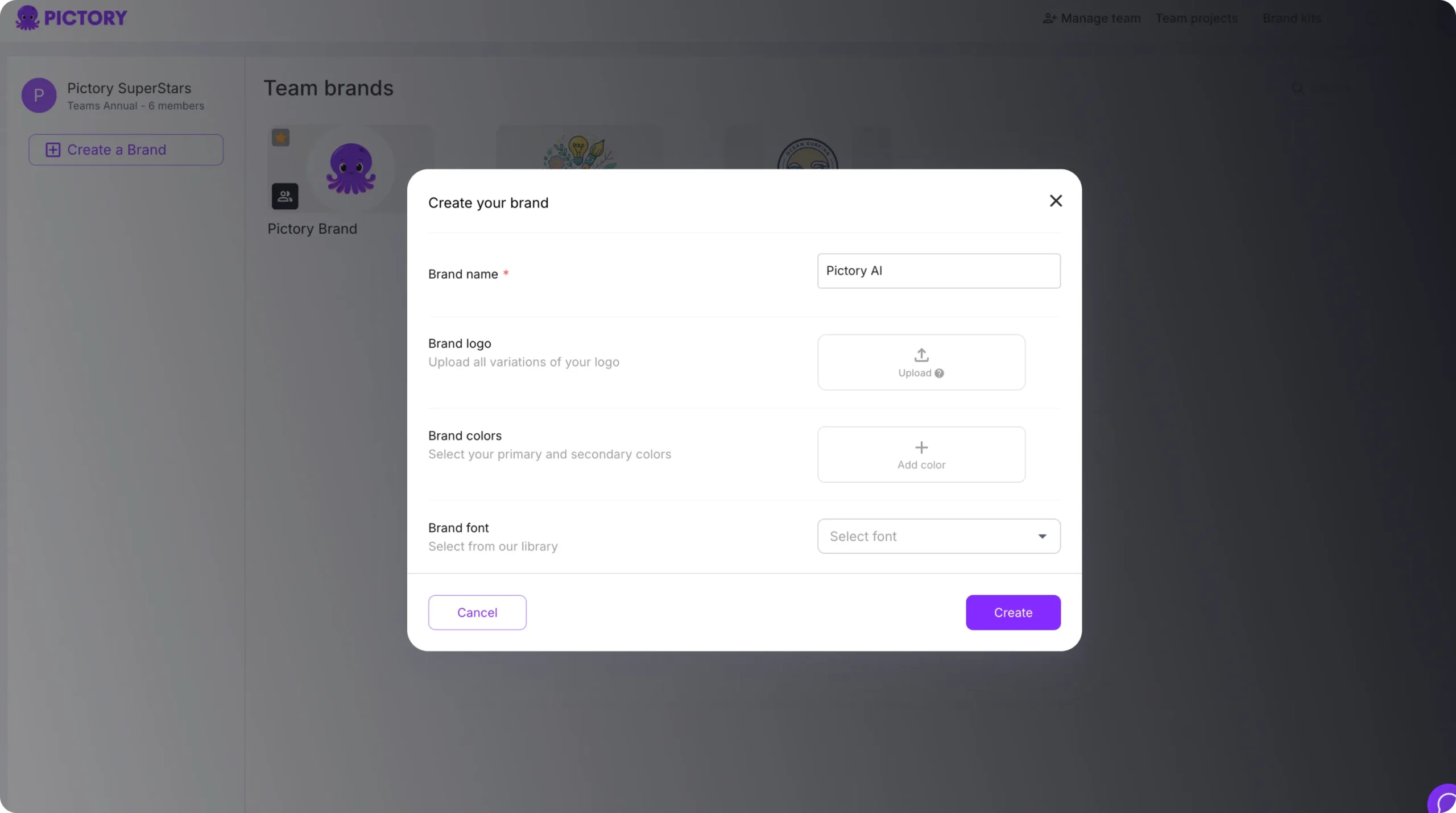
From the left navigation, open Brand Kits, then select Create a Brand. Add your brand name, upload logo variations, set brand colors, and choose a brand font. This ensures every sales enablement asset looks consistent across teams.
If you want to explore variations while staying on-brand, use the color palette shuffle to preview alternate combinations quickly.
Step 2: Standardize text and subtitle styles for training and enablement
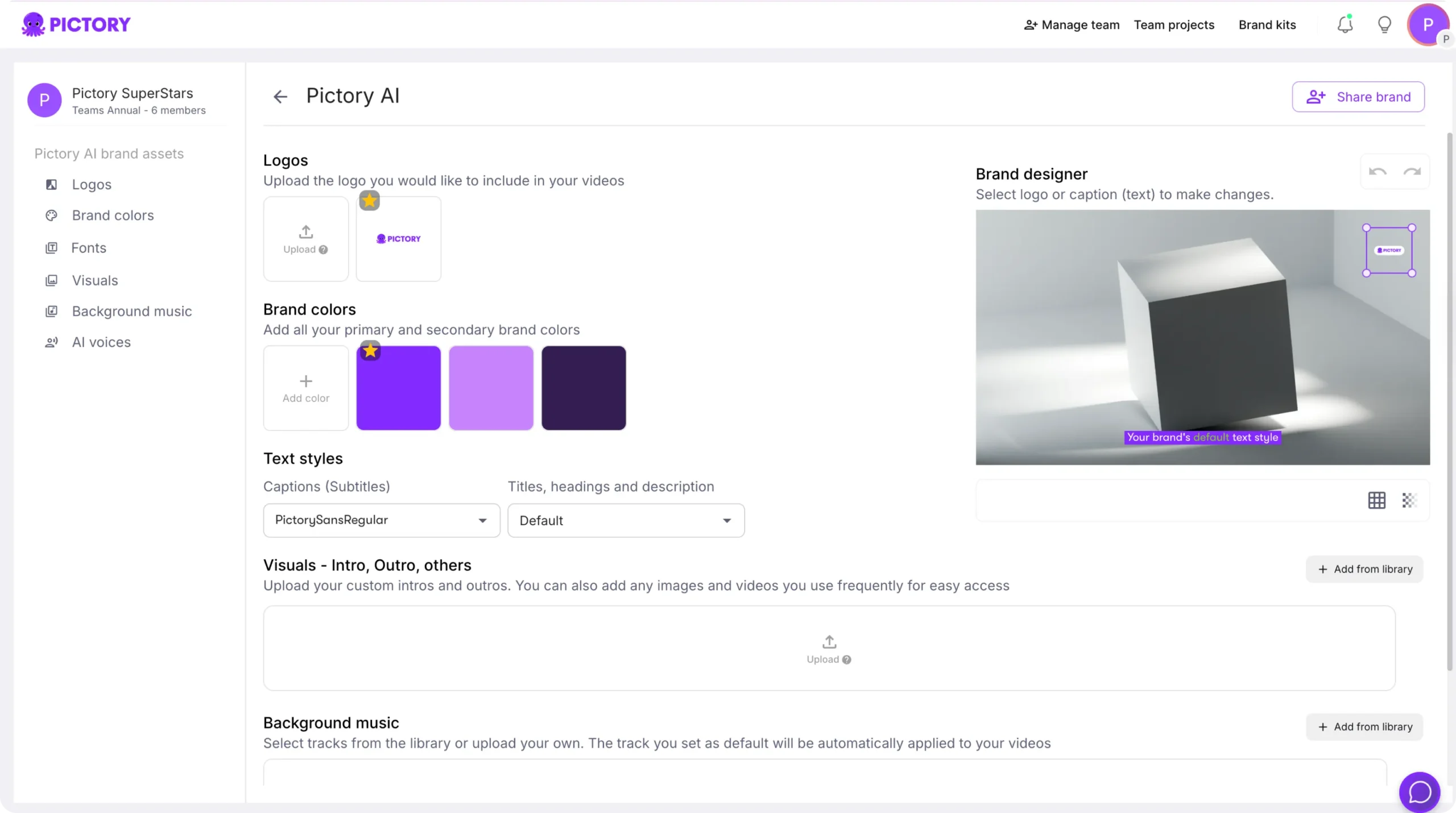
Inside the editor, use Styles to select a consistent style theme or save a custom option under My Styles. For transcript-based workflows, set subtitle line limits and select a style from the text style library so every sales training video has consistent readability.
Step 3: Define layout conventions for common enablement scenes
Use Layouts for repeated scene types such as:
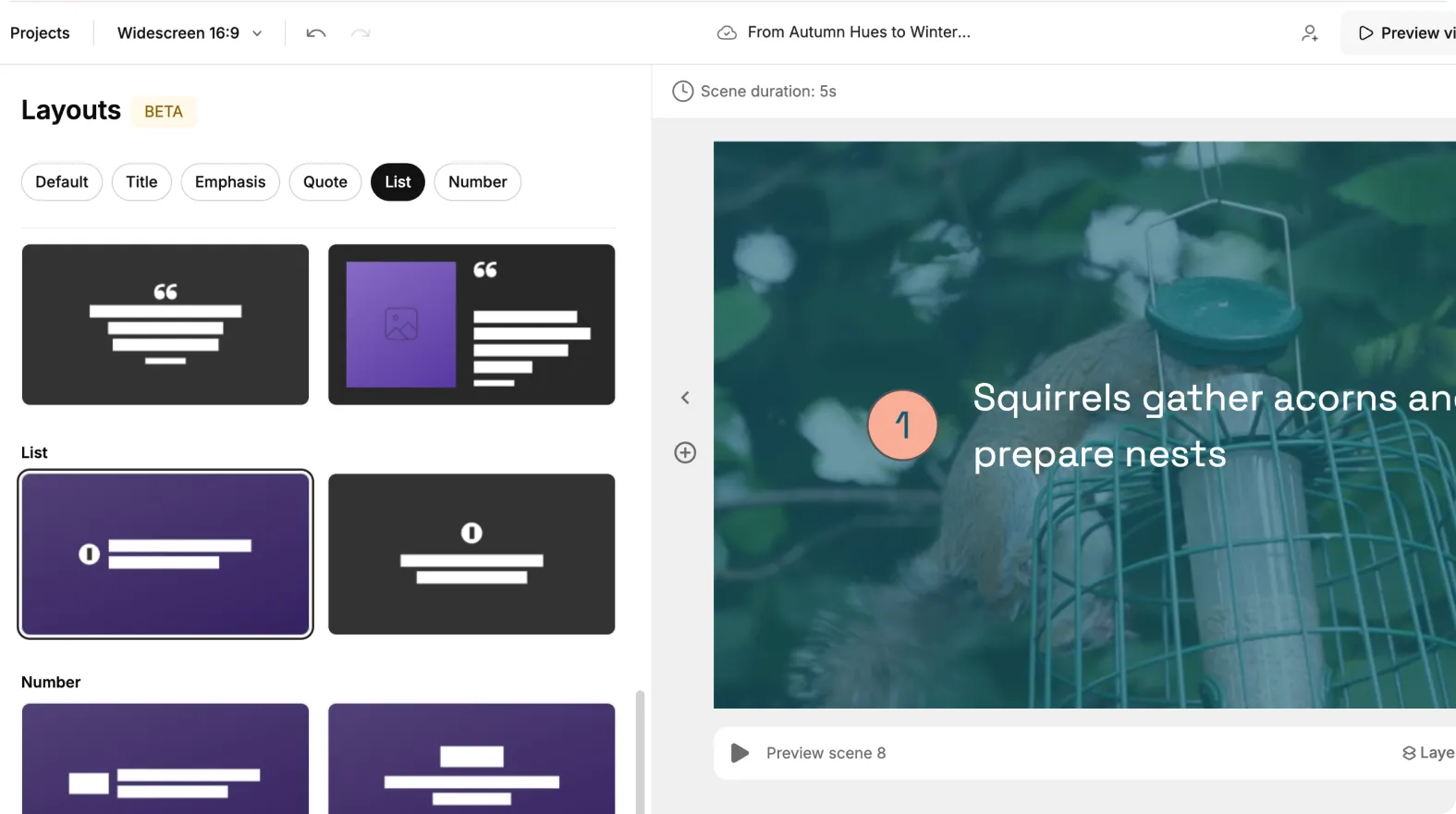
Title scenes for modules and chapters
Quote or emphasis scenes for key messaging and positioning
List and number scenes for steps, plays, and frameworks
This keeps your enablement library cohesive and reduces editing time for every new video.
How to create sales enablement videos fast with Text to Video AI (enterprise workflow)
Text to Video is ideal when your enablement team already has approved messaging. It functions as a text to video AI workflow that turns scripts into scenes with visuals, captions, and optional voiceover.
Step 1: Start a Text to Video project and paste your sales enablement script
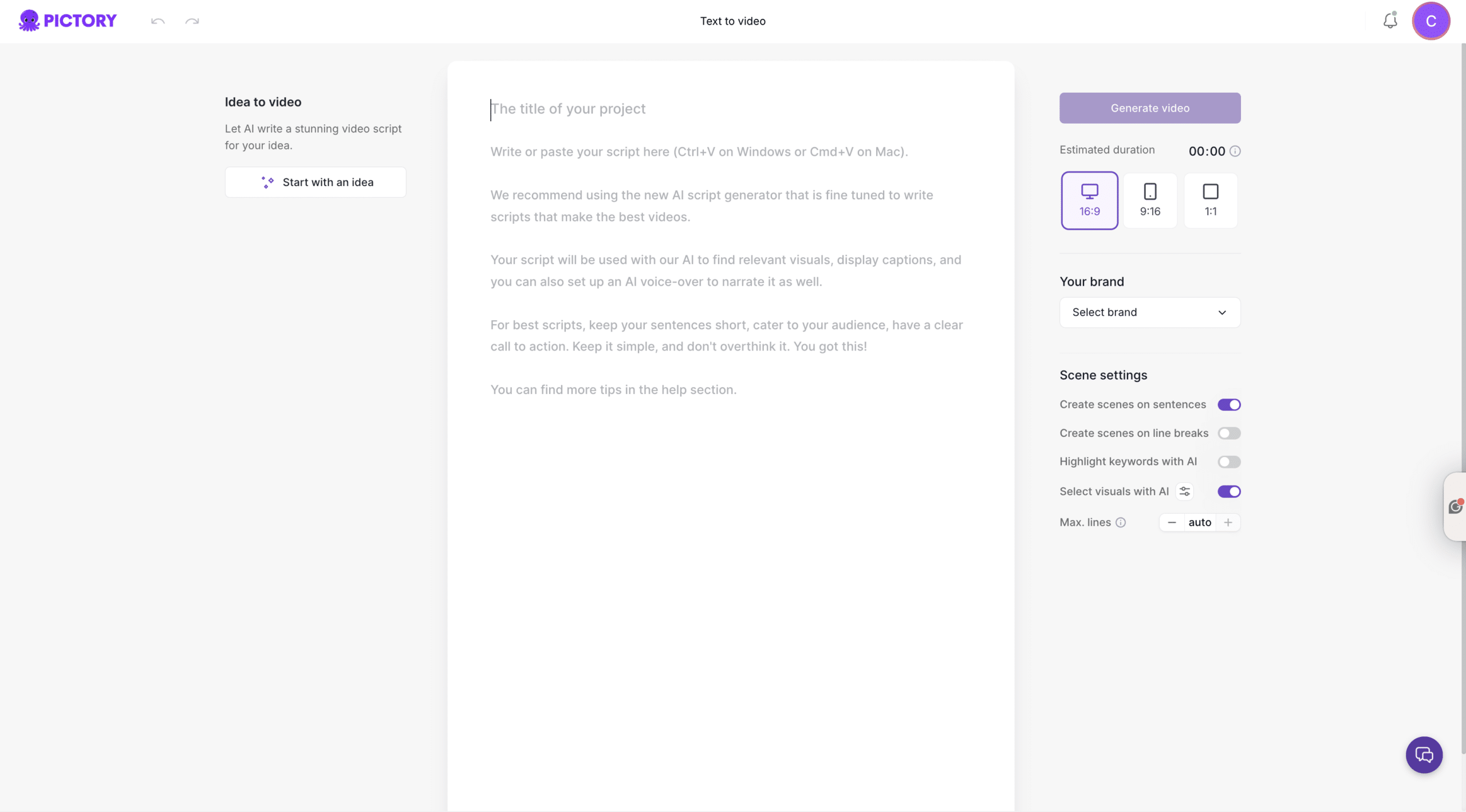
From Home, select Text to Video. Paste your script into the input field. For best results, keep sentences short, keep the story simple, and include a clear call to action for reps (what to say, do, or share).
If you need a first draft, use the AI script generator to create a baseline that your enablement lead can refine.
Step 2: Configure scene settings for scalable sales enablement content
In the Script Editor, set your aspect ratio (16:9 for LMS and internal portals, 9:16 for mobile-first field updates, 1:1 for internal social channels). Choose your Brand Kit, then set scene rules such as sentence-based scenes, line-break-based scenes, keyword highlights, and max lines per scene.
Step 3: Generate the storyboard and edit in the AI video editor
Select a theme, then click Generate video. Pictory creates scenes automatically and opens the editor with storyboard scenes on the left, preview on the right, and a timeline at the bottom.
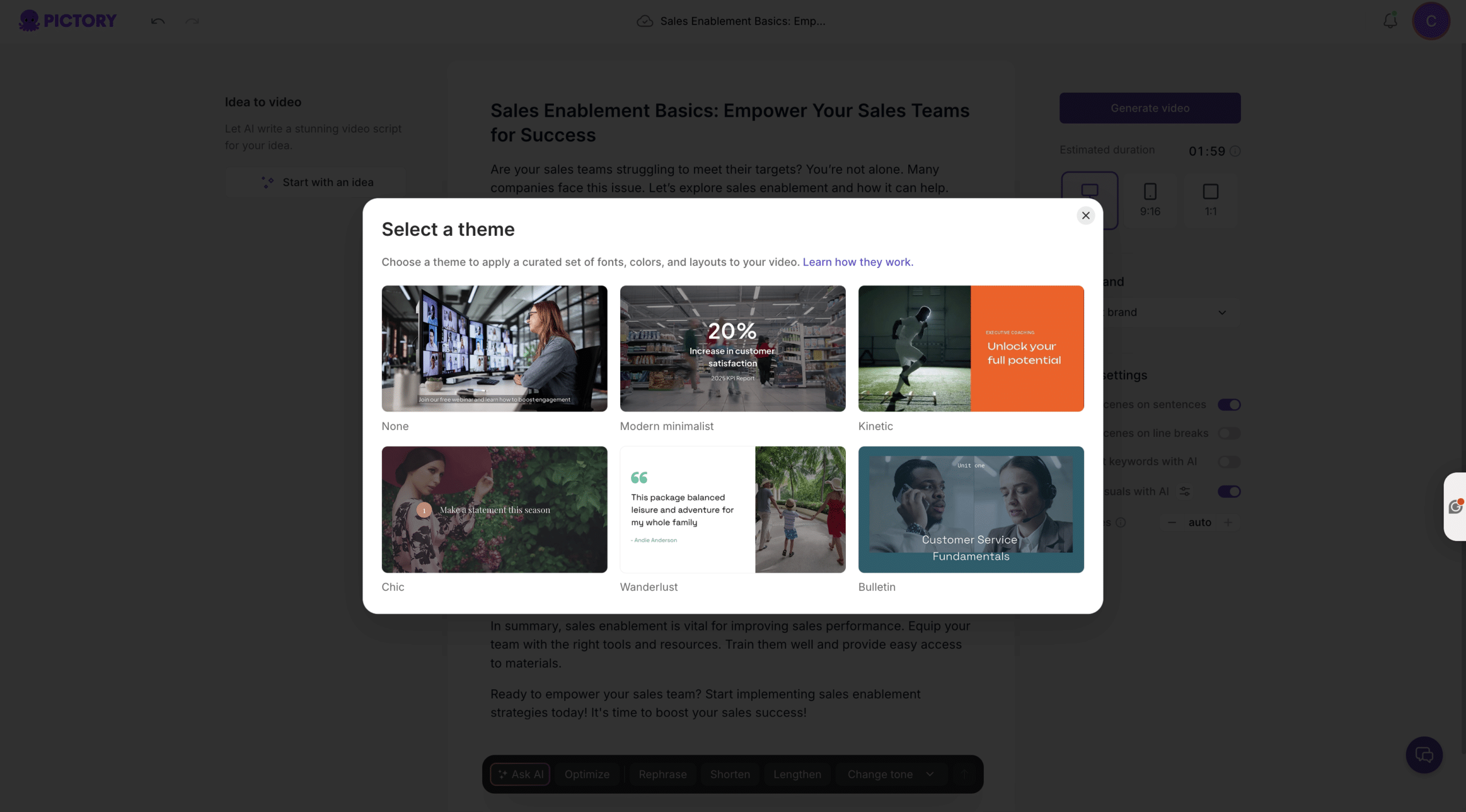
In the editor, use:
Story to edit copy per scene and refine clarity
Visuals to swap stock footage, use Uploads, or generate scene visuals in AI Studio
Audio to add AI voiceover and background music
Branding to ensure logos, fonts, and colors remain consistent
How to repurpose launch pages and docs with URL to Video for sales enablement content strategy 2026
URL to Video supports a fast repurposing motion for enablement teams that need to keep up with constant updates. Use it to convert product announcements, pricing pages, solution pages, and internal wiki pages into concise enablement videos.
Step 1: Paste the URL and choose the enablement video type
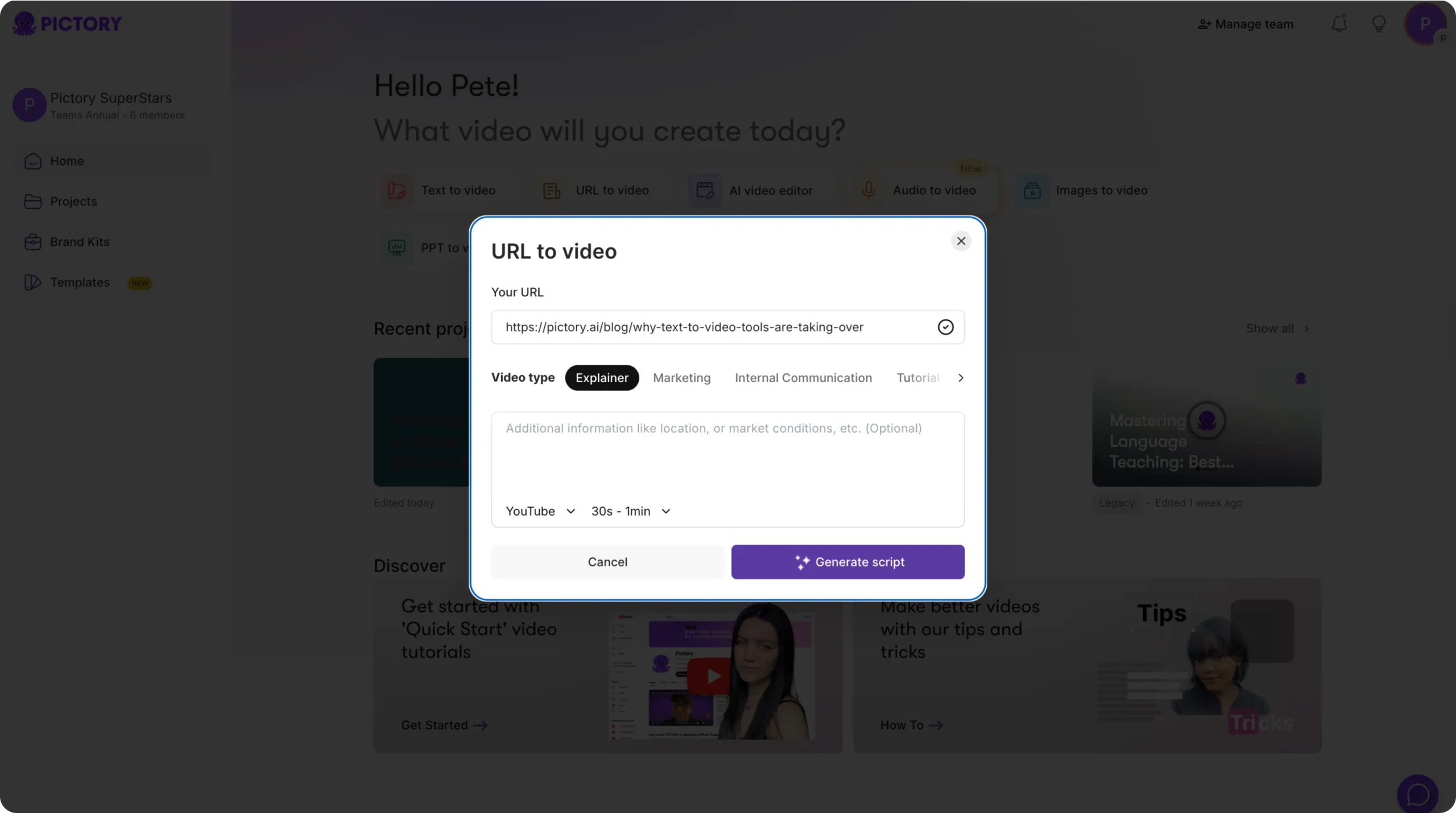
From Home, select URL to Video and paste a valid http:// or https:// link. Choose a video type such as Explainer, Marketing, Internal Communication, or Tutorial. Select platform and target length to match your distribution channel.
Step 2: Edit the generated script to match approved messaging
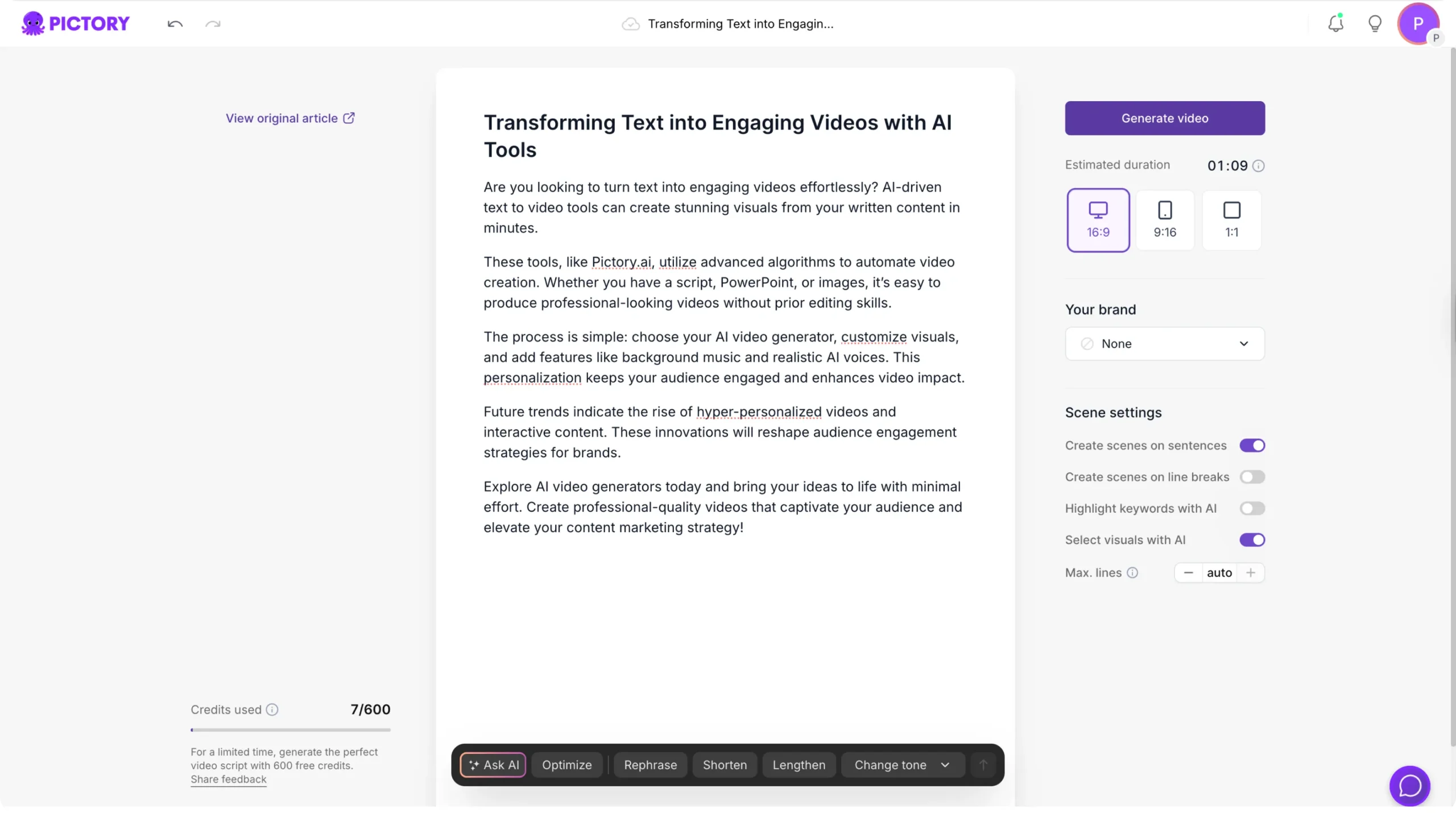
Click Generate Script, then refine the draft in the Script Editor. Use Ask AI tools to optimize, rephrase, shorten, lengthen, or change tone while keeping enterprise message control.
Step 3: Generate video, then refine visuals and on-screen text for rep adoption
Click Generate video to create the storyboard. In the editor, replace generic visuals with product UI shots or approved brand assets in Uploads. Use Text overlays for key talk tracks and differentiators without overloading subtitles.
How to convert PPT to Video for enterprise sales enablement training and onboarding
PPT to Video is one of the fastest ways to turn existing enablement decks into a structured sales training video library. It is ideal for onboarding, new product training, and competitive positioning modules.
Step 1: Upload your deck and enable speaker notes when needed
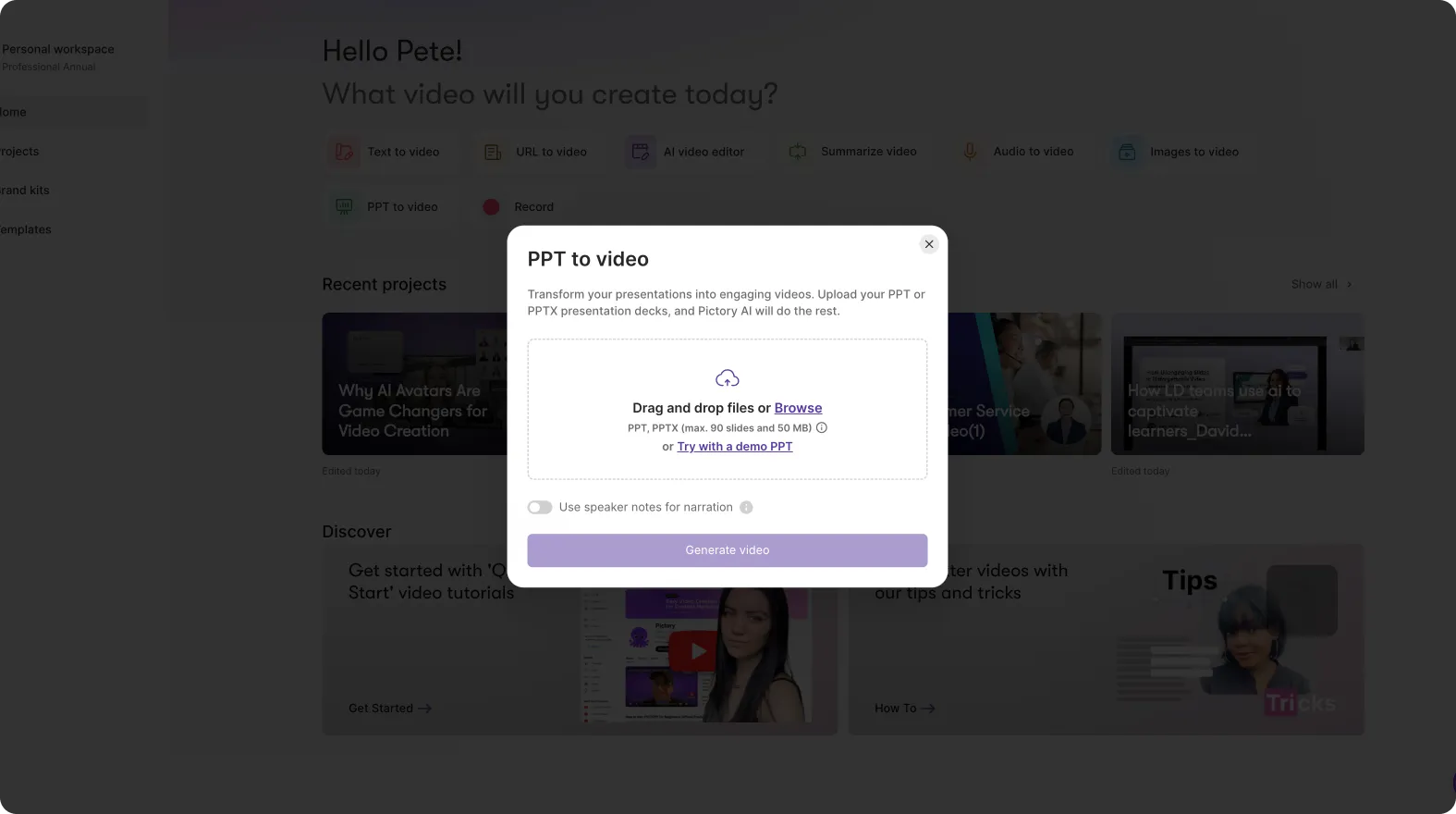
From Home, choose PPT to Video. Upload a .PPT or .PPTX file (up to 90 slides or 50 MB). If your presenters use speaker notes as narration, enable the option to use speaker notes.
Step 2: Generate the storyboard and validate slide-to-scene mapping
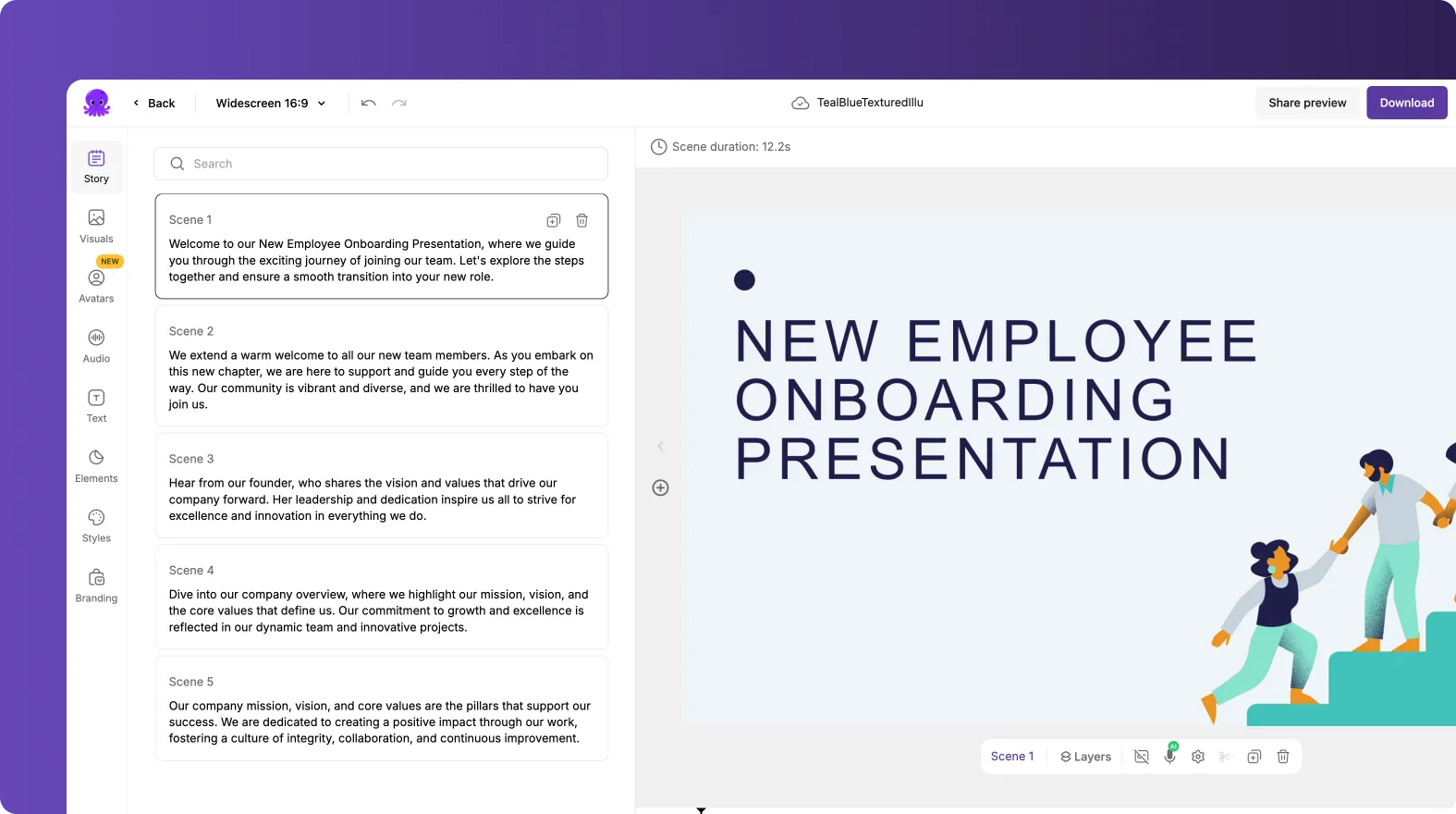
Select Generate video. While the storyboard is created, Pictory converts slides into scenes. When ready, review the left panel scene text and confirm each slide becomes the right segment for your sales enablement training.
Step 3: Standardize the module with Brand Kit, layouts, and consistent pacing
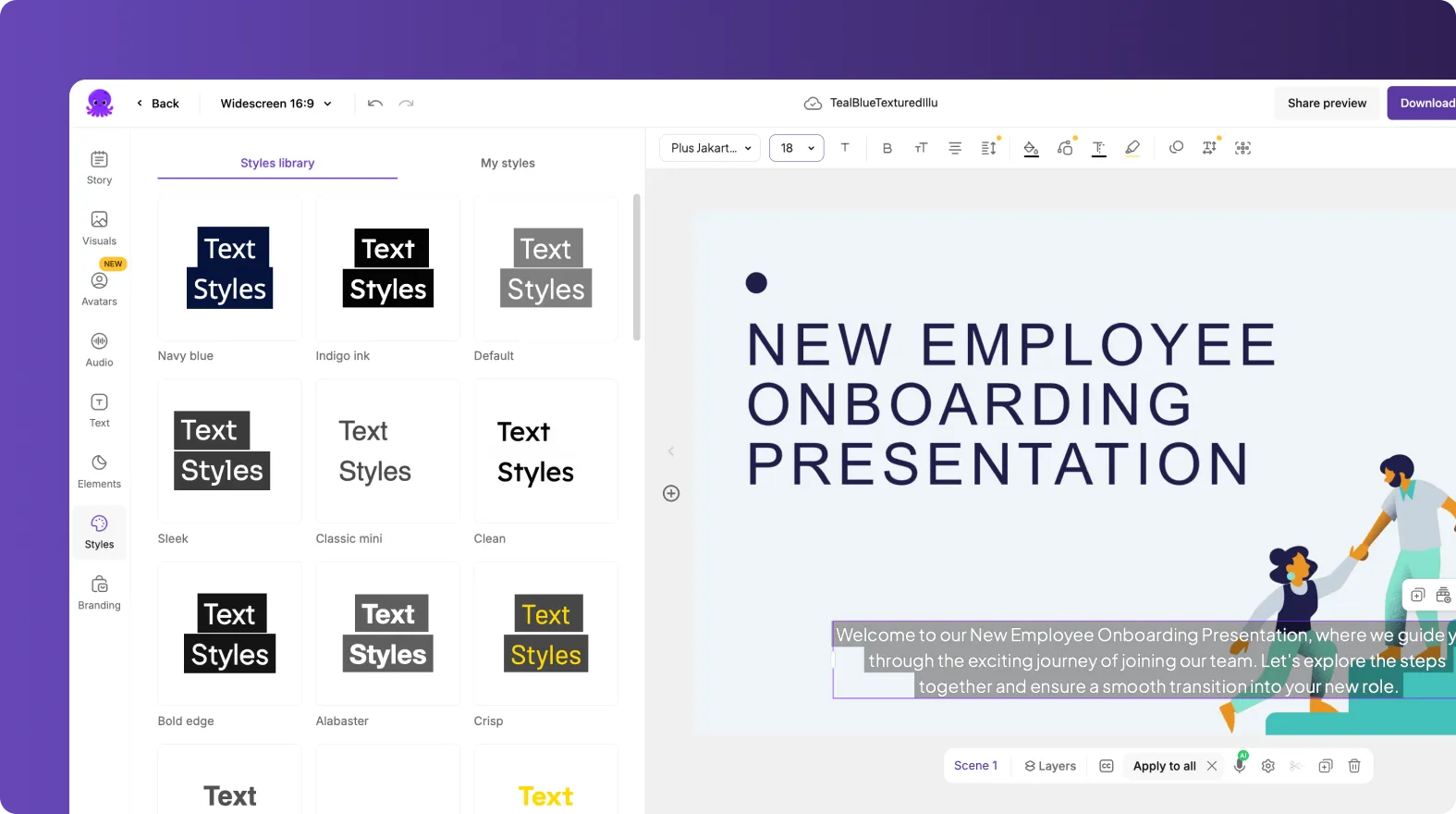
Apply your Brand Kit in Branding and choose consistent Layouts for titles, lists, and emphasis moments. Adjust scene durations for pacing, then preview to confirm the training is easy to follow and consistent with your enablement standards.
How to update and modernize sales training video content with the AI Video Editor (transcription, highlights, and fast edits)
When enablement content already exists as video, the AI Video Editor makes updates practical without re-recording. This supports a future-proof sales enablement content strategy 2026 where assets stay current as messaging changes.
Step 1: Upload a long training recording and let Pictory transcribe it
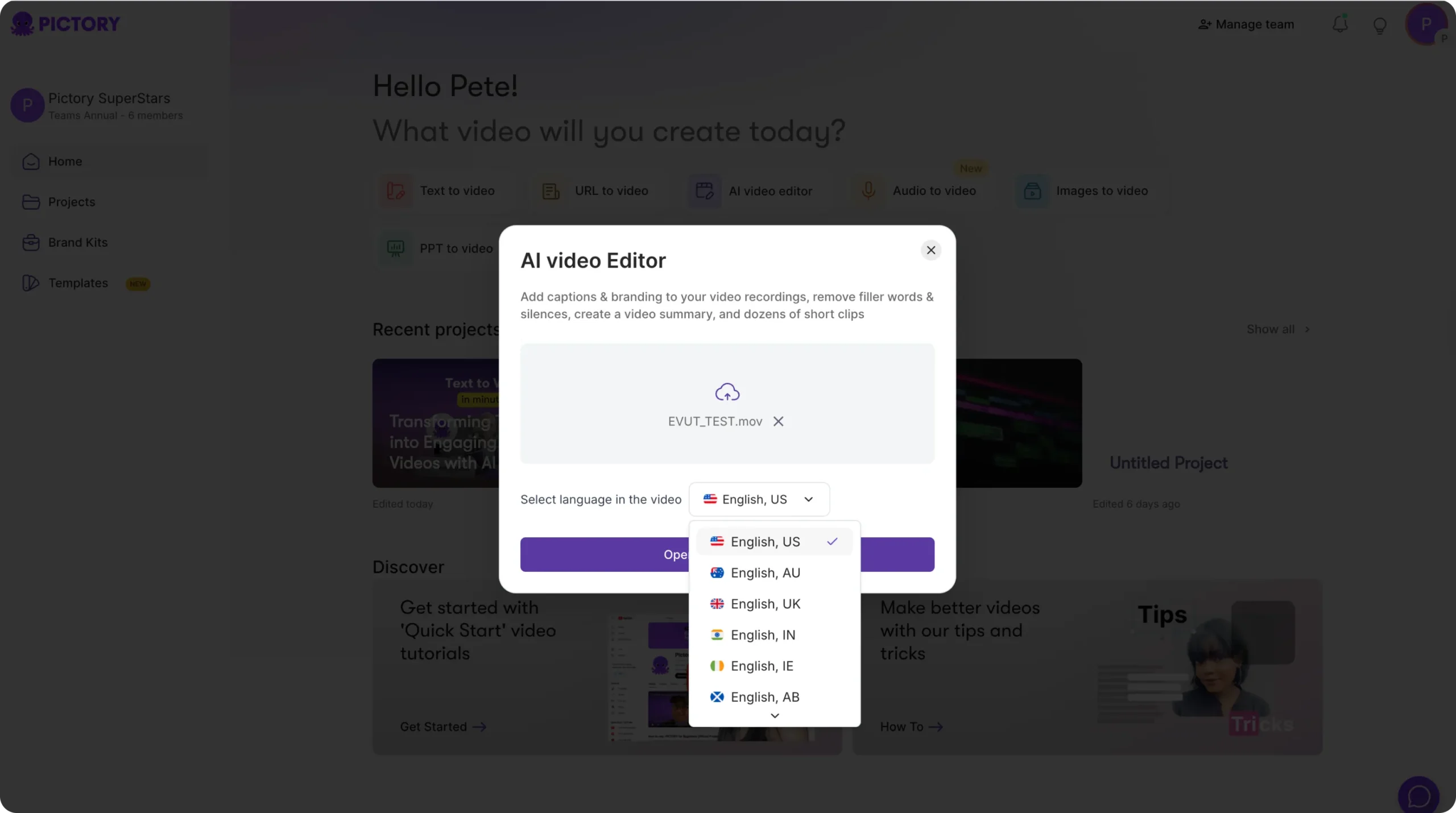
Select the AI Video Editor workflow and upload a video file (up to 5 GB, max 180 minutes). Choose the language. Pictory automatically transcribes the recording and notifies you when it is ready.
Step 2: Clean up the transcript to improve clarity and reduce time-to-edit
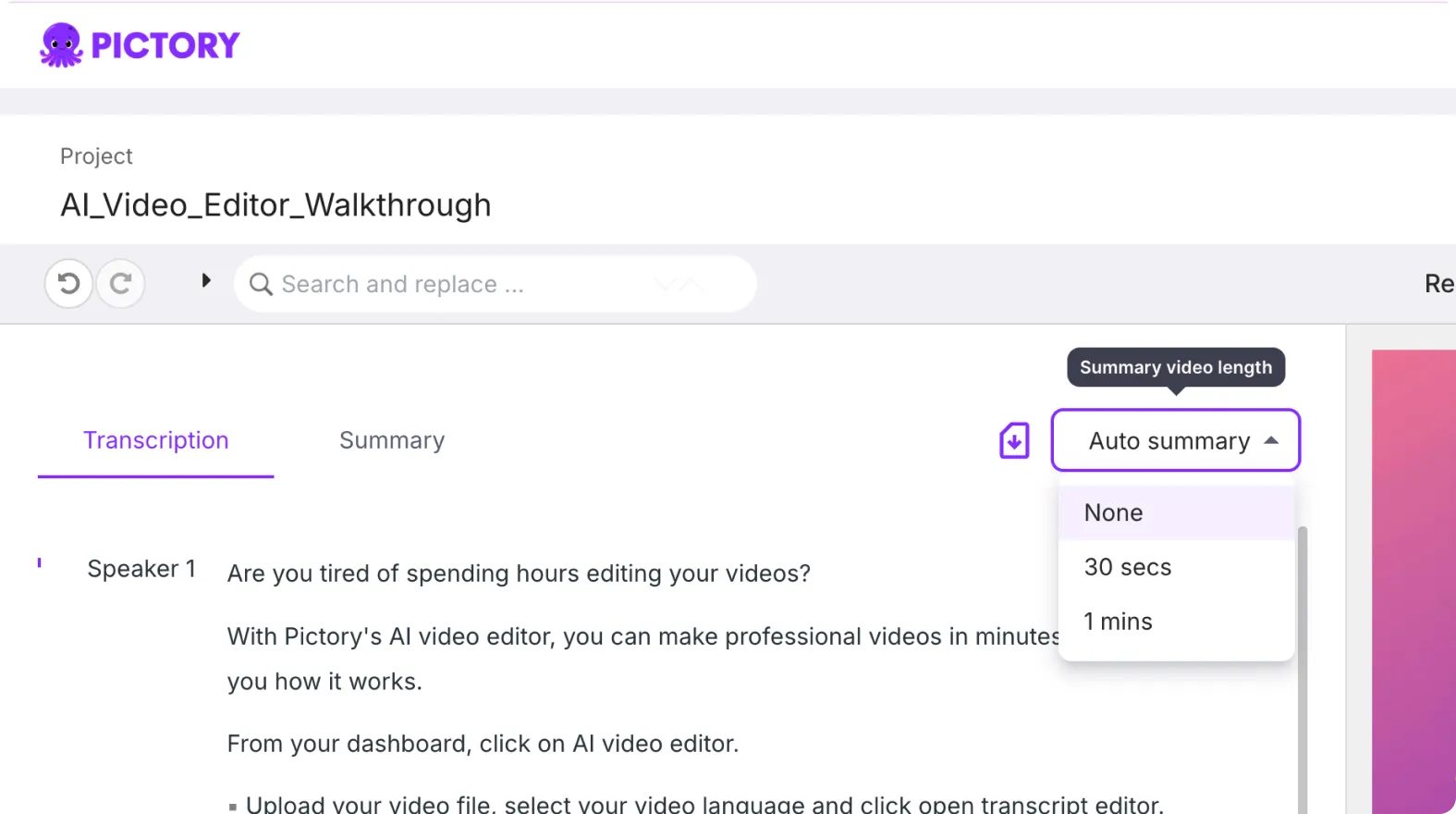
In the Script and Transcript Editor, use search and replace, auto highlight important phrases, and toggles to remove filler words and remove silences. Adjust subtitle max lines and apply your preferred subtitle style for consistent, accessible enablement videos.
Step 3: Create a storyboard, then produce role-based clips from the timeline
After transcript edits, generate the storyboard to enter the editor. Use the updated timeline to navigate quickly. For modular enablement:
Duplicate scenes to create variants for different segments or regions
Link scenes for longer continuous sections when needed
Copy and paste scenes to assemble new playlists faster
Use Share preview to streamline stakeholder review before export.
Sales enablement video production 2026: Record product demos and turn them into microlearning with Smart Screen Recorder
For software sales enablement, the fastest path to “show, not tell” is a product demo recording. Pictory’s Screen Recorder captures screen, webcam, or both, then converts recordings into editable content through transcription and storyboard creation.
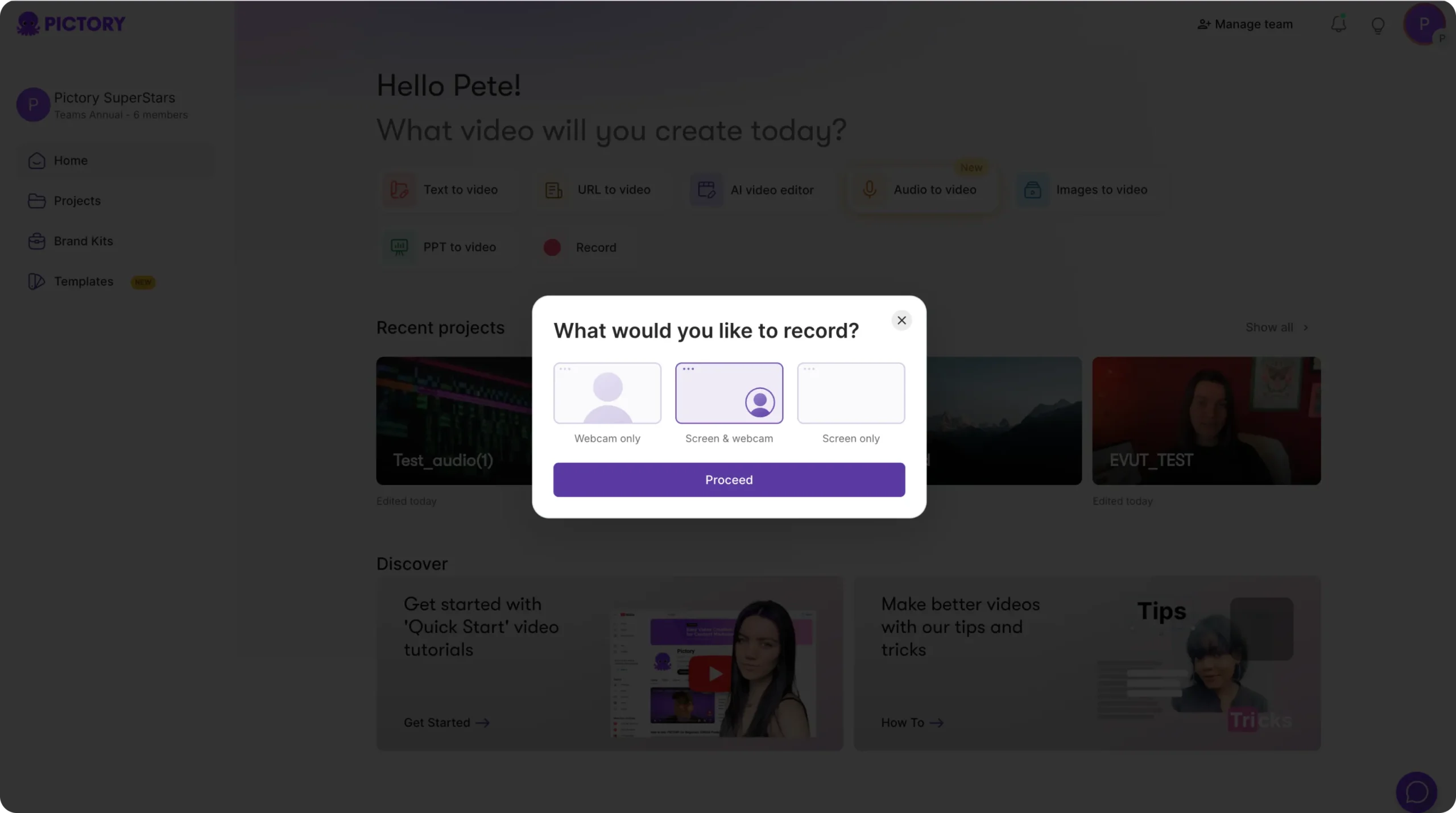
Step 1: Record screen, webcam, or both for the enablement scenario
From Home, select Record. Choose Webcam only, Screen & webcam, or Screen only, then click Proceed. Start recording your demo, talk track, or playbook walkthrough.
Step 2: Review, retake if necessary, then edit video using AI
After stopping, review the recording. If needed, retake. When ready, select Edit video using AI to trigger transcription.
Step 3: Convert the recording into a structured sales training video
In the transcript editor, clean up filler words and silences, then generate the storyboard. In the final editor, add branded overlays, captions, and scene titles to turn one recording into a set of microlearning clips for rep productivity.
How to make sales enablement videos look enterprise-ready with visuals, avatars, and text animations
Enterprise teams need video that is not only fast, but consistent, polished, and engaging. Pictory includes editor tools to elevate quality without adding production overhead.
Step 1: Use Visuals and AI Studio to keep scenes relevant to your message
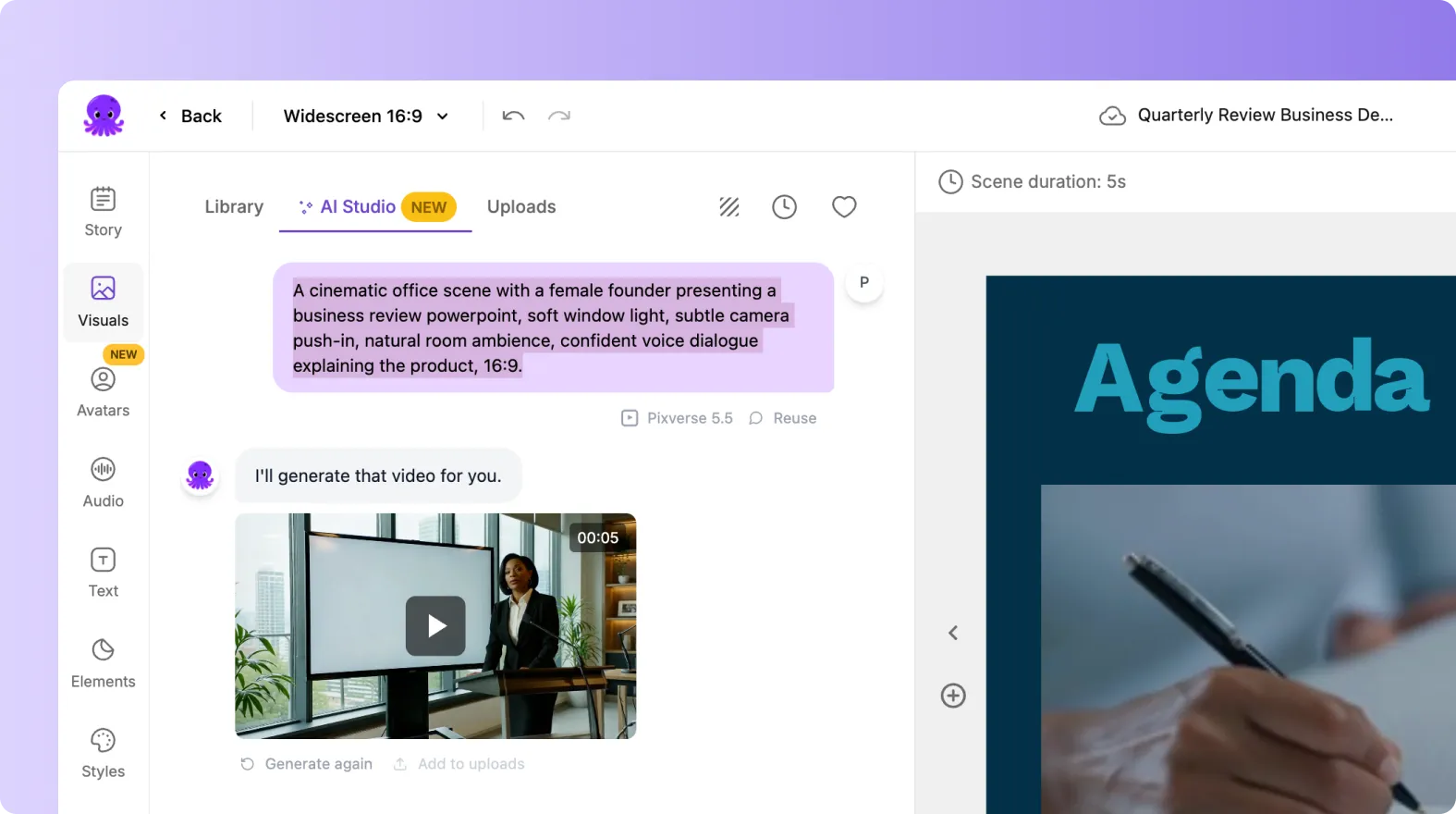
Open Visuals and choose from Library, Uploads, or AI Studio. In AI Studio, generate AI Images or AI Videos directly from a prompt, or request a prompt for the current scene. Add assets to the project or save them to Uploads for reuse across enablement modules.
Step 2: Add AI Avatars for consistent presenter-led enablement

Open the Avatars tab to browse and filter avatars, choose look variations, and select an AI voice. Apply the avatar to specific scenes or across the video. This is useful for consistent presenter presence in global enablement programs when recording is not feasible.
Step 3: Use text animations to improve pacing and attention
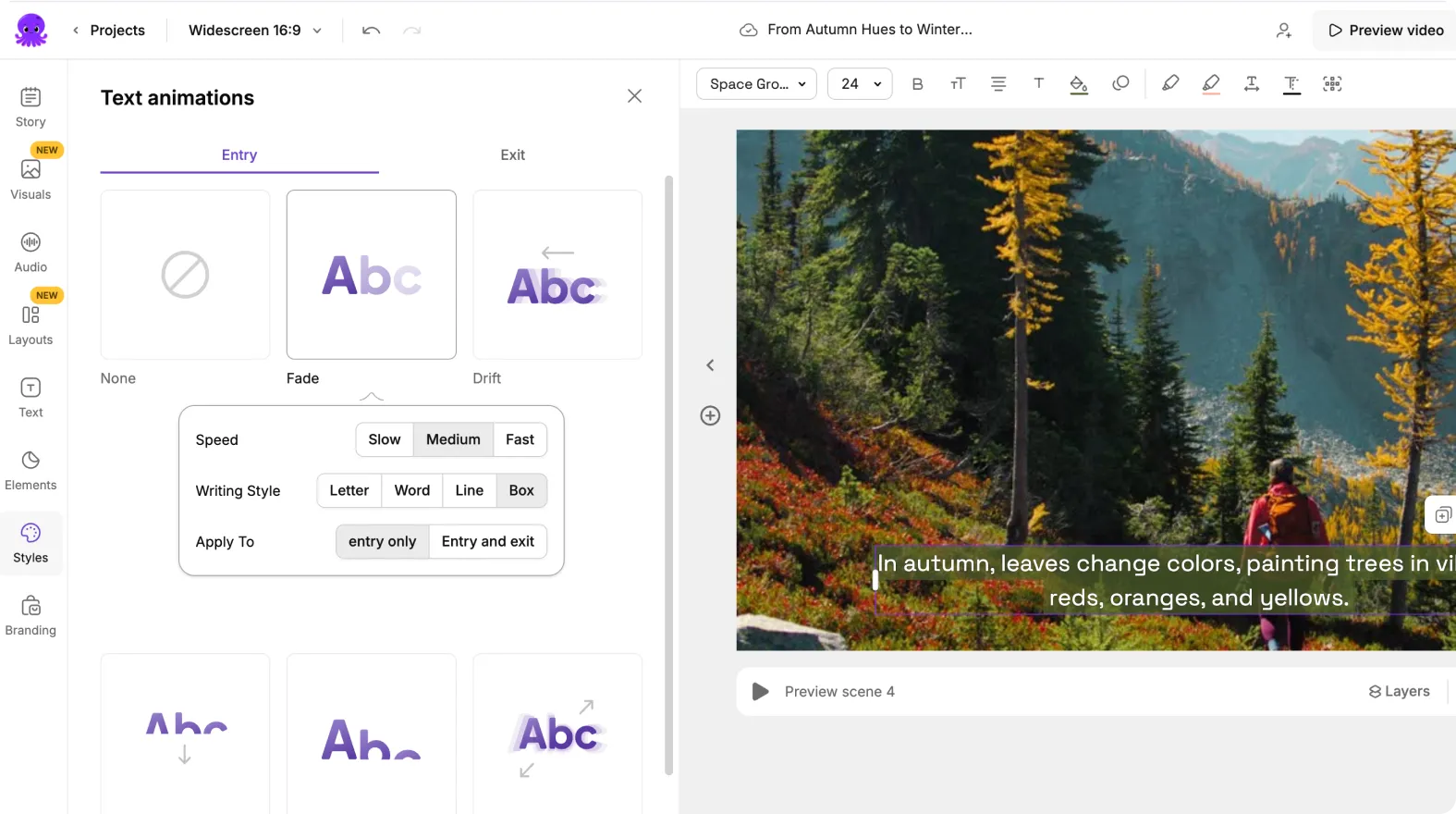
Select a text element, then use the Animate Text option in the top toolbar to open text animation settings. Choose entry and exit effects such as Fade, Typewriter, Wipe, Text Reveal, Blur, or Elastic. Adjust speed and apply consistently across scenes for a professional rhythm.
FAQ: sales enablement content strategy 2026
What is a sales enablement content strategy in 2026?
A sales enablement content strategy 2026 is a plan to create, manage, and distribute assets that help sellers perform, with an emphasis on scalable formats like video, modular microlearning, brand consistency, and measurable adoption. The goal is faster content production, easier updates, and higher rep utilization.
How can I scale sales enablement video production without adding headcount?
Use repeatable workflows that start from existing inputs like scripts, URLs, PPTs, and recordings, then apply Brand Kits and consistent Styles. Pictory supports this by converting content into editable storyboards, enabling quick revisions via transcript editing, and standardizing branding across outputs.
Which Pictory workflow is best for sales enablement collateral?
Use Text to Video when you have approved messaging, URL to Video to repurpose launch pages and internal docs, PPT to Video to convert decks into training modules, and the AI Video Editor when you need to update existing recordings via transcription and fast edits.
Can Pictory help update sales training videos when messaging changes?
Yes. Upload the existing video into the AI Video Editor, edit the transcript using search and replace, remove filler words and silences, regenerate the storyboard, then export an updated version without needing to re-record the entire session.
How do Brand Kits support enterprise sales enablement?
Brand Kits store your logo, fonts, and color palette so every enablement video stays brand-consistent across teams and regions. In the editor, applying a Brand Kit helps standardize text styling, overlays, and overall presentation for a professional, enterprise-ready look.
How do I create microlearning clips for rep productivity?
Create a long-form training or demo video using Screen Recorder or upload an existing session into the AI Video Editor, then use the transcript and storyboard to isolate key segments. Duplicate and rearrange scenes in the timeline to produce short role-based clips, then share previews for faster approvals.


