
Sales enablement in 2026 is moving faster than most teams can keep up with. Reps need updated messaging, leadership wants measurable impact, and enablement teams need to deliver more content with fewer resources. Pictory helps enterprise teams repurpose existing assets into professional, brand-consistent sales enablement videos using AI workflows, automated storyboards, and a centralized editor designed for scale.
This guide shows how to apply sales enablement best practices 2026 using Pictory workflows like Text to Video, URL to Video, PPT to Video, AI Video Editor, and Screen Recorder. You will also learn how to standardize branding with Brand Kits, build reusable templates, and create repeatable processes for sales enablement content, training, and collateral.
Sales enablement best practices 2026: What high-performing enablement teams do differently
In 2026, the best sales enablement programs focus on speed, consistency, and reuse. Instead of rebuilding content for every product update, they create modular assets and repurpose across channels.
Single source of truth for messaging and positioning that can be quickly turned into sales enablement content.
Content repurposing at scale from decks, playbooks, web pages, and recorded calls into video.
Brand governance to keep visuals, fonts, colors, and logos consistent across teams and regions.
Microlearning delivery using short, searchable sales training video modules.
Faster updates through transcript-based editing and AI-assisted scene creation.
Pictory supports these best practices by converting enterprise content into video quickly, applying Brand Kits for consistent styling, and enabling collaboration through project management and shareable previews.
Enterprise sales enablement strategy: Pick the right Pictory workflow for each asset type
Choose your workflow based on what your enablement team already has. This is a core sales enablement best practice for 2026 because it reduces production overhead and avoids rebuilding assets from scratch.
Text to Video AI for scripts, talk tracks, sales plays, objection handling, and email-to-video messaging.
URL to Video AI for product pages, solution briefs, blog posts, and campaign landing pages.
PPT to Video AI for sales decks, QBR decks, pitch decks, and enablement training slideware.
AI Video Editor for recorded webinars, product demos, customer calls, and existing sales training video libraries.
Screen Recorder for rapid software walkthroughs and internal enablement updates.
Once you standardize which workflow maps to which asset type, your sales enablement team can execute faster and produce more consistent outputs.
Sales enablement tools 2026: Set up Brand Kits for consistent enablement collateral
Brand consistency is a top enterprise sales enablement best practice in 2026. Brand Kits in Pictory help ensure every sales enablement video aligns with corporate identity and campaign guidelines.
Step 1: Open the Brand Kits area to centralize enablement branding
From the left navigation, go to Brand Kits to view existing brand cards under “My Brands.” Enterprise teams often create separate kits for corporate brand, product lines, or regional variants.
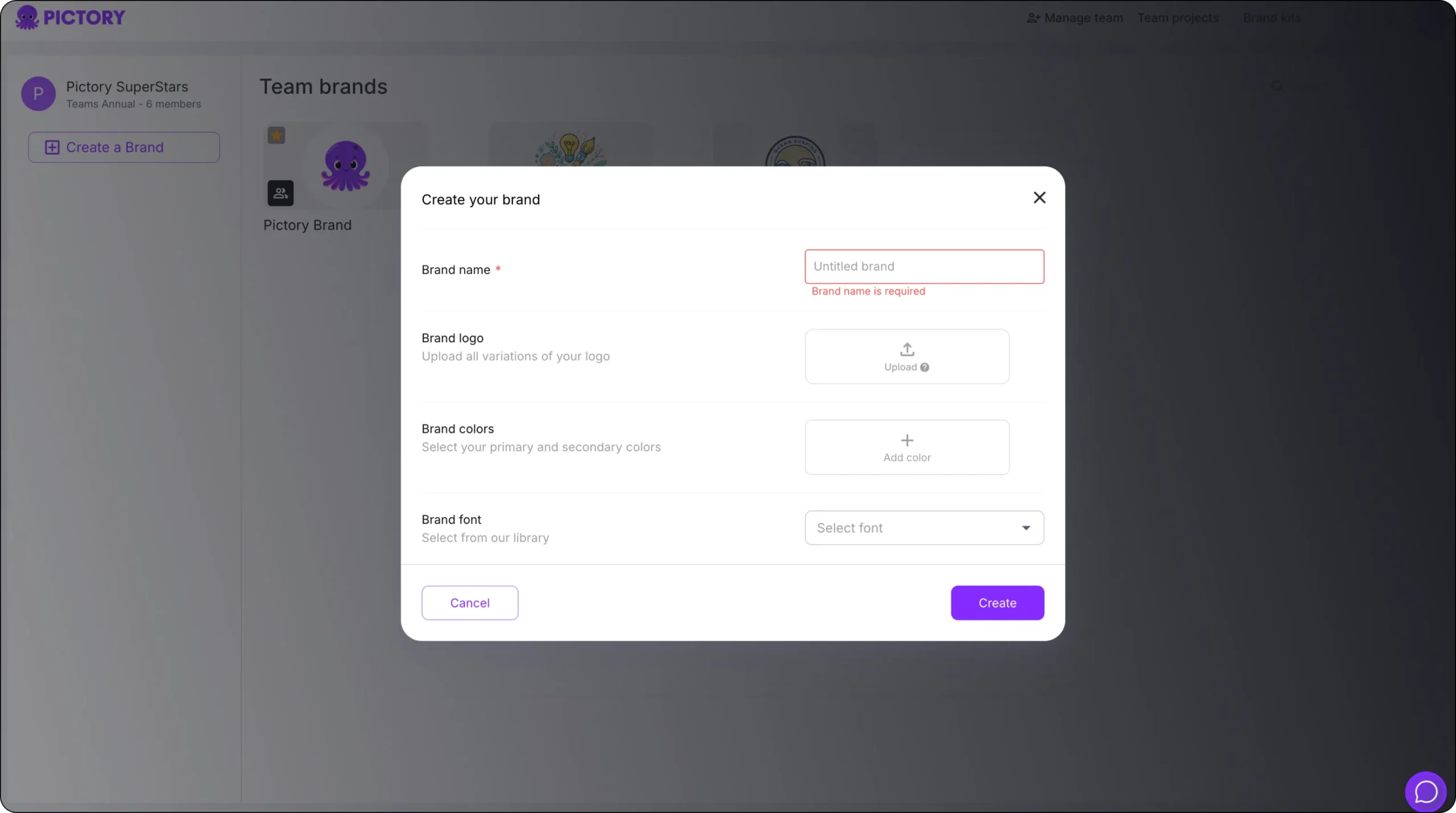
Step 2: Create a new Brand Kit for sales enablement videos
Select Create a Brand, then add your Brand Name, upload logo variations, set brand colors, and choose a brand font from Pictory’s font library.
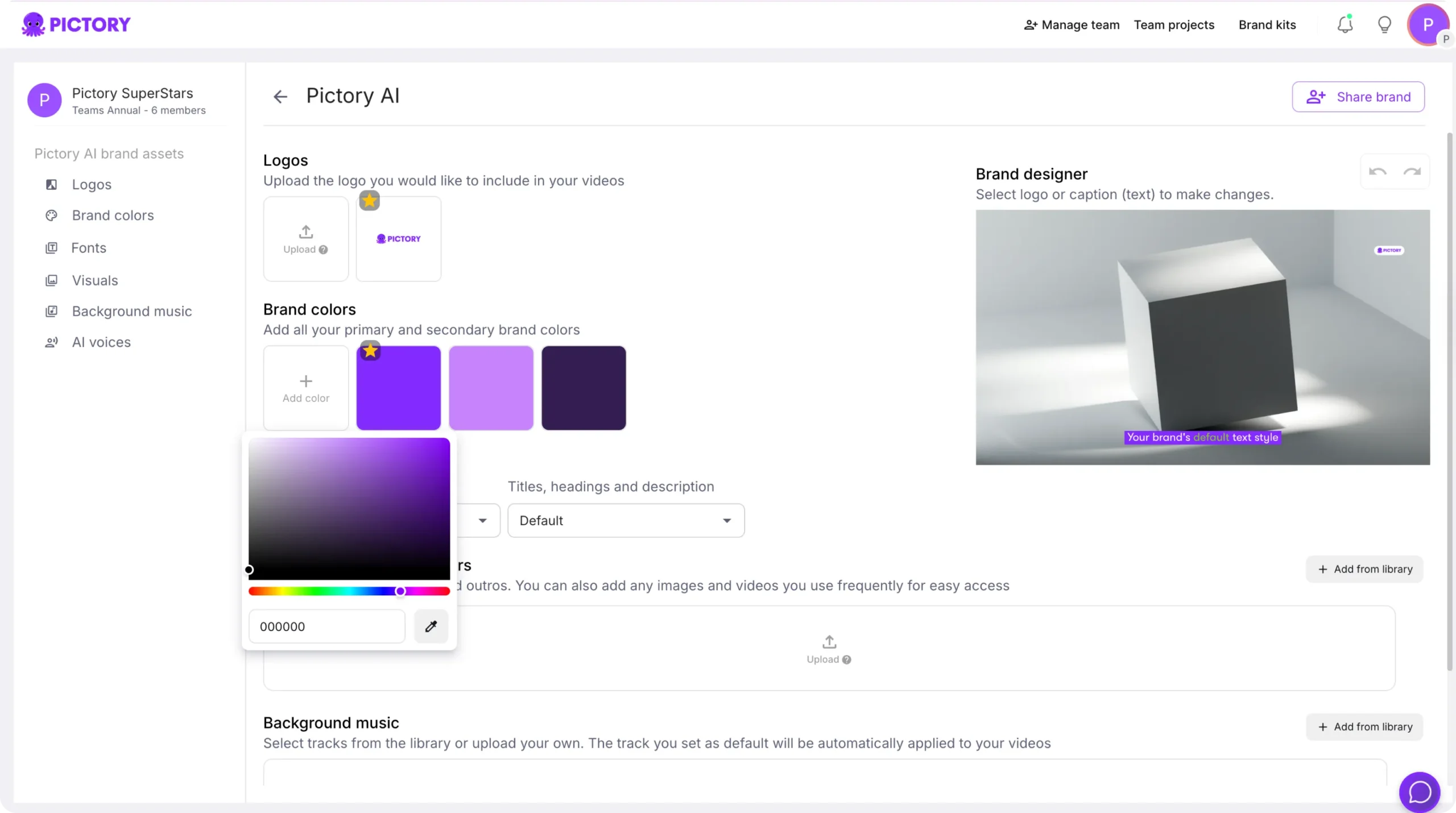
Step 3: Apply the Brand Kit in the Video Editor to enforce consistency at scale
Inside any project, open the editor and use the Branding tab to apply your Brand Kit. This ensures fonts, colors, and logos remain consistent across sales enablement assets, sales training video modules, and internal communications.
How to create sales enablement videos with Text to Video AI (scripts to video at scale)
Text to Video is ideal for enablement scripts, product messaging updates, competitive positioning, and sales enablement training. It is also a practical approach to “ai sales enablement” because it reduces manual editing and speeds up production.
Step 1: Start a Text to Video AI project and paste your enablement script
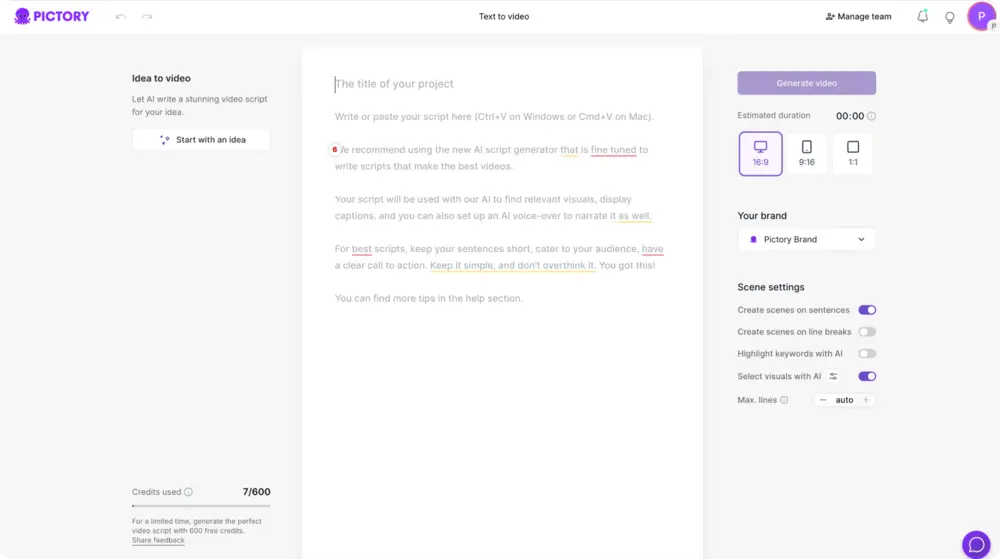
From the Pictory home screen, select Text to Video. Paste your script into the input field. For best results, keep sentences short, include a clear call to action, and keep the structure simple so scenes can be segmented cleanly.
Step 2: Configure scene settings for sales enablement microlearning
In the Script Editor, use scene settings to control pacing and readability:
- Select your aspect ratio: 16:9 for LMS and internal portals, 9:16 for mobile-first enablement, 1:1 for internal social channels.
- Toggle sentence-based scenes or line-break-based scenes to match your script format.
- Enable keyword highlights when you want messaging pillars, product names, or CTAs to stand out.
- Select a Brand Kit to enforce fonts, colors, and logos.
Step 3: Generate the video and refine in the AI Video Editor
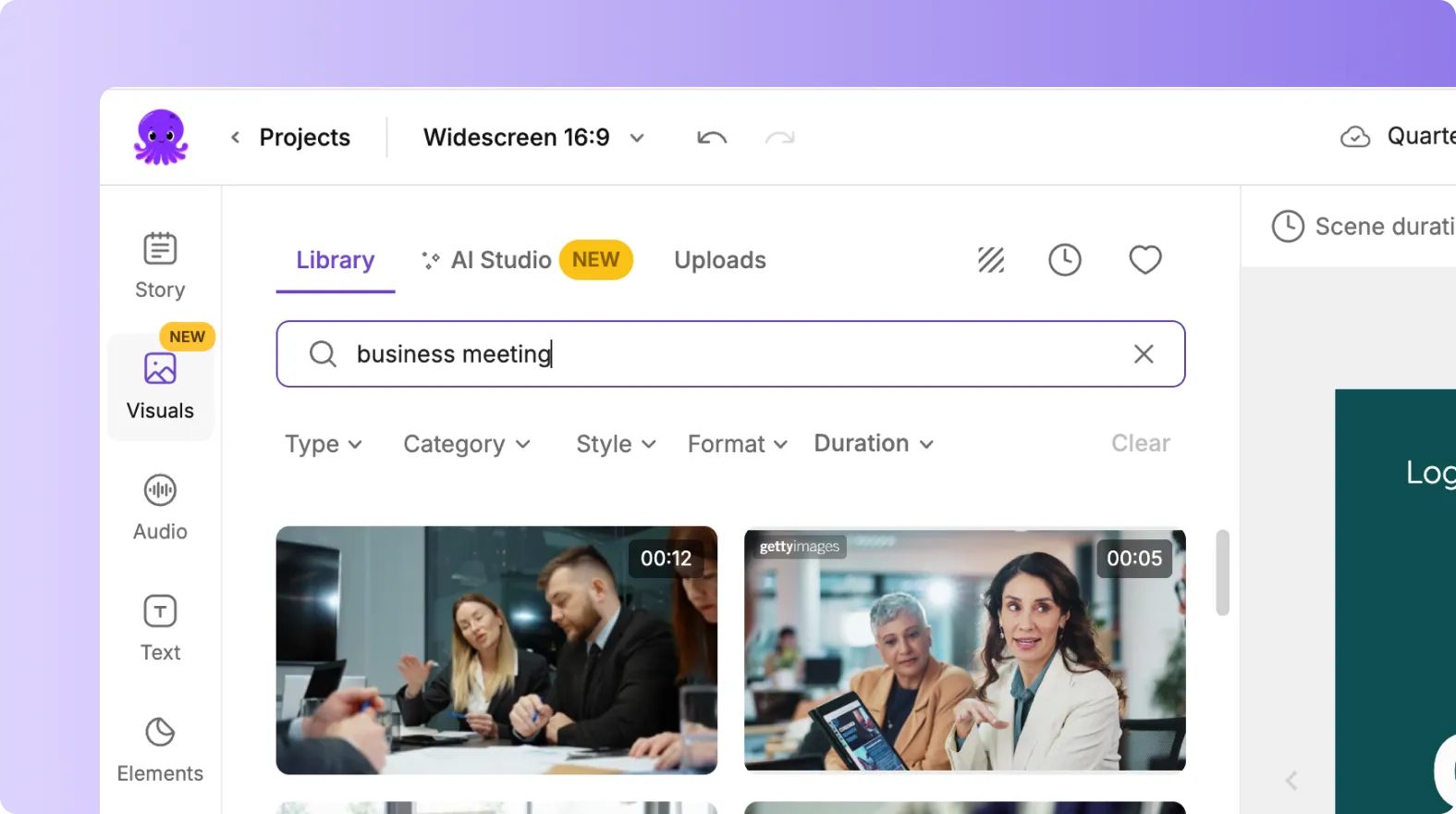
Click Generate video to create a storyboard. When the editor opens, refine scenes using the left sidebar tools:
- Story to edit text per scene and adjust narration flow.
- Visuals to select stock assets from the Library, use Uploads, or generate custom visuals in AI Studio.
- Audio to choose AI voiceover or add background music.
- Layouts, Text, and Elements to create consistent slide-like structure for training segments.
- Styles and Branding to standardize output across the enablement program.
How to convert a URL to video for sales enablement content (URL to Video AI workflow)
URL to Video is a scalable way to repurpose web pages into sales enablement collateral, including product updates, new landing pages, and thought leadership posts used by reps.
Step 1: Use URL to Video AI and choose the right video type
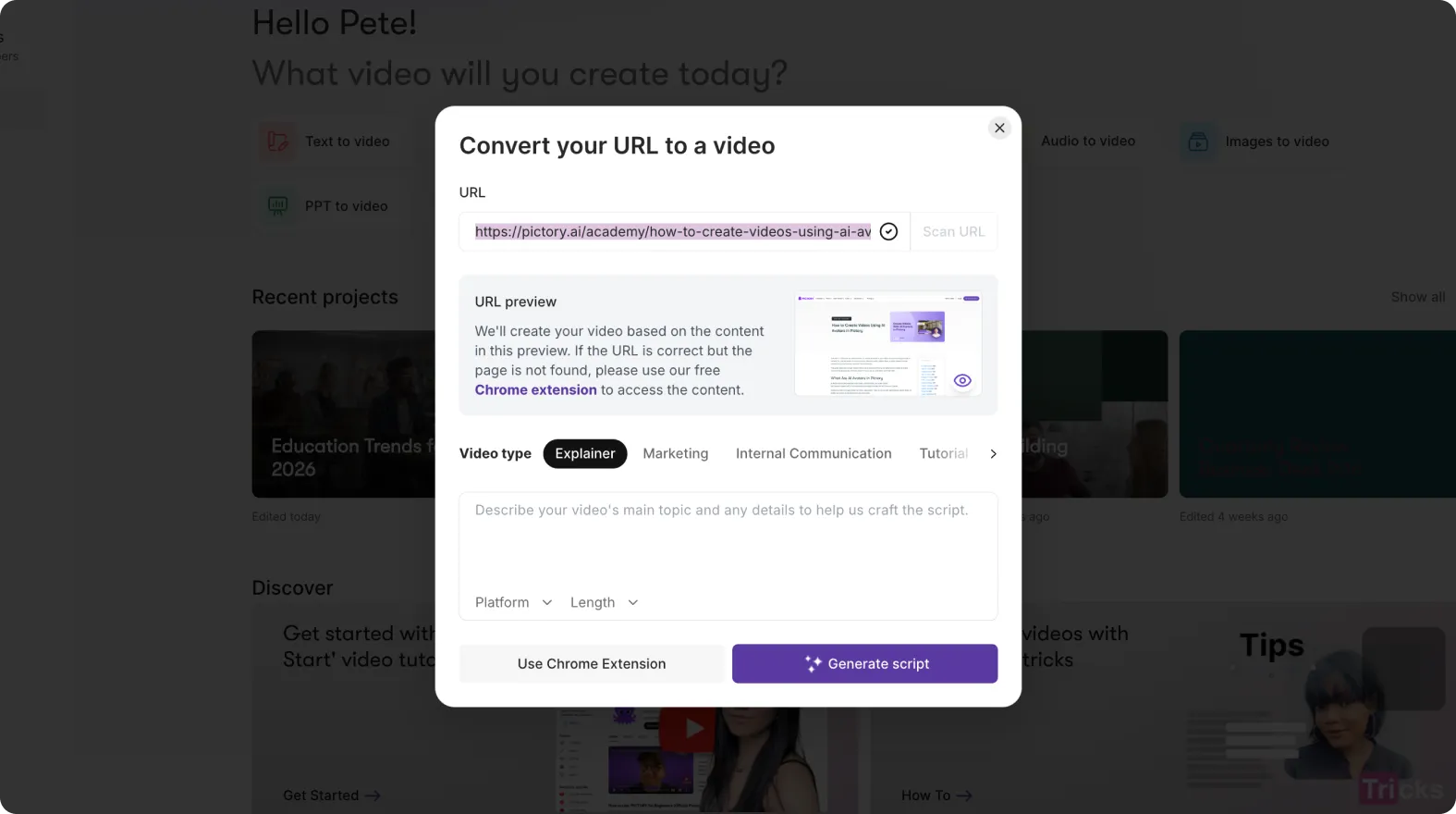
From Home, select URL to Video. Paste a valid URL (including http:// or https://). Choose a video type such as Explainer, Marketing, Internal Communication, or Tutorial, then select platform and video length.
Step 2: Generate and edit the script extracted from the page

Click Generate Script. Pictory extracts the content and creates a script draft. In the Script Editor, refine the message for your sales enablement strategy and use the built-in tools to optimize, rephrase, shorten, lengthen, or change tone.
Step 3: Generate the storyboard and standardize branding for enterprise distribution
Click Generate video to build scenes. In the editor, apply your Brand Kit, adjust visuals, and confirm captions align with approved messaging. Use Share preview for stakeholder review before distributing to the sales enablement team.
PPT to Video AI for sales enablement training: Turn decks into sales training video modules
Deck-based selling is still common, but in 2026 the best sales enablement programs deliver the same content as short video modules that reps can search, replay, and share. PPT to Video helps convert PowerPoint into video quickly without rebuilding everything.
Step 1: Upload the deck and choose speaker notes for narration if needed
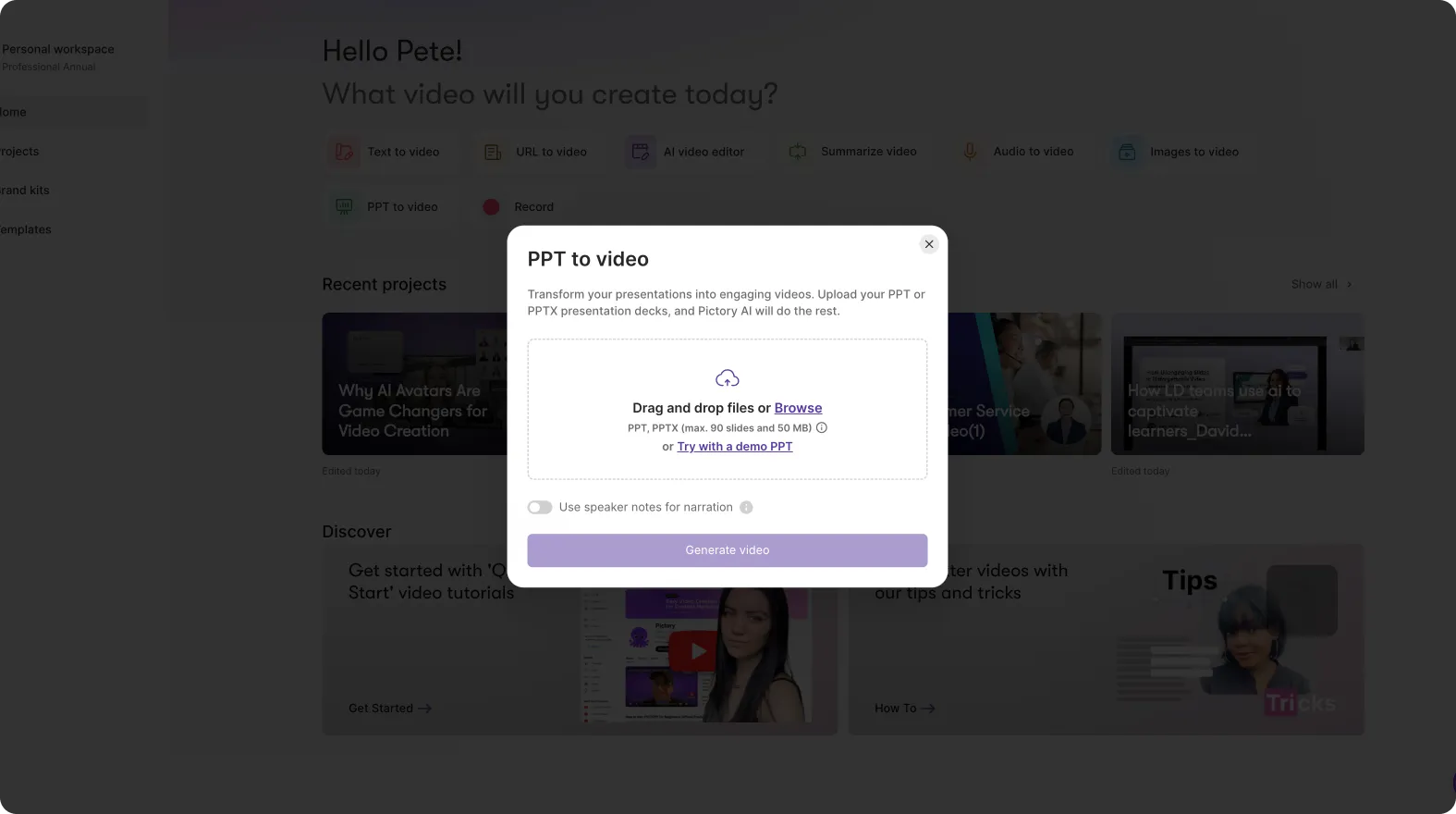
Select PPT to Video and upload a .PPT or .PPTX file (up to 90 slides or 50 MB). If your organization uses standardized speaker notes, enable the option to use speaker notes for narration.
Step 2: Let Pictory create the storyboard from slides
Click Generate video. Pictory converts slides into storyboard scenes and shows progress while it creates the video structure.
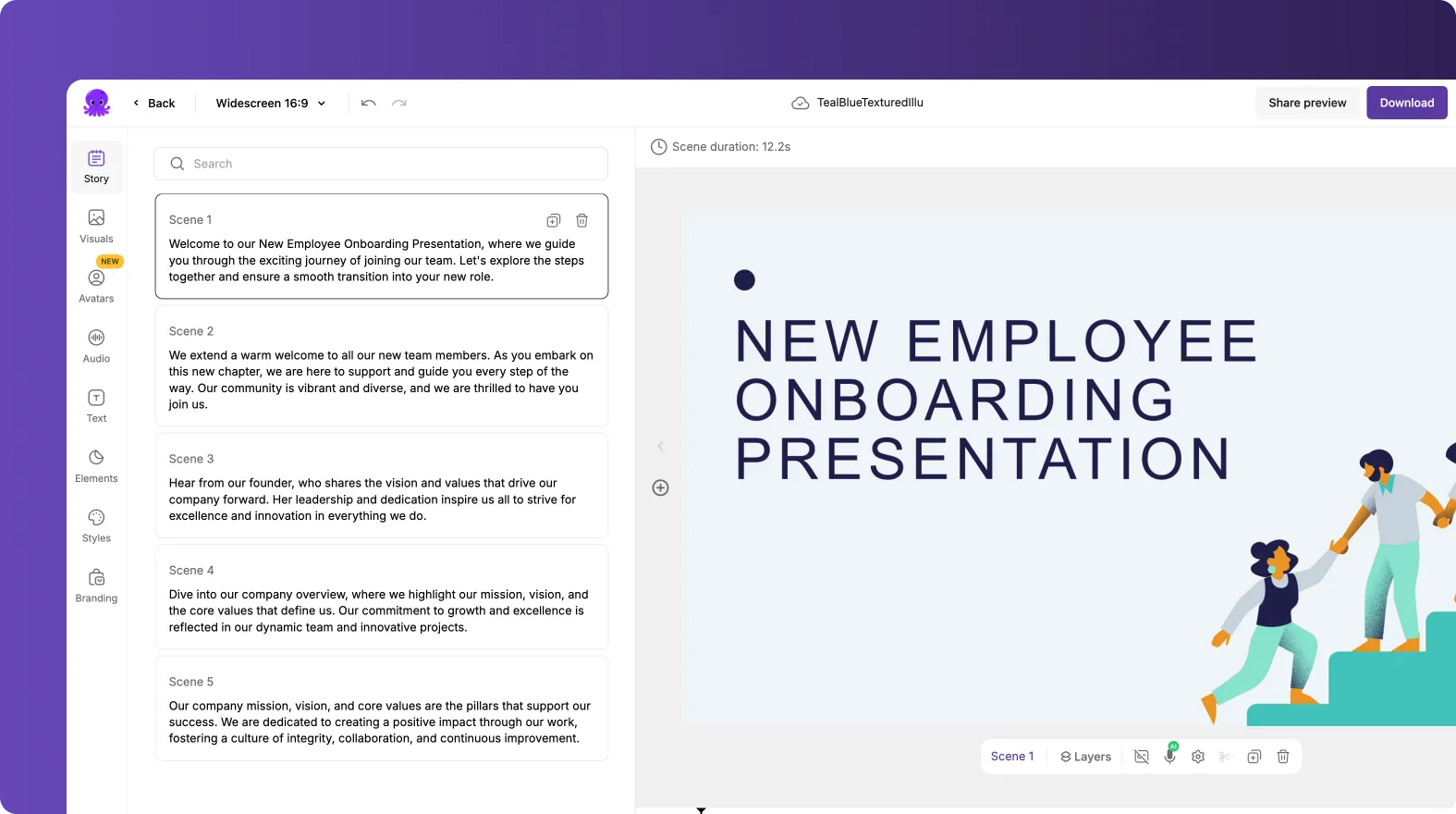
Step 3: Edit scenes to match enablement pacing and clarity
In the editor, refine each scene for microlearning:
- Split dense slides into multiple scenes for better comprehension.
- Use Layouts for consistent structure across modules.
- Apply Styles and Branding for enterprise brand compliance.
- Preview and download when ready, then store the project under My Projects for updates.
AI Video Editor best practices for sales enablement 2026: Update videos faster with transcript-based editing
One of the most practical sales enablement best practices 2026 is reducing rework when messaging changes. Pictory’s AI Video Editor helps teams update existing content using transcription, highlights, and automated storyboard creation.
Step 1: Upload a long-form enablement video and select language
Upload your video file (up to 5 GB, max 180 minutes). Select the correct language to improve transcription accuracy for product terminology and rep-facing guidance.
Step 2: Edit the transcript to remove filler words and tighten delivery
Once transcription completes, open the transcript editor. Use search and replace to update product naming, pricing language, or positioning. Toggle options to remove filler words and remove silences to create a tighter sales training video.
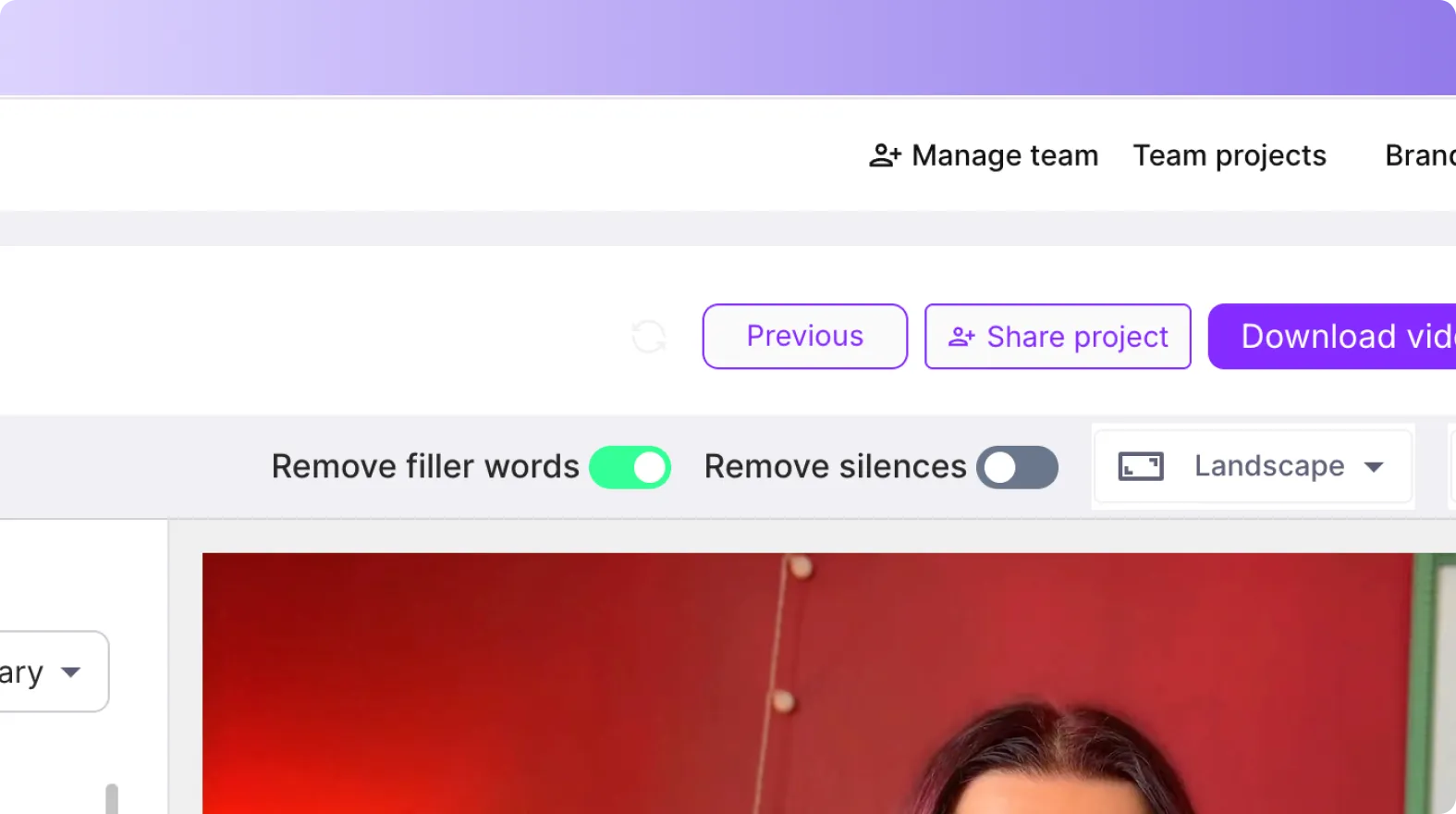
Step 3: Customize subtitles and branding for enterprise readiness
Set subtitle max lines and choose a style from the style library. Apply a Brand Kit so subtitles, fonts, and colors match your enablement standards. Then select Customize Video to move into the storyboard editor for final adjustments.
Screen recorder for sales enablement training: Record product demos and turn them into polished videos
When enablement teams need rapid updates, screen recording is often the fastest path. In 2026, the best screen recorder workflows also include AI transcription so updates can be made without re-recording everything.
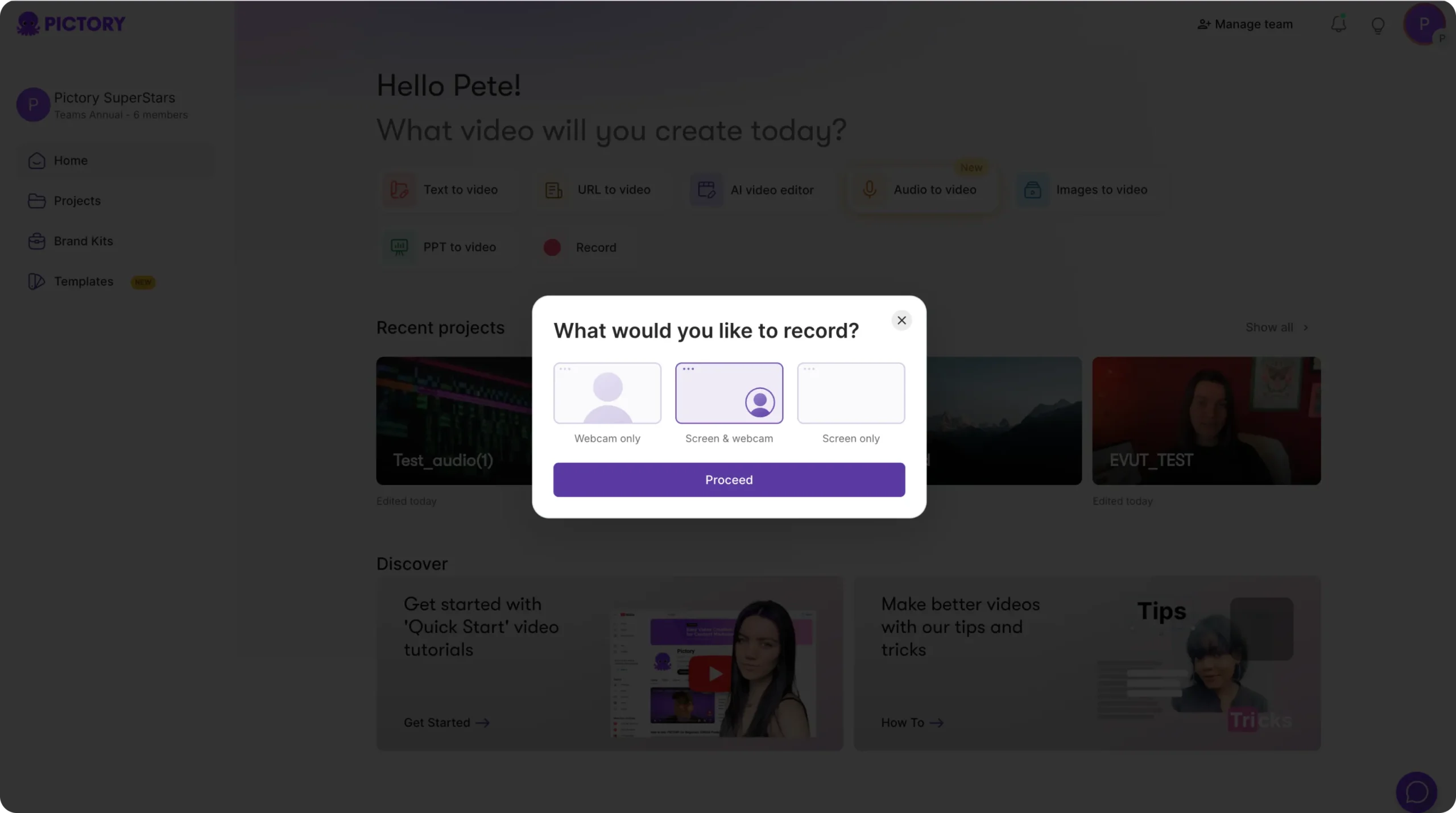
Step 1: Choose the recording mode that matches your enablement use case
From Home, select Record. Choose Webcam only, Screen and webcam, or Screen only. For software training videos, Screen only or Screen and webcam is typically best.
Step 2: Record, review, and move into AI editing
Start recording, then stop when finished. Review the recording and select Edit video using AI to begin transcription.
Step 3: Edit transcript, generate storyboard scenes, and export
In the transcript editor, remove silences, remove filler words, and refine captions. Then let Pictory generate storyboard scenes and finalize the output in the editor. Preview and download the finished enablement video, or use Share preview for stakeholder approval.
Operationalize sales enablement automation: Project management, collaboration, and reuse in Pictory
Enterprise sales enablement teams scale by creating repeatable systems, not one-off videos. Use Pictory’s project structure to operationalize production and updates.
- Centralize assets in My Projects: search, sort by latest, and maintain version control through clear naming.
- Create reusable branded formats: apply Brand Kits and consistent Styles so every team produces compliant output.
- Use timeline controls for faster editing: zoom the timeline, navigate scenes quickly, and use scene actions like Duplicate, Copy, Paste after, and Delete.
- Speed reviews: use Share preview to collect feedback without sending large files.
- Scale across departments: enablement, L&D, compliance, and marketing can share brand kits and workflows while tailoring scripts per audience.
FAQ: sales enablement best practices 2026
What are the top sales enablement best practices in 2026?
The most effective sales enablement best practices 2026 include repurposing existing content into video, delivering modular microlearning, enforcing brand consistency through Brand Kits, updating content quickly via transcript-based editing, and using shareable previews to speed stakeholder approvals.
How do I create sales enablement videos quickly without a production team?
Use Pictory workflows that match your source material. Text to Video converts scripts into scenes automatically, URL to Video turns web pages into video drafts, PPT to Video converts decks into storyboard videos, and the AI Video Editor updates existing recordings through transcription and scene generation.
Which Pictory workflow is best for sales enablement training?
For structured training, PPT to Video is ideal for converting decks into sales training video modules. For recorded sessions like webinars or call recordings, the AI Video Editor is best because you can edit the transcript, remove filler words and silences, and regenerate scenes without re-recording.
How can enterprise teams keep sales enablement collateral brand-consistent?
Create and manage Brand Kits in Pictory with approved logos, brand colors, and fonts. Apply the Brand Kit in the editor using the Branding tab so every video uses consistent styling across teams, products, and regions.
Can Pictory help with sales enablement automation and scalability?
Yes. Pictory supports scalable production by converting multiple input types into video, using automated storyboard creation, providing a centralized editor and project library, enabling reusable Brand Kits and Styles, and streamlining review through shareable previews.
How do enablement teams update sales videos when messaging changes?
Use the AI Video Editor workflow to upload the existing video, edit the transcript with search and replace, remove filler words and silences, adjust subtitles and branding, then regenerate storyboard scenes for a refreshed version. This approach is faster than re-recording and aligns with enterprise sales enablement best practices for 2026.


