
Sales enablement challenges in 2026 are less about “can we create content?” and more about “can we create the right content fast, keep it on brand, and prove impact.” Enterprise enablement teams are expected to support more products, more segments, and more channels with fewer resources, while sellers demand short, searchable, video-first assets.
This guide shows how to use Pictory to turn existing sales enablement content into professional-quality videos at scale using workflows like Text to Video, URL to Video, PPT to Video, the AI Video Editor, and the Smart Screen Recorder. You will also learn how to apply Brand Kits, improve engagement with captions and text animations, and streamline updates without restarting production.
Sales enablement challenges 2026: What changed for enterprise enablement teams
Enterprise sales enablement leaders face recurring issues that compound every quarter:
Too many tools across scriptwriting, editing, stock libraries, voiceover, and collaboration.
Time-intensive video creation that slows launches, onboarding, and field updates.
High production costs when relying on agencies or specialized editors.
Brand consistency risk across regions, teams, and partners.
Enablement content at scale is hard to maintain as messaging changes.
Proving impact requires producing more usable assets faster, not just more assets.
Pictory is built for these enterprise realities by making it easy to repurpose existing enablement materials into video, apply consistent branding, and iterate quickly using AI-assisted editing workflows.
Enterprise sales enablement strategy: Pick the right Pictory workflow for each asset
Align your sales enablement content strategy to the inputs you already have. Pictory supports multiple creation workflows so your team can standardize production without forcing everyone into one format.
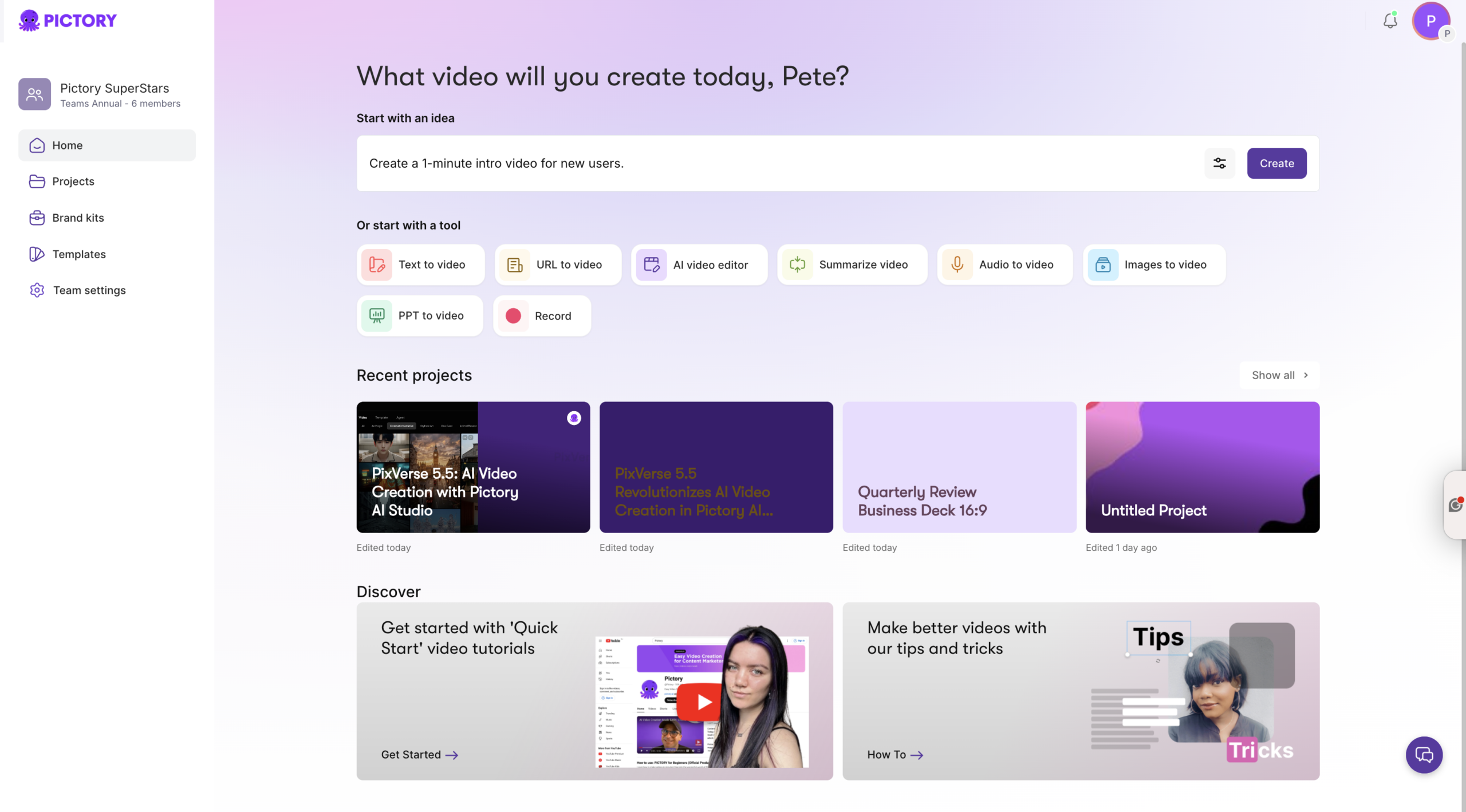
Text to Video AI for talk tracks, discovery frameworks, objection handling scripts, and competitive narratives.
URL to Video for turning product pages, release notes, partner pages, and knowledge base articles into explainers.
PPT to Video for existing pitch decks, training decks, and quarterly enablement sessions.
AI Video Editor for transforming webinar recordings, all-hands recordings, and customer calls into training clips using video to text transcription.
Smart Screen Recorder for software demos and process walkthroughs, then refining them with AI transcription and scene-based editing.
Avatars when you need consistent presenter-led delivery without scheduling live shoots.
This approach directly addresses sales enablement challenges 2026 like speed, consistency, and rapid updates, while reducing dependency on specialized editing resources.
How to create sales enablement training videos with Text to Video AI (fastest for new messaging)
Use this workflow when you want to create net-new enablement videos from a script or a talk track. It is ideal for microlearning, product positioning updates, and sales enablement training assets.
Step 1: Start a Text to Video AI project and paste your sales script
From the Pictory Home page, select Text to Video. Paste your script into the input field. For higher pacing and clearer visuals, keep sentences short and include a clear call to action for sellers, such as what to say, what to show, or what to ask next.
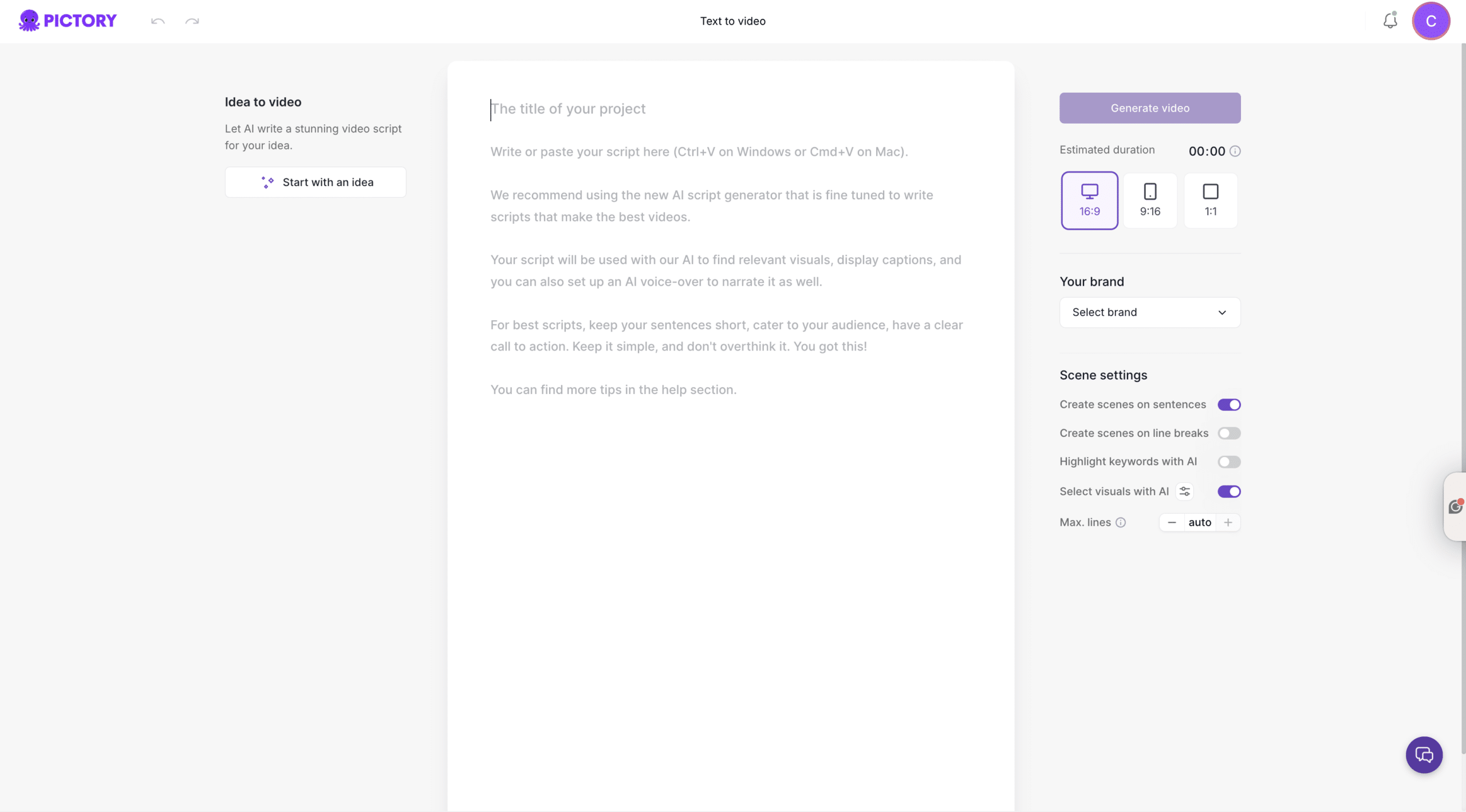
If you need a first draft, use the AI script generator and then refine it in the script editor.
Step 2: Configure scene settings for enablement-friendly pacing
In the Script Editor, use the scene settings panel to control how your script becomes scenes:
Select an aspect ratio like 16:9 for LMS and internal hubs, or 9:16 for mobile-first seller consumption.
Turn on scene creation based on sentences or line breaks depending on your enablement script format.
Enable highlight keywords to emphasize product differentiators, ICP terms, and qualifying questions.
Set max lines per scene to keep sales training crisp and scannable.
Step 3: Generate the storyboard and refine in the AI video editor
Click Generate video to create the storyboard. In the editor, adjust scene text, timing, and visuals. Use the left sidebar tools like Story, Visuals, Audio, Text, Elements, Styles, and Branding to polish the asset into a market-ready training video.
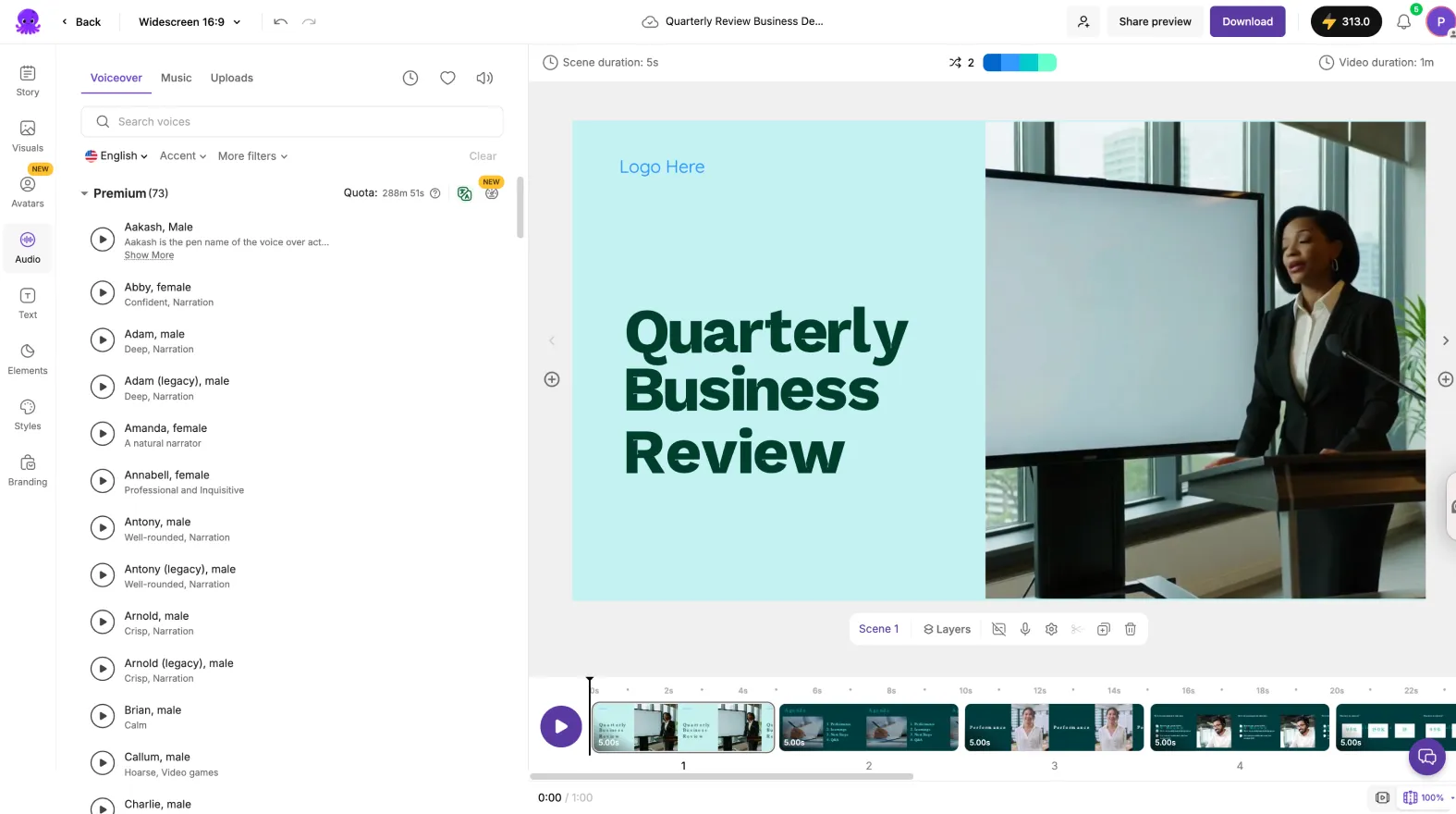
When the video matches your enablement standards, use Preview, then Download for distribution.
How to convert URL to video for sales enablement content updates (launches, battlecards, product pages)
URL to Video is an efficient way to repurpose written enablement and product content into a video format for sellers. It is especially useful when sales enablement challenges in 2026 include frequent messaging changes and launch velocity.
Step 1: Paste a URL and select the right video type
From Home, choose URL to Video. Paste a valid URL that starts with http:// or https://. Select a video type such as Explainer, Marketing, Internal Communication, or Tutorial.
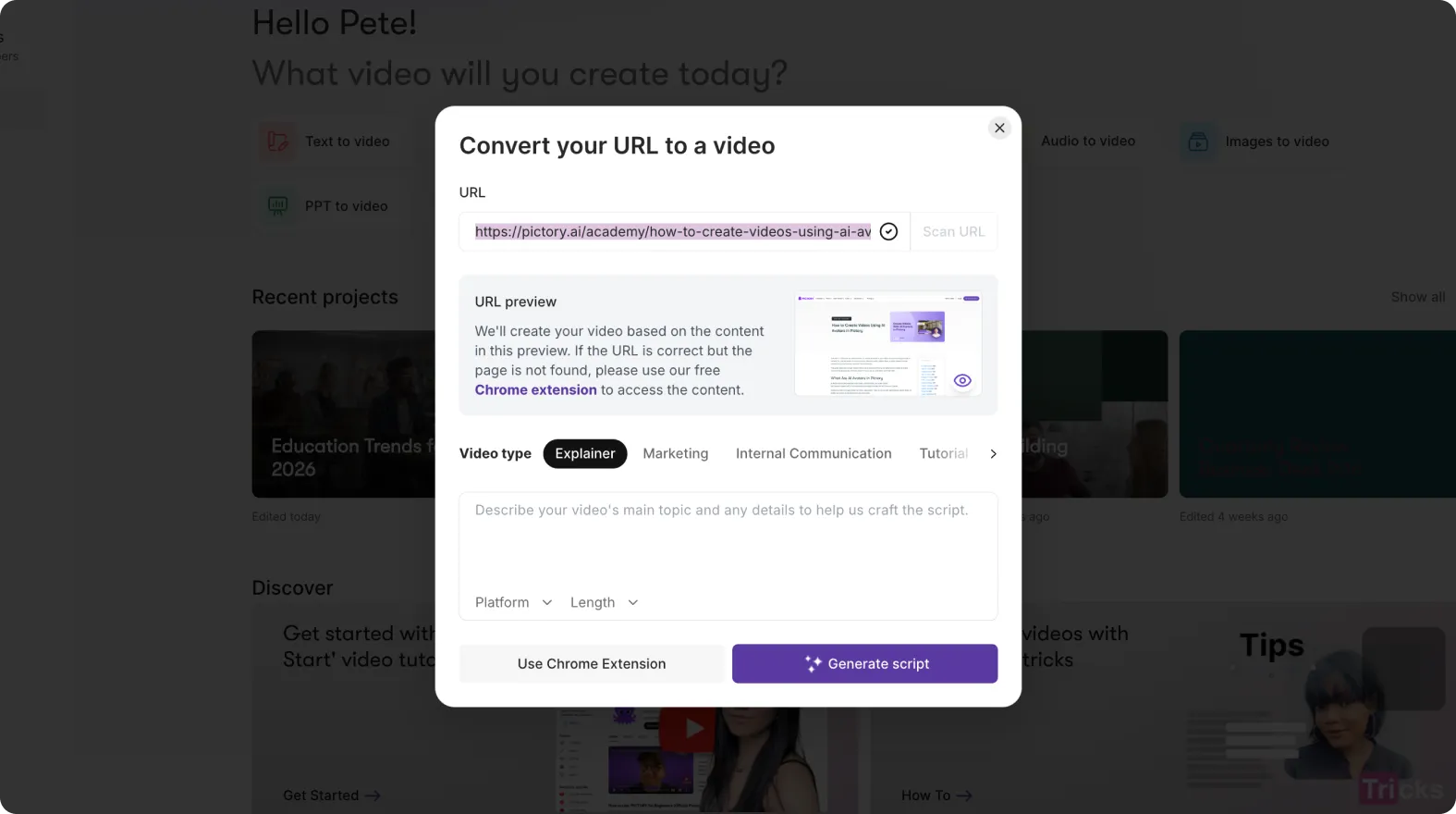
Add optional details if needed, like region-specific context or target segment notes.
Step 2: Generate and edit the script for seller readiness
Click Generate Script. Pictory extracts the content and produces a draft script. In the script editor, rewrite sections into seller-ready language:
Open with the problem and qualifying questions.
Convert feature paragraphs into outcomes and proof points.
End with a suggested next step for the rep.

Use Ask AI tools to optimize, rephrase, shorten, lengthen, or change tone.
Step 3: Generate video, then validate visuals and captions in the editor
Click Generate video to build the storyboard. In the editor, confirm the visuals align to your industry and avoid generic or mismatched imagery. Adjust captions for clarity, especially around product names and competitor terms.
Use the Share preview option to get feedback from Sales, Product Marketing, or Compliance before downloading.
How to convert PPT to video for sales enablement training at scale (decks to microlearning)
PPT to Video is ideal when your enablement program is deck-driven and you need faster video output without rebuilding content. This helps with digital sales enablement and consistent delivery across regions.
Step 1: Upload your PowerPoint and choose narration options
Select PPT to Video and upload a .PPT or .PPTX file (up to 90 slides or 50 MB). If your deck includes speaker notes, enable the option to use speaker notes for narration to accelerate production.
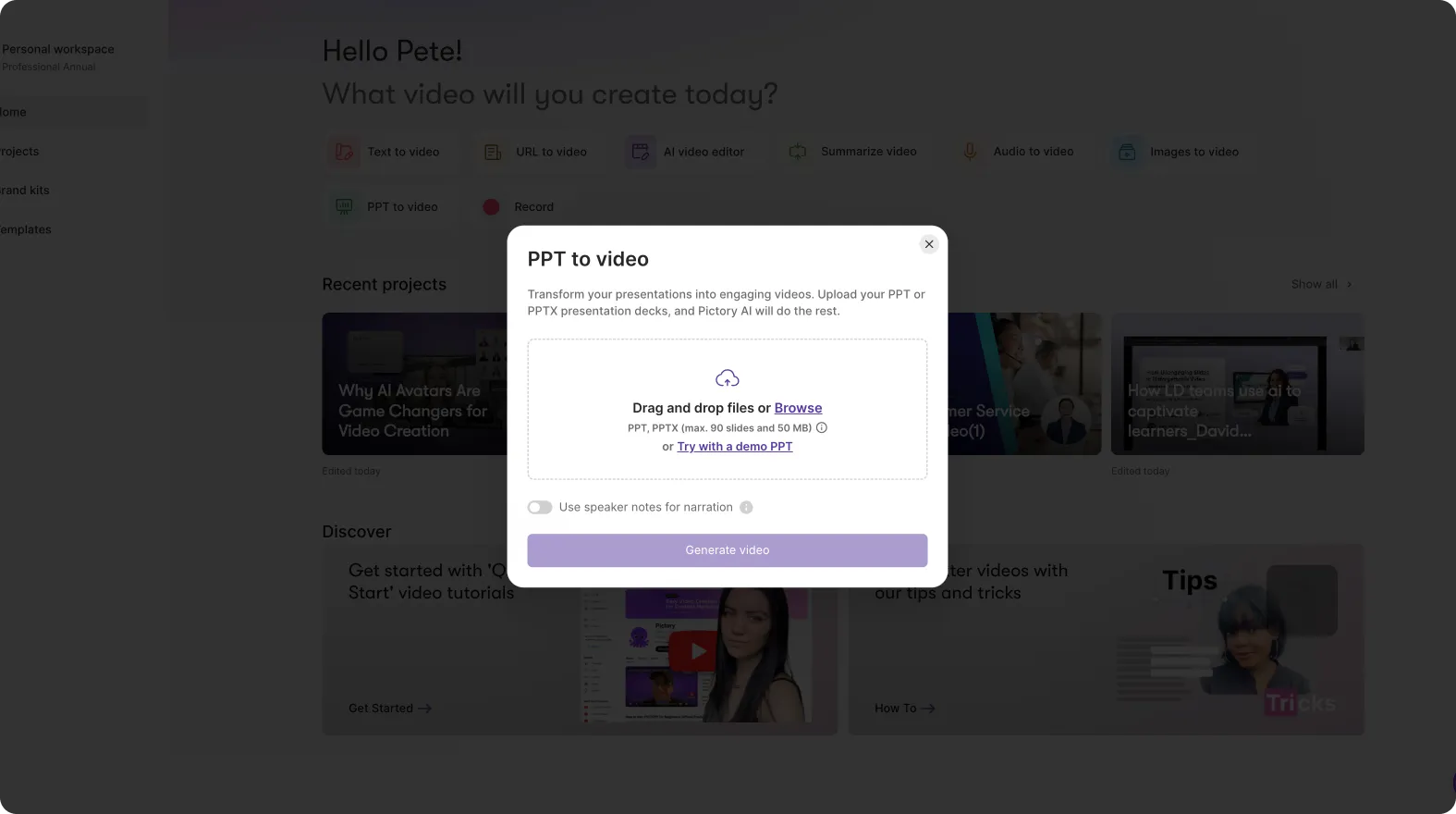
Click Generate video to begin storyboard creation.
Step 2: Edit scenes like a structured enablement module
When the storyboard is ready, the editor displays slide content as scenes. Use the left panel to:
Split long slides into multiple scenes for microlearning.
Rewrite dense bullets into short, spoken-friendly lines.
Reorder scenes to match your sales enablement training flow: context, value, proof, objections, next steps.
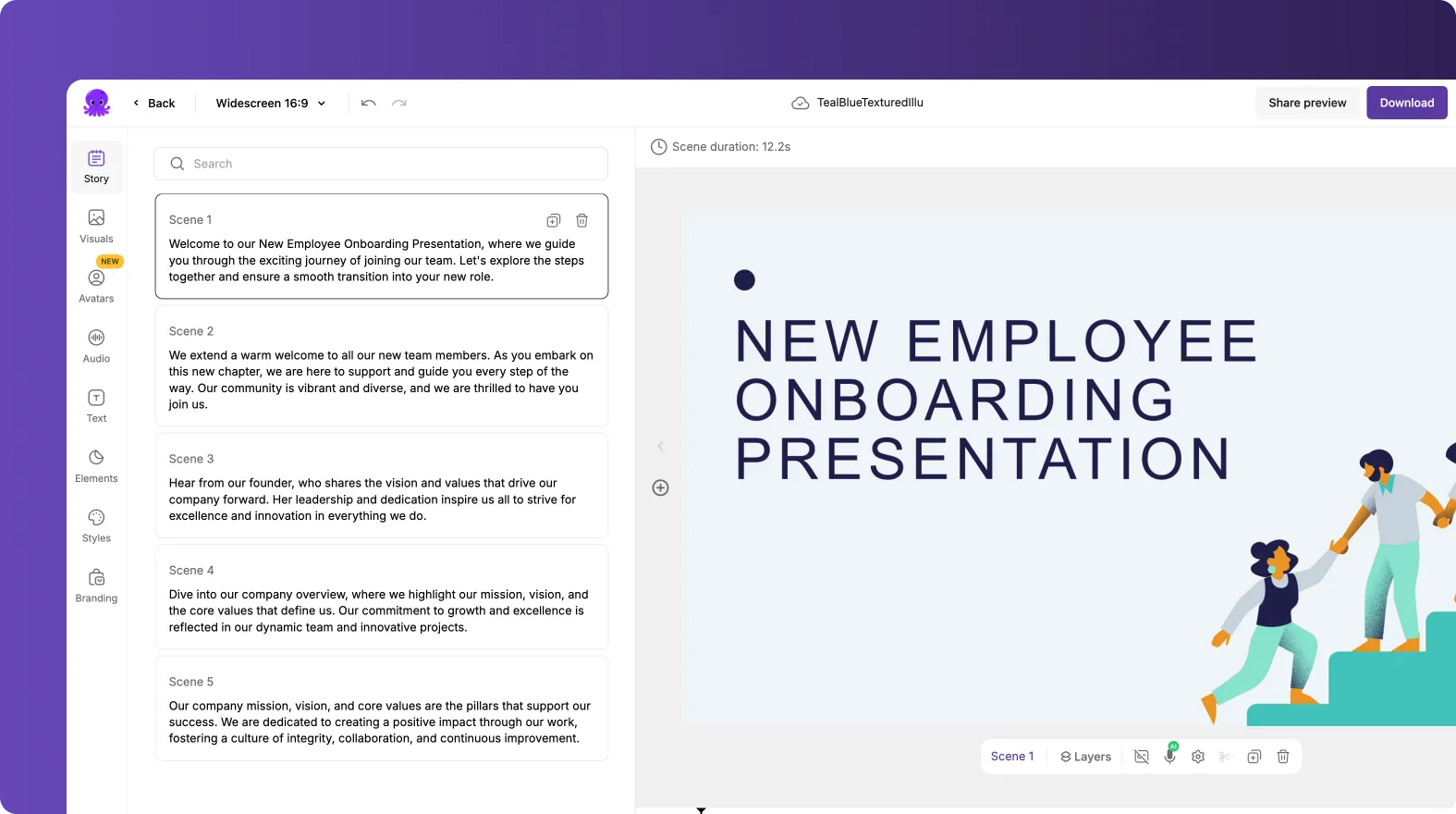
Use the timeline thumbnails and zoom to navigate longer modules quickly.
Step 3: Apply branding and export a consistent video series
Use Branding to apply brand kits across the entire deck-video so all text, colors, and logos match enterprise standards. Preview, then download. Save the project in My Projects so you can update the same video when slides change, rather than starting over.
How to update enablement videos using AI Video Editor and video to text transcription (webinars, calls, recordings)
When sales enablement challenges 2026 include keeping content current, the AI Video Editor helps you edit by editing text. This is effective for sales training videos created from recorded sessions and for rapid refreshes when positioning shifts.
Step 1: Upload a recording and select language for transcription
Open the AI Video Editor workflow and upload a video file (up to 5 GB, max 180 minutes). Select the language so transcription is accurate.
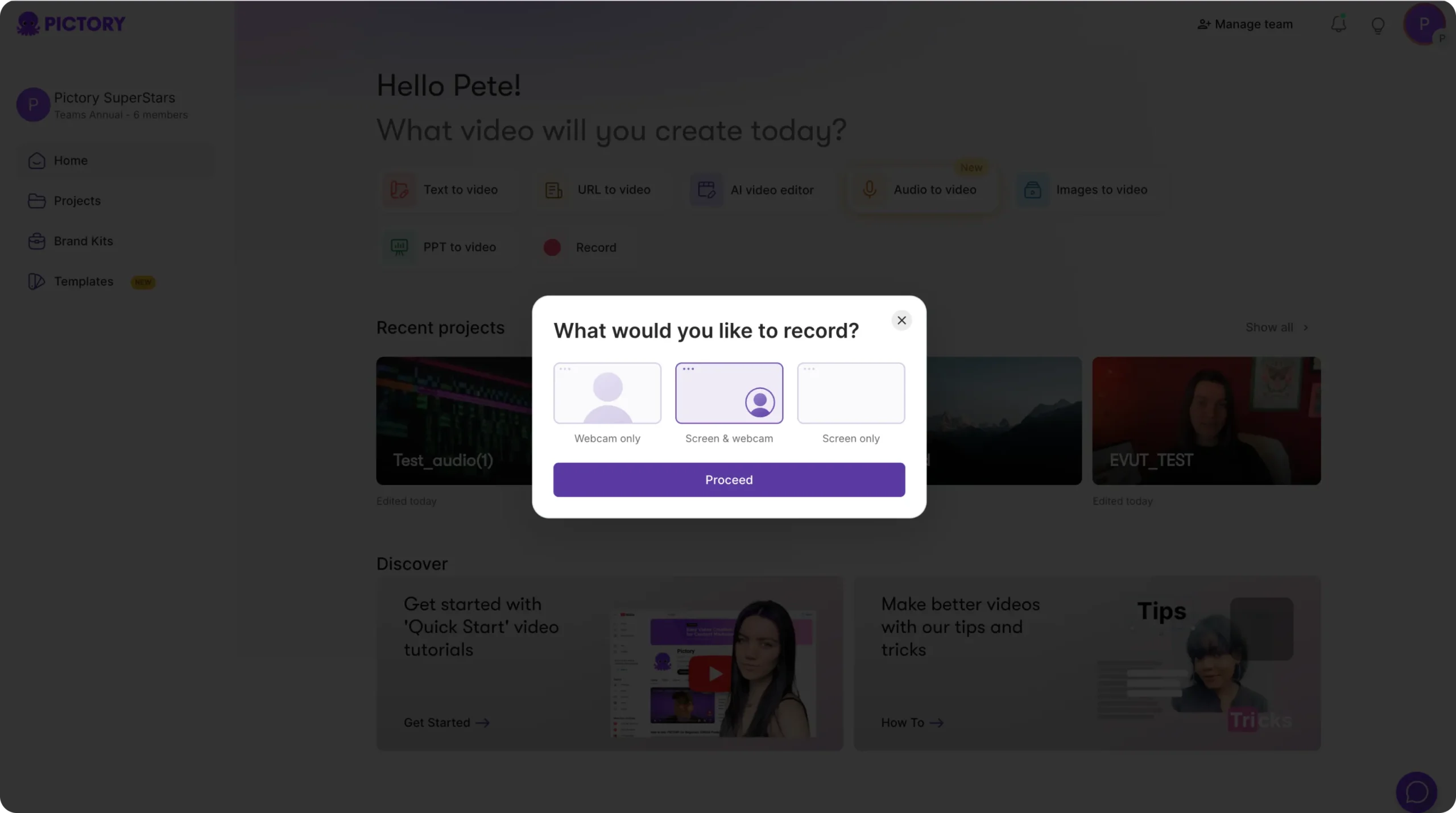
Pictory transcribes the video and notifies you when complete. You can return to Home while processing continues.
Step 2: Clean the transcript for clarity and pace
In the Script and Transcript Editor, use the editing tools to make training segments tighter:
Use search and replace for consistent terminology and updated product names.
Turn on remove filler words to improve professionalism.
Turn on remove silences to reduce dead air and shorten runtime.
Use auto highlight to identify key phrases for clip creation.
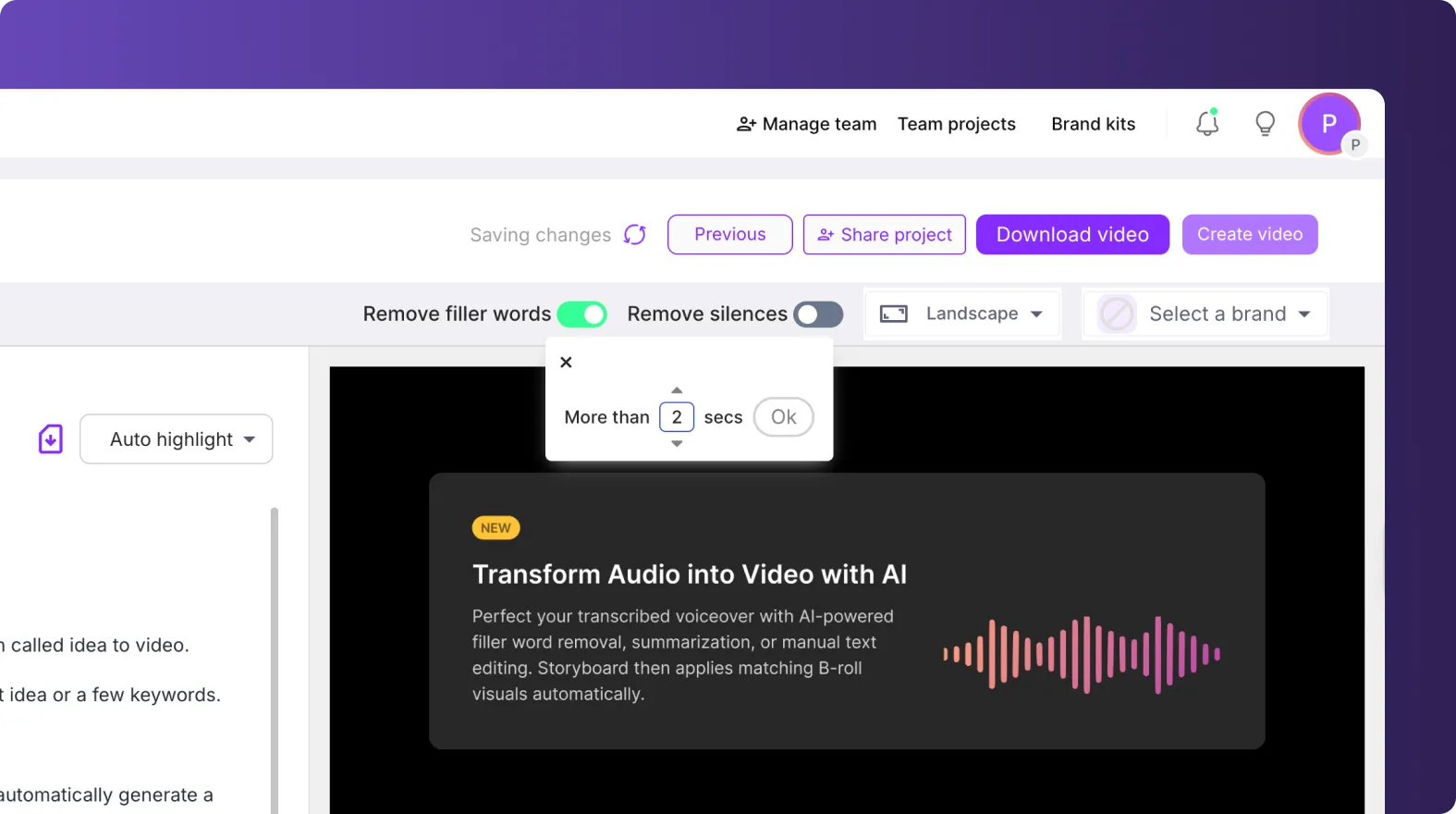
Adjust subtitle settings like maximum lines per subtitle and choose a subtitle style that matches your brand.
Step 3: Generate storyboard scenes and finalize edits for distribution
After transcript edits, create the storyboard. In the final editor, refine scene timing, replace visuals, add text overlays, and ensure the content meets internal standards. Use Preview, then Download, or share a preview link for stakeholder approval.
How to standardize sales enablement videos with Brand Kits, Styles, and text animations
Brand inconsistency is one of the most expensive enterprise sales enablement problems because it creates rework and slows approvals. Pictory Brand Kits help you scale brand-consistent video creation across teams.
Step 1: Create a Brand Kit once for enterprise-wide reuse
From the left navigation, open Brand Kits and click Create a Brand. Add:
Brand name
Logo variations
Brand colors, including experimenting with color palette shuffle
Brand font from Pictory’s font library
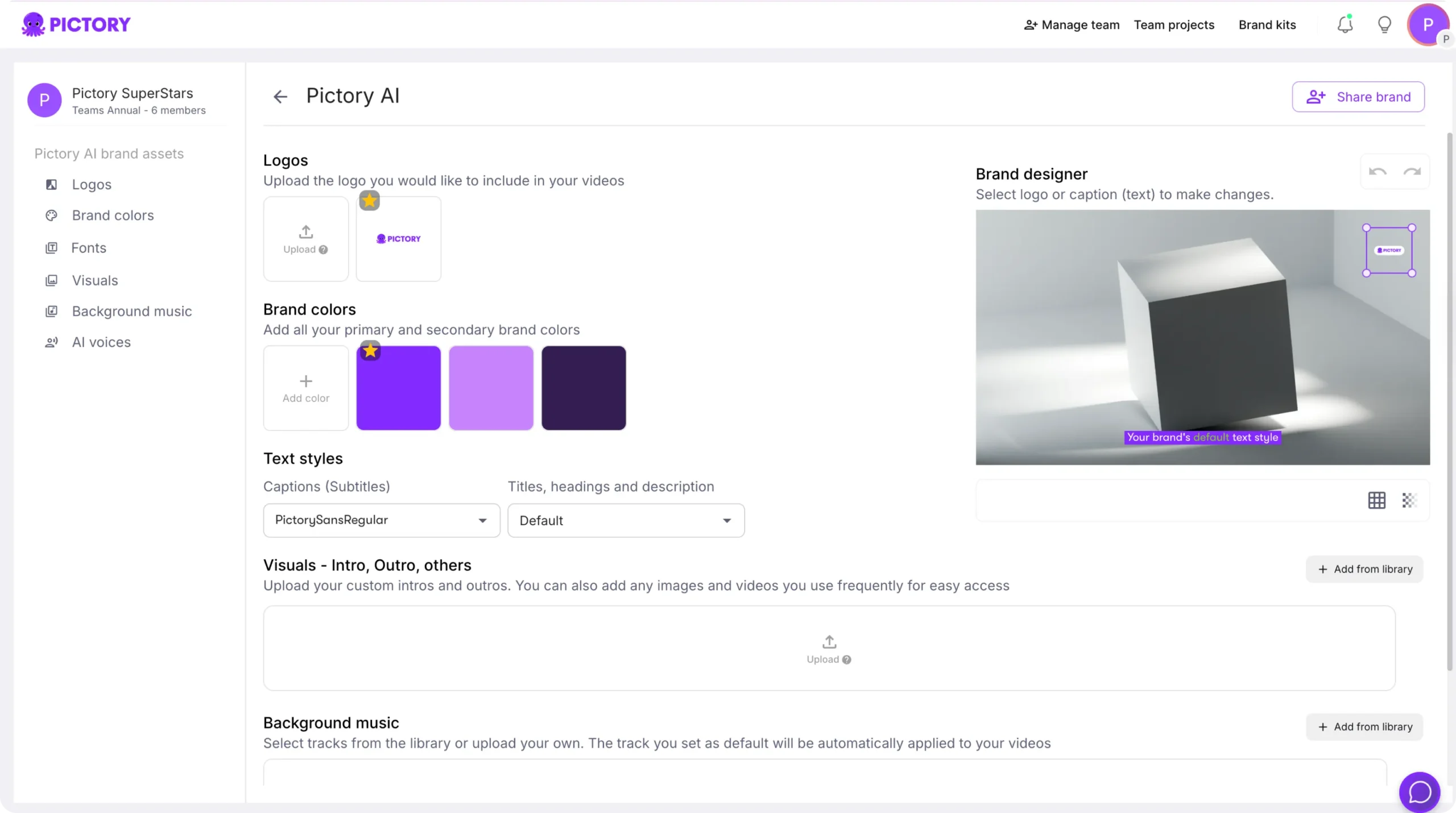
Save the brand kit so it appears under My Brands for reuse across enablement initiatives.
Step 2: Apply Branding and Styles inside the editor to maintain consistency
Inside any project, open Branding and apply your brand kit. Then use Styles to keep typography and on-screen text consistent across a full enablement program, including onboarding videos for new employees and channel sales enablement content.
Step 3: Use text animations to improve engagement in microlearning videos
Select any text layer in a scene to open the top text toolbar, then choose Animate Text to apply entry and exit animations. For enterprise sales enablement training, prioritize readable effects like Fade, Wipe, or Text Reveal, and keep speed consistent across modules.

Use bulk apply or copy animation to standardize motion across scenes for a cohesive look.
FAQ: sales enablement challenges 2026
What are the biggest sales enablement challenges in 2026?
The biggest sales enablement challenges 2026 include scaling content with fewer resources, maintaining brand consistency across teams, updating messaging quickly, reducing tool sprawl, and proving business impact through higher adoption of enablement assets.
How can I create sales training videos faster without hiring an agency?
Use Pictory workflows like Text to Video AI for scripts, PPT to Video for decks, and URL to Video for existing web content. For recordings, use the AI Video Editor to edit by transcript, remove filler words, and create scenes automatically.
Can Pictory help with video to text transcription for enablement recordings?
Yes. The AI Video Editor transcribes uploaded videos and gives you a transcript editor with tools like search and replace, auto highlights, remove filler words, and remove silences. After editing the transcript, Pictory generates a storyboard for final edits and export.
How do enterprise teams keep sales enablement videos on brand?
Create and apply Brand Kits with your logo, fonts, and color palette. Then use the Branding and Styles tools inside the editor to standardize captions, overlays, and overall presentation across every enablement video.
What is the best workflow for turning a pitch deck into microlearning videos?
PPT to Video is the most direct option. Upload the deck, generate the storyboard, then split dense slides into shorter scenes and tighten the narration. Apply your brand kit and export a consistent series for onboarding or product training.
How do I repurpose product pages or battlecards into short videos for reps?
Use URL to Video. Paste the link, generate the script, then edit it into seller-ready language that includes qualifying questions, outcomes, and a next step. Generate the video and validate visuals and captions before sharing or downloading.


