
A modern sales enablement program 2026 requires fast, consistent, measurable content that aligns Sales, Marketing, and Enablement. Pictory helps enterprise teams repurpose existing enablement assets into professional, brand-consistent video using an all-in-one AI video platform designed for today’s business needs.
In this guide, you will learn how to build and update sales enablement collateral, sales training video content, and microlearning modules using Pictory workflows including Text to Video AI, URL to Video, PPT to Video, the AI Video Editor, and Smart Screen Recorder.
Sales Enablement Program 2026 Goals, KPIs, and Content Standards
Before you create videos, define what success looks like for your enterprise sales enablement strategy and how video will be used across the enablement tech stack.
Primary outcomes: faster ramp, higher win rates, better message consistency, improved rep productivity
Common sales enablement KPIs: time to first deal, sales cycle length, content usage, certification completion, talk track adoption, pipeline influenced
Core video asset types: product messaging, objection handling, competitive battlecards, discovery frameworks, demo walkthroughs, pricing and packaging, internal communication updates
Enterprise standards: brand compliance, version control, captions and accessibility, reusable templates, secure collaboration
Pictory supports these standards with Brand Kits, templates, scene-based editing, royalty-free assets, and prompt-based AI visuals and avatars to scale production without adding tools or headcount.
Enterprise Sales Enablement Content Strategy Using AI Video Workflows
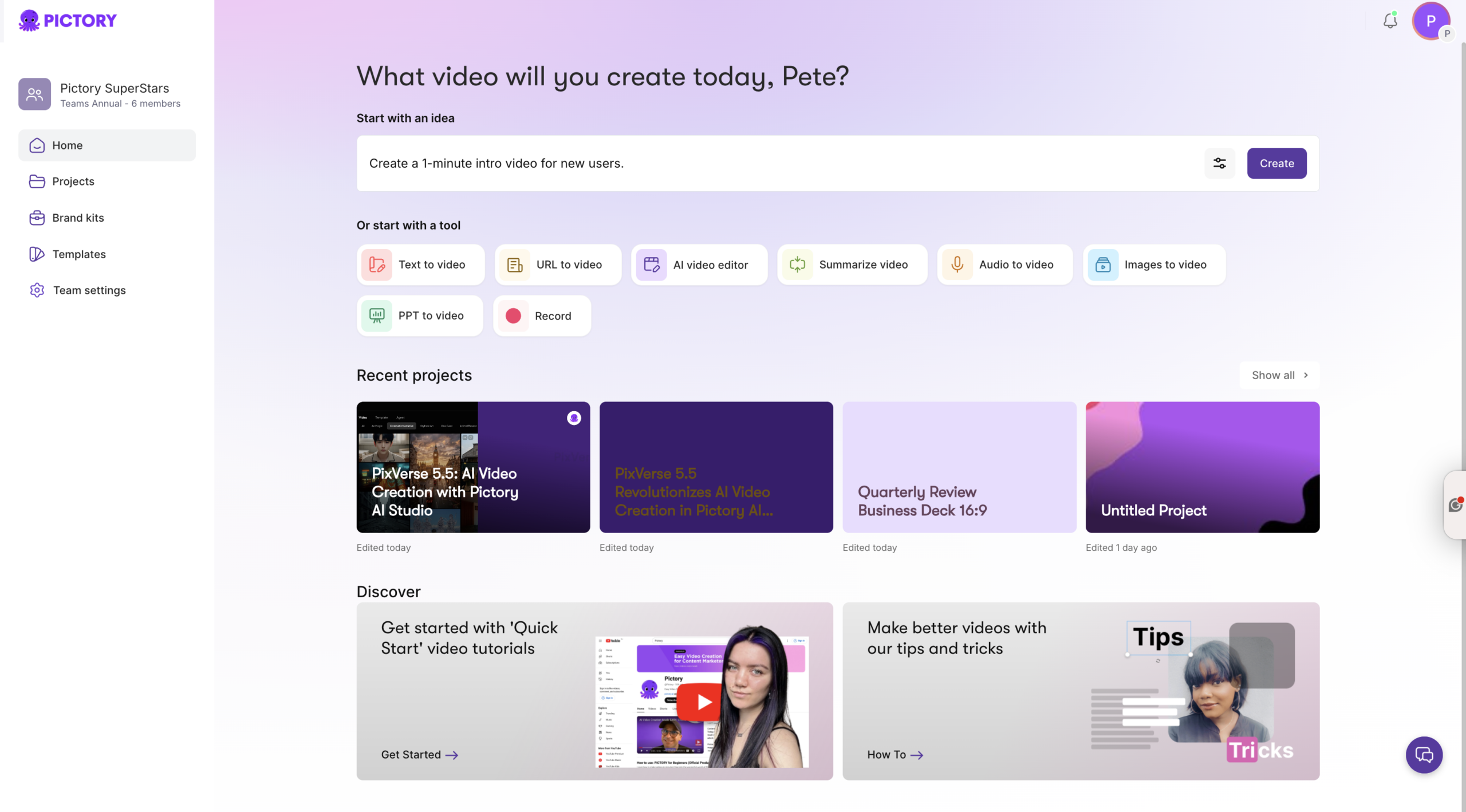
To operationalize a sales enablement program 2026, map each enablement need to the fastest Pictory workflow.
Turn scripts into videos: Use Text to Video AI for talk tracks, playbooks, and sales enablement training modules.
Repurpose existing pages: Use URL to Video to convert a product page, launch post, or internal wiki page into a narrated enablement video.
Convert decks: Use PPT to Video to transform sales training decks into consistent video-based sales training.
Update recordings fast: Use the AI Video Editor for video to text transcription, removing filler words, and cutting silences.
Record walkthroughs: Use Smart Screen Recorder to capture product demos, CRM steps, and software training videos.
This structure lets Sales Enablement Managers scale content production, reduce production overhead and cost, and maintain brand consistency across regions and teams.
How to Create Sales Enablement Videos with Text to Video AI (Step by Step)
Use this workflow when you already have a script, talk track, enablement outline, or training narration. This is a fast path to convert text to video with AI while keeping enterprise branding consistent.
Step 1: Start a Text to Video AI project and paste your enablement script
From the Pictory Home page, select Text to Video and paste your script into the input field. Keep sentences short, keep the structure simple, and include a clear call to action for reps such as “Use this question in discovery” or “Send this asset after the first call.”
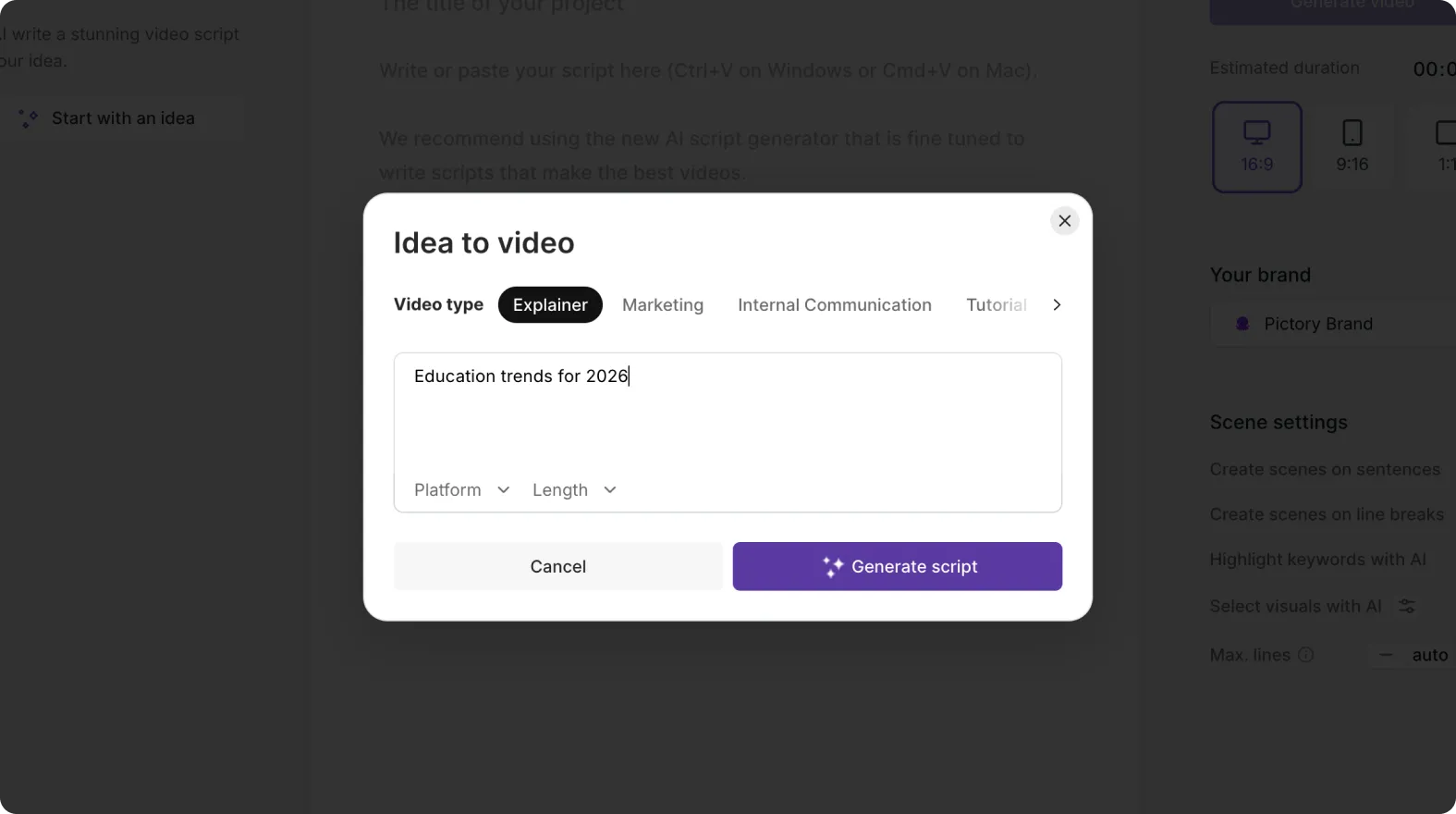
If you do not have a script yet, use the optional AI script generator to draft one, then refine it in the Script Editor.
Step 2: Configure scene settings for microlearning and sales training video pacing
In the Script Editor, set scene rules to match your training format:
Select an aspect ratio based on distribution: 16:9 for LMS and enablement portals, 9:16 for mobile-first microlearning, 1:1 for internal social
Enable sentence-based scenes or line-break-based scenes for consistent segmenting
Set max lines per scene to keep on-screen text readable
Optionally highlight keywords so core messaging and sales enablement content stands out
Apply your Brand Kit to enforce approved logos, fonts, and colors across every training module.
Step 3: Generate the video storyboard and refine in the AI video editor
Click Generate video, then choose a theme layout such as Modern minimalist, Kinetic, or Bulletin. Pictory creates scenes automatically and opens the Video Editor.
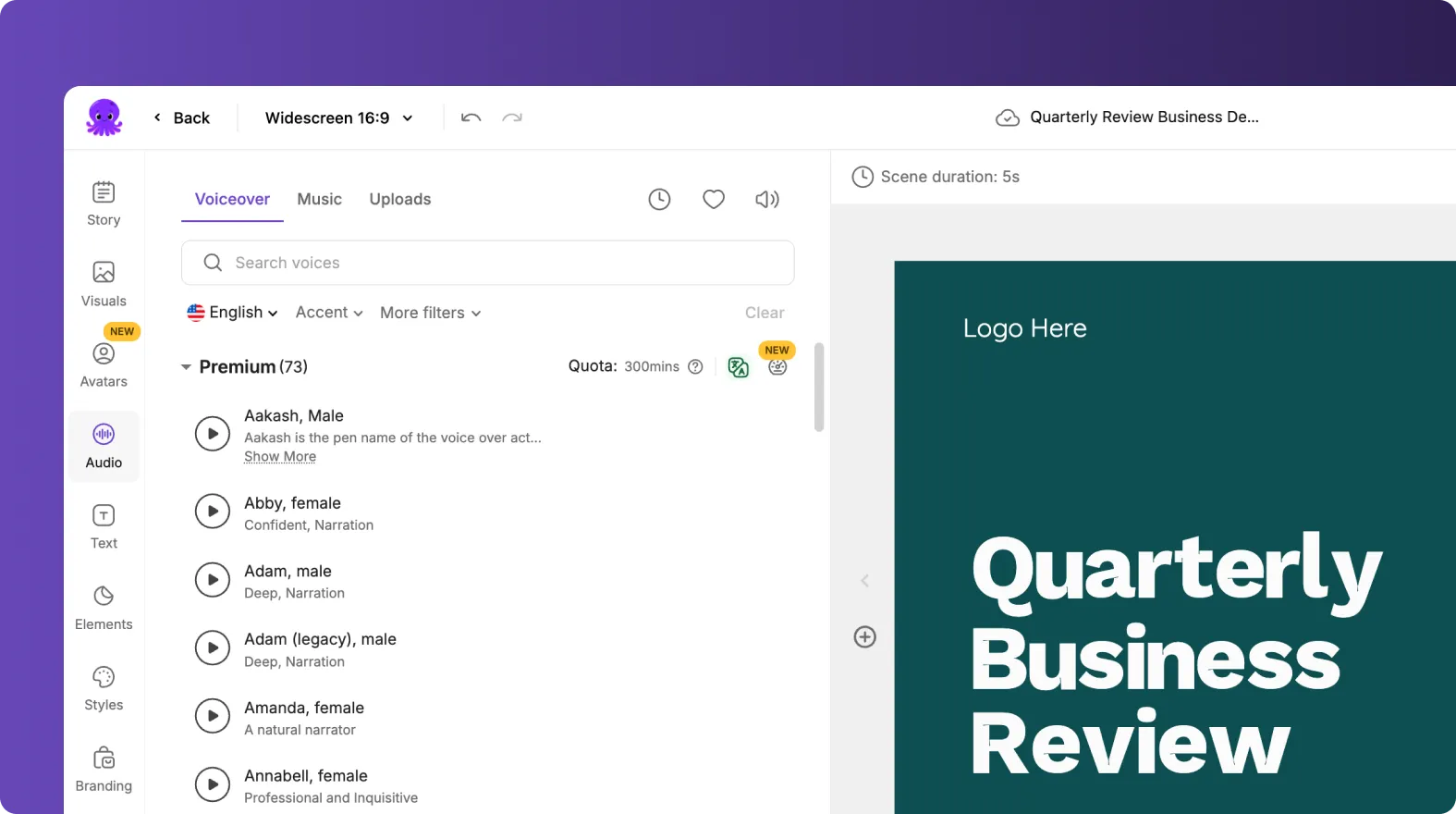
In the editor, use the left sidebar tools to finalize the training video:
Story: adjust scene text, rearrange scenes, and fine-tune timing
Visuals: swap stock media, use Uploads, or generate scene-specific assets in AI Studio using prompt to image or prompt to video
Audio: choose AI voiceover and add background music, or upload approved voice tracks
Text and Styles: standardize captions and apply consistent text styling across modules
Branding: confirm brand kit styling and test brand color palette shuffle if needed
Preview, then download the final file for distribution in your sales enablement software or LMS.
How to Convert Sales Enablement Collateral from URL to Video (Step by Step)
URL to Video is ideal for turning product launches, solution pages, or internal enablement documentation into consistent, narrated video without rewriting from scratch. This supports digital sales enablement and sales enablement automation by accelerating content refresh cycles.
Step 1: Paste a link and choose the enablement video type
From Home, select URL to Video. Paste a valid http or https link, then choose a video type such as Explainer, Internal Communication, Tutorial, or Marketing.
Step 2: Generate and edit the script for sales enablement messaging
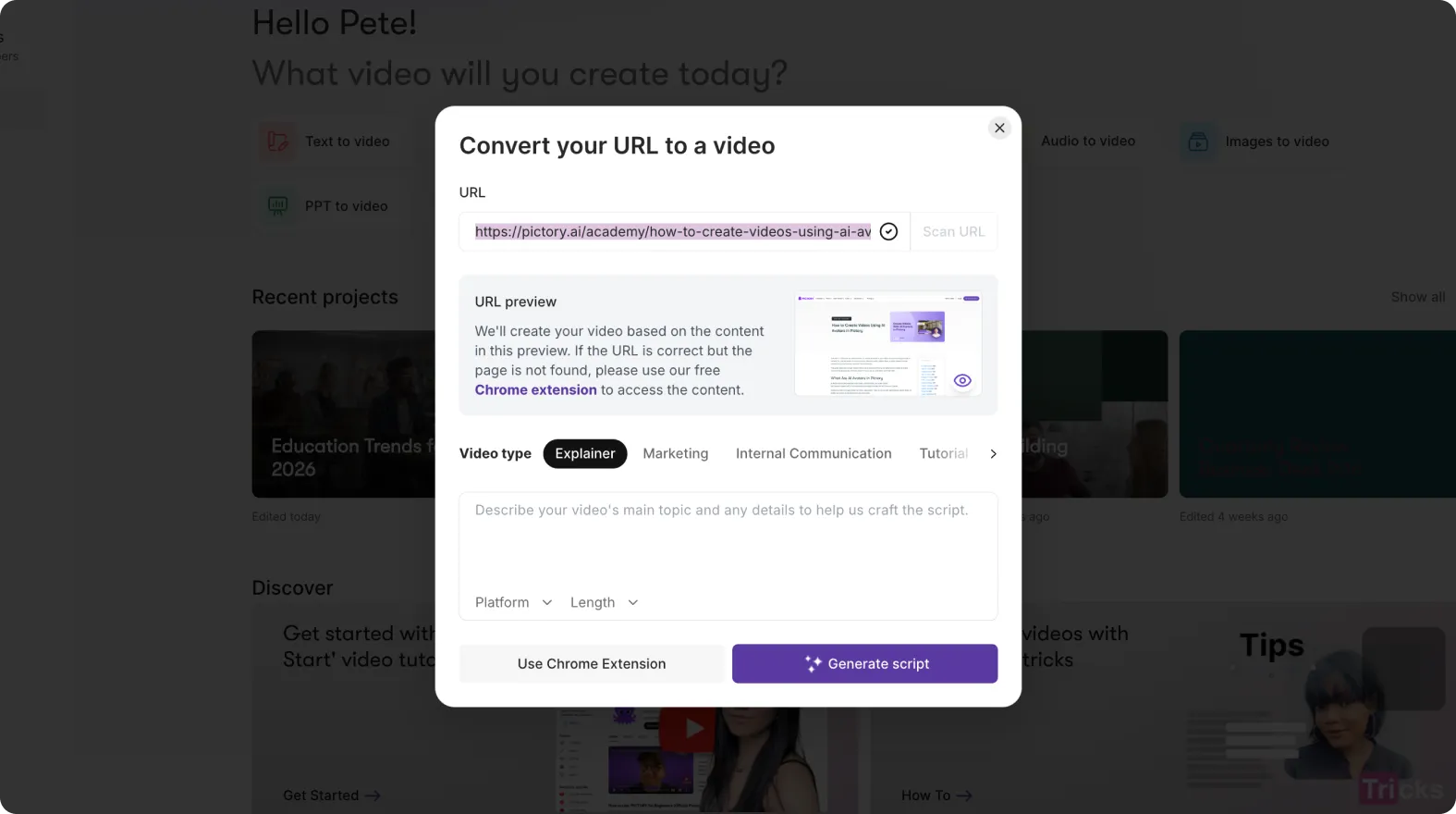
Click Generate Script. Review the extracted draft in the Script Editor, then refine with built-in tools such as Optimize, Rephrase, Shorten, Lengthen, and Change tone. Ensure the script includes:
Who it is for and when to use it in the sales cycle
3 to 5 approved value points
1 to 3 common objections with recommended responses
A next action such as “attach this one-pager” or “book a technical deep dive”

Step 3: Generate the storyboard and finalize visuals, captions, and branding
Click Generate video to create scenes and open the editor. Use Visuals to ensure the video matches enterprise standards, then Preview and Download. If needed, use the Share preview option to collect stakeholder feedback before publishing.
PPT to Video AI for Sales Enablement Training Decks and Certifications
PPT to Video helps enablement teams convert PowerPoint to video quickly, maintaining consistent delivery for onboarding, new product training, and certification programs across regions.
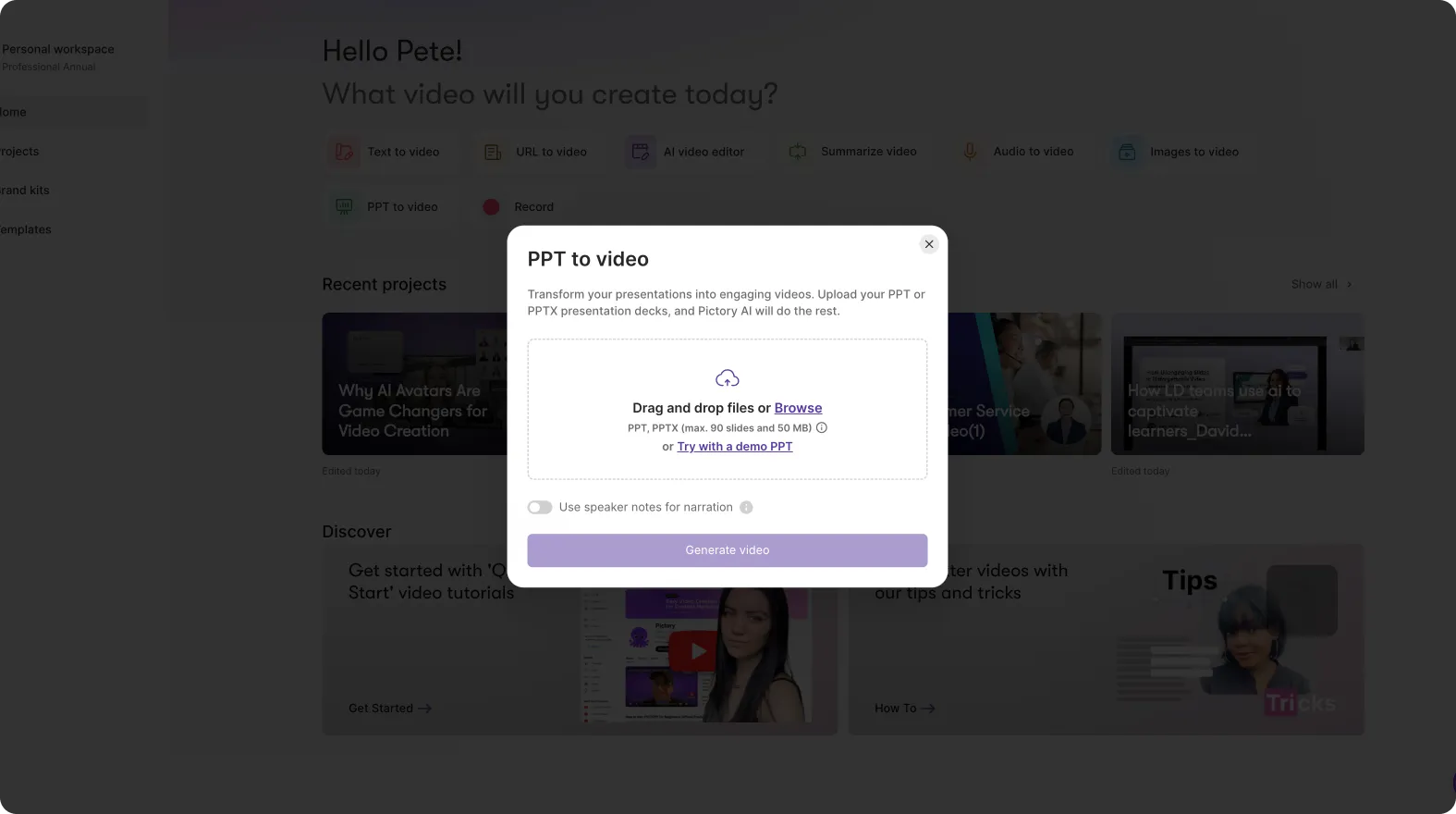
Upload a .PPT or .PPTX file up to 90 slides or 50 MB
Optionally use speaker notes for narration to preserve the original facilitator script
Generate the storyboard, then edit scene-by-scene in the AI Storyboard Editor
Apply Brand Kits for enterprise brand consistency and reduce review cycles
Use this workflow to standardize messaging and reduce live training load, especially when doing more with fewer resources.
AI Video Editor for Updating Sales Training Videos with Video to Text Transcription
When your product, positioning, or pricing changes, you do not want to rebuild training from scratch. Pictory’s AI Video Editor provides video to text transcription so you can update scripts, remove filler words, and shorten content while maintaining professional quality.
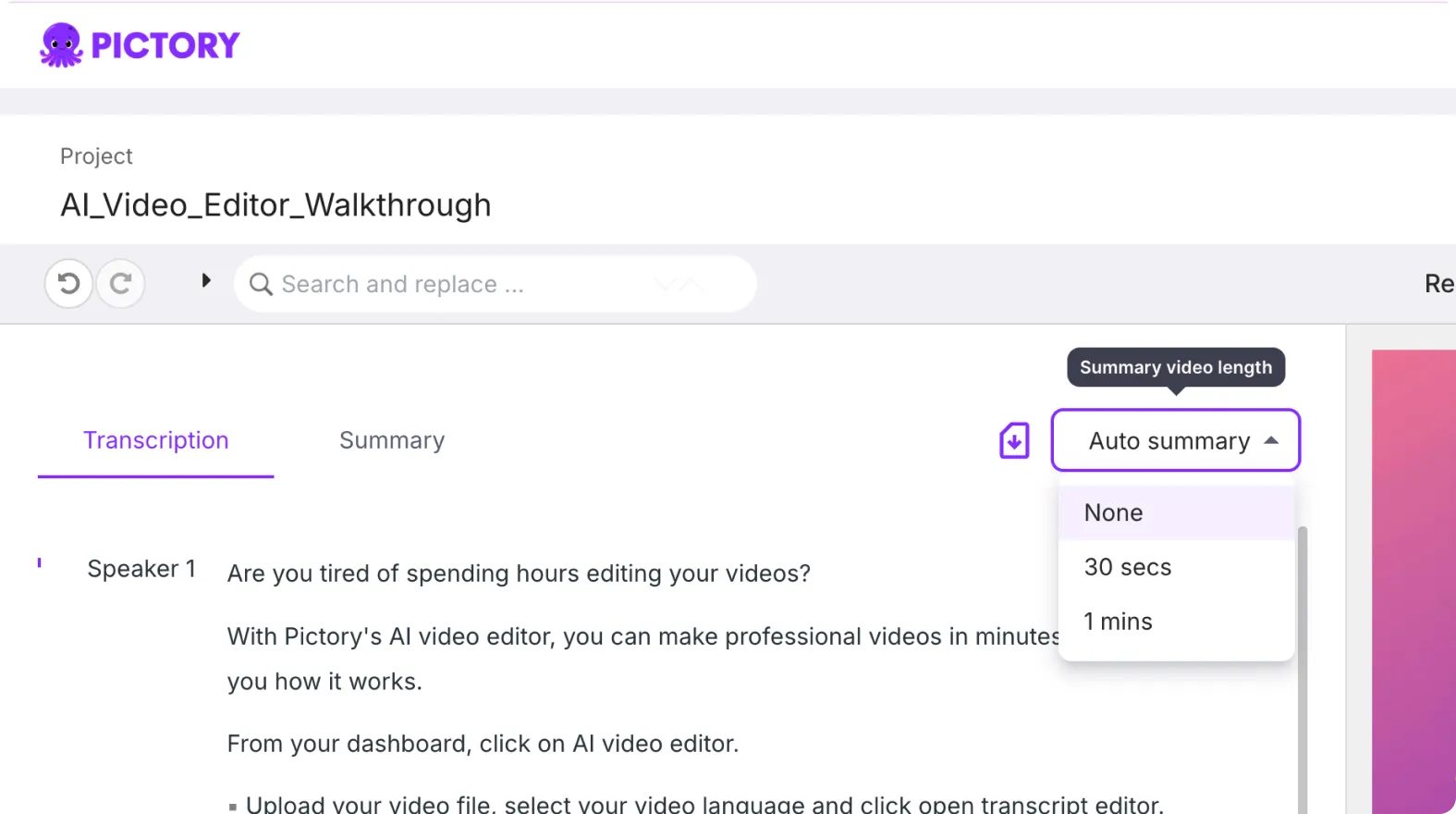
Upload a video file up to 5 GB and up to 180 minutes
Select the spoken language for accurate transcription
Edit in the transcript view using search and replace, auto highlights, remove filler words, and remove silences
Adjust subtitle max lines and choose a style from the style library for consistent readability
Create the storyboard and finalize in the editor with the updated timeline and scene tools
This workflow is especially valuable for sales enablement challenges like frequent updates, version control, and maintaining consistent field messaging across quarters.
Smart Screen Recorder for Software Training Videos in Sales Enablement Programs
For tools training, demo walkthroughs, and CRM process enablement, record once and use AI to polish, caption, and reuse content at scale. This supports how to create software training videos 2026 and how to record training videos on laptop or computer.
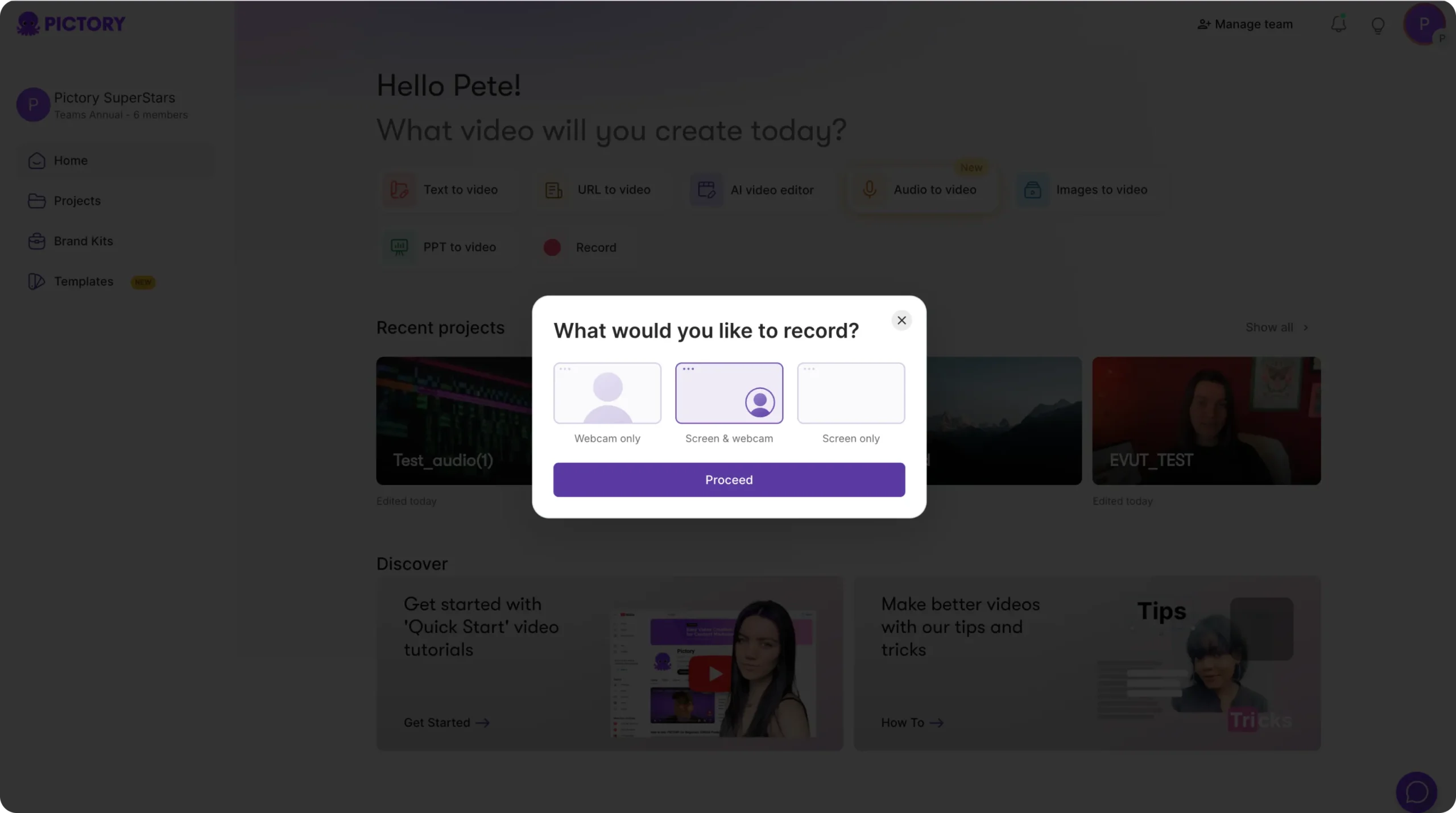
Choose Webcam only, Screen and webcam, or Screen only
Record in-browser with pause, retake, audio level indicator, and timer controls
Review the recording, then choose Edit video using AI to transcribe and refine
Edit transcript, then generate storyboard scenes for clean, modular microlearning
Use this approach to create repeatable training modules that reduce live enablement time and increase rep self-serve learning.
Brand Kits, Templates, and Governance for Enterprise Sales Enablement at Scale
Enterprise sales enablement requires more than speed. It requires governance so every asset stays on-brand and ready for distribution.
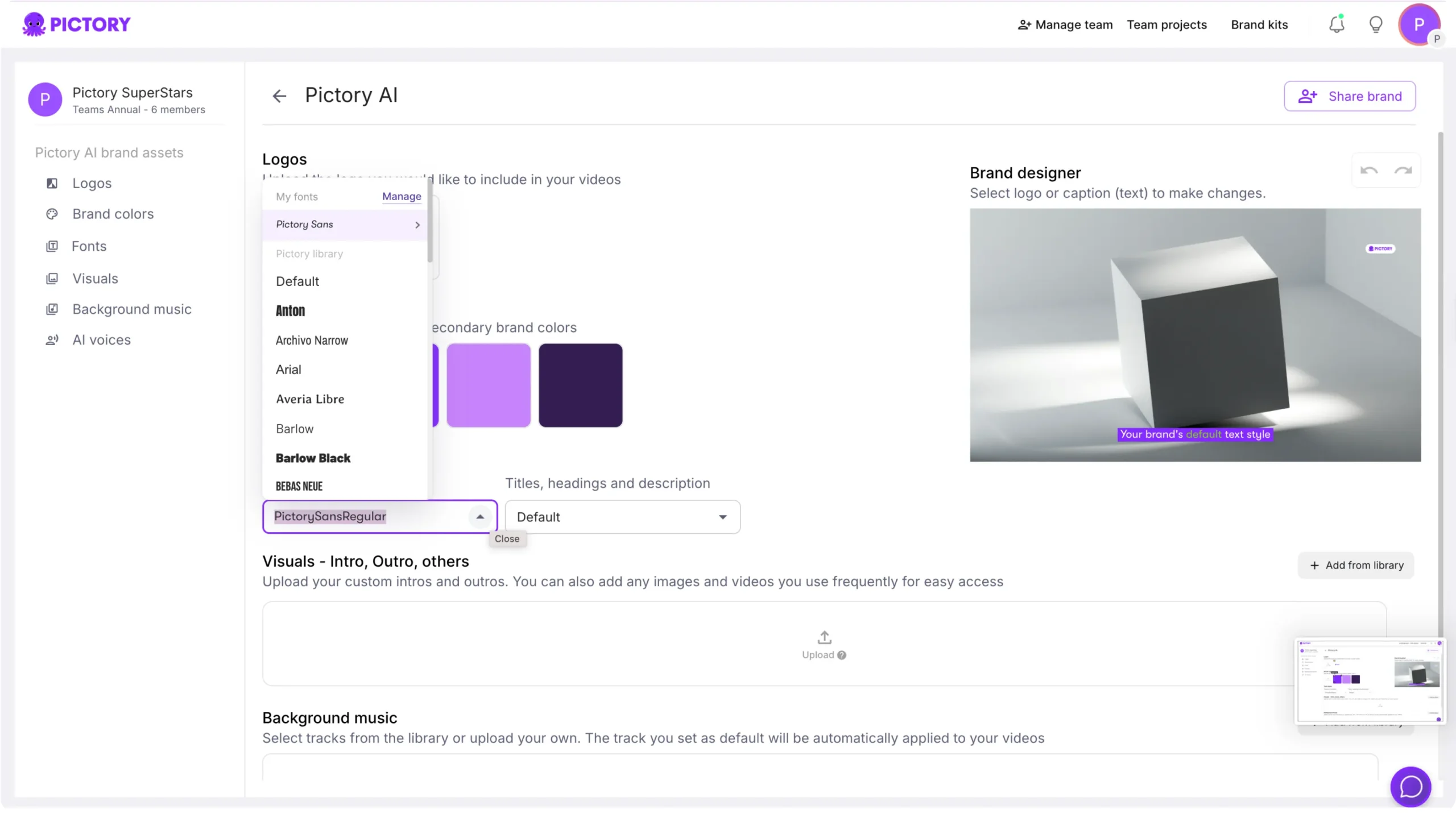
Brand Kits: create and apply logo, fonts, and brand colors to keep every video consistent across teams
Color palette shuffle: test alternate brand palette combinations while maintaining brand consistency
Templates and layouts: standardize recurring formats such as weekly deal coaching, product updates, and playbook refreshes
Editor efficiency: use the updated timeline, right-click scene actions (duplicate, link, copy, paste, delete), and timeline zoom to accelerate production
Collaboration: use project sharing and the Share preview option to streamline stakeholder review
These controls help sales enablement teams reduce production overhead and cost while delivering professional-quality video at scale.
FAQ: Sales Enablement Program 2026
What videos should be included in a sales enablement program 2026?
Prioritize short, role-relevant modules: messaging and positioning, discovery questions, objection handling, competitive comparisons, demo walkthroughs, and deal stage plays. In Pictory, create these with Text to Video AI for scripts, PPT to Video for decks, and Smart Screen Recorder for software demos.
How do I convert existing sales enablement collateral into video quickly?
Use URL to Video to convert a product page or internal wiki into a draft script and storyboard, then refine the scenes in the AI video editor. For decks, use PPT to Video. For scripts, use text to video AI to turn text to video in minutes.
Can Pictory help update training videos when messaging changes?
Yes. Upload the existing video into the AI Video Editor to generate video to text transcription. Then use search and replace, remove filler words, and remove silences to update content quickly before regenerating storyboard scenes.
How do we keep sales training videos brand-consistent across teams and regions?
Use Brand Kits to lock in approved logos, fonts, and colors, then apply the brand kit in the editor. Use consistent layouts, styles, and subtitle rules, and share previews for stakeholder review before publishing.
What is the best workflow for creating software training videos for employees?
Use Smart Screen Recorder to capture a walkthrough, then select Edit video using AI to transcribe and convert it into clean, scene-based modules. This is ideal for CRM training, enablement tool training, and repeatable onboarding content.
Does Pictory support microlearning video examples for sales enablement?
Yes. Create short, scene-based videos by enabling sentence-based scenes, limiting max lines per scene, and using 9:16 for mobile-first consumption. You can also duplicate and reorder scenes in the updated timeline to quickly produce multiple microlearning variations from a single master script.


