
Instructional designers and L&D teams are being asked to deliver more training content with fewer resources, tighter timelines, and higher expectations for quality. With Pictory, you can convert a lesson script into a professional eLearning video using an AI text to video workflow that supports brand consistency, rapid iteration, and scalable production.
This guide walks you through the exact step-by-step process inside Pictory to turn instructional content into engaging training videos, then polish them in the editor with visuals, voiceover, captions, branding, and optional AI avatars.
Why instructional designers use AI text to video for training content
A modern text to video AI generator helps you produce consistent training videos for onboarding, compliance, SOPs, tool walkthroughs, and internal communications without relying on production teams. Pictory supports both one-off videos and repeatable workflows for departments that need scale.
Reduce production overhead by turning scripts into video quickly
Maintain brand consistency using Brand Kits across projects
Speed up updates by editing text and regenerating scenes
Support multiple formats like 16:9, 9:16, and 1:1 for LMS and mobile
To start the workflow, use the Text to Video generator inside Pictory.
Plan your eLearning script for the best AI text to video generation
Your script drives visuals, captions, and voiceover, so structure it like a training storyboard. Before you paste content into Pictory, use these instructional design best practices for convert text to video success.
Keep sentences short and specific to improve scene segmentation
Use clear learning steps, not long paragraphs
Add callouts like “Step 1” and “Do this next” for stronger on-screen pacing
Include a simple call to action at the end (quiz, checklist, next module)
If you need help drafting, you can use the built-in AI script generator during the ai text to video setup flow.
Step-by-step: Use Text to Video AI to create an eLearning video in Pictory
Step 1: Open Pictory AI Studio and choose Text to Video
From your Pictory home screen, open AI Studio and select the Text to Video generator. This is the workflow designed to turn scripts into a complete storyboard with visuals, captions, and optional AI voiceover.
Yes. You can generate videos from scripts using the and then refine them in the with scene edits, visuals, captions, audio, styles, and branding.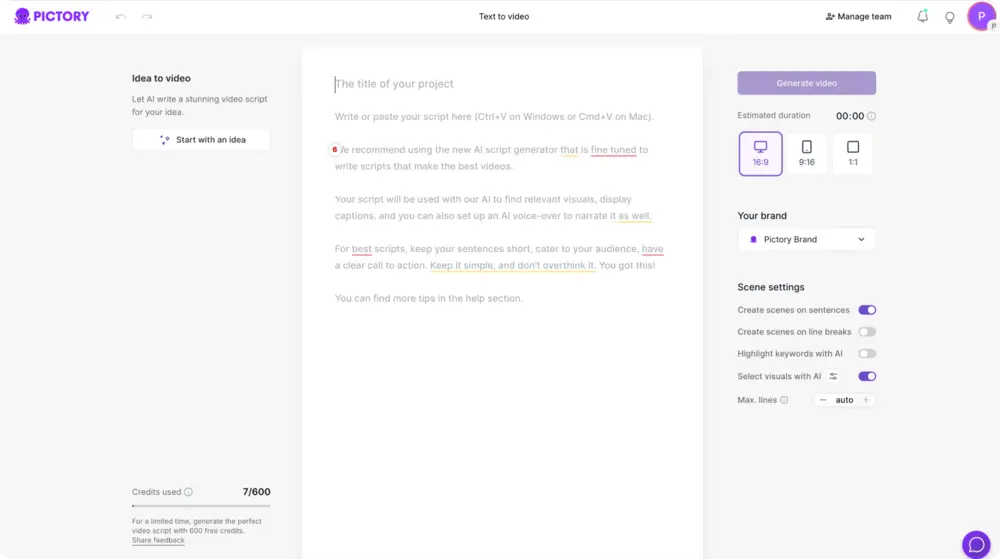
Step 2: Paste or write your training script in the script input field
Paste your lesson script directly into the editor. Your text will be used by AI to create scenes, display captions, and generate voiceover if enabled. For training content, use line breaks to separate topics such as objectives, steps, and recap.
Step 3: Configure scene settings for instructional video pacing
In the scene settings panel, choose how Pictory breaks your script into scenes.
Toggle sentence-based scenes for short, fast microlearning modules
Toggle line-break-based scenes for structured eLearning sections
Enable keyword highlighting to emphasize terms, tools, or policy requirements
Enable “select visuals with AI” to automatically match stock or AI visuals to each scene

Step 4: Choose aspect ratio and apply a Brand Kit for consistent eLearning design
Select the output format that matches your delivery channel: 16:9 for LMS and internal portals, 9:16 for mobile learning, or 1:1 for intranet and social-style updates. Then apply your Brand Kit to standardize logos, fonts, and colors across your training library.
You can later fine-tune design and colors inside the editor using the Branding tools in the AI Video Editor.
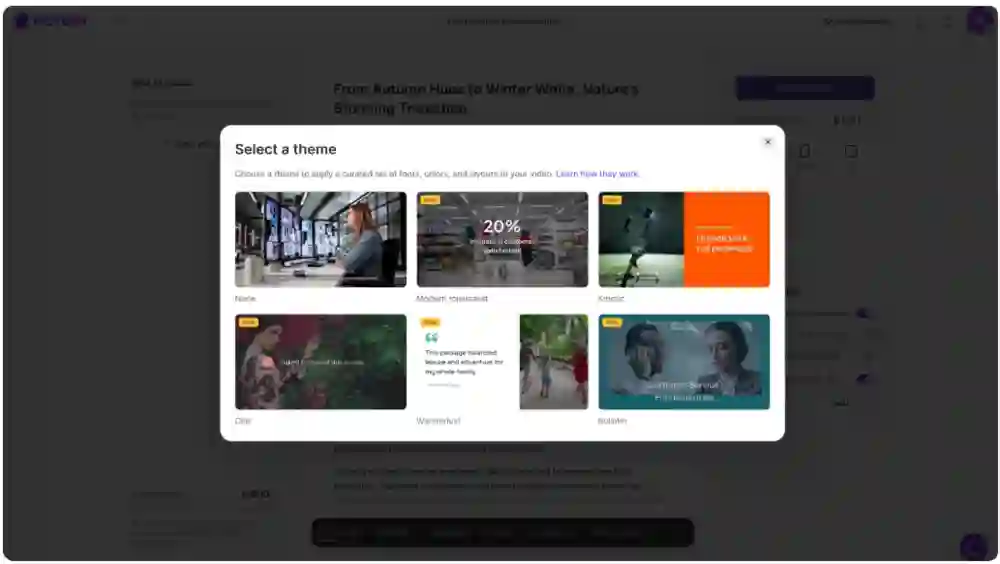
Step 5: Click Generate video and select a layout theme
Click “Generate video” and pick a visual theme such as Modern minimalist, Kinetic, or Bulletin. Themes apply curated fonts, colors, and layout styles, giving your training videos a consistent, professional look without manual design work.
Step 6: Review the AI storyboard and enter the video editor
Pictory converts your script into storyboard scenes. Once the scenes are created, you will land in the editor where you can review each scene’s text, timing, and visuals. Use the bottom timeline thumbnails to navigate quickly through your module.
Edit training scenes fast with the AI Video Editor (visuals, captions, and timing)
After generation, refine the training content inside the AI Video Editor. This is where instructional designers can ensure accuracy, clarity, and pacing while keeping production efficient.
Update scene text to match learning objectives and compliance wording
Reorder scenes to align with your lesson plan
Duplicate, copy, paste, or delete scenes from the timeline right-click menu
Use timeline zoom for precise navigation in longer modules
For videos that need real software context, consider recording a quick demo and then polishing it with AI using Smart Screen Recorder.
Add voiceover, text to speech, and music for a complete eLearning experience
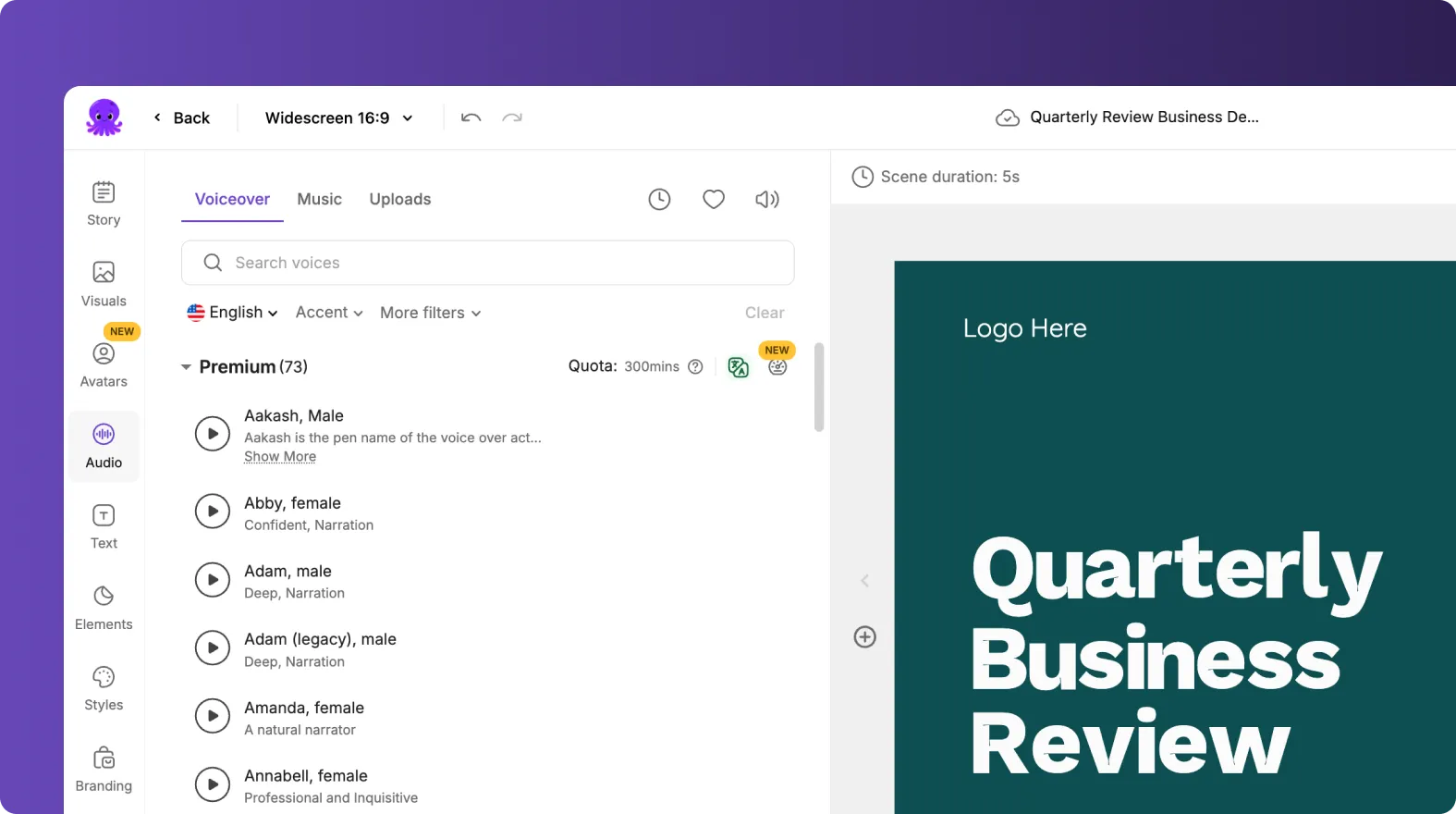
In the Audio tab, you can produce narration at scale using text-to-speech. This is ideal for rapid iteration when training content changes frequently, such as product updates or policy refreshes.
Select an AI voice for consistent narration across a curriculum
Preview voice options and adjust to fit your tone (instructional, friendly, formal)
Add background music lightly when appropriate for engagement, then keep it subtle for clarity
Upload your own audio if you have SME narration or approved voice tracks
If your workflow starts from recordings, you can also transcribe and edit spoken content using the AI Video Editor workflow for video to text transcription and then convert the transcript into scenes.
Use AI Studio visuals and optional avatars to modernize instructional design videos
Training videos often need clean visuals, clear callouts, and consistent presentation. Pictory gives you multiple ways to upgrade production quality without extra tools.
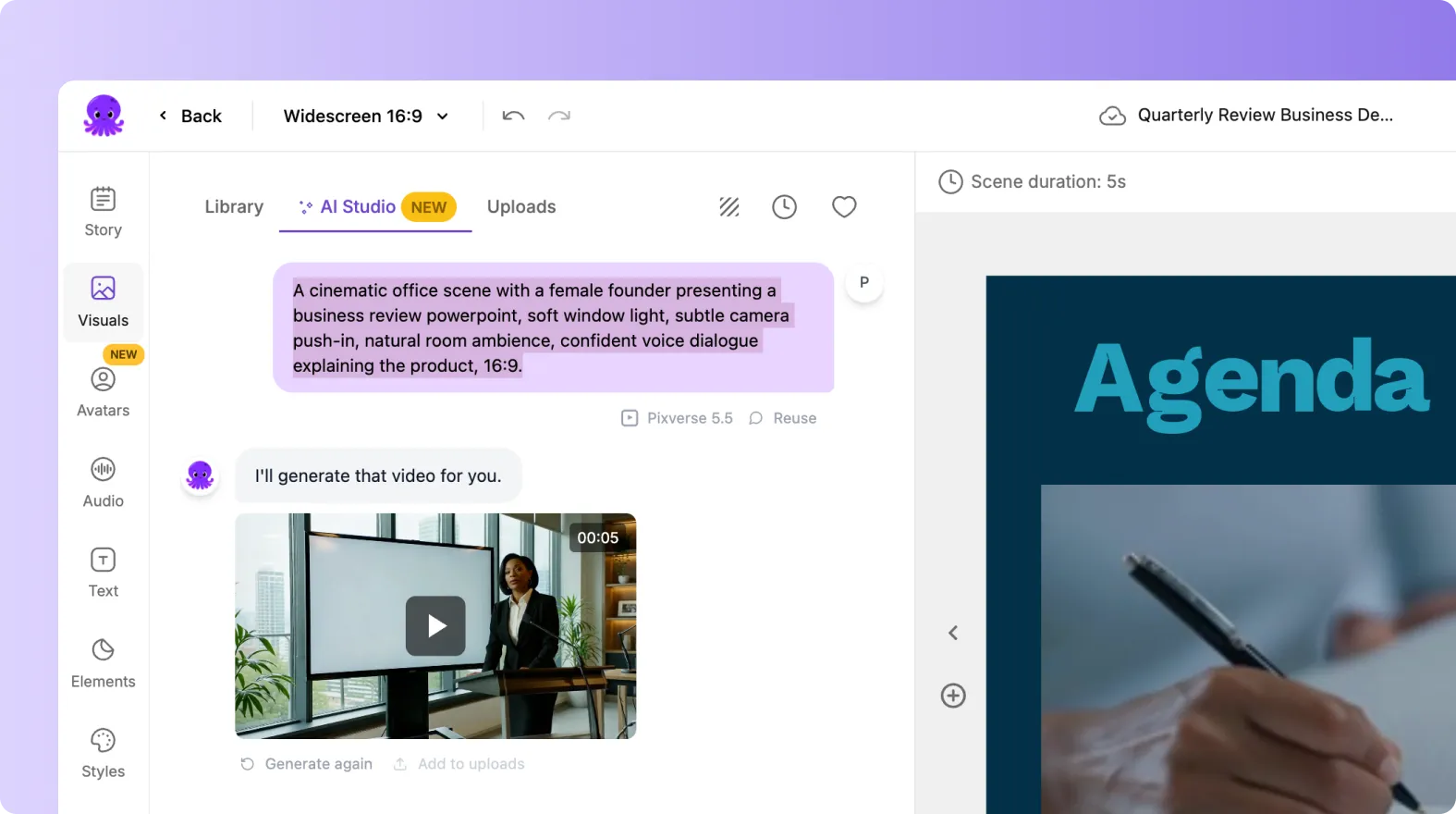
Use Visuals to choose stock video and images from the media library
Generate custom visuals inside the editor using the AI Studio tab in Visuals for prompt-to-image or prompt-to-video
Use Text overlays and Layouts to add headings, step labels, and on-screen reminders
Add shapes and icons in Elements for emphasis and visual hierarchy
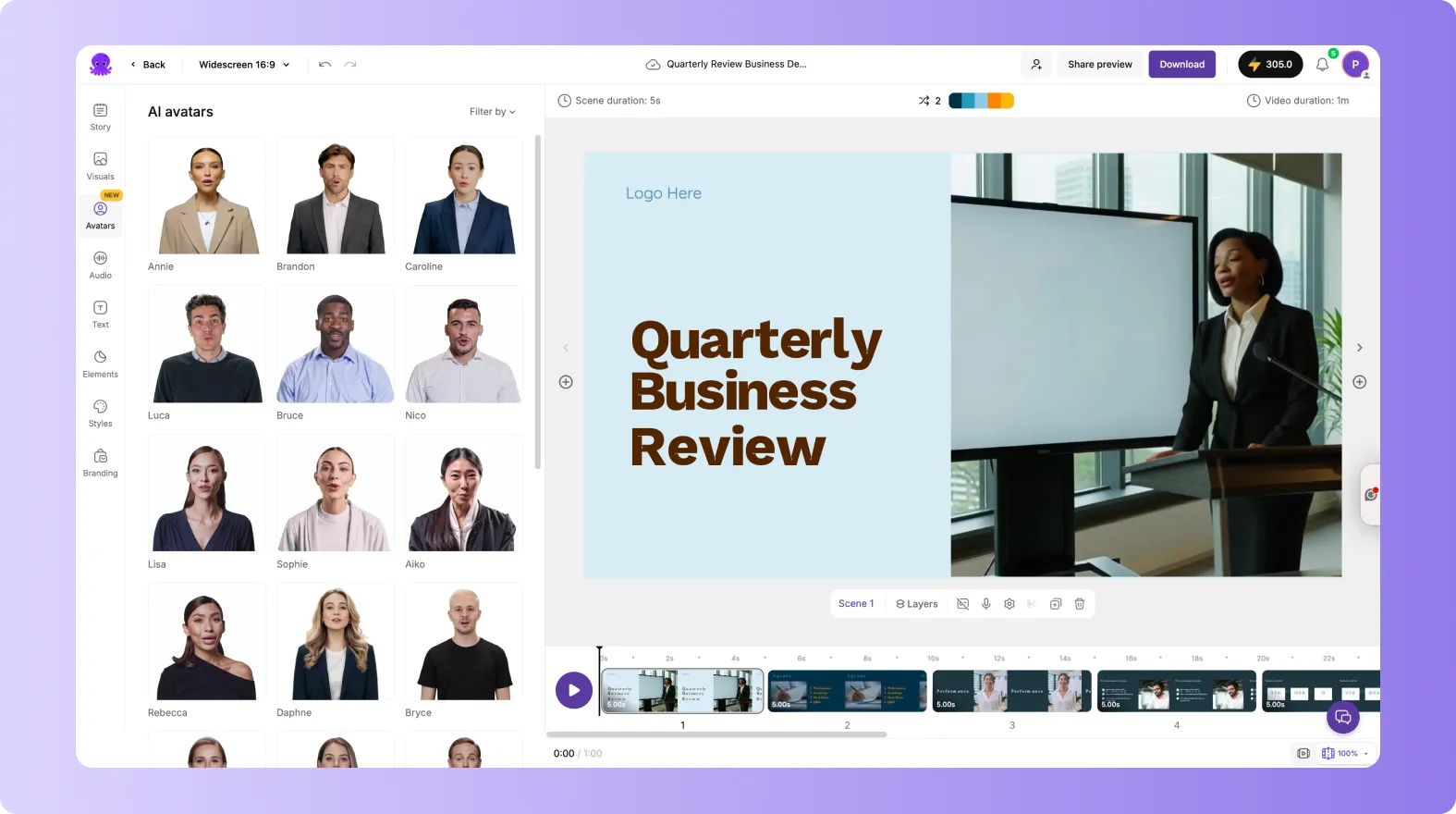
For presenter-led modules, you can add AI avatars from the Avatars tab to create human-like delivery without scheduling live presenters. This is especially useful for onboarding, policy announcements, and recurring compliance refreshers.
Export, share, and manage eLearning video projects at enterprise scale
When your training video is ready, preview the full module to confirm timing, captions, and brand styling, then download the finished file. Your project is saved in My Projects, making it easy to update later when processes or products change.
- Use Preview to validate pacing and on-screen readability
- Download the final video for LMS upload or internal distribution
- Use Share preview in the editor when you need stakeholder feedback before publishing
- Standardize design across departments by applying Brand Kits consistently
If your team also maintains slide-based courseware, you can convert decks into video modules using PPT to Video, then unify branding and add narration in the same editor.
FAQ: Text to Video for Instructional Designers: Creating eLearning Videos With AI
What is the best way to structure a script for an AI text to video generator?
Write in short, instruction-focused sentences and separate topics with line breaks. Use clear step labels and keep each scene focused on one action or concept. This improves scene segmentation and makes text to video generation easier to review and update.
Can I keep branding consistent across many training videos?
Yes. Apply a Brand Kit to define your logo, fonts, and color palette, then reuse it across projects. This helps enterprise teams produce consistent eLearning content at scale without manual formatting in every video.
How do I update training videos using AI when policies or software screens change?
Edit the relevant scene text in the editor and adjust visuals for that scene. Because the workflow is script-based, updates are faster than re-recording. If you need a new demo segment, record it with Smart Screen Recorder and then polish it in the editor.
Does Pictory support text to speech video narration for eLearning?
Yes. In the Audio tab, you can select AI voices for narration, preview options, and keep voice tone consistent across modules. You can also upload approved voice tracks if your organization requires them.
Can I create training videos from existing content like blogs or internal pages?
Yes. If your training content already exists in a knowledge base or internal article format, you can start with URL to Video to generate a script draft, then refine it for instructional use and generate the video.


