
Digital publishers are sitting on a high-performing asset library: articles, evergreen guides, and breaking news posts. With a text to video AI workflow in Pictory, you can convert articles into professional, brand-consistent video content at scale for web embeds, social clips, newsletters, and syndication without adding headcount or outsourcing.
This guide shows how to repurpose articles into video using Pictory, including the fastest path for publishers using URL to Video and an editorial-friendly workflow using the Text to Video generator inside Pictory.
Why text to video AI is a scalable workflow for digital publishers
Text to video generation helps editorial, social, and audience teams produce more video with fewer tools. Instead of rebuilding assets from scratch, you turn approved article copy into video scripts, then let AI match visuals, create captions, and generate voiceover for fast distribution.
Speed to publish: Convert a live article into a video draft in minutes.
Consistency: Apply brand kits to keep fonts, colors, and logos aligned across channels.
Efficiency: Create multiple versions for platforms like YouTube, LinkedIn, Instagram, and TikTok using aspect ratios and scene rules.
Reuse: Turn one article into multiple short clips by reorganizing scenes in the editor.
Choose the best repurposing method: URL to Video converter vs AI text to video generator
Pictory supports two publisher-friendly options depending on how your article content is stored and how much control your team needs.
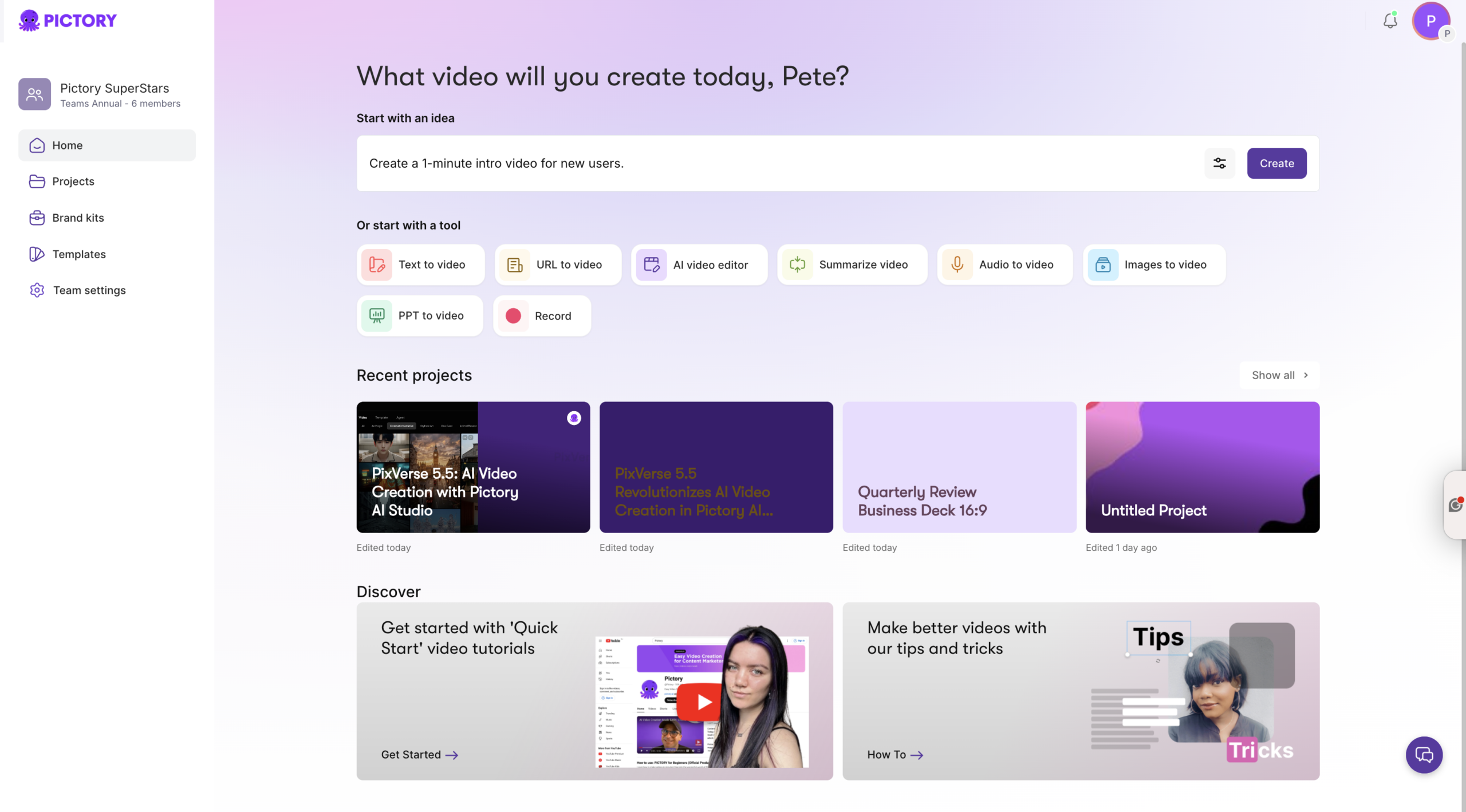
Fastest for live web pages: Use URL to Video to convert a published article link into a script and storyboard.
Best for editorial control: Use the Text to Video generator when you want to paste a cleaned script, adjust structure, and optimize narration.
Best for polishing existing footage: If you already have recorded interviews or webinars, refine them in the AI Video Editor and then add captions, trims, and scenes.
Pre-production checklist for converting a blog post to video (publisher-ready)
Before you generate, do a quick editorial pass so the AI text to video output sounds like broadcast, not print.
Pick a single angle: One article can become several videos. Choose one story thread per video.
Rewrite the lede for voice: Use short sentences and clear context in the first 10 seconds.
Add a call to action: Example: “Read the full analysis,” “Subscribe,” or “Download the report.”
Prepare brand assets: Logo files, approved fonts, and primary colors for a brand kit.
Decide format: 16:9 for YouTube and site embeds, 9:16 for Shorts and Reels, 1:1 for feeds.
Step-by-step: Convert an article to video using the URL to Video AI workflow
This is the most direct workflow for digital publishers repurposing articles into video content from a live link using a URL to video maker.
Step 1: Open URL to Video and paste your article link
From Pictory, select URL to Video and paste a valid URL that begins with http:// or https://. Choose a video type such as Explainer, Marketing, Internal Communication, or Tutorial, then select your target platform and desired video length.
Step 2: Generate and refine the script in the script editor
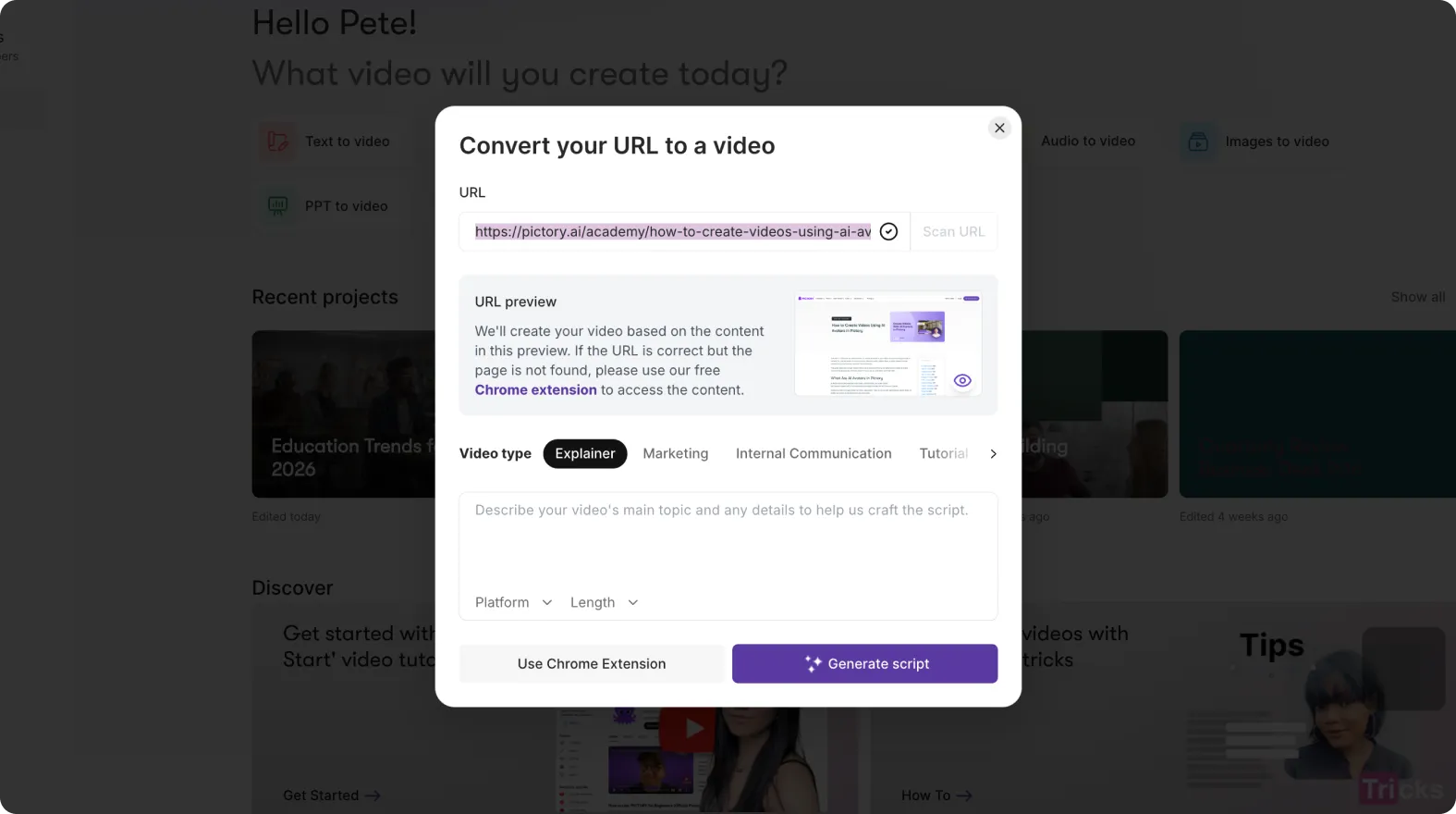
Click “Generate Script.” Pictory extracts page content and builds a draft. Edit the script so it reads naturally as narration. Use the built-in “Ask AI” tools to optimize, rephrase, shorten, lengthen, or change tone. In the scene settings, choose how scenes are created, for example by sentences or line breaks, and optionally highlight keywords.

Step 3: Apply aspect ratio and brand kit settings for publisher consistency
Select an aspect ratio (16:9, 9:16, or 1:1) and apply the correct brand kit so the video matches your publication style. Confirm max lines per scene so captions remain readable on mobile.
Step 4: Generate the video storyboard and review scene creation
Click “Generate video.” Pictory creates a storyboard and builds scenes automatically. Watch for the “Creating scenes” progress screen until the editor opens.
Step 5: Edit scenes, visuals, and pacing in the AI video editor
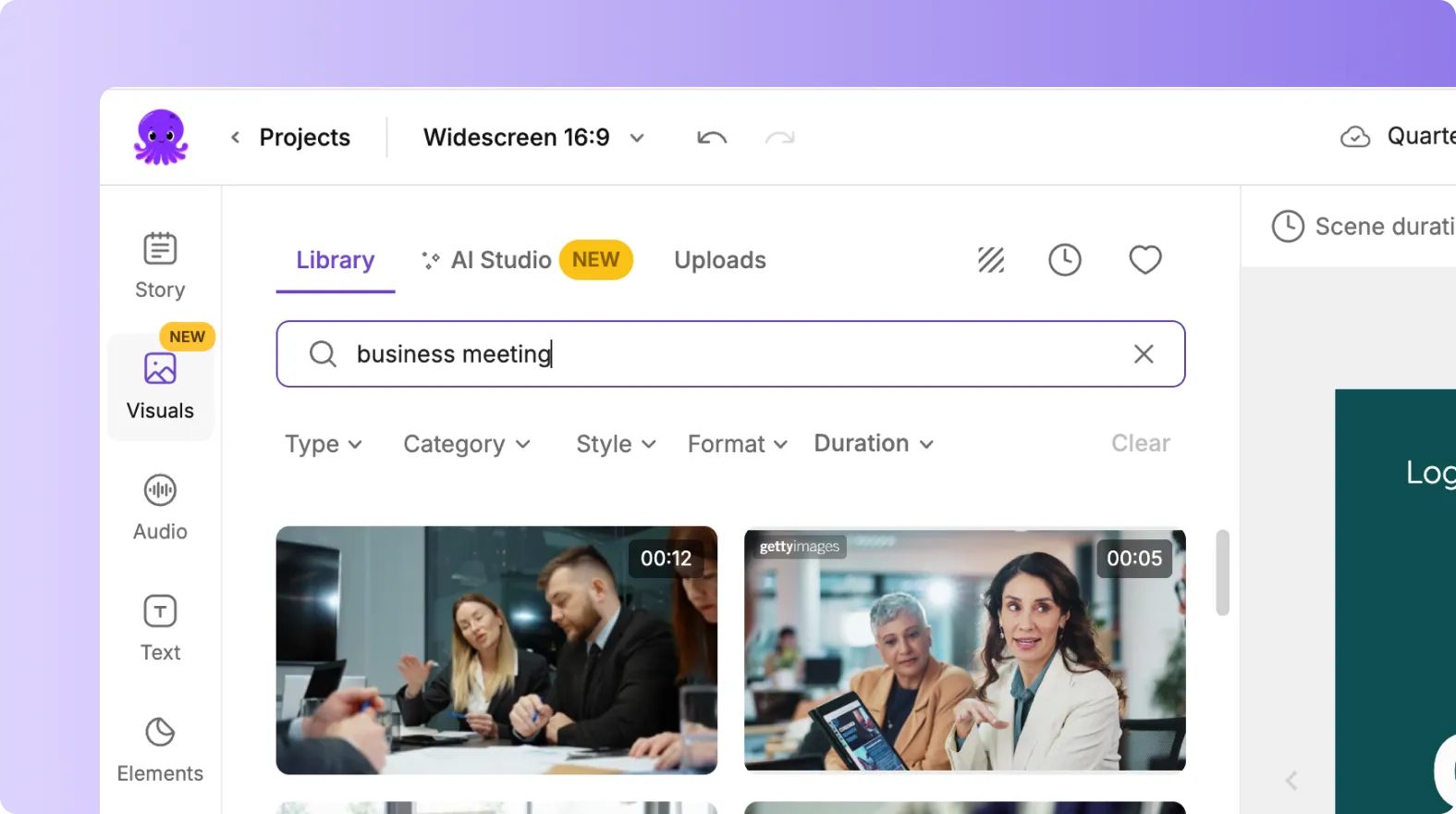
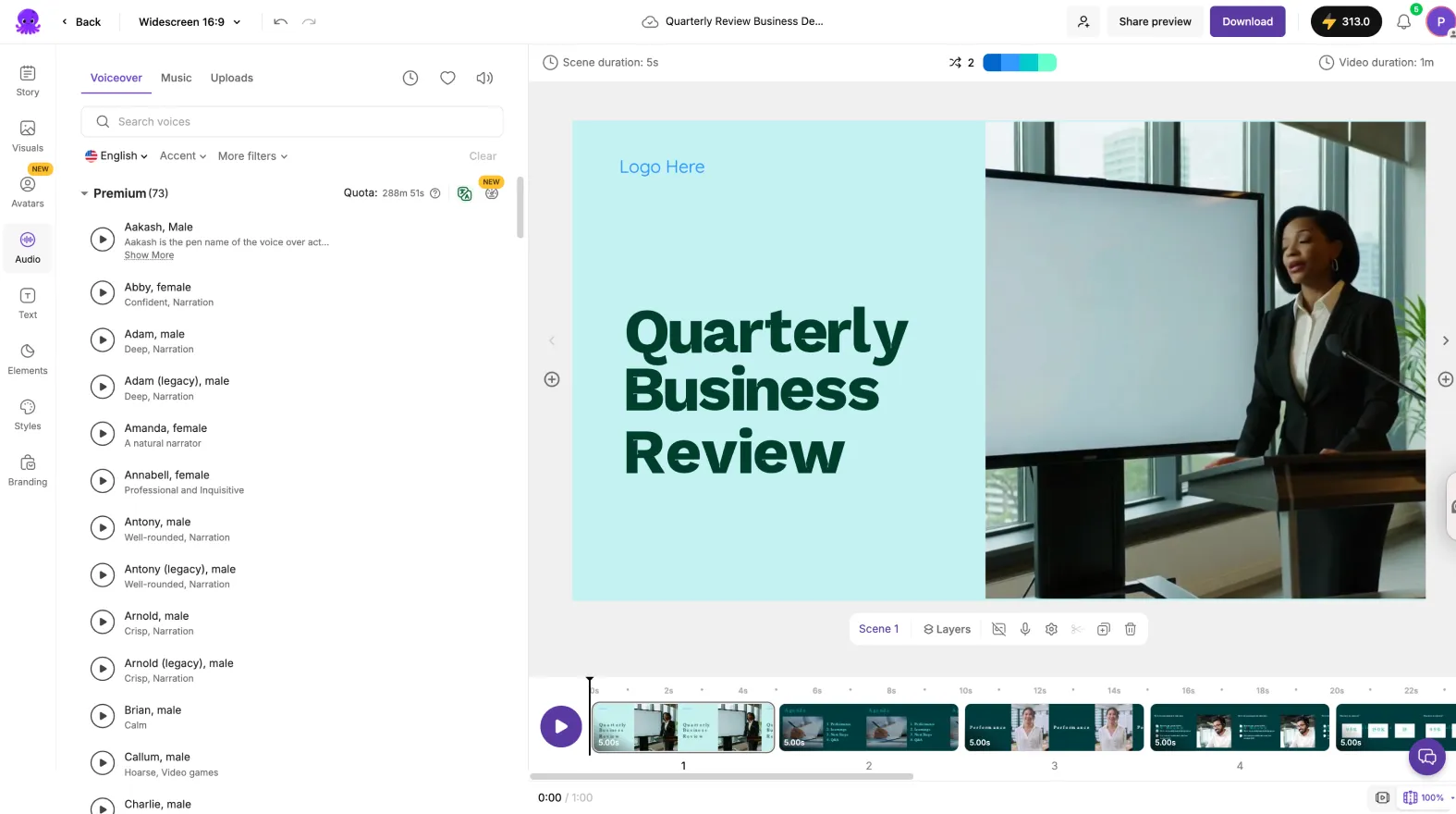
In the editor, your story appears scene-by-scene on the left with a preview on the right and a thumbnail timeline at the bottom. Adjust scene text, timing, and visual choices. Use the Visuals tab to select stock footage, add your own uploads, or generate custom visuals inside the editor with AI Studio for more specific imagery.
Step 6: Preview, share a review link, and export
Preview the video for pacing and caption accuracy, then use the Share preview option for stakeholder review. When approved, download and publish across your owned channels.
Step-by-step: Repurpose article text using the Text to Video AI generator (editorial-first workflow)
If you want tighter editorial control, this text to video tool is ideal for preparing scripts from CMS copy, newsletters, or drafts before they go live.
Step 1: Start a new project with the Text to Video generator
Open the Text to Video generator and paste your script. Keep sentences short, keep the language direct, and include a clear call to action. If you are starting with a topic instead of a finished script, you can use the AI script generator to draft and then refine.
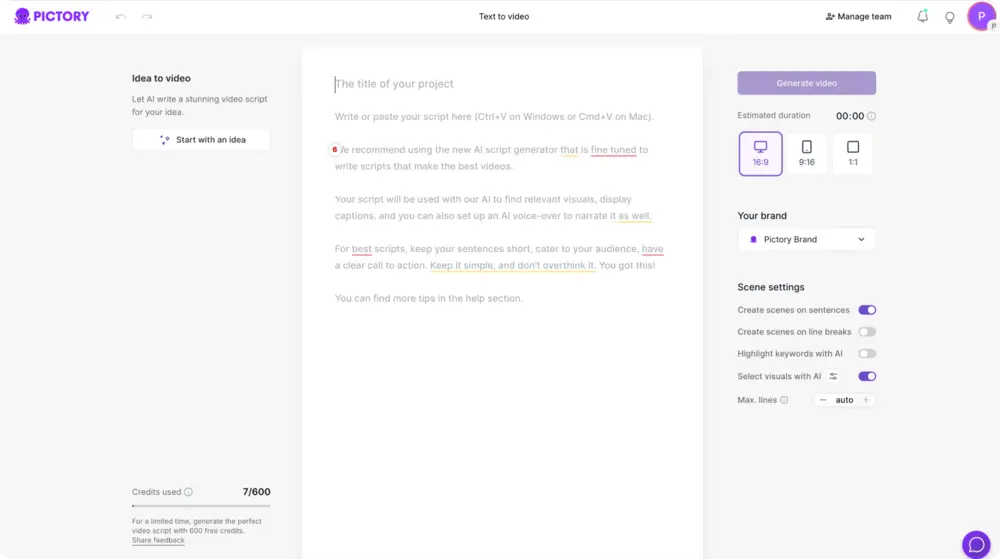
Step 2: Configure scene rules for clean captions and mobile readability
In the script editor, set scene creation rules such as sentence-based scenes or line-break-based scenes. Choose keyword highlighting if it fits your house style, and control max lines per scene to improve readability for short-form social.
Step 3: Select format, apply brand kit, and generate the video
Choose the aspect ratio that matches your distribution channel and apply your brand kit so text styles, colors, and logos remain consistent. Then click “Generate video” to create the storyboard.
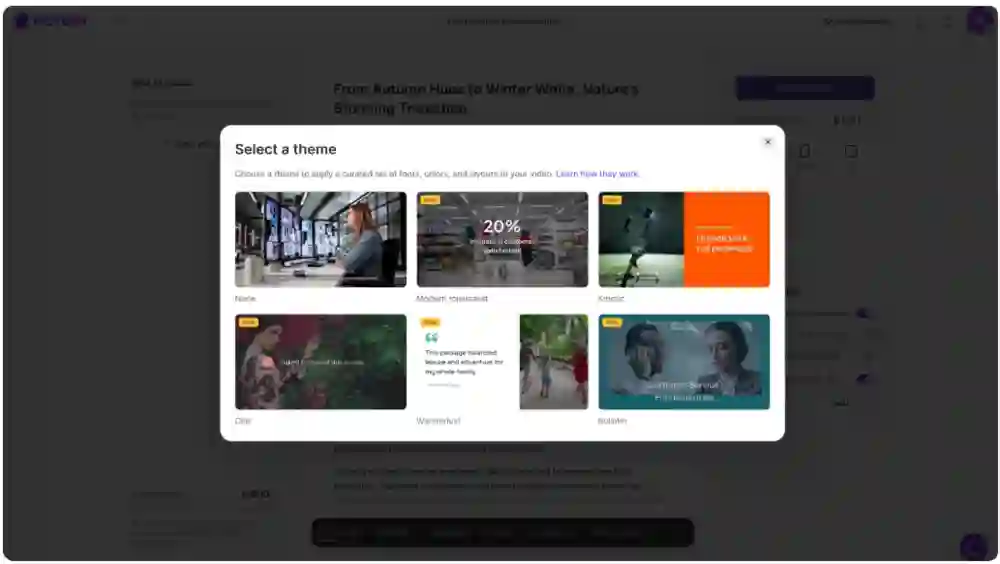
Step 4: Choose a layout theme and lock a consistent look
Select a theme like Modern minimalist, Kinetic, Chic, or Bulletin to apply curated typography and layout decisions across the whole video. This helps large teams maintain consistent output even when multiple editors are involved.
Step 5: Edit scenes, add visuals, and tighten the narrative
Use the scene list to reorder, duplicate, link with next, or delete scenes from the timeline. In Visuals, choose stock media, uploads, or generate scene-specific assets with AI Studio. Keep visuals aligned to claims, locations, and key facts to protect editorial integrity.
Step 6: Add voiceover and music, then finalize captions
In Audio, select an AI voiceover that matches your brand tone, then add background music if appropriate. Review subtitles and styling so captions remain legible across devices and platforms.
Add text to video online: captions, on-screen titles, and text animations for publisher engagement
Publishers often need both subtitles and on-screen headlines. In Pictory, you can add text to a video for emphasis while keeping narration intact.
Subtitles: Control max lines per subtitle and apply a text style library preset.
On-screen titles: Use the Text tab to add headings and subheadings for key takeaways.
Text animations: Select a text layer, then use the Animate Text option in the top toolbar to apply entry and exit animations like Fade, Typewriter, Wipe, or Text Reveal, including speed controls.

For teams that want a single workspace for editing and refinement, use the AI Video Editor to manage text placement, styles, and scene timing in one place.
Enterprise scaling: brand kits, collaboration, and multi-format distribution
For enterprise publishers and editorial orgs, the biggest win is repeatability. Pictory supports scalable production by standardizing brand identity and enabling fast iteration across versions.
Brand consistency: Create and manage brand kits with logo, fonts, and colors so every video is on-brand.
Format variants: Produce 16:9 for site embeds and YouTube, then create 9:16 cuts for Shorts and Reels.
Scene-level operations: Duplicate, copy, paste, link with next, and delete scenes from the timeline to build alternate versions quickly.
Centralized workspace: Teams can work from the same creation hub in AI Studio and keep projects organized for ongoing updates.
If your workflow includes narrated walkthroughs or tool demos to accompany an article, capture a quick explainer with the Smart Screen Recorder, then polish it with AI-based transcription and scene editing.
Quality control checklist for article-to-video content (accuracy, pacing, and compliance)
Before publishing, run a quick review that protects editorial accuracy while improving watch time.
Fact alignment: Confirm names, dates, figures, and claims match the original article.
Hook and structure: Ensure the first scene states the topic and why it matters.
Scene pacing: Shorten long scenes and remove repetition to keep flow tight.
Visual relevance: Replace generic visuals with specific imagery for higher trust.
Caption legibility: Verify subtitle line length and contrast against backgrounds.
Brand compliance: Confirm fonts, colors, and logo placement match your brand kit.
FAQ: Text to Video for Digital Publishers: Repurposing Articles Into Video Content
What is the fastest way to convert a published article into video?
Use URL to Video. Paste the article link, generate the script, refine it for narration, then generate the storyboard and make final edits in the editor.
What is the best text to video AI workflow for editorial control?
Use the Text to Video generator. Paste a cleaned script, set scene rules, choose a layout theme, apply a brand kit, and then fine-tune visuals and pacing scene-by-scene.
Can I add text to a video and control how it appears on screen?
Yes. You can add headlines and supporting text using the Text tab, then animate it using the Animate Text option in the top toolbar. You can also control subtitle styling and maximum lines per caption for readability.
How do teams keep video output brand-consistent across multiple editors?
Use brand kits to standardize logos, fonts, and colors, and apply them inside the editor under Branding. This keeps the look consistent across article videos, social clips, and multi-format exports.
Can Pictory help if we already have recorded video or audio for a story?
Yes. Upload existing recordings and use the AI Video Editor to transcribe, remove filler words or silences, generate a storyboard, and export a polished version with captions and branding.
How do we generate more specific visuals than generic stock footage?
Inside the editor, use the Visuals tab and generate custom assets with AI Studio. This is useful when a story needs a precise concept visual, illustration-style imagery, or consistent backgrounds across scenes.


