
HR teams are asked to deliver consistent employee onboarding videos, compliance training, and policy updates across locations and roles without expanding headcount or production budgets. Pictory helps you turn HR scripts, policy text, and internal communications into professional, brand-consistent videos using an AI text to video workflow that is fast, repeatable, and easy to standardize across your organization.
This guide shows the end-to-end process to convert text to video, apply brand kits, add voiceover and captions, and scale production for recurring HR training video production using Pictory.
Why HR teams use AI text to video for training and policy communications
Using a text to video AI generator for HR content reduces production overhead and helps you publish updates quickly when policies change. Instead of rebuilding videos from scratch, your team can update the script and regenerate scenes, keeping training content current.
- Create training videos with AI from policies, SOPs, onboarding scripts, and internal announcements.
- Maintain brand consistency across departments using brand kits, layouts, and style presets.
- Support remote employee onboarding and distributed workforces with repeatable video templates.
- Accelerate review cycles using shareable previews for stakeholders.
To start in the platform, open Pictory and choose the workflow that matches your source content.
Plan your HR script for an AI text to video generator at scale
The quality of your ai text to video output improves when your script is structured for scenes, readability, and compliance clarity. Before you generate, format your content so it is easy to narrate and review.
- Write in short sentences and use plain-language definitions for legal or benefits terms.
- Use clear headings and line breaks to separate topics such as “Who this policy applies to,” “Steps,” and “Escalation.”
- Include a clear call to action at the end, such as “Acknowledge in the HRIS” or “Contact HR.”
- For compliance training video content, include required disclaimers and effective dates.
If you need help drafting, start with the script generator inside the Text to Video generator and refine the draft in the script editor.
How to convert text to video for HR training using Pictory Text to Video
This step-by-step workflow is ideal when you already have a policy, onboarding script, or training outline and want to turn text to video quickly and consistently.
Step 1: Start a Text to Video project
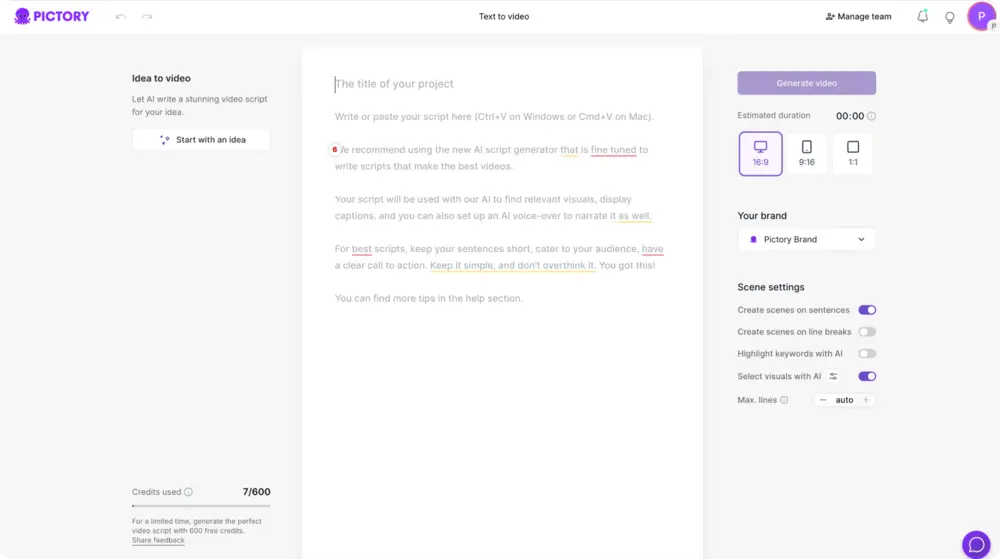
From the Pictory home screen, select Text to Video. Paste your HR script into the input field or use the built-in AI script generator if you are starting from an outline.
Step 2: Configure scene settings for training clarity
In the script editor, set your scene logic and formatting so training stays easy to follow:
- Choose an aspect ratio based on where you will publish: 16:9 for LMS and intranet, 9:16 for mobile-first updates, 1:1 for internal social feeds.
- Enable sentence-based or line-break-based scenes to control pacing and topic separation.
- Set max lines per scene to keep captions readable.
- Toggle keyword highlights if you want key terms like “harassment,” “data handling,” or “PTO accrual” emphasized visually.
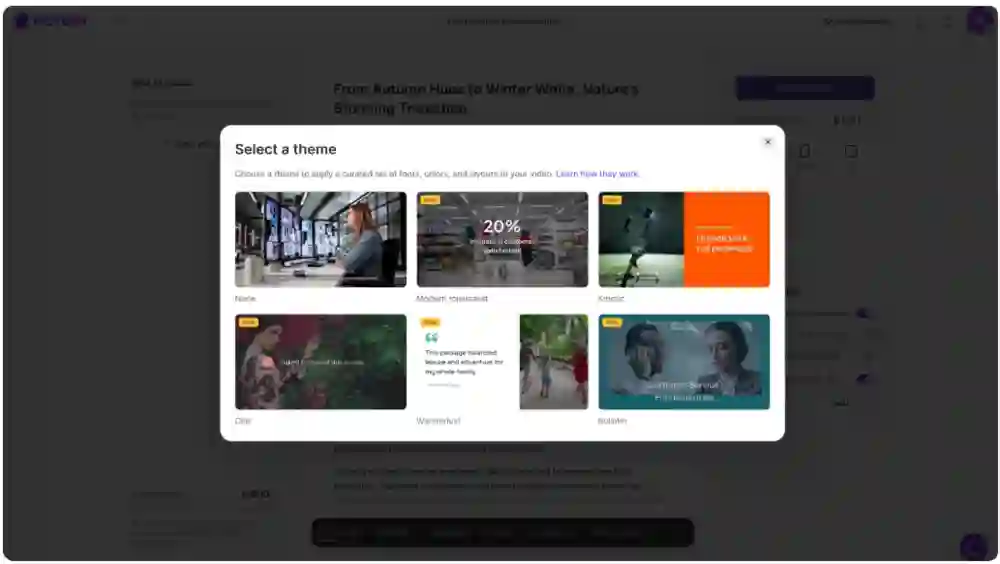
Step 3: Apply a theme and generate the storyboard
Select a layout theme to standardize visual style across HR videos. Then click “Generate video” to let Pictory create scenes automatically. You will see a “Creating scenes” progress state while the storyboard is built.
Step 4: Edit scenes in the AI Video Editor
In the editor, refine each scene’s text, timing, and visuals using the storyboard and timeline. Use right-click actions on scene thumbnails to duplicate, copy, paste, link scenes, or delete, which is helpful for repeating policy structures across multiple videos.
For deeper edits, open the AI Video Editor workflow and use the left-side tools for Story, Visuals, Audio, Text, Elements, Styles, and Branding.
How to add voiceover, captions, and on-screen text for employee training videos
HR training is more effective when it is accessible and consistent. Pictory helps you create narration and captions quickly, and you can also add text to video for policy callouts, definitions, and reminders.
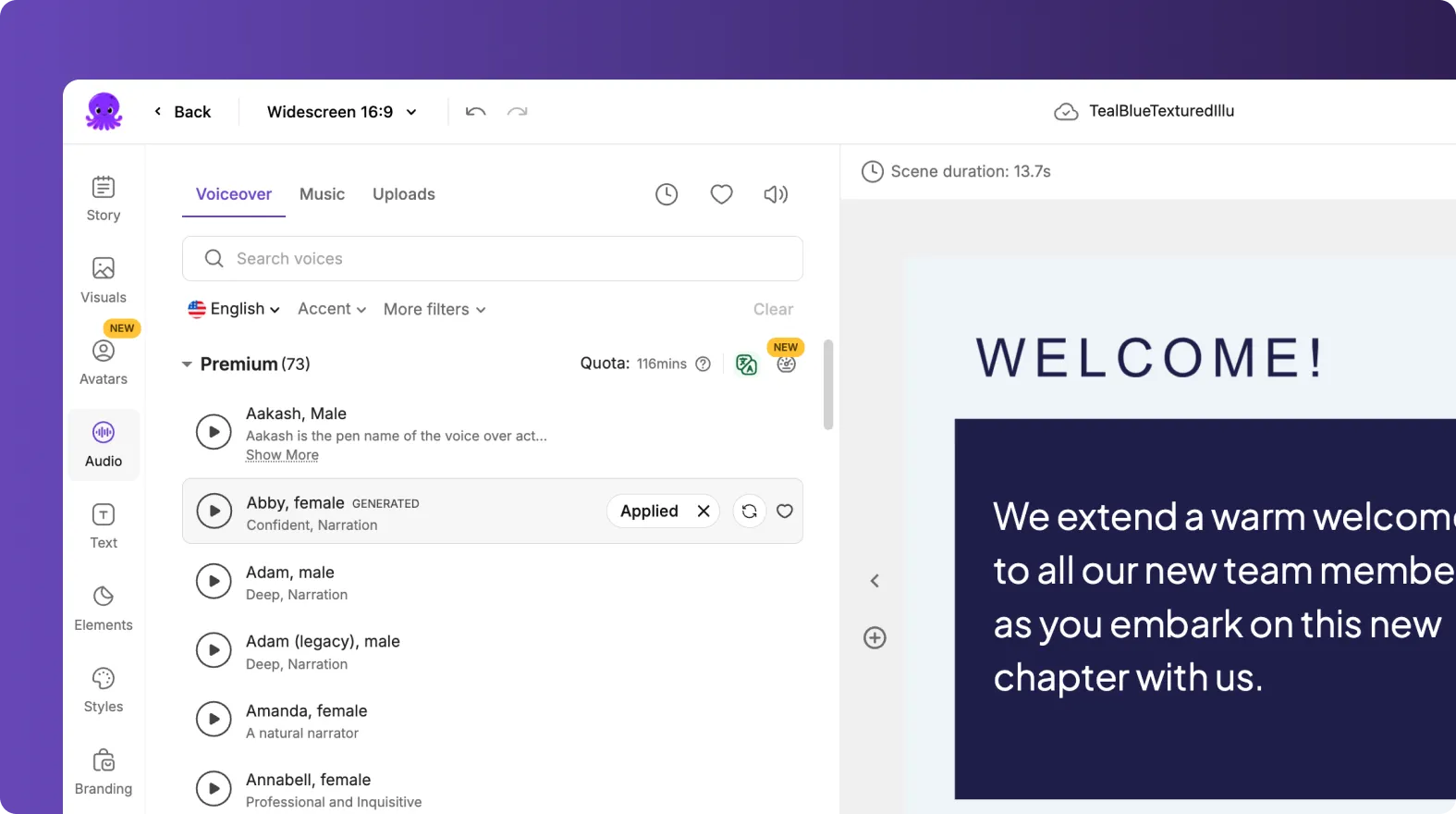
Step 1: Choose AI voiceover and set narration style
Open the Audio tab and select a voice that matches your company tone. Preview options and apply the voiceover across scenes for consistent delivery. This is useful for onboarding videos for new employees and recurring compliance refreshers.
Step 2: Enable captions and control subtitle formatting
Use subtitle settings to set maximum lines per subtitle and choose a text style preset for readability. Captions support accessibility and make training usable without sound in open-office or mobile contexts.
Step 3: Add and format on-screen text overlays
To highlight key rules, timelines, or escalation paths, add headings or body text overlays. Use the top text toolbar to adjust font, size, color, alignment, outline, shadow, and spacing. If needed, use Animate Text to apply entry and exit effects such as Fade or Typewriter for structured emphasis during training.

This combination of voiceover, captions, and overlays supports scalable corporate training video production without relying on specialist editors.
Brand consistency for HR policy videos using Brand Kits and Styles
Enterprise HR teams often need every training module to look consistent across regions and business units. Use Brand Kits to standardize logos, fonts, and colors across your text to video generation workflow.
Step 1: Create or update your Brand Kit
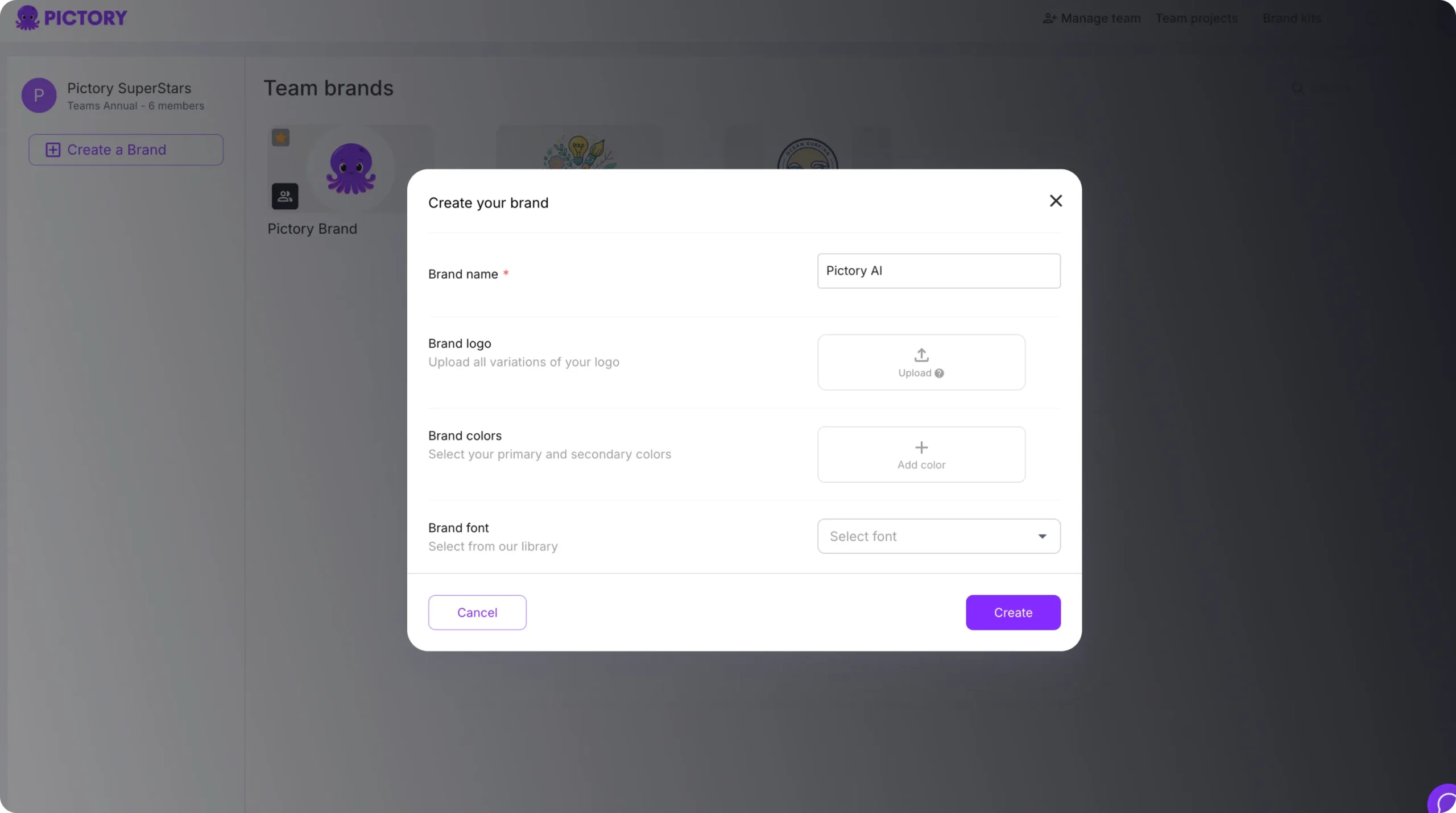
Go to Brand Kits and click “Create a Brand.” Add your brand name, upload logo variations, choose brand colors, and select a font. Use color palette shuffle to test alternate combinations while staying on brand.
Step 2: Apply Branding inside the editor
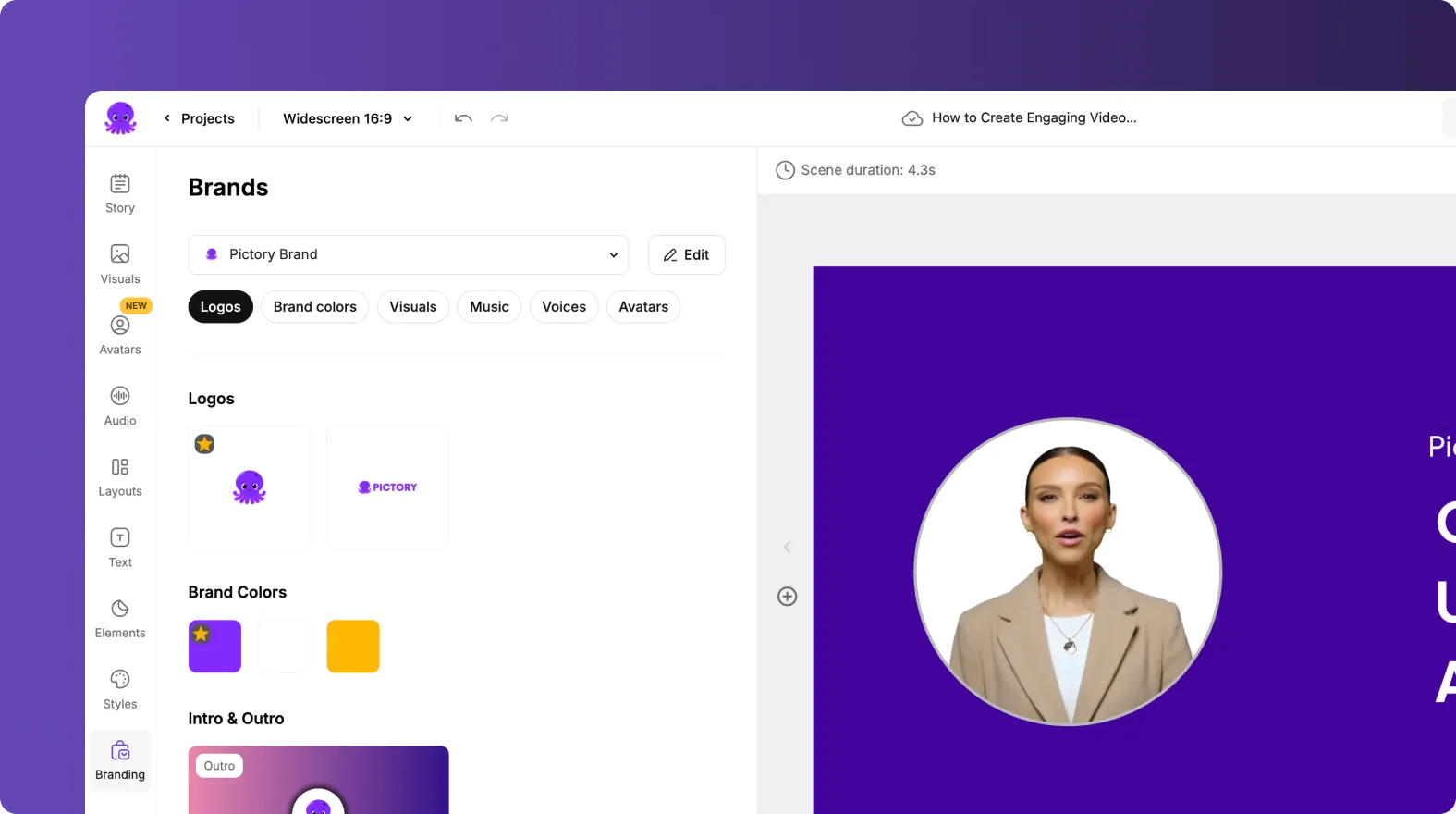
In the video editor, open the Branding tab and select your brand kit to apply consistent styling across captions and text layers. Use Styles to select a preset theme or save a custom style under “My Styles” for HR-wide reuse.
Step 3: Standardize layouts for different HR formats
Use Layouts such as Title, List, Quote, and Number to keep recurring segments consistent, such as “Policy Summary,” “What to do,” and “Where to report.” This makes policy videos easier to scan and review.
When you need to create multiple formats from the same content, keep one master project and duplicate it across versions in your projects hub.
Scaling HR training video production with templates, duplication, and collaboration
To create training and policy videos at scale, standardize how you build, review, and publish. Pictory supports scalable workflows for HR teams producing frequent updates.
Step 1: Use My Projects to manage versions and updates
In Projects, use search and sorting to find the latest version of your training module. Keep a “master” version and duplicate it for regional policies, role-based onboarding, or annual compliance refreshers.
Step 2: Duplicate scenes for repeatable modules
In the timeline, right-click a scene thumbnail and choose Duplicate to reuse standardized sections like “Effective date,” “Scope,” “Reporting options,” and “Acknowledgment.” This saves time across multiple HR videos.
Step 3: Share previews for faster stakeholder review
Use the Share preview option in the editor to collect feedback from Legal, Compliance, and HR leadership before publishing. This reduces back-and-forth and helps ensure policy accuracy.
Step 4: Choose the right input workflow for each HR source
- If your content starts as written policy or a script, use Text to Video.
- If your policy lives on an intranet page, convert it with URL to Video.
- If your onboarding is in slides, transform it with PPT to Video.
- If you need a quick how-to tutorial recording, capture it with Smart Screen Recorder.
Best practices for creating engaging training and compliance videos with AI in 2026
To improve completion rates and retention, keep HR videos concise, structured, and visually aligned to the message.
- Keep most videos between 2 and 6 minutes, and break long policies into microlearning modules.
- Use clear scene titles and list layouts for procedures and step sequences.
- Use consistent terms across captions and narration, especially in compliance training video content.
- Include a final scene with the required action, owner, and link to the official policy.
- For software or process training, record a short demo and then refine it using the AI Video Editor to remove filler words and silences when applicable.
This approach supports scalable, professional HR video programs that stay current when policies and regulations change.
FAQ: Text to Video for HR Teams: Creating Training and Policy Videos at Scale
What is the best way for HR to create training videos with AI from policy text?
Use Text to Video when you have a script or policy document text. Paste the content, configure sentence-based or line-break-based scenes, apply your brand kit, and generate a storyboard that you can quickly refine in the editor.
How do HR teams keep training videos brand-consistent across departments?
Create a Brand Kit with your approved logo, fonts, and colors, then apply it in the Branding tab inside the editor. Pair it with a saved Style preset so all HR onboarding videos and compliance modules share the same visual system.
Can I update training videos quickly when policies change?
Yes. Open the original project in My Projects, update the relevant script lines in the Story tab, and adjust or regenerate visuals scene-by-scene. Duplicating a master template for each policy area also speeds up ongoing updates.
How do I add text to a video for policy callouts and key reminders?
Use the Text tab to add headings, subheadings, or body text overlays. Then format them using the top text toolbar for size, color, outline, and spacing. You can also animate on-screen text using Animate Text for controlled emphasis.
Which Pictory workflow should we use for onboarding slides or intranet policy pages?
For slide-based onboarding, use PPT to Video. For intranet pages or online policy URLs, use URL to Video. Both workflows generate a script and storyboard you can standardize with your brand kit.
How can HR create software training videos for employees without editing expertise?
Record a walkthrough with Smart Screen Recorder, then use the editor to refine the transcript, tighten pacing, and publish a polished training video without traditional editing complexity.


