
Internal communications teams are expected to deliver accurate updates quickly, keep employees engaged, and maintain brand consistency across channels. With Pictory, you can use text to video AI to convert leadership messages, policy updates, HR announcements, and change management notes into professional, on-brand videos without a full production team.
This guide shows how to use Pictory Text to Video inside AI Studio to create internal communication videos faster, improve retention, and standardize messaging across departments.
Why text to video AI works for internal communications
Video helps employees absorb information quickly, especially when updates are time-sensitive or complex. A modern ai text to video generator also makes it easier to keep content current without re-recording every time a policy changes.
Speed: turn a script into a video in minutes for rapid internal updates.
Consistency: apply the same branding and style across HR, compliance, IT, and leadership communications.
Clarity: pair concise narration with visuals and captions to reduce confusion.
Scalability: create multiple versions for different regions, roles, and languages using a repeatable workflow.
Plan your internal communication video script for a text to video generator
A strong script is the foundation of effective convert text to video workflows. Before you generate, structure your message so Pictory can create clean scenes, captions, and voiceover.
Keep sentences short and direct to improve scene pacing.
Use clear headings and line breaks for sections like “What changed,” “Who it affects,” and “What to do next.”
Add a specific call to action such as “Review the new policy,” “Complete the training,” or “Contact your manager.”
Include dates, owners, and links as on-screen text where appropriate.
If you already have a source asset, you can also repurpose it into video using URL to Video for intranet pages or memos published as web pages, or PPT to Video for leadership decks and town hall slides.
Step-by-step: Create an internal communications video with Text to Video AI
Step 1: Open AI Studio and start a Text to Video project
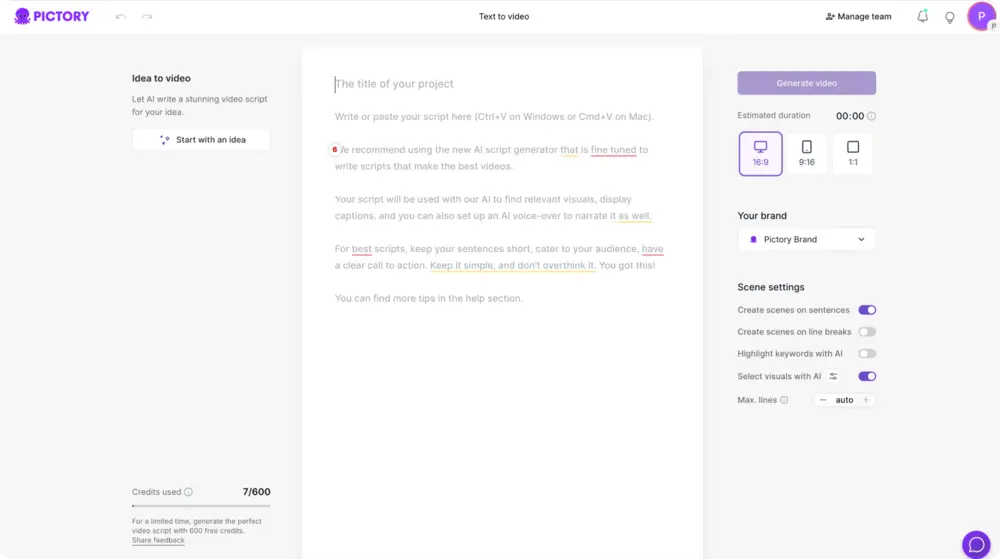
In AI Studio, choose Text to Video from the creation workflows. This is the fastest path when you already have a script or announcement copy.
Step 2: Paste or write your internal message script
Paste the finalized internal communications script into the input field. If you need a first draft, use the built-in AI script generator and then refine the language for accuracy, compliance, and tone.
Tip: Use line breaks to indicate where you want natural scene changes, and keep each scene focused on one idea, action, or policy point.
Step 3: Configure scene settings for clear, scannable updates
In Scene Settings, choose options that improve readability for employees viewing on desktop or mobile:
Create scenes based on sentences or line breaks depending on your script formatting.
Enable keyword highlighting to emphasize terms like “effective date,” “required,” or “action needed.”
Set a max lines per scene to avoid overcrowded captions.
Select visuals with AI so Pictory automatically matches stock footage to your message.

Step 4: Choose aspect ratio and select your Brand Kit
Select the aspect ratio that matches your internal channel:
16:9 for intranet, email embeds, and Teams town hall recaps
9:16 for mobile-first employee comms and internal social feeds
1:1 for square layouts in internal communities
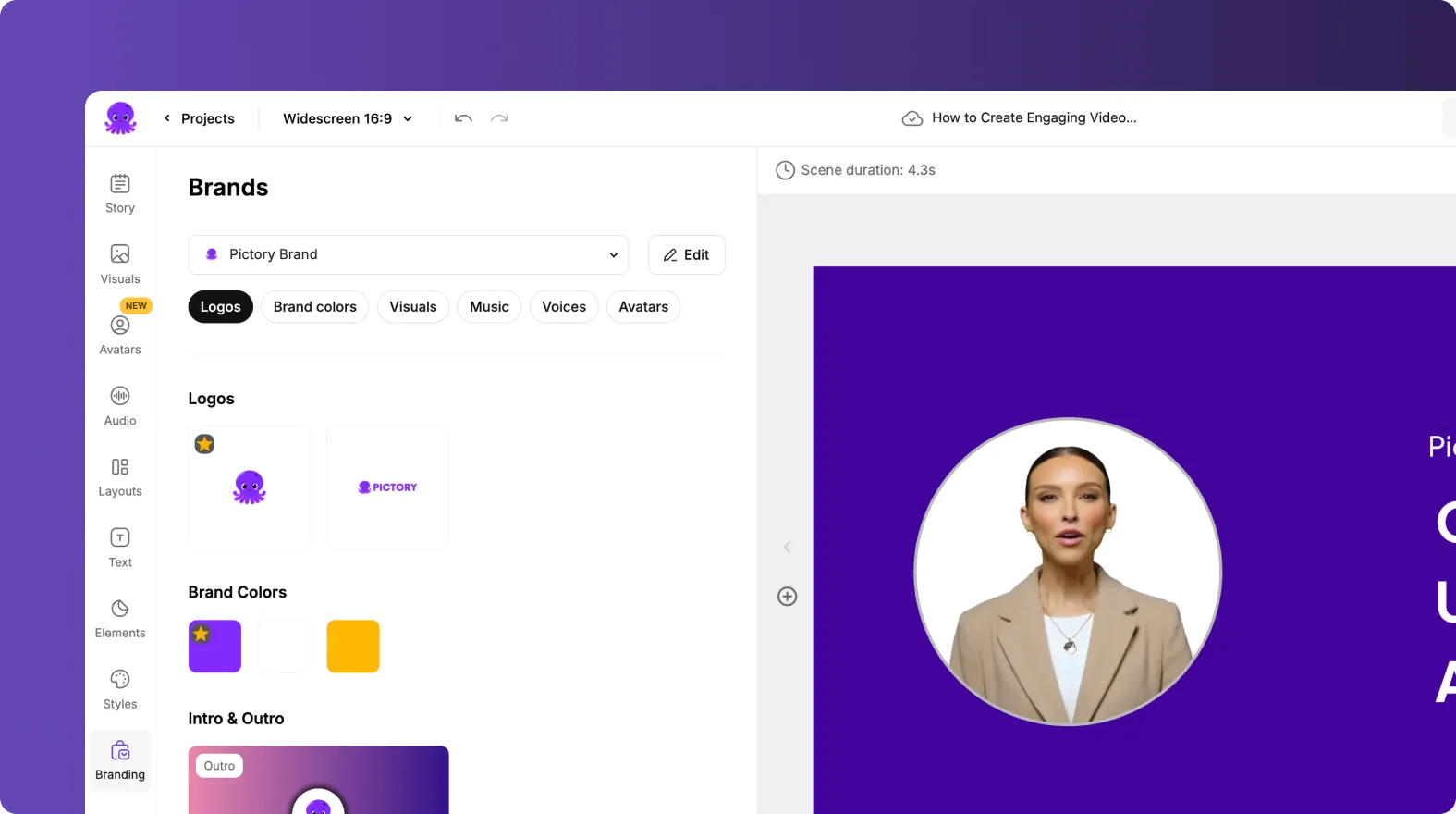
Then apply your Brand Kit to keep fonts, colors, and logos consistent across all updates. This is critical for enterprise teams managing multiple departments and frequent communications.
Step 5: Generate the video and review the auto-created storyboard
Click “Generate video.” Pictory will create a storyboard and build scenes with visuals, captions, and timing. Once complete, you will land in the editor with a scene-by-scene layout and a timeline for navigation.
Optimize internal communication videos in the AI Video Editor
After generation, refine the message using the editing tools in the AI Video Editor. This is where internal comms teams make the content feel intentional and brand-safe.
Story: tighten wording for clarity and reduce jargon while maintaining policy accuracy.
Visuals: replace any mismatched footage, add uploads like internal screenshots, or use AI Studio visuals within the editor.
Text: add on-screen callouts for deadlines, owners, and key steps.
Elements: add icons, shapes, or labels to organize information visually.
Styles and Branding: standardize subtitle and typography styling across your internal video library.
If you need to update an existing video quickly, import the original content into the editor and make text-level changes rather than re-producing from scratch. This is especially useful for recurring internal announcements and quarterly compliance reminders.
Add voiceover, captions, and accessibility for internal communications at scale
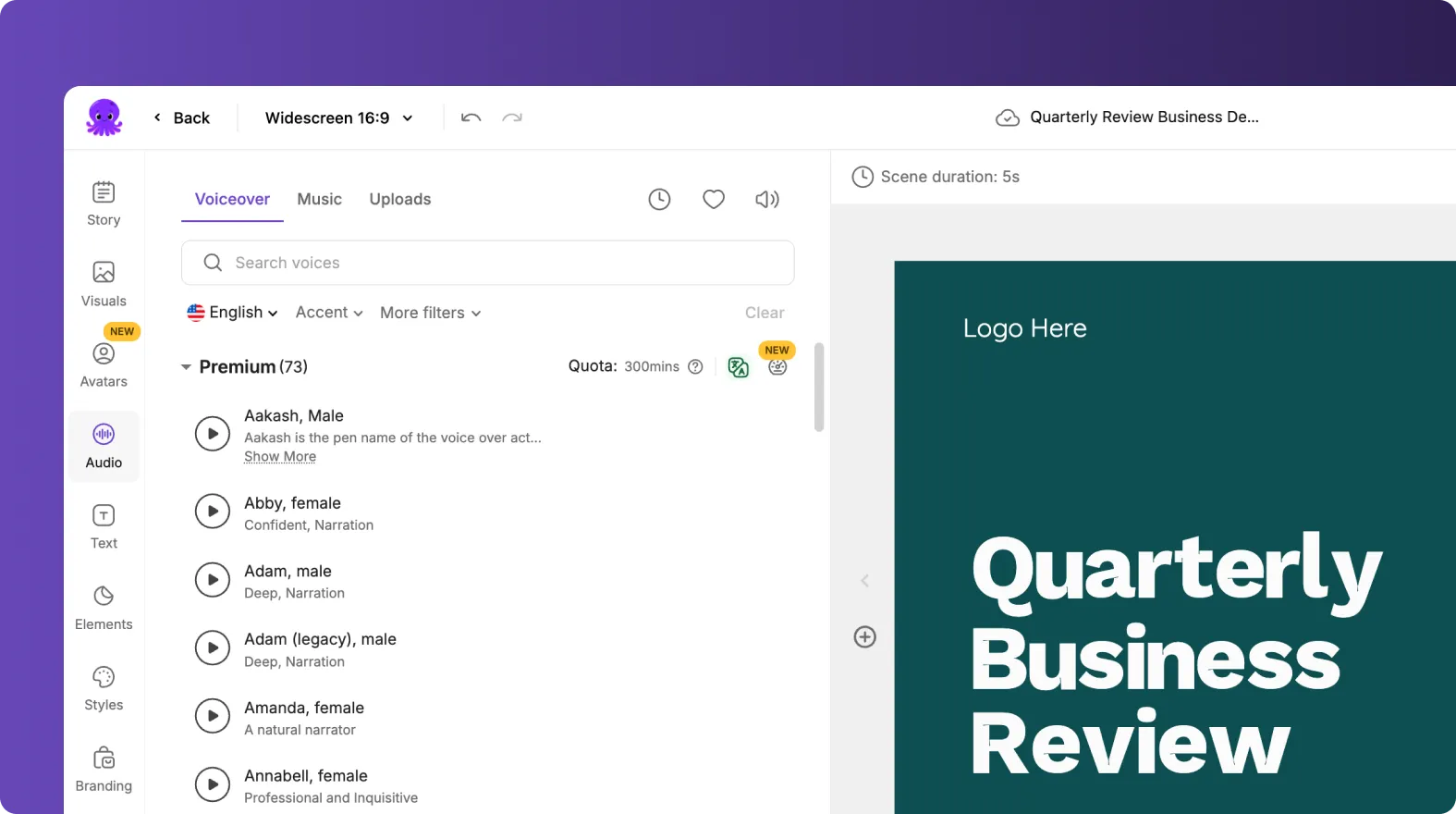
To increase engagement and accessibility, combine narration with readable captions. In the Audio tools, choose an AI voiceover that matches your internal tone. Captions and subtitles help employees watch without sound, which is common in open offices and mobile use cases.
Choose a clear AI voice with a professional cadence for executive and HR updates.
Adjust subtitle max lines so captions remain readable on smaller screens.
Use text styles to ensure high contrast for accessibility.
Keep critical information on-screen long enough to read, especially dates and next steps.
When you need a recorded walkthrough or a software update demo, capture it first using Smart Screen Recorder, then polish the result using AI editing and subtitles.
Best practices: Deliver enterprise internal comms videos faster with repeatable templates
To standardize internal communication video production, build a repeatable structure your team can reuse. This turns your text to video generator workflow into an internal video system.
Create a standard outline: Context, What changed, Who is impacted, Actions, Deadline, Where to get help.
Reuse Brand Kits: keep every department’s videos aligned with corporate identity.
Use consistent layouts: pick a theme that works well for updates and keep it consistent quarter to quarter.
Publish in multiple formats: export 16:9 and 9:16 variants to match your channels.
Maintain a version log: include dates and version numbers in the final scene for policy updates.
For teams repurposing internal articles or knowledge base posts, use URL to Video to generate a first draft quickly, then align the narrative and visuals in the editor.
FAQ: Text to Video for Internal Communications: Delivering Information Through Video
What is the best way to format a script for text to video AI?
Use short sentences, clear line breaks, and one idea per scene. This improves automatic scene creation, caption pacing, and visual matching in the Text to Video generator.
Can I create internal communication videos without editing skills?
Yes. Pictory automatically converts your text into scenes with captions and visuals, and you can make simple click-based changes in the AI Video Editor without learning complex software.
How do I keep internal videos brand-consistent across multiple departments?
Apply a Brand Kit to standardize fonts, colors, and logos. This keeps HR, IT, compliance, and leadership communications visually consistent and reduces time spent on manual styling.
What if I need to turn a policy page or intranet article into a video?
Use URL to Video to extract the content and generate a draft script automatically, then edit for internal tone, accuracy, and required disclosures.
How can I create training or walkthrough videos for internal tools?
Record your screen using Smart Screen Recorder, then use AI transcription and subtitle styling to produce a polished internal training video quickly.
Can I convert leadership slides or town hall decks into video?
Yes. Upload your deck using PPT to Video, optionally use speaker notes for narration, and then refine scenes, pacing, and branding in the editor.
How do I make internal communication videos more engaging without adding risk?
Use concise scenes, high-contrast captions, consistent layouts, and clear calls to action. Replace generic visuals with department-appropriate footage or approved uploads, and keep the message focused on what employees need to know and do next.


