
Text to video for corporate training helps L&D, compliance, and enablement teams turn scripts and internal documentation into consistent, professional training videos without heavy production overhead. With Pictory, you can convert text to AI video, apply brand kits for enterprise consistency, add captions and voiceover, and collaborate across teams from one workspace in AI Studio.
This guide shows how to create AI video for enterprise learning using Pictory’s Text to Video generator and the built-in editor. You will also learn how to update training videos faster using AI-assisted script edits, automated scene creation, and centralized branding.
Why Text to Video AI Works for Corporate Training and Enterprise Learning
Enterprise teams often need to publish updates quickly across onboarding, compliance, and sales enablement. A text to video AI generator streamlines production by converting approved scripts into scenes, auto-matching visuals, and generating captions and voiceover so you can ship training content at scale.
Reduce production overhead: create professional training video production outputs without specialized editors.
Standardize learning: keep messaging consistent across regions, departments, and instructors.
Speed updates: revise the script, regenerate scenes, and republish in minutes.
Support multiple formats: build internal communications, tutorials, microlearning video modules, and sales training video content from the same workflow.
Plan Your AI Training Video Script for Text to Video Generation
Before you convert text to video, structure the script so Pictory can segment it cleanly into training scenes. This improves pacing, accuracy of visuals, and clarity for learners.
Use short sentences and one idea per line when possible.
Include clear callouts for policies, steps, or do and do not behaviors.
Add a clear call to action at the end, such as complete the quiz, acknowledge the policy, or follow the process.
Decide early on the format: onboarding, compliance training video, software training, or sales enablement training.
If your content already exists in other formats, you can repurpose it instead of starting from scratch. For example, convert a policy page into video with URL to Video or turn slide-based training into video using PPT to Video.
Step-by-Step: Create Text to Video for Corporate Training in Pictory
Step 1: Start a new project in Pictory AI
Open AI Studio and choose the Text to Video generator workflow from the home screen. This is the fastest path for turning an approved training script into a video storyboard.
Step 2: Paste or write your corporate training script
Paste your script into the Text to Video input. If you are starting from a topic, use the optional Idea to Video flow to generate a first draft script, then refine it in the script editor.
Keep wording simple and direct for employee comprehension.
Use line breaks to control where you want scene changes.
Include speaker-style narration text if you plan to use AI voiceover.

Step 3: Configure scene settings for enterprise learning videos
In the script editor, set the scene rules that control how your text to AI video is built.
Choose an aspect ratio: 16:9 for LMS and desktop learning, 9:16 for mobile microlearning, 1:1 for internal social channels.
Enable sentence-based or line-break-based scenes based on how you structured the script.
Turn on keyword highlights to emphasize critical compliance language and process steps.
Set max lines per scene to keep on-screen text readable.
Step 4: Apply a Brand Kit for corporate training consistency
Select the correct Brand Kit in the right panel before you generate the video. Brand kits standardize logo, fonts, and colors so every department publishes brand-consistent training videos. This is especially important for regulated content and company-wide programs.
If you need to create or adjust a brand kit, go to Brand Kits in the left navigation and define logo, brand colors, and fonts. Use color palette shuffle to test alternate combinations while staying within brand guidelines.
Step 5: Choose a layout theme and generate the AI video storyboard
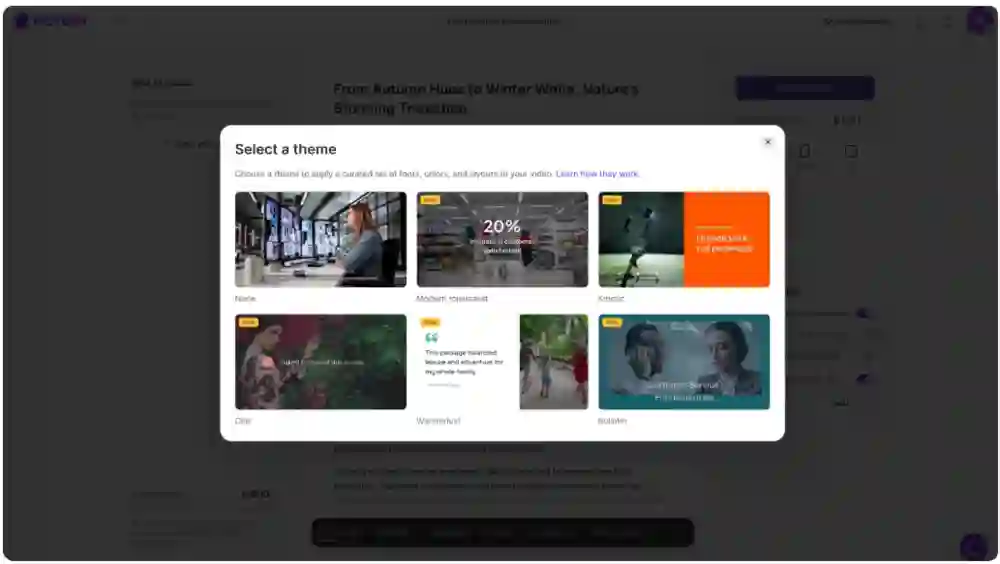
Select a theme such as Modern minimalist or Bulletin to match your training style, then click Generate video. Pictory creates a storyboard by converting your script into scenes, generating captions, and selecting visuals with AI.
Wait for the “Creating scenes” progress to complete. You will then land in the video editor with scene-by-scene control.
Edit and Polish Your Enterprise AI Training Video in the AI Video Editor
After generation, refine the training module using the AI Video Editor. This is where enterprise teams typically finalize timing, on-screen text, visuals, and branding for the best learner experience.
Step 1: Review the storyboard scenes for clarity and pacing
Use the left Story panel to read each scene’s text. Confirm each scene covers one learning objective and that the pacing matches the complexity of the topic.
Shorten dense scenes into smaller chunks for microlearning video delivery.
Reorder scenes if the workflow sequence needs to match real operations.
Use the timeline thumbnails to navigate quickly and validate continuity.
Step 2: Replace or refine visuals using the Visuals library and AI Studio
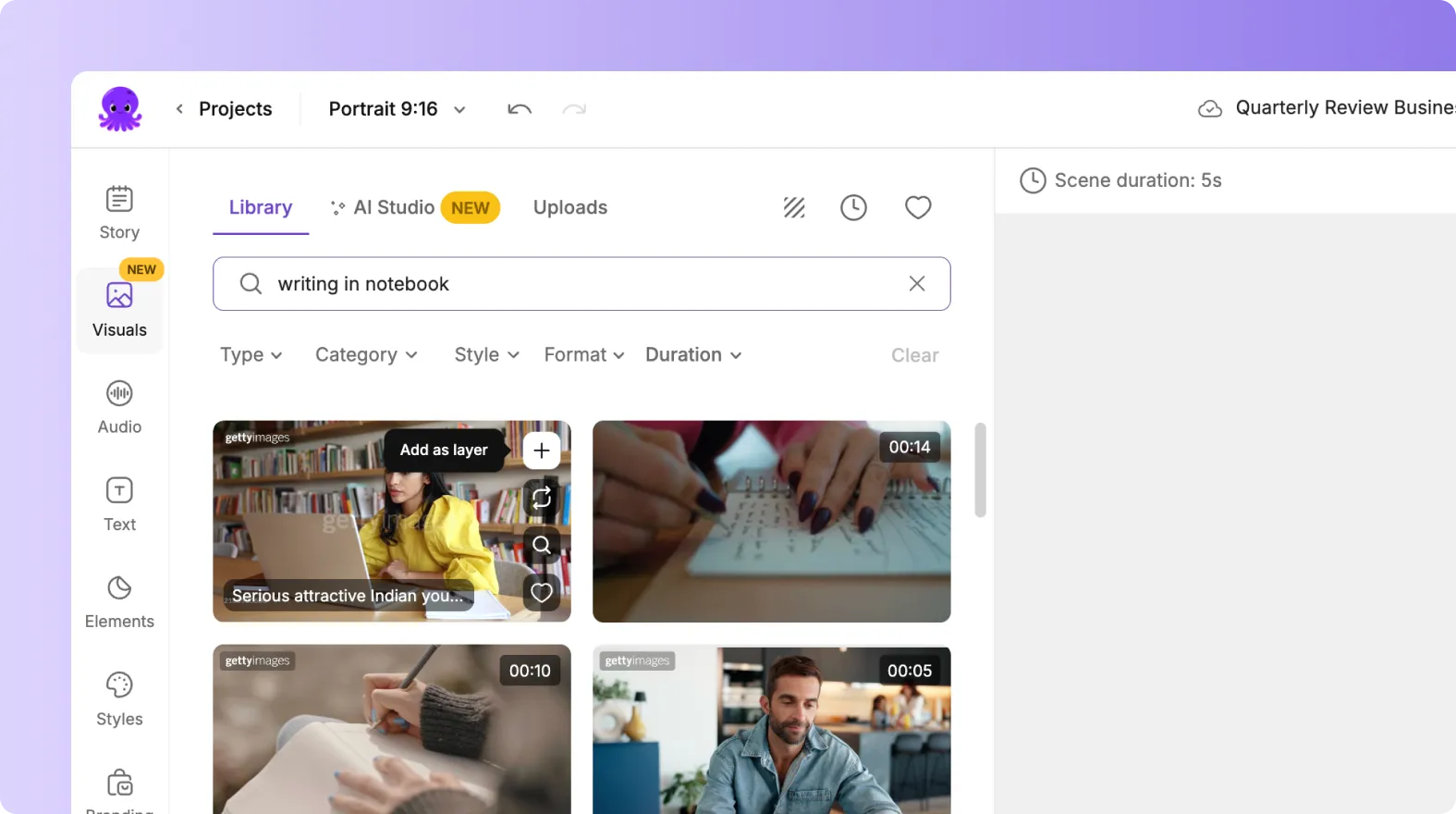
Open Visuals to swap stock footage, use your own Uploads, or generate custom AI visuals directly inside the editor via AI Studio. This is useful for training scenarios that require neutral, role-based imagery without filming.
Use consistent visual style across scenes for a cohesive training module.
Choose clear, literal visuals for compliance and safety training.
Use scenario visuals for soft skills and sales enablement content.
Step 3: Add or adjust narration and background music in Audio
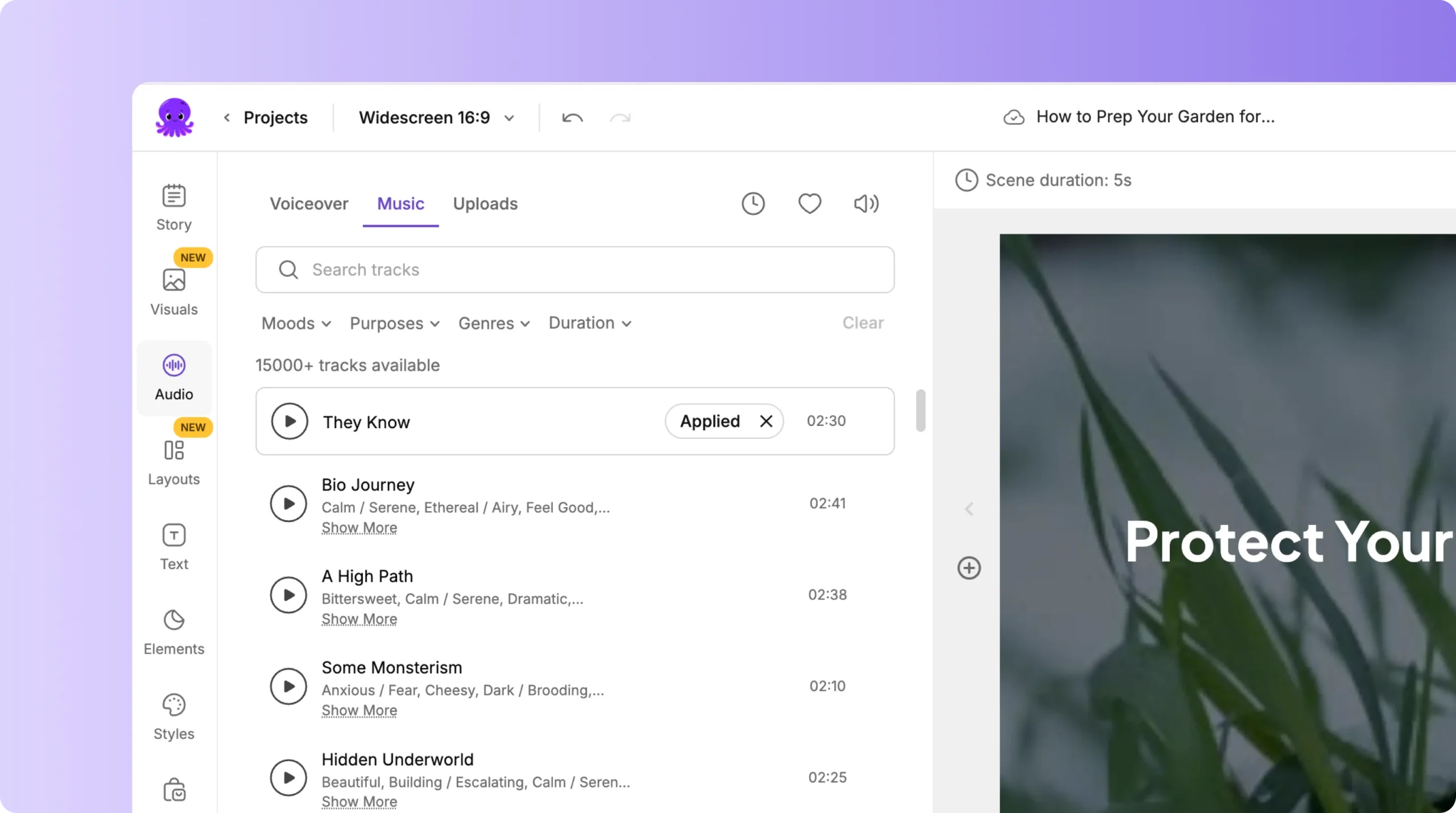
In Audio, choose an AI voiceover for your text to speech video, or upload recorded narration. Then add background music sparingly for engagement, keeping volume low to protect comprehension.
Preview voices and select tone and accent appropriate for your learners.
Keep narration consistent across modules to maintain program continuity.
For compliance topics, prioritize clarity over dramatic music cues.
Step 4: Improve readability with styles, layouts, and text animations
Use Styles to standardize typography and color. For headings and key reminders, use the Text toolbar to adjust size, alignment, outline, and background highlight.
To animate on-screen text for engagement, select a text layer and open Animate Text to apply entry and exit effects such as Fade, Typewriter, or Wipe. Keep animation subtle so it supports learning rather than distracting from instruction.

Step 5: Use timeline controls to manage scenes at scale
For enterprise workflows with many scenes, use timeline zoom for navigation and right-click scene thumbnails for Duplicate, Link with next, Copy, Paste after, and Delete. This speeds up versioning when you need similar modules across roles, regions, or product lines.
Scale Corporate Training Video Production with Reusable Inputs and Collaboration
Text to video AI is most valuable when you standardize inputs and reuse components across programs. For example, many companies maintain a library of approved scripts and brand templates for onboarding, compliance, and sales enablement training.
Use Projects as a central hub to find, sort, and manage training videos across teams.
Create multiple modules from one script by duplicating and tailoring role-specific scenes.
Repurpose existing content into video: convert a policy page with URL to Video or a slide deck with PPT to Video.
Build hands-on tutorials by recording product walkthroughs using Smart Screen Recorder, then edit quickly with AI.
How to Update Training Videos Using AI Without Refilming
When policies change, product features ship, or compliance language updates, you can revise your training quickly by editing text rather than re-recording full videos.
Edit the script in the Story panel, then adjust scenes to match the updated wording.
Swap visuals where processes or UI screens changed.
Update captions and on-screen text to reflect new requirements.
Reapply Brand Kit settings to keep the latest visual identity consistent across all modules.
If you are starting from an existing recording, you can also transcribe a video to text and make edits faster using the AI-driven transcript workflow in the AI Video Editor.
FAQ: Text to Video for Corporate Training: AI Video for Enterprise Learning
What is the best workflow for creating corporate training videos with AI in Pictory?
Use the Text to Video generator when you have an approved script or written training material. Configure scene settings, apply a Brand Kit, generate the storyboard, then polish in the AI Video Editor for visuals, audio, and styling.
How do I make training videos for employees that stay brand-consistent across departments?
Create and manage Brand Kits, then apply the correct kit before generating the video and again in the editor if needed. Brand kits standardize logo, fonts, and colors so onboarding, compliance, and sales enablement teams produce consistent outputs.
Can I convert existing enterprise content like policy pages or slide decks into training videos?
Yes. Convert written web content into video with URL to Video, and convert presentations into training video modules with PPT to Video. These workflows help you repurpose content into video quickly without rewriting everything.
How do I record software training videos and then refine them with AI?
Use Smart Screen Recorder to capture screen, webcam, or both. Then choose Edit video using AI to generate a transcript, remove filler words or silences, and produce a storyboard you can refine scene-by-scene.
How can I create engaging training videos without overwhelming learners?
Keep scenes short, focus each scene on one concept, and use keyword highlights for critical steps. Use subtle styles and minimal text animations for emphasis. Prioritize clear narration, readable on-screen text, and consistent visuals across the module.
Is text to video AI suitable for compliance training and regulated content?
Yes, especially when you start from an approved script and apply enterprise brand controls. The scene-by-scene editor makes it easier to maintain consistent language, update sections quickly, and standardize captions and visuals across required training programs.


