
Digital learning teams are expected to ship more training content with fewer resources, while still meeting brand, accessibility, and quality standards. With Pictory, you can convert scripts into polished course videos using a text to video AI workflow that automates scene building, visuals, captions, and voiceover, then gives you full control in an editor built for speed and consistency.
This guide shows how to use Pictory’s Text to Video generator inside AI Studio to produce training videos faster, standardize branding with Brand Kits, and quickly update modules without a traditional production bottleneck.
Why text to video AI helps L&D teams create training videos faster
Traditional training video production often requires scripting, recording, editing, motion graphics, captioning, and brand QA across multiple tools. An AI text to video workflow reduces that overhead by generating a storyboard from your script and letting your team refine scenes instead of building everything from scratch.
-
Speed: Turn approved training text into a first-cut video in minutes.
-
Consistency: Apply Brand Kits for fonts, colors, and logos across modules.
-
Scalability: Duplicate scenes, reuse templates, and standardize layouts across courses.
-
Maintainability: Update text, replace visuals, and regenerate voiceover without re-editing an entire timeline.
Before you start: prepare scripts for an AI text to video generator
A clean script improves visual matching, pacing, and readability. For course video creation, structure your content as short, clear statements with predictable transitions.
-
Keep sentences short and focused on one idea per line.
-
Use clear section headers and microlearning style chunks.
-
Add callouts for key terms that should appear on screen.
-
End with a clear action, knowledge check prompt, or next step.
If your source content is not a script, you can still accelerate production by starting from existing materials. For example, convert an internal wiki or policy page using URL to Video, or convert slide-based training using PPT to Video, then fine-tune in the editor.
Step-by-step: convert text to video for corporate training in Pictory AI
Step 1: Open Text to Video in Pictory AI
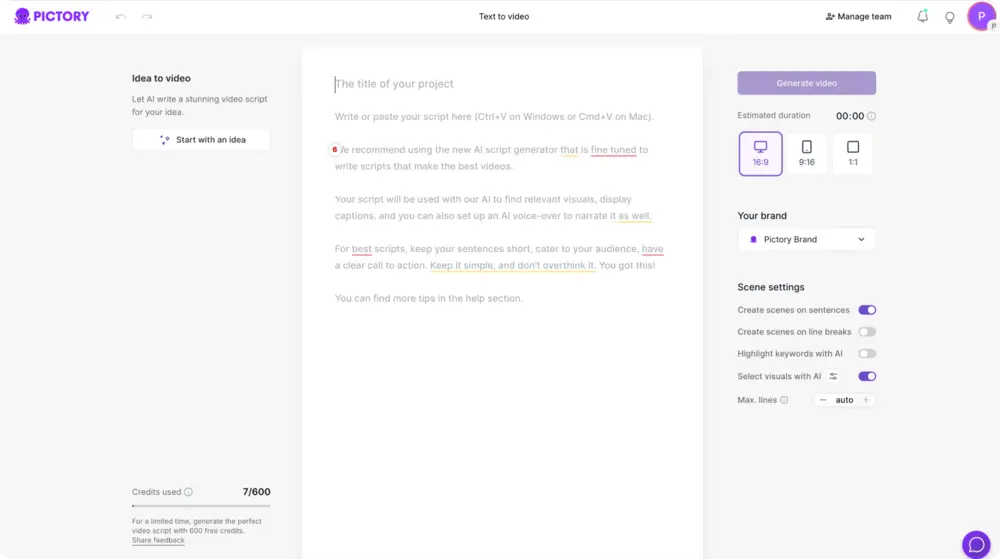
From the Pictory home screen, select Text to Video. This launches the script input workflow inside AI Studio and prepares your project to generate scenes, captions, and optional voiceover from your text.
Step 2: Paste your training script and choose scene settings
Paste or write your script in the input field. Then set how your content should become scenes. For training videos, choose settings that keep pacing consistent and improve comprehension.
-
Create scenes based on sentences or line breaks depending on how your script is formatted.
-
Enable keyword highlighting if you want important phrases emphasized on screen.
-
Confirm that AI will select visuals automatically for faster first drafts.
This is the core of a text to video generator workflow: your script becomes the structure of your course video.
Step 3: Configure aspect ratio, estimated duration, and Brand Kit
In the script editor settings panel, set the output format that matches your learning platform and use case:
-
Choose an aspect ratio such as 16:9 for LMS modules, 1:1 for internal announcements, or 9:16 for mobile microlearning.
-
Review estimated duration to keep lessons within target time limits.
-
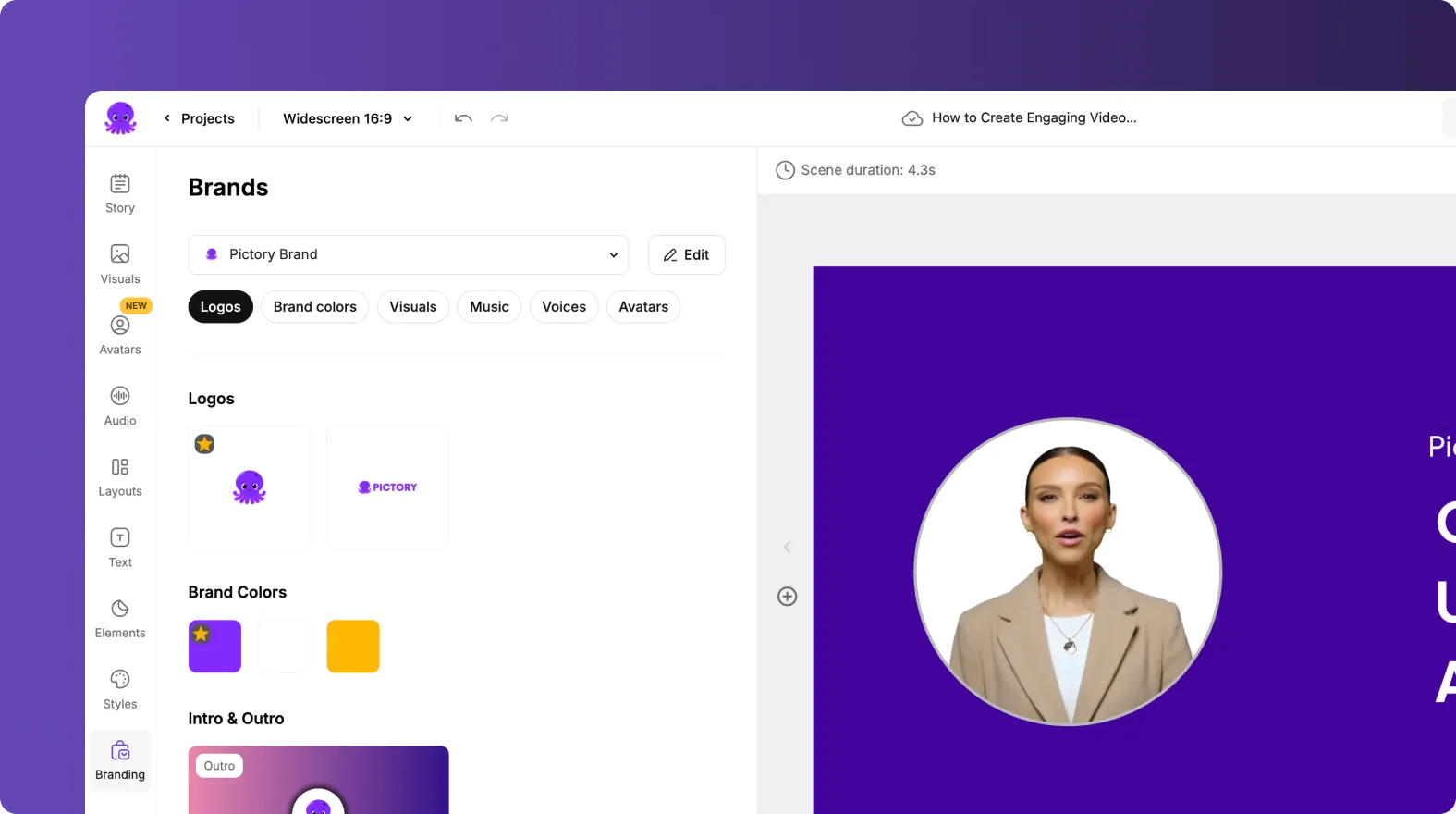
Select your team’s Brand Kit to apply logo, fonts, and brand colors consistently across training content.
Brand Kits help enterprise teams maintain brand consistency at scale, especially across compliance training video libraries and onboarding programs.

Step 4: Generate your storyboard from text to video AI
Click Generate video. Pictory creates a storyboard by breaking your script into scenes and matching visuals to each segment. You will see a “Creating scenes” progress state while the storyboard is built.
Once complete, your project opens in the editing workspace where you can refine scenes quickly instead of building a video from scratch.
Step-by-step: edit training videos faster using the AI Video Editor
After the storyboard is created, you can refine your course video in the AI Video Editor. This is where L&D teams standardize pacing, update visuals, and apply consistent layouts across modules.
Step 1: Review each scene in the Story panel for clarity and pacing
Use the Story panel to review the script broken into Scene 1, Scene 2, and so on. Edit text to improve clarity, ensure terminology matches your training standards, and keep each scene focused on one concept.
Step 2: Replace or refine visuals using Library, Uploads, or AI Studio prompts
Open the Visuals tab to adjust the background footage or images for each scene:
-
Use the stock Library to find safe, professional training visuals.
-
Use Uploads for internal screenshots, diagrams, or branded illustrations.
-
Use the AI Studio tab within Visuals to generate AI images or AI videos from prompts, then add them directly to scenes.
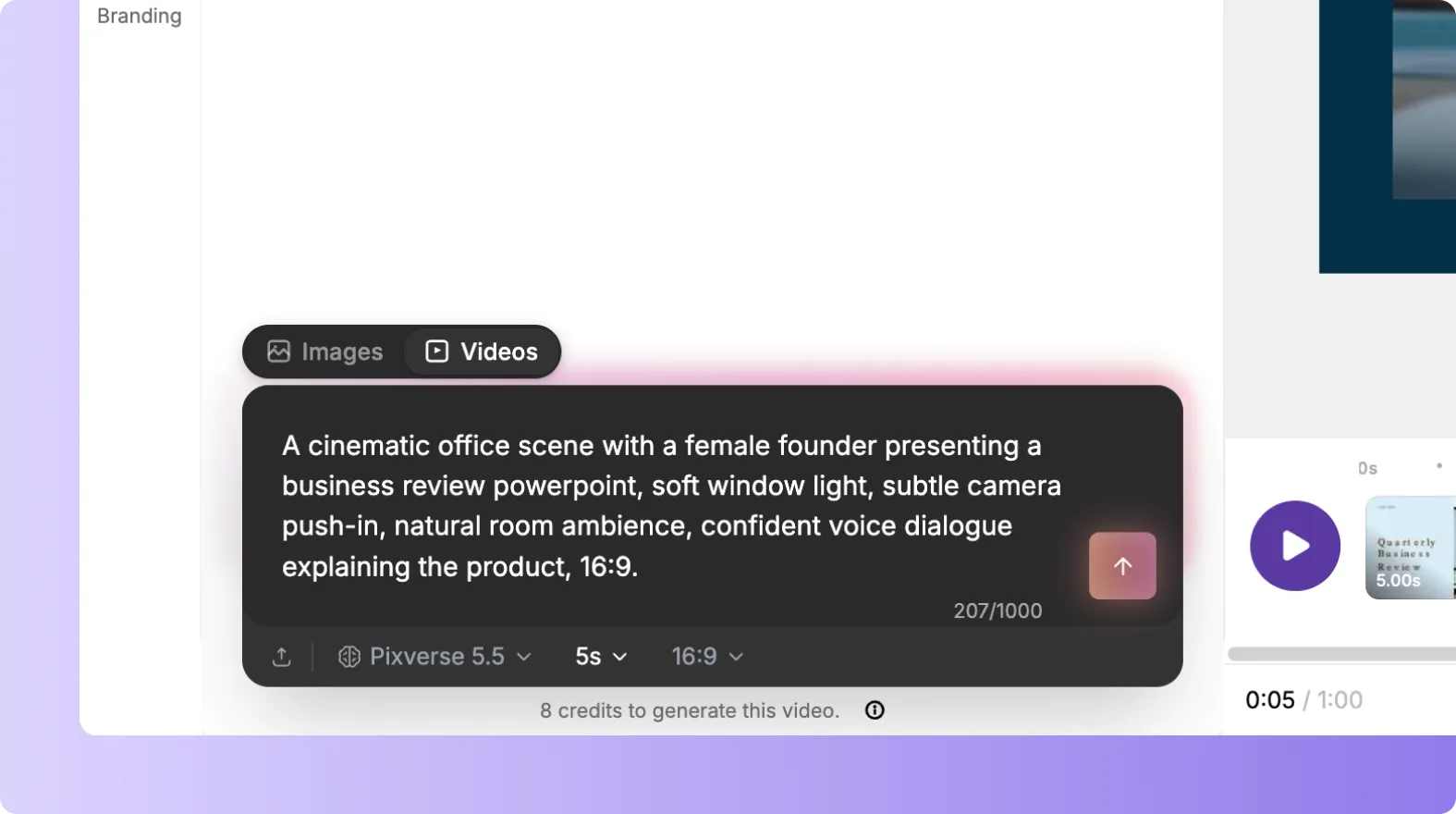
This helps digital learning teams align visuals to internal processes, software walkthroughs, or role-based examples without slowing down production.
Step 3: Control scene order and reusability with timeline tools
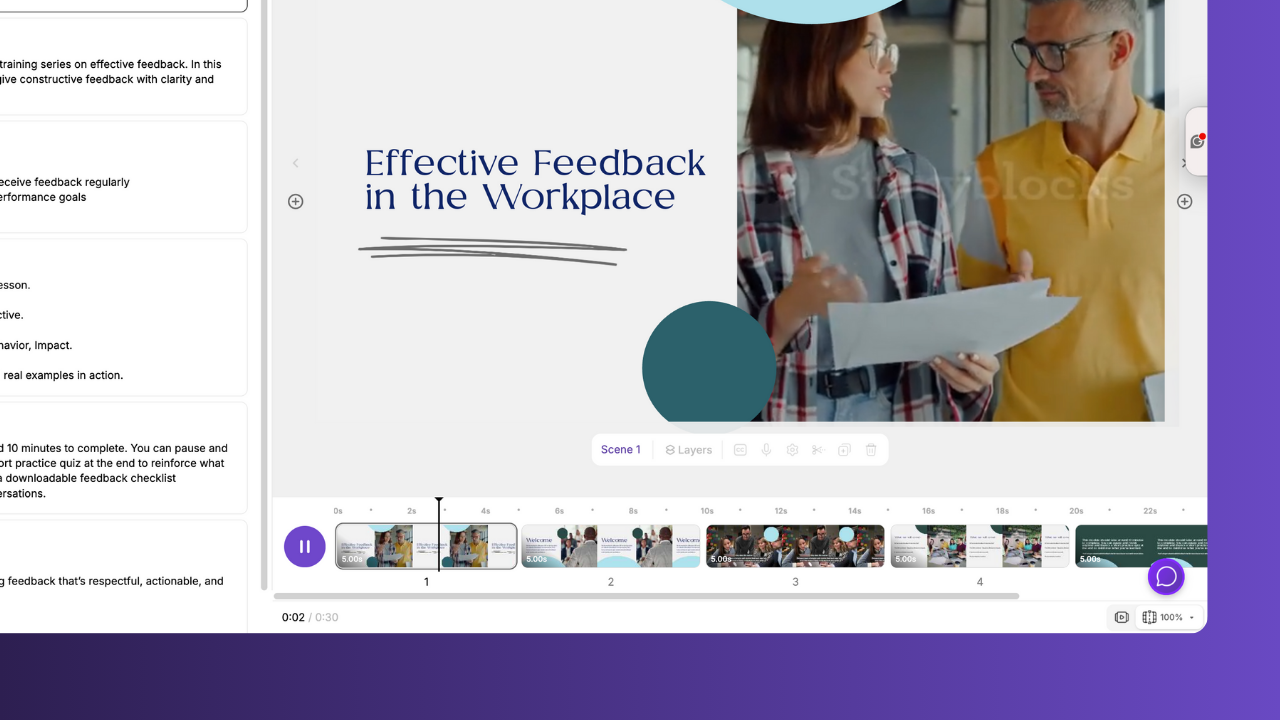
Use the bottom timeline to navigate quickly. Right-click a scene thumbnail to duplicate, copy, paste, or delete scenes. This is especially useful for repeating lesson patterns such as “Concept, Example, Summary” or producing multiple regional variants.
Add text to video for training: captions, on-screen callouts, and text animations
Training videos often require clear on-screen reinforcement. In Pictory, you can add text to video using text layers and caption styling so learners can follow along in noisy environments and meet accessibility expectations.
Step 1: Add structured on-screen text using the Text tab
Open the Text tab to insert headings, subheadings, or body text overlays. Use these for definitions, safety warnings, steps, or policy callouts.
Step 2: Apply consistent styling with Styles and Branding
Use Styles to apply a predefined look, or use Branding to enforce brand fonts and colors across all scenes. This is a practical way to standardize adding text to video across an entire learning library.
Step 3: Use Animate Text to improve engagement without distracting learners
Select a text box and use the Animate Text option in the top toolbar to add entry and exit effects such as Fade, Typewriter, Wipe, or Text Reveal. Adjust speed and apply the same animation across scenes for consistency.

Scale course video creation with AI voiceover, audio, and optional avatars
To reduce recording time and keep training consistent, many teams use AI voiceover and standardized music beds. Pictory’s Audio and Avatars tools support scalable production for onboarding, compliance, and internal communications.
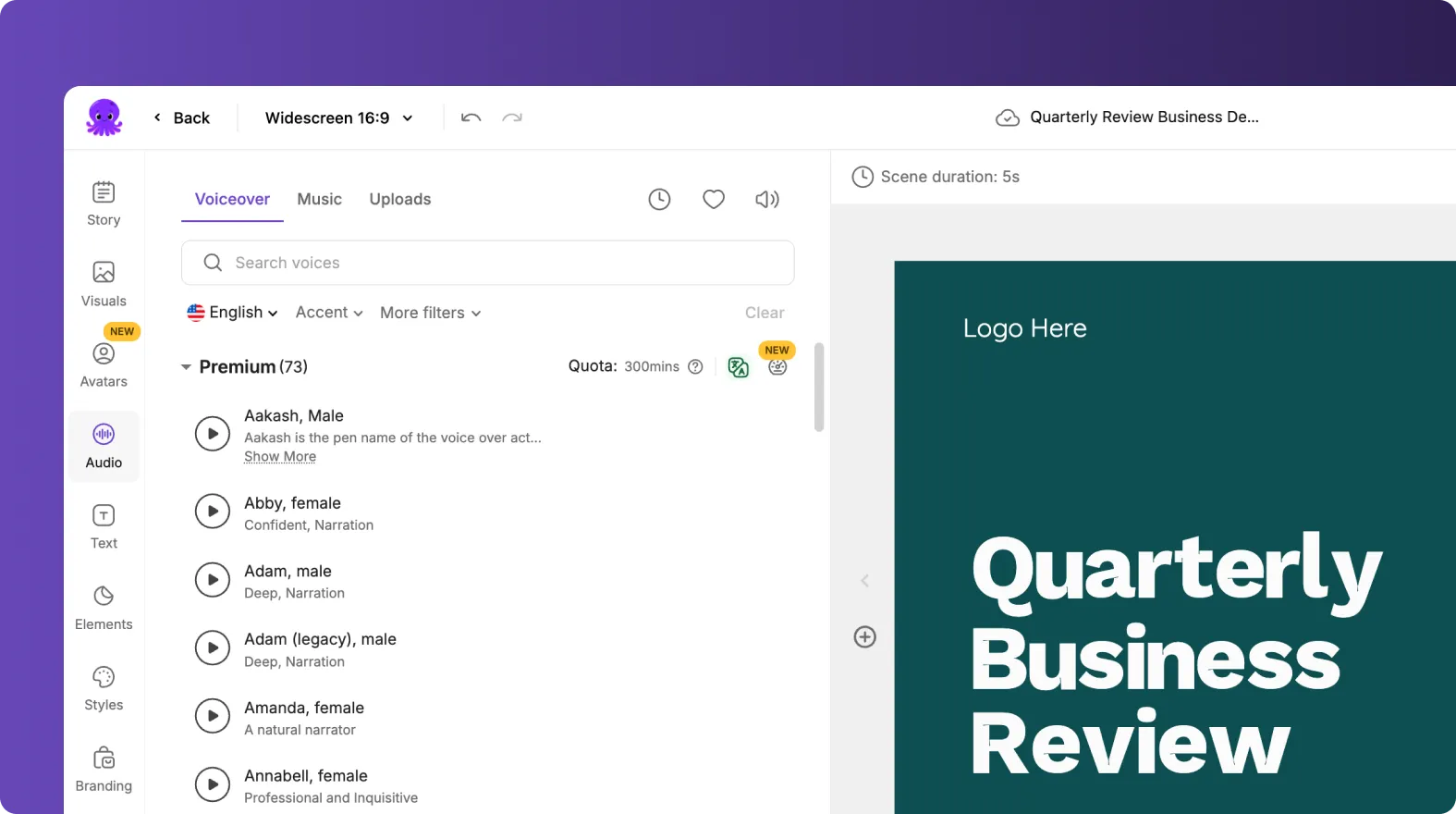
Step 1: Add AI voiceover and background music in the Audio tab
Use Audio to select an AI voice (with language and accent options where available) and add background music. Preview before applying to ensure pacing and tone fit your course style.
Step 2: Add an AI presenter for announcement-style training modules (optional)
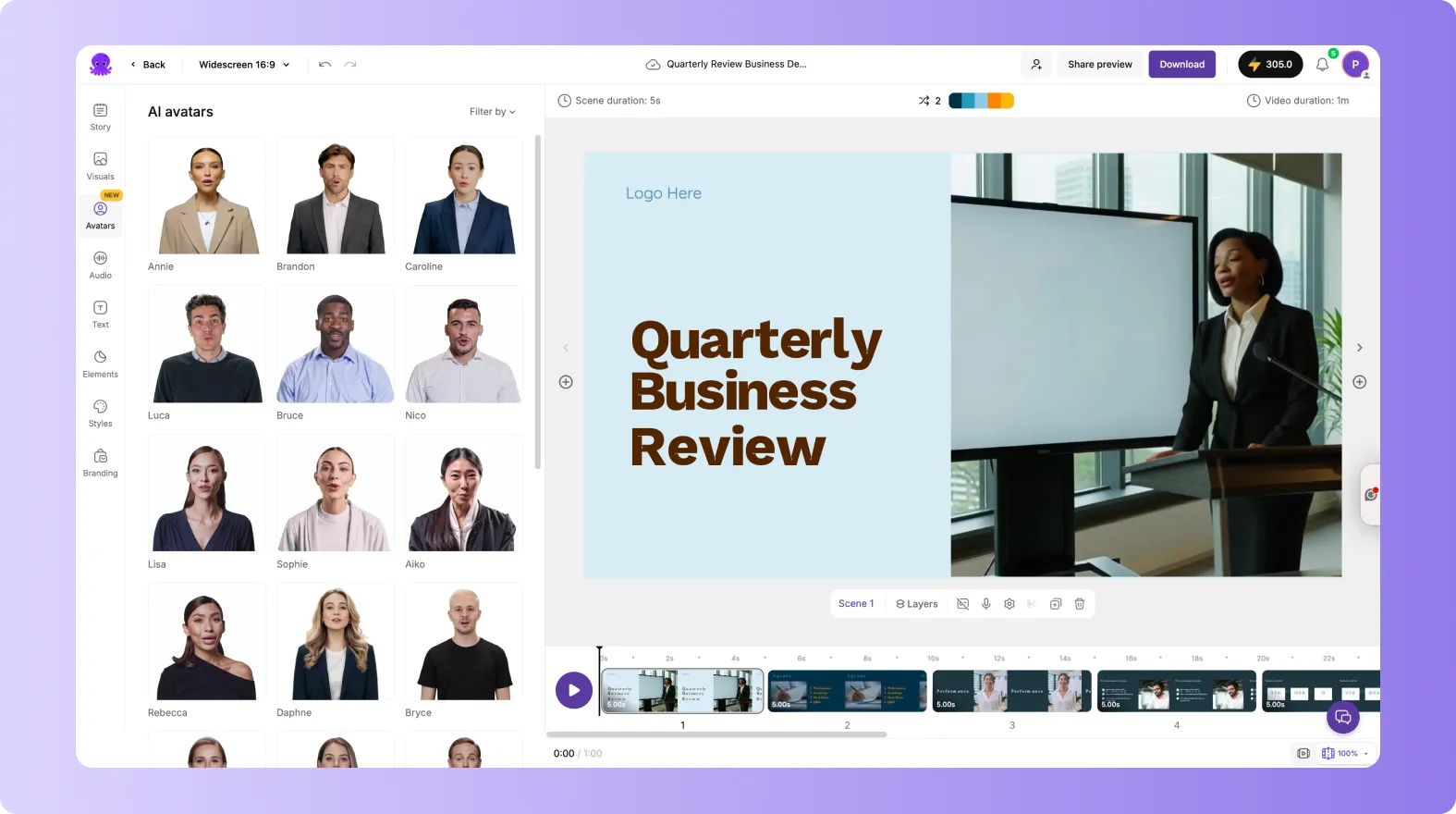
If your course format benefits from a consistent presenter, use the Avatars tab to add an AI avatar, choose a look variation, and apply it across scenes. This can help standardize delivery for internal comms and short training updates.
Step 3: Export and share for stakeholder review
Preview the full video, then use the editor’s sharing options for faster feedback cycles. When approved, download the final video for your LMS or video hosting workflow.
If you also need to record software demos or process walkthroughs, pair this workflow with Smart Screen Recorder and then polish the recording with AI editing.
How to update existing training videos using AI workflows
Training content changes frequently due to policy updates, product releases, and compliance requirements. Pictory helps you update videos without restarting production.
-
Edit the scene text to update a procedure, threshold, or policy statement.
-
Swap visuals for new UI screenshots or revised diagrams.
-
Reapply Brand Kits to ensure refreshed assets stay on brand.
-
Duplicate the project to create regional versions while keeping the core structure identical.
For teams updating existing recorded content, consider using the AI Video Editor workflow to make transcript-driven edits and produce refreshed versions faster.
FAQ: Text to Video for Digital Learning Teams: Faster Course Video Creation
What is the fastest way to convert text to video for employee training?
Use Pictory’s Text to Video generator to paste your approved training script, choose sentence or line-break scene creation, select your Brand Kit, and click Generate video. Then refine scenes in the AI Video Editor by replacing visuals and adjusting text overlays.
How do I add text to a video for training callouts and step labels?
In the editor, use the Text tab to add headings or body text overlays, then apply consistent styling using Styles and Branding. You can also use Animate Text in the top toolbar to add subtle entry effects that improve learner attention without distracting from the lesson.
Can digital learning teams keep videos brand-consistent across multiple courses?
Yes. Create and select Brand Kits to apply logos, fonts, and brand colors across projects. This helps standardize training libraries for onboarding, compliance, and sales enablement, especially when multiple authors contribute content.
What if my source material is a blog, internal page, or PowerPoint instead of a script?
You can start from other inputs and still end in the same editor. Use URL to Video to convert a web page or knowledge base article into a draft script, or use PPT to Video to convert slides into a storyboard, then refine scenes, visuals, and audio.
Is there an AI workflow for recording and editing software training videos?
Yes. Record walkthroughs using Smart Screen Recorder, then choose Edit video using AI to transcribe and edit efficiently. After transcript edits, Pictory generates storyboard scenes so you can finalize visuals, captions, and branding quickly.
How do teams update training videos using AI without re-editing everything?
Open the existing project, edit the specific scene text that changed, replace the visuals for updated screens or policies, and regenerate audio if needed. Because the video is scene-based, you can update only what changed, keeping the rest of the module intact and consistent.


