
Product teams already maintain a high volume of knowledge, including PRDs, release notes, onboarding docs, help center articles, internal SOPs, and enablement guides. The fastest way to scale adoption and reduce repetitive support is to convert that text into clear, brand-consistent videos using a text to video AI workflow.
With Pictory, product, product marketing, and enablement teams can turn documentation into professional videos without a full production crew. Start in AI Studio, generate from a script using the Text to Video generator, then refine in the AI Video Editor for enterprise-ready output.
This guide shows the exact step-by-step process to convert product documentation into videos, including script setup, scene creation, brand controls, avatars, and collaboration-friendly export.
Why product teams use text to video AI for product documentation
Text-based documentation is essential, but video improves comprehension, retention, and adoption when teams need to communicate quickly across audiences.
Product onboarding videos from internal documentation for new hires, CSMs, and support teams.
Release update videos created from release notes for customers and stakeholders.
Feature explainer videos derived from PRDs and help articles to reduce tickets.
Sales enablement videos created from battlecards and one-pagers to improve consistency.
Compliance and SOP videos turned from written processes into repeatable training assets.
For product teams, the win is speed and consistency: convert text to video at scale while keeping brand and messaging aligned across departments.
Choose the best Pictory workflow to convert documentation into video
Different documentation sources map to different creation paths. Use the option that requires the least cleanup.
Documentation already in a script format (step-by-step, structured notes): use Text to Video.
Help center pages, public docs, product blogs: use URL to Video to extract content and generate a draft script.
Slide-based product training (roadmaps, internal enablement decks): use PPT to Video.
Recorded demos and walkthroughs: capture with Smart Screen Recorder and then edit using AI transcription tools.
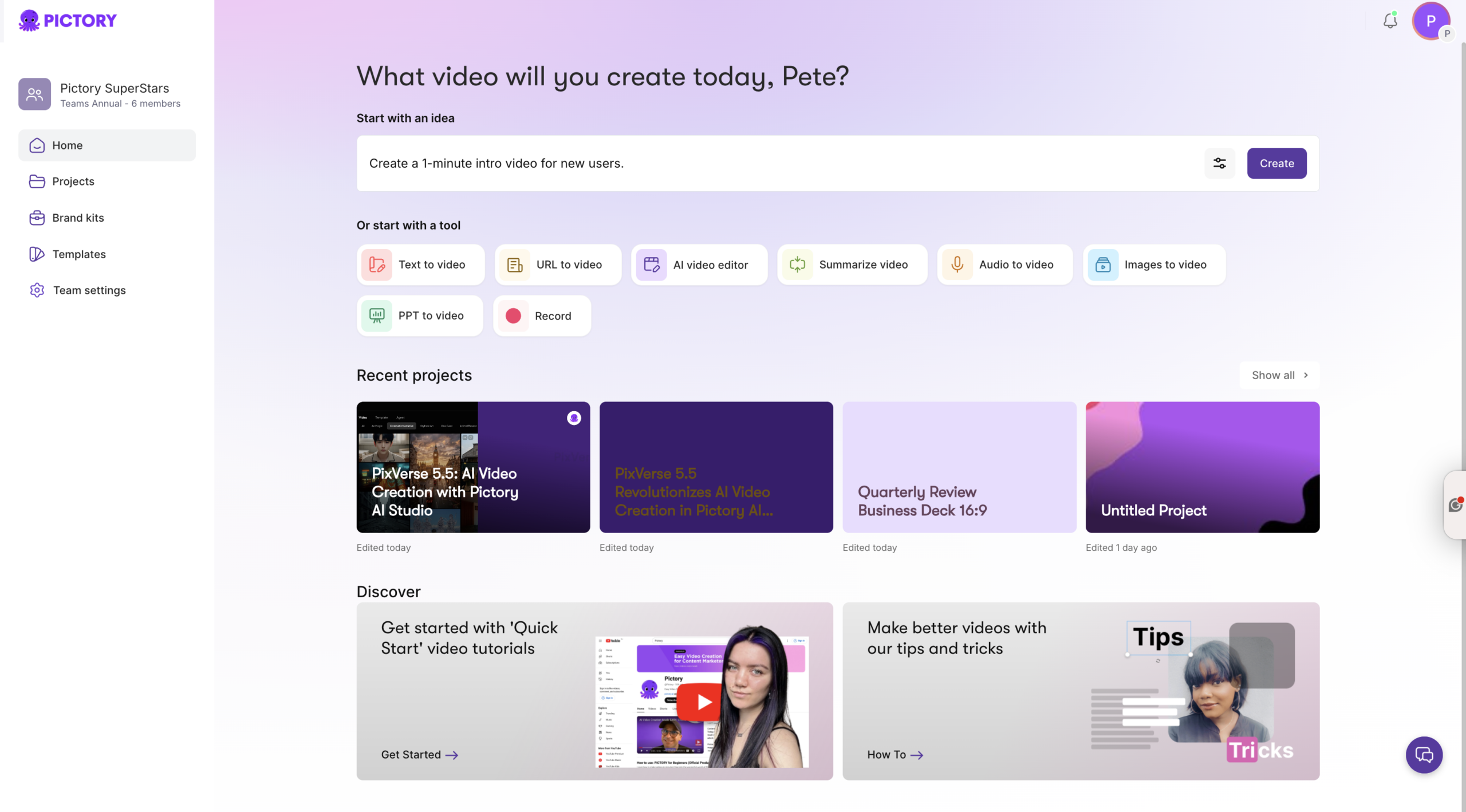
If your goal is a “documentation to video” pipeline for product teams, start with Text to Video when you control the writing, and use URL to Video when content lives in a knowledge base or CMS.
Prepare product documentation for an AI text to video generator
Before you paste content into a text to video AI generator, do a quick pass to make the script video-friendly. This reduces editing time and improves scene quality.
- Keep sentences short and focused on a single idea.
- Use consistent terminology for features, UI labels, and workflows.
- Front-load outcomes: what the viewer will be able to do after watching.
- End with a clear call to action, such as “Enable the setting,” “Share with your admin,” or “Read the full guide.”
- Convert long lists into steps or grouped bullets you can visualize.
Practical template for product documentation to video:
- Title and audience: “How to configure SSO as an admin”
- What you will learn: 1 to 2 sentences
- Prerequisites: 1 to 3 bullets
- Steps: short, action-based lines
- Wrap-up and next step
Step-by-step: Text to Video for product documentation in Pictory
Use this workflow when you have a doc, PRD excerpt, release notes, or SOP that you want to turn into a polished training, enablement, or customer-facing video.
Step 1: Start a new Text to Video project
From the Pictory home experience in AI Studio, select Text to Video.

Paste your product documentation into the script input. If your content is not finalized, you can generate a first draft using the built-in AI script generator, then edit it for accuracy and compliance.
Step 2: Configure script and scene settings for documentation-style videos
In the script editor, choose settings that match training and enablement pacing:
- Select an aspect ratio: 16:9 for LMS and internal portals, 9:16 for mobile-first updates, 1:1 for embedded knowledge base snippets.
- Enable sentence-based or line-break-based scene creation depending on how your documentation is formatted.
- Turn on keyword highlights if you want the product terms and feature names to stand out.
- Set max lines per scene to keep captions readable.
- Select your brand kit to ensure fonts, colors, and logos stay consistent.
These settings help your text to video generator produce clean, scannable scenes that look like a professional product video.
Step 3: Choose a theme and generate the storyboard
Select a layout theme to apply consistent typography and motion styling across scenes. Then click “Generate video” to create a storyboard.
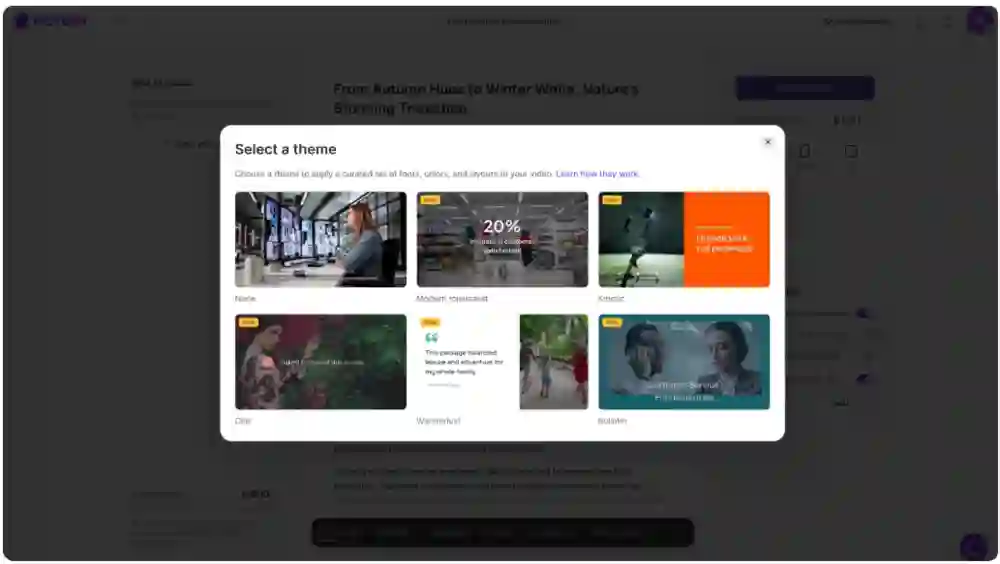
Pictory will process your script and automatically build scenes, search for relevant visuals, and structure the timeline so you can review and refine quickly.
Step 4: Refine scenes in the AI Video Editor for accuracy and clarity
Open the project in the AI Video Editor to review each scene like a product spec review:
- Edit the on-screen text in the Story panel to ensure UI labels and feature names match your product exactly.
- Adjust timing per scene to match complexity. Admin workflows usually need longer pacing than end-user tips.
- Use the updated timeline to navigate quickly and manage scenes with actions like duplicate, copy, paste after, or delete.
If the video is too long, combine steps into fewer scenes, tighten sentences, and keep one action per scene.
Step 5: Improve visuals using library assets, uploads, or AI-generated visuals
In the Visuals tab, select the most appropriate visuals for product documentation videos:
- Use Library content for abstract concepts like security, collaboration, performance, or analytics.
- Upload your own screenshots, UI captures, diagrams, and branded illustrations for feature accuracy.
- Use AI-generated visuals inside the editor when you need clean conceptual imagery for a step or outcome.
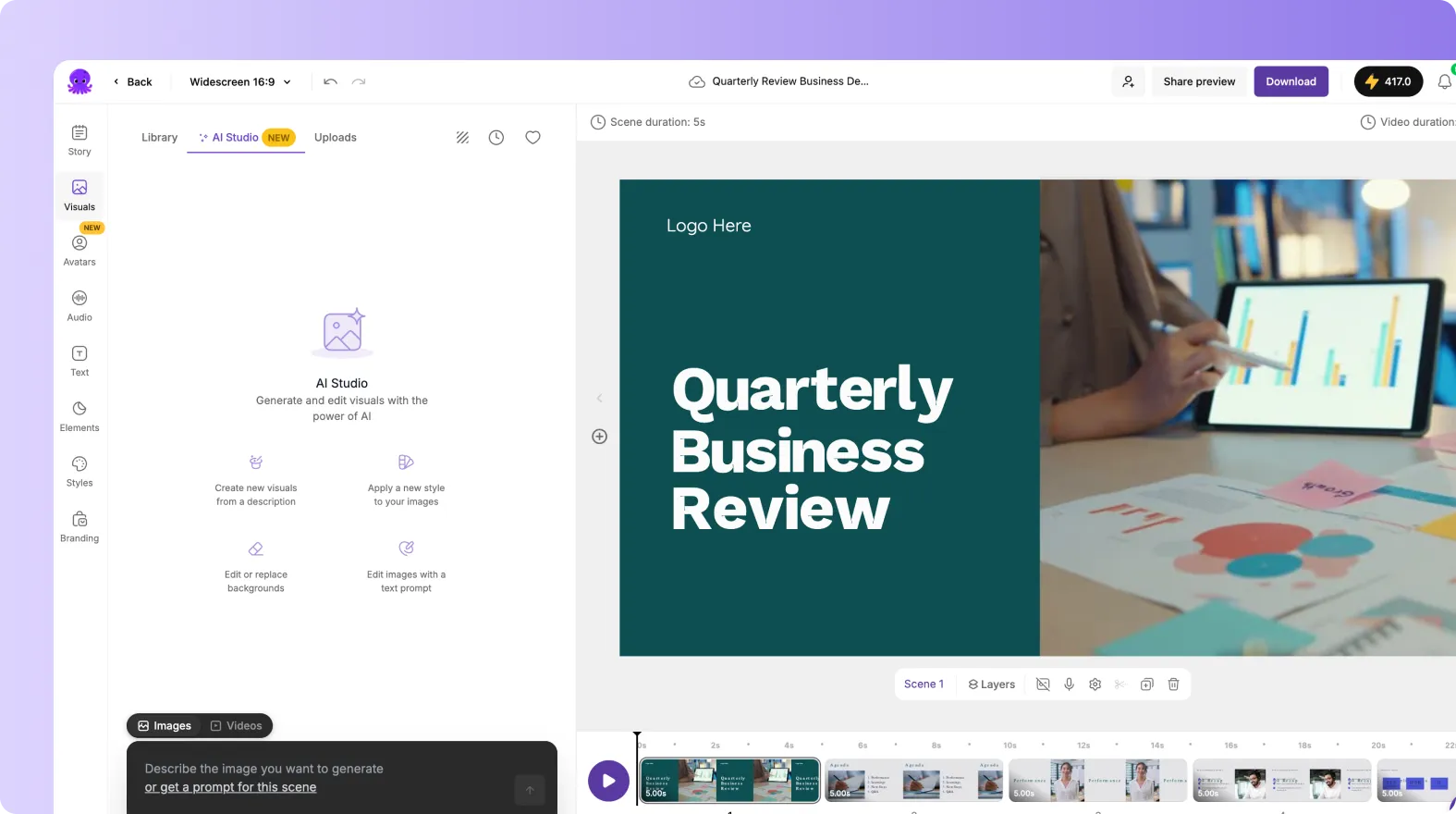
For UI-heavy training, consider pairing short text scenes with screenshots or screen recordings so users can mirror the steps.
Step 6: Add voiceover, music, and narration controls for training-ready output
In the Audio tab, choose an AI voiceover that matches your audience and delivery style. Keep narration direct and instructional, especially for internal SOP and enablement videos.
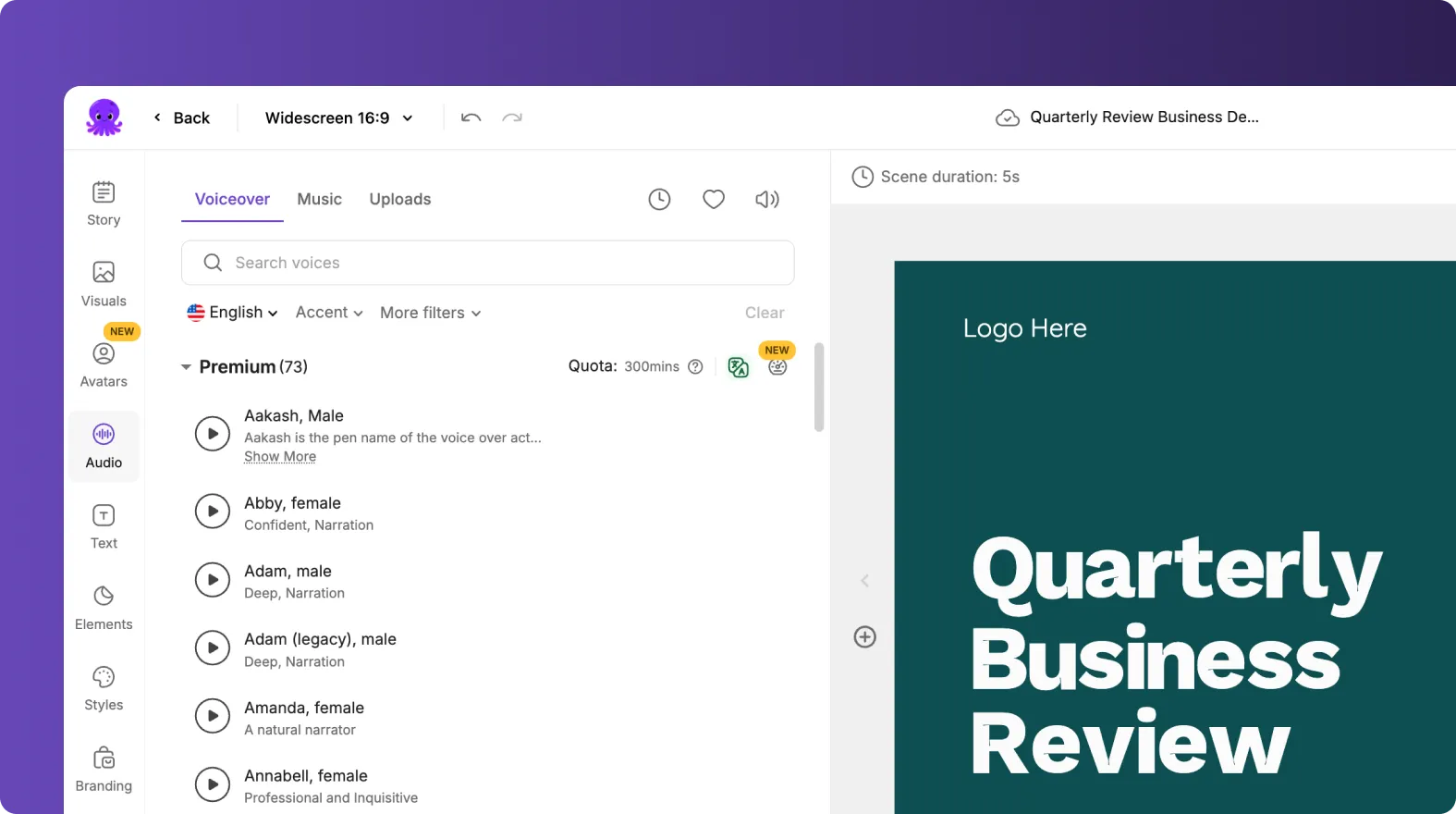
- Preview voices and select the best match for your tone.
- Add background music sparingly for product training. Keep it subtle to avoid competing with instructions.
- If needed, upload your own narration for executive updates or high-stakes releases.
Step 7: Use avatars when a presenter improves trust and adoption
For customer-facing explainers or internal change management, add a presenter using the Avatars tab. This is helpful when you need a consistent “face” across many training videos but do not have time for live filming.
- Browse and select an AI avatar.
- Choose a matching AI voice.
- Apply the avatar across scenes where a presenter improves clarity.

Use avatars strategically for intros, transitions, and summaries while keeping step-by-step sections focused on the product UI or visuals.
Step 8: Apply enterprise branding for brand-consistent documentation videos
In the Branding tab, apply a brand kit to standardize:
- Logo placement
- Fonts and typography
- Color palette and text styles
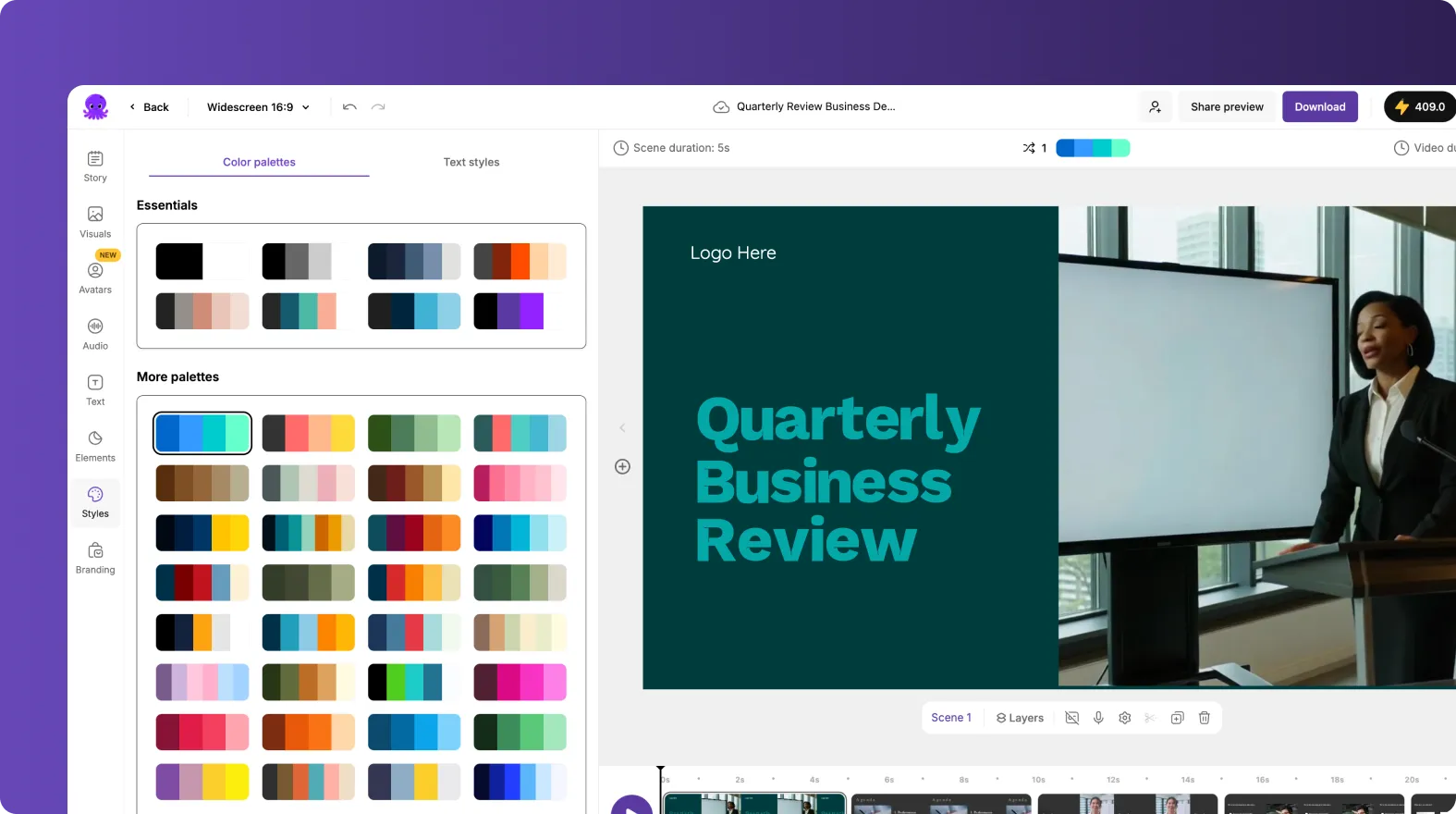
If you want to test options without breaking brand consistency, use brand color palette shuffle to preview alternative combinations while keeping your identity intact.
Step 9: Add text overlays and animations for clear “how to” steps
To make steps easier to follow, add text overlays for labels like “Step 1,” “Prerequisite,” or “Common mistake.” Use the Text tab for headings and supporting text.
To add motion, select a text layer and use the Animate Text option in the top toolbar. Choose entry and exit animations such as Fade, Typewriter, Wipe, or Text Reveal, then adjust speed and apply settings across scenes when needed.
Step 10: Preview, share, and export the final video
Preview the full video to verify accuracy, pacing, and brand compliance. When ready, download the video for distribution through your LMS, knowledge base, help center, or product launch channels.
If you need stakeholder feedback, use the share preview option from inside the editor to review the draft asynchronously before final export.
Best practices for turning PRDs, release notes, and help articles into videos
Use these patterns to make product documentation videos more useful and easier to maintain.
- PRDs to internal alignment videos: Focus on problem, user impact, what changed, and rollout. Avoid deep technical details unless the audience is engineering.
- Release notes to customer update videos: Group by value themes, show outcomes, and include a simple “how to use it” step.
- Help center to training videos: Keep each video to one task. Create a series rather than a single long video.
- Support macros to microlearning: Convert repeated ticket answers into 30 to 60 second clips.
- Versioning: Keep your source script stored with the video project so updates are fast when UI changes.
Scaling documentation to video production for enterprise product teams
Enterprise teams typically need repeatable output across multiple products, regions, and internal audiences. Pictory supports scaling by standardizing both workflow and brand presentation.
- Use consistent themes and a brand kit so every video looks like it came from the same organization.
- Create a repeatable script structure for onboarding, release updates, and SOP training.
- Maintain a shared project library so teams can duplicate and update existing videos instead of starting from scratch.
- Combine workflows when needed: use URL to Video to extract knowledge base content, then refine as a script and finalize in the AI Video Editor.
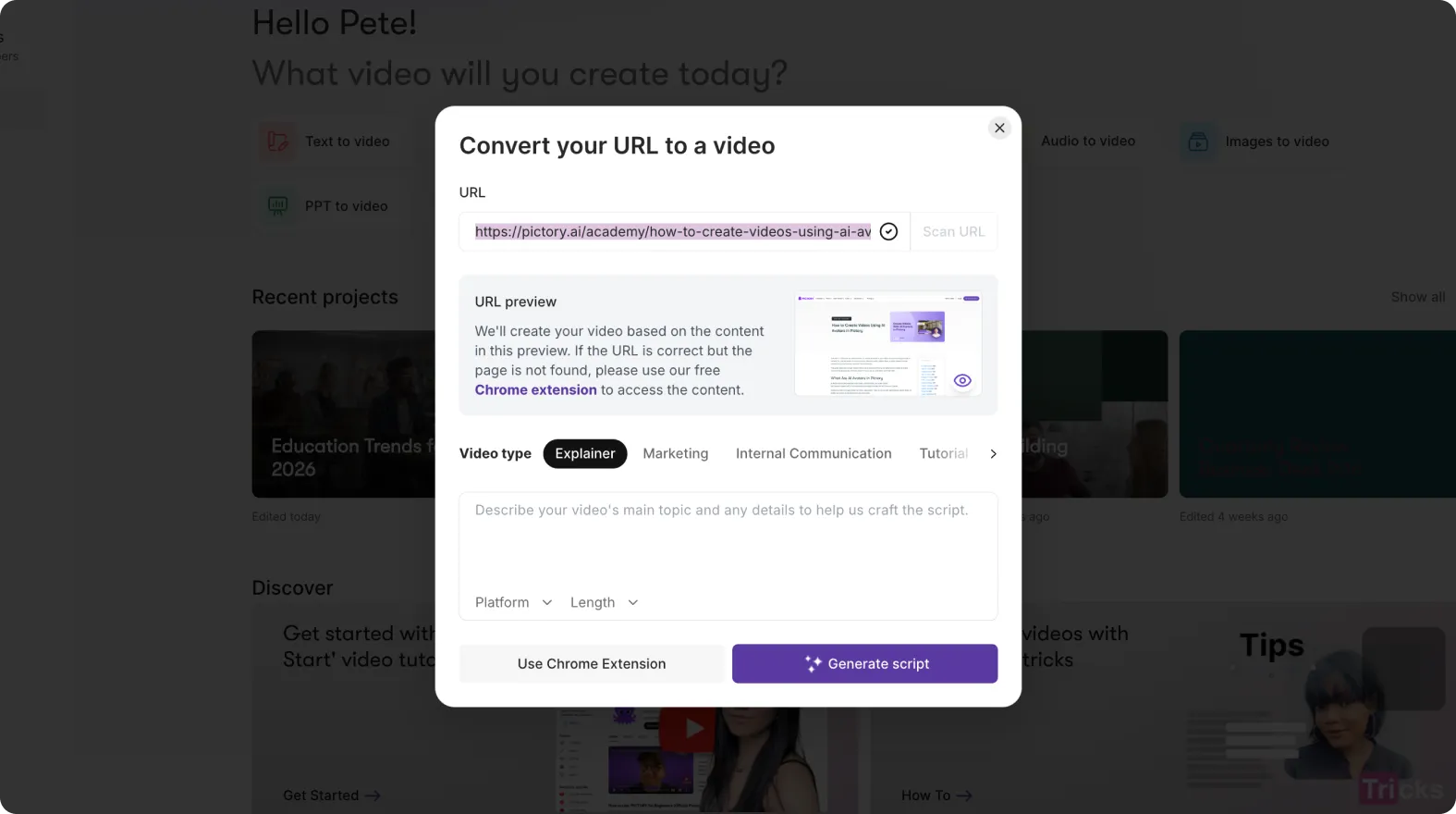
When you standardize inputs, you can produce more videos with fewer tools and less production overhead, while maintaining quality and consistency.
FAQ: Text to Video for Product Teams: Turning Product Documentation Into Videos
What is the best way to convert product documentation into video?
If you already have clean, structured text, start with the Text to Video generator and generate a storyboard directly from your script. If your content lives on a help center page, use URL to Video to extract and draft the script first.
Can I keep videos brand-consistent across multiple product lines or departments?
Yes. Apply a brand kit in the editor to standardize logos, fonts, colors, and styles across all videos. This is especially important for enterprise product teams producing training, enablement, and customer education at scale.
How do I break long documentation into scenes for a better training experience?
Use sentence-based or line-break-based scene creation in the script editor, then enforce a max lines per scene limit. A good rule is one action or concept per scene. If a step includes multiple actions, split it into separate scenes and slow the pacing slightly.
Can Pictory add text overlays like “Step 1” or “Common mistake”?
Yes. Use the Text tab to add headings, subheadings, and body overlays. You can also highlight keywords in scene settings for important feature names, UI labels, or warnings.
Do I need a real presenter, or can I use an AI avatar for product training?
You can use AI avatars for intros, summaries, and recurring training series where a consistent presenter builds trust. Add an avatar from the Avatars tab, select a voice, and apply it across scenes where a presenter improves clarity.
What if I want to turn a recorded product demo into a polished training video?
Record with Smart Screen Recorder, then use the AI transcription and editing tools to remove filler words, tighten pauses, and generate a storyboard for a cleaner, more structured training video.
Is Pictory a text to video AI tool suitable for enterprise teams?
Yes. Pictory is designed to help teams produce professional-quality video efficiently, using workflows that turn existing content into video while supporting brand consistency, fast iteration, and scalable production inside AI Studio.


