
Training teams are under pressure to produce more learning content with fewer resources, without sacrificing quality or brand consistency. With Pictory, you can convert a learning script into a polished training video using an AI text to video workflow that automatically builds scenes, selects visuals, generates captions, and supports AI voiceover.
This guide shows training designers, L&D teams, and enterprise enablement leaders how to turn scripts into video lessons in the AI Studio using the Text to Video generator, then refine the final output in the AI Video Editor for a professional, consistent result.
Why training designers use AI text to video for faster video lesson production
Text to video AI helps training teams transform existing materials into engaging, repeatable lessons without relying on a full video production pipeline. Instead of starting from a blank timeline, you start with what you already have: a learning script, facilitator notes, SOPs, or onboarding content.
Reduce production overhead: Generate scenes and visual suggestions automatically, then refine only what matters.
Scale training content: Create consistent lessons for onboarding, compliance, product training, and sales enablement.
Stay on brand: Apply brand kits (fonts, colors, logos) to keep every course aligned with enterprise guidelines.
Improve engagement: Use captions, highlight keywords, layout themes, and pacing to keep attention.
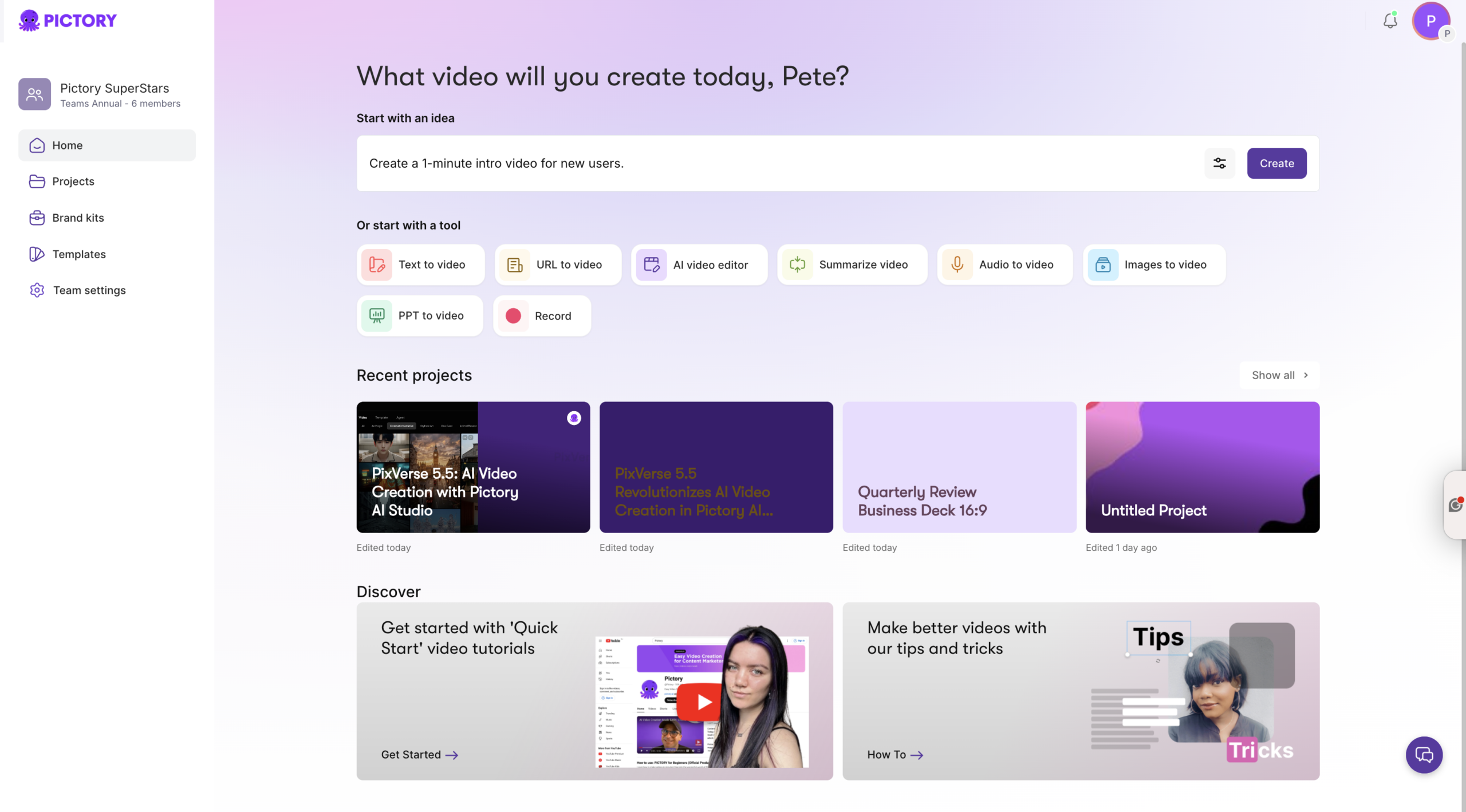
If you are starting from a web-based knowledge article, you can also repurpose it via URL to Video. If you are starting from a slide deck, use PPT to Video.
Prepare your learning script for the best text to video AI results
Before you convert text to video, spend a few minutes formatting your script so the AI can build clean scenes and captions. This is the fastest way to improve quality without increasing production time.
Keep sentences short and clear, ideally one idea per sentence.
Use line breaks where you want natural scene breaks or on-screen caption changes.
Include simple on-screen callouts like “Key Takeaway:” or “Example:” to guide emphasis.
Write acronyms once, then use the acronym consistently for captions.
End with a clear call to action such as “Complete the checklist” or “Take the quiz.”
For software training videos, write what the learner should do and see. For compliance training video content, use direct language, define terms, and avoid long paragraphs that become dense captions.
How to convert a training script with a text to video AI generator in Pictory
Use this workflow when you already have a finalized (or near-final) learning script and you want to turn text to AI video quickly.
Step 1: Start a Text to Video project in AI Studio
Open the AI Studio and select Text to Video from the creation workflows. Paste or write your training script in the script input field.

If your script is still in draft form, you can use the built-in AI script generator to create or refine a training outline, then edit it before generating the video.
Step 2: Choose scene settings for training-friendly pacing
In the script editor, set up scene rules that match how learners consume training:
Select an aspect ratio based on delivery format: 16:9 for LMS, 9:16 for mobile microlearning, 1:1 for internal comms feeds.
Enable sentence-based scenes for step-by-step training, or line-break-based scenes if you already formatted your script intentionally.
Turn on keyword highlighting when you want key terms to stand out in captions.
Enable “select visuals with AI” to speed up first-draft storyboard creation.
You can also select a brand kit (logo, fonts, colors) to keep the output aligned with enterprise visual standards.
Step 3: Generate your storyboard and choose a layout theme
Click “Generate video.” Choose a layout theme (for example, Modern minimalist or Bulletin) to apply a consistent design system across scenes. Pictory will process your script into a storyboard, automatically creating scenes and syncing caption text to each scene.
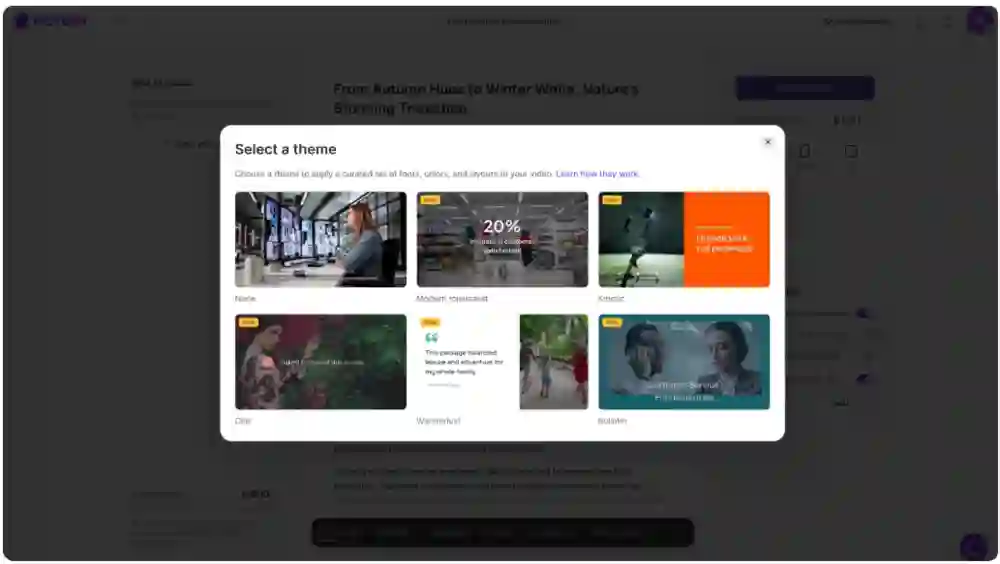
Once scenes are created, you will land in the editor where you can preview the full training lesson.
How to edit and polish training videos in the AI Video Editor
The fastest path to a professional training video is to generate the first draft with text to video generation, then refine inside the AI Video Editor. This is where teams standardize timing, visuals, audio, and branding.
Step 1: Refine the Story to tighten clarity and reduce cognitive load
Open the Story tool and review the script scene-by-scene. For training, aim for one learning objective per scene and remove extra words that cause learners to reread captions.
Rewrite long sentences to reduce caption density.
Split complex steps into multiple scenes for software training or procedural SOPs.
Reorder scenes to match your instructional flow: context, demonstration, practice, summary.
Step 2: Improve visuals using Library, Uploads, and AI Studio generation
In the Visuals tool, replace any mismatched stock footage with more accurate training visuals. You can select assets from the Library, add your own screenshots via Uploads, or generate scene-specific imagery inside the editor using the AI Studio tab.
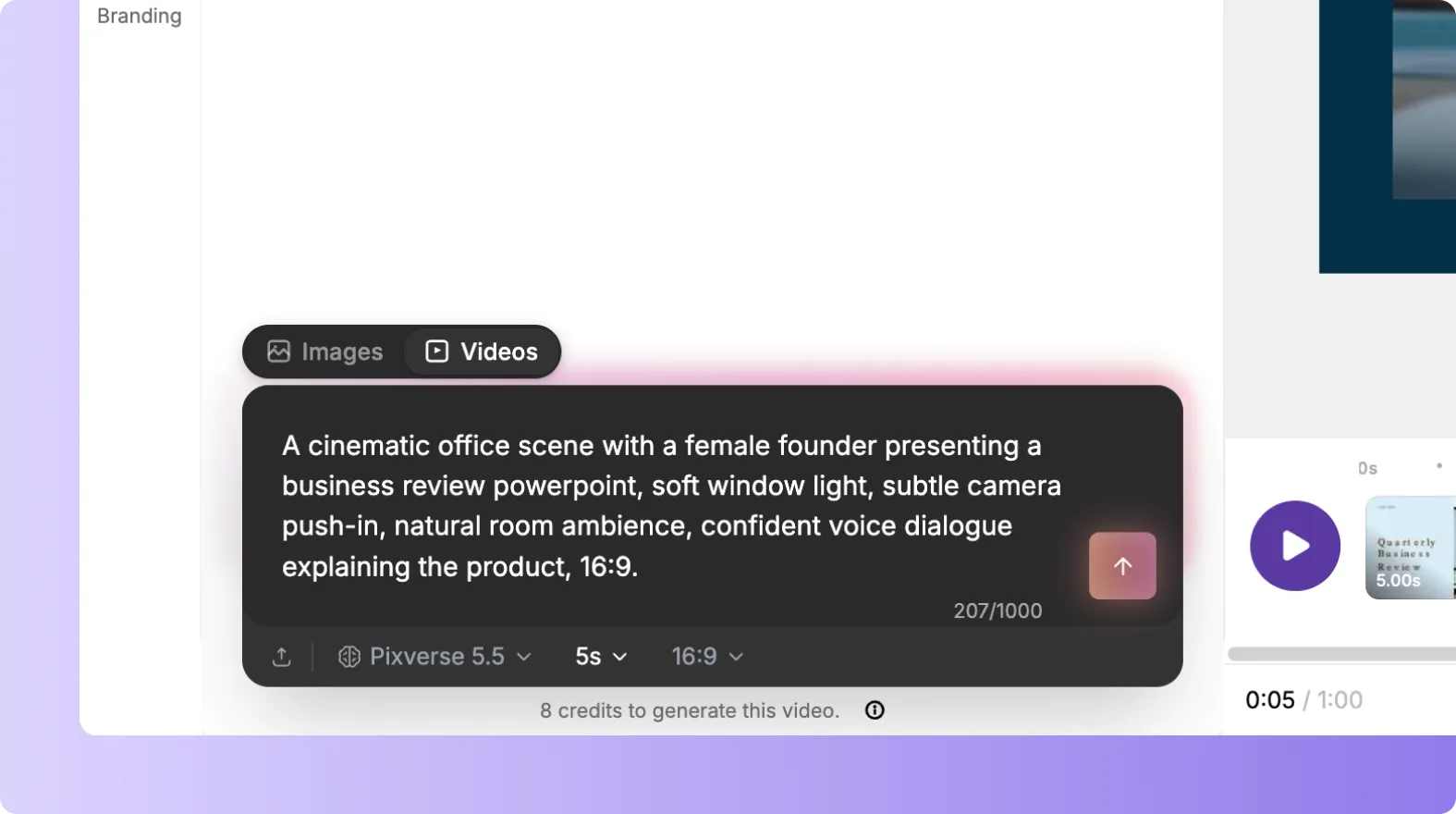
If your training requires a recorded demo, capture it with Smart Screen Recorder, then bring the video into your workflow for editing and reuse across lessons.
Step 3: Add voiceover, music, and captions that match learning contexts
In Audio, choose an AI voiceover that fits your audience and region. For compliance and onboarding, prioritize clarity and a neutral tone. Add background music only when it will not compete with narration.
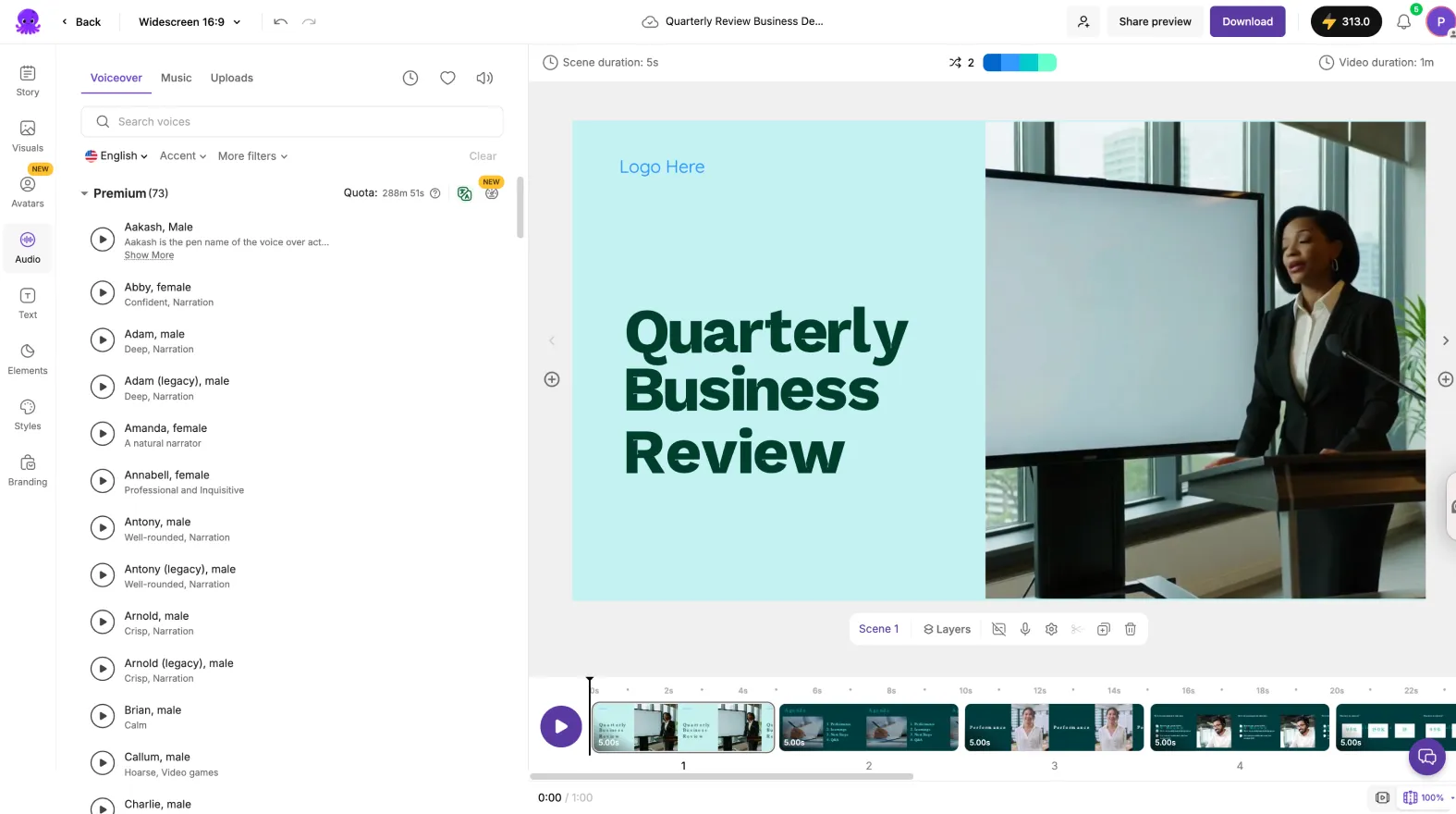
Preview AI voices and select accents or language options when needed.
Keep music subtle for instructional content and lower it during dense sections.
Confirm subtitles are readable and do not exceed your max lines per subtitle.
Brand consistency at scale: applying Brand Kits to enterprise training videos
Enterprise training programs need consistent formatting across modules, teams, and regions. Pictory Brand Kits help you standardize logos, fonts, and colors so every video lesson looks like it belongs in the same course series.
Create or select a Brand Kit from Brand Kits in the navigation.
Apply the Brand Kit in the editor using the Branding tool.
Use brand color palette shuffle to test alternate combinations while staying on brand.
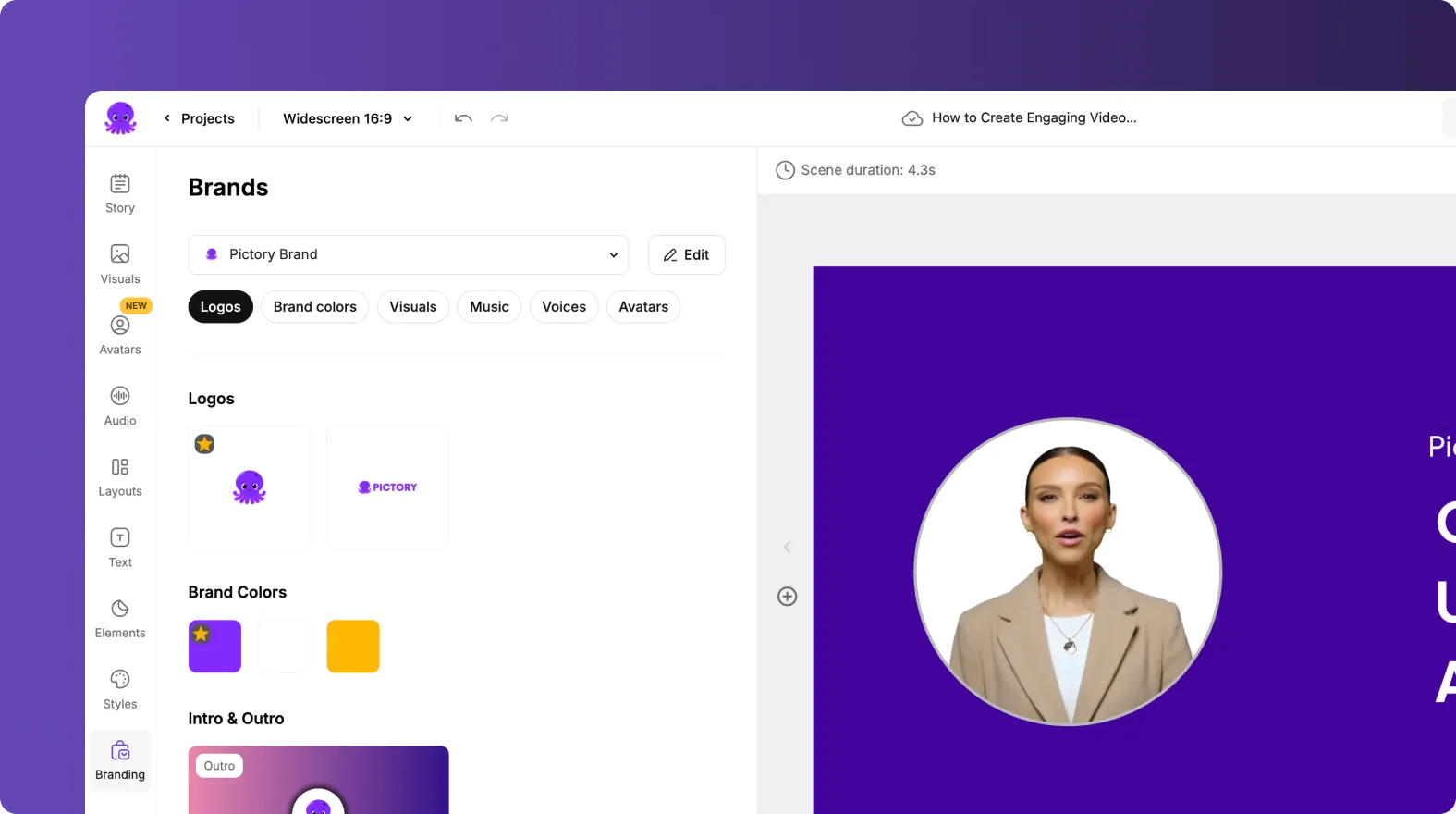
This approach is especially useful for employee onboarding videos, sales enablement training, and global compliance programs where multiple stakeholders contribute content.
Make training videos more engaging with layouts, on-screen text, and text animations
Engagement in video-based learning often comes down to visual pacing and clarity. Use Layouts to keep information structured and use on-screen text selectively to reinforce key concepts.
Use Title layouts for module intros and section transitions.
Use List and Number layouts for steps, checklists, and process training.
Add short reinforcement text instead of repeating the entire script on screen.
When you want learners to notice a key definition or rule, select the text layer and use Animate Text in the top toolbar to apply entry and exit effects such as Fade, Typewriter, or Wipe. Keep animations subtle for professional training content.
Export, share, and manage training video projects for collaboration and updates
After previewing the full lesson, download your finished training video. Your project remains available in Projects for iteration, reuse, and collaboration.
Use Projects to search and sort by latest edits when managing multiple modules.
Duplicate scenes or copy and paste scenes to build variants for different teams or regions.
Use share preview in the editor to streamline stakeholder review before final export.
If you need to update existing recordings, consider editing with transcription-based workflows in the AI Video Editor to speed updates without rebuilding the entire course from scratch.
FAQ: Text to Video for Training Designers: Turning Learning Scripts Into Video Lessons
What is the best way to format a learning script for text to video AI?
Write short sentences, keep one idea per line, and use line breaks where you want scene changes. This improves caption readability and helps the text to video AI generator produce cleaner scene segmentation.
Can I use Pictory as an AI training video generator for onboarding and compliance?
Yes. Training designers commonly use Pictory to create employee onboarding videos and compliance training video content by converting scripts into storyboard-based lessons, then applying brand kits for consistent enterprise styling.
How do I add text to a video for step-by-step training callouts?
In the editor, use the Text tool to add headings, subheadings, or body text overlays on top of scenes. This is ideal for step labels, key takeaways, definitions, and short prompts without cluttering captions.
Does Pictory include an AI video editor for polishing training videos?
Yes. After generating your first draft, you can refine scenes, swap visuals, adjust subtitles, add voiceover, and apply brand kits in the AI Video Editor to produce a professional training lesson.
What if my training content starts as a webpage or a slide deck instead of a script?
If your content lives on a webpage, use URL to Video to extract and generate a script you can edit before producing the video. If your content is in PowerPoint, use PPT to Video to convert slides into a storyboard and then refine it in the editor.
How can I record software walkthroughs and turn them into training videos?
Use Smart Screen Recorder to capture screen and narration in your browser, then choose “Edit video using AI” to transcribe, edit, and convert the recording into structured scenes for fast training video production.


