
PICTORY FEATURES
AI Talking Avatar
Create videos using an AI talking avatar that delivers your script clearly without recording yourself.
Rated 4.7/5 on Capterra
-
URL to Video
-
Audio to Video
-
AI Avatar Generator
-
AI Video Editor
-
PPT to Video
-
Image to Video
Text to Video Generator
Turn text, prompts, scripts, articles, and blog posts into videos using Gen AI visuals, AI avatars, captions, and realistic AI voices.
URL to Video
Audio to Video
AI Avatar Generator
AI Video Editor
PPT to Video
Image to Video





Trusted by over 20,000 companies of all sizes
An AI talking avatar is a digital presenter that appears inside your video and speaks written text using an AI voice. Instead of filming or recording narration, you add an avatar to your scenes and enter text. The avatar talks on screen and follows your script.
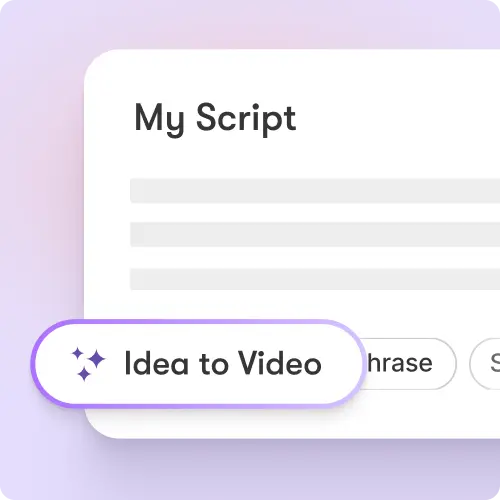
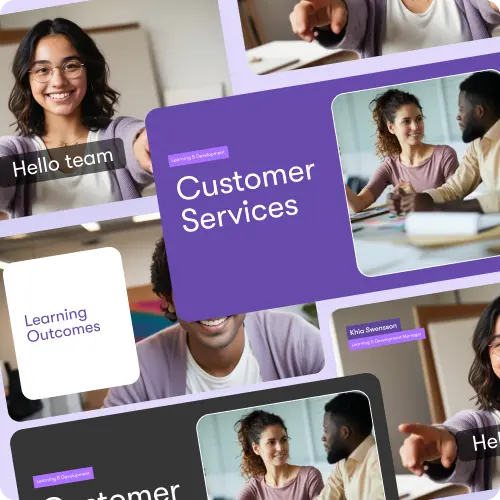
AI talking avatars reduce the need for cameras and voice recording while maintaining spoken delivery. They support consistent presentation, allow easy script updates, and help teams scale training, product, and internal videos with a repeatable workflow.
AI Talking Avatar Capabilities
Core features that support talking avatar video creation.
AI Avatar Library
Select from professionally designed digital presenters.
Scene-Level Visibility
Show or hide avatars per scene.
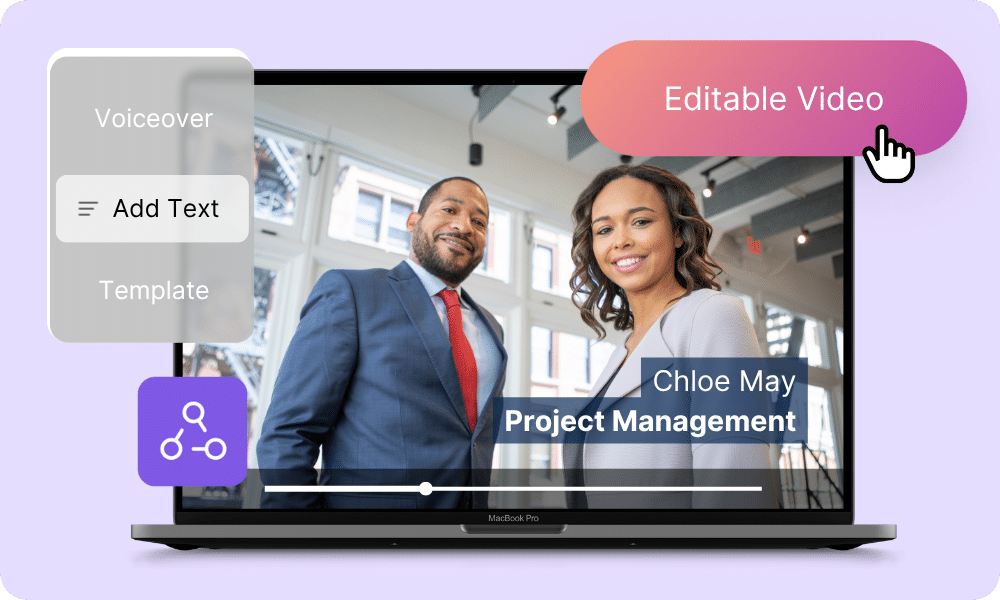
Styling Controls
Adjust framing, background, and borders.
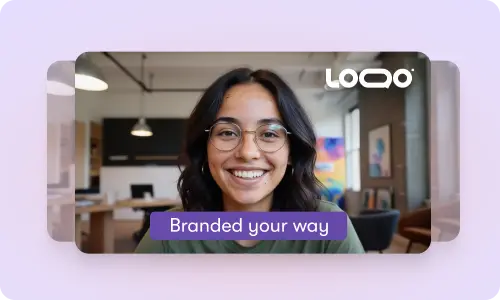
Text-to-Speech Narration
Avatars speak scene text automatically.
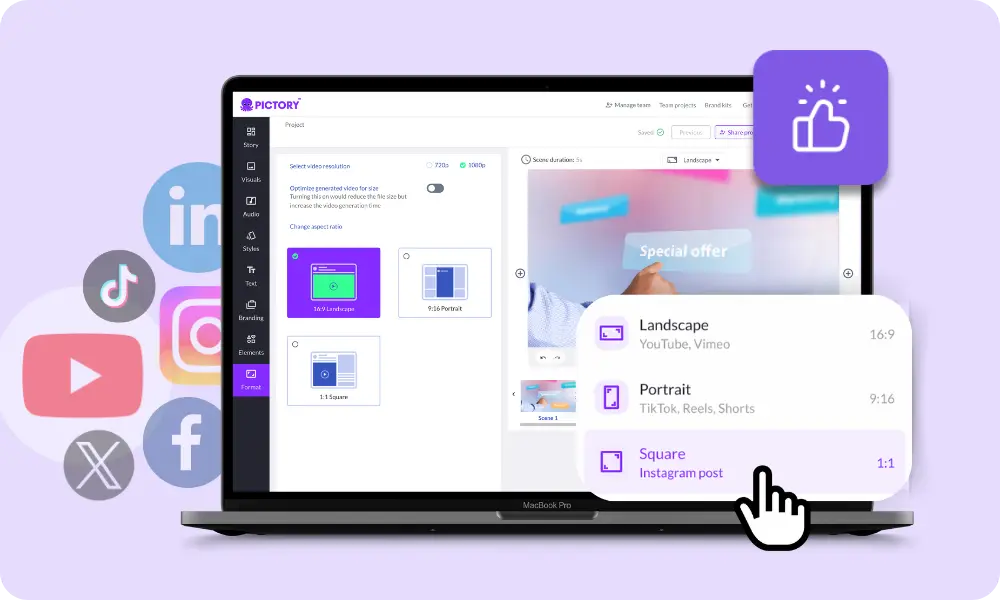
Flexible Placement
Resize and reposition avatars freely.
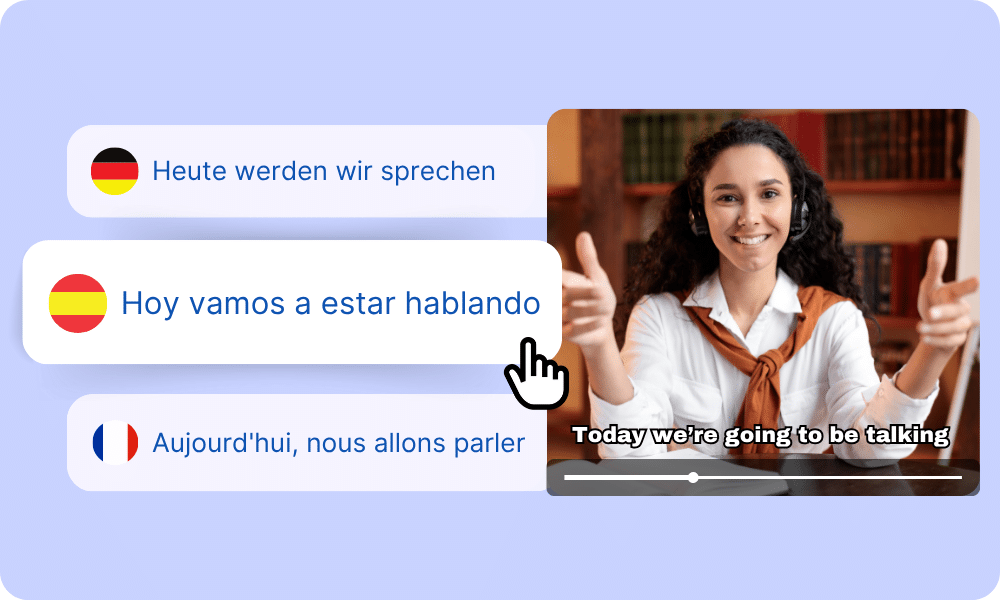
Automatic Lip Sync
Lip sync is applied during export.
Each of these features ensures your idea evolves into a professional video workflow that aligns with your goals and platform strategy.
Start a video project and add an AI talking avatar to your scenes. Enter text for narration and generate a video where the avatar speaks and appears alongside your visuals.
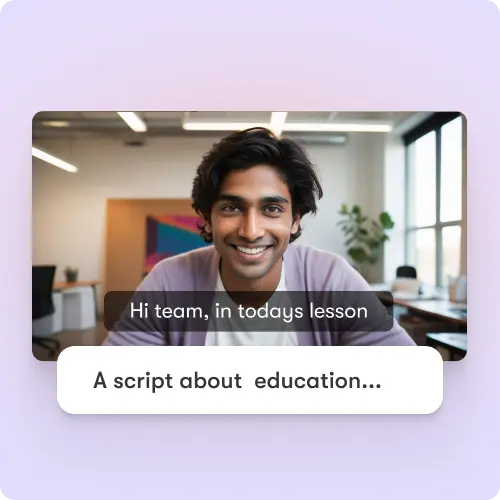
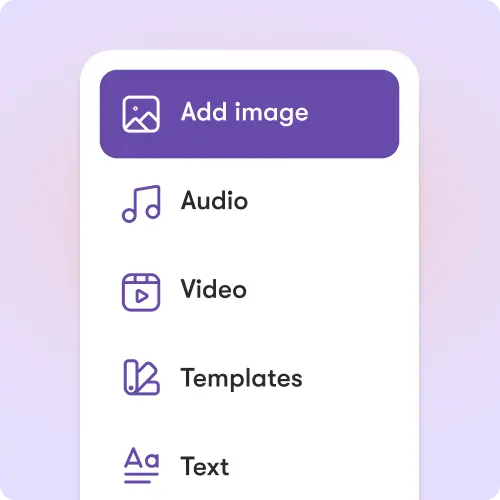
Customize avatar appearance, voice, size, position, background, and border styling. Apply updates per scene or across the entire video for consistent presentation.
How to Use an AI Talking Avatar
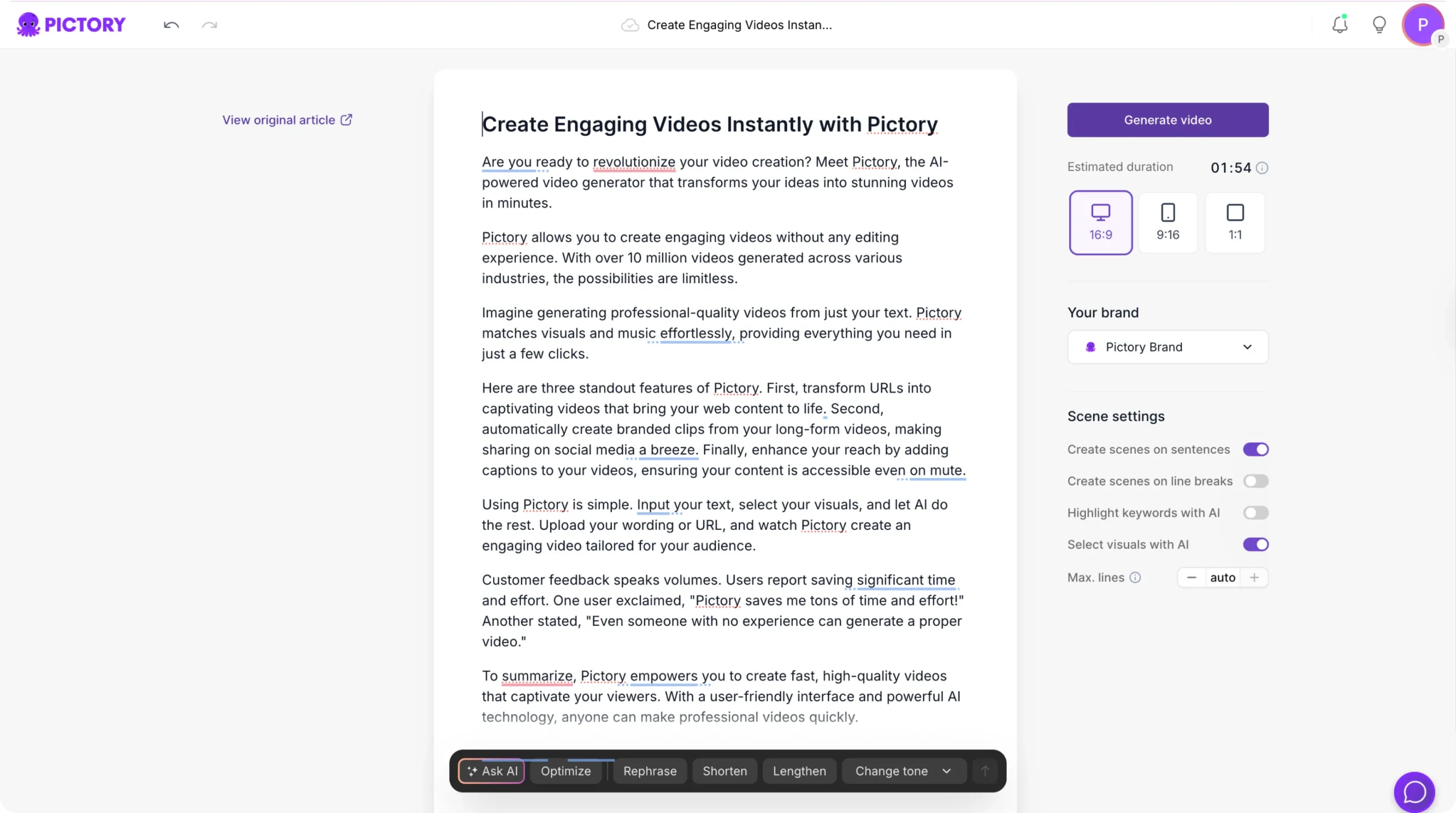
Step 1
Open a Video Project
Start inside the video editor.
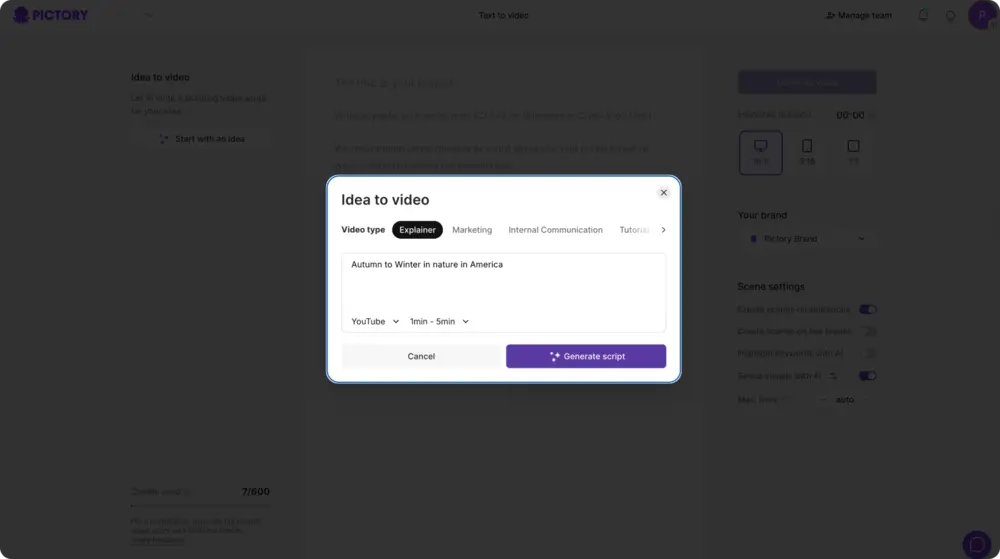
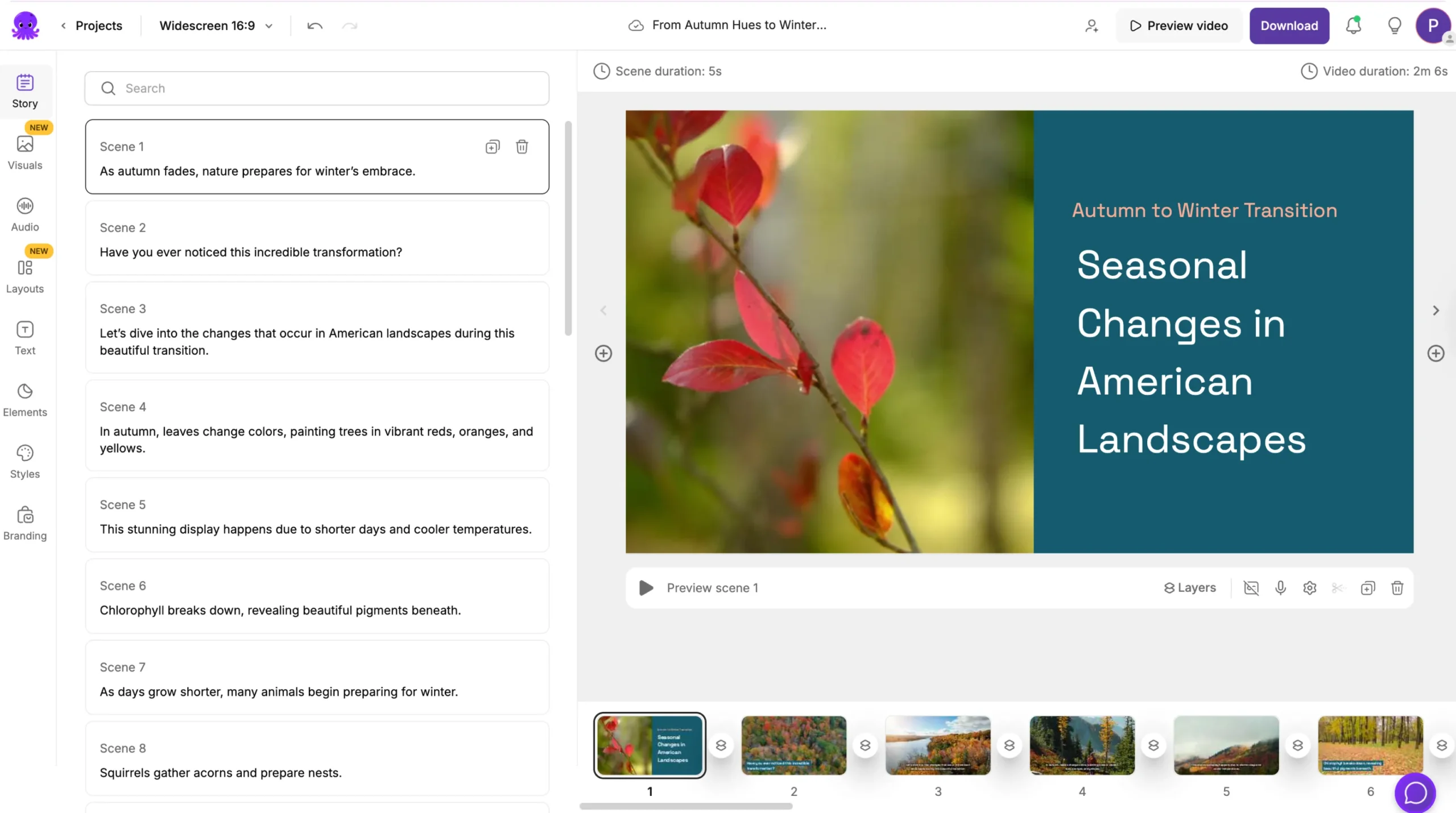
Step 2
Select an AI Avatar
Choose a presenter from the avatar library.
Step 3
Add Scene Text
Write the script the avatar will speak.
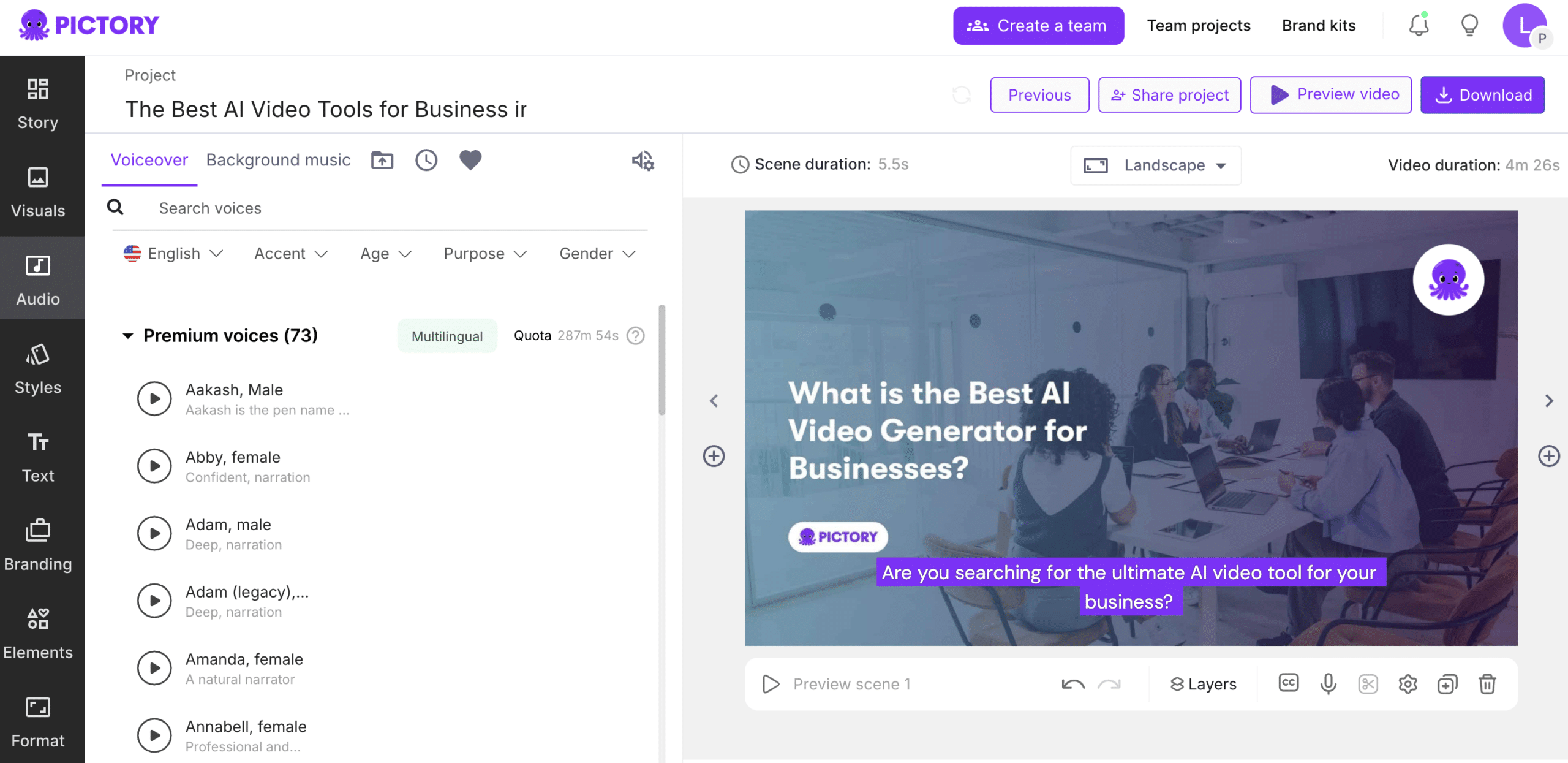
Step 4
Export the Video
Download with narration and lip sync applied.
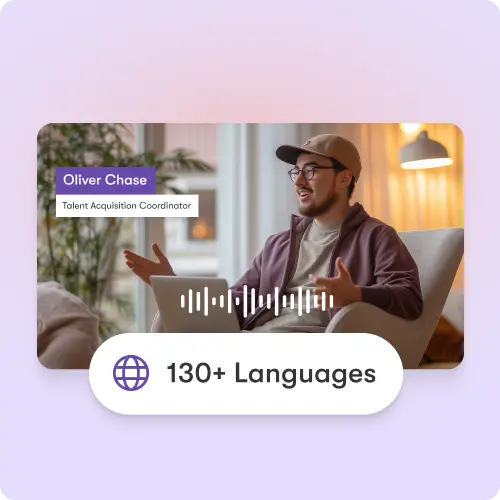
Use AI voices and captions to support multiple languages and regional audiences.
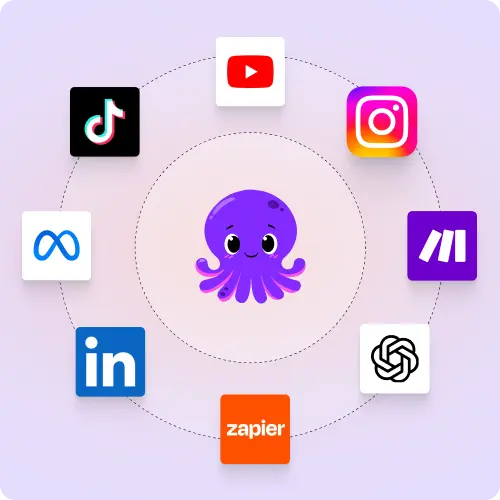
Export videos for websites, learning platforms, onboarding, internal communication, product demos, and social platforms. Works with Make, Zapier, and the Chrome extension.
Reasons to Use an AI Talking Avatar
Use Cases for AI Talking Avatar

Marketing Campaigns:
Generate explainer videos or product teasers from your campaign concepts instantly.

Educational Tutorials
Turn lesson ideas into complete teaching videos with narration and visuals.

Corporate Training
Convert internal communication topics into polished instructional videos.

Social Media Content
Create short-form videos tailored for brand awareness and audience engagement.
Get Started with AI Talking Avatar
Create presenter-led videos using AI talking avatars and text-based narration.
In partnership with




AI Talking Avatar FAQs
Do I need to record my voice?
No. The avatar generates speech from text automatically.
Can I change the AI voice?
Yes. Multiple AI voices are available to preview and select.
Can I hide the avatar in certain scenes?
Yes. Avatars can be shown or hidden per scene.
Can I update the script later?
Yes. Editing the text updates the narration.
When is lip sync generated?
Lip sync is generated automatically during export.
Is this available in Pictory?
Yes. AI talking avatars are available inside the Pictory video editor on supported plans.



SOC 2 & GDPR compliant
Copyright 2026 Pictory.ai - Privacy Policy / Terms of Service / Copyright Policy / Sitemap


