
Enterprise teams are under constant pressure to produce more video with fewer resources, without sacrificing brand consistency or quality. Pictory makes content repurposing practical at scale by turning existing scripts, articles, and internal docs into professional videos using AI for scene creation, visuals, captions, and voiceover.
In this guide, you will learn how to convert text to video using a text to video AI workflow in Pictory, then refine it in the editor to publish market-ready assets for marketing, training, sales enablement, and internal communications. You can start in AI Studio and choose the workflow that matches your source content, including Text to Video or URL to Video when your content lives on a web page.
Why enterprise teams use text to video AI for content repurposing
Text to video generation is one of the fastest ways to turn high-performing content into reusable video assets across channels. Instead of recreating materials from scratch, teams can convert text to video, apply brand kits, and produce consistent output for multiple departments.
Scale production from existing content such as blog posts, enablement docs, policies, and training scripts.
Reduce production overhead by using an AI text to video generator to draft scenes, captions, and voiceover.
Stay on brand with reusable brand kits, styles, fonts, logos, and color palettes.
Localize and iterate quickly by editing the script and regenerating scenes without re-editing a timeline manually.
What to prepare before you convert text to video at scale
A little preparation improves output quality and reduces editing time, especially when you are repurposing long-form content into multiple versions.
Source text (script, training outline, article section, product overview, FAQ, webinar summary).
Clear structure with short sentences, scannable sections, and a single call to action.
Brand requirements including logo files, fonts, and approved colors for your brand kit.
Target formats such as 16:9 for training and YouTube, 9:16 for short-form social, and 1:1 for feeds.
If you are converting written web content, consider using URL to Video to extract and repurpose a blog post to video more quickly. If your content is in slides, PPT to Video may be the fastest starting point for training and internal presentations.
How to create text to video with AI in Pictory (step by step)
This workflow uses Pictory’s Text to Video experience to turn a script into a first draft video, then moves into the editor where you can perfect visuals, captions, voiceover, and branding.
Step 1: Open Text to Video and paste your script
From the Pictory home screen, choose the Text to Video workflow. Paste or type your script into the input field. Keep sentences short, keep the message simple, and include a clear call to action if the video is customer-facing.
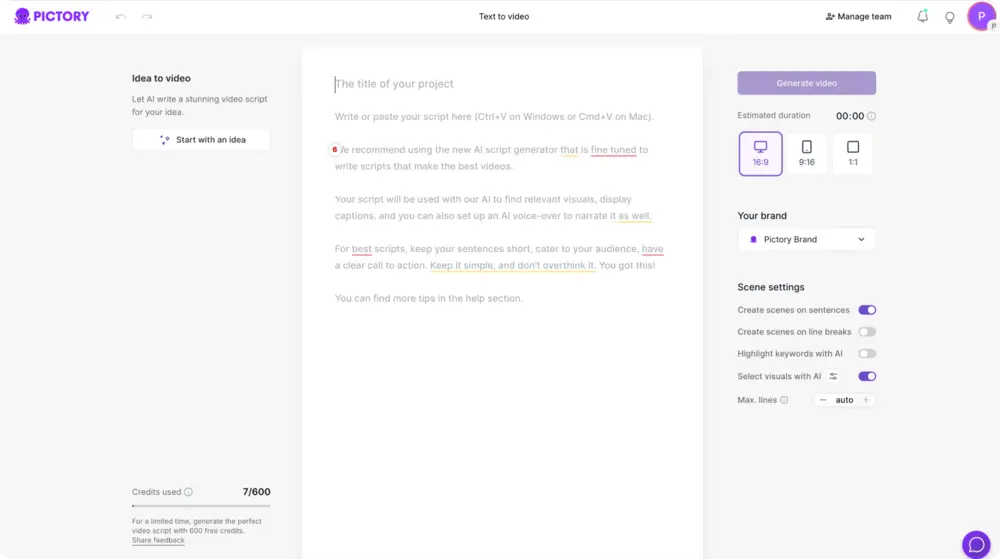
If you do not have a finished script, you can start with the Idea to Video option to generate a draft, then edit it before building the video.
Step 2: Configure scene settings for scalable results
In the script editor, choose your scene creation rules so Pictory can automatically segment text into scenes consistently across a batch of videos.
Select an aspect ratio (16:9, 9:16, or 1:1).
Choose whether scenes are created by sentence or line breaks.
Enable keyword highlighting if you want important terms emphasized on screen.
Enable “select visuals with AI” to speed up first drafts.
Set max lines per scene to keep captions readable and consistent.
Step 3: Apply a Brand Kit for brand-consistent video
In the right panel, select your brand kit so fonts, colors, and logos align with enterprise standards. This is critical for scaling video from existing content across multiple teams while maintaining brand governance.
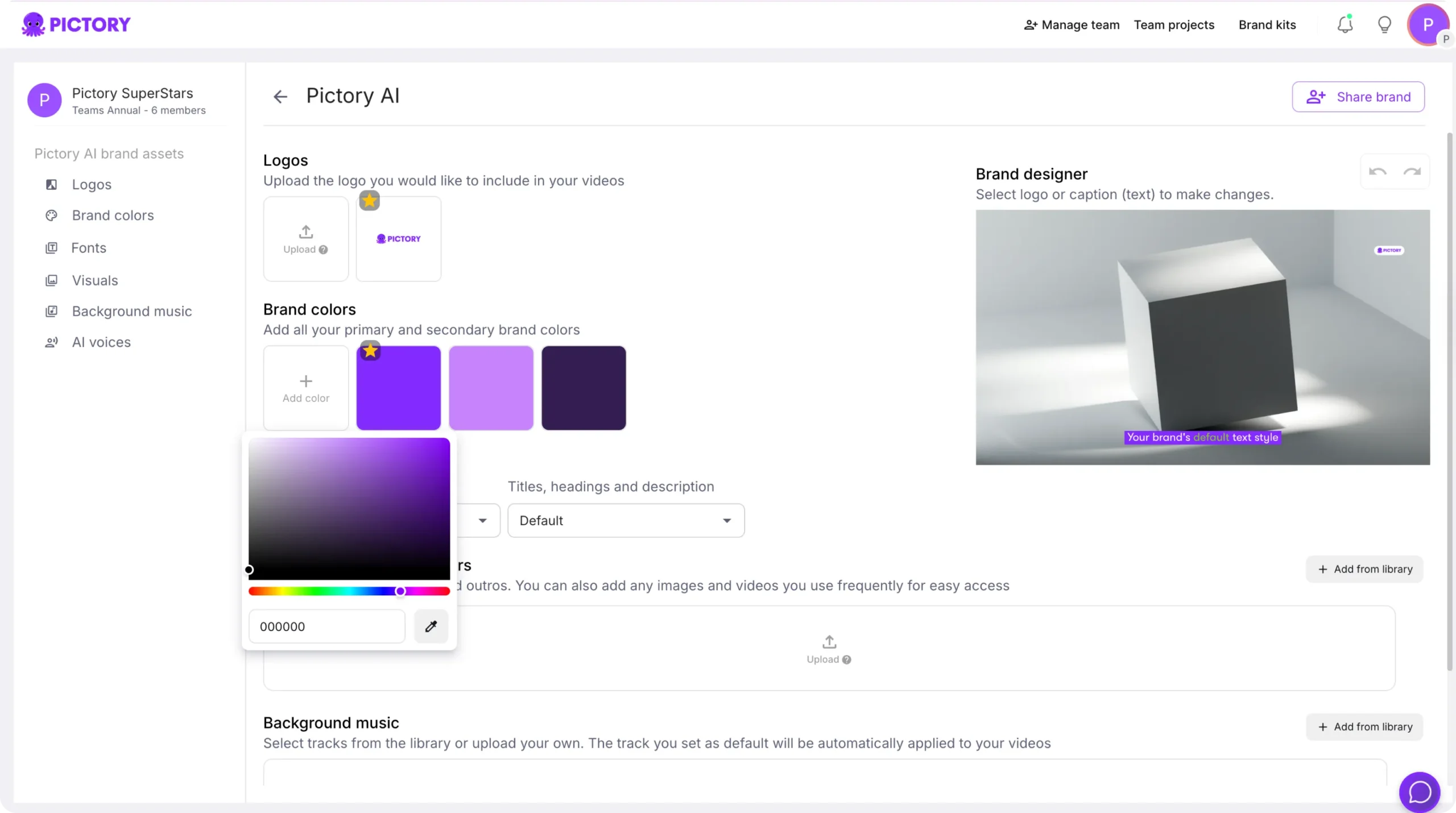
If your brand kit is not created yet, build it from the Brand Kits area and then return to apply it inside the editor via the Branding tab.
Step 4: Choose a theme and generate the video storyboard
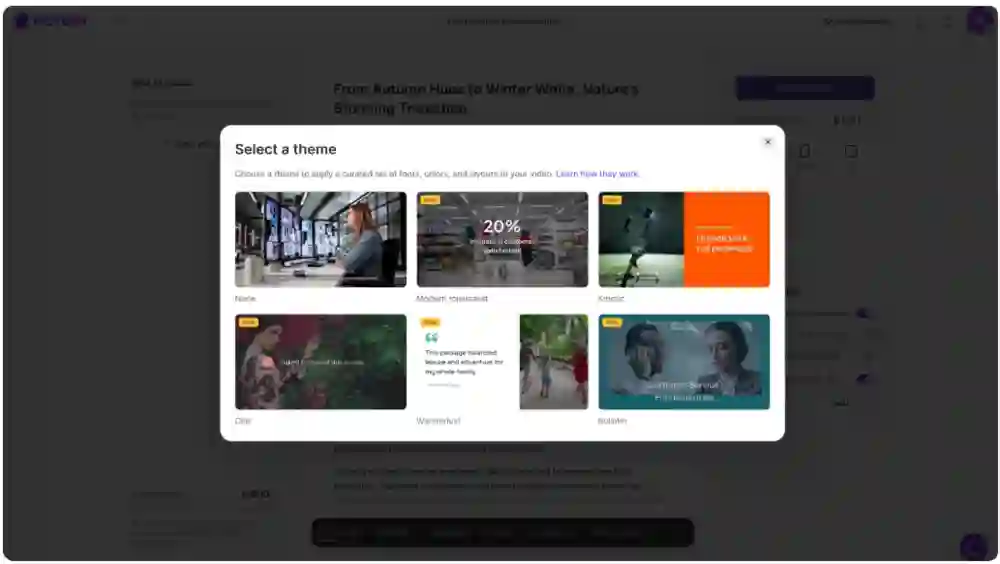
Select a layout theme (for example Modern minimalist, Kinetic, Chic, Wanderlust, or Bulletin). Then click “Generate video.” Pictory will create scenes and build a storyboard based on your script.
During processing, you will see “Creating scenes” with a loading progress indicator. When complete, you will land in the video editor.
How to refine your AI text to video in the AI Video Editor
Once the storyboard is created, use the editor to polish the draft into a professional, market-ready video. This is where enterprise teams typically enforce brand consistency, adjust pacing, and improve clarity.
For deeper editing workflows and AI-assisted polishing, you can also use the dedicated AI Video Editor experience for transcript-driven editing on existing recordings.
Step 1: Edit scenes in the Story tab to improve pacing and clarity
In the Story tab, review each scene’s text and timing. Tighten long sentences, split dense sections into multiple scenes, and align each scene with one key point. This improves retention for training video production and internal communications.
Step 2: Replace or generate better visuals for each scene
Open the Visuals tab to refine scene backgrounds and supporting imagery.
Use Library to select stock footage and images.
Use Uploads to add brand-approved assets such as product shots, diagrams, screenshots, and UI captures.
Use the AI Studio tab inside Visuals to generate AI images or AI videos from prompts and add them directly to scenes.
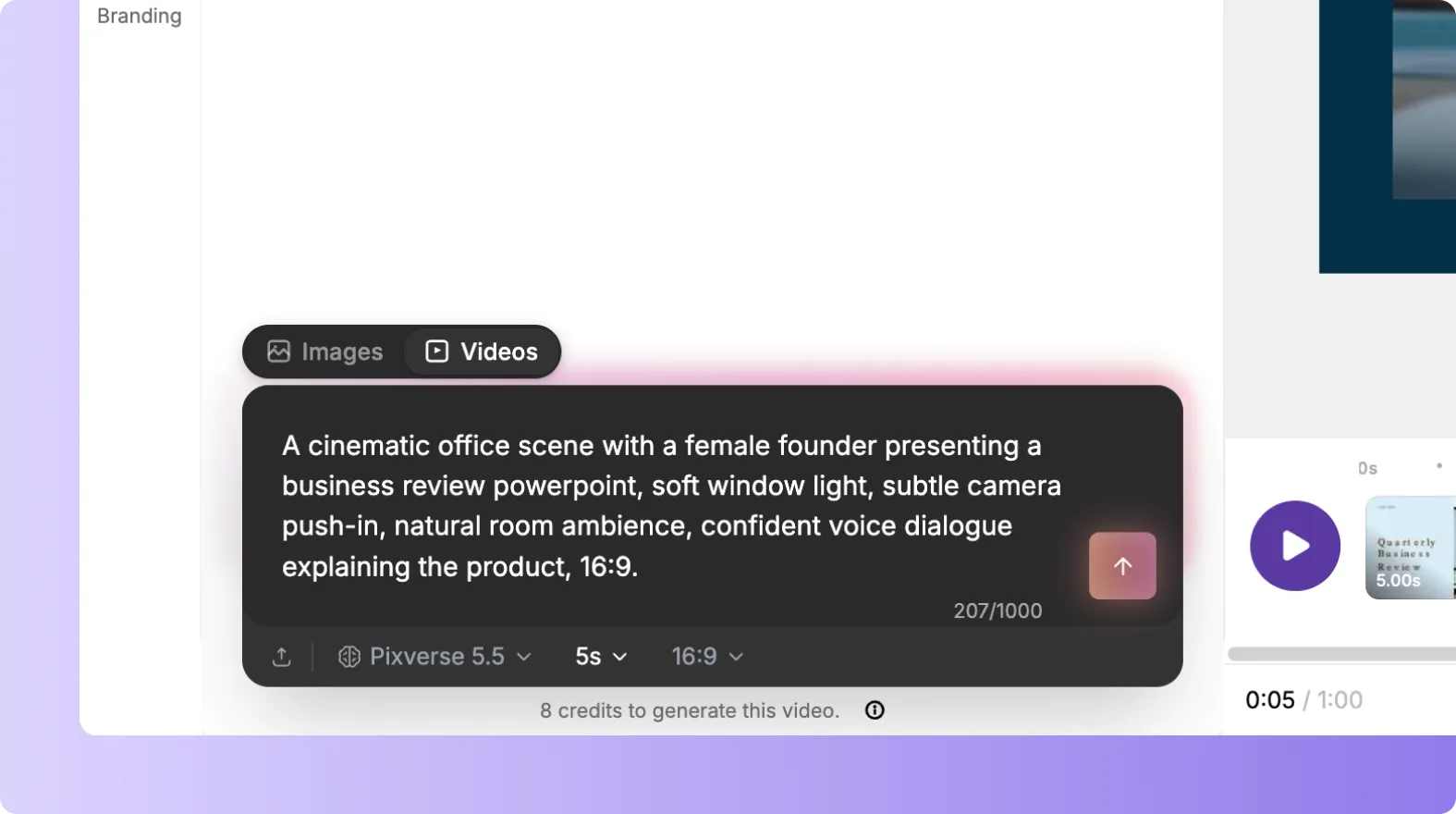
If you need to create a sequence from existing images for a fast explainer or recap, consider starting with Image to Video and then applying the same editing and branding steps.
Step 3: Add voiceover, music, and narration controls in Audio
Open the Audio tab to select an AI voiceover and background music. Preview voices, choose the best tone for your audience, and ensure pacing matches the scene lengths. For enterprise training videos, prioritize clarity and moderate speaking speed.
Step 4: Improve on-screen text with layouts, styles, and text animations
Use Layouts to keep title, list, quote, and emphasis scenes consistent. Then apply Styles to match your visual identity. When you select a text box, use the top toolbar to adjust font, size, alignment, outline, shadow, and spacing.
To make key lines more engaging, use Animate Text in the top toolbar to add entry and exit animations (such as Fade, Typewriter, Wipe, or Text Reveal). Use animation sparingly to keep enterprise content professional and easy to follow.
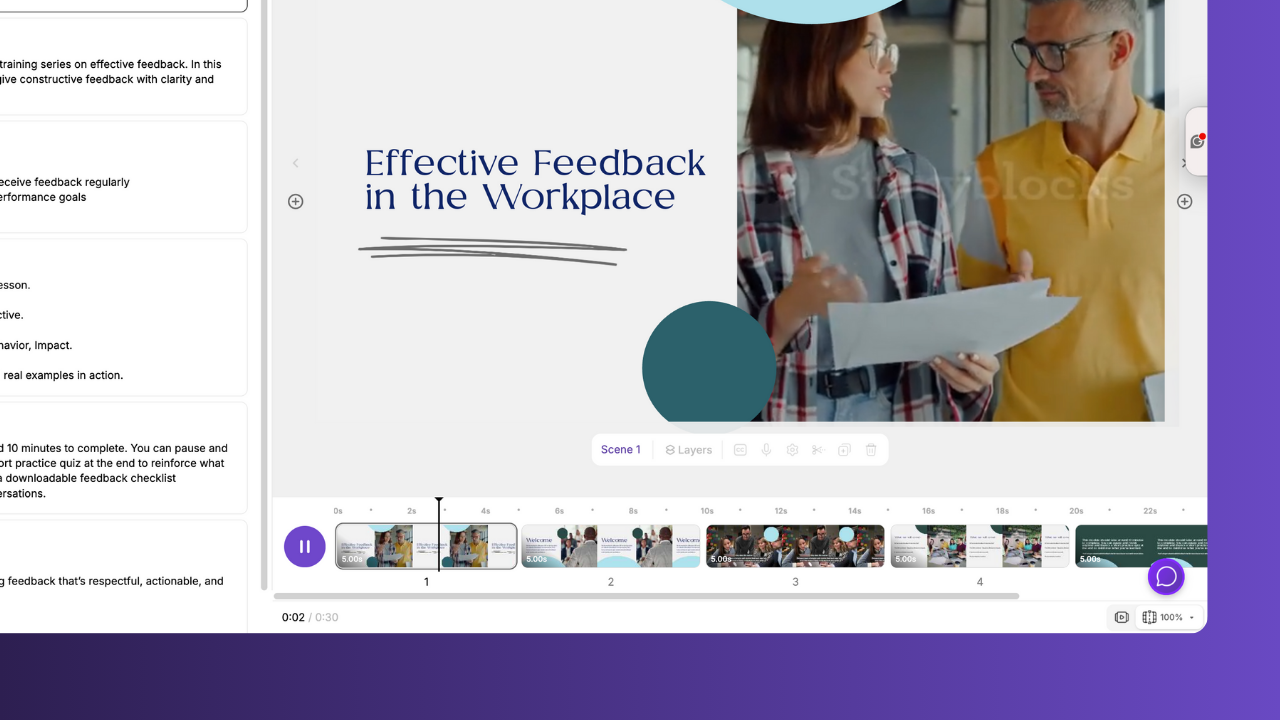
Step 5: Manage scenes efficiently with the updated timeline
Use the bottom timeline to navigate quickly between scenes. For faster production at scale, right-click scene thumbnails to duplicate, copy, paste after, link with next, or delete. Use timeline zoom for long videos or dense training modules.
How to repurpose the same text into multiple video formats for different channels
Content repurposing works best when you create a master script, then produce multiple versions for each platform and audience. In the script editor, set the aspect ratio and length targets before generating.
16:9 for training, enablement, webinars, and YouTube.
9:16 for short-form social video and internal updates on mobile-first channels.
1:1 for feed placements where square formats perform better.
When you need to turn an existing article into multiple short variations, start with URL to Video to extract the content, then edit the script and regenerate scenes for each channel version.
Enterprise best practices for scaling text to video content repurposing
Use these operational best practices to standardize output across departments, reduce review cycles, and increase throughput.
Create templates by use case such as product updates, compliance training, sales enablement, and internal communications.
Enforce brand kits so every video uses the right logo, fonts, and color palette.
Build a visual asset library of approved screenshots, product imagery, and b-roll to reduce ad hoc searching.
Set scene rules like max lines per scene and sentence-based splitting for consistent caption readability.
Use AI-generated visuals thoughtfully for concept scenes, while using Uploads for brand-critical or product-accurate scenes.
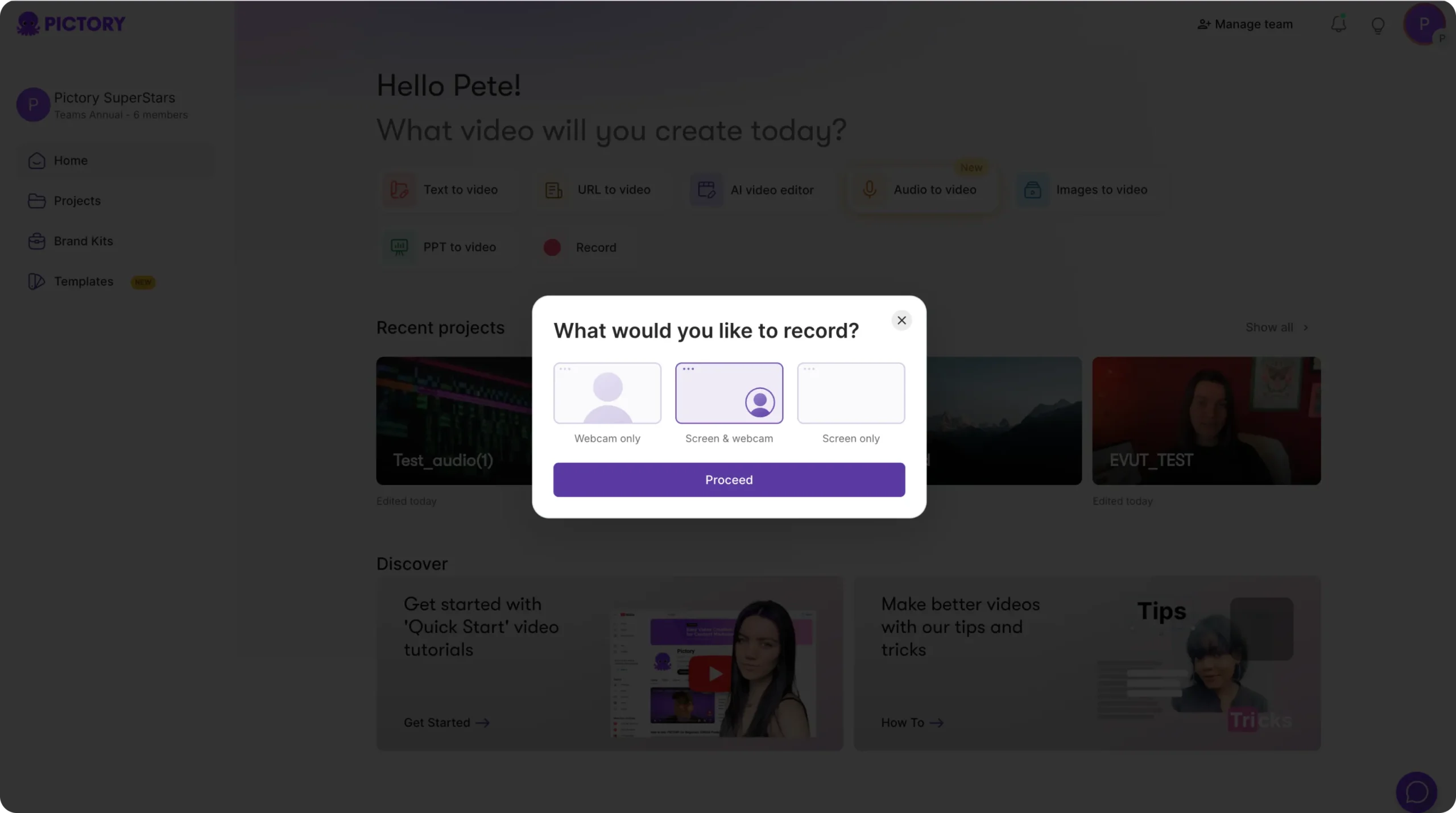
If your content originates as a live demo or internal walkthrough, capture it first with Smart Screen Recorder, then edit and package the training video using AI transcription and scene-based editing.
How to preview, share, and export your text to video projects
Before exporting, preview the full video to confirm pacing, caption accuracy, and brand compliance. In the editor, you can use the Share preview option to collect feedback from stakeholders without exporting multiple drafts.
Use Preview Video to watch the full flow end to end.
Use Share preview for stakeholder review and approvals.
Use Download video to export the final version for distribution.
Save projects to manage versions and reuse the same structure for future repurposing.
FAQ: Text to Video for Content Repurposing: Scaling Video From Existing Content
What is the best way to scale video from existing content with Pictory?
Start with Text to Video for scripts and internal documents, or URL to Video for blog posts and web pages. Apply a brand kit, generate a storyboard, then standardize edits using scene rules, templates, and the updated timeline actions like duplicate and copy/paste.
Can I convert a blog post to video using text to video AI?
Yes. For a blog-to-video workflow, use URL to Video to extract content and generate a script draft automatically, then refine the script and generate the video. This is one of the fastest ways to convert blog post to video at enterprise scale.
How do I keep brand consistency across many AI text to video outputs?
Use Brand Kits and apply them in the editor through the Branding tab. This centralizes logos, fonts, and colors so different teams can produce brand-consistent videos even when repurposing content from different sources.
Can I add text to a video and control how it looks?
Yes. Use the Story tab for scene text and the Text tab for overlays. When a text element is selected, you can adjust font, size, alignment, outline, shadow, and spacing in the top toolbar, then use Animate Text to apply entry and exit animations when appropriate.
Is Pictory an AI video editor as well as a text to video generator?
Yes. Pictory supports text to video generation and full editing in a scene-based editor. For transcript-driven workflows on existing recordings, use the AI Video Editor to edit via text, remove filler words or silences, and create a polished storyboard.
What if my source content is slides or a recorded training session instead of text?
Use PPT to Video for PowerPoint decks, or record a walkthrough with Smart Screen Recorder and then edit using AI transcription. You can still apply the same branding, styles, and scene management best practices to keep everything consistent.


