
Corporate education teams are expected to produce more training content, faster, with fewer resources. With Pictory, you can convert scripts, policies, onboarding materials, and internal communications into professional, brand-consistent videos using an AI text to video workflow that scales. This guide shows how to use Pictory to turn text into video for employee training, compliance, and sales enablement, while keeping quality and consistency across modules.
All steps below can be completed inside Pictory’s AI Studio, using the Text to Video generator and the built-in AI Video Editor for rapid revisions and enterprise-ready outputs.
Why enterprise L&D teams use AI text to video to scale course production
When you need to update onboarding, roll out new SOPs, or refresh compliance training at speed, traditional video production becomes a bottleneck. A text to video AI workflow helps corporate education teams standardize, accelerate, and repeat production across a full curriculum.
Scale output by generating course videos from scripts and training docs in minutes, not weeks.
Maintain brand consistency using shared Brand Kits and reusable layouts.
Reduce production overhead by avoiding external editing cycles for every update.
Increase agility by editing the script and regenerating scenes when policies change.
Pre-production checklist for corporate training video production with text to video AI
Before you generate your first module, align on a repeatable structure. This improves course consistency and makes future updates faster.
Define the module goal (onboarding, compliance, safety, product training, sales enablement training).
Draft a script with short sentences and clear actions to support clean scene segmentation.
Decide aspect ratio (16:9 for LMS, 9:16 for mobile microlearning, 1:1 for internal social channels).
Plan recurring scene patterns (Title, Definition, Steps, Example, Knowledge check prompt, Summary).
Collect required brand assets (logo, colors, fonts) for Brand Kits.
If your training content already exists as slides, you can also scale faster by converting decks with PPT to Video and then standardizing the look in the editor.
How to create corporate training videos with a text to video AI generator in Pictory
This is the core workflow for text to ai video creation, designed for repeatable course production.
Step 1: Start a new project in the Text to Video generator
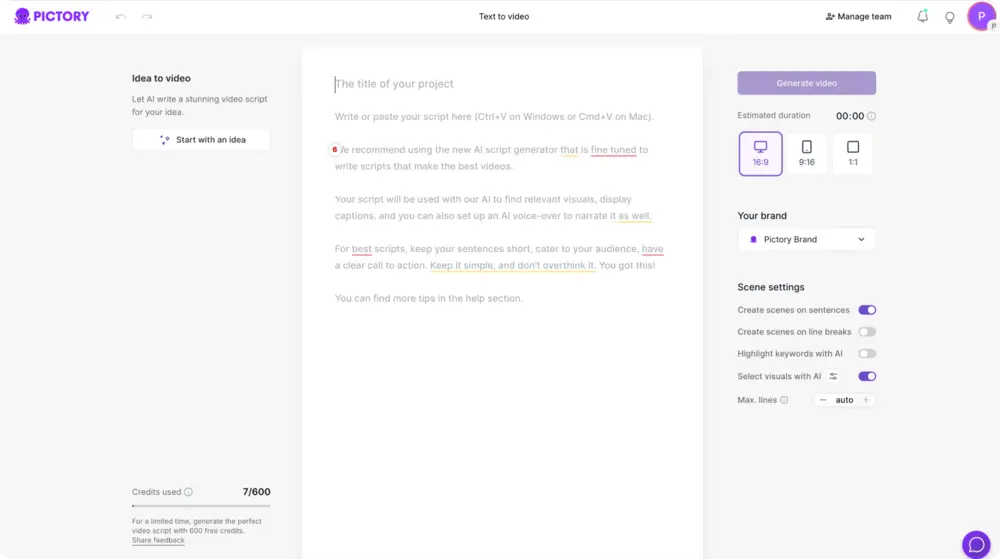
From the Pictory home screen in AI Studio, select Text to Video. Paste your training script into the input field. For corporate education, keep each concept to one or two short sentences to improve pacing and scene clarity.
Step 2: Configure scene settings for scalable module formatting
In the script editor, set your scene rules so every module follows the same structure. Common enterprise settings include creating scenes based on sentences or line breaks, controlling max lines per scene, and enabling keyword highlights to emphasize terms like “policy,” “procedure,” or “required.”
Select your aspect ratio (16:9, 9:16, or 1:1).
Confirm the estimated video duration matches your target length.
Choose whether to split scenes by sentence or line break for consistent chunking.
Step 3: Apply a Brand Kit for consistent enterprise training videos
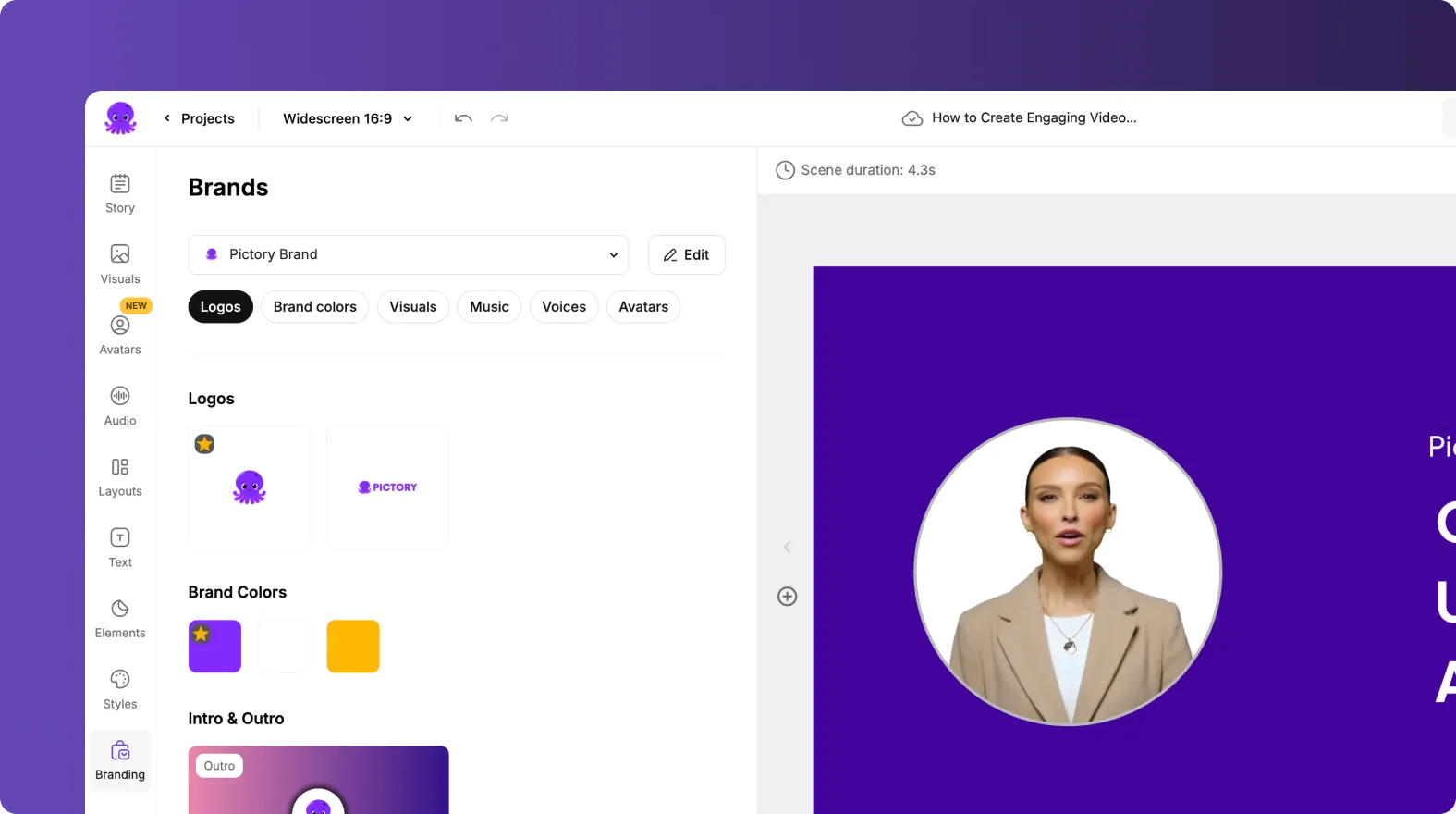
In the right panel, select your team’s Brand Kit to apply approved logo, fonts, and colors across captions and layouts. This is essential for multi-course programs where several instructional designers contribute content.
Brand Kits also make it easier to produce a consistent library of sales training video modules, onboarding videos for new employees, and compliance video training without reformatting every time.
Step 4: Choose a theme and generate the storyboard
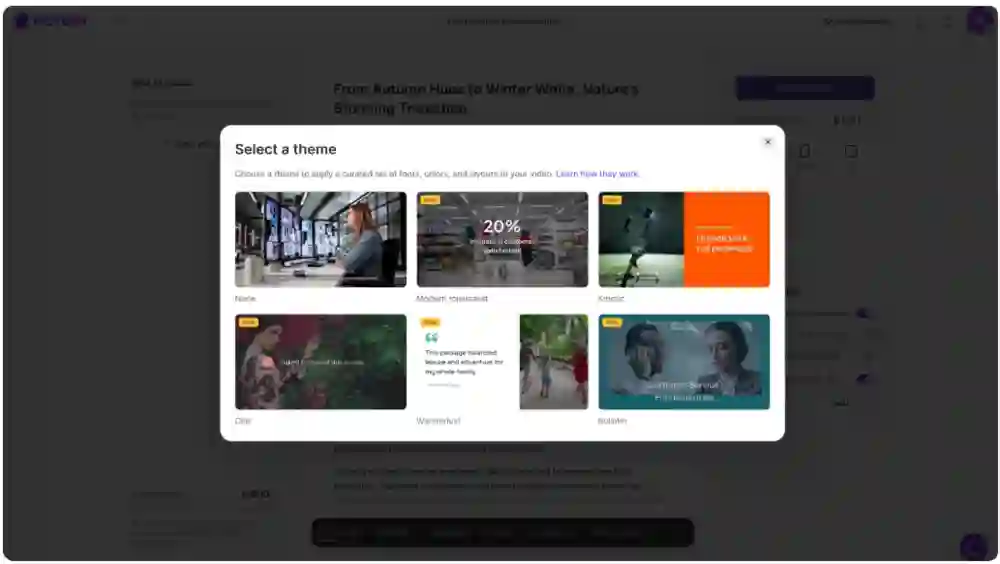
Select a layout theme (for example, modern minimalist or bulletin style) to standardize typography and on-screen composition. Then click “Generate video” to create the storyboard. Pictory will turn your text into scenes, match visuals, and prepare captions and timing.
How to edit and refine training modules in the AI Video Editor for enterprise quality
After generation, refine the course video in the AI Video Editor. This is where teams standardize pacing, visuals, captions, and reuse patterns across multiple modules.
Step 1: Review scenes and adjust pacing in the storyboard
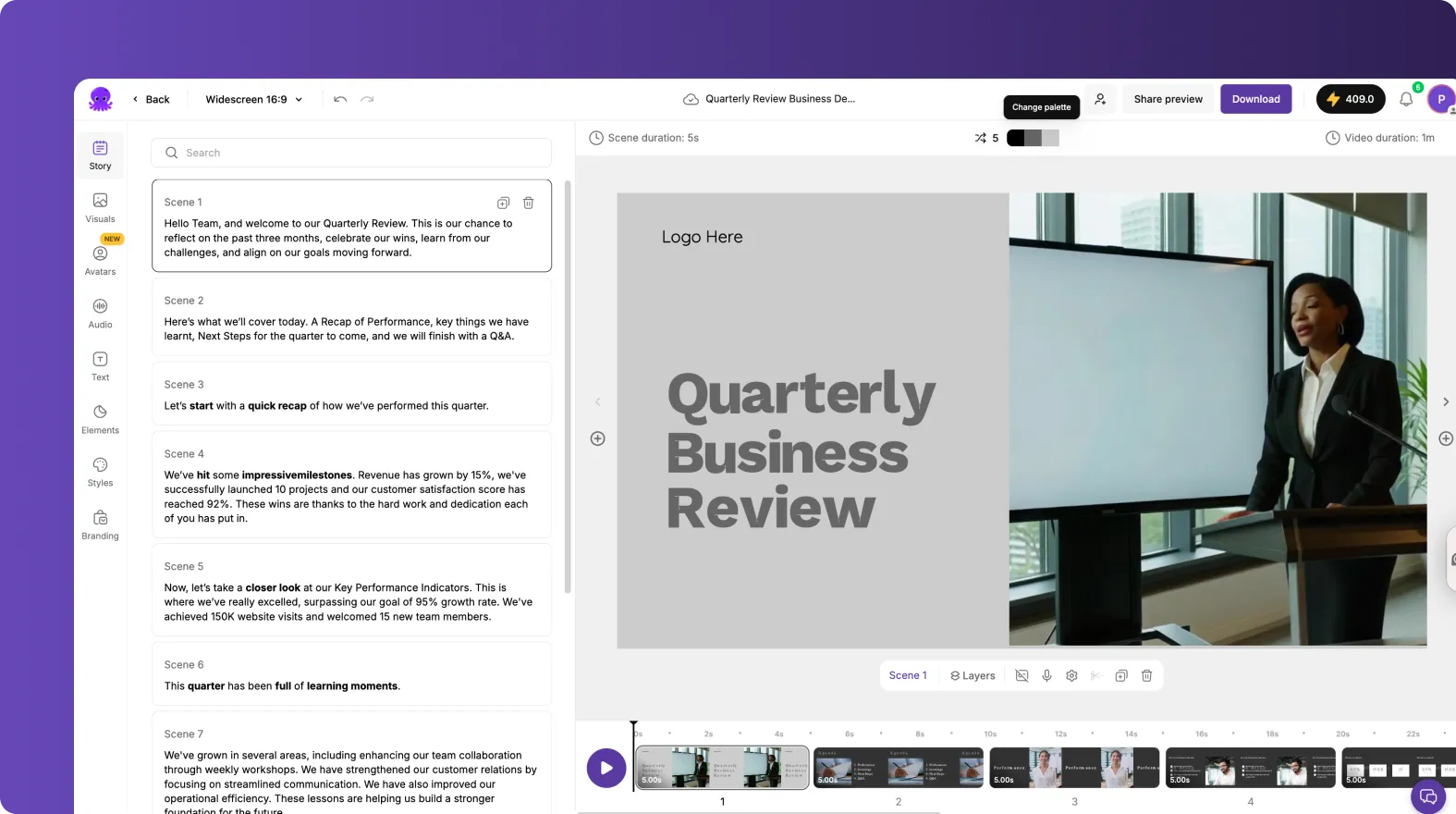
Use the scene list to scan the full module quickly. Edit any scene text to tighten instructions, remove ambiguity, and keep language consistent with corporate policy.
Reorder scenes to match your learning flow.
Duplicate scenes for repeated patterns like “Example” or “Recap.”
Link scenes where a concept needs to stay visually continuous.
Step 2: Improve visual relevance using Library, Uploads, or AI-generated visuals
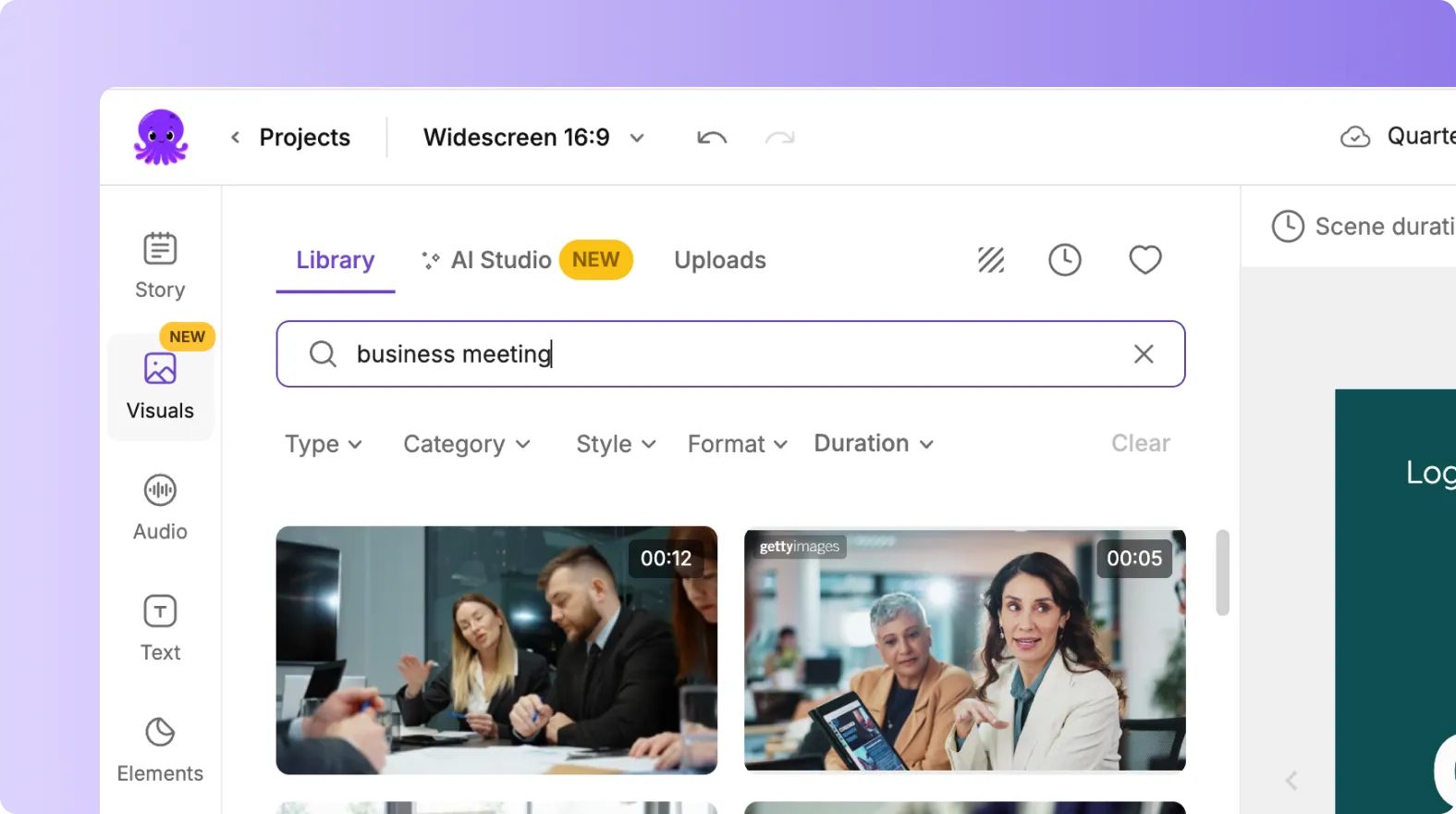
Open the Visuals tab to select training-appropriate backgrounds, workplace footage, or UI visuals. Use the built-in AI Studio tab inside Visuals to generate custom images or videos from prompts, then add them to scenes to match your internal context.
If you already have product screenshots or process diagrams, you can also build lessons quickly using Image to Video and then keep styling consistent in the editor.
Step 3: Add narration and background audio for a complete training experience
In the Audio tab, choose AI voiceover options for consistent narration across modules, or upload approved voice tracks. Add subtle background music only when it supports learning and does not compete with instructional clarity.
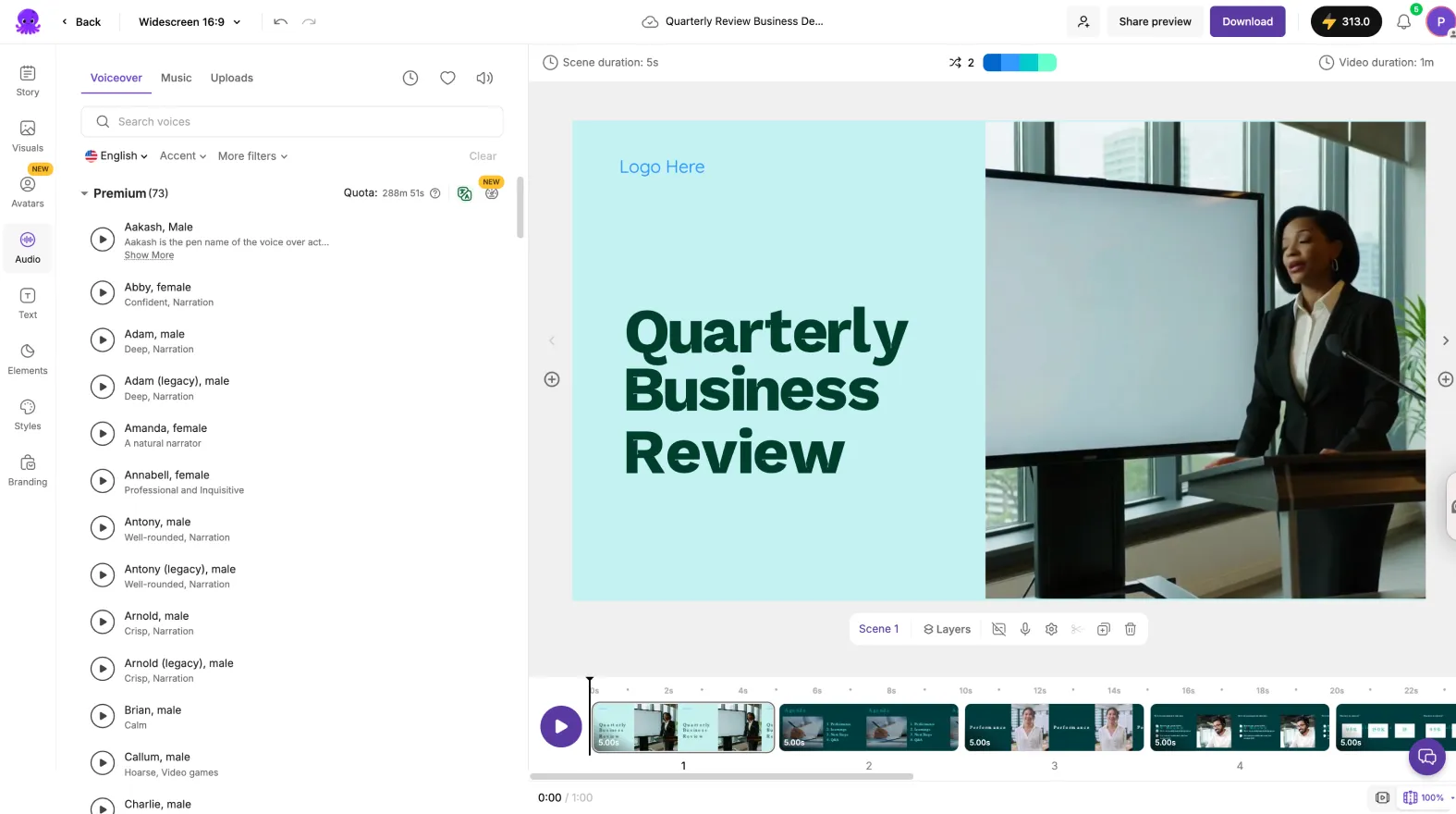
Preview voices for tone consistency across the curriculum.
Use a consistent volume approach across courses to reduce learner fatigue.
Step 4: Standardize on-screen text, captions, and readability
Use consistent caption styles, line limits, and layout types across modules so learners experience a uniform interface. For emphasis, add headings and callouts using Text and Elements, and keep the same placement rules throughout the course.
If you need to show step-by-step software processes, consider recording a short walkthrough with the Smart Screen Recorder and then refine it in the editor with captions and trimming.
How to scale employee onboarding videos and compliance training with repeatable templates
Scaling course production requires repeatability. Once you finalize one module, reuse its structure across the curriculum.
Create a standard script format with consistent headings, callouts, and recap phrasing.
Reuse the same Brand Kit across all training programs to enforce brand governance.
Duplicate scenes for recurring learning components like objectives, examples, and summaries.
Keep a shared asset library of approved visuals, icons, and intro and outro scenes.
For teams repurposing internal wiki pages or policy pages into training, you can also accelerate intake using URL to Video to extract content, create a draft script, and then produce a consistent course video from that script.
How to update training videos using AI when policies change
Training content changes frequently. The fastest way to update is to edit the text, then adjust only the impacted scenes rather than rebuilding the entire video.
Edit the script in the Story section for the affected scene.
Replace visuals for the updated steps, screenshots, or requirements.
Regenerate or reapply voiceover for only the changed scenes when needed.
Preview end-to-end to confirm pacing remains consistent and no outdated references remain.
This approach is ideal for compliance training video updates, safety procedure changes, and rapid product releases that impact sales enablement content.
Quality control and export tips for enterprise course video delivery
Before exporting to your LMS or internal platform, run a simple QC pass to protect learner experience and reduce rework.
Check scene timing so learners can read every caption comfortably.
Verify terminology matches HR, legal, or compliance language.
Confirm brand alignment including logo placement, colors, and fonts.
Use preview and share preview for stakeholder review before final download.
Export consistently using the same resolution and aspect ratio per course type.
When you are ready, download the finished video from the editor and store the project in “My Projects” so your team can quickly duplicate and adapt it for future modules.
FAQ: Text to Video for Corporate Education Teams: Scaling Course Production
What is the best way to scale corporate training video production with text to video AI?
Standardize inputs and outputs. Use a consistent script format, apply a shared Brand Kit, and reuse layout themes and scene patterns across modules. In Pictory, generate the first module with the Text to Video generator, then duplicate and adapt the structure in the AI Video Editor.
How do you make training videos for employees that stay brand-consistent across teams?
Create and enforce Brand Kits with approved logos, fonts, and colors, then require every project to apply the Brand Kit before export. This keeps onboarding videos, compliance modules, and sales enablement training aligned even when multiple creators contribute.
Can I turn existing internal documentation into training videos without rewriting everything?
Yes. If the content is already written as a web page, you can start with URL to Video to extract a draft script, then edit it for training clarity and generate the final module. If it is in slide form, use PPT to Video to accelerate production.
How can I create software training videos when I need to show real workflows on screen?
Record a walkthrough using the Smart Screen Recorder, then use the editor to add branded captions, remove mistakes, and refine pacing. You can also combine screen recordings with text-to-video scenes for intros, summaries, and policy callouts.
How do I update training videos using AI when a policy or process changes?
Edit only the relevant scene text, swap the impacted visuals, and update narration for those scenes as needed. This is faster than rebuilding the entire module and is a key advantage of AI text to video workflows for compliance and SOP updates.
Can Pictory help with adding text to a video and making captions readable for learners?
Yes. In the editor, you can control caption styling and formatting, adjust max lines per subtitle, and apply consistent text styles. You can also add on-screen headings and callouts using the Text and Elements tools to reinforce key learning points.


