
B2B marketing teams are expected to publish more video across more channels with fewer resources. Pictory helps you convert approved messaging into campaign-ready videos using a fast, repeatable text to video AI workflow that supports brand consistency, collaboration, and scale.
This guide walks you through an enterprise-friendly process for creating campaign videos using the Text to Video generator inside AI Studio, plus best practices for repurposing content, applying brand kits, and exporting multiple formats.
Why B2B teams use text to video AI for faster campaign production
Unlike traditional production, an AI text to video workflow starts from the asset you already have: product messaging, landing page copy, webinar takeaways, sales enablement notes, or an approved script. From there, Pictory automatically creates scenes, matches visuals, generates captions, and helps you publish faster without relying on specialized editing skills.
Speed: turn a script into a storyboard in minutes, not days.
Consistency: apply Brand Kits for logos, fonts, and color palettes across campaigns.
Scale: generate multiple versions for LinkedIn, YouTube, sales outreach, and internal enablement.
Efficiency: reduce production overhead while increasing video output.
What you need before you convert text to video for B2B marketing campaigns
Prep makes your text to video generator output cleaner, especially for B2B messaging where clarity and compliance matter.
Approved script or draft copy with a single goal per video.
Clear call to action such as “Book a demo,” “Download the guide,” or “Talk to sales.”
Target channel and format: 16:9 (YouTube), 1:1 (feed), 9:16 (shorts).
Brand assets: logo files, brand colors, preferred fonts, and any mandatory disclaimers.
If your “script” lives in a blog post or landing page, you can also start with URL to Video and refine the script before generating the final campaign video.
How to create campaign videos with a text to video AI generator in Pictory (step by step)
Step 1: Open AI Studio and start a Text to Video project
From your Pictory home screen, choose Text to Video to begin in AI Studio. This workflow is designed to convert text to video by turning your script into timed scenes with matching visuals and captions.

Step 2: Paste your campaign script and follow script formatting best practices
Paste or type your script into the input field. For cleaner scenes and pacing, keep sentences short, keep the message simple, and include a clear CTA. Your script becomes the source for visuals, captions, and voiceover.
Use short paragraphs and clear sentence structure.
Keep one idea per scene for better comprehension.
Include product names and key differentiators consistently.
If you are starting from a rough concept, use the built-in AI script generator to draft an initial version, then refine it in the script editor.
Step 3: Configure scene settings for enterprise-ready pacing and readability
In the script editor, set your scene rules to control how the text to AI video output is structured.
Select aspect ratio: 16:9, 9:16, or 1:1.
Enable scene creation based on sentences or line breaks.
Turn on keyword highlights when you want emphasis on core value props.
Set max lines per scene to keep captions readable for B2B audiences.
This is where you make the biggest impact on clarity, especially for product marketing and sales enablement videos.
Step 4: Apply a Brand Kit for consistent campaign styling
Select your team Brand Kit to automatically apply logo, fonts, and brand colors. This step helps enterprise teams maintain consistency across product launches, ABM campaigns, and quarterly initiatives.
After applying branding, review a few scenes to confirm that captions, contrast, and on-screen text match your accessibility and brand guidelines.
Step 5: Choose a layout theme and generate the video storyboard
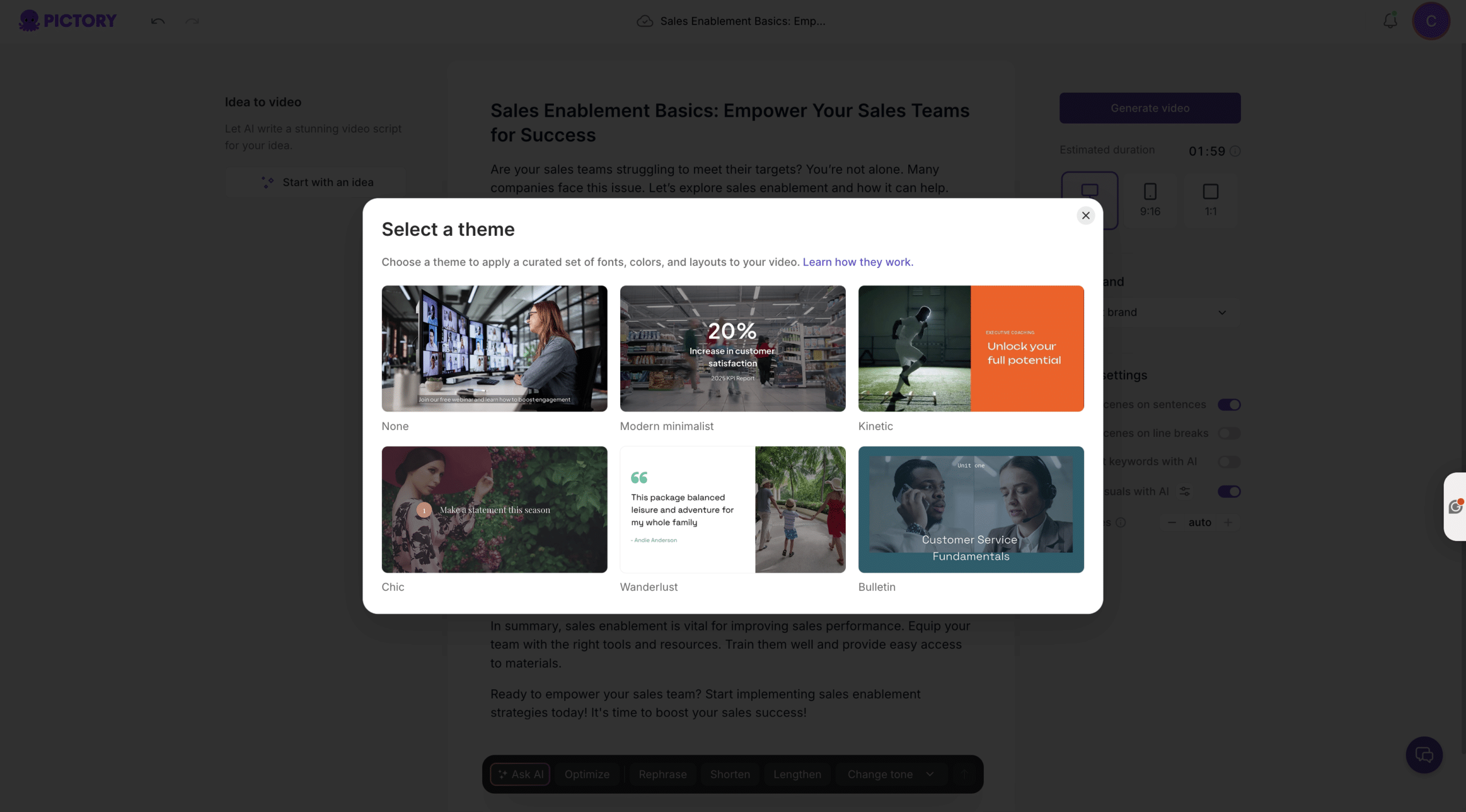
Choose a theme such as Modern minimalist, Kinetic, or Bulletin to control the overall look. Then click Generate video to create a storyboard. Pictory will display a “Creating scenes” progress view while it builds your video.
When finished, you will land in the editor with a scene-by-scene storyboard on the left and a live preview on the right, plus a timeline for quick navigation.
Step 6: Edit scenes, visuals, and captions in the AI Video Editor
Use the editor to polish the campaign video quickly. This is where Pictory functions as a practical text to video editor for B2B teams, not just a one-click generator.
In Story, rewrite or tighten lines for stronger hooks and CTAs.
In Visuals, swap stock assets, use uploads, or generate new assets via AI Studio inside the editor.
In Text, fine-tune on-screen headings and supporting copy.
In Styles and Branding, standardize typography and colors across all scenes.
For deeper edits and production workflows, you can continue refining in the AI Video Editor to keep everything in one platform.
Step 7: Add voiceover and music for a complete text to speech video
Open the Audio tab to add AI voiceover and background music. This completes the text to speech video experience and helps your campaign video feel finished without booking studio time.
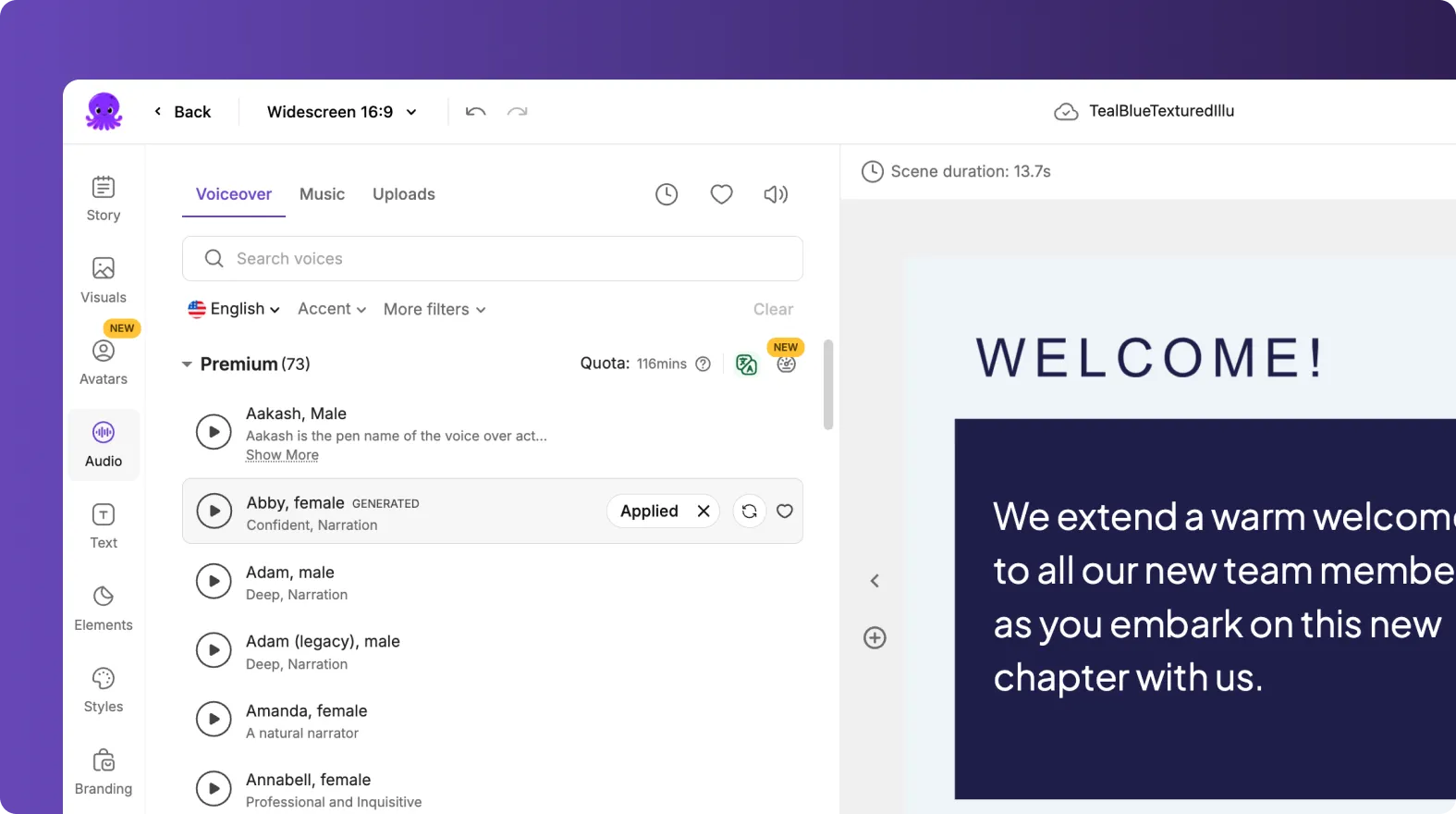
Choose a voice that matches your brand tone (clear, confident, conversational).
Preview and adjust pacing by tightening script lines or splitting scenes.
Add music subtly to support energy without competing with narration.
Step 8: Preview, share a review link, and export your campaign video
Use Preview to QA captions, pronunciation, pacing, and brand alignment. When ready, export the video for your channel mix. In the editor you can also use the Share preview option to gather stakeholder feedback faster before publishing.
Export 16:9 for YouTube and webinars.
Export 1:1 for LinkedIn feed and sponsored posts.
Export 9:16 for shorts and vertical placements.
How to scale B2B campaign videos from existing content using text to video AI
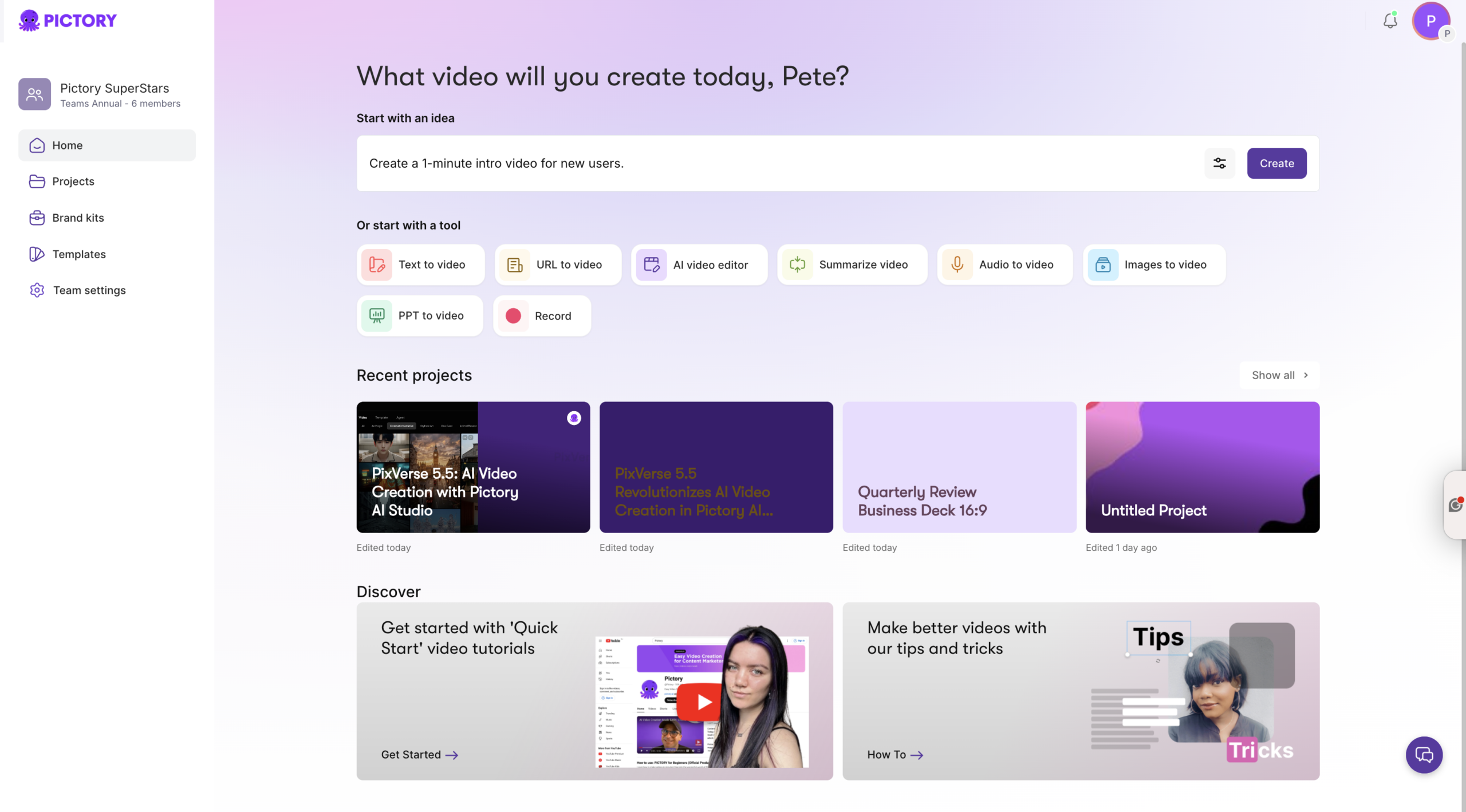
Enterprise marketing teams often scale faster by repurposing content rather than starting from scratch. Pictory supports multiple input workflows that connect naturally to campaign production.
Turn landing pages and blog posts into video drafts with URL to Video, then refine to campaign length.
Convert pitch decks and product webinars into videos with PPT to Video for launch and enablement.
Build customer story reels and event recaps with Image to Video.
Record product walkthroughs and demos in-browser using Smart Screen Recorder, then polish with AI editing.
This approach helps teams produce consistent video across awareness, consideration, and conversion stages without adding tools or headcount.
Best practices for high-performing text to video generation in B2B marketing
Lead with the outcome: state the customer problem and the value in the first 3 to 5 seconds.
Keep scenes tight: one message per scene improves comprehension and watch time.
Use proof points: add specific metrics, recognizable categories, and clear differentiation.
Design for silent viewing: ensure captions are readable and on-screen text is concise.
Create channel variants: export multiple aspect ratios and update hooks per channel.
Standardize with Brand Kits: consistency increases trust across multi-touch campaigns.
Common issues when using an AI text to video generator and how to fix them
Scenes feel too long: shorten sentences, reduce max lines per scene, or split one scene into two.
Visuals are too generic: replace with uploaded product imagery, or generate more specific assets inside AI Studio in the Visuals tab.
Captions are crowded: reduce subtitle max lines and simplify copy to improve readability.
Branding looks inconsistent: apply the correct Brand Kit and confirm Styles are consistent across scenes.
Pacing does not match the channel: tighten hooks for paid and social, use slightly slower pacing for explainers and internal comms.
FAQ: Text to Video for B2B Marketing Teams: A Faster Way to Create Campaign Videos
What is the best way to convert text to video for B2B marketing?
Start with an approved script, use the Text to Video generator to create scenes automatically, then refine pacing, visuals, and captions in the AI Video Editor. Apply a Brand Kit to keep campaigns consistent across teams and channels.
Can I create multiple campaign video sizes from the same text to video project?
Yes. Set the aspect ratio in the script editor or adjust versions for 16:9, 1:1, and 9:16 to fit YouTube, LinkedIn, and vertical short-form placements. This is a key advantage of text to video AI tools for enterprise scaling.
How do I make text to video generation look on-brand for an enterprise team?
Use Brand Kits to apply your logo, fonts, and brand colors consistently, then review captions and text overlays for contrast and readability. The Branding and Styles tools help standardize design across every scene and every campaign variant.
Can I turn existing webpages or blog posts into campaign videos?
Yes. Use URL to Video to extract key content and generate a draft script, then edit it into a concise campaign narrative and generate the final video storyboard.
What if I need product demo footage instead of stock visuals?
Record your workflow using Smart Screen Recorder, then polish the result with AI editing tools. You can also upload product clips and screenshots and swap them into any scene.
Does Pictory support a text to speech video workflow?
Yes. In the Audio tab, you can add AI voiceover and background music, then preview timing and adjust scenes. This helps B2B teams ship professional narration without booking voice talent for every iteration.


