
Customer Success teams are under pressure to reduce ticket volume, speed up onboarding, and keep knowledge up to date. With Pictory, you can convert text based help docs into polished, brand consistent video tutorials using an AI text to video workflow, then refine them in a powerful editor without adding production overhead.
This guide shows how to turn knowledge base articles, FAQs, and internal SOPs into videos using Pictory’s Text to Video generator inside AI Studio, plus how to standardize output with brand kits and create repeatable templates for your Customer Success enablement library.
Why Customer Success Teams Use Text to Video AI for Help Docs
Written docs are essential, but video tutorials often reduce time to understanding for visual learners and busy admins. A text to video AI generator makes it practical to create and maintain tutorials at scale, even when your team does not have dedicated video production resources.
- Reduce repetitive tickets by answering common “how do I” questions with short tutorials.
- Accelerate onboarding for new customers and internal CSM ramp time.
- Standardize product guidance with consistent narration, captions, and branding.
- Update faster when the UI changes by editing text scenes rather than reshooting video.
If your help content already exists in articles, you can also repurpose it using URL to Video for a blog to video or knowledge base to video workflow, then align it with the same Brand Kit in the editor.
Plan Your Help Doc to Video Tutorial Script (Text to AI Video Best Practices)
Before you generate your text to ai video, quickly adapt your help doc into a tutorial script that reads naturally as narration and fits scene based editing.
- Use short sentences and clear, action oriented steps.
- Write one idea per line to simplify scene creation and pacing.
- Add a clear outcome at the top, such as “By the end, you will be able to…”
- Include a short CTA at the end, such as “If you are stuck, contact Support” or “See the full article.”
If you need a first draft, you can start from an idea and let AI create the script draft, then refine it in the script editor before generating video. For teams that also need screen based walkthroughs, pairing these tutorials with the Smart Screen Recorder can cover feature demos that require the real UI.
Step by Step: Create Help Doc Videos with Pictory Text to Video AI Generator
Use this workflow to convert text into a professional tutorial video with visuals, captions, and voiceover. This is the fastest “convert text to video” path for Customer Success teams.
Step 1: Open Pictory and start a Text to Video project
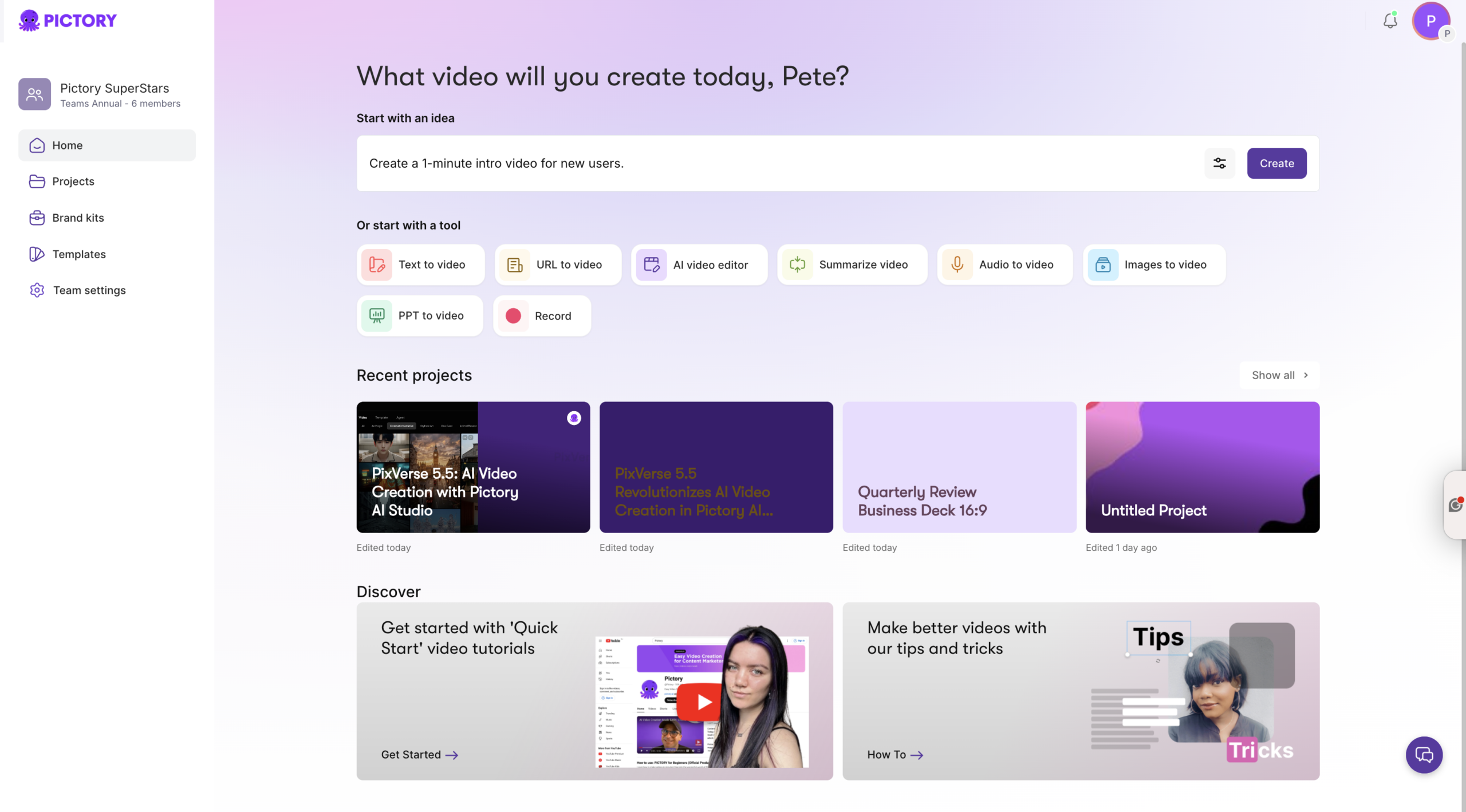
From your Pictory home screen, select the Text to Video generator. This creates a new project designed for AI text to video generation from scripts and help documentation.
Step 2: Paste your help doc script and set scene rules
Paste your script into the input field. For help docs, consider splitting scenes by line breaks or short sentences so each step becomes its own scene.
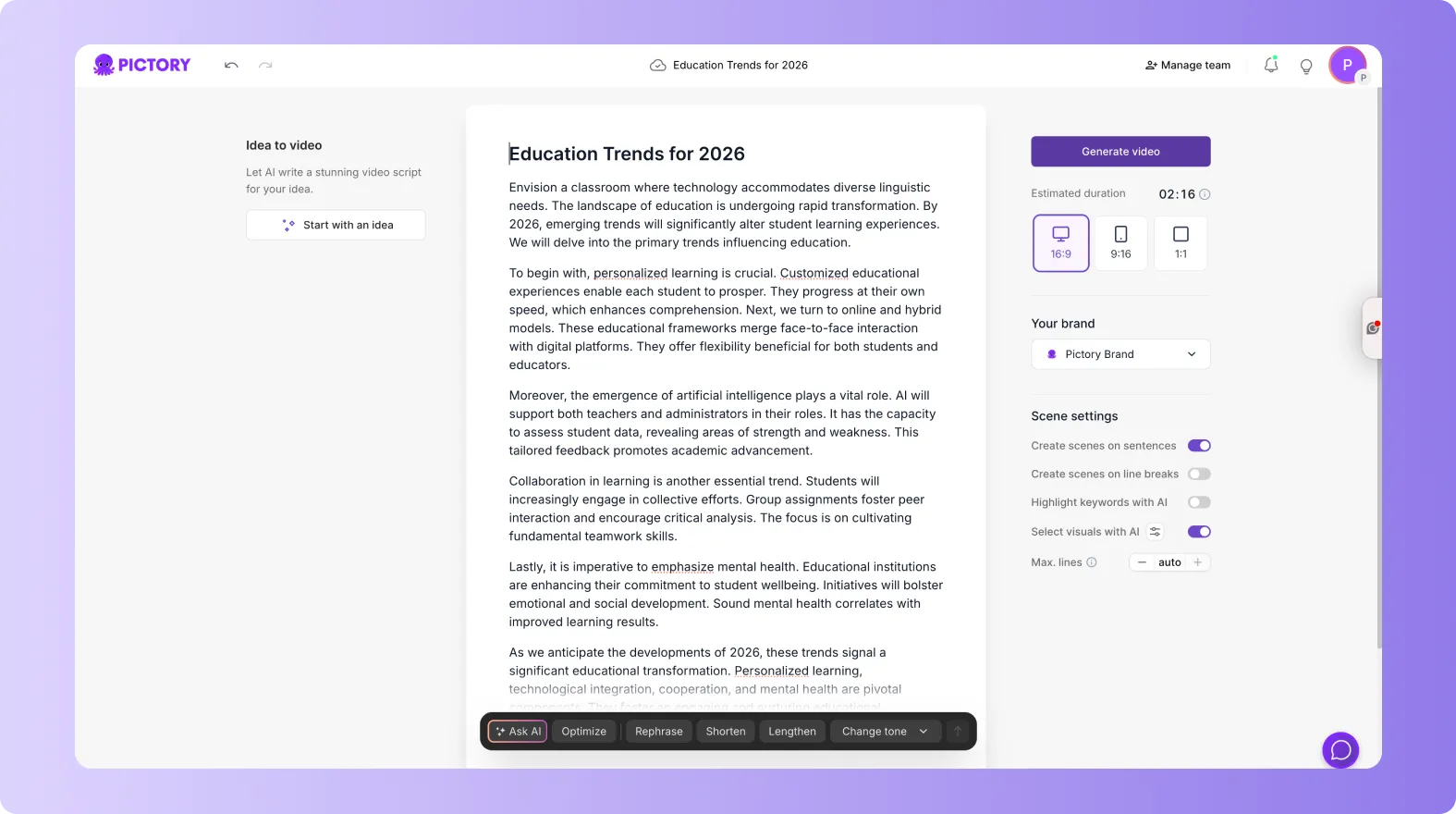
- Enable sentence based scenes or line break based scenes depending on how you formatted the script.
- Use keyword highlighting to emphasize buttons, menu items, or key actions.
- Turn on AI selection of visuals so the system can match stock footage to each step.
Step 3: Choose aspect ratio, estimated length, and Brand Kit
In the Script Editor, choose an aspect ratio based on where the tutorial will live. Use 16:9 for a help center or LMS, and 9:16 for in app tips or social style microlearning. Apply your team’s Brand Kit to standardize fonts, colors, and logos across every tutorial.
Brand Kits are essential for Enterprise scale output because they keep every tutorial consistent even when multiple teammates create content.
Step 4: Generate the video and select a theme layout
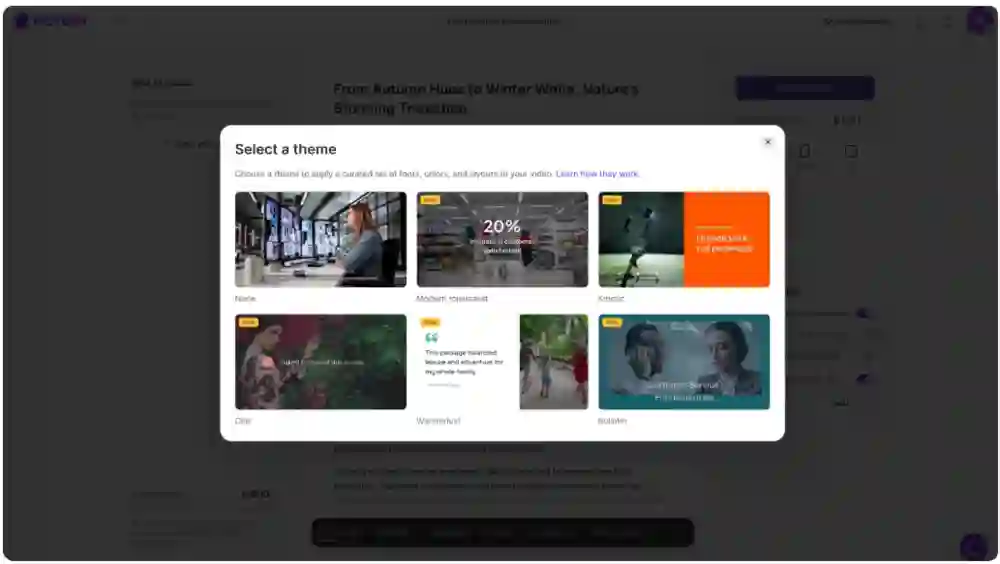
Click “Generate video” and choose a theme layout that matches your documentation style. Clean, minimal themes usually work best for product education because they prioritize readability and on screen steps.
Step 5: Review the storyboard scenes and refine the tutorial flow
Pictory will create a storyboard with scenes aligned to your script. Review each scene title and on screen text for clarity. Make sure each step contains exactly one action and one outcome.
At this stage you have a draft tutorial video that is ready for edits in the editor workspace.
Step by Step: Edit and Polish Help Doc Tutorials in the AI Video Editor
After generation, your project opens in the editor where you can make enterprise grade adjustments without complex software. This is where Customer Success teams turn “good” drafts into repeatable, high impact training assets using an AI Video Editor workflow.
Step 1: Refine scenes in the Story tab for clarity and pacing
Open the Story tab to edit the text that drives captions and voiceover. Tighten wording, remove extra clauses, and keep each scene under your maximum lines setting so captions stay readable.
- Convert long paragraphs into short, direct instructions.
- Standardize step language, such as “Select,” “Click,” “Choose,” “Confirm.”
- Use consistent naming for UI elements across all tutorials.
Step 2: Replace or lock visuals to match each help doc step
Open the Visuals tab to confirm that the chosen visuals reinforce the step. Swap any generic shots that might confuse viewers. For enterprise product tutorials, prioritize clear, neutral visuals and avoid anything that distracts from the instruction.
If you need custom visuals, generate them inside the editor using AI Studio within Visuals, then add them to the scene.
Step 3: Add voiceover, music, and subtitles for a complete training video
In the Audio tab, select an AI voice that fits your brand tone. Keep narration steady and instructional. Add light background music only if it does not compete with the voiceover.

Enable subtitles and set max lines per subtitle so they remain readable on different screens. This improves accessibility and helps users follow along in noisy environments.
Step 4: Apply branding and style once, then reuse across tutorials
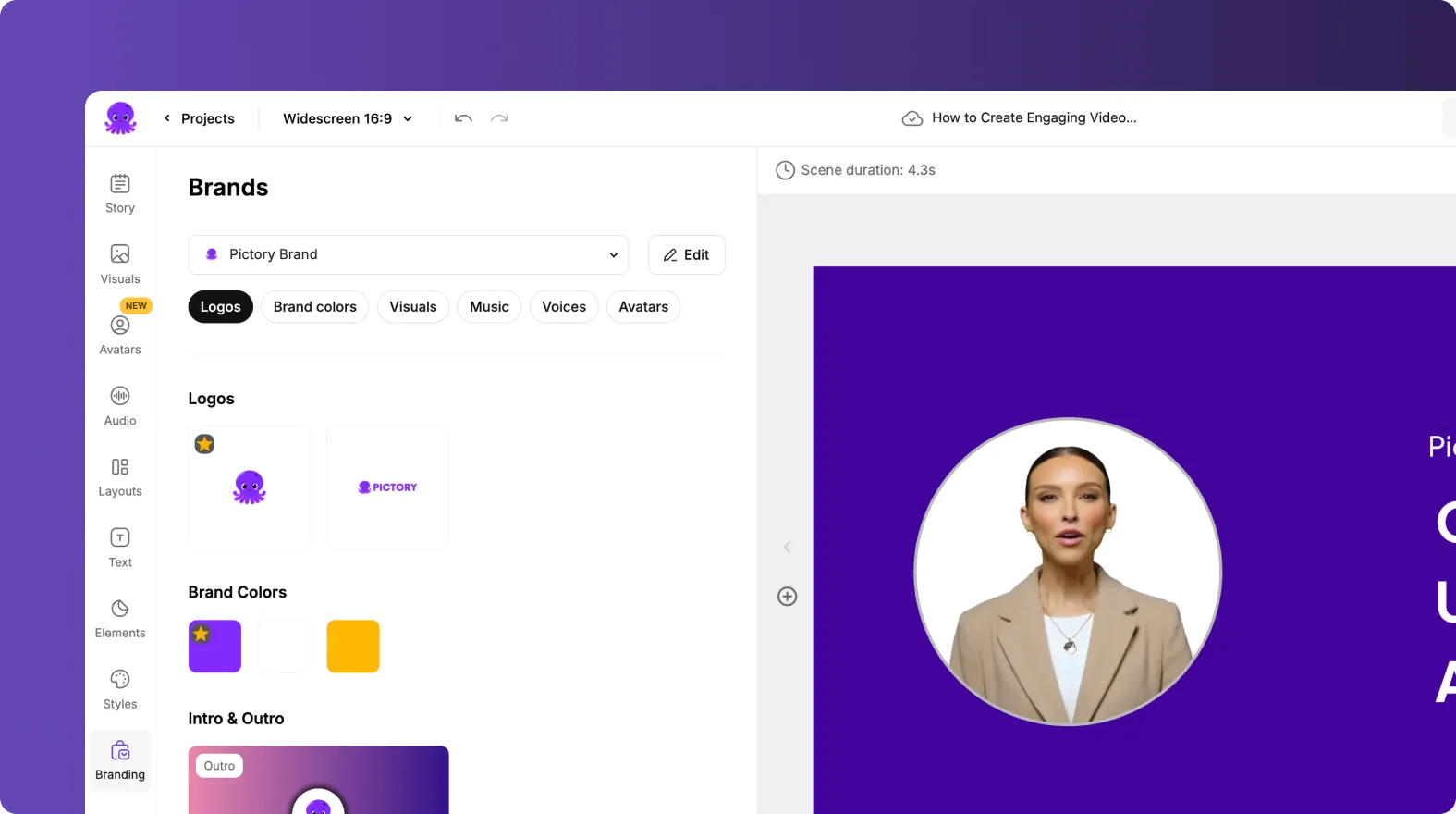
Use the Branding tab to apply your Brand Kit logo, fonts, and colors consistently. In Styles, select a text style that matches your documentation guidelines. For Enterprise teams, this makes every tutorial look like it came from a single production system.
Operationalize Text to Video Generation for Customer Success at Scale
Once you have one high quality tutorial, build a repeatable process so the team can produce new videos quickly and keep them updated when the product changes.
- Create a standardized help doc script format with consistent headings, steps, and outcomes.
- Use Brand Kits to eliminate manual styling decisions.
- Maintain a shared project library so teammates can duplicate and adapt existing tutorials.
- Adopt a review checklist for accuracy, readability, and brand compliance before publishing.
If your knowledge base is URL accessible, you can speed up repurposing by starting in URL to Video, then standardize the final output in the same editor workflow.
Where to Publish Customer Success Video Tutorials (Help Center, LMS, In App)
Text to video tutorials can support multiple customer touchpoints. The best placement depends on the question you are answering and the urgency of the workflow.
- Help center articles: Embed the tutorial at the top for immediate guidance.
- Customer onboarding sequences: Use short videos to guide setup and first value.
- LMS or internal enablement: Standardize training for new CSMs and Support reps.
- In app guidance: Use short, vertical clips for contextual tips.
For slide based onboarding decks, consider converting them to video with PPT to Video, then align the look and feel using the same brand kit and styles used for your help doc tutorials.
FAQ: Text to Video for Customer Success Teams: Turning Help Docs Into Video Tutorials
What is the fastest way to turn a help doc into a video tutorial?
Use the Text to Video generator in Pictory. Paste a cleaned up script version of your help doc, set scenes by sentences or line breaks, apply your Brand Kit, then click “Generate video” to produce a storyboard you can refine in the editor.
How do I keep branding consistent across dozens of Customer Success videos?
Create and apply a Brand Kit in the editor’s Branding tab so logos, fonts, and colors remain consistent. This is the simplest way to ensure every new text to video project matches enterprise brand standards.
Can I update videos when the product UI changes without re recording?
Yes. With a text to video workflow, you can edit the scenes and on screen text in the Story tab, swap visuals, and re export. This is often faster than reshooting screen recordings.
Should Customer Success tutorials be 16:9 or 9:16?
Use 16:9 for help centers, LMS platforms, and desktop learning. Use 9:16 for mobile first placements such as in app tips or microlearning sequences. You can choose the aspect ratio during script setup before you generate the video.
Can I generate visuals inside Pictory instead of relying on stock footage?
Yes. In the editor, open Visuals and use AI Studio to generate AI images or AI videos from prompts, then add them to scenes. This is useful for abstract concepts or when you want consistent custom visuals.
When should I use screen recording instead of text to video?
Use text to video for conceptual how to guidance and repeatable step explanations. Use the Smart Screen Recorder when the viewer must see the exact product UI, clicks, and cursor movements to complete the task.


