
Employee onboarding moves faster when your policies, SOPs, and handbooks are delivered as clear, brand-consistent videos. With Pictory, L&D, HR, and enablement teams can convert existing text into onboarding training videos using an AI text to video workflow that reduces production time, avoids complex editing software, and supports scalable updates.
This guide shows how to turn onboarding documents into videos using Pictory’s Text to Video generator, refine results in the AI Video Editor, and apply brand consistency across a training library inside AI Studio.
Why use AI text to video for employee onboarding and training at scale
Onboarding content often exists as long documents that new hires do not fully read. Converting text to video improves completion rates, comprehension, and consistency across remote and global teams.
- Reduce production overhead: repurpose existing documents rather than creating videos from scratch.
- Standardize messaging: ensure every employee receives the same instructions and compliance language.
- Update faster: revise the script and regenerate scenes instead of re-recording.
- Improve engagement: combine captions, voiceover, and visuals for clearer learning.
Plan your onboarding script for the best text to video AI generator results
Before you start the convert text to video workflow, prepare your onboarding document for scene-based video creation. Pictory works best when text is clear, structured, and easy to segment.
- Break long paragraphs into short sentences and scannable sections.
- Use clear headings such as “What to do,” “Why it matters,” and “Next steps.”
- Add a short call to action at the end of each module, such as “Complete your profile” or “Read the security policy.”
- Decide whether the video should be an explainer, internal communication, or tutorial style.
If your source content is on a webpage or internal wiki, consider starting with URL to Video to extract the content and generate a draft script you can refine for onboarding.
How to convert onboarding documents using Text to Video AI in Pictory
This step-by-step workflow uses Pictory’s text to video generator to transform your onboarding script into a storyboard and editable training video.
Step 1: Start a Text to Video project
From your Pictory home screen, open AI Studio and select Text to Video. Paste your onboarding script directly into the script input area.
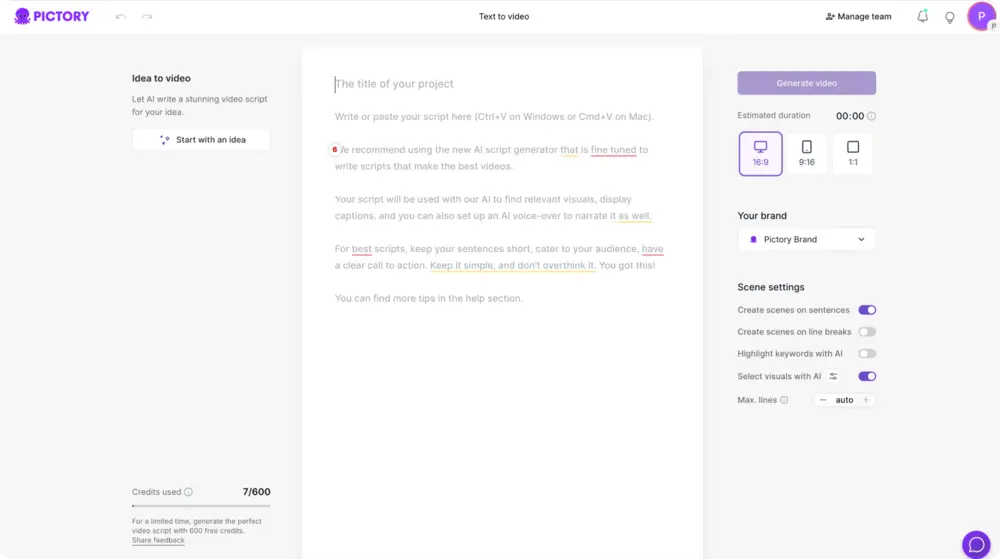
Tip: Keep sentences short and focused so the AI can create clean, readable scenes and accurate captions.
Step 2: Set scene rules for onboarding training videos
In the scene settings, choose how Pictory splits your script into scenes. For employee onboarding, predictable structure matters.
- Enable sentence-based scenes for short, instructional modules.
- Use line-break-based scenes if your document already uses section breaks.
- Turn on keyword highlights if you want key policies and terms to stand out.
- Enable “select visuals with AI” to auto-match visuals to each scene.
Step 3: Choose aspect ratio and apply your brand kit
Select the right aspect ratio for your learning channel, then apply your organization’s brand kit for consistent design.
- 16:9 for LMS, intranet, and desktop-first onboarding.
- 9:16 for mobile-first onboarding and internal social channels.
- 1:1 for square layouts when you need flexible placement.
In the same panel, choose your brand kit to apply logo, fonts, and colors across scenes for brand-consistent ai training video production.

Step 4: Refine the script using Ask AI to improve clarity and compliance
Use Ask AI tools in the script editor to optimize onboarding language.
- Optimize to improve readability and flow.
- Rephrase to align with internal policy language.
- Shorten to create microlearning video segments.
- Change tone to match formal compliance or friendly onboarding voice.
Step 5: Select a theme and generate your onboarding video storyboard
Choose a layout theme that fits internal communications and training. Then click “Generate video” to create the storyboard. Pictory will process your script into scenes and build a timeline with visuals and captions.
Edit onboarding training videos in the AI Video Editor for clarity and consistency
Once the storyboard is created, you will land in the editing workspace where you can finalize the onboarding module using the AI Video Editor.
Step 1: Review scenes and adjust pacing in the timeline
Use the storyboard list and timeline thumbnails to review each scene. Update scene text, reorder scenes, and fine-tune duration so new hires have time to read and absorb key points.
- Duplicate scenes to reuse a standard “Next steps” format.
- Delete redundant scenes to keep modules short.
- Use timeline zoom to navigate longer onboarding videos faster.
Step 2: Replace or lock visuals for policy and process accuracy
Open the Visuals tab to confirm each scene matches your content. For onboarding and compliance, prioritize accurate visuals over generic footage.
- Use Library stock visuals for general concepts such as teamwork and office workflows.
- Use Uploads for screenshots of internal tools and UI flows.
- Use AI Studio within Visuals to generate custom images or AI videos that match your scenarios.
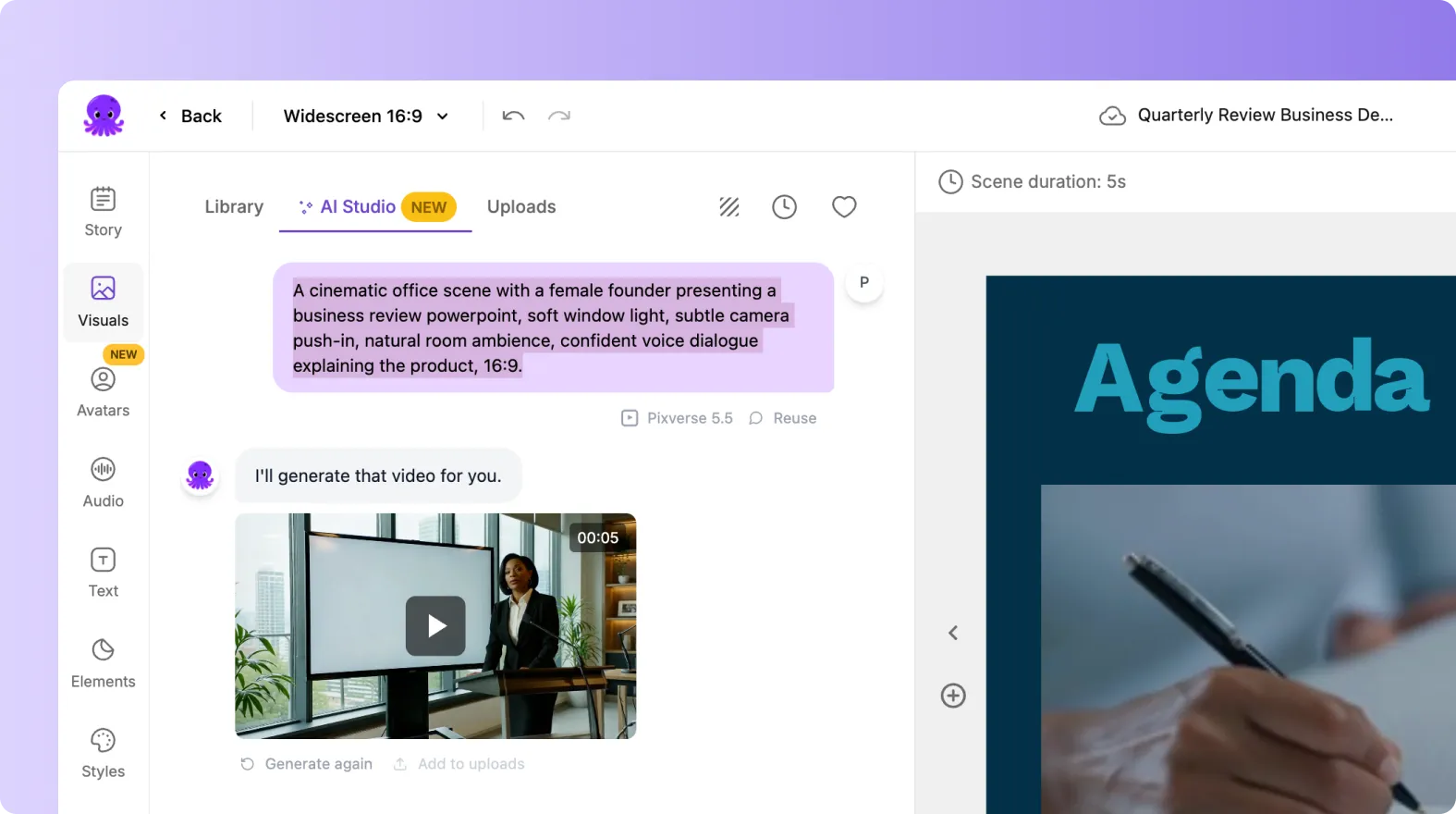
Step 3: Add voiceover and text to speech video narration
In the Audio tab, select an AI voiceover for consistent narration across onboarding modules. This is especially useful when you need to update content regularly without re-recording.
- Preview multiple voices for tone and clarity.
- Add background music subtly to support pacing without competing with narration.
- Upload your own audio if you have approved internal narration.
Step 4: Add text to video overlays and animate key takeaways
Use the Text tab to place headings, callouts, or compliance reminders on screen. If you need more emphasis, select a text box and use the Animate Text option to apply entry and exit animations such as Fade, Typewriter, or Wipe.

This is a practical way to add text to a video for checklists, do and do not rules, or short definitions that support new hire understanding.
Use brand kits and enterprise governance for consistent onboarding video libraries
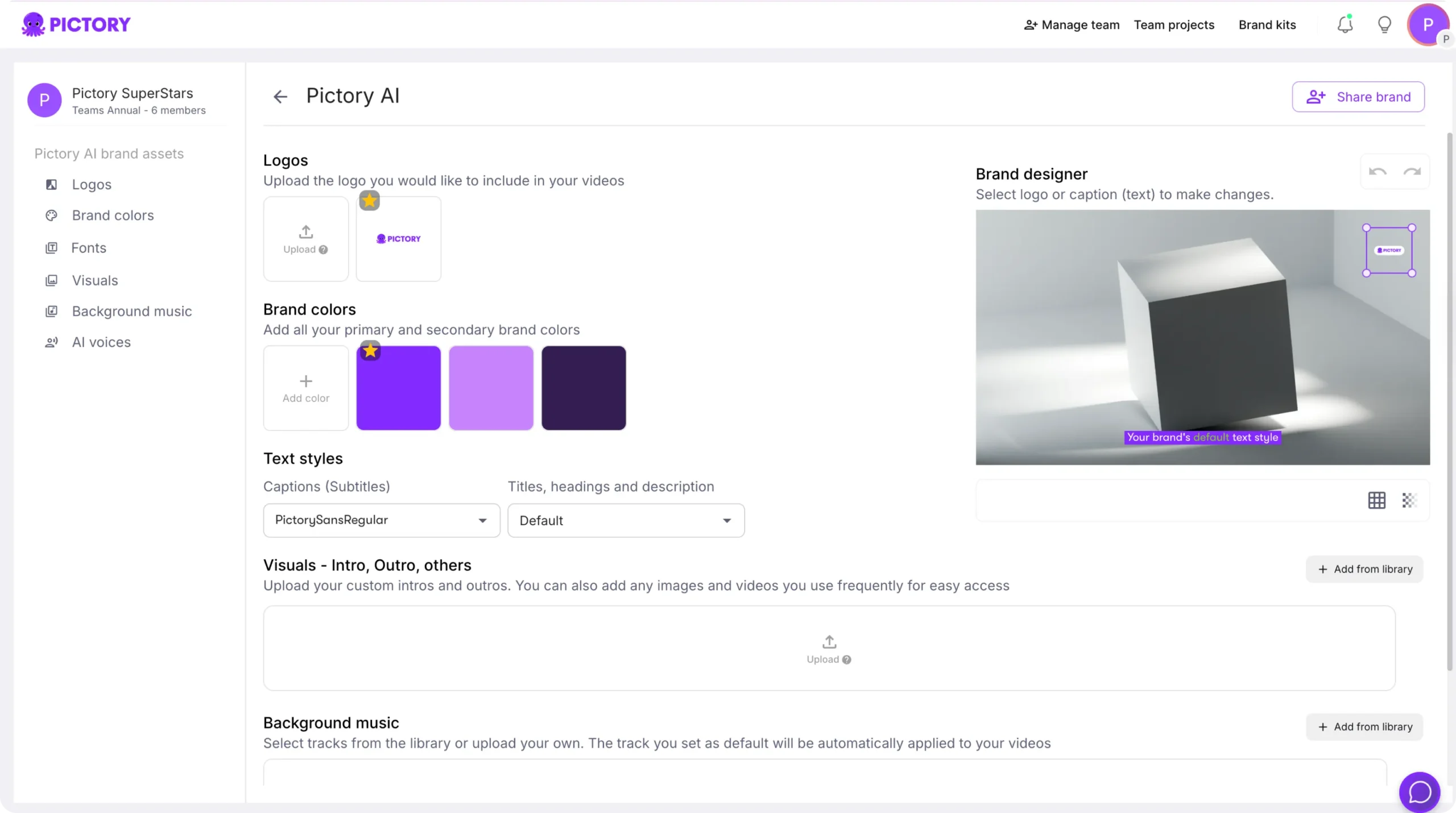
Enterprise onboarding requires consistency across departments, locations, and course owners. Use brand kits to standardize visuals, fonts, and color palettes across every onboarding module.
- Create a brand kit for HR onboarding and another for compliance if needed.
- Apply logos, fonts, and approved colors to reduce manual styling.
- Shuffle brand color combinations to test alternate palette pairings while staying on brand.
- Save projects to keep an editable source of truth for future updates.
If your onboarding content begins as slide decks, you can accelerate conversion by starting with PPT to Video and then polish the output in the editor.
Scale remote onboarding with screen recordings, demos, and document based modules
Many onboarding programs combine policy modules with software walkthroughs. For tool training, pair text-based onboarding videos with recorded demos.
Use Smart Screen Recorder to capture screen, webcam, or both, then send the recording into AI-powered editing and transcription workflows. This supports faster updates and consistent delivery for remote employee onboarding and software enablement.
- Record a product tour or internal tool walkthrough.
- Use AI transcription features to clean up filler words and silences.
- Customize subtitles and styles to match your brand kit.
Export and manage onboarding training videos for distribution and updates
After reviewing the full video, use Preview to validate visuals, captions, and voiceover. Then download your onboarding video for distribution through your LMS, intranet, or knowledge base.
- Maintain a master project version in Projects so updates are fast when policies change.
- Create a modular series: one video per topic such as security, benefits, IT setup, and code of conduct.
- Standardize intros and outros for a consistent training experience.
FAQ: Text to Video for Employee Onboarding: Transforming Documents Into Training Videos
What types of onboarding documents work best for an AI text to video generator?
Structured documents like SOPs, handbooks, policy summaries, and step-by-step checklists work best. Break long paragraphs into short sentences or sections so the AI can generate clean scenes and readable captions.
How do I make onboarding videos more engaging when converting text to video?
Keep modules short, add clear headings, use on-screen callouts for key rules, and include a simple action at the end of each section. In Pictory, you can add text overlays, use subtle text animations, and select visuals that match real scenarios.
Can I keep videos brand-consistent across multiple departments and locations?
Yes. Apply brand kits to standardize logos, fonts, and colors across every video. This is ideal for enterprise HR, compliance, and enablement teams that need consistent onboarding at scale.
What is the fastest way to update onboarding training videos when a policy changes?
Edit the script text inside the project, regenerate or adjust affected scenes, and re-export. This is typically faster than re-recording a full video and helps teams keep training aligned with current policies.
Should I use Text to Video, URL to Video, PPT to Video, or Screen Recorder for onboarding?
Use Text to Video for documents and scripts, URL to Video for web-based content, PPT to Video for slide-led onboarding, and Smart Screen Recorder for software demos and walkthroughs. Many onboarding programs combine two or more workflows.
Can Pictory help with captions and accessibility for onboarding videos?
Yes. Pictory generates captions from your script and supports subtitle styling. This helps improve accessibility and comprehension for diverse audiences, including global teams and remote employees.


