
Enterprise teams are under pressure to ship more content with fewer resources while maintaining brand consistency. With Pictory, you can convert articles, knowledge base pages, and internal documentation into professional videos quickly using AI, then standardize them across departments with Brand Kits and repeatable workflows.
This guide shows you how to turn articles into video using Pictory’s URL to Video workflow, then refine results in the AI Video Editor for a scalable enterprise content strategy.
Why text to video AI matters for enterprise content strategy
An enterprise content strategy often includes blogs, product updates, support articles, sales enablement collateral, and L&D documentation. Using text to video AI and an AI text to video generator, teams can repurpose that written content into video for onboarding, internal communications, customer education, and social distribution without adding headcount.
Reduce production overhead by converting existing articles into video rather than creating from scratch.
Increase content reach by adapting one article into multiple formats, including short clips.
Maintain brand consistency with reusable Brand Kits, styles, and layouts.
Standardize workflows so multiple teams can create market-ready videos quickly.
Choose the best AI text to video workflow for turning articles into video
Pictory supports multiple ways to convert text to video depending on where your content lives and how standardized your pipeline is.
Turn an article into video from a link using URL to Video for blog to video and web page to video conversion.
Turn a written script into video using the Text to Video generator when you already have an approved enterprise script.
Repurpose webinars or internal recordings using AI Video Editor with transcription and highlights for long-form to short-form workflows.
Convert training decks into video using PPT to Video for scalable L&D and sales enablement training.
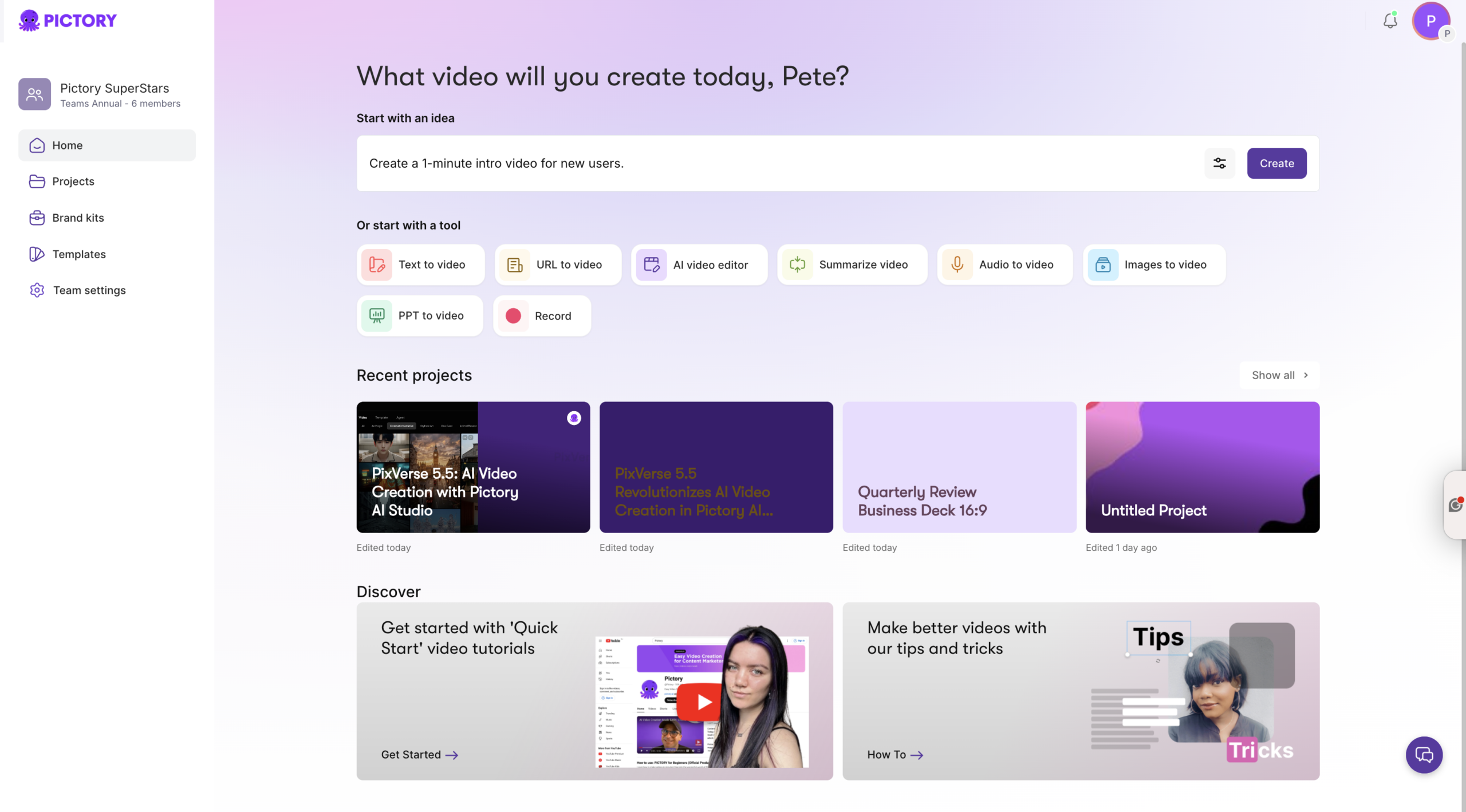
For article repurposing, the fastest enterprise-ready path is URL to Video because it extracts content directly and drafts a script you can standardize.
Prep your article for blog to video AI conversion at scale
Before you convert an article to video, do a quick enterprise optimization pass. This improves pacing, narration clarity, and visual matching during text to video generation.
Use short sentences and clear section headers.
Move key takeaways to the top so the first 10 seconds deliver value.
Add a clear call to action for the intended audience: employees, customers, or prospects.
Remove overly complex tables and reduce dense paragraphs into scannable sections.
Confirm any regulated language (compliance, legal, finance) is already approved before video.
Step-by-step: Convert URL to video with Pictory (enterprise article to video workflow)
Use this workflow to convert a blog post to video, transform internal pages into training videos, or repurpose thought leadership into a video series.
Step 1: Start a URL to Video project in AI Studio
From your Pictory workspace, open AI Studio and select URL to Video. Paste a valid URL that starts with http:// or https://.
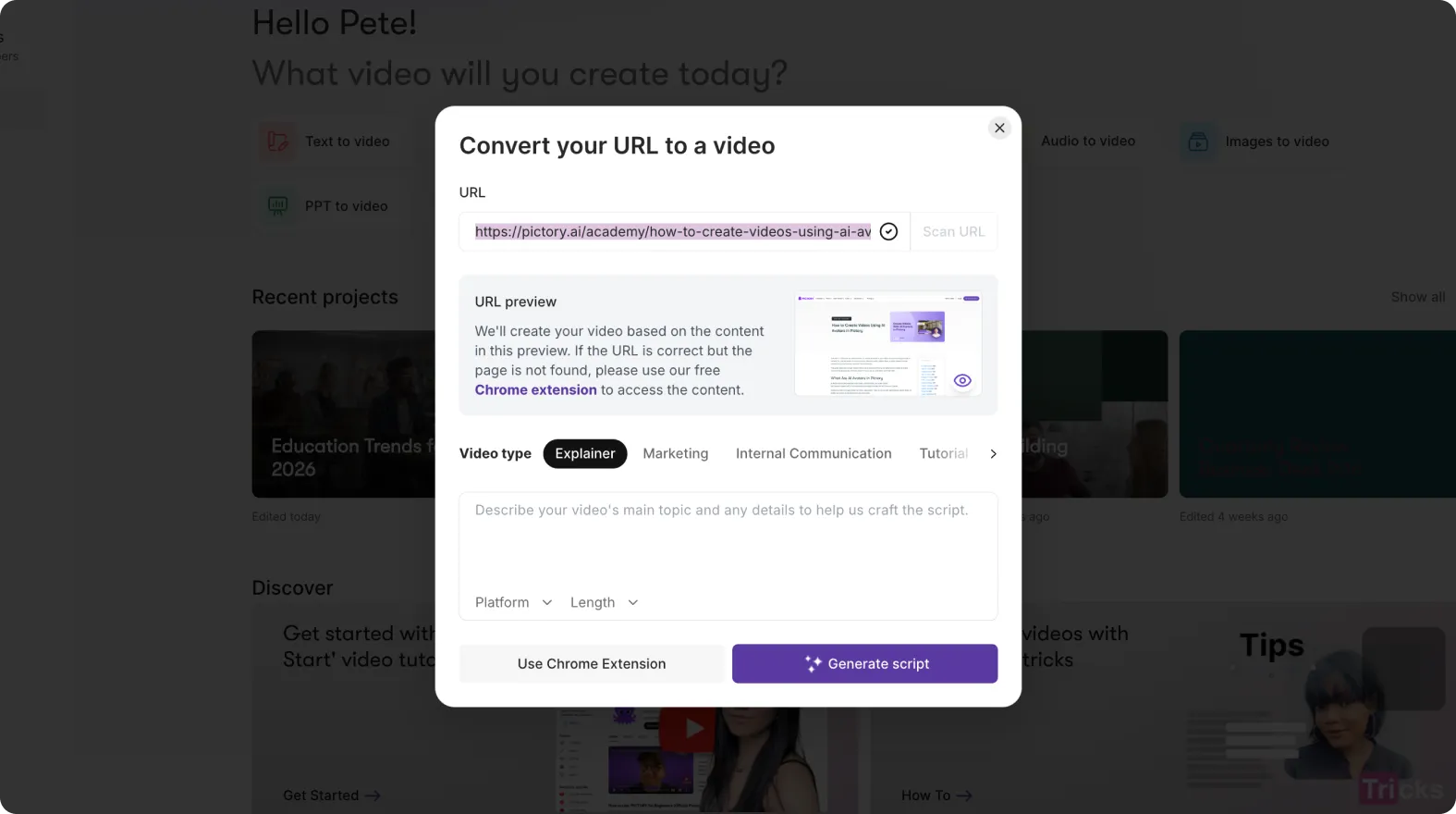
If you are converting gated or internal pages, ensure you are using an accessible URL that the workflow can extract.
Step 2: Choose video type, platform, and target length for enterprise distribution
Select the video type that matches your enterprise use case, such as Explainer, Marketing, Internal Communication, or Tutorial. Then choose the platform and the approximate video length to align with channel requirements.
Internal communications: concise updates, clear headlines, minimal jargon.
L&D or compliance: slower pacing, clear definitions, stronger on-screen text reinforcement.
Sales enablement: benefit-led structure, proof points, and clear CTA for next steps.
Step 3: Generate the draft script from the article
Click “Generate Script.” Pictory will extract content from the page and draft a narration-ready script. This is your control point for brand voice, accuracy, and governance.
In the Script Editor, refine the text directly and use the built-in “Ask AI” tools to optimize, rephrase, shorten, lengthen, or change tone while keeping messaging consistent across teams.
Step 4: Set scene rules for predictable text to video generation
In the right panel, apply scene settings so your enterprise videos follow a repeatable structure.
Select an aspect ratio: 16:9 for LMS and YouTube, 9:16 for mobile and internal social, 1:1 for multi-platform feeds.
Enable scene creation by sentences or line breaks for controlled pacing.
Set maximum lines per scene to prevent overcrowded captions.
Toggle keyword highlights when you need important terms emphasized.
Keep “select visuals with AI” enabled to accelerate first-pass storyboarding.

Step 5: Apply a Brand Kit for enterprise brand consistency
Select the appropriate Brand Kit so logos, fonts, colors, and styling remain consistent across departments. This is essential for enterprise scale, especially when multiple teams are producing content.
After the Brand Kit is applied, your storyboard and captions inherit brand formatting automatically, reducing manual rework later in the process.
Step 6: Generate the video storyboard from the script
Click “Generate video.” Pictory will create a storyboard and auto-build scenes. You will see a progress bar as scenes are created.
Once complete, you will land in the editor where each scene can be adjusted for visuals, text, timing, and audio.
Step-by-step: Edit and polish in the AI Video Editor for a professional enterprise finish
After the storyboard is generated, use the AI Video Editor to ensure the final video is on-brand, accurate, and optimized for engagement.
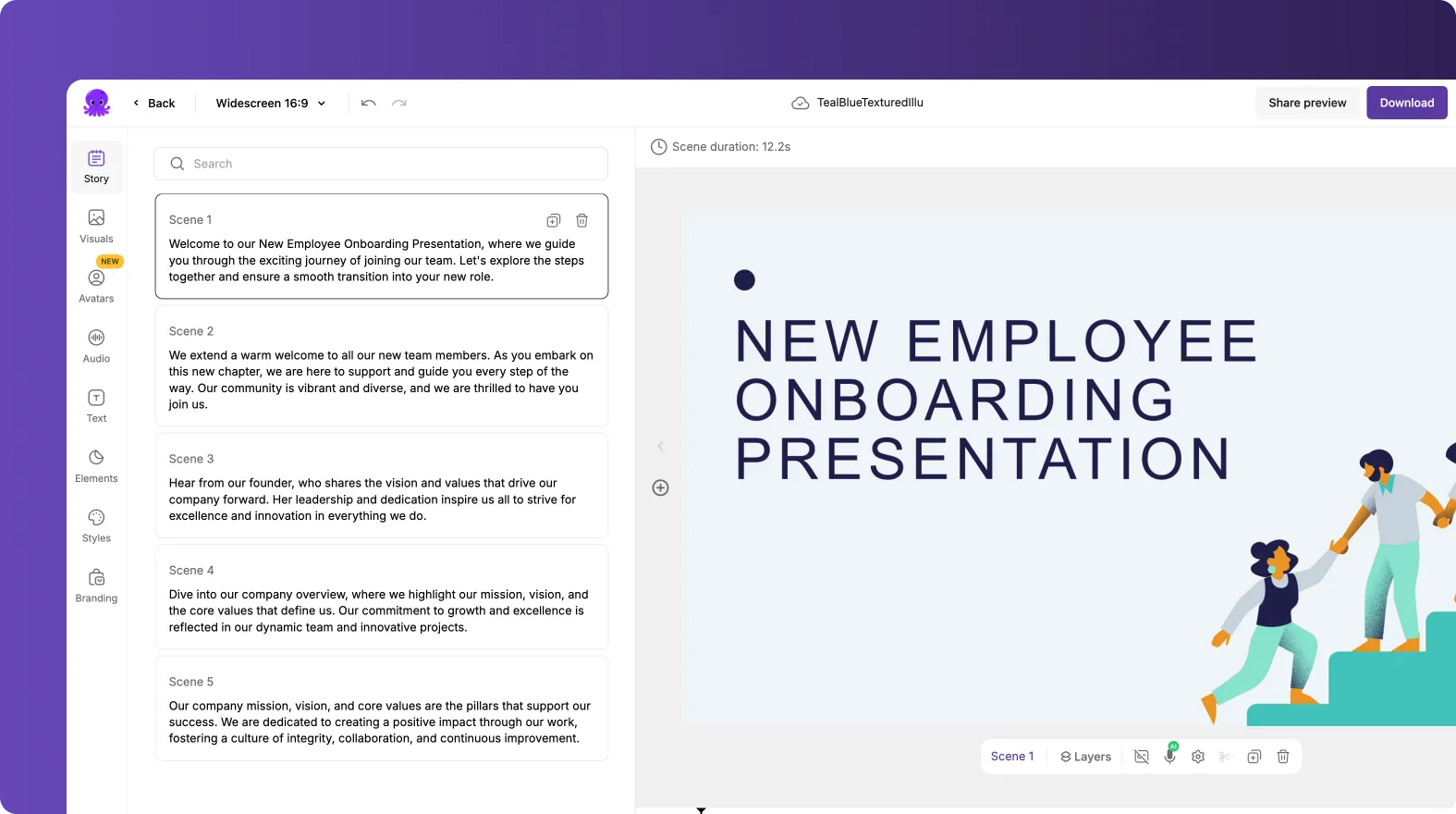
Step 1: Review scenes and tighten the narrative in the Story panel
In the Story tool, review each scene’s text. Trim filler, simplify complex language, and ensure each scene communicates one idea. This is the fastest way to improve clarity and pacing for enterprise viewers.
Combine or split scenes to match topic boundaries.
Standardize terminology across teams, especially for product names and policies.
Add a consistent intro and outro structure for series-based content.
Step 2: Upgrade visuals using Library, Uploads, or AI Studio visuals
Open Visuals and replace any mismatched stock selections. You can pull from the stock Library, your Uploads, or generate on-brand assets directly inside the editor using AI Studio. This step is key when transforming technical articles into clean enterprise explainer visuals.
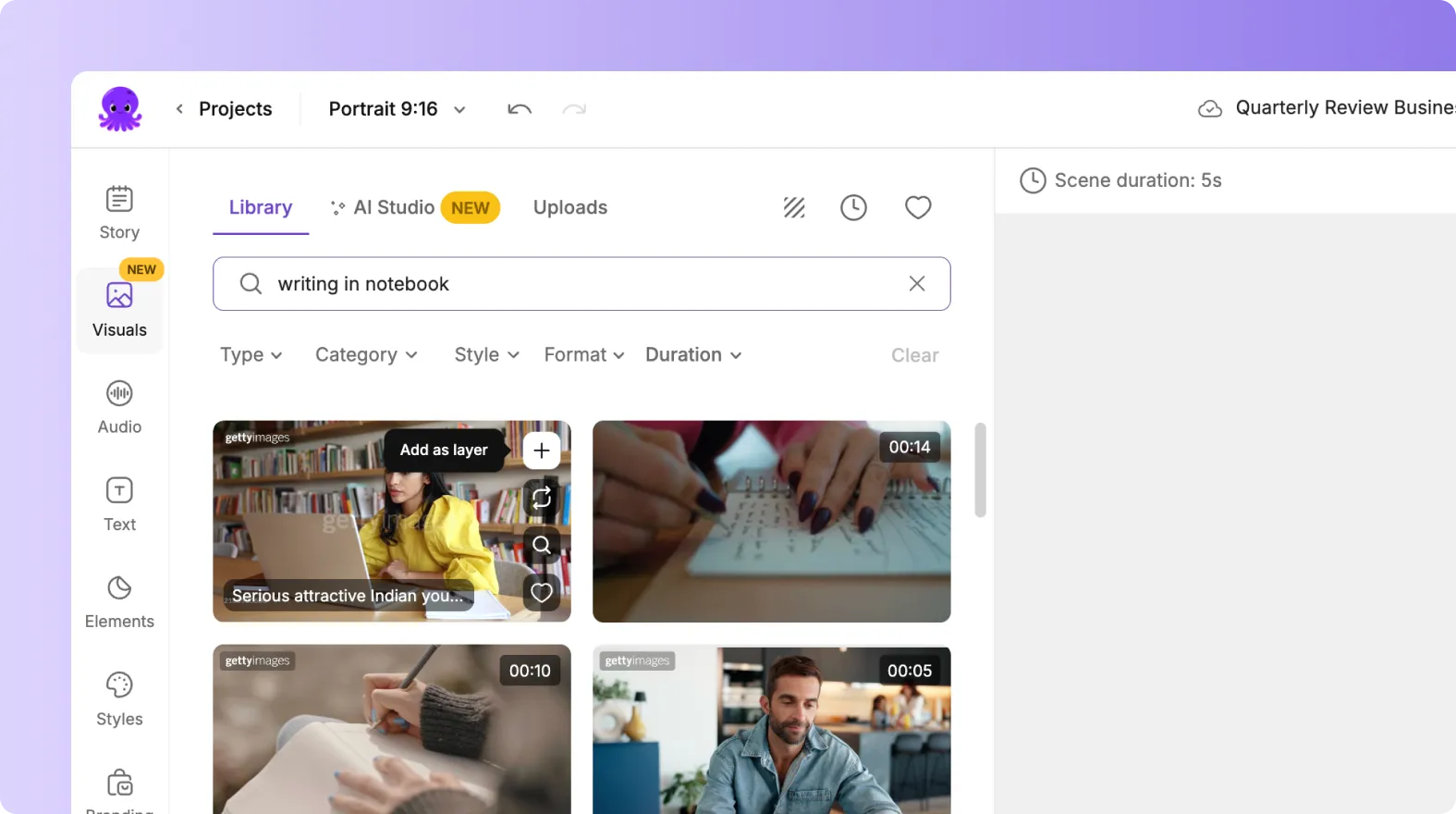
For product screenshots or UI walkthroughs, consider capturing a short demo with Smart Screen Recorder and then incorporating those clips into the project for higher accuracy.
Step 3: Add voiceover and music to match enterprise tone
In Audio, choose an AI voiceover that matches your brand tone and audience. Enterprise training typically benefits from clear, neutral narration, while marketing content may require more energy and pacing.
Add background music sparingly for internal updates and training. Keep it subtle so narration remains clear.
Step 4: Improve on-screen text and add text to video where it increases retention
Use Text and Layouts to reinforce key points. If you are looking for how to add text to a video for enterprise learning, focus on:
Definitions and acronyms
Step lists and checklists
Policy requirements and deadlines
Key metrics and outcomes
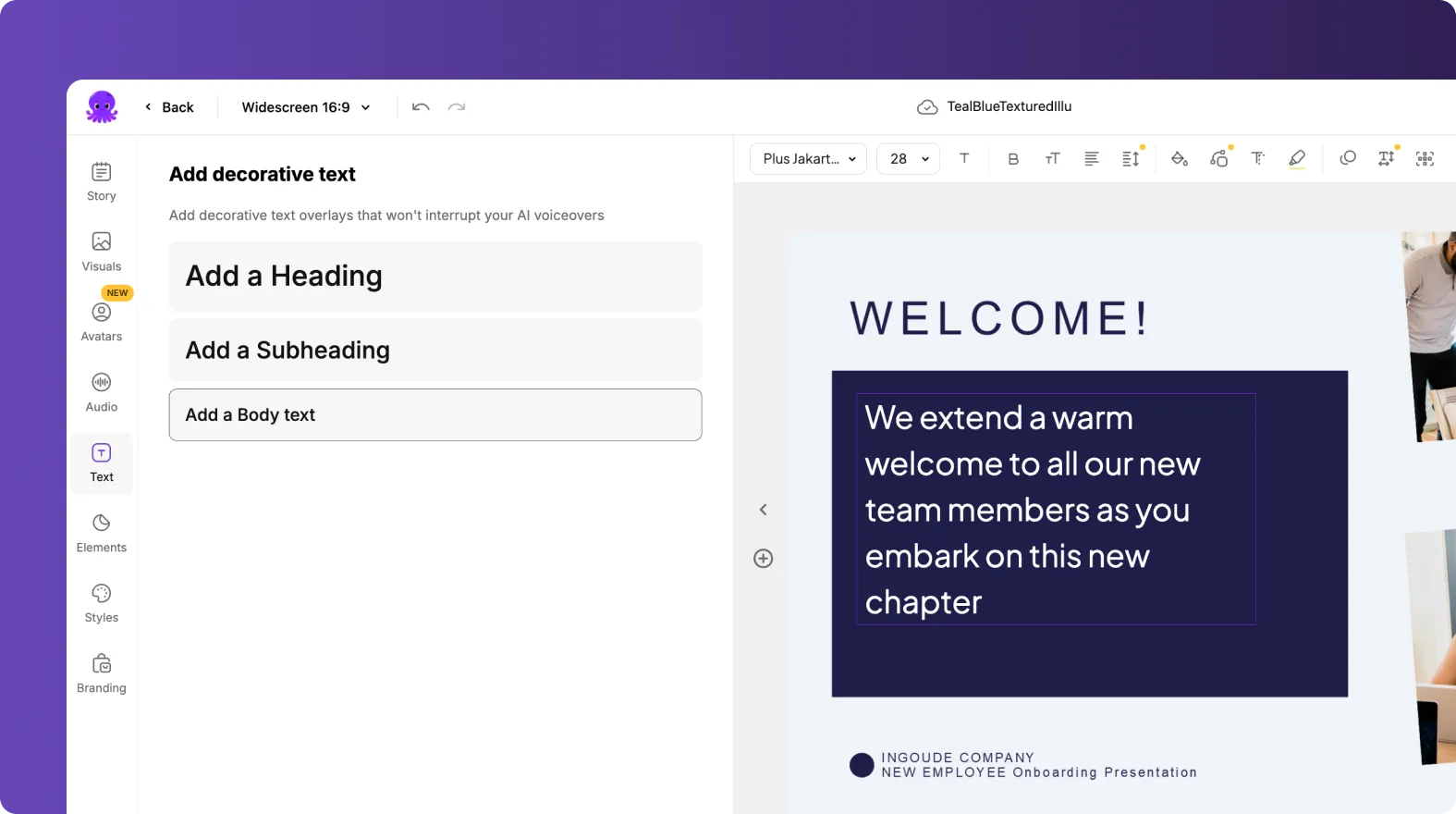
Select a text layer and use the Animate Text option in the top toolbar to apply entry and exit animations for clearer pacing. Keep animations consistent across a series to maintain a professional standard.
Step 5: Use the updated timeline to manage scenes efficiently
In the bottom timeline, navigate via scene thumbnails and use right-click actions like Duplicate, Copy, Paste after, Link with next, or Delete. Use timeline zoom when managing longer enterprise videos to speed up editing and review cycles.
Step 6: Preview, share a review link, and export
Preview the full video to confirm pacing, brand styling, and accuracy. Use Share preview for stakeholder review when available, then export by downloading the final MP4 when approved.
Save the project so it remains searchable and reusable under Projects, enabling your team to create standardized variants for regions, departments, or audiences.
Enterprise scaling tips for text to video tools and repeatable content operations
To scale article to video production across departments, treat Pictory as a repeatable system, not a one-off tool.
Standardize Brand Kits for each business unit or client brand to keep visuals consistent.
Create templates and repeatable structures for intros, outros, and CTA scenes.
Build a content repurposing pipeline where every new article is also converted to video.
Use multiple input workflows depending on source format, including Text to Video for approved scripts and PPT to Video for training decks.
Repurpose long-form recordings into short clips using the AI Video Editor for highlights and faster iteration.
Common mistakes when converting text to video online and how to avoid them
Mistake: Trying to narrate the entire article word-for-word.Fix: Convert the article into a script summary, then link back to the full resource.
Mistake: Overloading scenes with too much on-screen text.Fix: Use a max-lines rule and convert dense paragraphs into 1 to 2 key points per scene.
Mistake: Mismatched visuals that reduce trust in enterprise contexts.Fix: Replace visuals in the editor and add brand-approved assets or screenshots where needed.
Mistake: Inconsistent branding across teams.Fix: Require Brand Kit selection before storyboard generation and lock in consistent Styles.
FAQ: Text to Video for Enterprise Content Strategy: Turning Articles Into Video
What is the fastest way to turn an article into video using an AI text to video generator?
The fastest method is URL to Video. Paste the article link, generate a script draft, apply scene settings and a Brand Kit, then generate the storyboard and polish in the AI Video Editor.
Can I use text to video AI for internal communications and training videos?
Yes. Enterprise teams commonly convert written updates, SOPs, and policy documentation into internal communication videos and training modules. Use clear scene rules, slower pacing, and reinforce key steps with on-screen text.
How do I add text to a video for enterprise learning and retention?
In the editor, use the Text tool to add headings, subheadings, and body overlays for definitions, steps, or compliance requirements. Pair this with Layouts and consistent Styles so every video in the series follows the same format.
How do we maintain brand consistency across multiple teams using text to video tools?
Use Brand Kits to standardize logos, fonts, and brand colors. Apply the Brand Kit before generating the video so captions and scene styling inherit your enterprise visual identity from the start.
What if our content is a script document instead of a web article?
Use the Text to Video generator. Paste the approved script, set your scene rules and aspect ratio, select a Brand Kit, then generate the storyboard and refine the final cut in the editor.
Can we turn slide decks into training videos as part of an enterprise content strategy?
Yes. If the source content is in PowerPoint, use PPT to Video to convert slides into a storyboard, optionally using speaker notes for narration. Then finalize the training video with branded styles and exported assets for distribution.
How can we incorporate product demos or walkthroughs into article-to-video content?
Record a quick walkthrough using Smart Screen Recorder, then add the clip to your project in the editor. This improves accuracy when articles describe UI steps, workflows, or software features.


