
Enterprise teams are sitting on a goldmine of content that rarely gets watched: SOPs, policy updates, enablement playbooks, internal memos, product docs, and long-form training material. With Pictory, you can convert text into professional, brand-consistent video quickly using an AI text to video workflow inside AI Studio, then refine the result in the AI Video Editor.
This guide shows a practical, repeatable text to video process for enterprise L&D, compliance, sales enablement, and internal communications teams who need to scale production without scaling headcount.
Why enterprise teams use AI text to video for training, compliance, and enablement
AI text to video makes it easy to repurpose existing documentation into videos employees will actually complete. Instead of building every training video from scratch, you start from approved text, then use an AI text to video generator to accelerate storyboarding, visuals, captions, and voiceover.
- Reduce production overhead: Transform documents into video faster than traditional corporate training video production workflows.
- Maintain brand consistency: Apply brand kits (logo, fonts, colors) across every scene for standardized delivery.
- Improve engagement: Scene-based pacing, captions, layouts, and optional AI avatars help information stick.
- Scale updates: When policies change, edit the source text, regenerate, and publish updated videos quickly.
What you can turn into video with a text to video AI generator (enterprise use cases)
Text to video generation works best when you already have structured content. Common enterprise inputs include:
- Employee onboarding guides and onboarding videos for new employees
- Compliance training video scripts and policy updates
- Sales enablement collateral, messaging guides, talk tracks, and playbooks
- Product documentation, feature releases, and internal announcements
- Customer-facing explainers and professional services training materials
If your source is a webpage or knowledge base article, you can also convert it using URL to Video. If your source is slides, use PPT to Video. If you are creating visual stories from assets, use Image to Video.
Before you start: preparing documents for the best text to video AI results
A little prep dramatically improves outputs from any text to video AI tool. Use these enterprise-friendly guidelines before you paste your script:
- Keep sentences short and direct, especially for compliance and SOP content.
- Use clear headings and logical sections to help AI create clean scene breaks.
- Add a clear call to action for internal comms, enablement, or required trainings.
- Remove long legal blocks from on-screen narration and place them in downloadable resources instead.
- Decide your target format early: 16:9 for LMS and intranet, 9:16 for mobile microlearning, 1:1 for internal social channels.
Step-by-step: create enterprise videos using Text to Video in Pictory AI
Use this workflow when you want to convert text into video from documents, scripts, or internal content. This is the core “text to video for enterprise teams” process and is ideal for repeatable training video production.
Step 1: Start a new Text to Video project
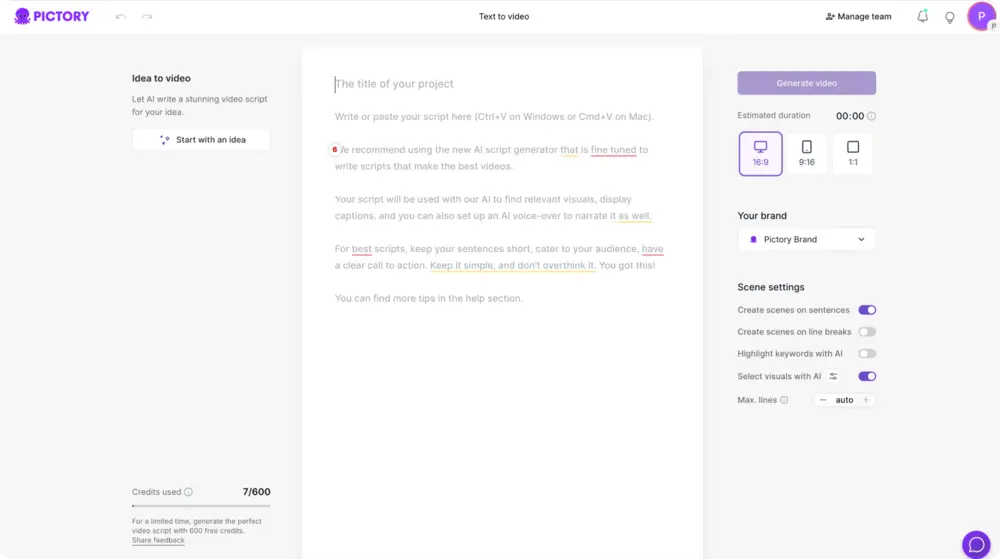
From the Pictory home screen, choose the Text to Video generator. Paste your approved script or the key sections of your document into the script input area. If you need help creating a first draft, use the built-in AI script generator to create a starting point, then refine it to match your company language.
Step 2: Configure scene settings for consistent enterprise pacing
In the script editor, choose how Pictory should split scenes. For enterprise learning and internal communications, sentence-based scenes typically create the most scannable pacing.
- Select an aspect ratio: 16:9, 9:16, or 1:1 based on your delivery channel.
- Enable scene creation based on sentences or line breaks.
- Optionally highlight keywords to reinforce critical policy terms, steps, or product names.
- Enable AI visual selection if you want Pictory to automatically match visuals to each scene.
- Set a maximum lines per scene to keep captions readable.
Step 3: Apply brand kits for brand-consistent training and enablement videos
Select a Brand Kit to apply your organization’s logo, fonts, and colors. This ensures every output looks like it came from the same production team, even when multiple departments create videos in parallel.
If you have not created a brand kit yet, go to Brand Kits and build one with your approved logo variations, color palette, and font selection. Then apply it in the editor using the Branding area.

Step 4: Generate the video storyboard from your text
Click “Generate video.” Pictory will process your script and create a storyboard with scenes that align to your text. You will see a “Creating scenes” progress state while visuals, captions, and structure are assembled.
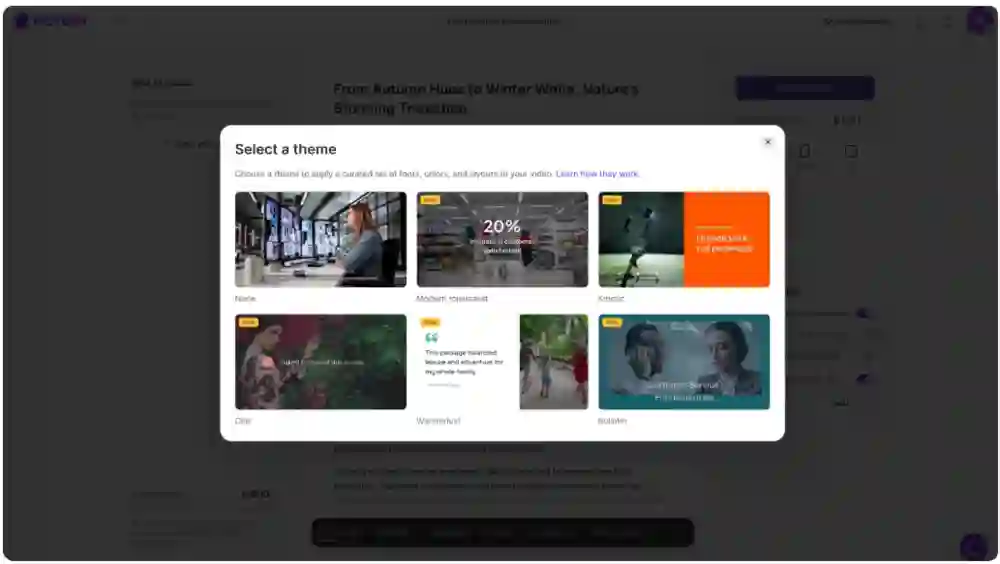
Step 5: Choose a layout theme that matches enterprise communication standards
Select a theme to control typography and visual style. For internal training and compliance, clean and minimal layouts typically improve readability and reduce distractions. You can also choose “None” if you prefer manual styling in the editor.
Step-by-step: edit, add text to video, and polish results in the AI Video Editor
After generation, refine the output inside the AI Video Editor. This is where enterprise teams standardize presentation quality and ensure accuracy.
Step 1: Review scenes and fix terminology in the Story tab
In the Story tab, review each scene’s text for accuracy, tone, and compliance alignment. Enterprise teams should standardize terminology such as product names, policy phrases, and regulated language. Adjust scene text to improve narration pacing and on-screen captions.
Step 2: Replace or refine visuals in the Visuals tab (Library, Uploads, and AI Studio)
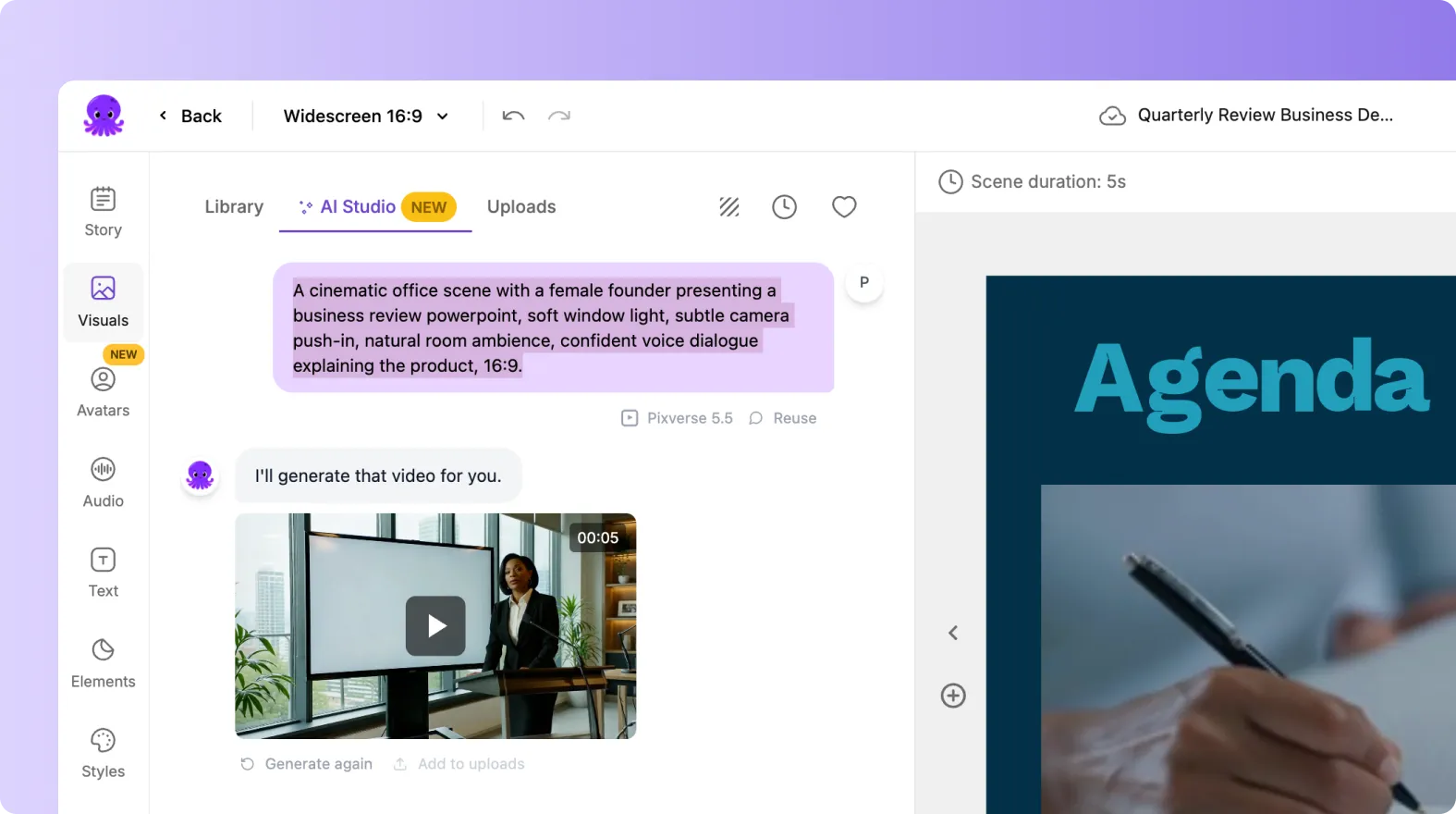
Open the Visuals tab to manage scene media:
- Library: Search royalty-free stock media to match corporate topics.
- Uploads: Add internal screenshots, diagrams, branded imagery, or recorded product UI shots.
- AI Studio: Generate AI images or AI videos directly inside the editor with prompts, then add them to scenes for more specific enterprise visuals.
Step 3: Add narration and background music using Audio controls
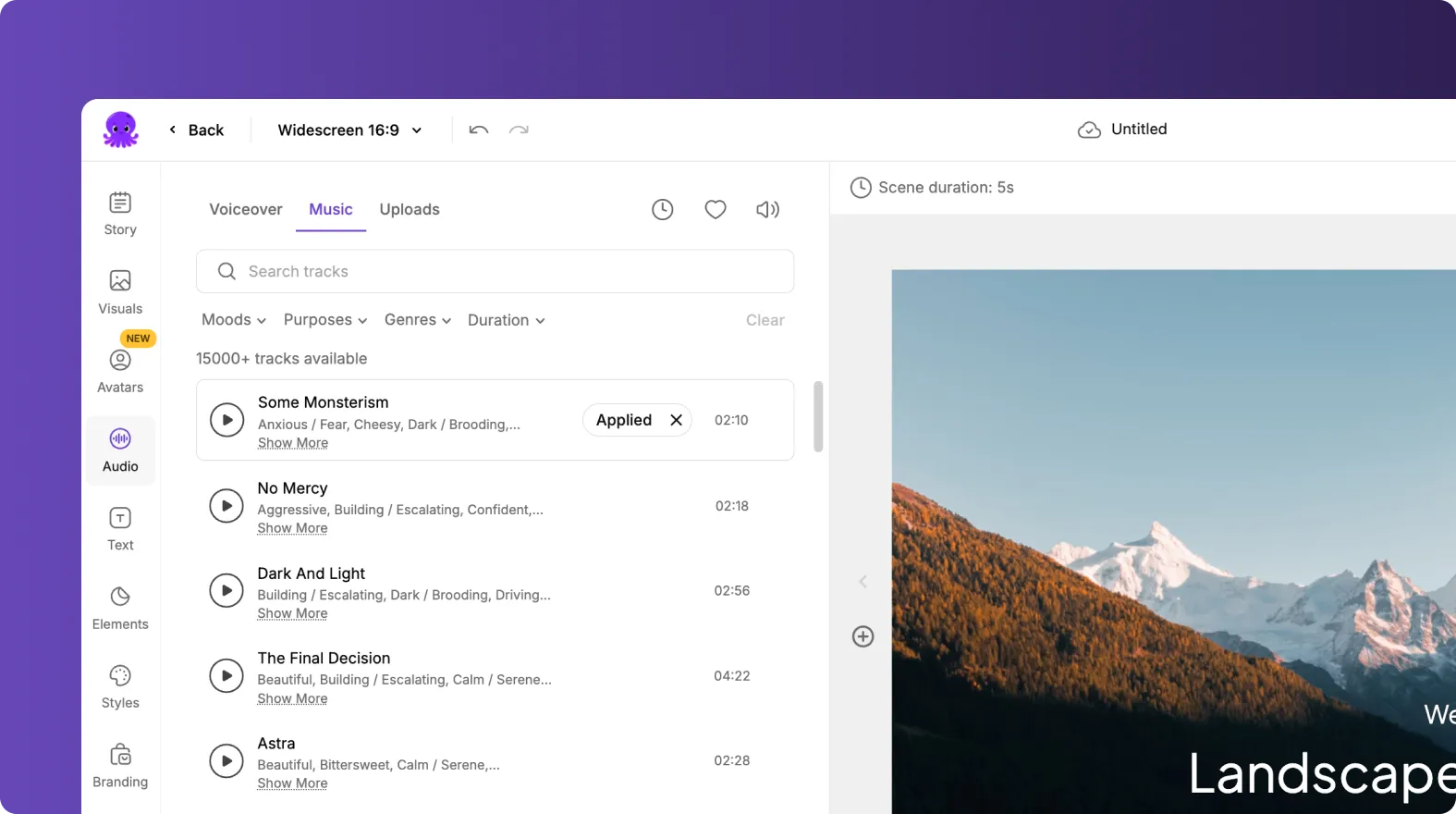
Use Audio to select an AI voiceover that fits your audience and region. Enterprise teams often standardize voice style by department or training type to keep a consistent learner experience. Add subtle background music when appropriate for pacing, but avoid overpowering audio for compliance and policy topics.
Step 4: Use layouts, styles, and branding to improve readability and consistency
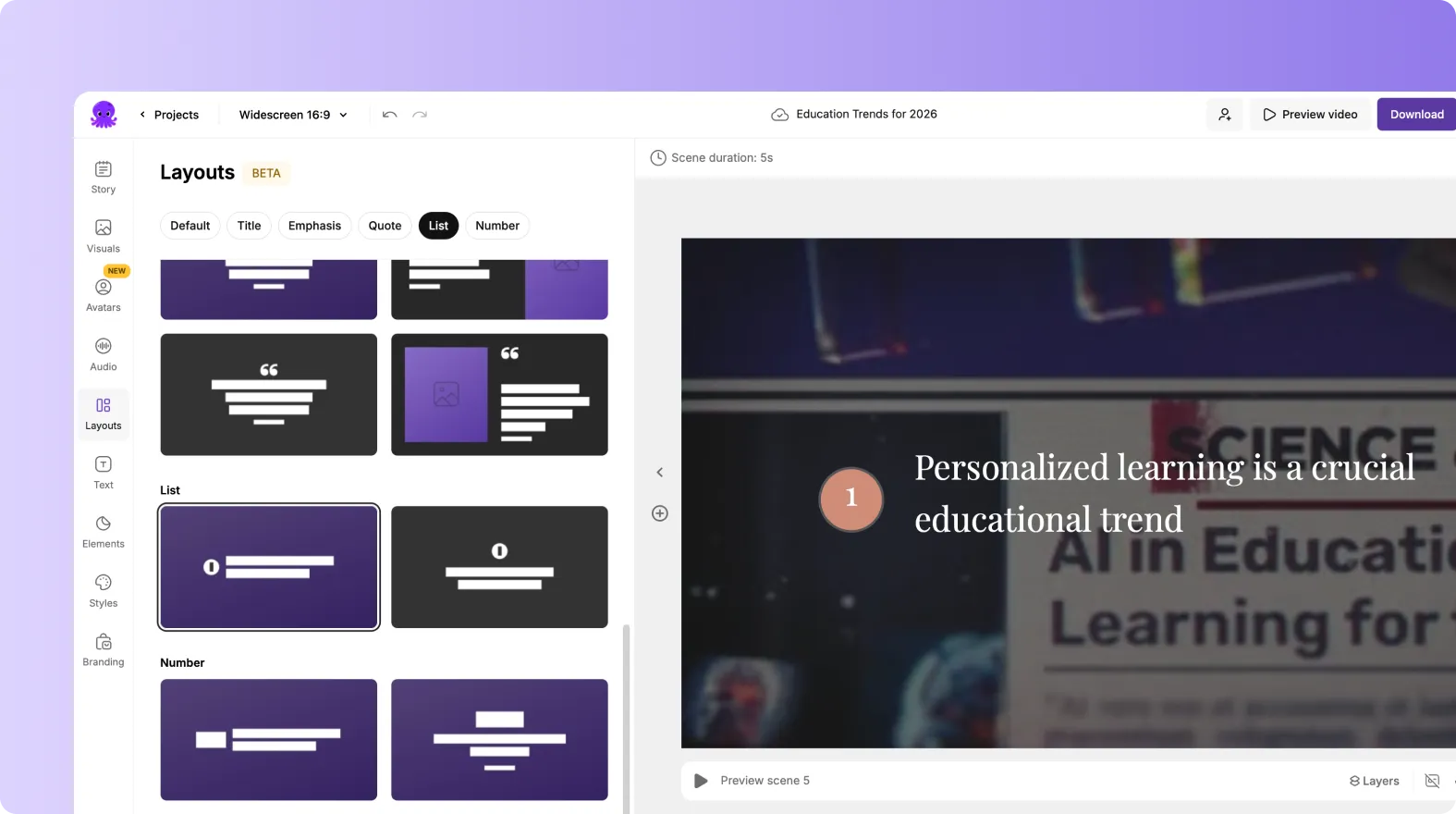
Use Layouts and Styles to ensure text hierarchy and consistency across scenes. Keep key points to one idea per scene whenever possible. Use Branding to confirm your logo placement, colors, and fonts remain consistent throughout.
Step 5: Animate on-screen text for engagement without reducing clarity
When a text box is selected, open Animate Text in the top toolbar to apply entry and exit animations. For corporate training, subtle effects like Fade or Wipe often work best. You can control speed and apply animations consistently across multiple scenes.

Step 6: Preview, share a review link, and export the final video
Preview the full video to confirm timing, captions, and scene transitions. Use the Share preview option to collect stakeholder feedback before export. When approved, download the video and store it in your LMS, enablement platform, or internal hub. Your project remains available in My Projects for ongoing updates and collaboration.
Scaling document to video creation across departments with templates, projects, and collaboration
Enterprise success with an AI text to video generator depends on repeatability. Standardize your workflow so teams can create videos at scale while maintaining governance.
- Use Brand Kits so every department produces consistent videos without manual design work.
- Standardize layouts and styles for each category: onboarding, compliance, product updates, and sales training video.
- Store and manage outputs in Projects so teams can find, duplicate, and update videos quickly.
- Use shareable previews for review cycles to reduce back and forth and speed approvals.
For software demos and process walkthroughs, capture source content with Smart Screen Recorder, then use the editor workflow to finalize captions, branding, and structure.
Best practices for converting enterprise documents into engaging videos
To improve completion rates and reduce rework, apply these proven text to video best practices:
- Keep scenes focused: One concept per scene improves comprehension and supports microlearning video examples.
- Use clear titles: Add short headings for each section so learners can track progress.
- Optimize for silent viewing: Captions should communicate the core message even without audio.
- Use visuals strategically: Pair key policy points with icons, diagrams, UI screenshots, or AI-generated visuals.
- Design for updates: Maintain a master script that can be revised when procedures change.
FAQ: Text to Video for Enterprise Teams: Transforming Documents Into Engaging Videos
What is the fastest way to convert text to video for enterprise training?
Use the Text to Video generator to paste your approved script, enable sentence-based scenes, apply a brand kit, then click Generate video to create a storyboard. Finish in the AI Video Editor by refining visuals, voiceover, and styling.
Can we keep videos brand-consistent across multiple teams and departments?
Yes. Create and apply Brand Kits that include your logo, fonts, and brand colors. When teams apply the same brand kit in the editor, outputs remain consistent even when different people generate videos from different documents.
How do we turn a policy document or SOP into scenes that are easy to follow?
In the script editor, use sentence-based scene creation and set a maximum lines per scene to keep captions readable. Rewrite long paragraphs into short, instruction-focused sentences so each scene communicates one clear step.
How do we convert a webpage or knowledge base article into a video instead of pasting text?
Use URL to Video to extract content from a valid URL, edit the generated script, then generate the video. This is ideal for internal portals, blog posts, and external documentation.
What if our content starts as slides instead of a document?
Use PPT to Video to upload your .PPT or .PPTX and generate a storyboard. You can optionally use speaker notes for narration, then refine scenes and branding in the editor.
How can we add text to a video and control how it looks on screen?
In the editor, use the Text tools and Layouts to add headings, subheadings, and body text overlays. Customize fonts, colors, alignment, outlines, and shadows using the text toolbar. For motion, use Animate Text to add entry and exit animations with speed controls.
Can we create training videos from recordings of tools or workflows?
Yes. Record a demo with Smart Screen Recorder, then use the AI-assisted editing workflow to transcribe, clean up the script, generate scenes, and apply branding for a polished training video.
How do enterprise teams update training videos when policies change?
Edit the original project script in Pictory, regenerate or adjust affected scenes, and export a new version. Keeping projects organized in My Projects makes it easy to maintain a single source of truth and update videos without rebuilding from scratch.


