
Enterprise marketing teams are expected to ship more content with fewer resources, without sacrificing quality or brand consistency. Pictory helps you convert text into video using an AI text to video workflow that scales across campaigns, regions, and business units.
In this guide, you will learn how to use Pictory to turn scripts, briefs, and existing content into professional, brand-ready videos using a text to video AI generator, then refine and publish faster using the editor and collaboration-friendly project structure inside AI Studio.
Why enterprise marketers use a text to video AI generator for scalable campaigns
Text to video for marketers is not just about speed. It is about creating repeatable production systems that keep quality high and costs predictable.
Scale content production by turning every approved message into multiple video variations for ads, social, landing pages, and internal enablement.
Maintain brand consistency with brand kits, reusable layouts, and controlled styling.
Reduce tool sprawl by consolidating scripting, visuals, captions, voiceover, and editing in one platform.
Repurpose existing content from blogs, product pages, and announcements using URL to Video when you want to start from published pages.
If your workflow starts from a written script, the fastest path is the Text to Video generator, then you polish and export in the editor.
Text to video AI workflow overview for enterprise teams
Pictory supports multiple inputs, but the core text to video generation workflow follows the same structure: input text, refine the script, apply scene settings, generate a storyboard, then finalize in the editor.
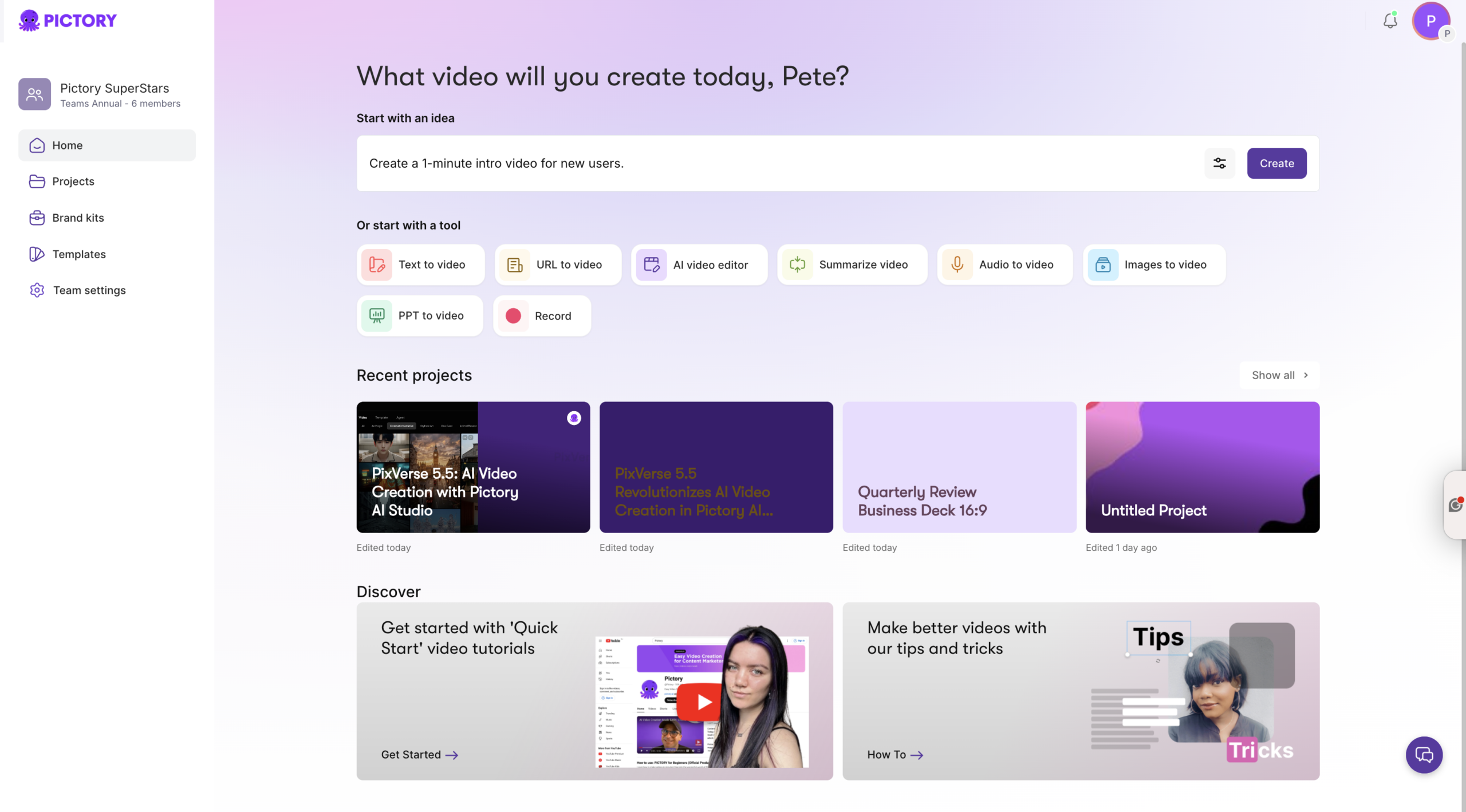
Start from a script using Text to Video
Start from a blog or webpage using URL to Video
Convert slides into video using PPT to Video
Edit existing footage with transcription using AI Video Editor
Create quick visual sequences from assets using Image to Video
This guide focuses on the enterprise-ready script-first process for ai text to video, which is ideal for marketing announcements, product explainers, internal communications, and sales enablement content.
How to convert text to video with AI in Pictory (enterprise script-first process)
Step 1: Open Text to Video and add your marketing script
From the Pictory home screen, select Text to Video. Paste or write your script in the input field. For best results, keep sentences short, keep the message clear, and include a direct call to action.
If you do not have a finished script, you can use the built-in AI script generator to draft one, then refine it in the script editor before you generate the video.

Step 2: Refine the script in the Script Editor with Ask AI tools
In the Script Editor, polish your copy so it reads well as voiceover and on-screen captions. Use Ask AI actions such as optimize, rephrase, shorten, lengthen, or change tone to match your brand voice and channel.
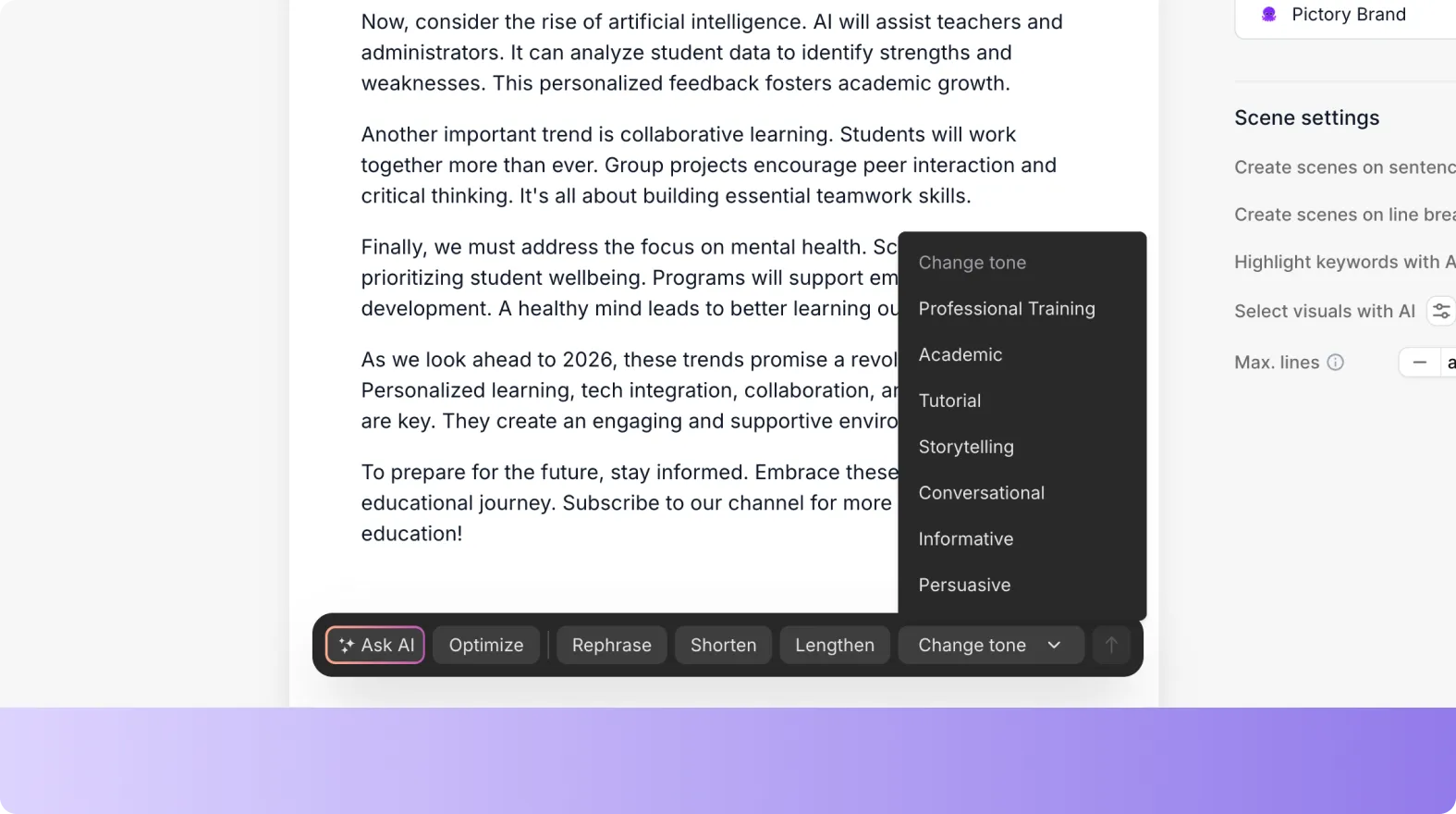
Shorten for paid social and short-form video
Lengthen for product walkthroughs or thought leadership
Change tone for executive updates versus demand gen ads
Step 3: Configure scene settings for consistent text to video generation
Use the right panel to control how the AI text to video generator structures and formats your video.
Select an aspect ratio: 16:9, 9:16, or 1:1 based on channel needs
Review the estimated video duration to ensure it fits your placement
Select your brand kit for logos, fonts, colors, and styling
Choose how scenes are created: by sentences or by line breaks
Enable keyword highlight and AI visual selection as needed
Adjust max lines per scene to keep captions readable
Step 4: Choose a layout theme that matches your marketing use case
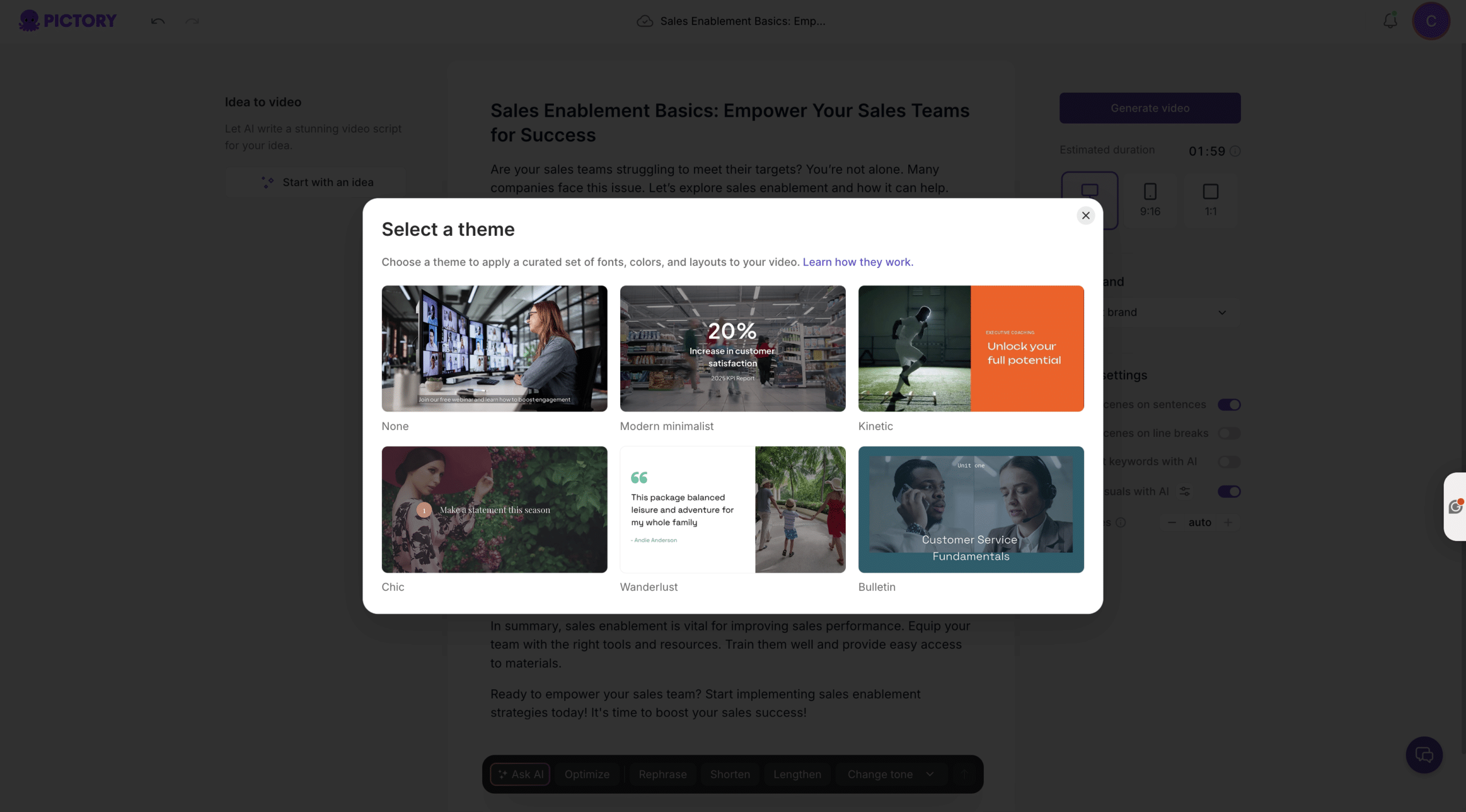
Pick a theme to apply curated layouts and visual styles across the full video. Options can include Modern minimalist, Kinetic, Chic, Wanderlust, Bulletin, or None if you want more manual control later.
This step is especially useful for enterprise teams producing multiple videos per quarter because it creates a repeatable look across campaigns.
Step 5: Generate the storyboard and let AI build scenes from your text
Click Generate video. Pictory processes your script into storyboard scenes and displays a progress indicator while it creates scenes. Each scene pairs your text with visuals and timings that you can edit.
Step 6: Finalize in the editor for professional results and fast iteration
In the editor, you can fine-tune story flow, visuals, audio, text, and branding. You can preview, download, and share a preview link for review cycles.
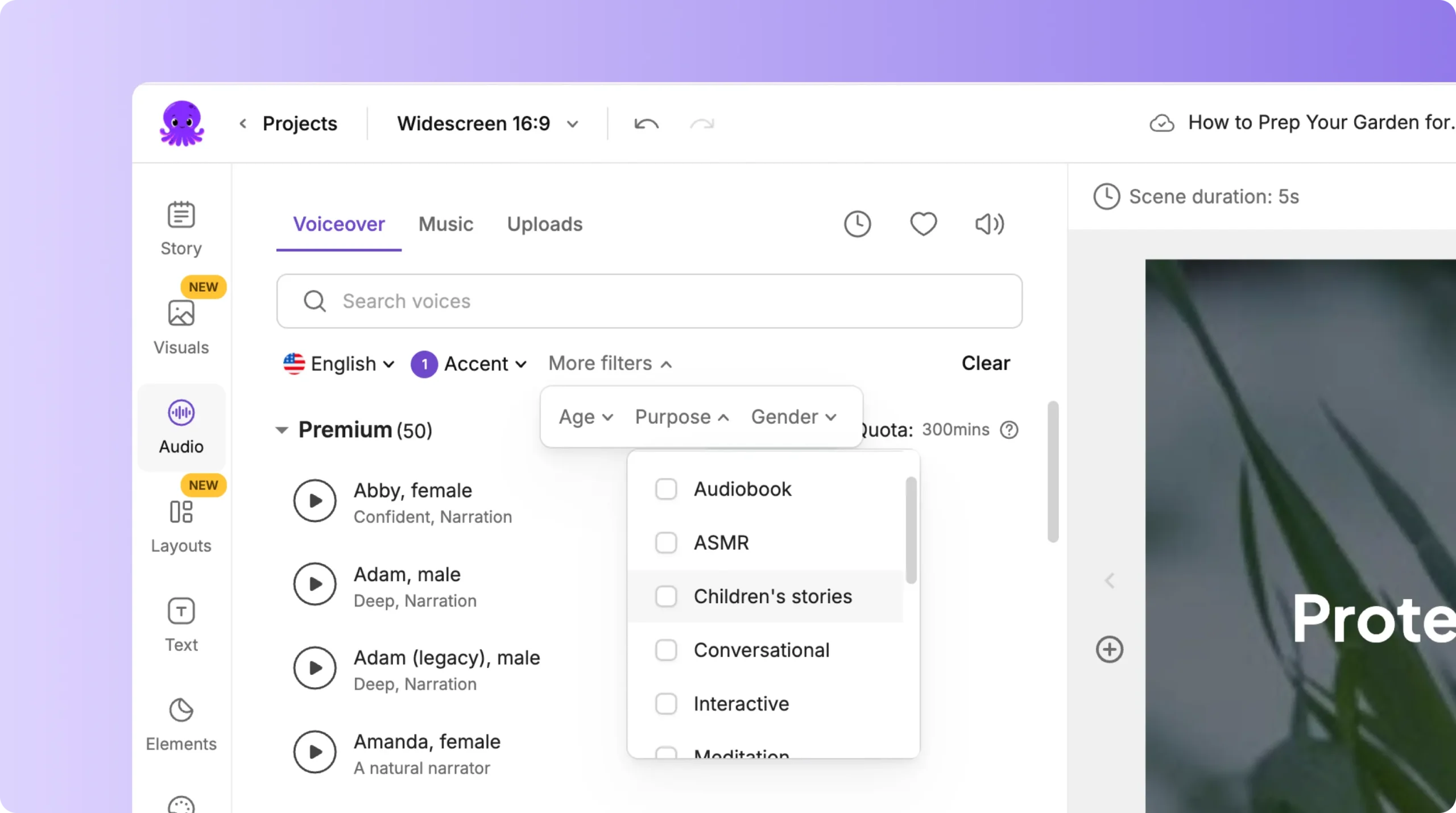
If you want a dedicated editing workflow across projects, use the AI Video Editor experience to standardize how your team reviews captions, scenes, and polish steps.
How to add text to a video and refine scenes in the AI Video Editor
Even when you start from text, you will often need to add text to video for compliance, disclaimers, product specs, or channel-specific CTAs. In the editor, use the left sidebar tools to control each layer.
Story to edit the narrative text and scene captions
Text to insert additional headings, subheadings, and body overlays
Layouts to apply consistent composition across scenes
Styles to standardize typography and color
Branding to apply brand kits and ensure every export is brand-consistent
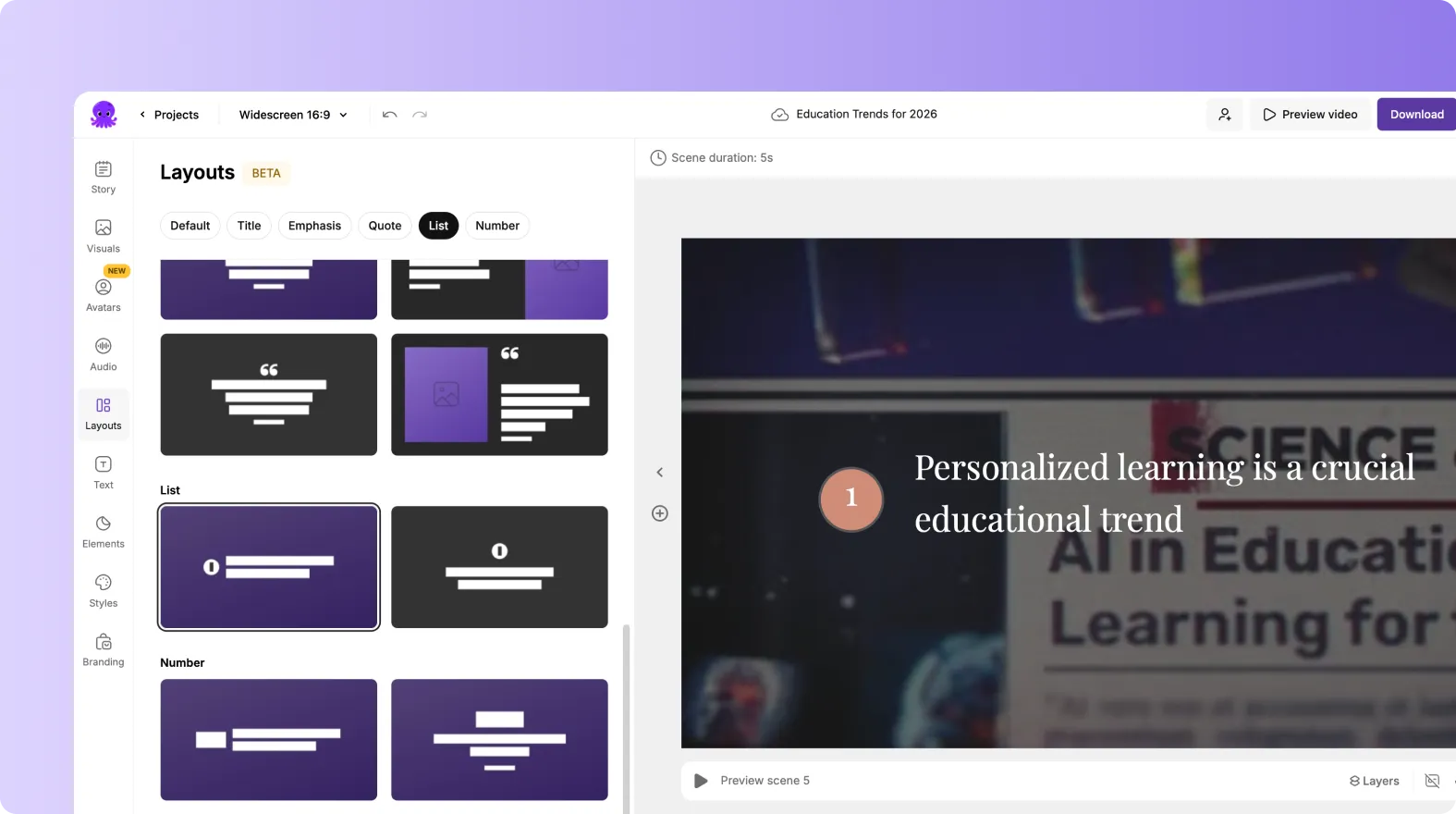
When a text box is selected, use the top toolbar to adjust font, size, color, alignment, background highlight, outline, shadow, and spacing.
To make captions and titles feel more polished, open Animate Text from the toolbar and apply entry and exit animations such as Fade, Typewriter, Wipe, or Text Reveal. Keep animation speed consistent across videos for a cohesive enterprise look.
Brand consistency at scale: brand kits, styles, and enterprise-ready templates
For enterprise teams, the difference between one-off videos and scalable production is governance. Use Brand Kits to lock in brand identity and reduce rework.
Create and manage brand kits from the Brand Kits area
Add logo variations, brand colors, and fonts
Shuffle brand color palette combinations to quickly preview alternate palette options while staying on brand
Apply the brand kit inside the editor using the Branding tab to update the entire project styling
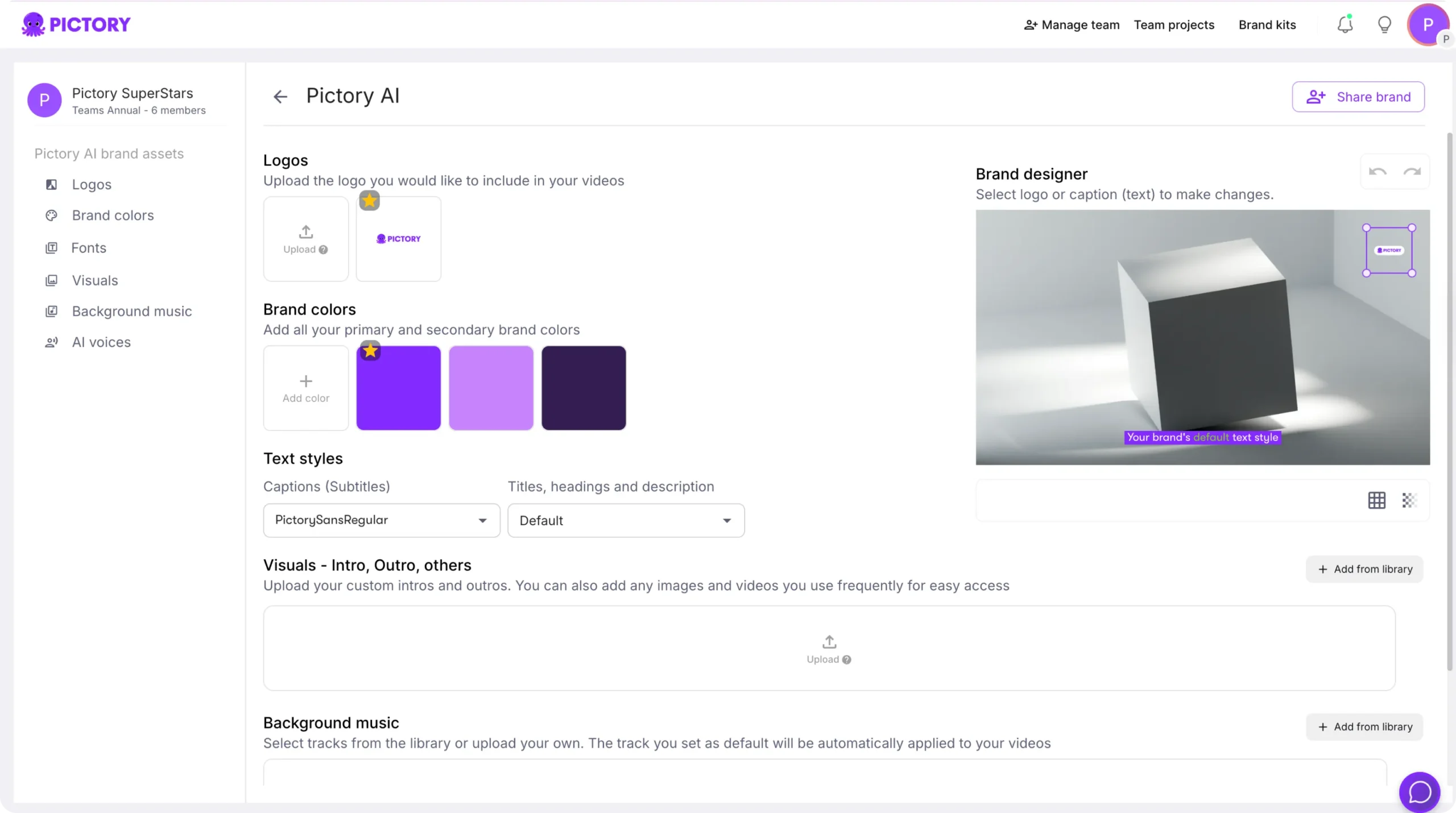
This approach supports standardized video creation across teams, regions, and product lines without requiring specialized design support for every request.
Scaling marketing outputs: repurpose content across URL, PPT, images, and screen recordings
Enterprise teams rarely start from scratch every time. Build a scalable video engine by combining text to video generation with repurposing workflows:
Convert blog posts and landing pages using URL to Video to turn published content into video ads and social snippets.
Turn decks into narrated announcements and webinar recaps using PPT to Video.
Create fast product highlight reels using Image to Video for campaigns and event recaps.
Record feature demos and onboarding walkthroughs using Smart Screen Recorder, then edit with transcription for rapid updates.
When you need to edit existing footage or webinars, transcription-based workflows make it easier to update messaging without re-recording. This is especially useful for quarterly launches, policy updates, and regional localization.
Enterprise publishing checklist for AI text to video marketing assets
Before exporting, run a repeatable quality checklist to protect brand and performance.
- Confirm aspect ratio matches channel placement (9:16 for vertical, 16:9 for YouTube and web)
- Keep on-screen text within safe margins and ensure captions are readable
- Verify brand kit application: logo placement, colors, and fonts
- Scan for compliance text, disclaimers, and required legal lines
- Preview for pacing and scene timing, then share a preview for stakeholder approvals
When ready, download the video and store the project in your Projects area for fast iteration, new versions, and team collaboration.
FAQ: Text to Video for Marketers: How Enterprise Teams Turn Content Into Scalable Video
What is the best way to convert text to video for enterprise marketing teams?
Start with Text to Video to generate a storyboard from an approved script, then standardize branding with brand kits and finalize edits in the AI Video Editor. This creates a repeatable workflow that supports scale and consistency.
How do I add text to a video in Pictory?
Open the video in the editor, then use the Text tab to insert headings, subheadings, or body text overlays. Use the top text toolbar to adjust font, size, color, alignment, background highlight, outline, and spacing, and preview each scene to confirm readability.
Can I generate videos from a blog post or landing page instead of a script?
Yes. Use URL to Video to convert a published webpage into a draft script and storyboard, then edit the script and generate the final video using the same editor workflow.
How do enterprise teams keep videos brand-consistent across campaigns?
Use Brand Kits to define logos, colors, and fonts, then apply the brand kit in the Branding tab inside the editor. Combine that with consistent layouts and Styles to standardize typography and composition across every video.
What aspect ratios should marketers use for text to video content?
Choose 9:16 for vertical platforms such as Reels, Shorts, and TikTok, 1:1 for some social feeds, and 16:9 for YouTube, websites, and internal presentations. You can set the aspect ratio in the script editor before generating the video.
How can we turn sales decks or internal presentations into video at scale?
Use PPT to Video to convert PowerPoint files into storyboard scenes, optionally using speaker notes for narration. Then apply brand kits and refine scene timing and text in the editor before exporting.
Can we record product demos and then edit them quickly with AI?
Yes. Record in-browser with Smart Screen Recorder, then choose to edit using AI so the recording is transcribed and segmented into scenes. This makes it faster to cut, update, and publish new versions without re-recording.


