
SaaS buyers want clarity fast. A short, brand-consistent video explainer can reduce sales friction, answer common questions, and help prospects self-qualify before a live demo. With Pictory, sales and enablement teams can convert a script into a polished explainer using an AI text to video workflow that includes captions, voiceover, on-brand styling, and shareable previews.
This guide shows how to create a prospect-ready explainer using the Text to Video generator inside AI Studio, then refine it in the AI Video Editor. You will also see when to use Smart Screen Recorder for product UI demos and how to scale brand consistency with Brand Kits.
Text to video AI for SaaS sales: What makes a high-converting prospect explainer
Before you generate scenes, align the message to the sales motion. A strong SaaS explainer is not a feature dump. It is a quick story that frames the problem, shows the “aha” solution, and ends with a next step.
- Target outcome: book a demo, start a trial, or reply with qualification details.
- Ideal length: 45 to 90 seconds for top-of-funnel; 90 to 150 seconds for sales follow-up.
- Structure: Problem, impact, solution, proof, how it works, call to action.
- Visual approach: mix stock visuals, light motion graphics, and optional UI snippets.
- Clarity: short sentences that map cleanly to scenes and captions.
If you already have a landing page or help article that explains the product, you can also repurpose it using URL to Video and then tailor the script for a specific persona.
AI text to video generator prep: Write a SaaS explainer script that converts
Pictory works best when your script is written for video. Keep each idea tight so the platform can create clean scene breaks, captions, and visuals.
- Use 1 to 2 sentences per scene.
- Use simple language and avoid jargon unless your ICP expects it.
- Include a clear CTA in the final scene: “Book a demo,” “Start a trial,” or “Reply with your use case.”
- Plan for on-screen text: feature names, integrations, outcomes, and proof points.
If you do not have a script yet, start with the “Idea to Video” option inside the Text to Video workflow and let Pictory draft a first version you can refine.
Step-by-step: Convert text to video online with Pictory Text to Video
Step 1: Start a new Text to Video project
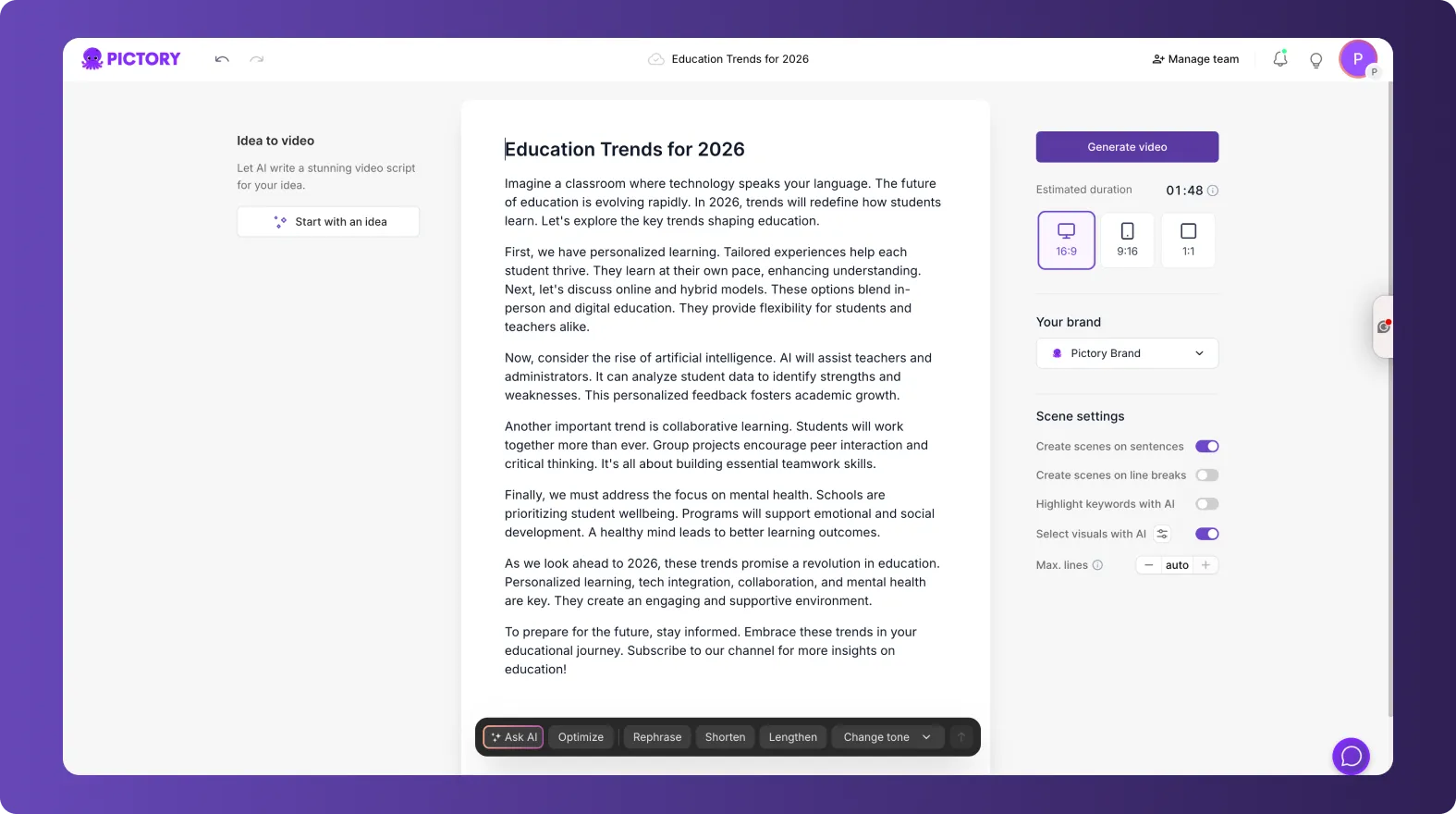
From the Pictory home screen, select the Text to Video generator. Paste your SaaS explainer script into the script input field, or use the AI script generator to draft an initial version. Keep sentences short to improve scene segmentation and caption pacing.
Step 2: Configure scene settings for clean SaaS explainer pacing
In the Script Editor, set the aspect ratio based on your distribution channel, then choose how scenes are created. For sales explainers, sentence-based scenes are usually the cleanest starting point.
Aspect ratio: 16:9 for email, web, and sales decks; 9:16 for outbound social and ads; 1:1 for some social placements.
Scenes: enable sentence-based or line-break-based scenes depending on how your script is formatted.
Keyword highlights: use this to emphasize outcomes and differentiators.
Max lines per scene: keep captions readable and professional.
If you need to refine copy quickly, use the built-in “Ask AI” controls to optimize, rephrase, shorten, lengthen, or change tone without leaving the editor.
Step 3: Apply your Brand Kit for enterprise-ready consistency
Select your Brand Kit in the Script Editor to apply logos, fonts, and brand colors so every video aligns with your SaaS brand guidelines. This is essential for enterprise sales enablement where multiple team members produce content at scale.
After generating the first cut, you can further fine-tune styling in the editor using the Branding and Styles tools inside the AI Video Editor.
Step 4: Choose a layout theme that matches your product positioning
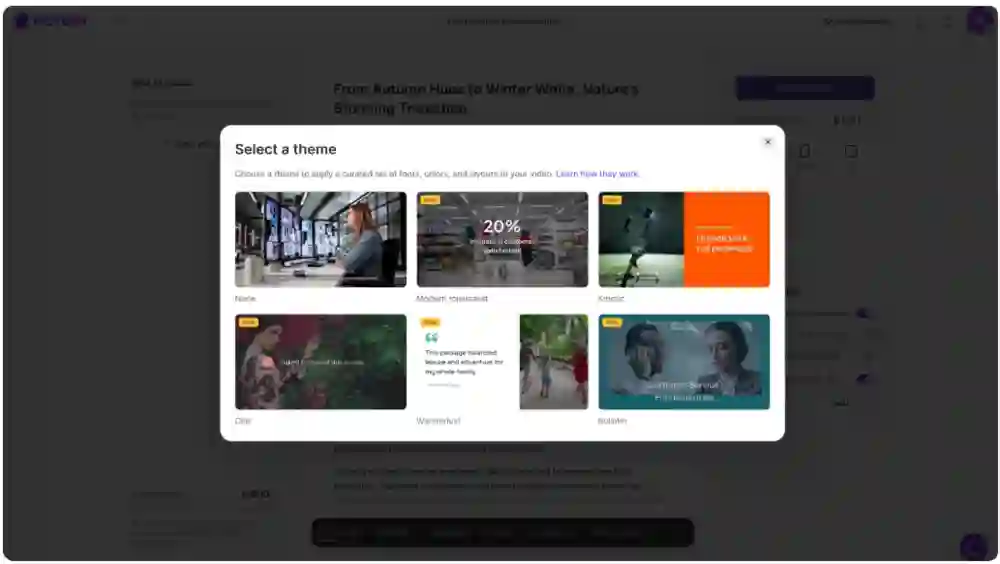
When prompted to choose a theme, select a layout style that fits your brand voice, for example Modern minimalist for enterprise software, or Kinetic for faster-paced growth messaging. Themes apply curated fonts, colors, and layout rules to speed up production.
Step 5: Generate the video storyboard and open the editor
Click “Generate video” and let Pictory create scenes from your script. Once the storyboard is ready, the project opens in the editing workspace where you can adjust scene text, visuals, timing, and audio.
Step-by-step: Edit your SaaS video explainer in the AI Video Editor
Step 1: Refine scene text and timing for sales clarity
In the Story tab, review each scene for clarity and brevity. Tighten any long lines so captions stay readable. If a scene contains two ideas, split it into separate scenes to improve pacing and comprehension for prospects.
Step 2: Replace or upgrade visuals to match each claim
Open the Visuals tab and review the media Pictory selected. Replace generic shots with visuals that support the specific message.
Use “Library” for professional stock footage and imagery.
Use “Uploads” for product screenshots, customer logos you are allowed to use, and UI clips.
Use the AI Studio tab within Visuals to generate custom AI images or AI videos from prompts for more differentiated scenes.
For “how it works” moments, consider adding short UI clips recorded with Smart Screen Recorder, then incorporate them into your explainer as supporting visuals.
Step 3: Add professional voiceover and background music
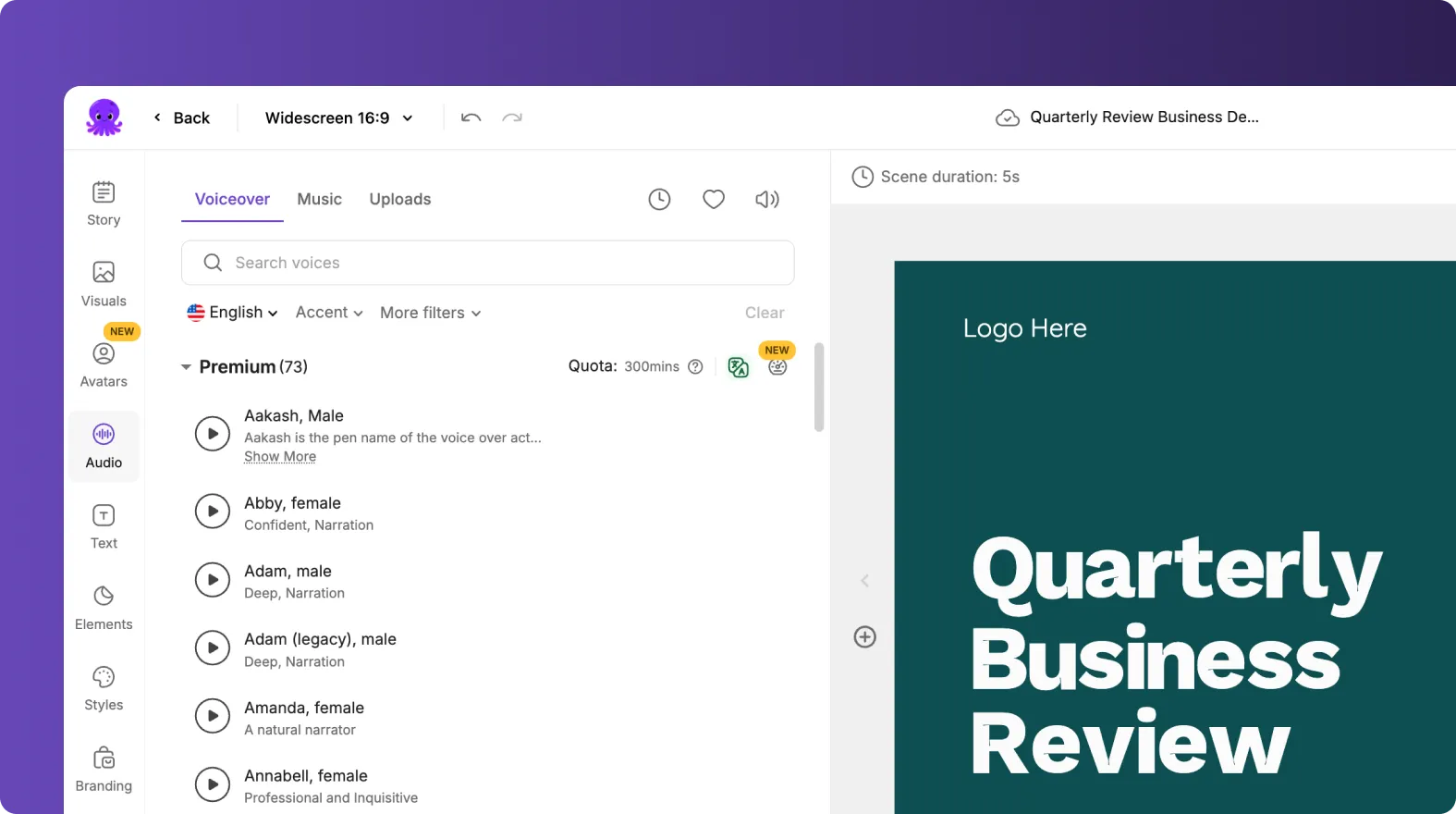
Go to the Audio tab to select an AI voiceover that matches your brand, for example confident and calm for enterprise, more energetic for SMB. Preview voices, choose the best fit, then add subtle background music to support pacing without distracting from the message.
Step 4: Improve on-screen clarity with text, elements, and animations
Use the Text and Elements tools to add supporting labels such as “Works with your CRM,” “SOC 2,” “Automates reporting,” or “Deploy in days.” Keep overlays minimal and consistent.
To add polish, select a text box and use the Animate Text option in the top toolbar to apply entry and exit animations like Fade or Typewriter. For SaaS explainers, subtle motion usually looks more premium than aggressive effects.
Step 5: Preview, share a review link, and download
Preview the full video for pacing, brand consistency, and accuracy. Use the share preview option for internal review with sales enablement, product marketing, or compliance. When approved, download the final video for your sales sequences, landing pages, or enablement library.
Text to speech video options: When to use avatars, screen recordings, and UI walkthroughs
SaaS explainers can be faceless or presenter-led depending on your brand and funnel stage.
Faceless explainer: fastest to produce and easiest to update for new features. Ideal for outbound and landing pages.
Avatar-led explainer: use the Avatars tool in the editor when you want a consistent “presenter” across markets or languages without scheduling talent.
UI walkthrough: best for mid-funnel prospects who want proof. Record short clips with Smart Screen Recorder, then combine them with text scenes for context.

If your team already has webinar recordings or demos, you can also repurpose them using the AI Video Editor workflow to create shorter, prospect-friendly segments.
Best practices for enterprise SaaS sales enablement videos created with text to video AI tools
Keep claims specific: replace “save time” with “cut reporting time by 30 percent” when you can support it.
Use proof early: add a customer result, recognizable integration, or security credential in the first 20 seconds.
Design for silent viewing: ensure captions are readable, and keep key points on-screen.
Modular scenes: create reusable scenes like “Who it is for,” “How it integrates,” “Security,” and “Next step” to speed future updates.
Version by persona: duplicate the project in your Projects area and tailor only the first 3 to 5 scenes for each vertical.
If you need an alternate format for internal stakeholders or partner channels, you can also convert a deck into a video using PPT to Video and reuse the same Brand Kit for consistent styling.
FAQ: Text to Video for SaaS Sales: Creating Video Explainers for Prospects
What is the best structure for a SaaS sales explainer video?
A reliable structure is: problem, impact, solution, how it works, proof, and a single call to action. Keep it under 90 seconds for top-of-funnel prospects, and use short scenes so captions stay readable.
How do I convert text to video online using Pictory?
Open the Text to Video generator, paste your script, set scene rules and aspect ratio, apply your Brand Kit, then click “Generate video.” After the storyboard is created, refine visuals, voiceover, and styling in the AI Video Editor.
Can I add text to a video and keep it on brand?
Yes. Use your Brand Kit to standardize fonts, colors, and logo placement, then add headings or supporting labels in the Text tool. You can also apply a consistent look using Styles and layout themes inside the editor.
Should I use an AI voiceover or record my own narration?
AI voiceover is ideal for speed, consistency, and easy updates across versions. If your sales motion relies on a founder or subject-matter expert voice, you can upload your own audio and still use Pictory to handle captions, visuals, and editing.
How do I include a product demo inside a text-to-video explainer?
Record a short UI clip with Smart Screen Recorder, then upload it in the Visuals tab and place it in the scenes where you explain key steps. Keep demo clips short and pair them with on-screen labels for clarity.
What aspect ratio should I use for sales prospecting videos?
Use 16:9 for email outreach, landing pages, and sales decks. Use 9:16 for social-first prospecting and ads. If you need multiple placements, create one master version and export additional versions sized for each channel.
How can an enterprise team standardize explainer videos across regions and products?
Use Brand Kits for visual consistency, create reusable templates and modular scenes, and share projects internally for collaboration and review. This reduces production overhead while keeping a consistent brand experience across teams.


