
Sales enablement teams are expected to deliver consistent, high-impact product demo videos across segments, regions, and use cases, without adding headcount or production overhead. With Pictory, you can convert approved demo scripts into professional videos using an AI text to video workflow, then standardize branding, update messaging fast, and ship variants at scale.
This guide shows how to use Pictory Text to Video inside AI Studio to create repeatable product demo videos for enterprise sales enablement.
Why text to video AI is ideal for enterprise sales enablement demo videos
Traditional product demo production is slow and expensive, especially when teams need multiple versions for personas, industries, and regions. A text to video AI generator workflow helps sales enablement teams standardize messaging and produce video faster while maintaining brand consistency.
Scale demo production by generating storyboards automatically from a script.
Maintain brand consistency using Brand Kits for logos, fonts, and colors across every demo.
Accelerate updates when pricing, positioning, or UI changes, without re-editing from scratch.
Create multi-format exports for 16:9 product demos, 1:1 social snippets, and 9:16 rep-sharing.
Plan your product demo script for ai text to video generation
The output quality of any ai text to video workflow depends on the clarity of the script. Before you generate, align your script to your sales enablement strategy: one audience, one primary problem, one crisp value story, and one call to action.
Keep sentences short and direct for cleaner scene segmentation and captions.
Use clear section breaks for: Problem, Solution, Proof, How it works, Next step.
Include a strong CTA tailored to your funnel stage: book a demo, start trial, request security review.
Mark “must show” moments (product UI, workflow, integration) so you can swap visuals precisely in the editor.
If your source is already in slides, consider PPT to Video for faster conversion. If your content lives on a product page, use URL to Video to extract a draft you can refine into a demo narrative.
How to create product demo videos with a text to video generator in Pictory (step-by-step)
Use this process to convert an approved enablement script into a repeatable demo video. This is the core convert text to video workflow for enterprise teams.
Step 1: Start a new Text to Video project in AI Studio
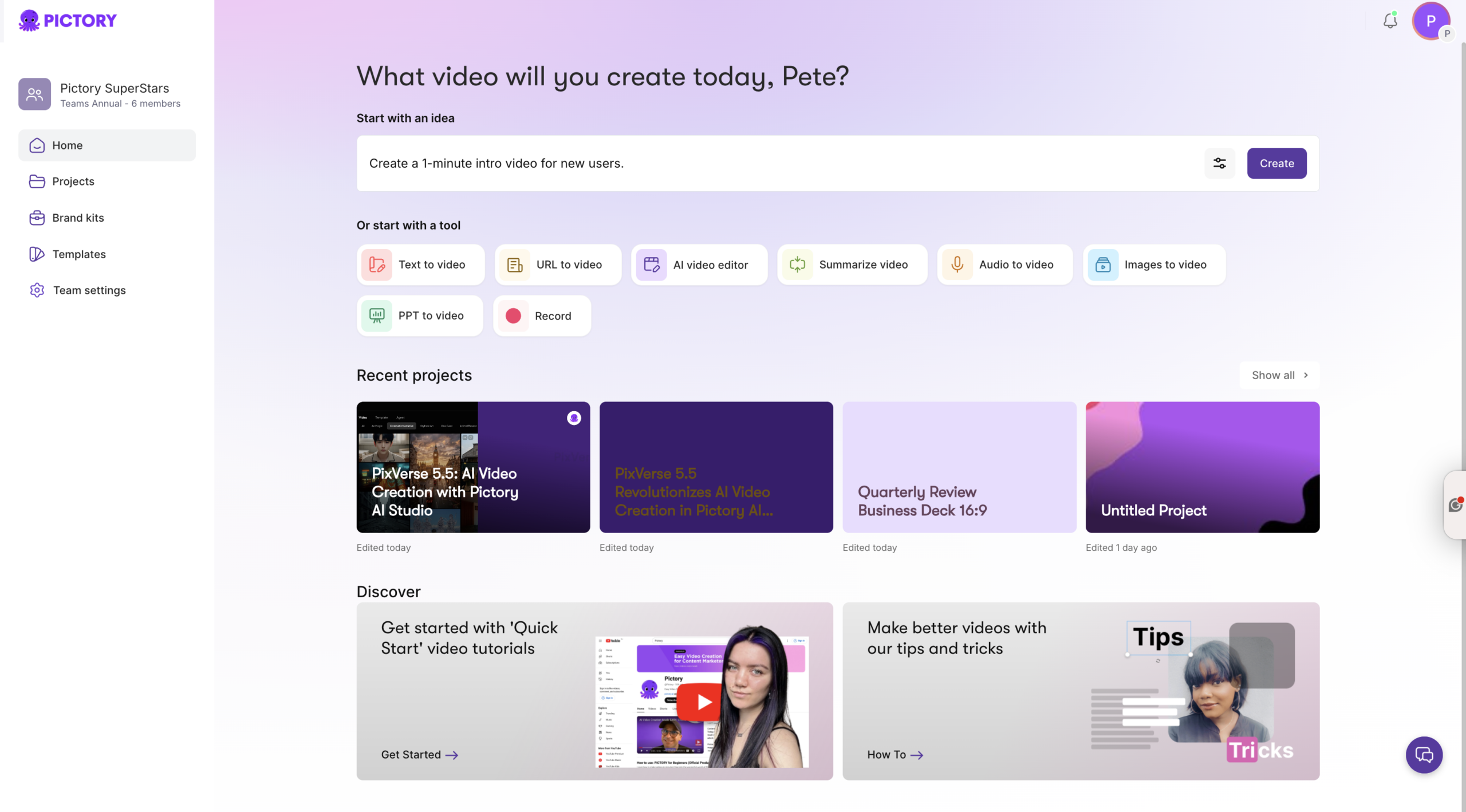
From the Pictory home screen, select Text to Video. Paste your product demo script into the script input field. If you are starting from a concept, use the built-in AI script generator to draft a first version, then refine it for your enablement needs.
Step 2: Refine your script in the Script Editor using Ask AI
In the Script Editor, polish the script so it matches your sales enablement messaging and brand voice. Use Ask AI actions like Optimize, Rephrase, Shorten, Lengthen, and Change tone to quickly create variants for different personas or sales stages.
Enterprise tip: maintain a “master script” and generate controlled variants for industries, competitors, and regions rather than rewriting from scratch.
Step 3: Configure scene settings for clean demo pacing and captions
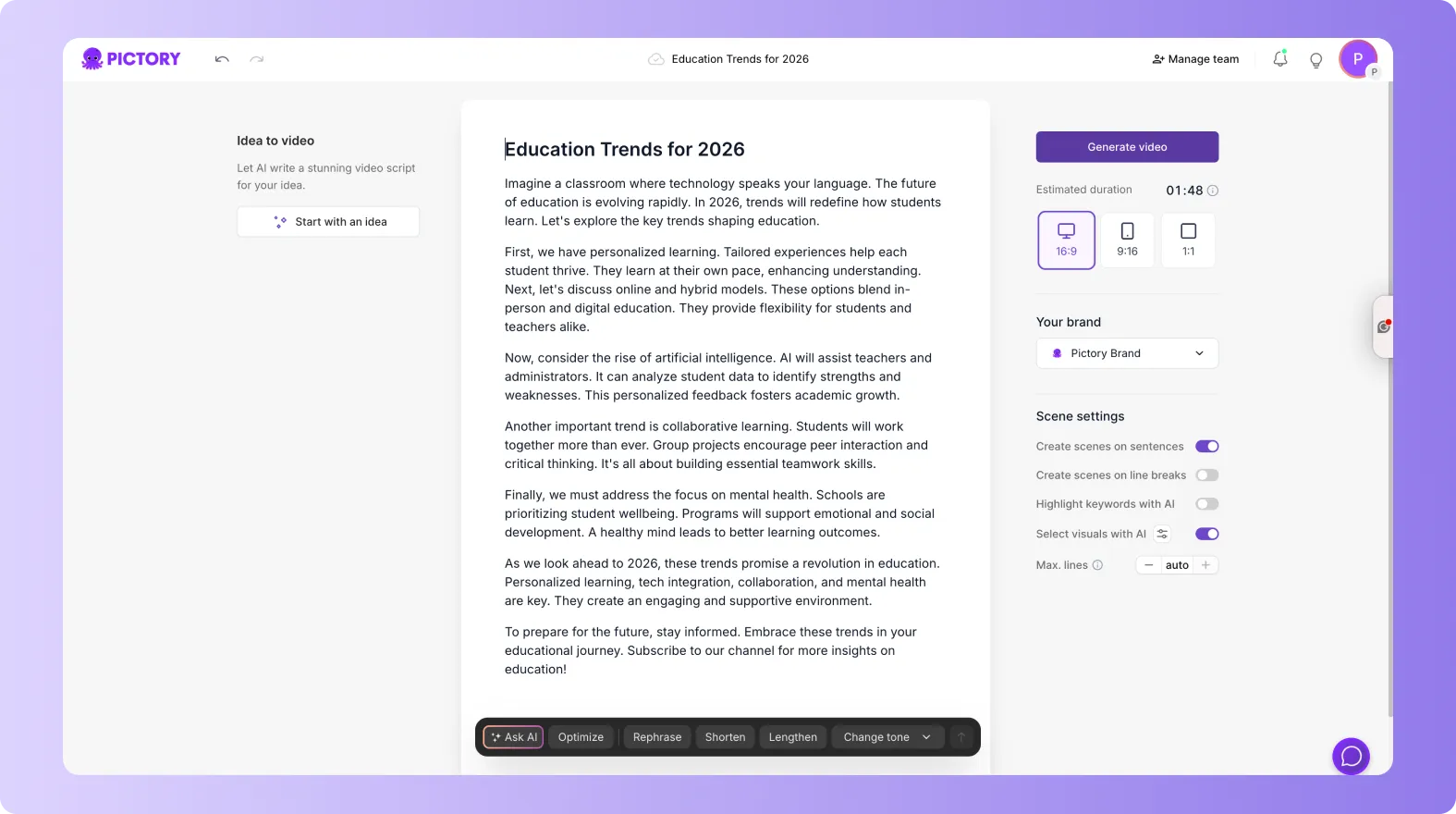
Use the right-side scene settings to control how Pictory splits your script into scenes. For product demo videos, scene pacing directly impacts comprehension and retention.
Choose an aspect ratio: 16:9 for standard demos, 9:16 for rep sharing, 1:1 for social.
Enable sentence-based or line-break-based scene creation, depending on your script formatting.
Turn on keyword highlights to emphasize differentiators and outcomes.
Set max lines per scene to avoid overcrowded captions and keep the demo visually clean.
Step 4: Select a theme layout and generate the video storyboard
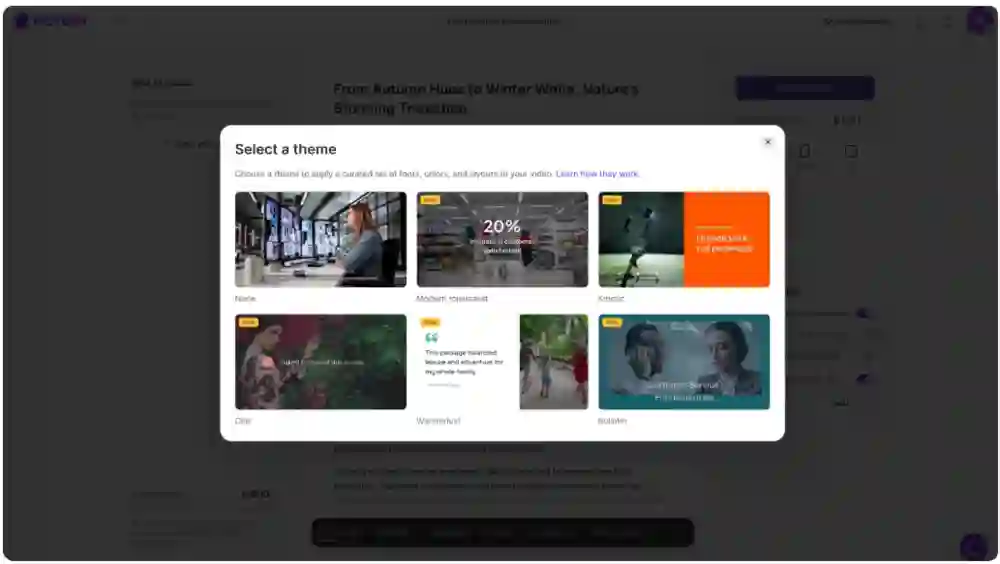
Choose a theme that fits your brand and product category, then click “Generate video.” Pictory will create scenes and begin building a storyboard, automatically pairing captions and visuals to your script.
Once the storyboard is created, you will land in the editor where you can fine-tune every scene.
Edit and customize demo visuals in the AI Video Editor for sales enablement teams
After generation, move into the editor to tighten the narrative, ensure visual accuracy, and align the demo with enablement requirements. This is where teams turn a draft into a market-ready asset using the AI Video Editor.
Story: Adjust scene text, reorder scenes, and refine on-screen captions.
Visuals: Replace generic visuals with product UI, workflow shots, diagrams, or customer proof.
Audio: Add voiceover and background music appropriate for enterprise buyers.
Elements and Text: Add callouts, arrows, labels, and short on-screen reinforcement.
Timeline controls: Duplicate scenes for variants, link scenes for smoother pacing, and use zoom for faster navigation.
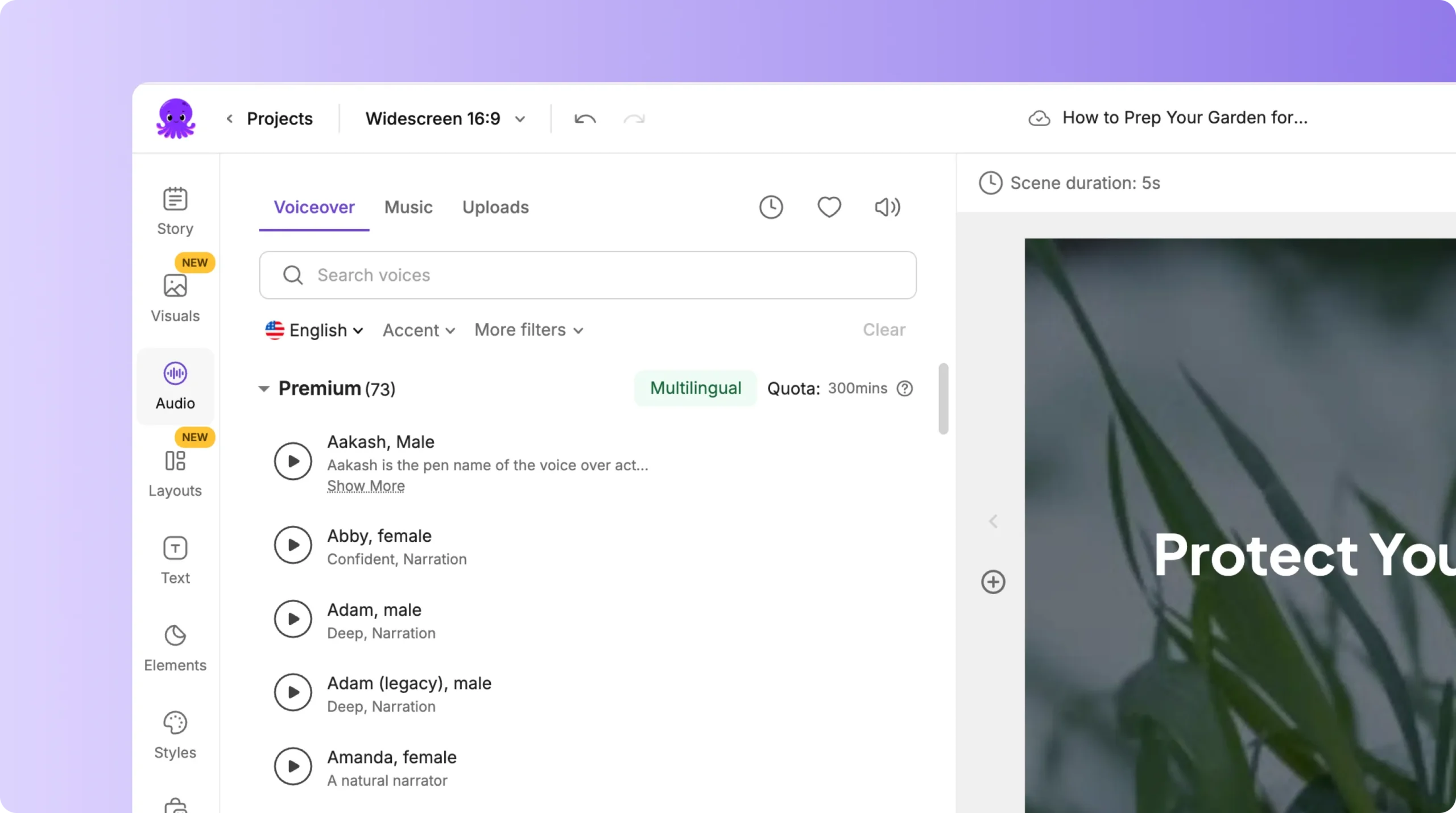
If you need to record an authentic product walkthrough, capture your UI using Smart Screen Recorder, then bring the recording into Pictory for AI-assisted editing and packaging.
Apply Brand Kits to standardize product demo videos at scale
Enterprise sales enablement requires brand consistency across every asset. Use Brand Kits to apply your logo, fonts, and colors so every text to video creator output matches your identity.
Create or select a Brand Kit from Brand Kits in the left navigation.
Apply the Brand Kit inside the editor using the Branding tab.
Use brand colors and fonts for titles, captions, and on-screen callouts.
Test alternate combinations using color palette shuffle while keeping brand compliance intact.
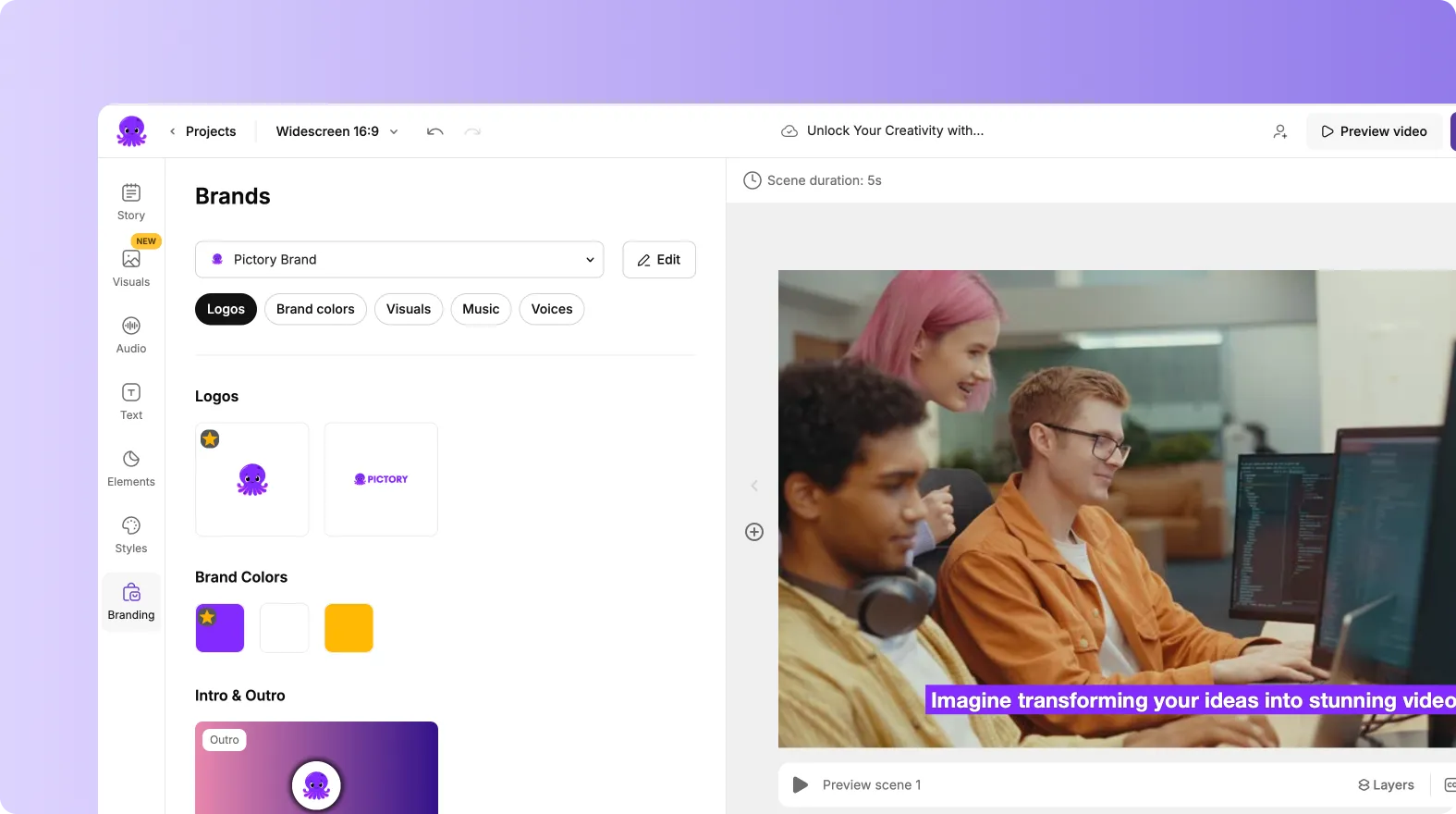
This approach reduces design cycles and makes it easy to roll out consistent demo video libraries across teams and regions.
Scale product demo video variants with AI workflows and reusable scenes
Once your base demo is approved, scaling is about controlled variation, not re-production. Use Pictory to duplicate and adjust scenes for segmented messaging, feature focus, or funnel stage.
Persona variants: swap value props and proof points while keeping the same structure.
Industry versions: update scenes with industry-specific pain points and outcomes.
Regional compliance: adjust claims, wording, and on-screen text for legal review.
Channel formats: export multiple aspect ratios for LMS, email, social, and sales outreach.
To generate visuals that match your narrative, you can also create custom assets using AI Studio within the Visuals tab, then add them directly to the scenes.
Export, share, and operationalize product demo videos for sales enablement
When your demo is polished, use Preview to validate pacing, captions, and brand styling. Then export the final video for distribution.
Use “Share preview” to collect feedback from product marketing, legal, and sales leadership.
Download the video and store it in your enablement hub with naming conventions for version control.
Keep projects organized in “My Projects” so teams can quickly find, duplicate, and update approved demos.
If you already have webinar recordings or long demos and need faster updates, consider uploading them to the AI Video Editor to transcribe and repackage into short enablement clips.
FAQ: Text to Video for Sales Enablement: Scaling Product Demo Videos
What is the best workflow for scaling product demo videos with text to video AI?
Create an approved master script, generate a baseline video in Text to Video, then duplicate the project to produce controlled variants by persona, industry, and funnel stage. Use Brand Kits to keep everything consistent and reduce review cycles.
Can I use Pictory as a text to video generator for sales training and enablement content?
Yes. Sales enablement teams commonly use Pictory to create product demos, objection-handling clips, onboarding videos, and battlecards in video form. Start from scripts with Text to Video, or convert existing assets using URL to Video and PPT to Video.
How do I keep demo videos on brand across multiple teams?
Use Brand Kits to standardize logo placement, fonts, and colors. Apply the Brand Kit inside the editor via the Branding tab so every project follows the same brand rules, even when different teams create or update videos.
How do I add text to a video or improve captions for product demos?
In the editor, use the Story and Text tools to adjust scene captions and add on-screen labels. You can also use text styling and animations from the top text toolbar to emphasize key product claims and outcomes without cluttering the screen.
What is the fastest way to create a demo video from a live product walkthrough?
Record the walkthrough using Smart Screen Recorder, then choose “Edit video using AI” to transcribe and structure it into scenes. From there, refine the script, remove filler, adjust silences, and polish it in the editor.
Can I create different formats like 16:9 and 9:16 from the same product demo?
Yes. In the Script Editor, select the aspect ratio for your target platform, then generate the storyboard. For additional versions, duplicate the project and switch the aspect ratio, then adjust layouts and text placement to fit each channel.


