
Sales teams move faster when sales enablement content is easy to produce, update, and share. With Pictory, you can convert a script into a polished, brand-consistent sales enablement video in minutes using an AI text to video workflow that automatically builds scenes, captions, and visuals.
This guide shows enterprise sales enablement teams how to use Pictory’s Text to Video generator inside the AI Studio to create sales training videos, product explainer videos, and rep-ready messaging content at scale.
Why sales enablement teams use AI text to video for faster sales content
Modern sales enablement requires rapid iteration: new product releases, competitive updates, objection handling, and sales enablement training all need video formats that work across LMS, Slack, email, and enablement platforms.
- Reduce production overhead by turning sales scripts into video without agencies or complex editing.
- Standardize messaging across regions and teams with brand kits, consistent layouts, and reusable templates.
- Accelerate rep ramp time with short, clear microlearning videos for onboarding and continuous training.
- Update quickly by editing the text and regenerating scenes rather than re-recording.
Plan your sales enablement video script for a text to video AI generator
The fastest way to get high-quality output from a text to video AI generator is a script designed for scene-based storytelling. Before you generate, prepare a script that is clear, short, and action-oriented.
- Keep sentences short and focused on one idea per scene.
- Use clear section headers for product value, proof, objection handling, and next step.
- Include a direct call to action such as “Book a demo,” “Download the battlecard,” or “Start the trial.”
- Write for the viewer: simple language, minimal jargon, and measurable outcomes.
If you already have content, you can also repurpose it into sales enablement videos using URL to Video for web pages or PPT to Video for sales decks, then keep editing inside the same Pictory editor.
Step-by-step: Create sales enablement videos with Text to Video AI in Pictory
Step 1: Start a Text to Video project
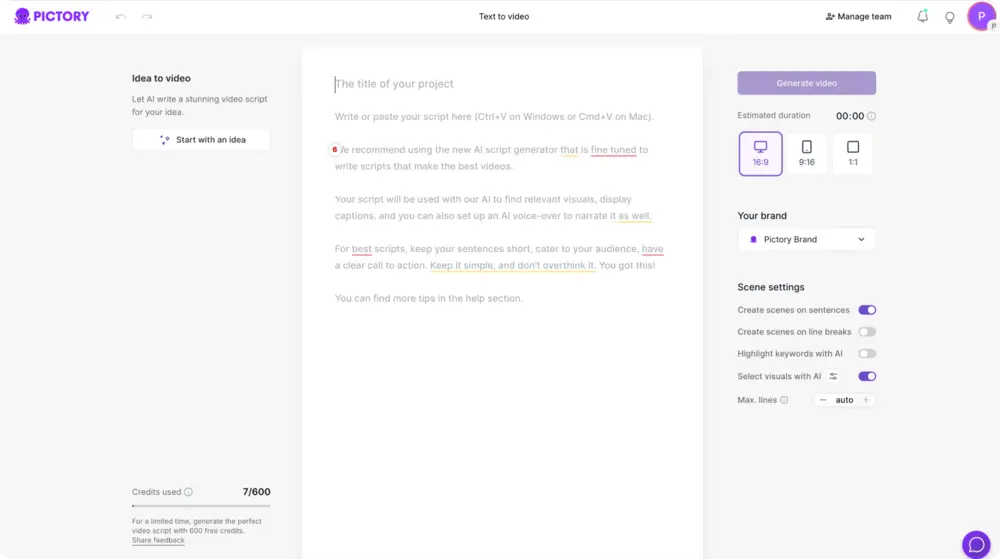
From the Pictory home screen, select Text to Video to enter the workflow in AI Studio. Paste your sales script into the input field. If you need a first draft, use the built-in AI script generator to produce a starting script and then refine it for your product and audience.
Step 2: Configure scene settings for sales enablement clarity
In the script editor, set scene and formatting controls to match your preferred pace and readability:
- Choose an aspect ratio based on destination channel: 16:9 for training portals and enablement hubs, 9:16 for mobile-first content, 1:1 for internal social.
- Enable sentence-based or line-break-based scenes to control how the script is segmented.
- Turn on keyword highlighting if you want key benefits or differentiators to stand out on screen.
- Set max lines per scene to keep captions scannable for reps.
- Select a brand kit to keep fonts, logo, and colors consistent across the sales enablement program.
Step 3: Generate the video storyboard from your script
Click “Generate video” to let the ai text to video engine convert your script into a scene-based storyboard. Pictory will automatically create scenes, match visuals to each section, and prepare captions aligned to the script.
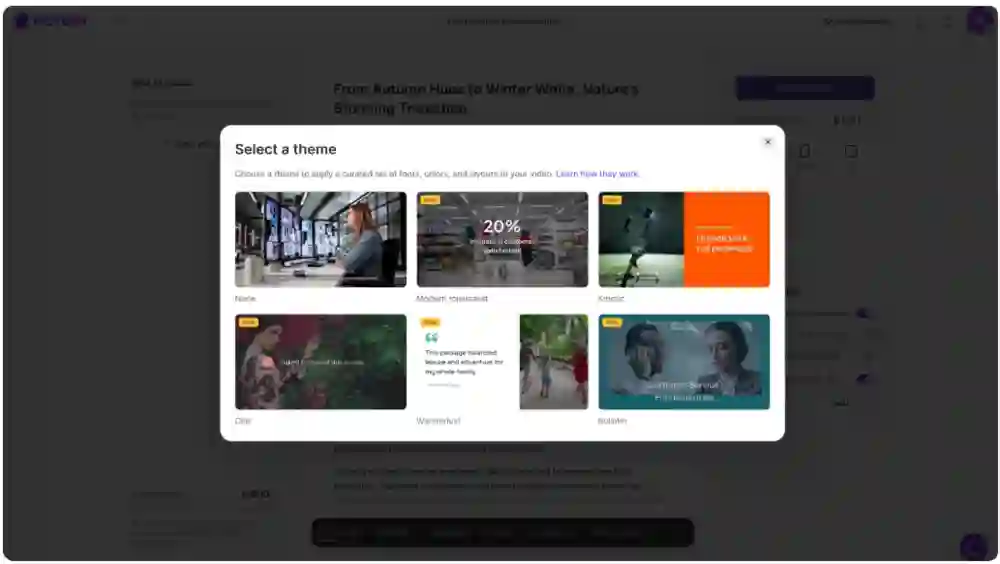
Step 4: Choose a theme and layout designed for enterprise sales content
Select a layout theme that fits your brand and sales enablement style guidelines. Themes apply curated typography, spacing, and composition for a professional look without manual design work.
Step 5: Refine scenes in the AI Video Editor for rep-ready delivery
Open the editing workspace to fine-tune the video. In the editor you can adjust script lines per scene, revise captions, and improve flow. For deeper edits and polish, use the AI Video Editor tools:
- Reorder or adjust scenes using the storyboard and timeline thumbnails.
- Right-click scene thumbnails to duplicate, copy, paste after, link with next, or delete.
- Use timeline zoom for faster navigation on longer training videos.
Step 6: Replace or upgrade visuals for product accuracy and buyer relevance
Go to the Visuals tab to swap any stock visuals that do not match your product, industry, or persona. Use the built-in AI Studio tab inside Visuals to generate AI images or AI videos from prompts for more specific sales scenarios, then add them to your scenes.
If your enablement video needs a short product walkthrough, consider creating a quick demo recording with Smart Screen Recorder, then edit and package it alongside your text-to-video modules.
Step 7: Add voiceover, background music, and optional AI avatars for sales training
In the Audio tab, choose an AI voice for narration and add background music if appropriate for the audience. For presenter-led enablement, you can add an AI presenter from the Avatars tab, select a voice, and apply the avatar across scenes for consistent delivery. This is useful for standardized onboarding, product updates, and compliance-style sales training video formats.

Step 8: Apply branding and export for distribution
Use the Branding tab to ensure your logo, fonts, and colors match enterprise guidelines. When ready, preview the full video and download for distribution to your sales enablement platform, LMS, email sequences, or internal channels.
How to standardize enterprise sales enablement content with Brand Kits
Brand consistency is a common challenge in enterprise sales enablement, especially across multiple regions and teams. Brand Kits help you create repeatable, on-brand videos even when multiple stakeholders contribute.
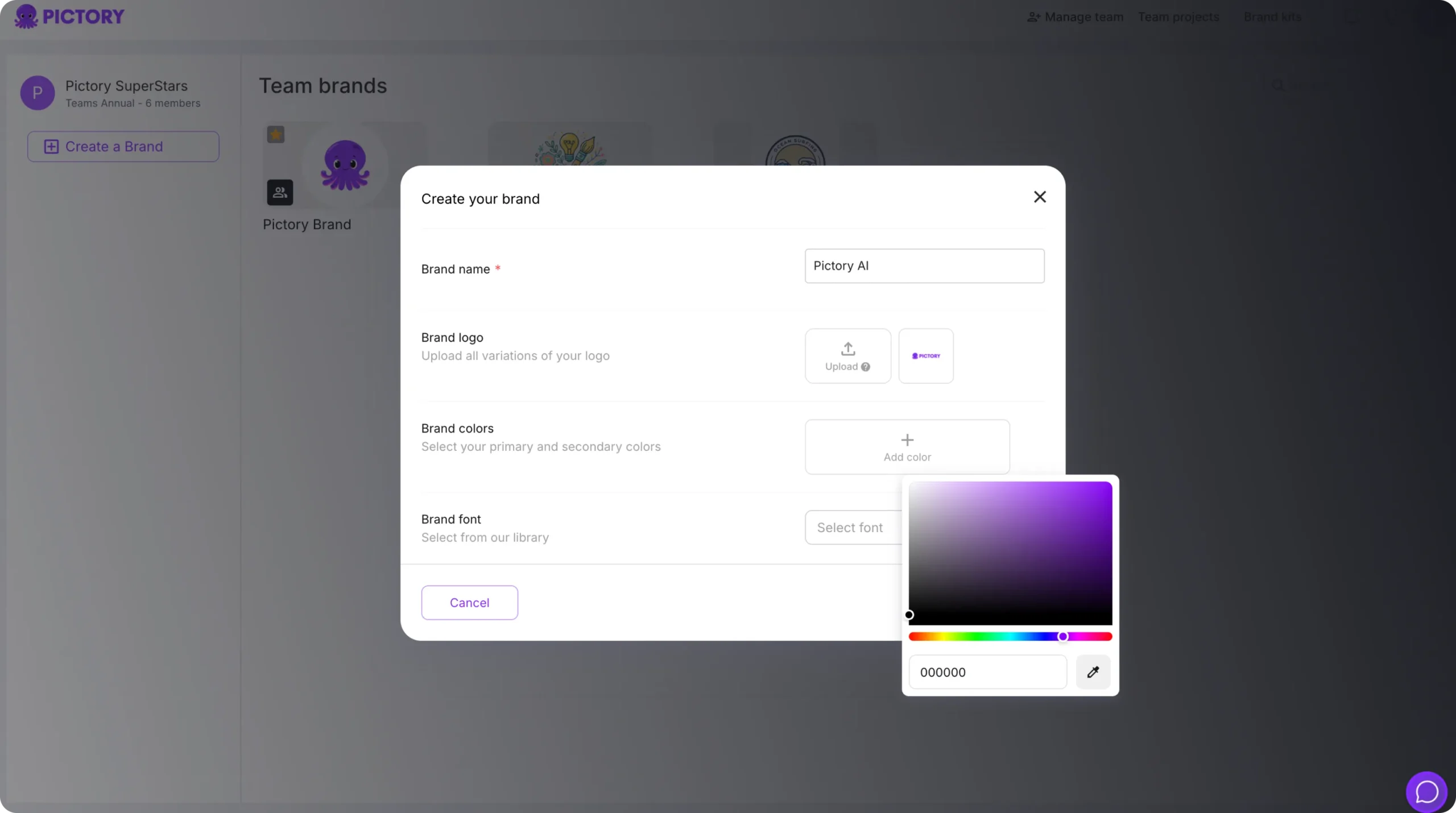
- Create or manage brand kits from the Brand Kits area in the left navigation.
- Add brand name, upload logo variations, choose brand colors, and select a font.
- Apply the kit in the editor so captions, overlays, and style choices stay consistent.
- Test alternative brand palette combinations using color palette shuffle to quickly preview options while maintaining brand alignment.
Optimize sales enablement training videos with captions, text overlays, and animations
Sales reps often watch enablement content in short bursts, sometimes without sound. Captions and on-screen text increase comprehension and retention.
- Use readable max-lines settings per caption to reduce clutter.
- Add headings, subheadings, and body text overlays in the Text tab to reinforce key points such as value props, pricing qualifiers, and proof points.
- Use the Animate Text control in the top toolbar to add entry and exit animations such as Fade, Typewriter, Wipe, or Text Reveal for emphasis on differentiators and next steps.
- Apply Styles to keep typography consistent across every sales enablement asset.
Scaling sales enablement video production with reusable workflows and content repurposing
Once your team has a repeatable workflow, you can scale sales enablement content without scaling headcount. Common enterprise use cases include product release updates, competitive battlecards, objection-handling libraries, channel partner enablement, and sales enablement training programs.
- Turn scripts into videos quickly with the text to video generator for consistent output.
- Convert existing resources into video using URL to Video for web content and PPT to Video for decks.
- Use the AI Video Editor to keep a single editing environment for all formats.
- Create visual sequences from product screenshots and customer logos with Image to Video when you want tight control over the story order.
FAQ: Text to Video for Sales Teams: Creating Sales Enablement Videos Instantly
What is the fastest way to create sales enablement videos from a script?
Use Pictory’s Text to Video generator: paste your script, configure scene settings, click Generate video, then refine visuals, captions, and branding in the editor. This is a practical approach for enterprise sales enablement teams that need repeatable production speed.
Can I keep sales enablement videos on brand across global teams?
Yes. Apply Brand Kits to standardize logos, fonts, and colors, and use consistent styles and layouts in the editor. This helps distributed sales enablement teams create videos that match corporate guidelines without manual design work.
How do I add text to a video for key talking points and objections?
In the editor, use the Text tab to insert headings, subheadings, or body text overlays. You can also enable keyword highlighting and adjust caption settings for readability, which is helpful for objection handling, competitive positioning, and sales enablement training.
Can I update a sales enablement video when messaging changes?
Yes. Edit the script or scene text in the Story tab, then adjust scenes and visuals as needed. This workflow is designed to reduce rework when pricing, positioning, or product capabilities change.
Do I need a screen recording for product demos in sales training videos?
Not always. For concept explainers and talk tracks, text-to-video is often enough. For workflow demonstrations, record a quick product walkthrough with Smart Screen Recorder, then polish the result with captions and branding in the editor.
What types of sales enablement content work best with AI text to video?
Short modules perform especially well: product updates, new feature announcements, competitive comparisons, objection-handling scripts, value messaging refreshers, onboarding microlearning, and channel partner enablement. These formats map cleanly to scene-based scripting and rapid updates.


